

The “Access Denied” error in Windows 11 blocks users from opening, modifying, or deleting files and folders, even with administrator rights. This issue commonly appears after moving drives from another PC, restoring backups, or when system permissions become misconfigured. These restrictions can prevent file transfers, software installations, and even basic file management, disrupting productivity and causing data migration headaches.
Take Ownership of the Folder or Drive
Ownership conflicts often prevent users from accessing folders that originated on a different Windows installation or user account. Taking ownership assigns full control to your current account, resolving most access issues.
Properties.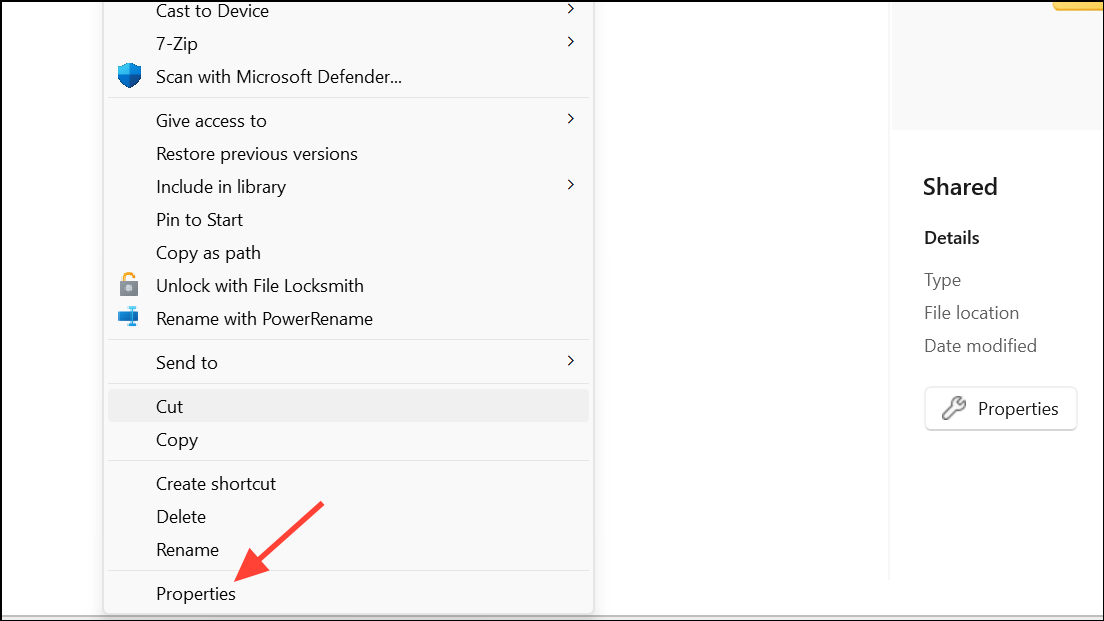
Security tab. Click the Advanced button to open Advanced Security Settings.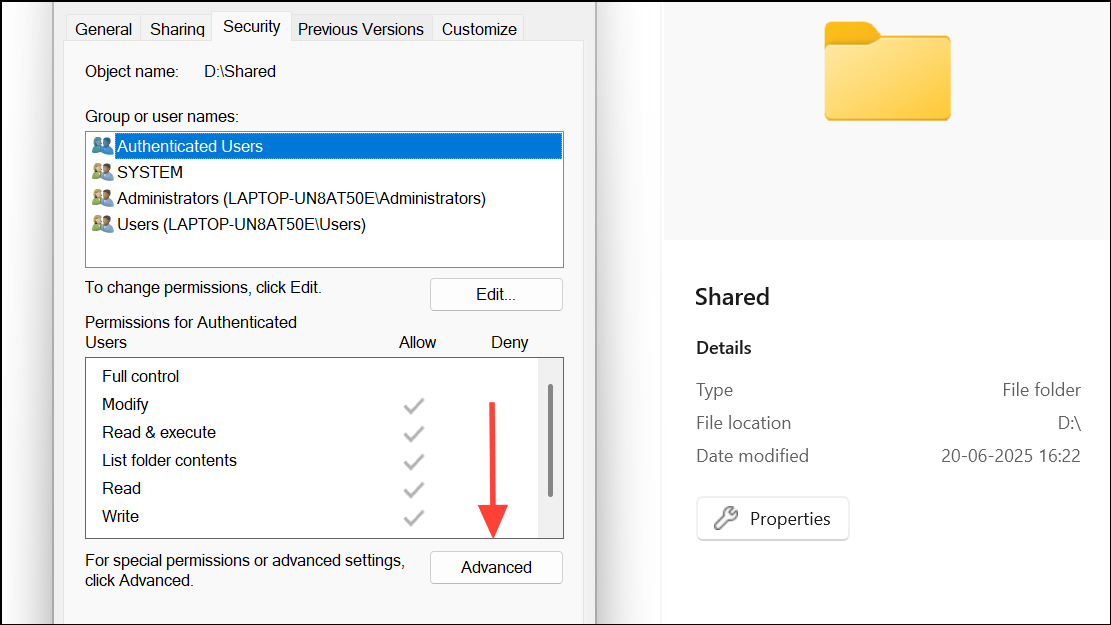
Owner field and click Change. In the dialog, type your username, then click Check Names to validate. Click OK.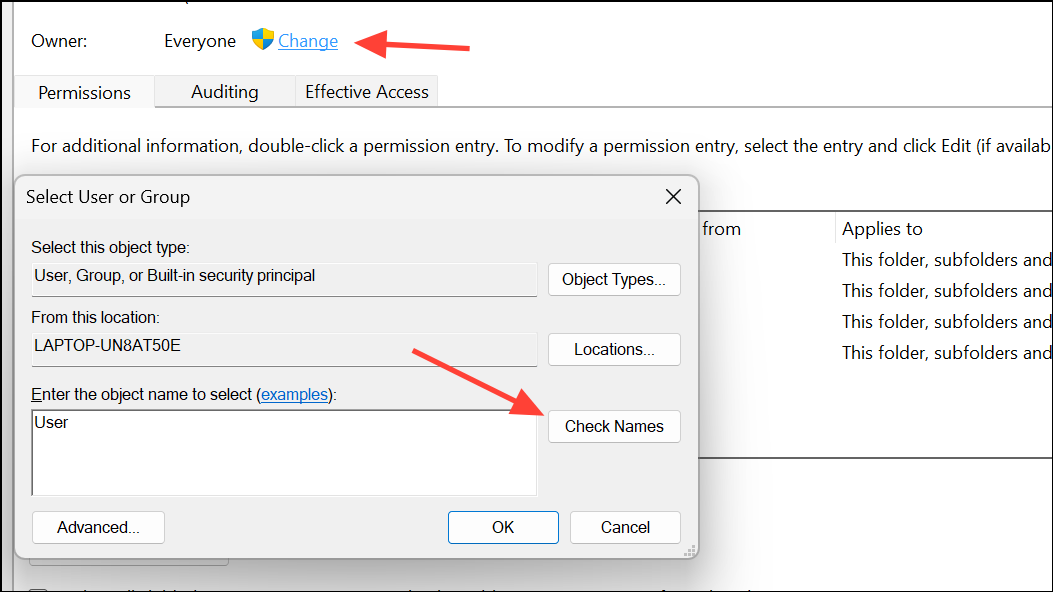
Replace owner on subcontainers and objects to apply ownership recursively. Click Apply and OK.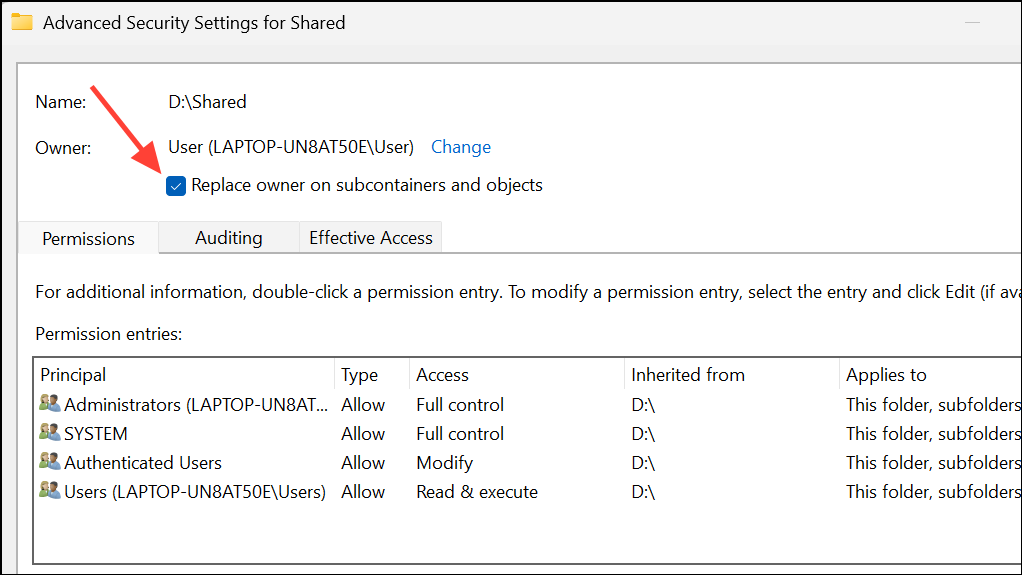
Edit, select your user account, and check Full control under the Allow column. Click OK to save changes.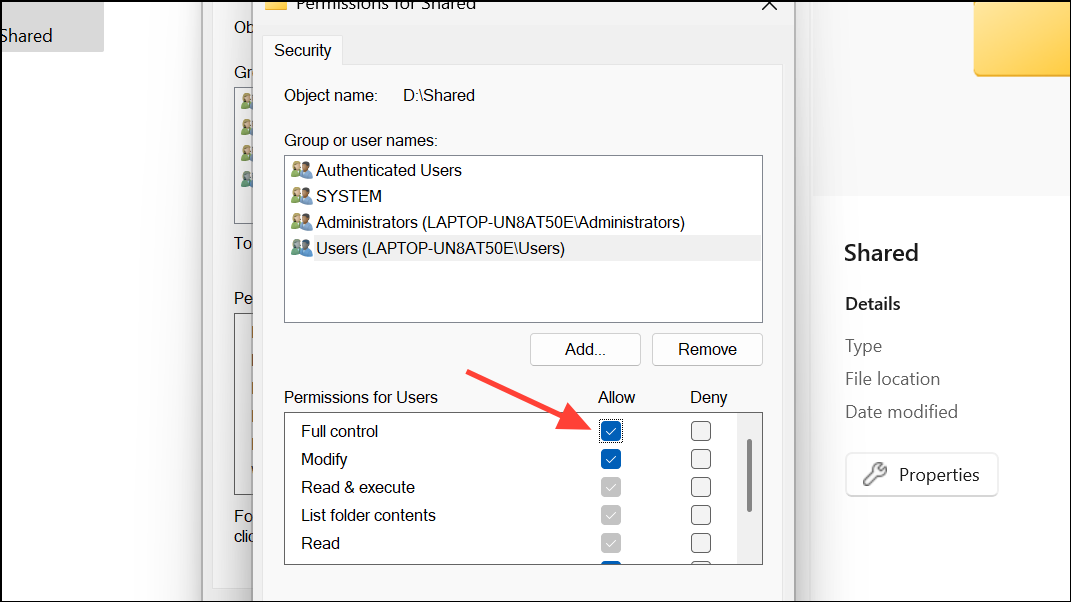
Taking ownership and granting full control should resolve most access issues. If you do not see your username listed, add it manually and assign the appropriate permissions.
Use Command Prompt to Force Ownership and Permissions
When graphical tools fail or the Security tab is missing, command-line tools provide a direct way to reset permissions and ownership. This method is especially effective for external drives or folders with stubborn restrictions.
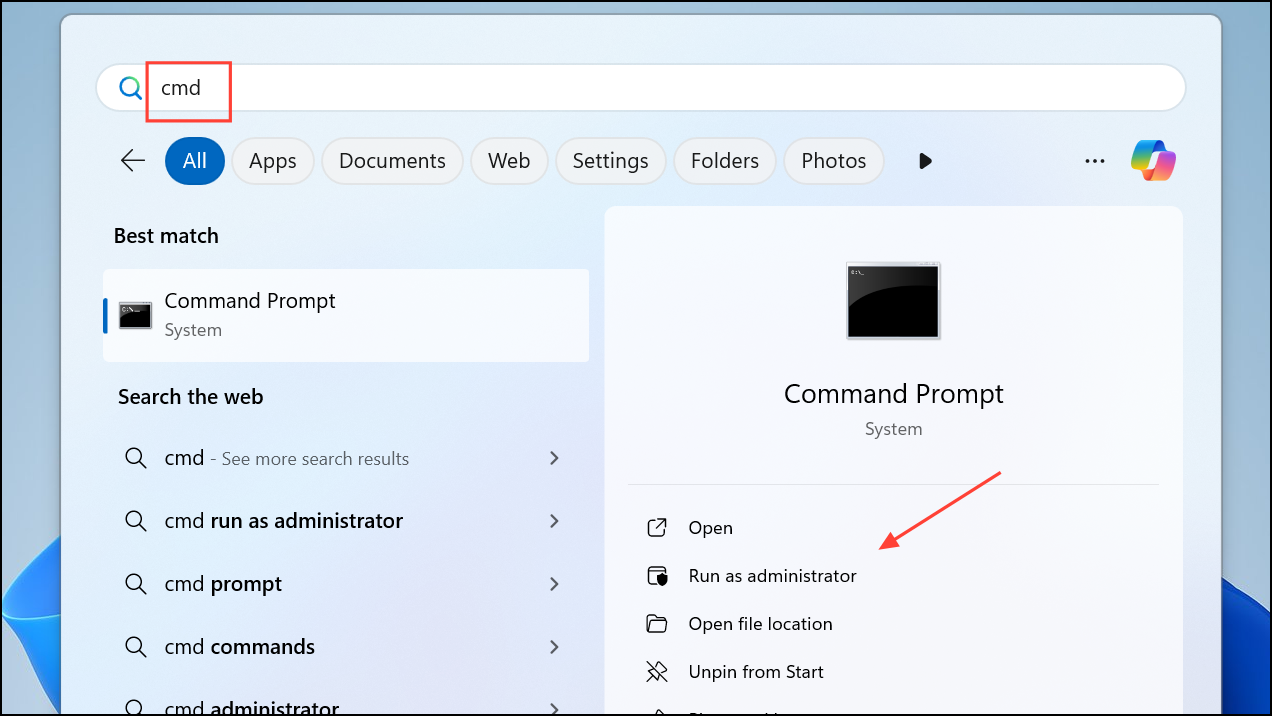
path_to_folder with your actual folder path):takeown /f "path_to_folder" /r /d y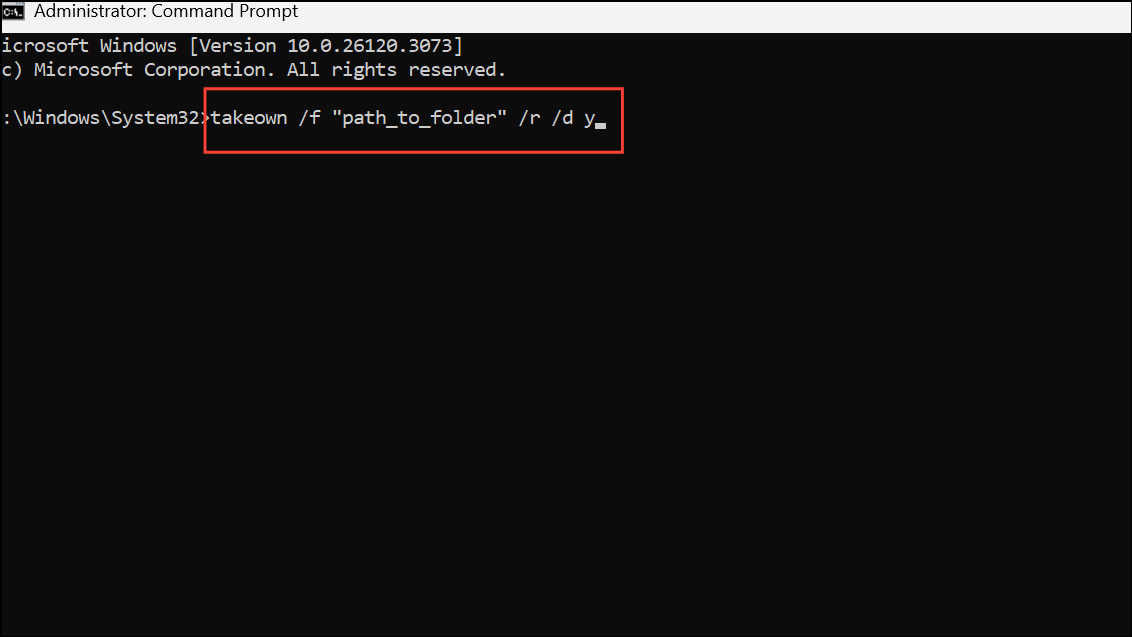
icacls "path_to_folder" /grant administrators:F /t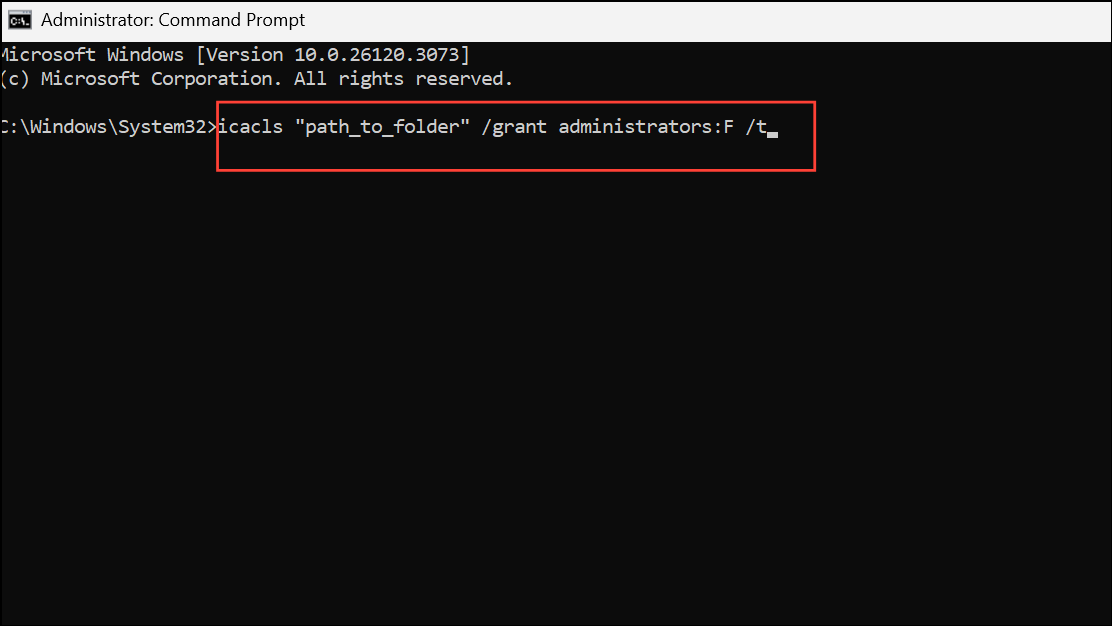
These commands recursively assign ownership and full permissions to the administrators group. After running them, restart your computer and try accessing the folder again.
Enable the Hidden Administrator Account
Windows 11 includes a hidden built-in Administrator account with unrestricted privileges. Temporarily activating this account can bypass stubborn permission barriers, especially when other methods fail.
net user administrator /active:yes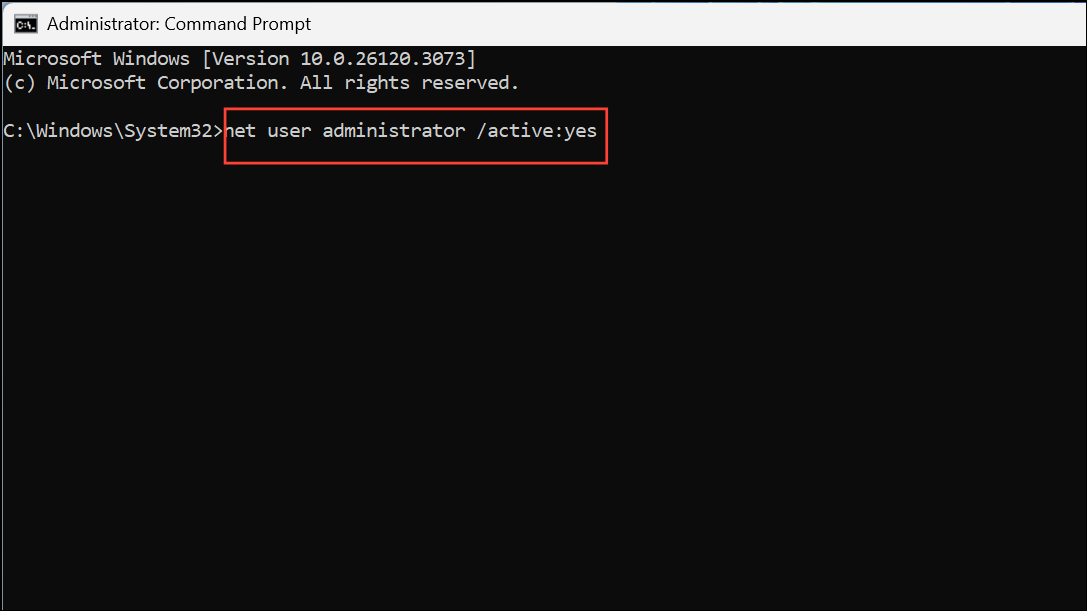
Administrator account and log in.net user administrator /active:no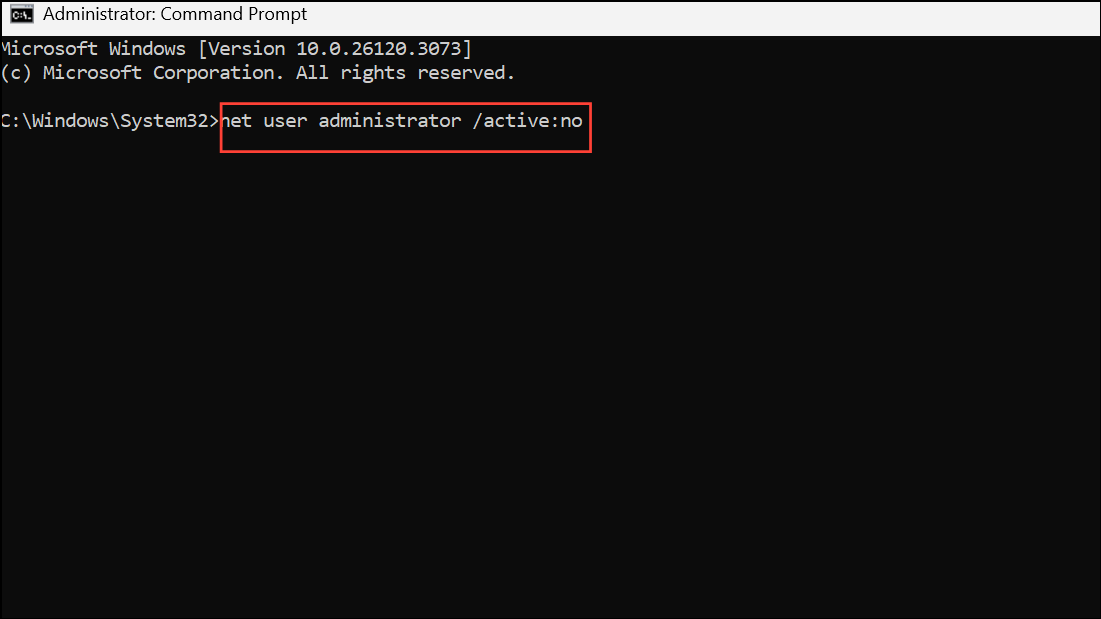
Leaving the built-in Administrator account enabled increases risk from malware or accidental changes. Always disable it when not in use.
Check and Adjust File System Permissions
Incorrect or missing file permissions can cause “Access Denied” errors even if you are the owner. Adjusting permissions ensures your account or group has the necessary rights.
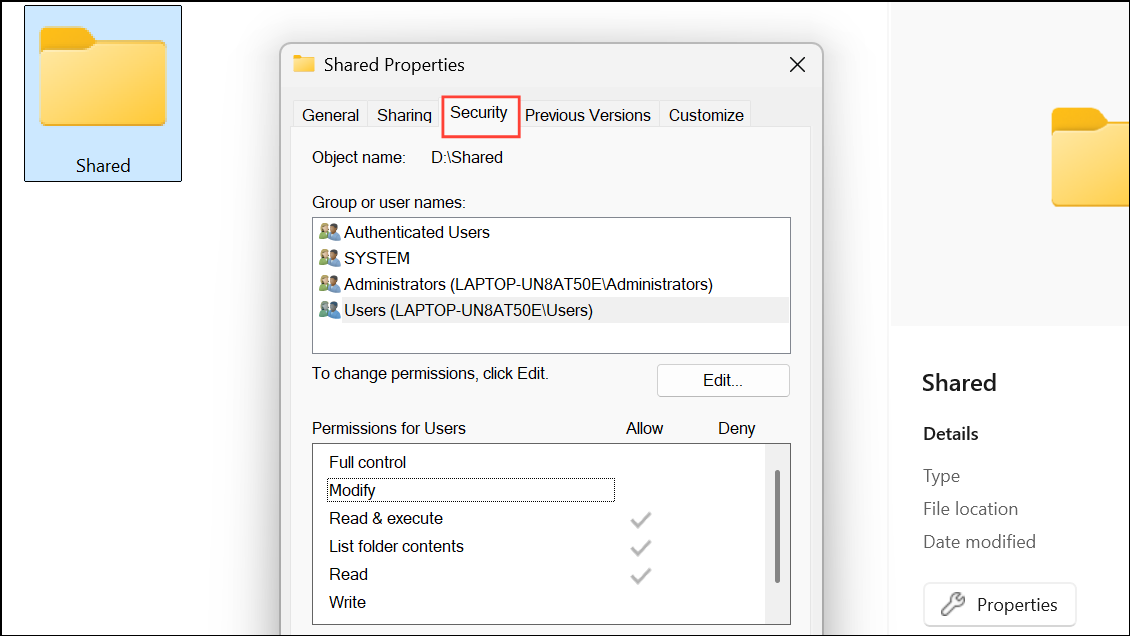
Edit to modify permissions. Select your user account or the Administrators group, then check Full control in the Allow column.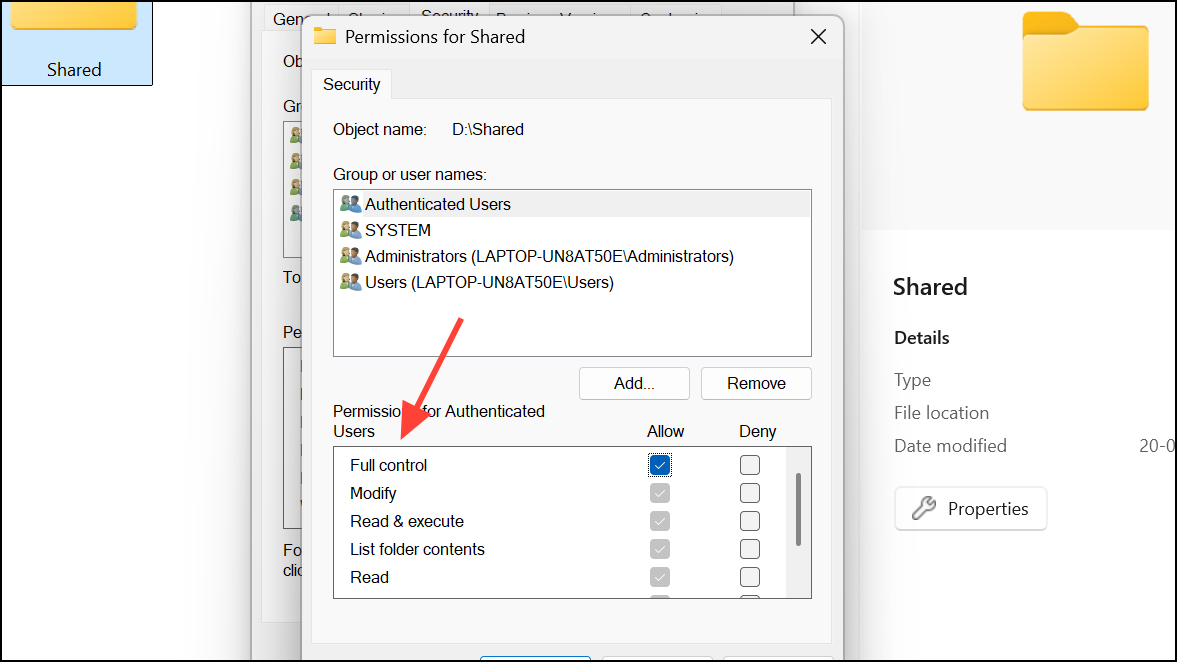
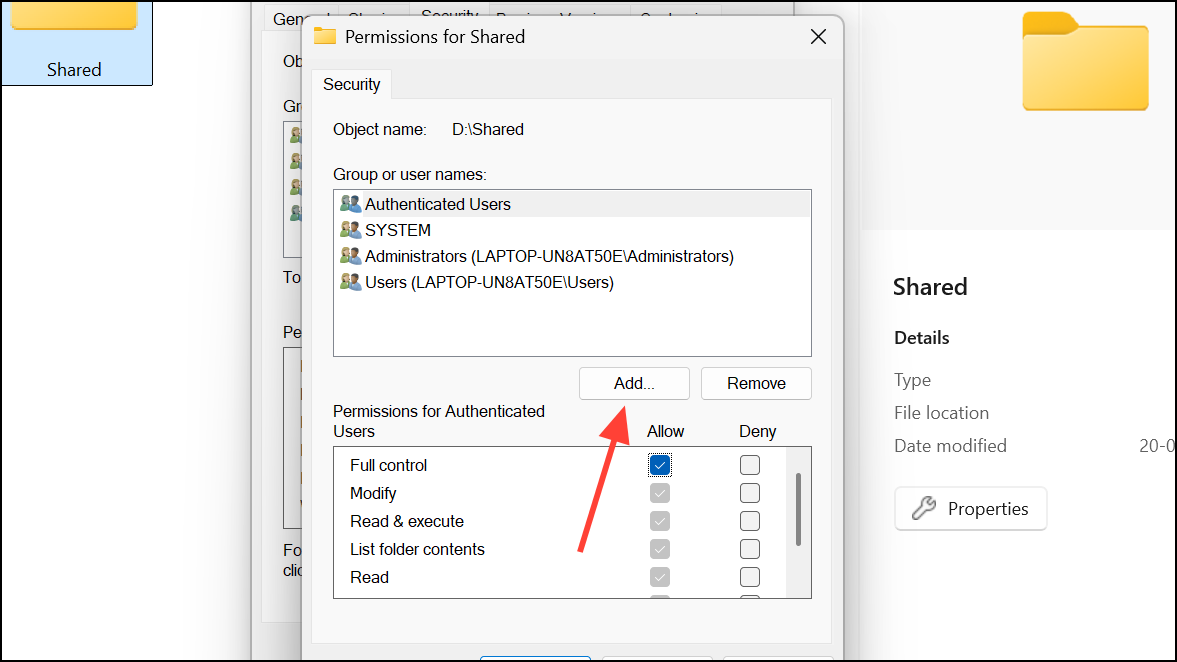
For system folders like WindowsApps or Program Files, stricter access controls are enforced by Windows. Manual changes can break applications or system updates, so proceed only if necessary and back up your system first.
Temporarily Disable Third-Party Security Software
Some antivirus or security tools interfere with file system operations, mistakenly blocking legitimate access. Disabling these tools temporarily can help identify if they are the cause.
Create a New User Account
Corrupted user profiles can trigger persistent access errors. Creating a new account can resolve these issues by providing a fresh set of permissions and user settings.
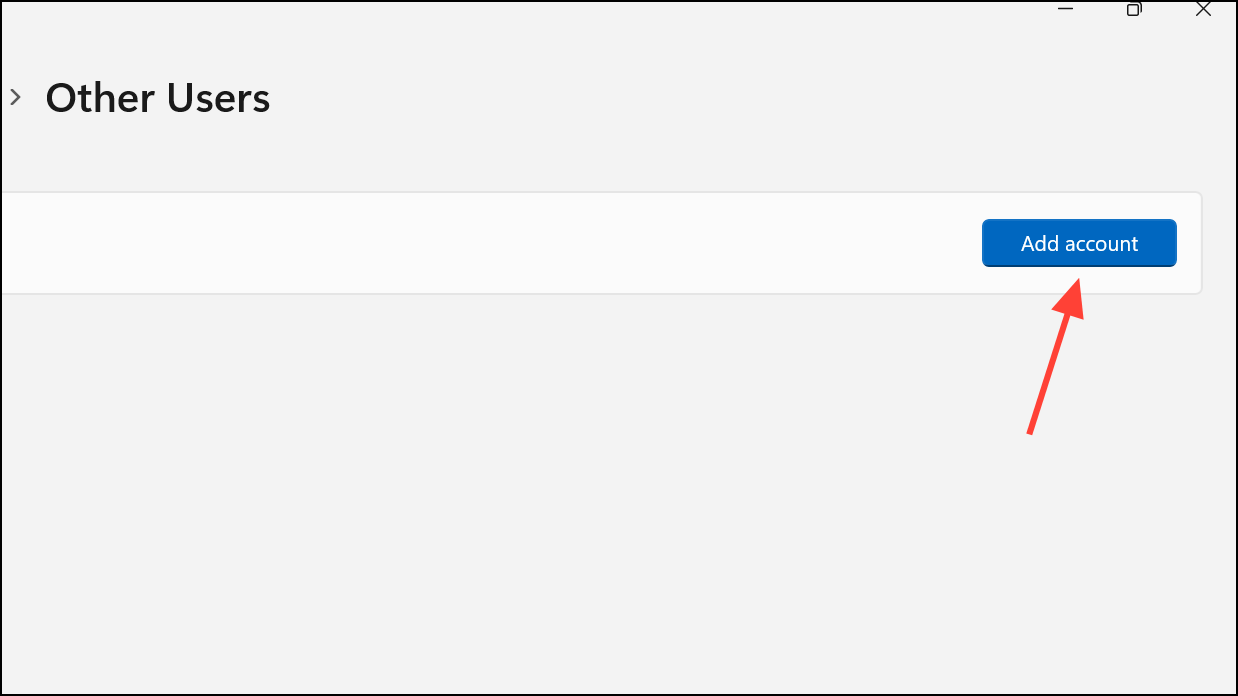
I don't have this person's sign-in information > Add a user without a Microsoft account if you want a local account.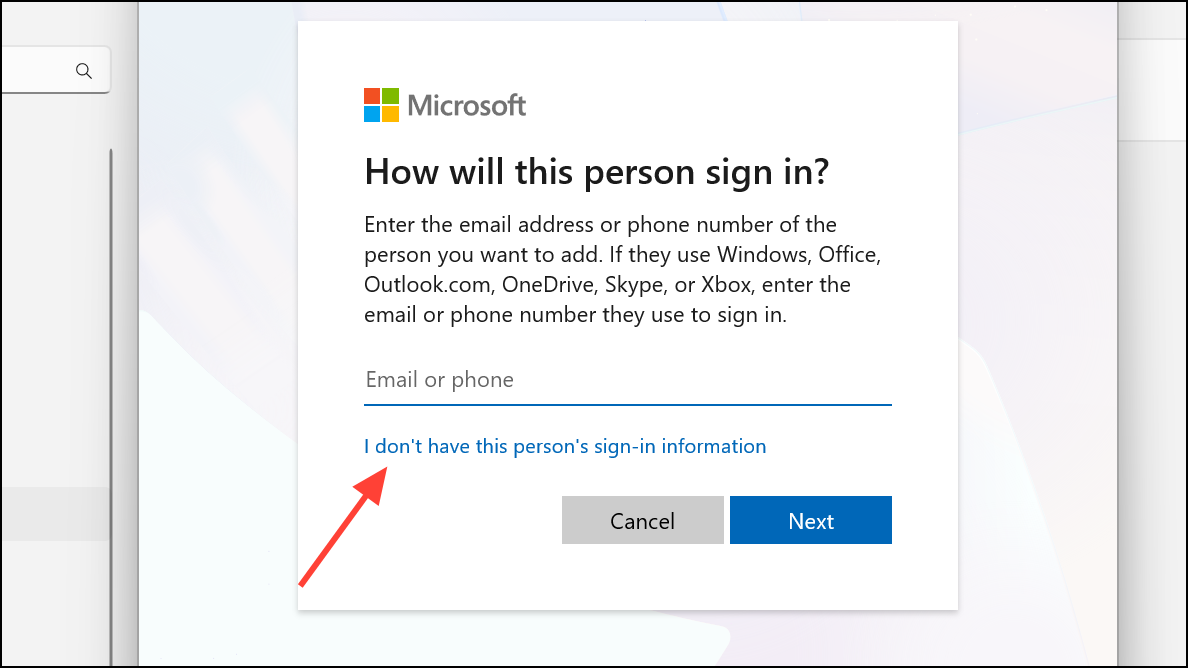
Additional Tips and Cautions
- When working with system or application folders (such as
WindowsApps), changes may only be possible using tools that run asTrustedInstaller. Utilities like PowerRun or AdvancedRun can help, but improper use can cause system instability. - Always back up important data before making ownership or permission changes, especially on external or migrated drives.
- If the Security tab is missing, the drive may be formatted with a file system that does not support NTFS permissions (e.g., FAT32 or exFAT). Convert the drive to NTFS if advanced permissions are needed.
- For persistent issues after Windows updates or system restores, running
sfc /scannowandDISM /Online /Cleanup-Image /RestoreHealthin Command Prompt can repair system file corruption that may be affecting permissions.
Regaining access to denied or restricted folders in Windows 11 often comes down to taking ownership, resetting permissions, or using the built-in Administrator account. With careful attention to these steps, you can restore control over your files and avoid future permission headaches.



