
Extra space between lines or paragraphs in Microsoft Word can make documents look awkward and disrupt their intended layout—especially when default settings don’t match your formatting needs. Modifying line spacing allows you to create documents that look cleaner, are easier to read, and comply with style guidelines for academic, business, or personal use.
Change Line Spacing for the Entire Document
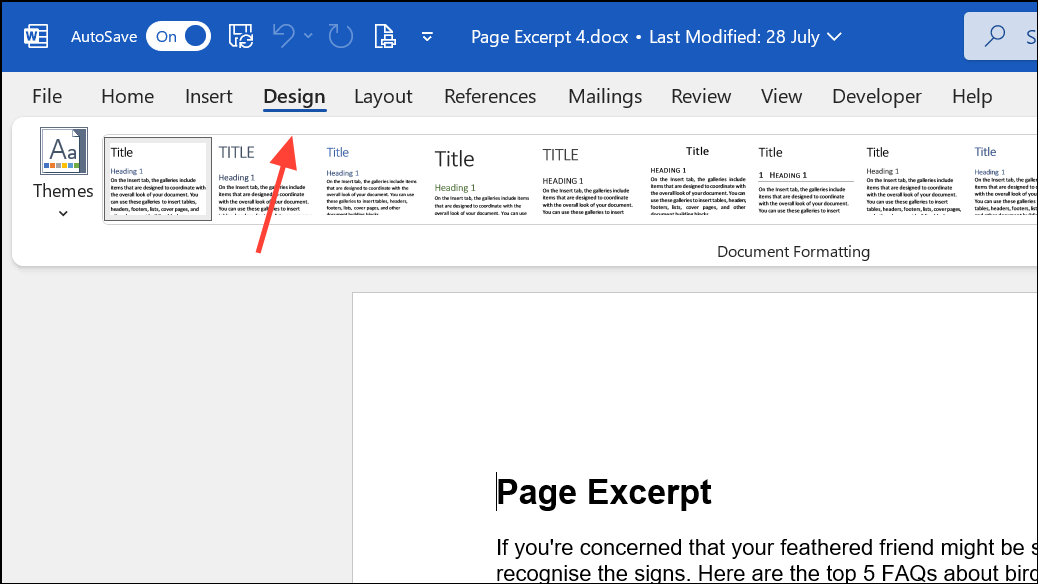
Open your document and navigate to the Design tab at the top of the Word window. The Design tab contains several formatting options that apply to your whole document.
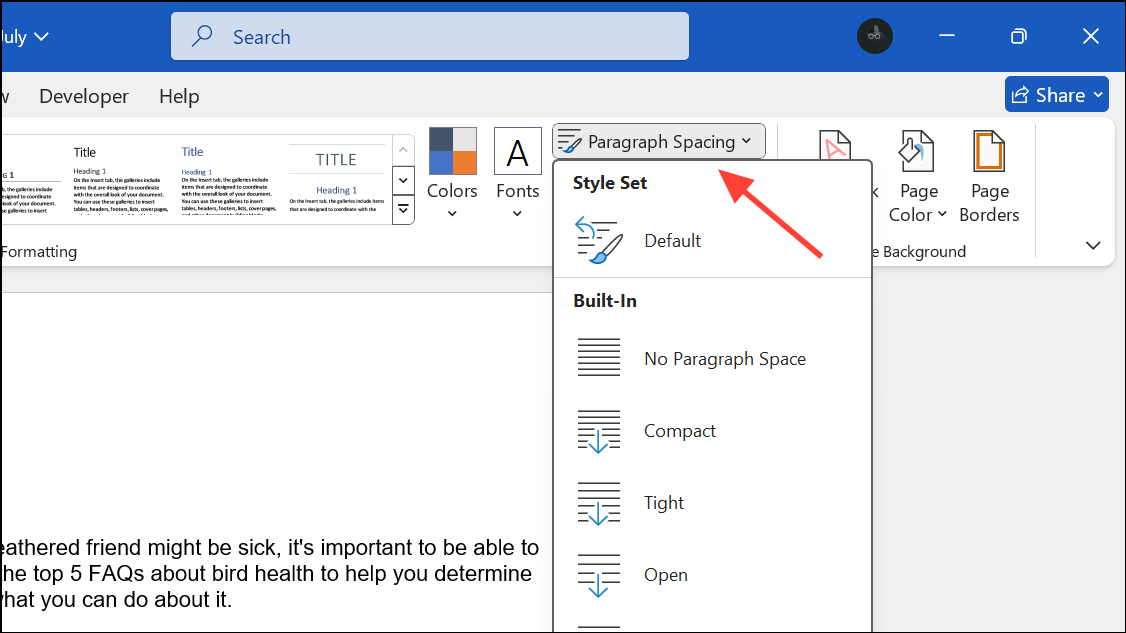
Click on Paragraph Spacing. This menu provides several preset spacing options. Hover your cursor over each option to preview how it will affect your document’s appearance.
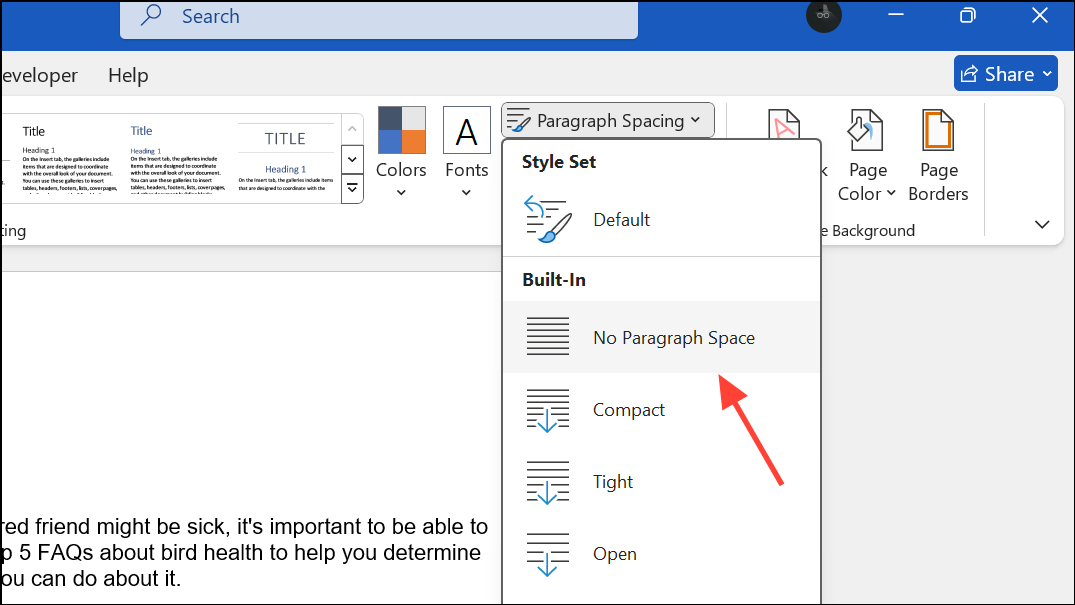
To set your document to single spacing, select No Paragraph Space. This removes extra space between paragraphs and applies single line spacing throughout your document.
If you want to restore the original spacing settings later, return to Design > Paragraph Spacing and choose the default or current style set listed under Style Set.
Change Line Spacing for Selected Paragraphs
Highlight the text or paragraphs where you want to adjust the spacing. If you want to apply changes to the entire document, press
Ctrl + A to select everything.Go to the Home tab and locate the Line and Paragraph Spacing button in the Paragraph group. This button typically displays horizontal lines with up and down arrows.
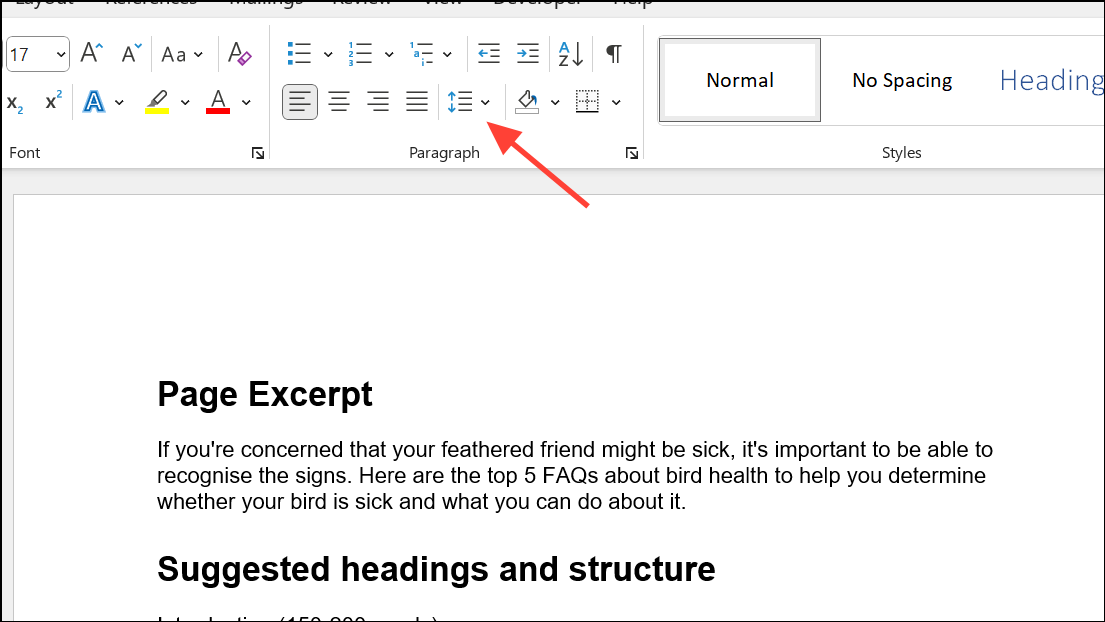
Click the Line and Paragraph Spacing button to see a dropdown menu with common spacing options (such as 1.0, 1.15, 1.5, 2.0).
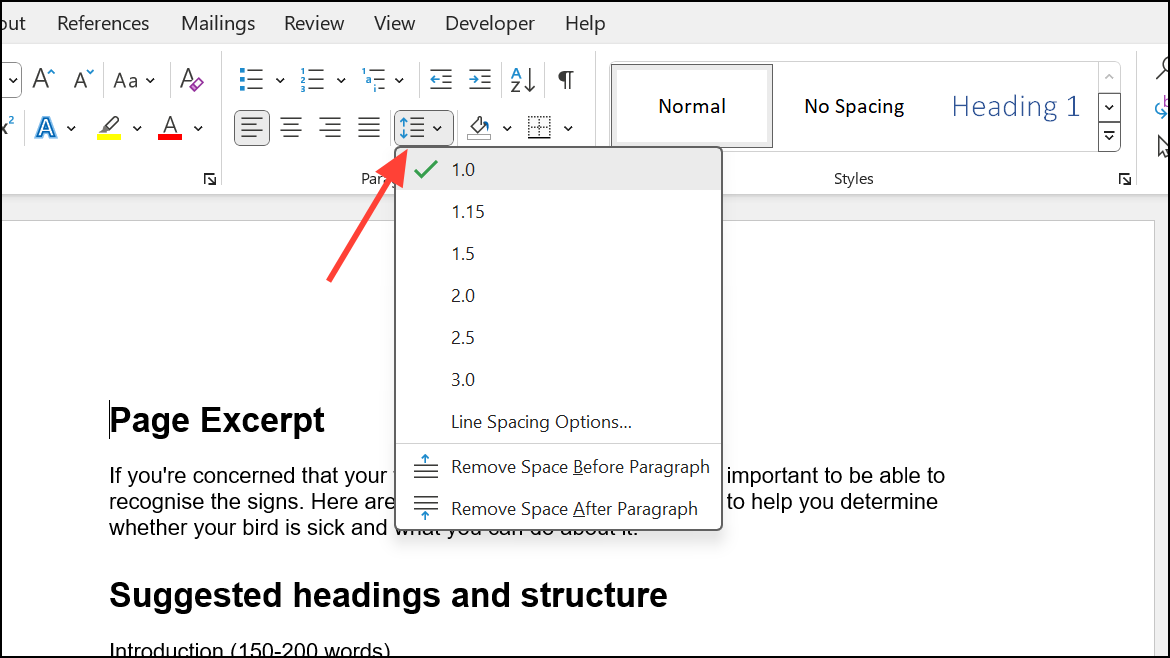
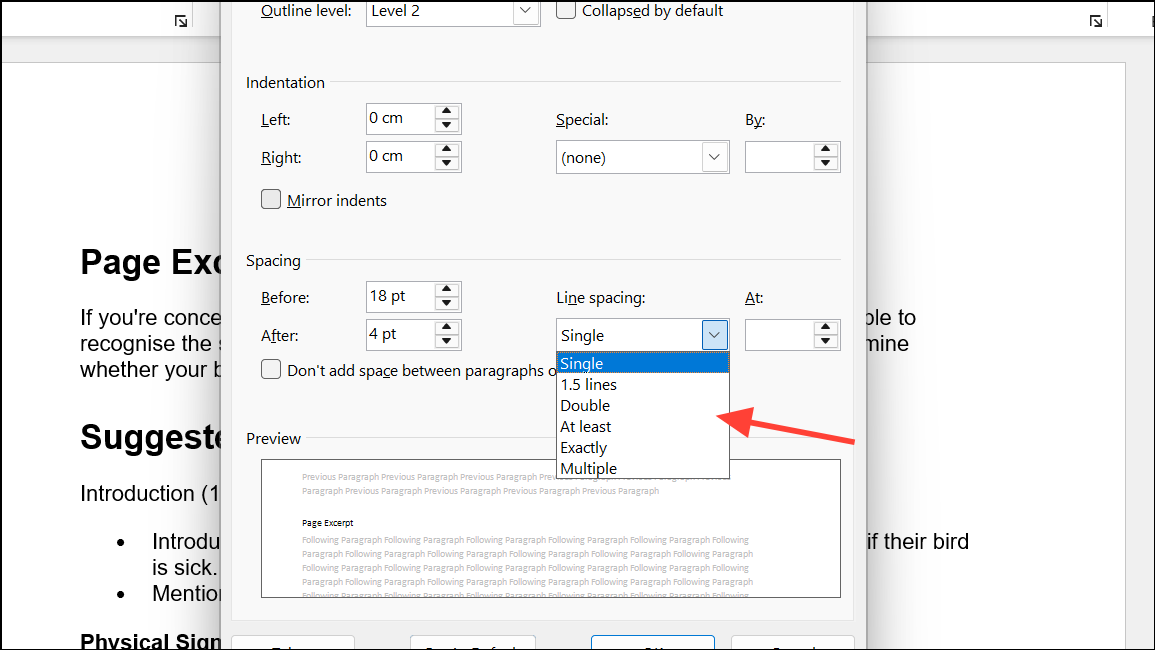
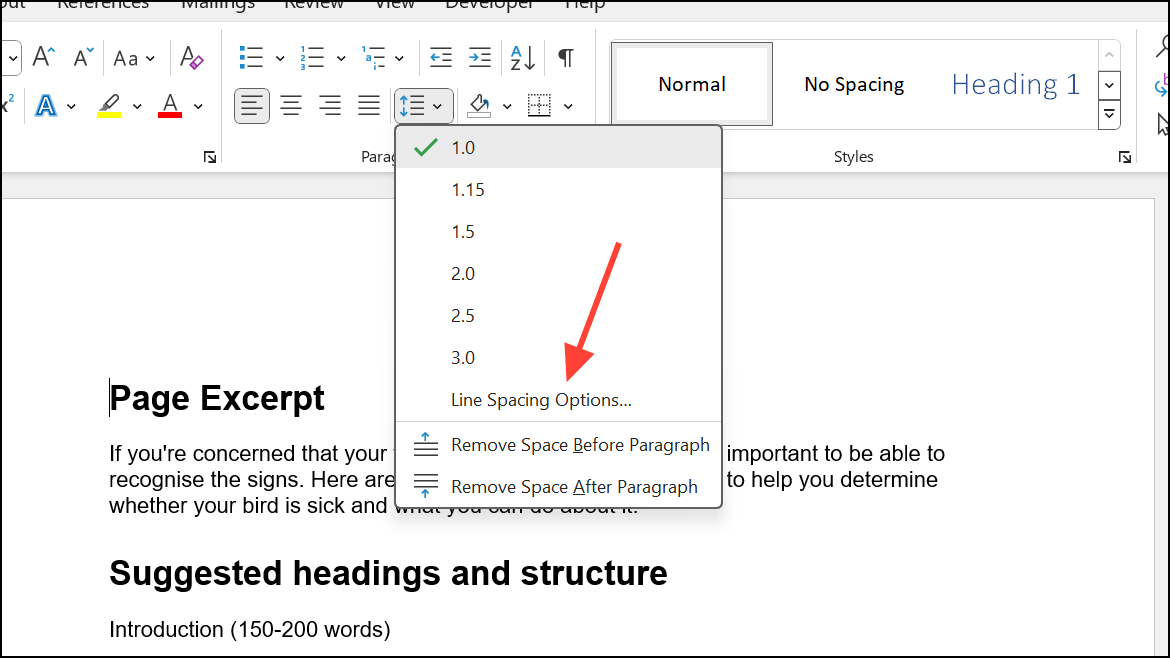
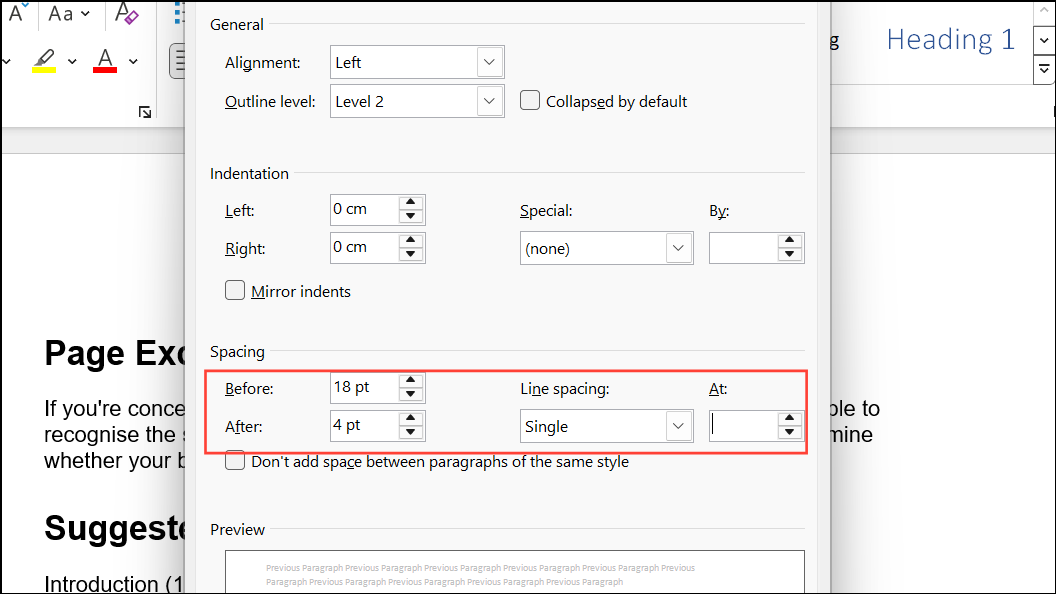
To customize the spacing, select Line Spacing Options from the dropdown. In the dialog box that appears, you can set precise values for Line spacing (such as Single, 1.5 lines, Double, or Exactly) and adjust Spacing Before and After to control the space above or below each paragraph.
Set Default Line Spacing for All New Documents
With a document open, go to the Home tab and click the Line and Paragraph Spacing button in the Paragraph group.
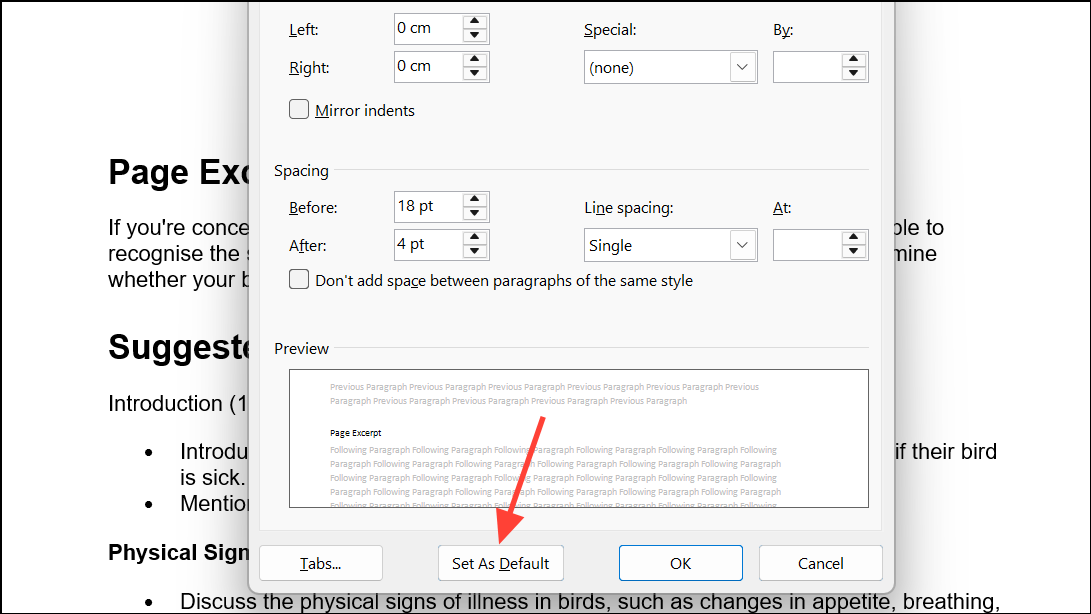
Click Set as Default at the bottom of the dialog box. When prompted, select All documents based on the Normal template to make your new settings standard for all future documents.
Adjust Line Spacing on Word for Mobile Devices
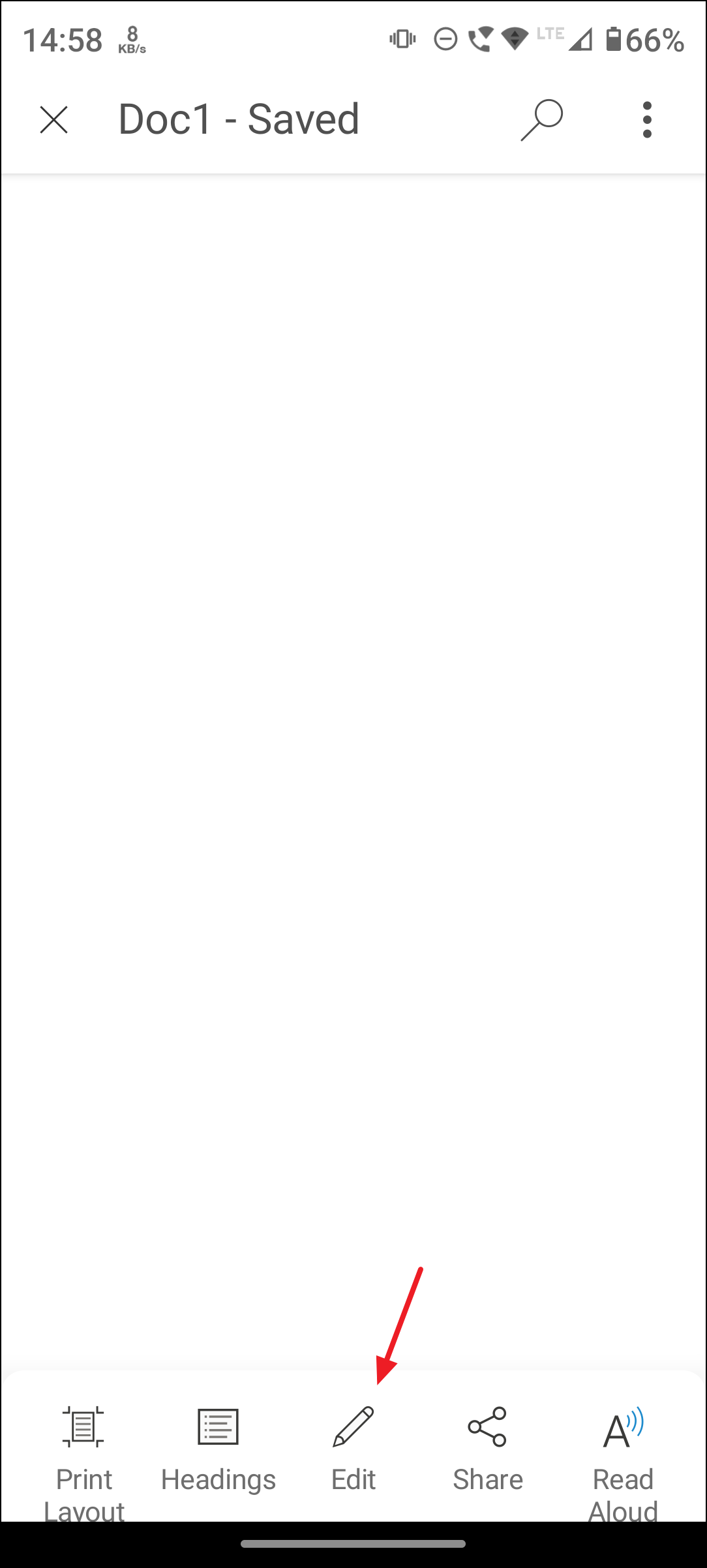
Tap the Edit icon (usually a pencil) to enter editing mode, then select the text you want to modify.
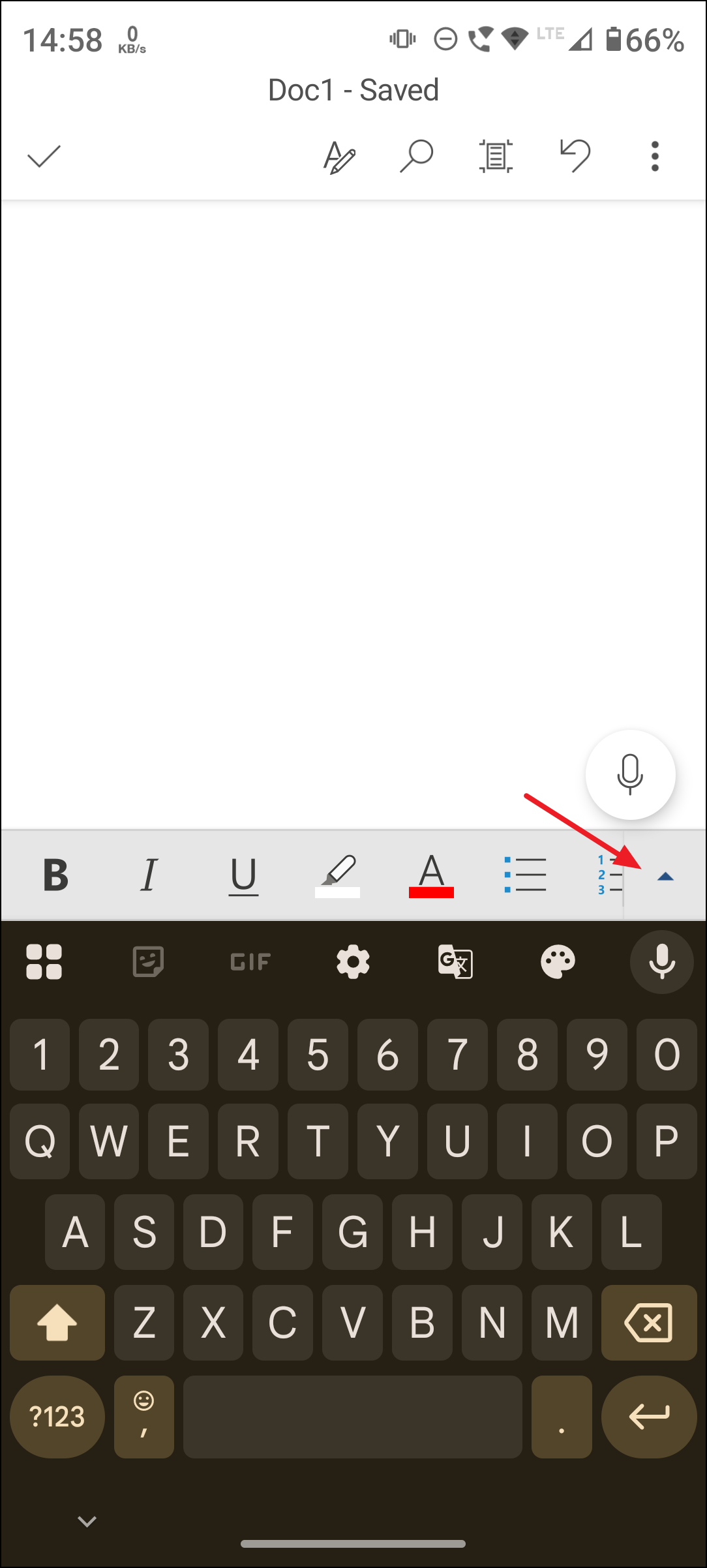
Look for the Format or Paragraph Formatting menu (this may appear as an “A” with lines or as a dedicated paragraph icon). If you cannot find it directly, tap the upward-pointing arrow on the right side to see more options.
Adjust the Line spacing and Paragraph spacing options as needed. Some mobile versions may use sliders or preset buttons for common spacing values.
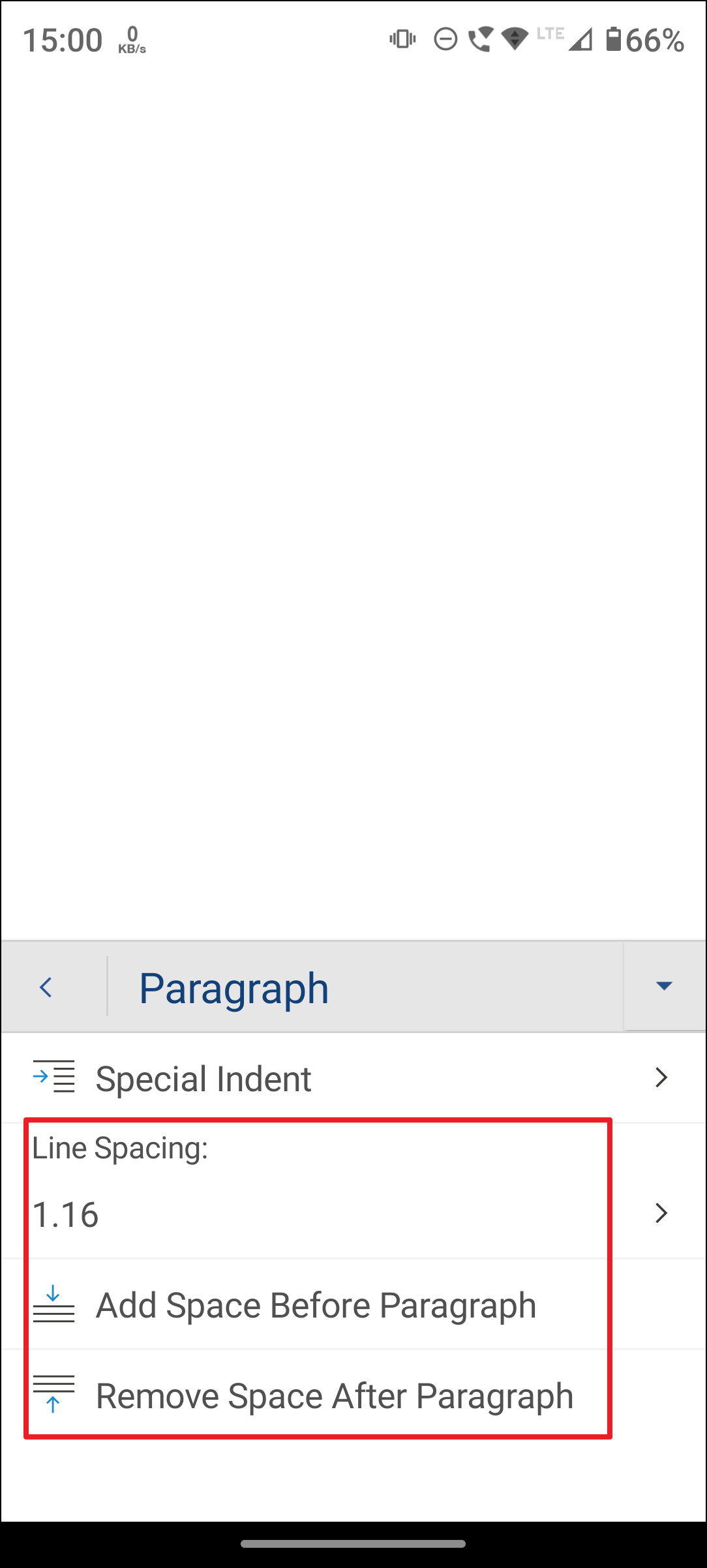
The changes will apply immediately to the selected text. Save your document to keep the new formatting.
Keep Lines or Paragraphs Together on a Page
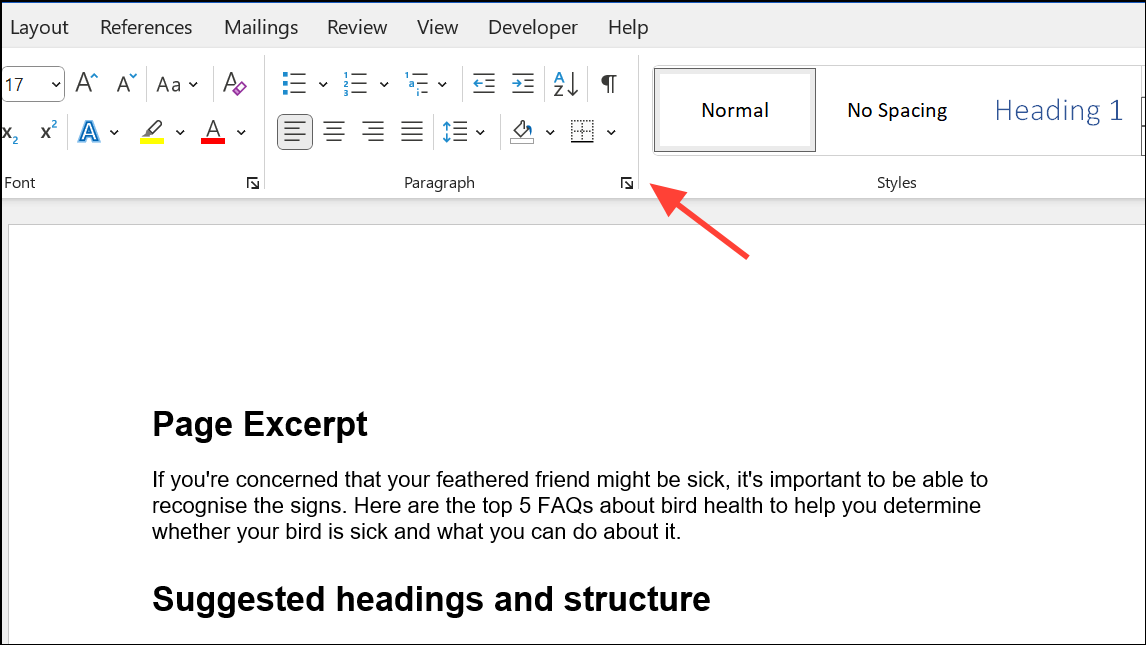
Go to the Home tab, click the small arrow in the bottom-right corner of the Paragraph group to open the Paragraph dialog box.
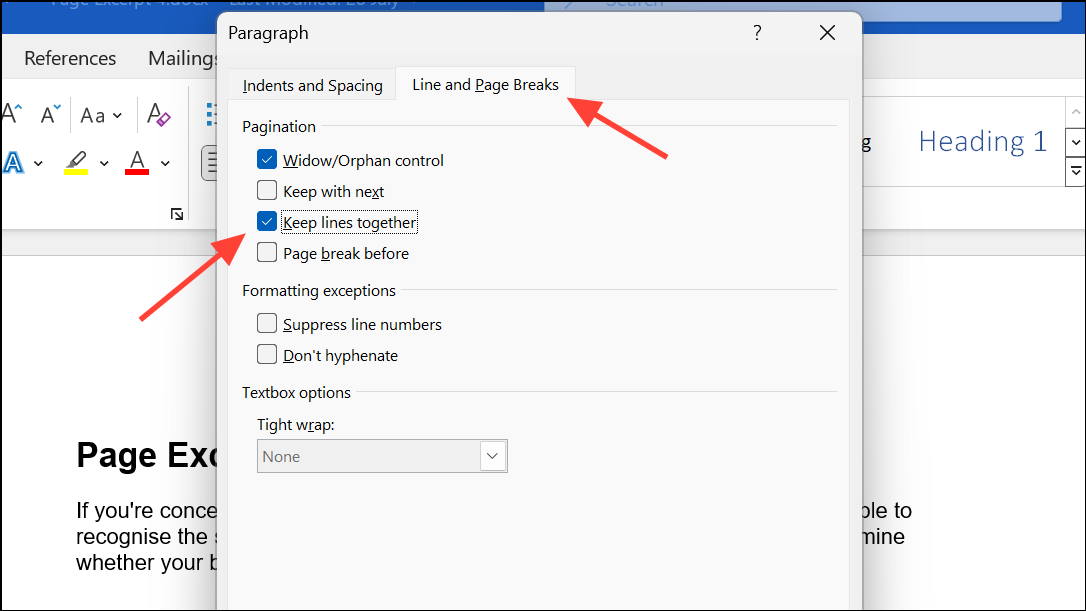
Switch to the Line and Page Breaks tab. Check Keep lines together to ensure all lines in a paragraph stay on the same page, or check Keep with next to keep consecutive paragraphs together.
Changing line spacing in Microsoft Word improves document readability and helps you meet formatting requirements. These steps give you full control over spacing for both individual sections and entire documents, whether you’re using a desktop or mobile device.





