
Mouse sensitivity differences between games can disrupt your aim and muscle memory, especially when switching to Battlefield 6 from other popular shooters. Battlefield 6 now includes built-in tools for displaying your mouse movement distance per 360-degree rotation, but many players still need to transfer their precise sensitivity settings from games like Valorant, Apex Legends, or Call of Duty. Using a sensitivity converter streamlines this process, reducing guesswork and ensuring your aim feels familiar from the start.
Method 1: Using Battlefield 6’s In-Game Sensitivity Tools
Battlefield 6 introduces a feature that displays your mouse movement distance (in centimeters and inches) required for a full 360-degree turn, based on your current DPI. This makes it easier to match your settings from other games without relying on external calculators.
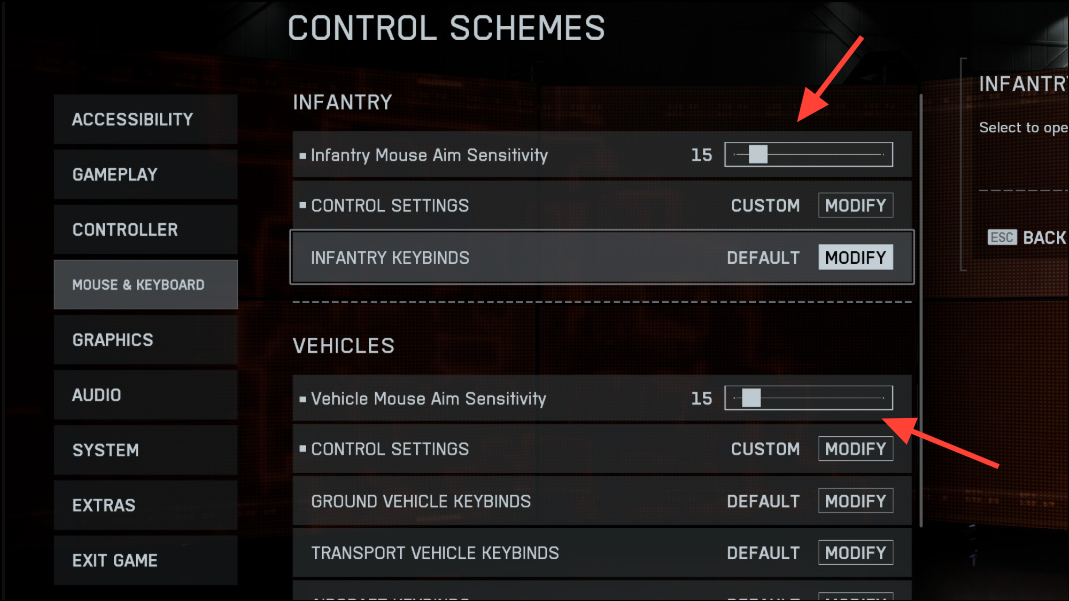
By matching the cm/360° metric, you maintain consistent turning speed and muscle memory, optimizing your transition into Battlefield 6.
Method 2: Using External Sensitivity Converters
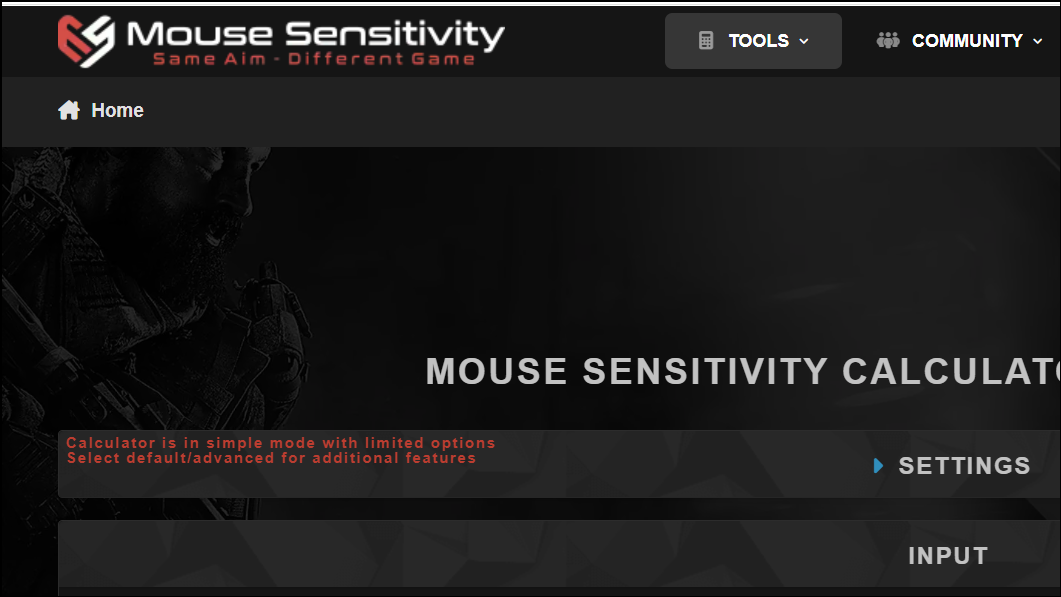
For players who want to convert sensitivity between games with different FOVs, resolutions, or unique sensitivity algorithms, external converters like Mouse-Sensitivity.com or GamingSmart’s Battlefield 6 Sensitivity Converter provide detailed calculations and advanced options.
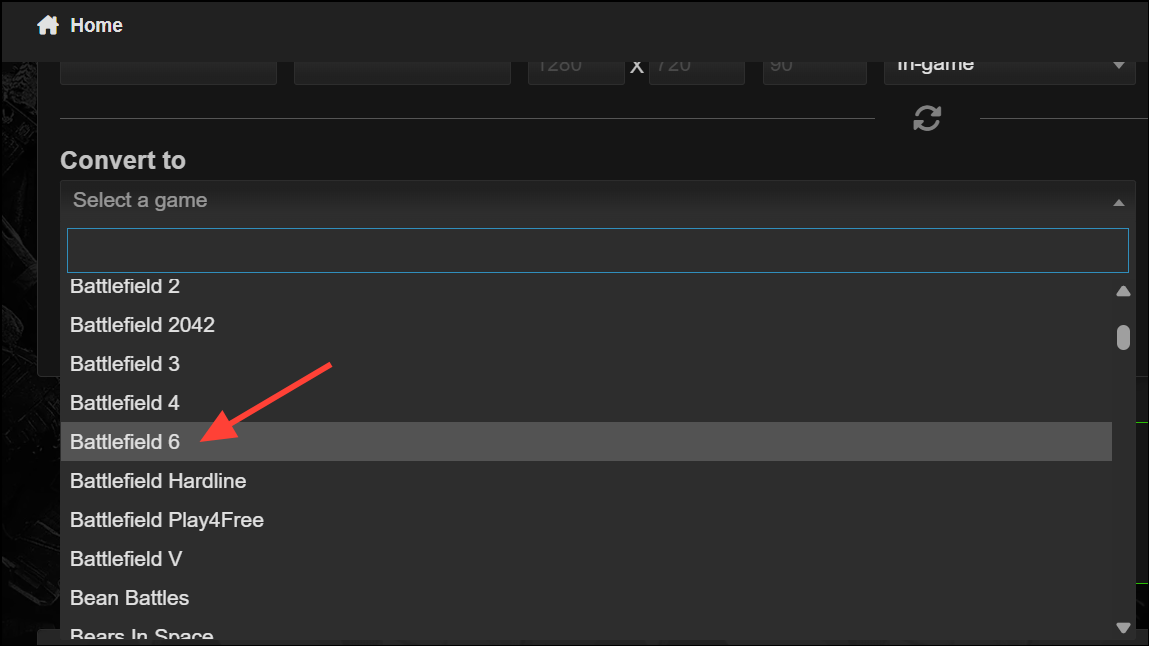
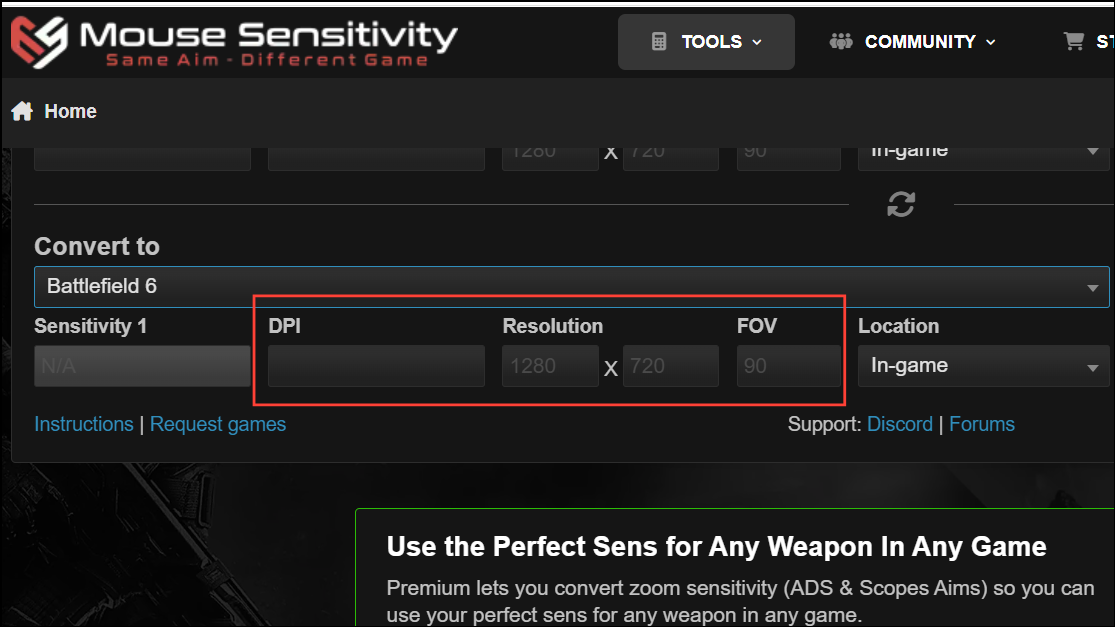
External converters are especially useful for complex cases where in-game tools do not account for all variables, such as different FOV scaling or the need to match sensitivities across a wide range of games.
Method 3: Refining Sensitivity with Advanced Settings and Coefficients
Battlefield 6 includes advanced settings such as ‘Universal Infantry Aiming’ and a ‘Zoom Sensitivity Coefficient’. These options control how sensitivity scales with field of view (FOV) and can impact how your aim feels when switching between hipfire and various scopes.
Experimenting with these advanced options allows you to fine-tune your aiming experience, but starting with a 0% coefficient is a reliable choice for most players who prioritize consistent tracking and muscle memory.
Tips and Troubleshooting
- Always verify your DPI setting in both your mouse software and in Battlefield 6 to ensure accurate calculations.
- If Battlefield 6’s in-game cm/360° readout displays
NaNor does not update, restart the game or check for updates, as this feature may not be active in early access or beta builds. - For users on ultrawide or non-standard aspect ratios, adjust the Zoom Sensitivity Coefficient accordingly (e.g., 233% for 21:9). However, many players report that 0% still works well regardless of screen size.
- Disable Enhanced Pointer Precision and set Windows pointer speed to 6/11 for true 1:1 mouse movement without acceleration.
- If aiming feels inconsistent or floaty, try increasing your polling rate to 1000 Hz and ensure raw input is enabled in-game.
By following these steps and recommendations, you can achieve consistent, predictable aim in Battlefield 6, whether you’re coming from another FPS or optimizing your settings for the first time.
Transferring your mouse sensitivity to Battlefield 6 is straightforward with the right tools and settings—take the time to match your cm/360° and fine-tune advanced options for a smoother, more accurate aiming experience.





