

Windows’s built-in File Explorer provides basic functionality for managing files and folders, but third-party file explorers often offer faster navigation, additional customization options, and improved productivity tools. Changing the default File Explorer allows you to launch your preferred tool automatically, streamlining your file management tasks.
Method 1: Changing the Default File Explorer via Registry Editor
Windows + R keys, typing regedit, and pressing Enter. If prompted by User Account Control, click Yes.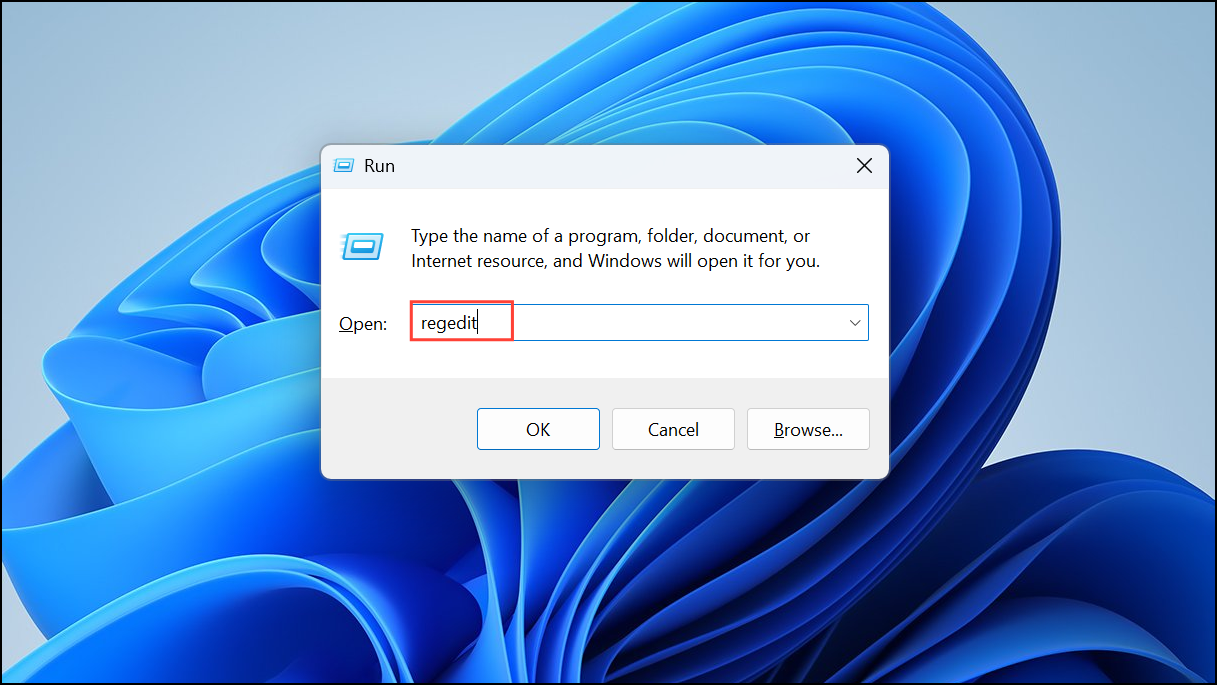
HKEY_CLASSES_ROOT\Folder\shell\open\command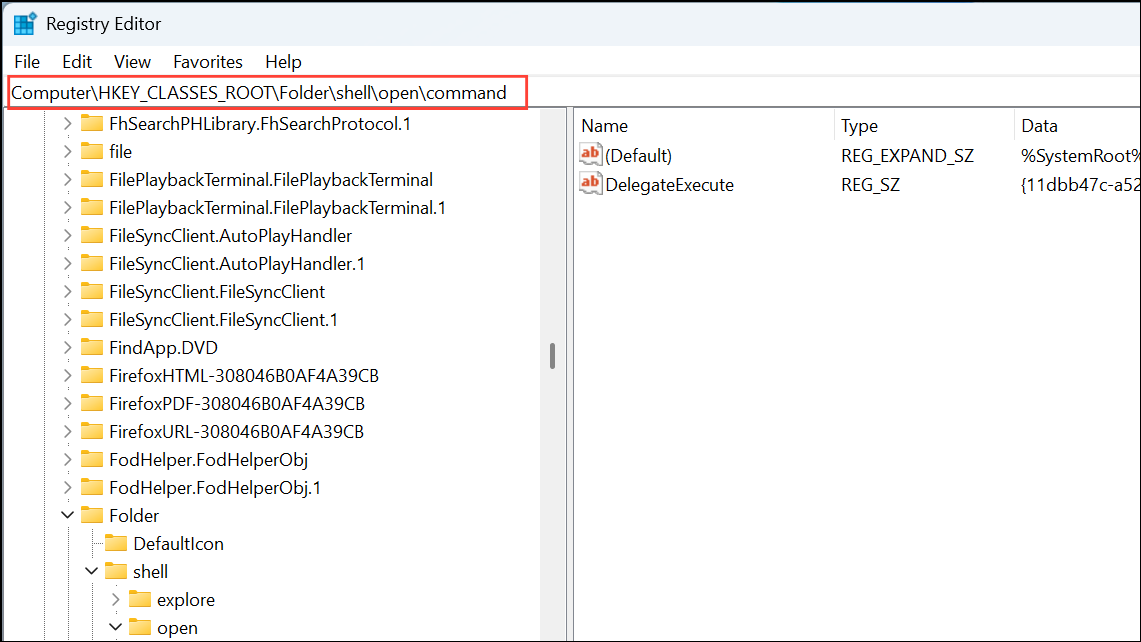
If the open or command keys do not exist, you can create them by right-clicking on shell, selecting New > Key, and naming them accordingly.
command key, double-click the (Default) value in the right pane. In the Value data field, enter the full path of your preferred file explorer executable followed by "%1". For example:"C:\Program Files\ExplorerAlternative\ExplorerAlternative.exe" "%1"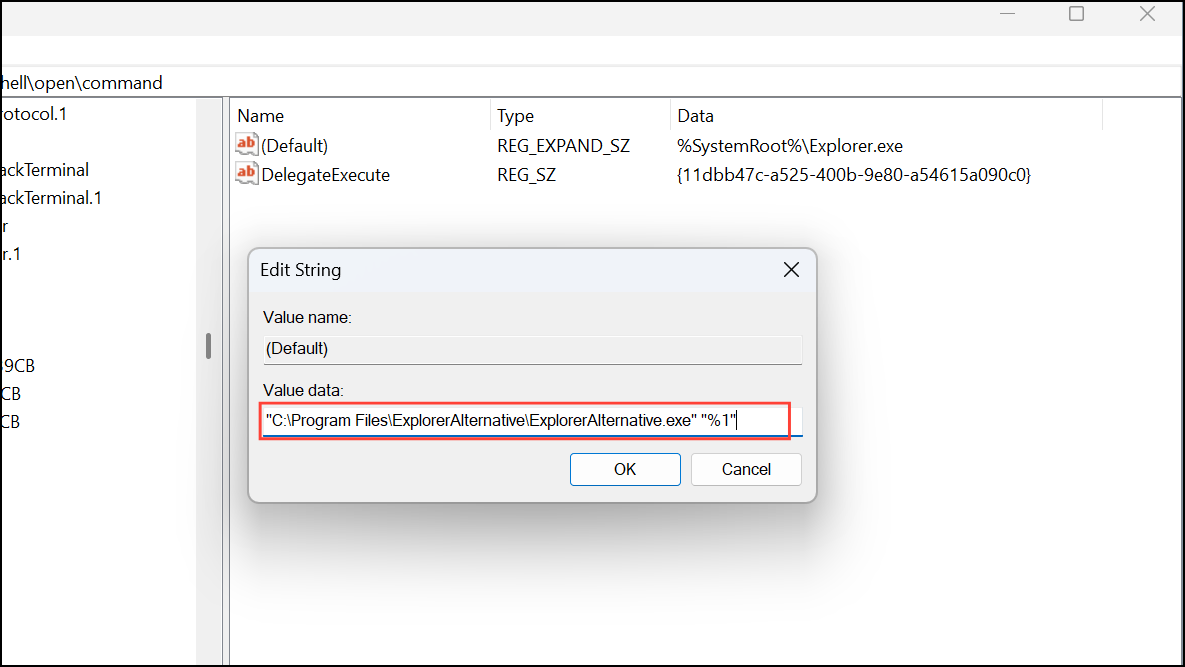
Ensure the path is correct and includes quotation marks as shown, then click OK.
Method 2: Using Third-Party Tools to Set Default File Explorer
If modifying the registry seems complex, third-party tools can simplify the process.
Folder or Directory). Select it, then choose the option to edit or change the associated program.Method 3: Creating a Manual Shortcut for Quick Access
If you prefer not to alter registry settings or use third-party tools, creating a manual shortcut provides a straightforward alternative.
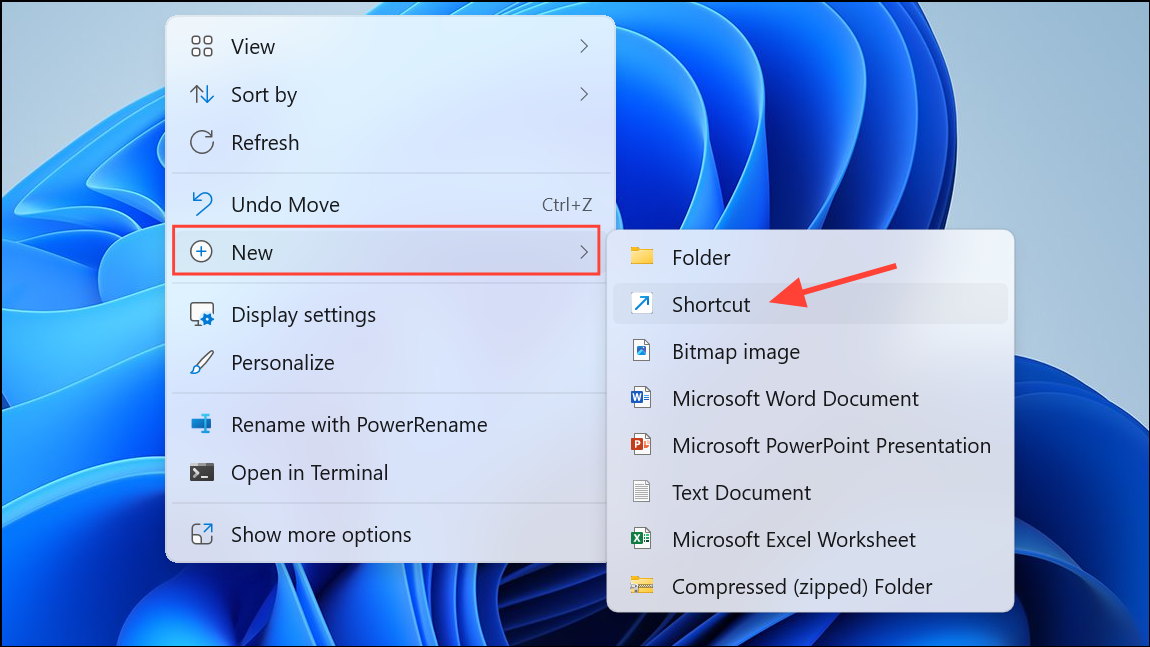
"%windir%\explorer.exe" to specify that the shortcut opens your custom explorer in place of the default Windows Explorer. Your shortcut target should look similar to:"C:\Program Files\ExplorerAlternative\ExplorerAlternative.exe" "%windir%\explorer.exe"Changing your default file explorer can significantly speed up file management tasks and offer more convenient features tailored to your workflow. Remember to periodically update your chosen file explorer to benefit from performance improvements and new features.





