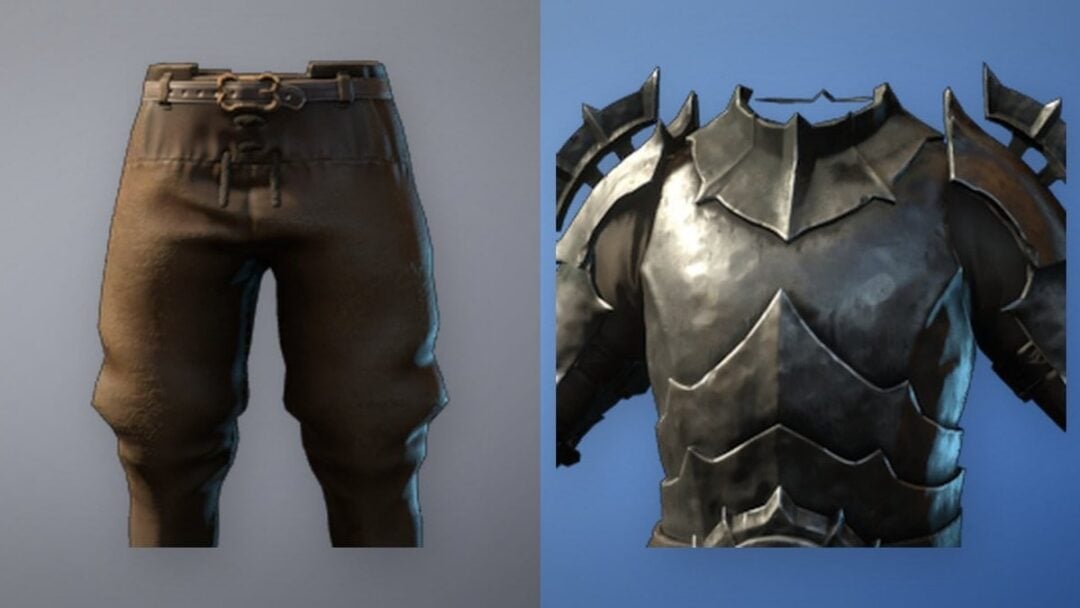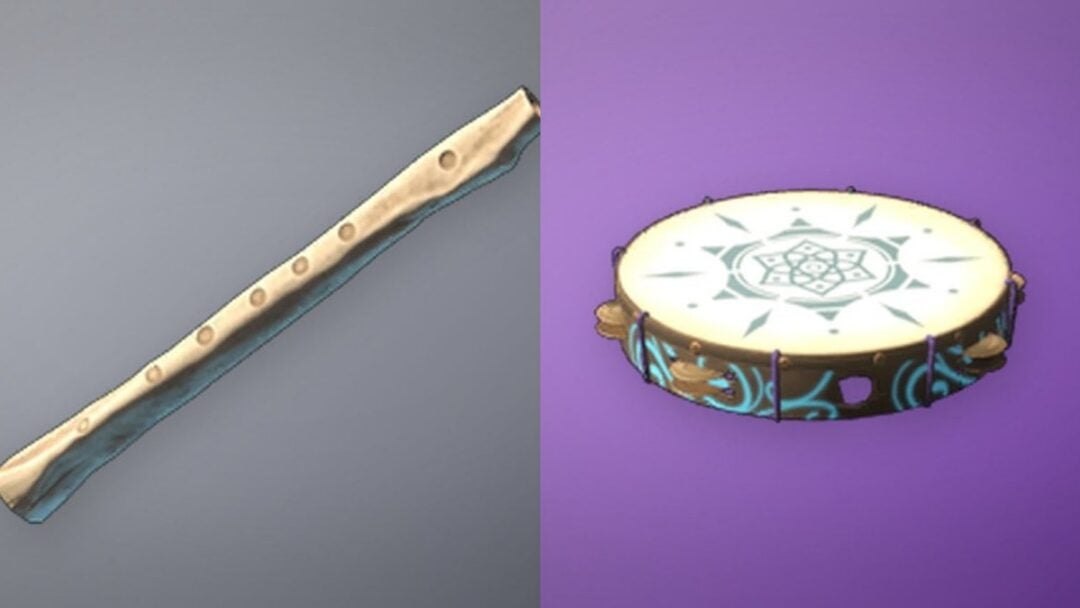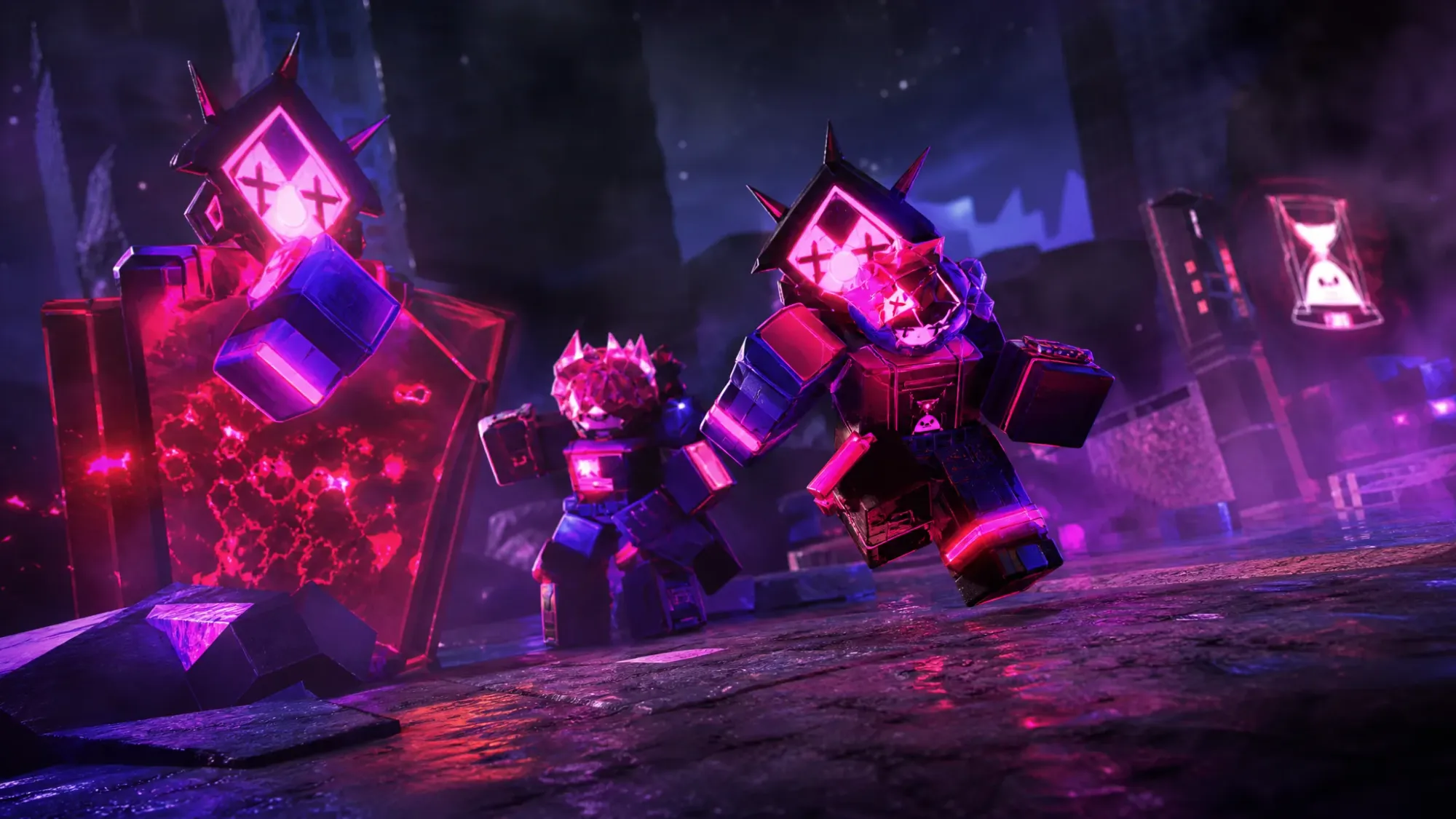
Forsaken’s tie-in with Opera GX hands out a short run of free cosmetics and boosters, headlined by three exclusive character skins. None of it costs Robux. You download the Opera GX browser, type in your Roblox username, confirm it inside the game, and then collect a reward each day as the pass unlocks.
What the Opera GX rewards event in Forsaken gives you
The promotion is a free partnership pass between Opera GX and Forsaken. Every reward is claimable at no charge, with no subscription and no Robux involved. Each item can be claimed only once, and you collect them across the days of the pass.
The three skins are the main reason most players sign up. Web Surfer Veeronica arrives first, Binary Breacher Chance lands midway, and Digital Rider 1x1x1x1 closes out the pass on the final day. The rest of the slots are functional items, including a Killer Chance Token and several XP Boosters.
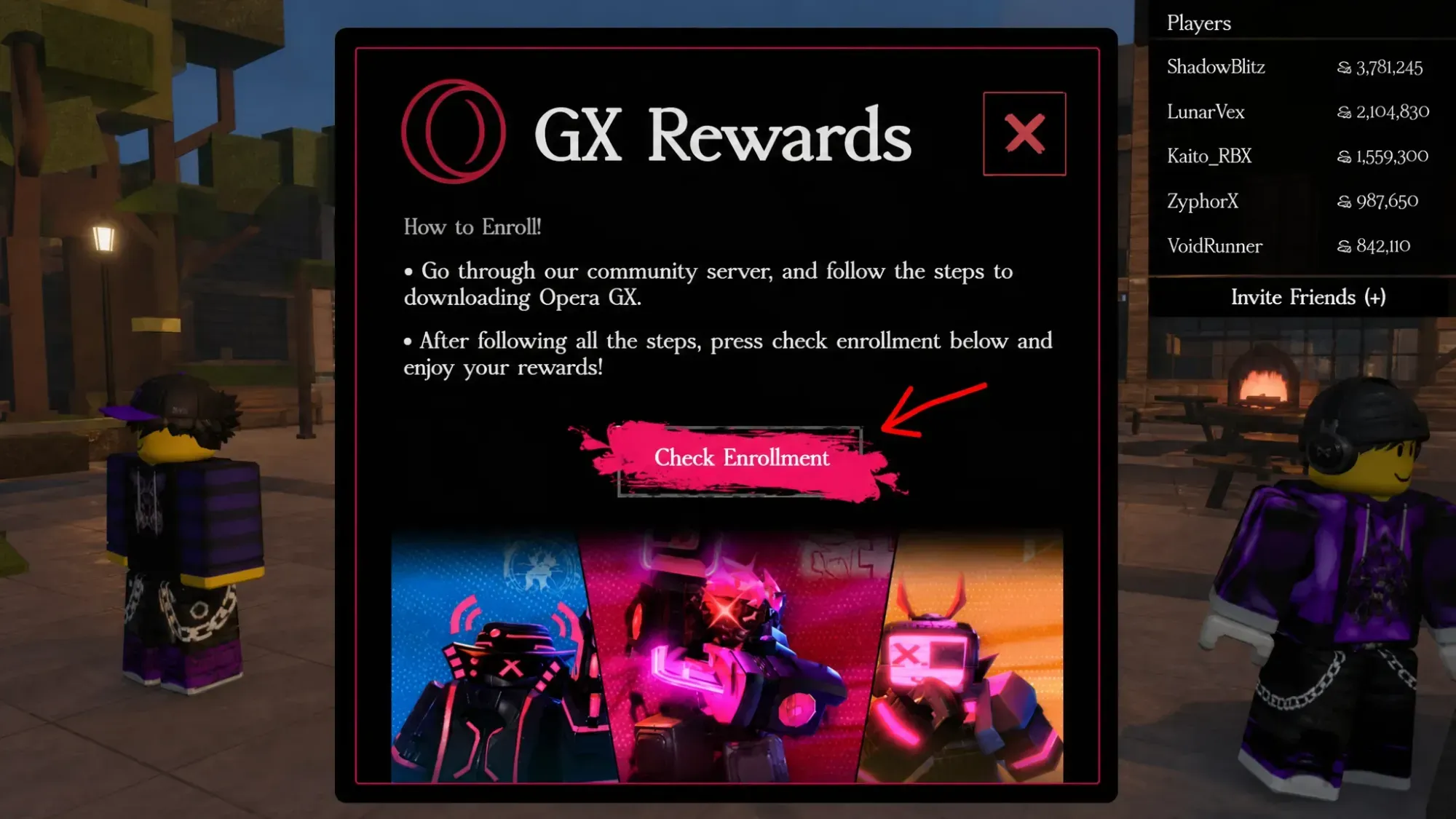
Set up Opera GX to claim Forsaken rewards
The reward menu lives inside the Opera GX browser, not inside Roblox itself. If you do not already use the browser, you will need to install it first.
Claim your rewards inside Forsaken
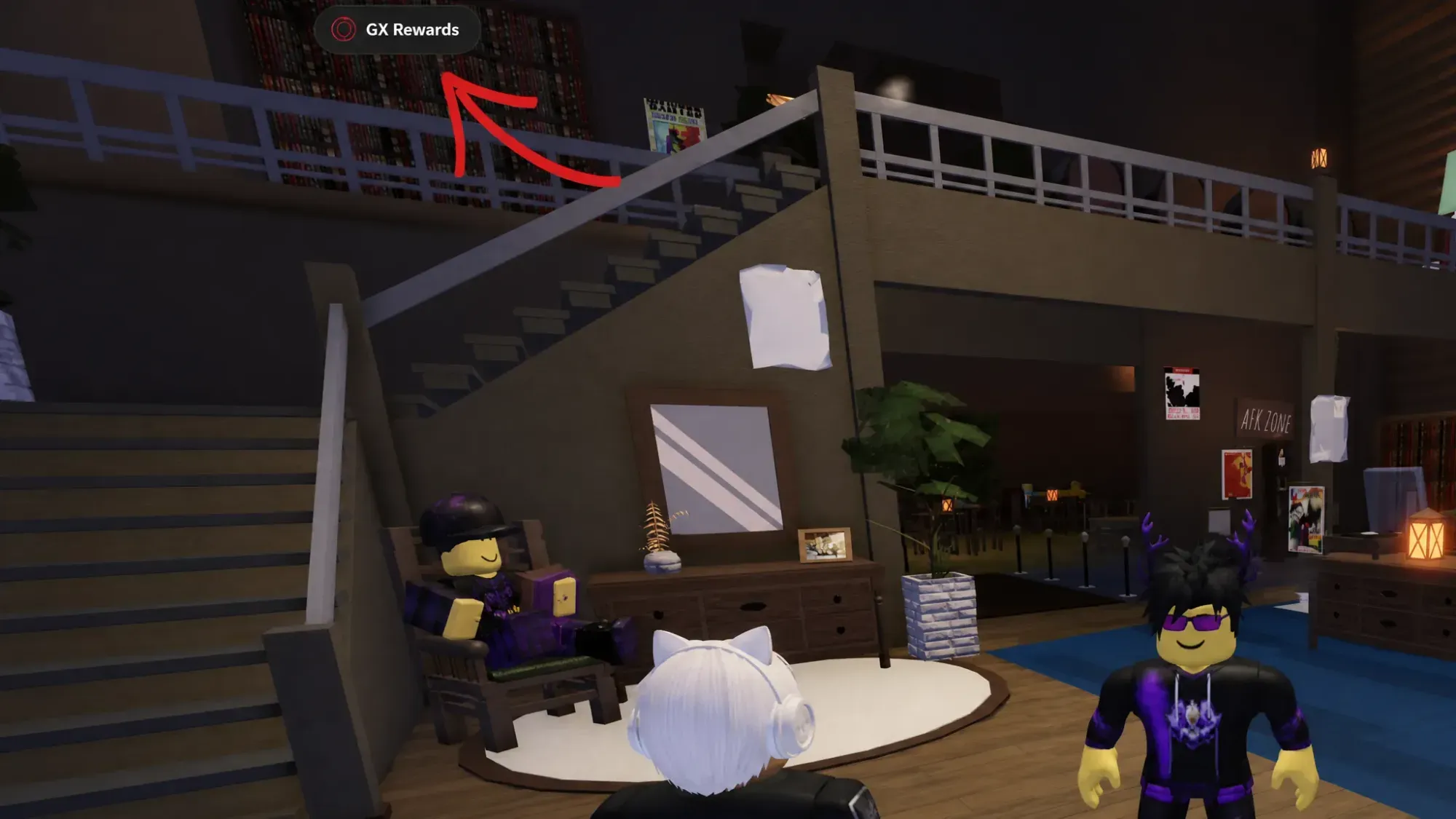
You know it worked when the rewards appear inside the menu after refreshing. If the page still looks empty, an incorrect username is by far the most common cause, followed by skipping the Check Enrollment step.
Full Opera GX reward pass for Forsaken
The pass runs across seven days, alternating skins with boosters. Here is the full unlock order.
| Day | Reward | What it does |
|---|---|---|
| Day 1 | Web Surfer Veeronica (Skin) | Exclusive character cosmetic |
| Day 2 | Killer Chance Token | Grants 15 more Killer Chance |
| Day 3 | XP Booster (1 HR) | 25% more EXP for 1 hour |
| Day 4 | Binary Breacher Chance (Skin) | Exclusive character cosmetic |
| Day 5 | XP Booster (1 HR) | 25% more EXP for 1 hour |
| Day 6 | XP Booster (3 HR) | 25% more EXP for 3 hours |
| Day 7 | Digital Rider 1x1x1x1 (Skin) | Exclusive character cosmetic |
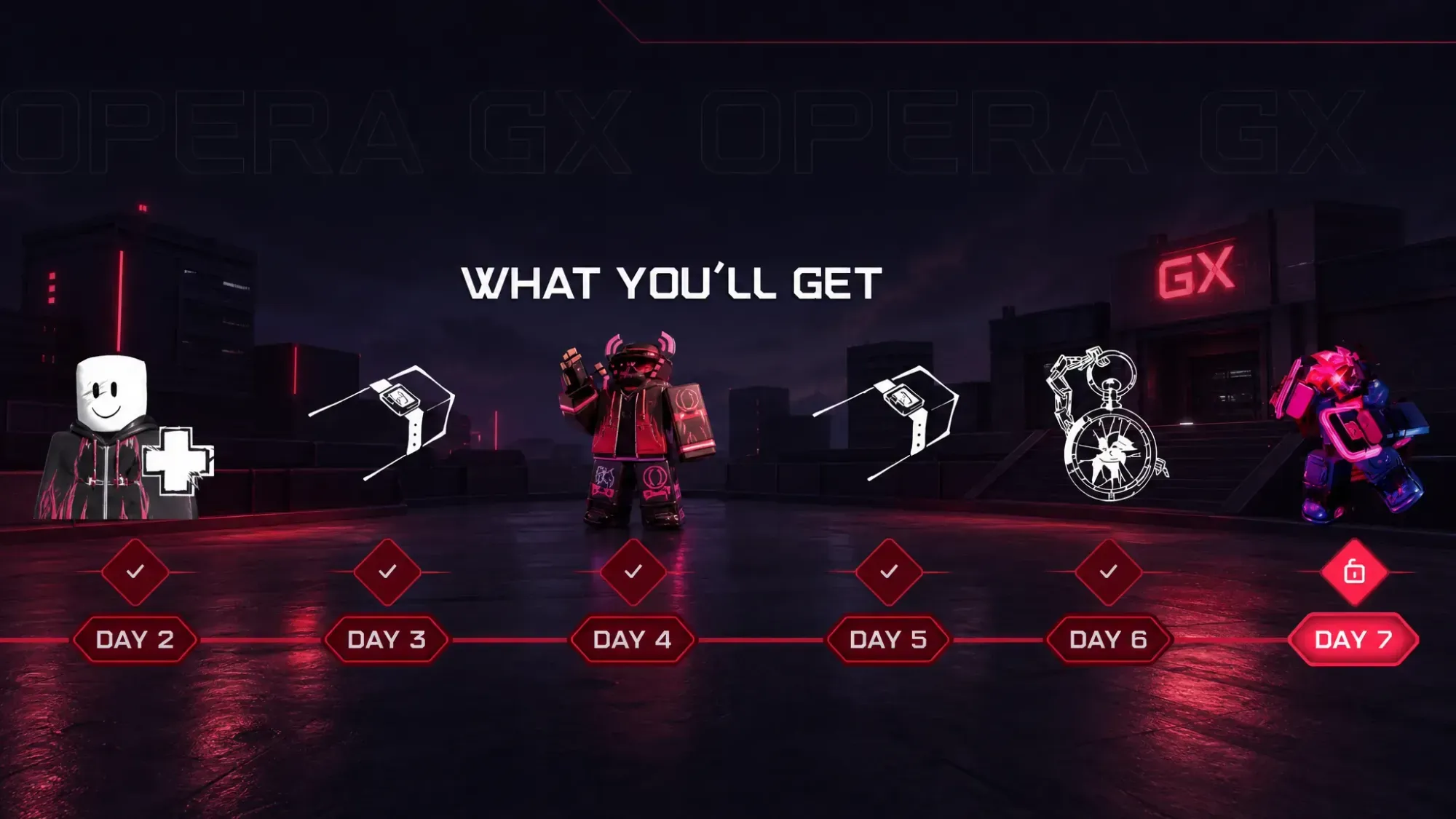
The skins are permanent once claimed, while the Killer Chance Token and XP Boosters are consumable items that speed up leveling and your odds of playing as a killer.
Common problems and the mobile catch
The biggest sticking point is the browser requirement. Because the reward menu lives inside Opera GX on a computer, players who only have Roblox on a phone cannot complete the standard flow on the device itself. The skins still land in your Roblox locker once your username is verified, so the account that gets credited is what matters, not where you play afterward.
If Check Enrollment refuses to confirm, click the question mark icon inside the GX Rewards menu for the built-in troubleshooting steps. When that does not resolve it, the official Forsaken Discord is the place to report the issue. Double-check the username spelling first, since a mismatched or display-name entry accounts for most failed claims.
The promotion is time-limited, so the pass will not stay open indefinitely. If you want all three skins, log in and claim on consecutive days rather than waiting until the end, because each day’s reward unlocks on its own and the window can close.