

Excel’s built-in tools allow users to visually organize project milestones, historical events, or schedules along a chronological axis. Whether you need a simple project timeline or a multi-category chart showing overlapping events, Excel provides several methods to create a timeline that fits your needs.
Method 1: Building a Timeline with SmartArt
SmartArt offers a quick way to produce a visual timeline, especially for straightforward lists of events or milestones. This method is ideal for users who want to create a graphical sequence without extensive chart formatting.
Insert tab on the Excel ribbon and select SmartArt from the Illustrations section. This opens the SmartArt Graphic dialog box.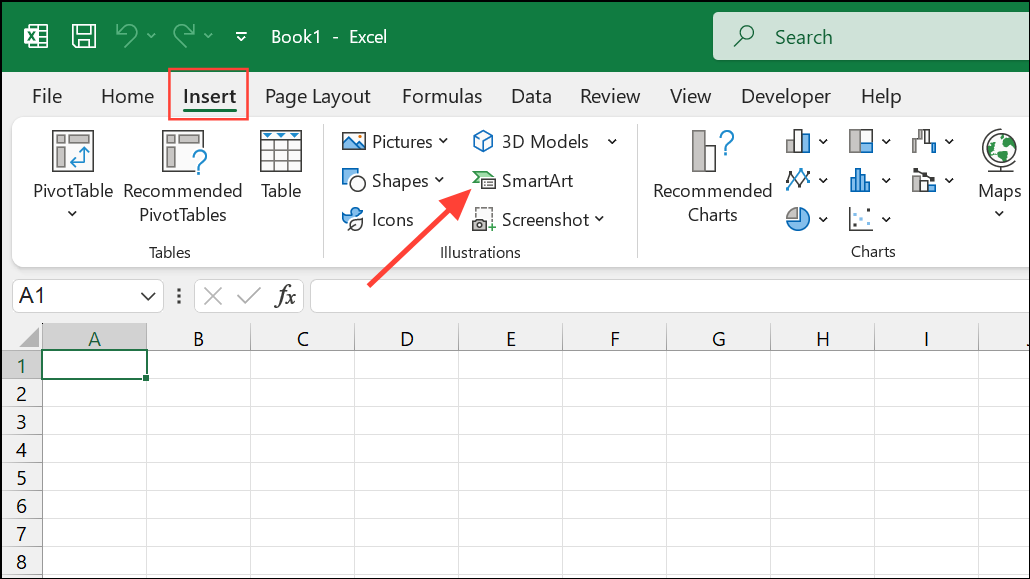
Process from the left pane. Choose a timeline layout such as Basic Timeline or Circle Accent Timeline, then click OK. The timeline graphic will appear on your worksheet.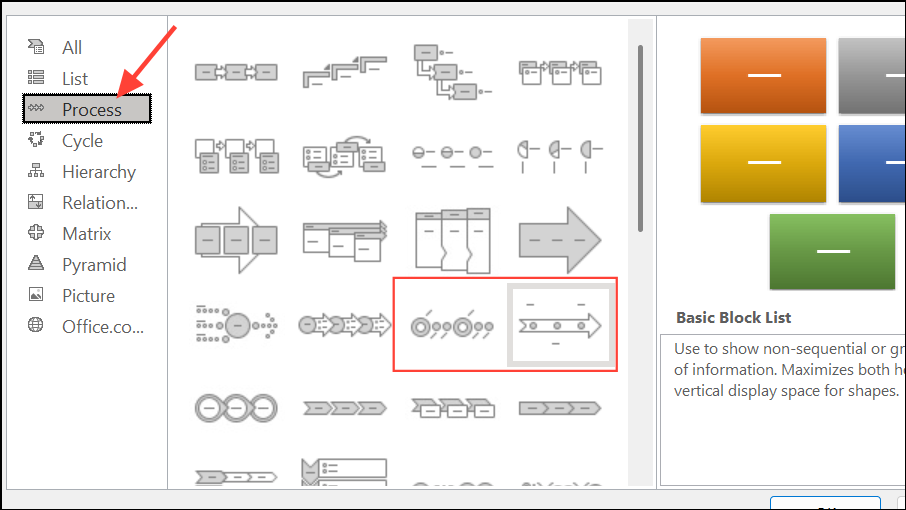
[Text] placeholders on the timeline or open the Text Pane to input your event names and dates. Press Enter to add new events, or Tab to add descriptions.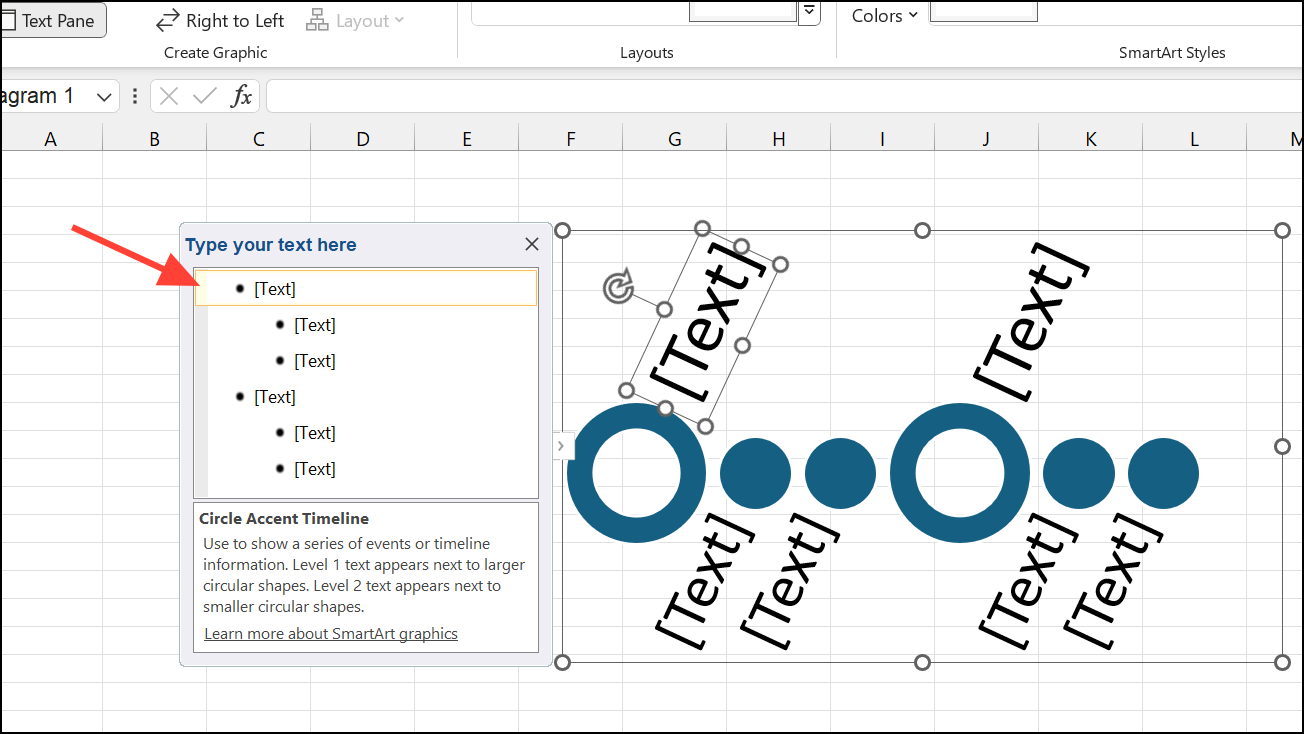
Add Shape, then choose Add Shape Before or Add Shape After.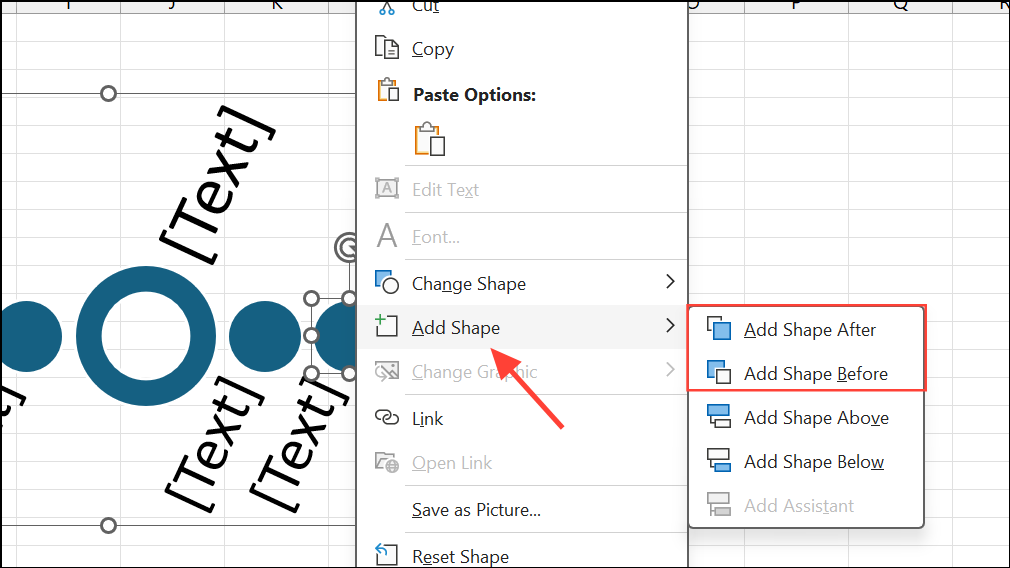
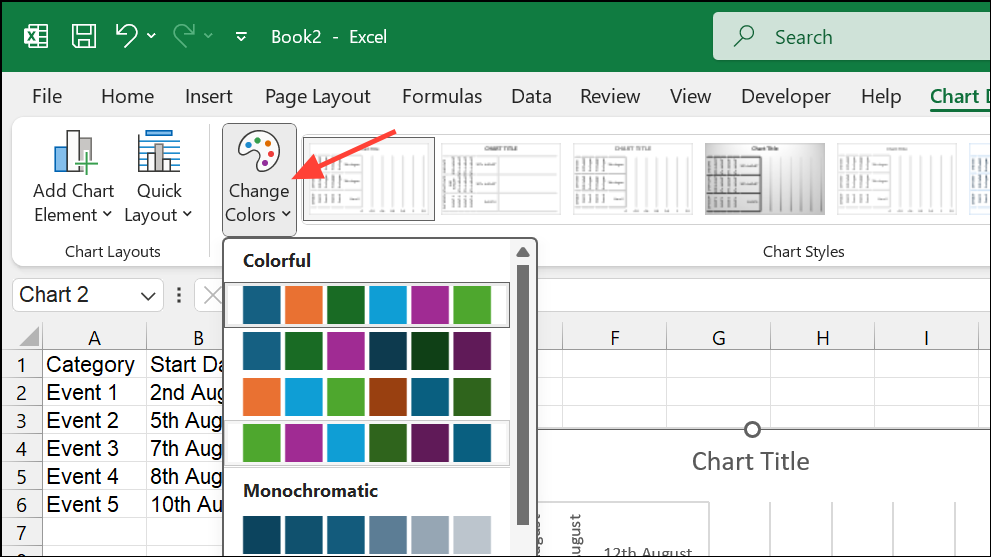
SmartArt Design tab. Change layouts, colors, or apply different styles for a more polished look. Hover over color combinations to preview them before applying.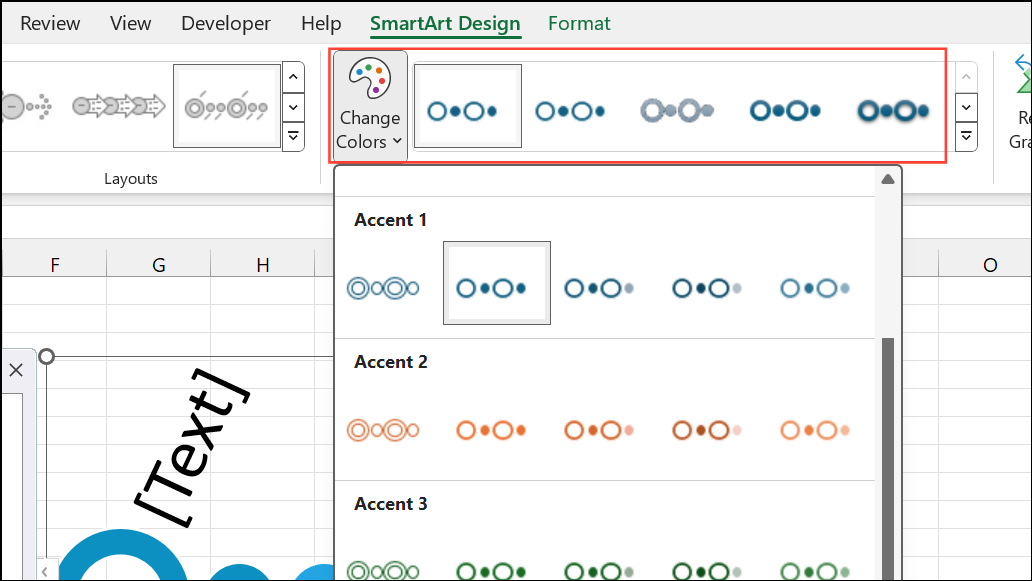
Move Up or Move Down from the SmartArt Design tab. This reorders the timeline without re-entering data.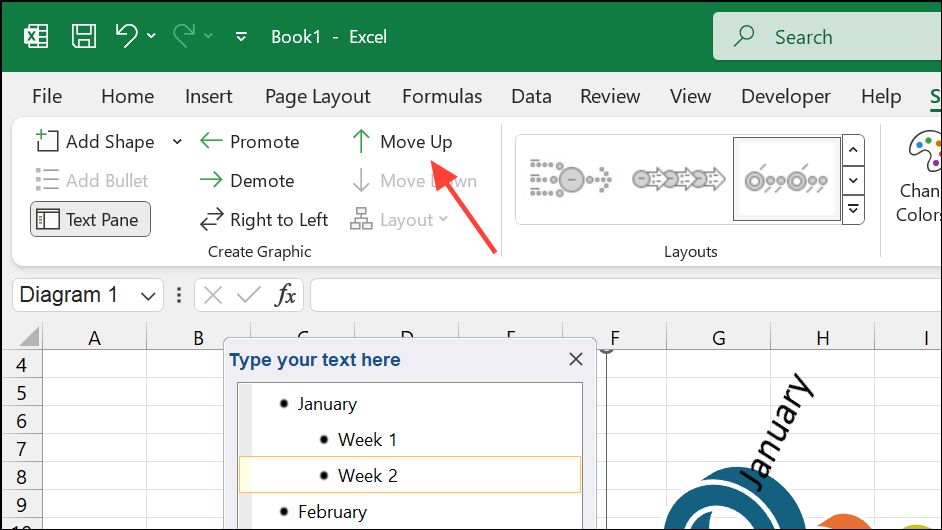
Method 2: Creating a Timeline with a Scatter Chart
This method is suitable for timelines that require precise date placement, overlapping events, or custom formatting—such as project schedules or lifespans. It involves plotting milestones on a Scatter chart and formatting it to resemble a timeline.
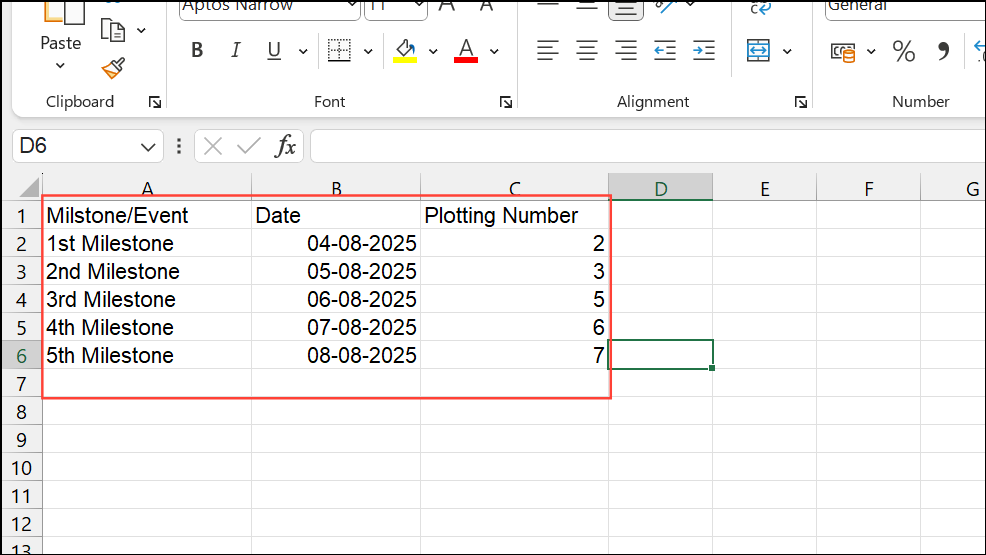
Insert tab, and choosing Scatter from the Charts section. This adds a blank chart area to your worksheet.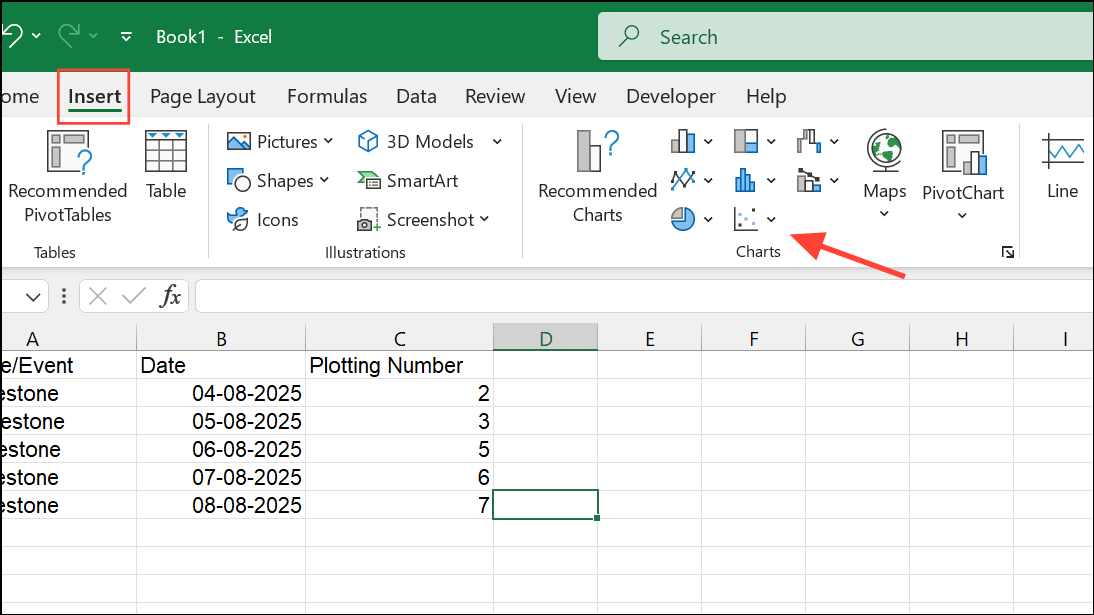
Select Data. Add a new series: for Series X values, select your date column; for Series Y values, select your plotting numbers.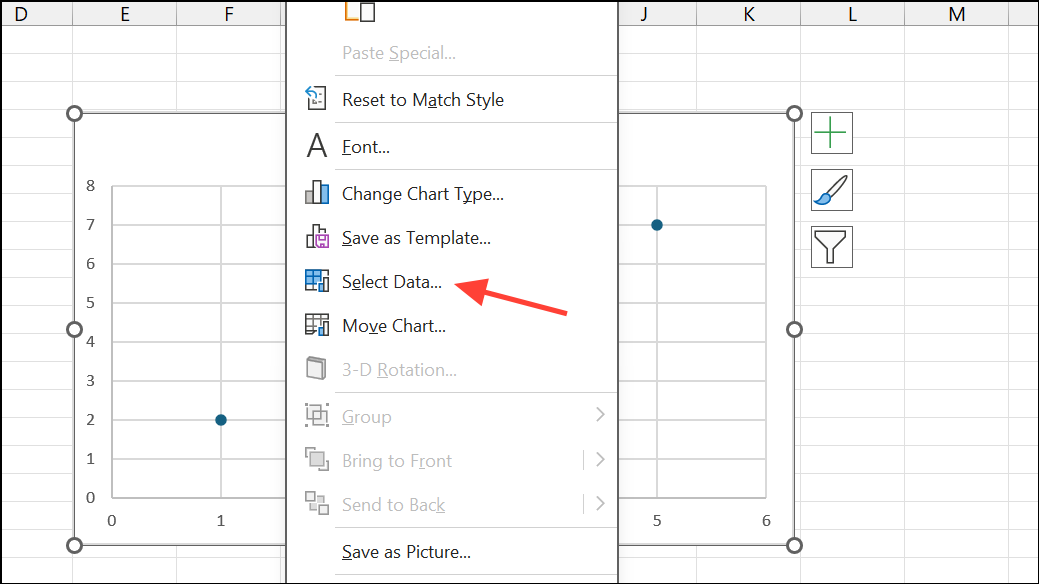
Minus and the error amount to 100% to draw lines from each milestone point down to the timeline axis.Value From Cells option to pull descriptions from your data table. This improves clarity and reduces manual editing.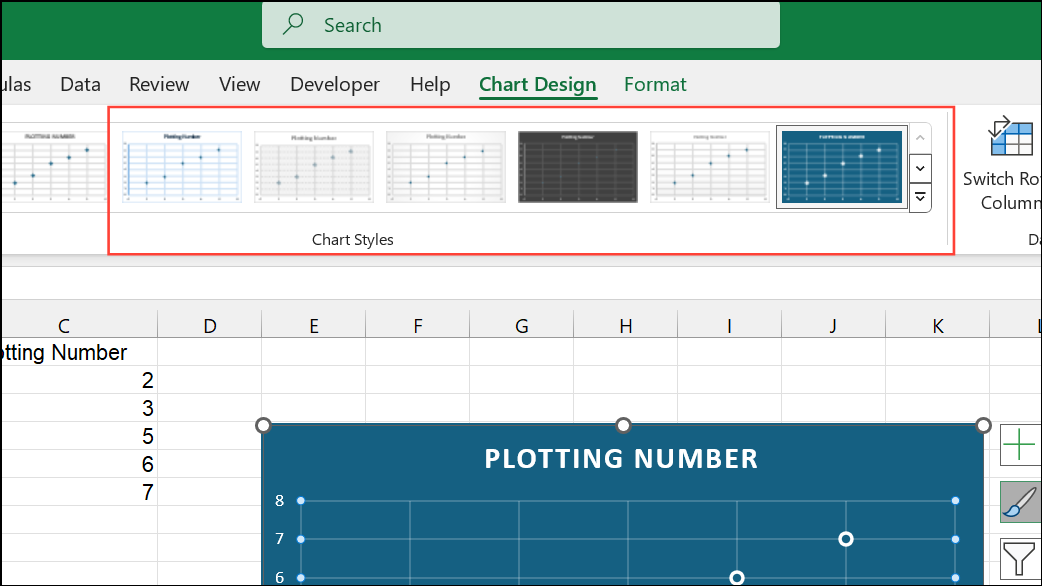
Method 3: Using Excel Timeline Templates
Excel provides ready-made timeline templates for rapid setup. This approach is ideal for users who prefer minimal setup and want to avoid detailed formatting.
File > New and search for timeline in the template search box. Browse available templates such as Project Timeline or Milestone Chart.Method 4: Creating Multi-Category or Gantt-Style Timelines
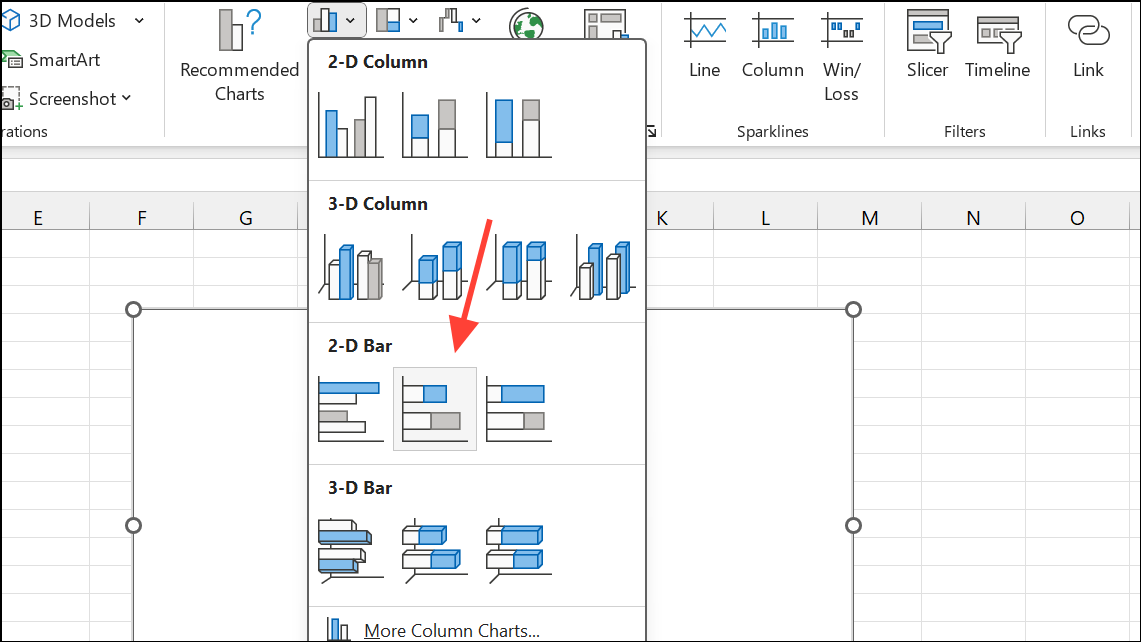
When you need to show overlapping events, durations, or categories (such as project tasks, lifespans, or leadership terms), a Stacked Bar chart can be used to simulate a Gantt chart or multi-category timeline.
=End Date - Start Date).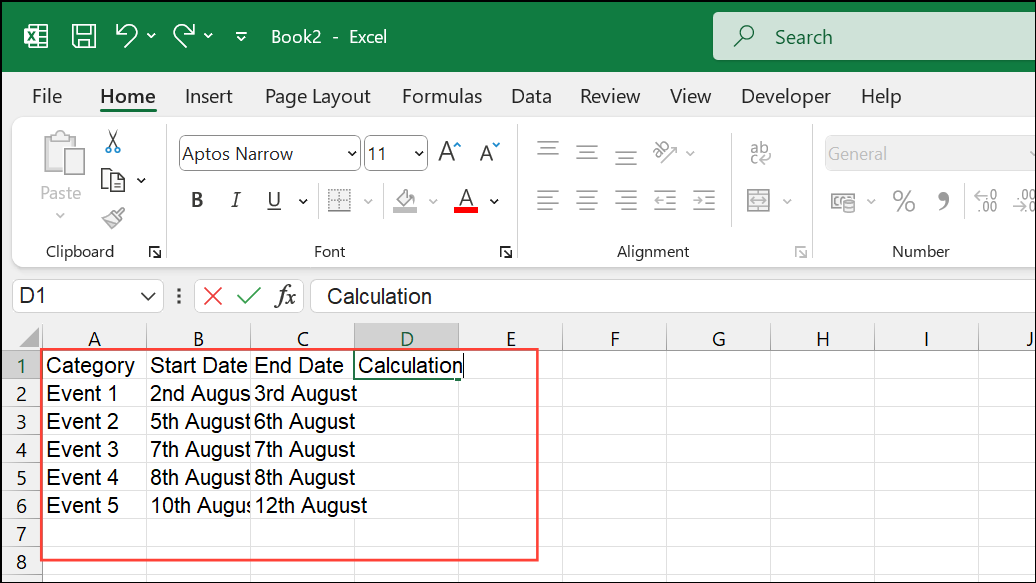
Tips for Managing and Sharing Excel Timelines
- To move a timeline from Excel to PowerPoint, copy and paste the chart or save it as an image for use in presentations.
- For recurring timeline updates, consider using a PowerPoint add-in like Office Timeline, which imports Excel data and generates presentation-ready visuals with minimal effort.
- When using SmartArt, remember that the Design and Format tabs only appear when the graphic is selected.
- Adjust plotting numbers or bar heights to prevent overlapping labels and improve readability.
- For complex timelines with frequent updates, automated tools or templates can save significant time compared to manual formatting.
Excel provides flexible options for building timelines, from quick SmartArt graphics to detailed charts for complex schedules. By choosing the method that matches your project’s requirements, you can clearly communicate progress, milestones, or historical events with minimal effort.





