
Tooltips, those small descriptor boxes that pop up when you hover over window elements like the close, maximize, or minimize buttons, can sometimes become distracting or unnecessary. Disabling these descriptors streamlines your desktop experience, reducing visual clutter and allowing you to focus better on your tasks. Follow these straightforward steps to turn off these tooltip descriptors in Windows.
Method 1: Disable Tooltips Using Windows Registry Editor
The most effective way to permanently disable tooltip descriptors is by modifying the Windows Registry. This method ensures tooltips no longer appear when hovering over control buttons.
Windows Key + R to open the Run dialog box. Type regedit and press Enter. When prompted, confirm to open the Registry Editor.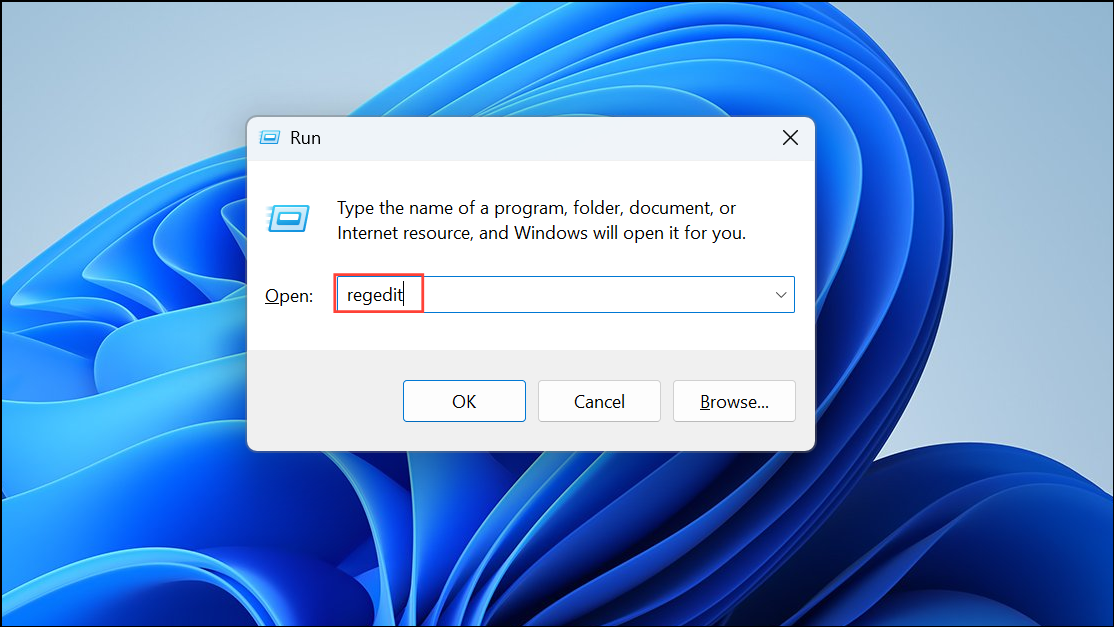
HKEY_CURRENT_USER\Software\Microsoft\Windows\CurrentVersion\Explorer\Advanced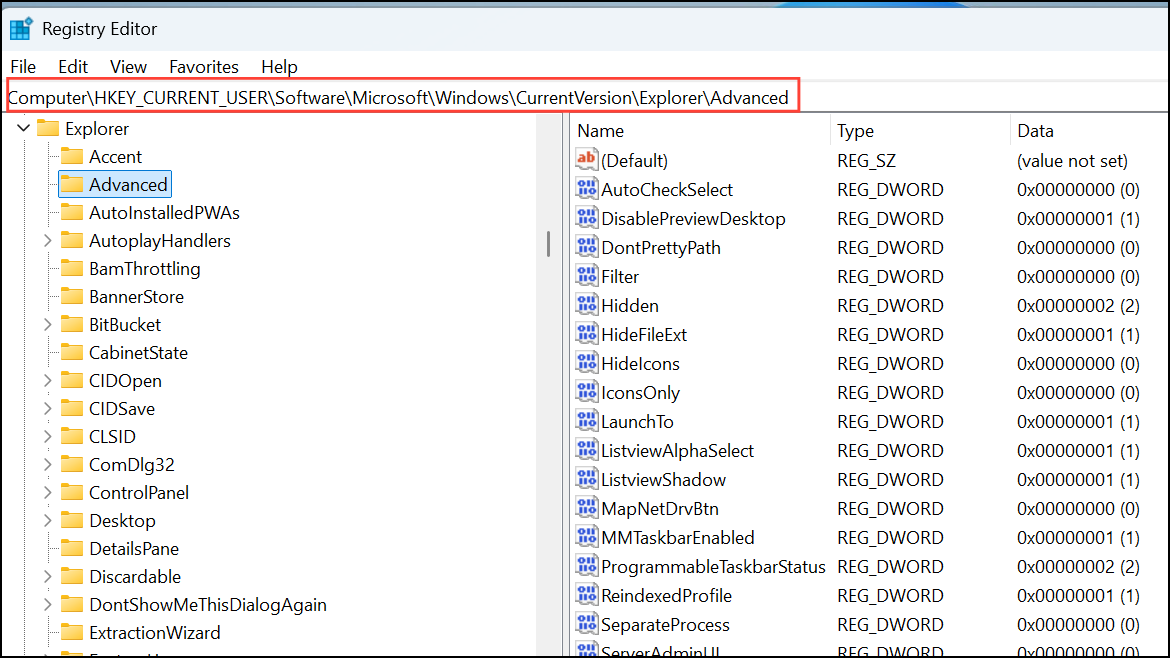
ShowInfoTip.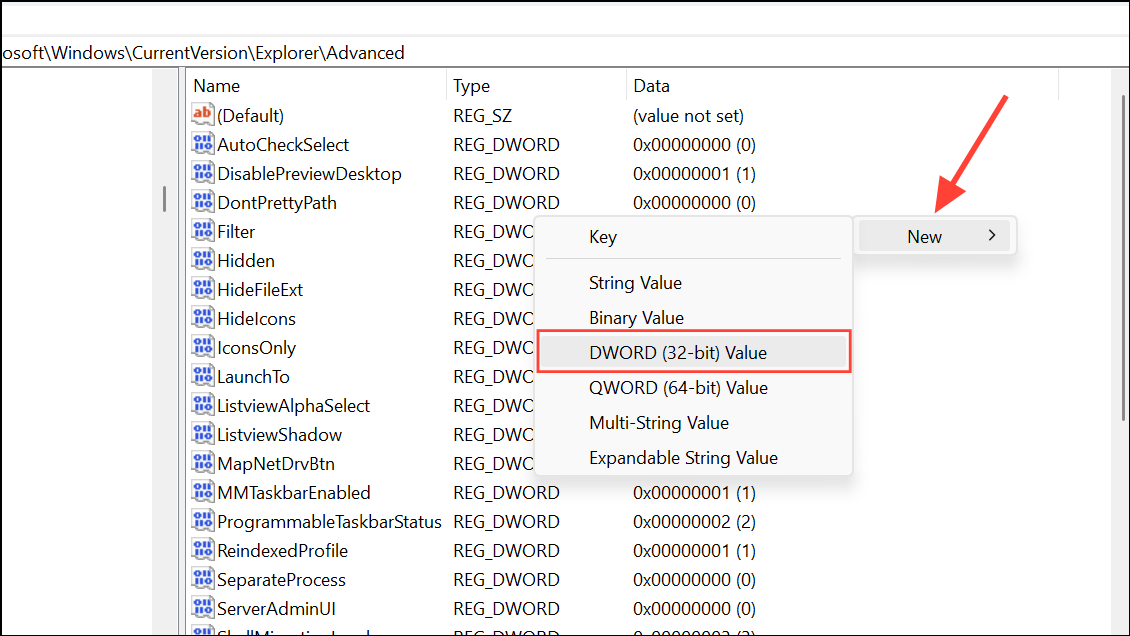
ShowInfoTip entry and set its value data to 0. Click OK to save your changes.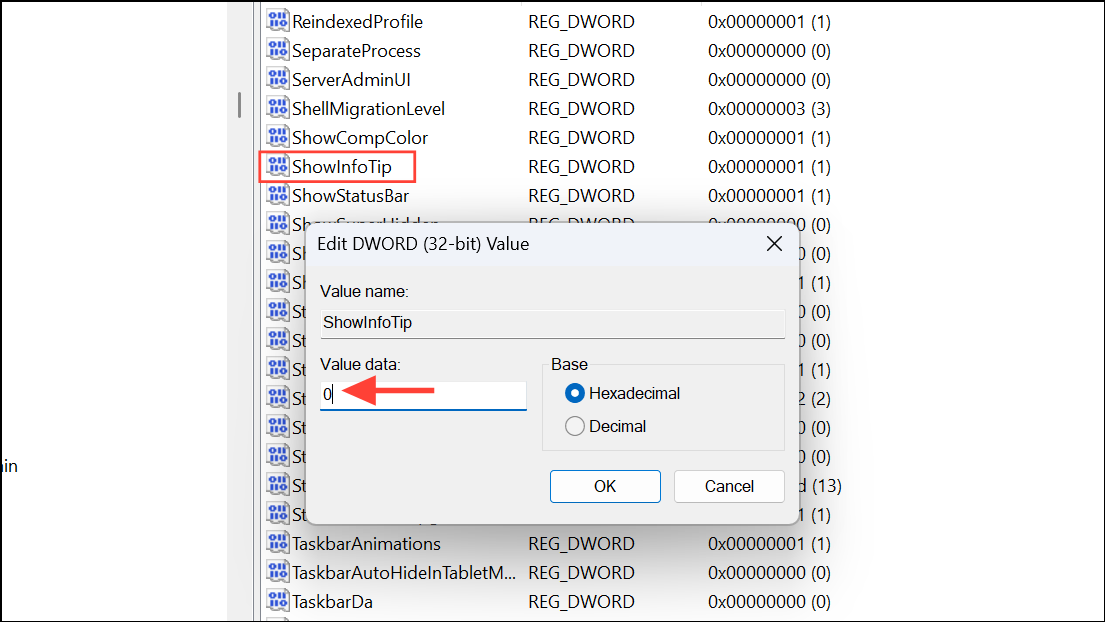
Method 2: Disable Tooltips via Windows Settings (Ease of Access)
If you’re hesitant about editing the registry, Windows provides a simpler alternative through its built-in settings. This method disables most tooltips, though some system-level tooltips might still appear.
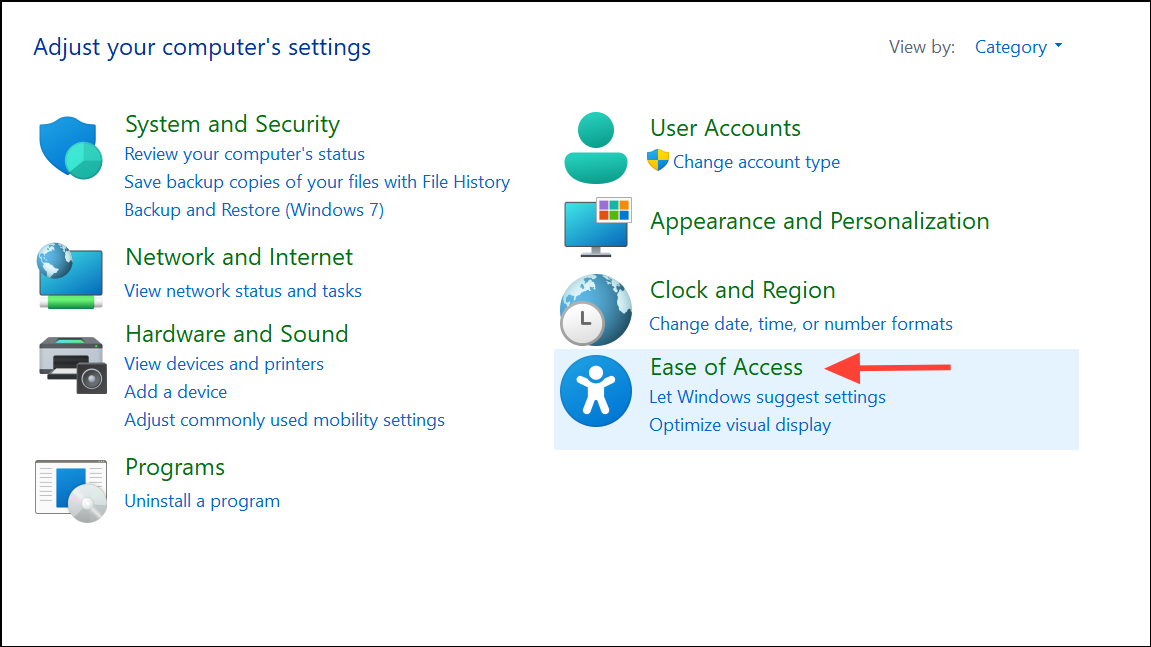
Method 3: Adjust Hover Time to Prevent Tooltips from Appearing
This method doesn’t remove tooltips entirely but significantly delays their appearance, effectively making them less intrusive.
HKEY_CURRENT_USER\Control Panel\Mouse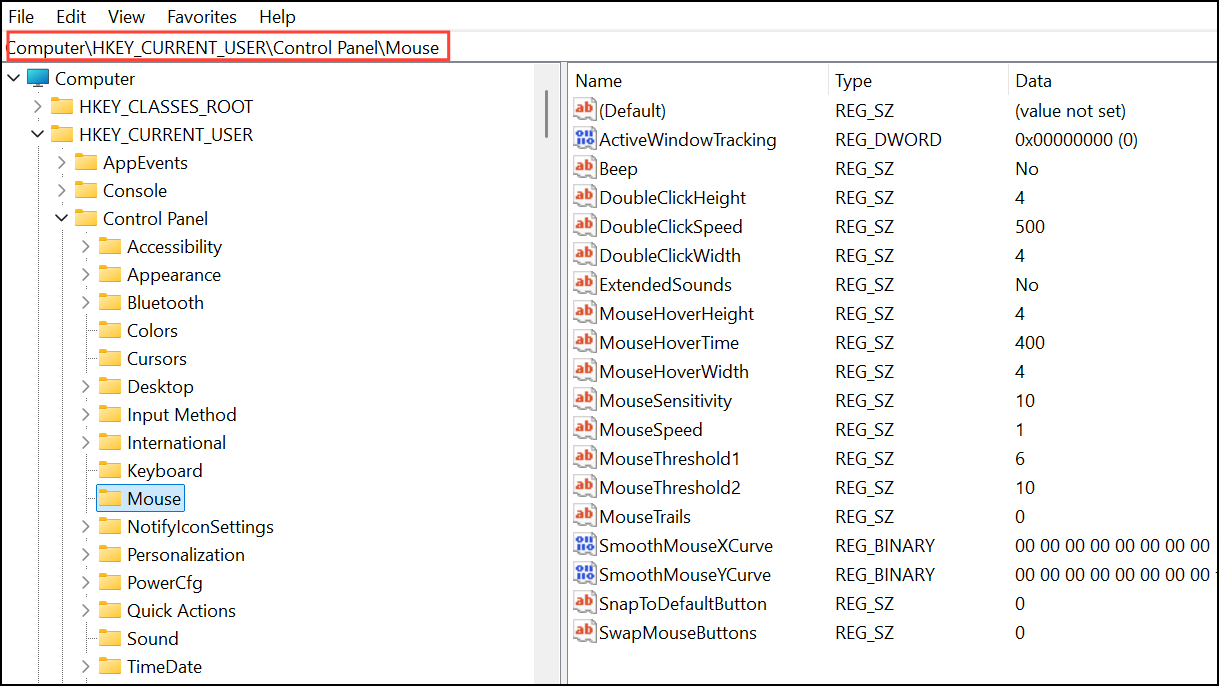
MouseHoverTime in the right pane, double-click it, and change its value to a higher number, such as 5000 or more. This value represents milliseconds, so setting it to 5000 delays the tooltip appearance to 5 seconds.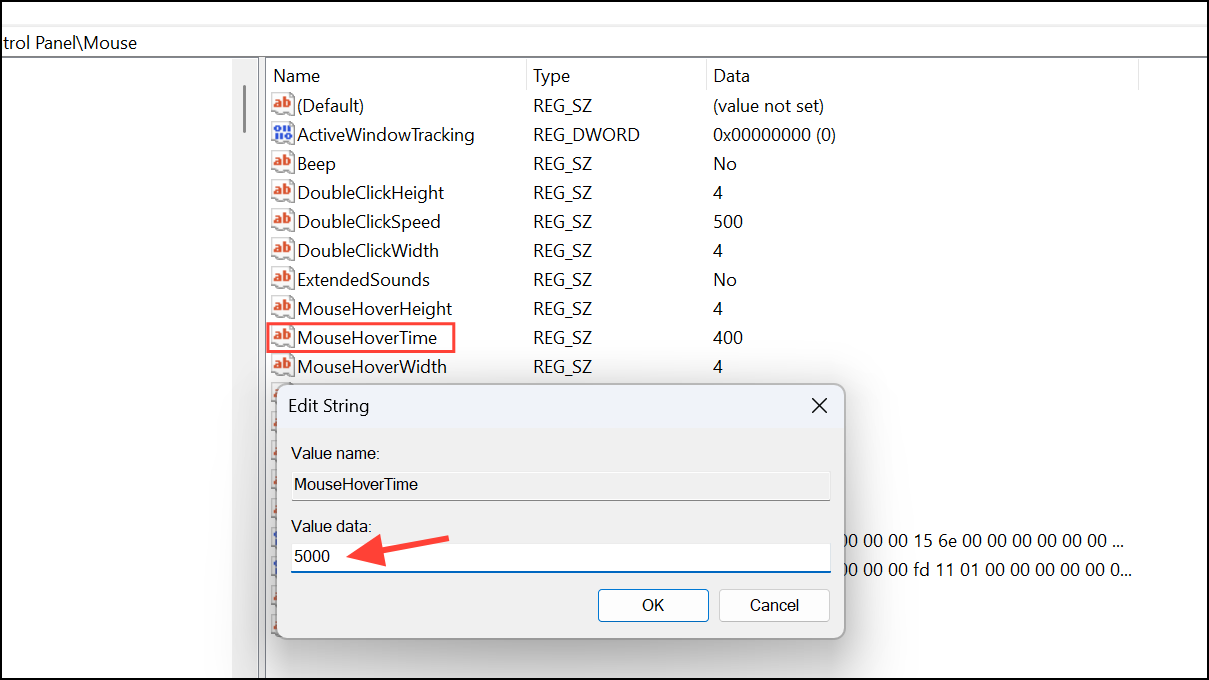
After rebooting, tooltips will appear only if you hover over buttons for an extended period, effectively reducing their visibility during regular usage.
With these methods, you can quickly disable or minimize the appearance of tooltips on window control buttons, making your Windows desktop cleaner and less distracting.





