
Starting with Microsoft Edge version 140, the Mica visual effect returns to the browser for Windows 11 users, providing a semi-transparent, blurred background on the title bar and toolbar. This effect gives Edge a more integrated look with the Windows 11 design language. To activate the Mica effect, you need to adjust experimental settings and appearance options within Edge. There are also command-line alternatives for advanced configuration. Below are the most effective methods to enable this feature, along with important notes on compatibility and troubleshooting.
Enable Mica Effect via Edge Flags and Appearance Settings
edge://settings/help. The Mica effect is only available starting from version 140 in the Canary, Dev, and Stable channels (depending on rollout).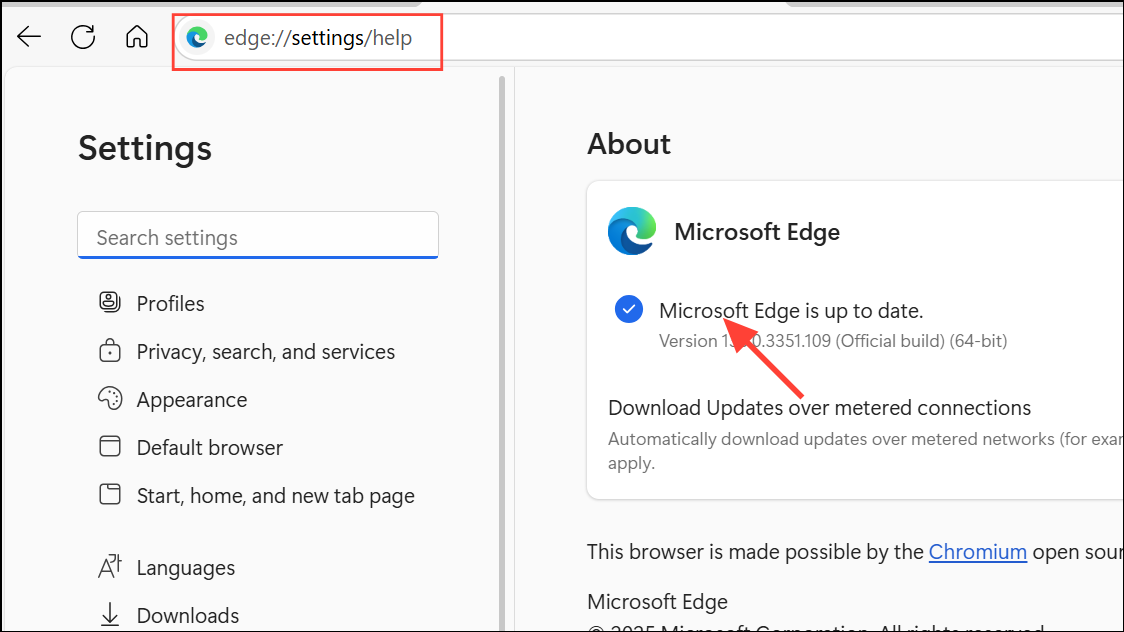
edge://flags/#edge-visual-rejuv-mica and press Enter. This opens the experimental flags page directly at the relevant setting for the Mica visual effect.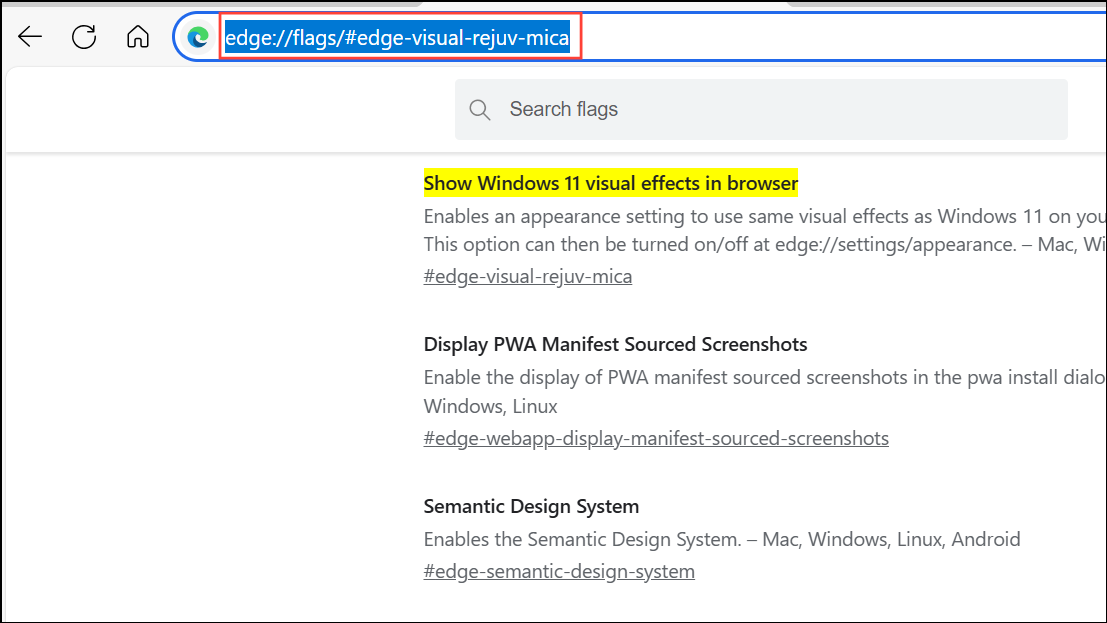
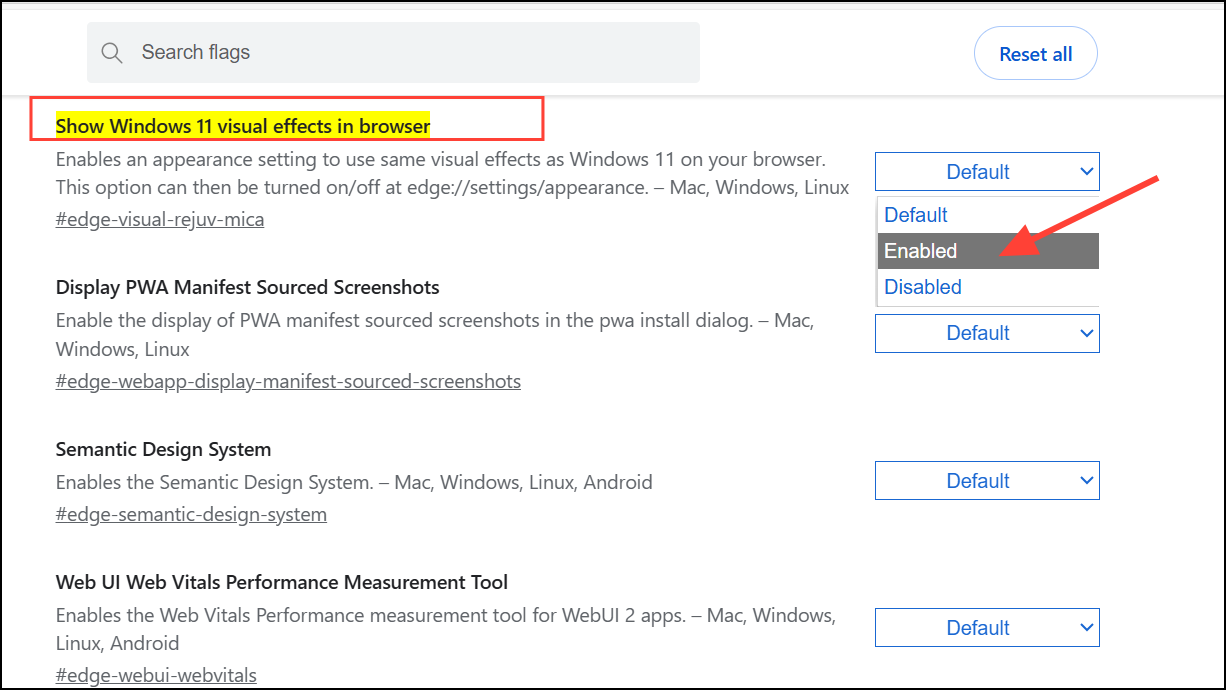
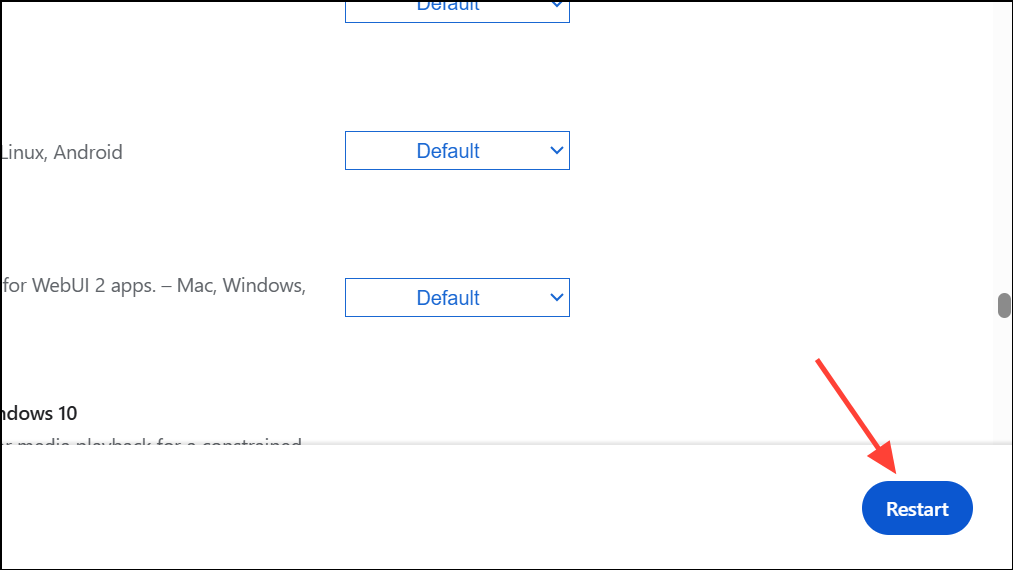
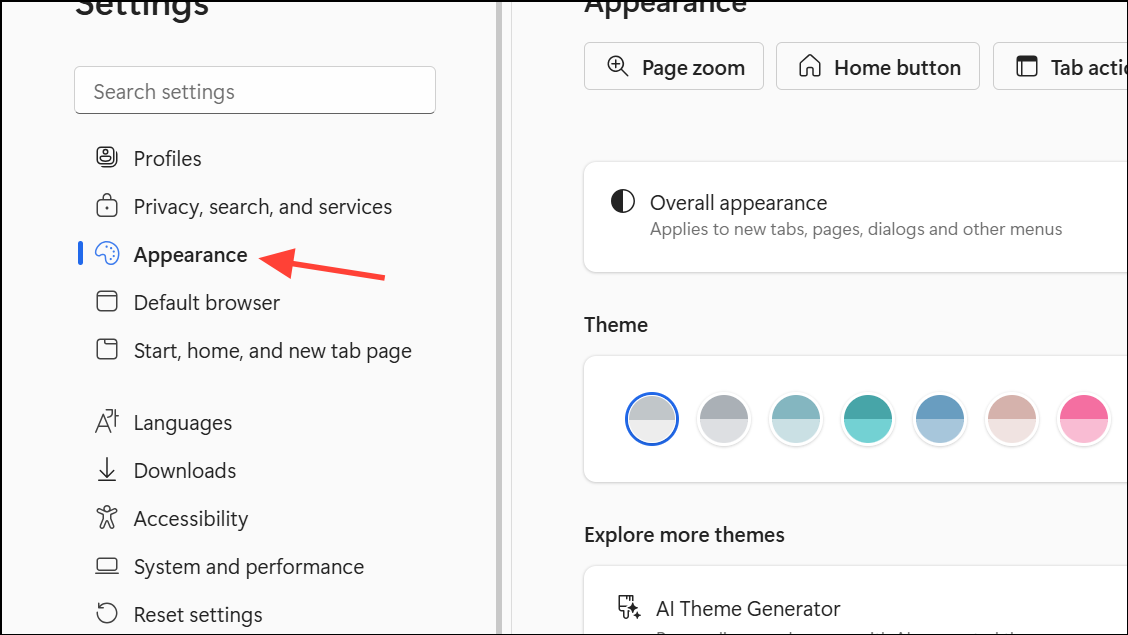
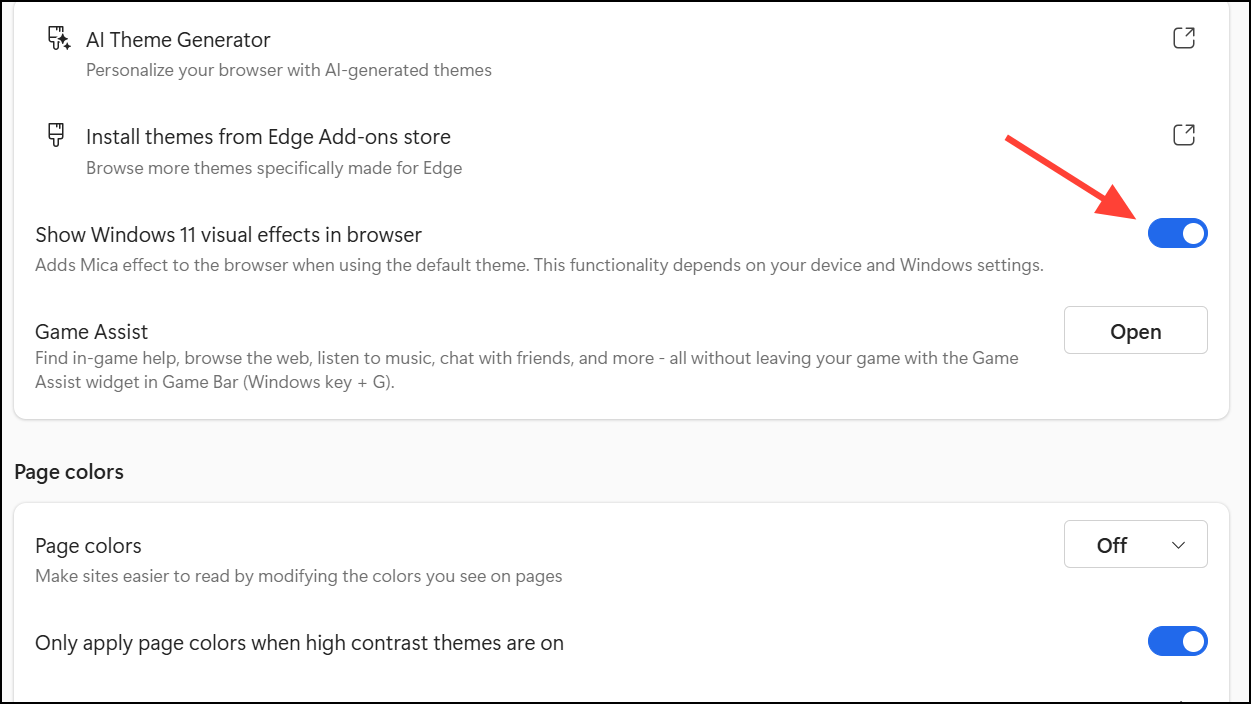
After completing these steps, you’ll notice the title bar and toolbar now display a semi-transparent, blurred background. This effect reflects your desktop wallpaper and system colors, resulting in a more cohesive appearance with Windows 11. If you wish to disable the effect, simply return to the Appearance settings and toggle off the option, then restart Edge again.
Alternative Method: Enable Mica Effect via Shortcut Properties
For users who prefer command-line options or encounter issues with the flags method, you can activate the Mica effect by editing the Edge shortcut properties. This approach is especially useful if the settings toggle is missing or grayed out.
--enable-features=Windows11MicaTitlebar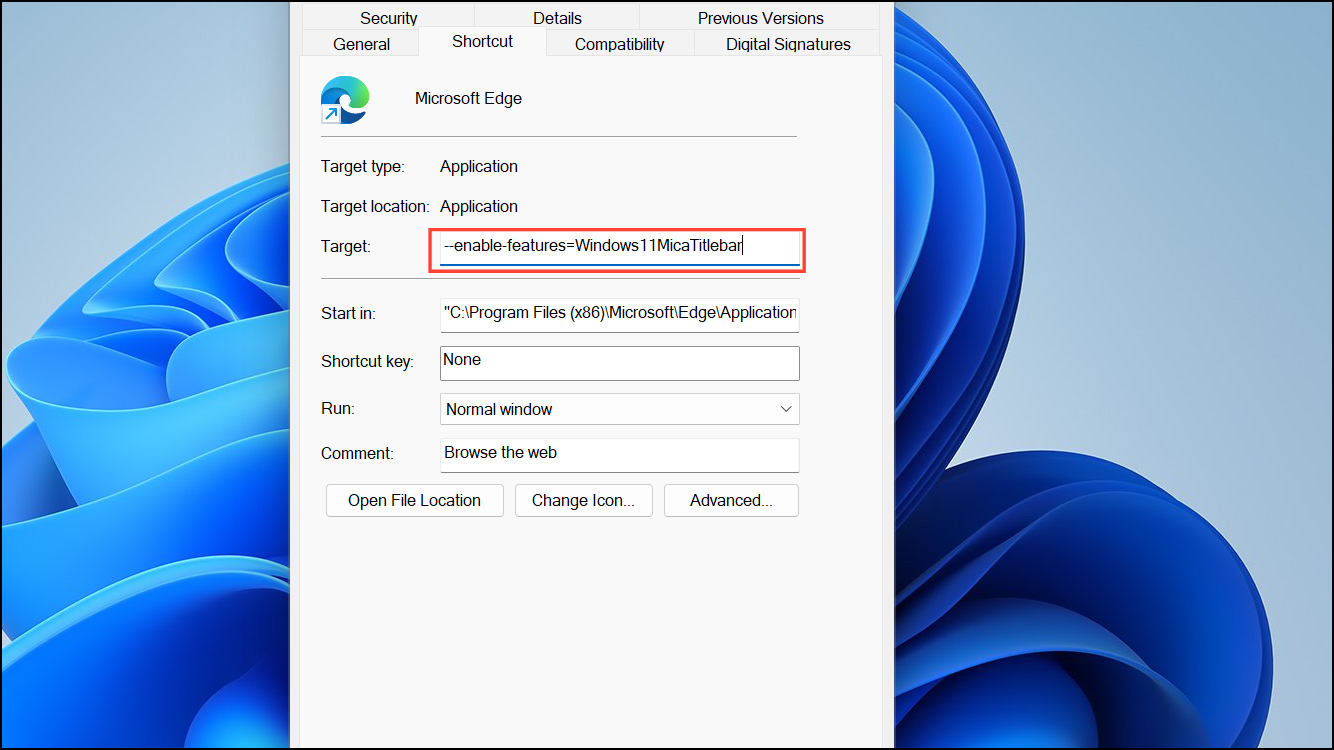
For example, the Target field should look like:
"C:\Program Files (x86)\Microsoft\Edge\Application\msedge.exe" --profile-directory="Default" --enable-features=Windows11MicaTitlebarThis method forces Edge to apply the Mica effect even if the standard settings are unavailable. However, it may not provide the same level of stability as the built-in settings toggle, and some UI elements (such as context menus) may not display the effect. Additionally, you may notice the loss of rounded corners in tabs when using this approach.
Troubleshooting and Compatibility Notes
The Mica effect in Edge is only supported on Windows 11. If you are running Windows 10 or earlier, the option will not appear or have any effect. The setting also requires you to use the Default theme in Edge; custom themes, including dark or colored variants, will disable or gray out the visual effects toggle.
Some users have reported that after certain Edge updates (notably version 138), the Mica effect was temporarily removed from all channels, including Stable. However, as of version 140, Microsoft has restored the feature in the Canary and other channels. If you do not see the option, ensure your Edge browser is up to date and that you are not running a managed or restricted version of Windows (such as in some enterprise environments).
If the effect does not appear after following the above steps, double-check that:
- You are running Windows 11.
- Your Edge version is 140 or newer.
- The Default theme is selected in Edge Appearance settings.
- Transparency effects are enabled in Windows system settings (Settings > Personalization > Colors > Transparency effects).
- No group policies or organizational restrictions are blocking experimental features.
Performance issues may occur on lower-end hardware, as the Mica effect relies on GPU acceleration and system resources. Disabling other visual effects or updating your graphics drivers can help if you experience slowdowns.
Turning on the Mica effect in Microsoft Edge streamlines the browser’s integration with Windows 11, making the interface feel more modern and consistent. If you run into issues, updating Edge and checking system requirements usually resolves them quickly.





