
Automatic app launches during Windows 11 startup can slow system boot times and consume memory, especially if you rarely use the apps in question. The Xbox app, in particular, often configures itself to run at startup after installation or updates, which can clutter your taskbar and impact performance. Disabling automatic startup for the Xbox app streamlines your login process and frees up system resources for your core tasks.
Disable Xbox App Auto-Start from Xbox App Settings
Xbox in the search bar. Wait for the app to fully load before proceeding.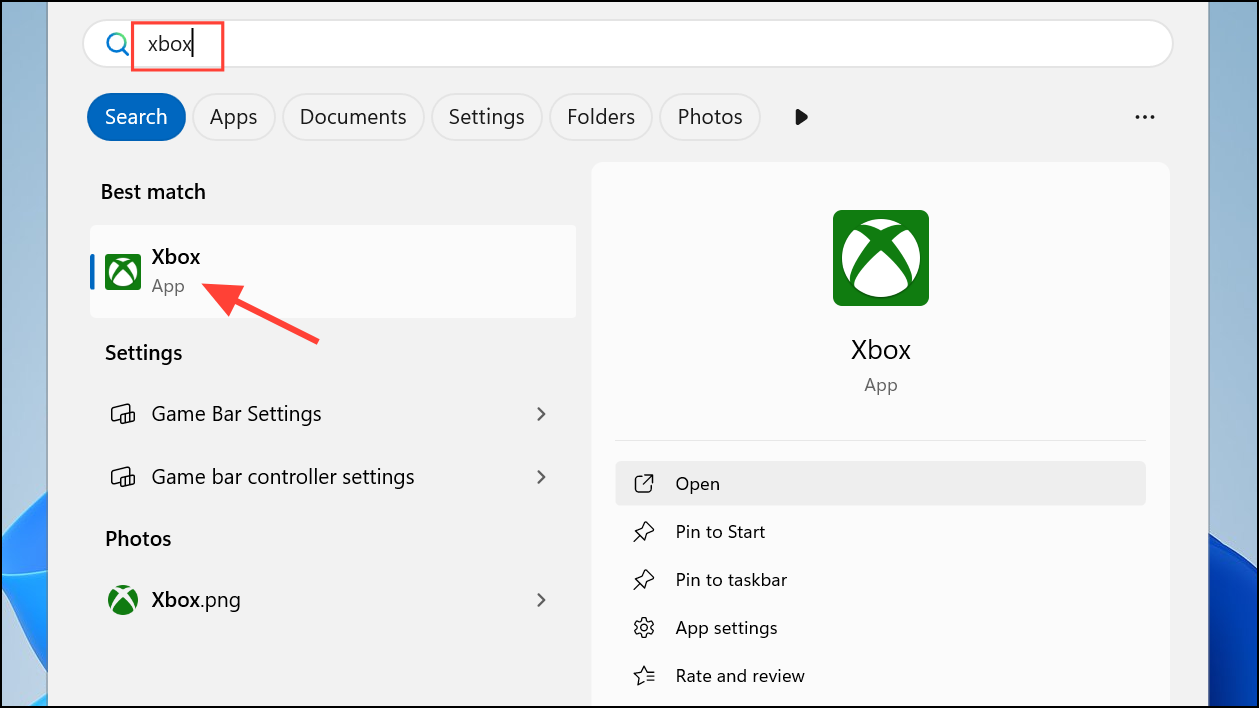
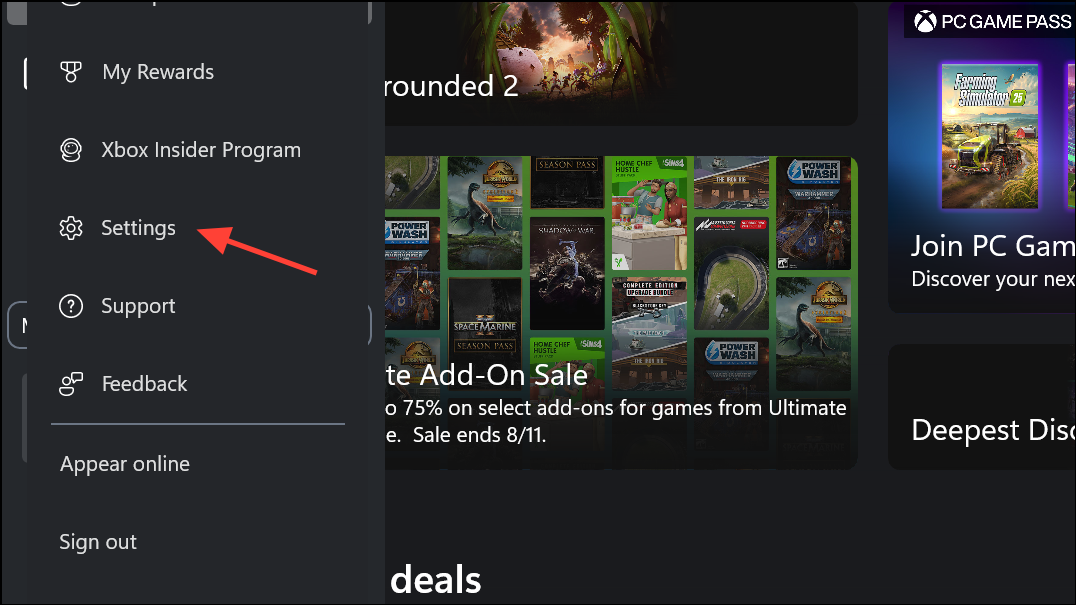
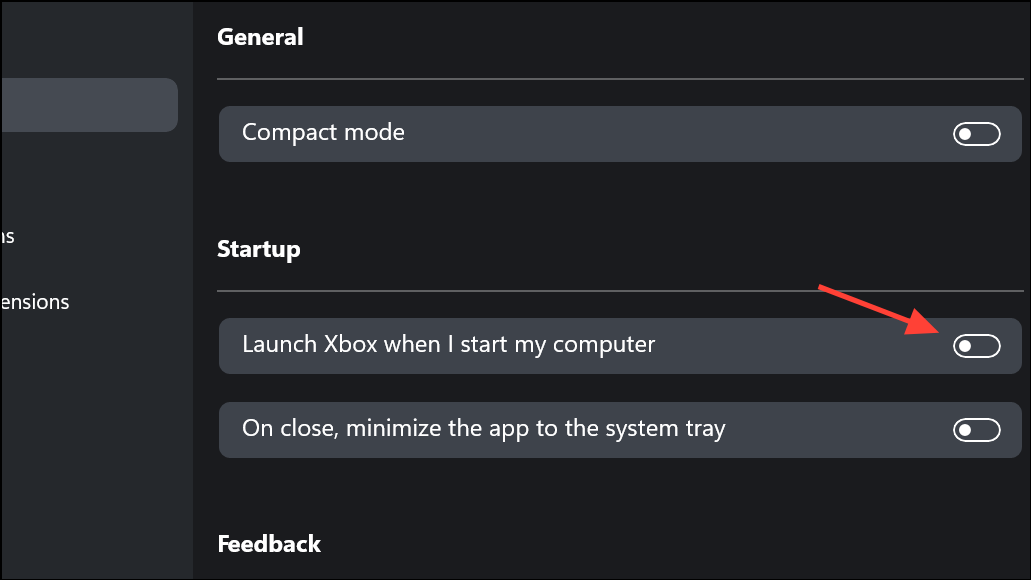
After these changes, the Xbox app will no longer launch automatically when you start your computer or sign in to your account.
Disable Xbox App Startup Using Task Manager
Ctrl + Shift + Esc to open Task Manager directly.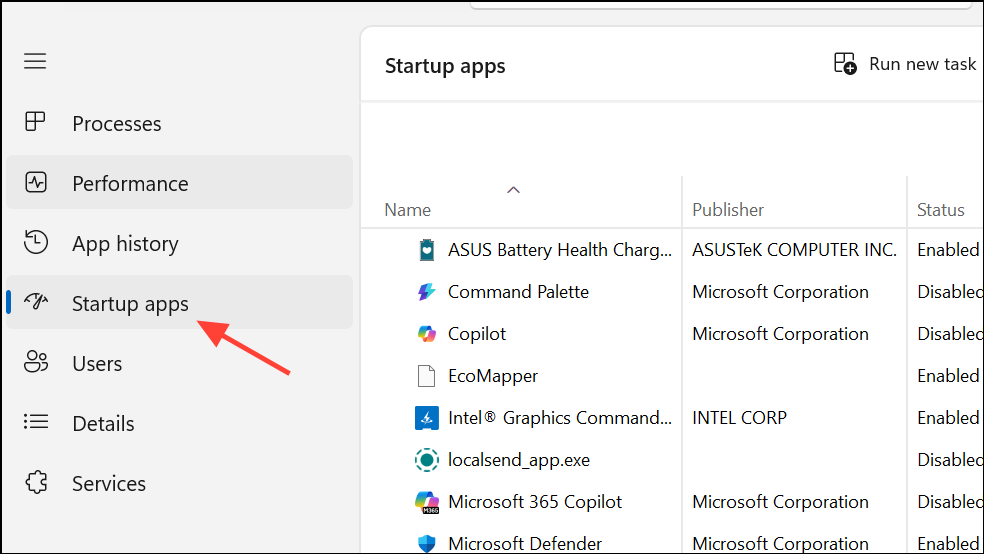
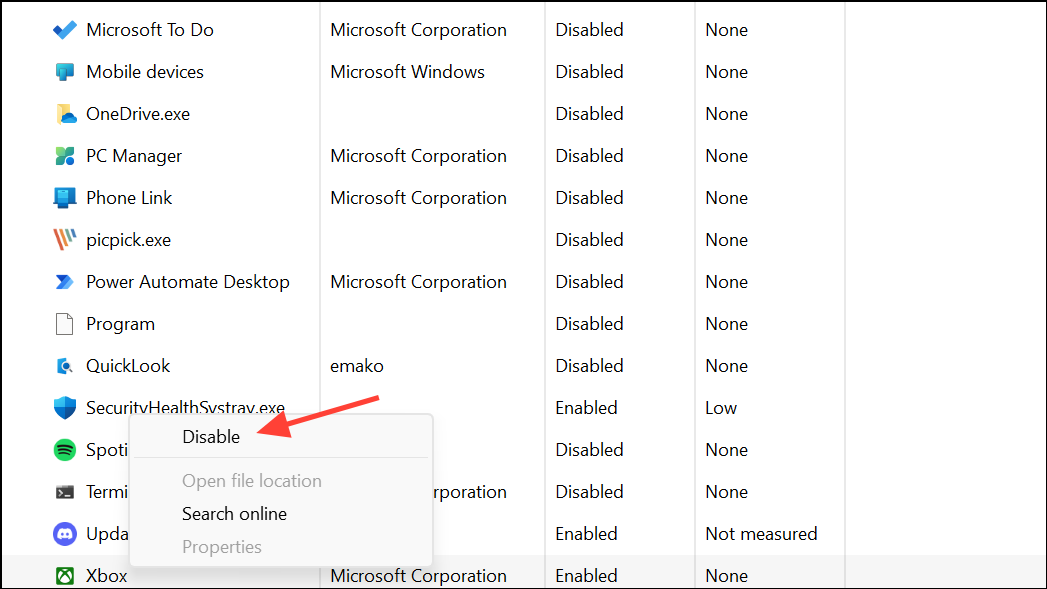
Task Manager also shows the startup impact of each app, so you can prioritize which apps to disable for faster boot times.
Manage Xbox App Startup via Windows Settings
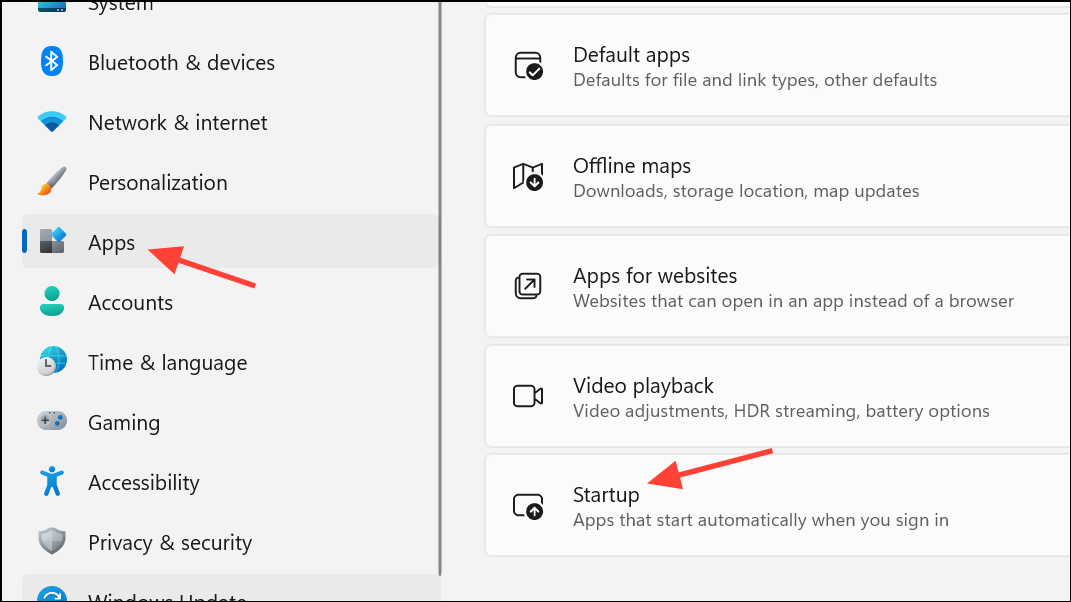
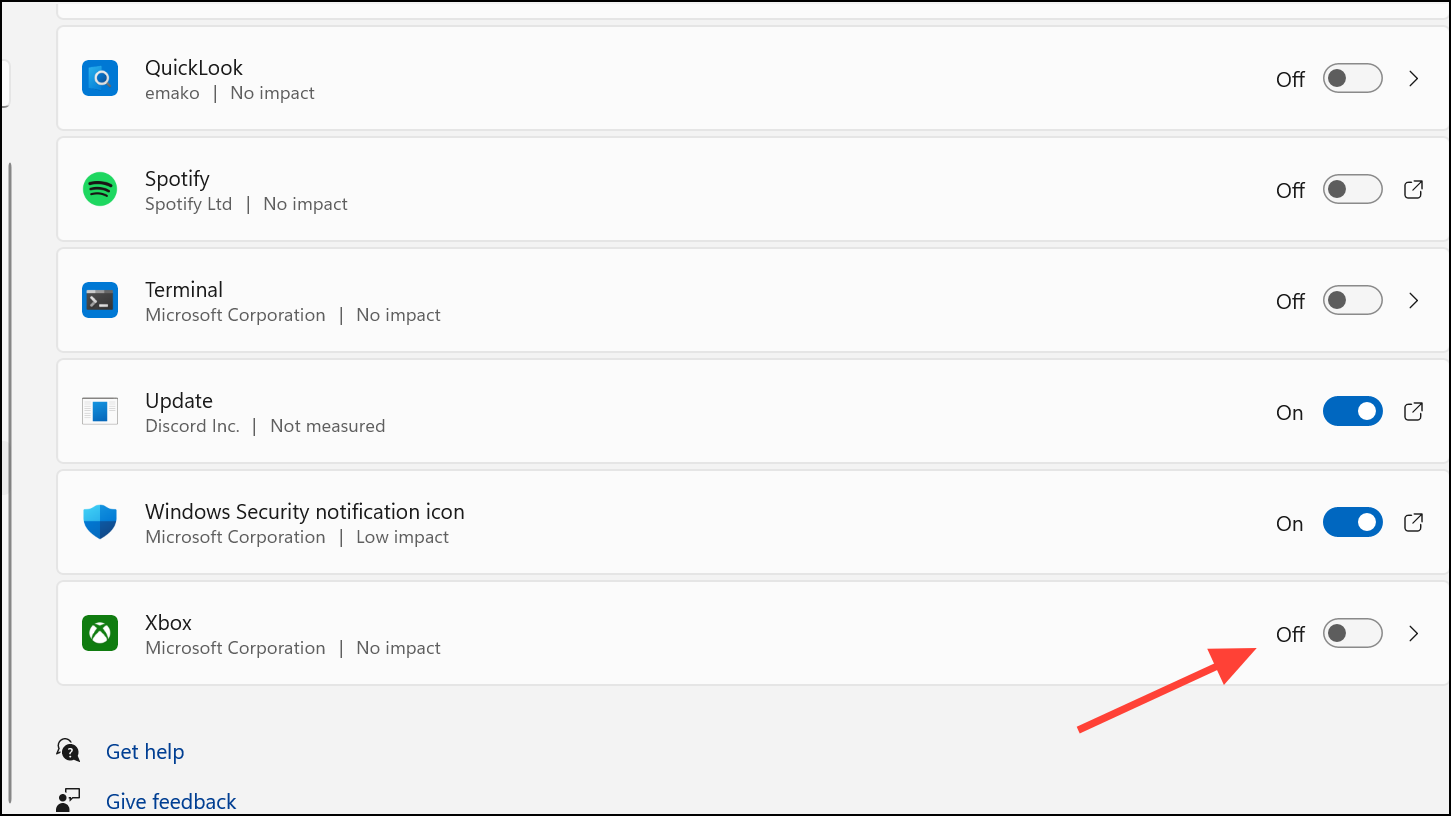
If the Xbox app does not appear in this list, it may not be registered for user-level startup or is managed through another method.
Advanced: Remove Xbox App from Startup Using File Explorer
Some apps place shortcuts in the Windows Startup folder, causing them to launch at every sign-in. To check and remove such entries:
Windows + R to open the Run dialog. Type shell:startup and press Enter. This opens the Startup folder for your user account.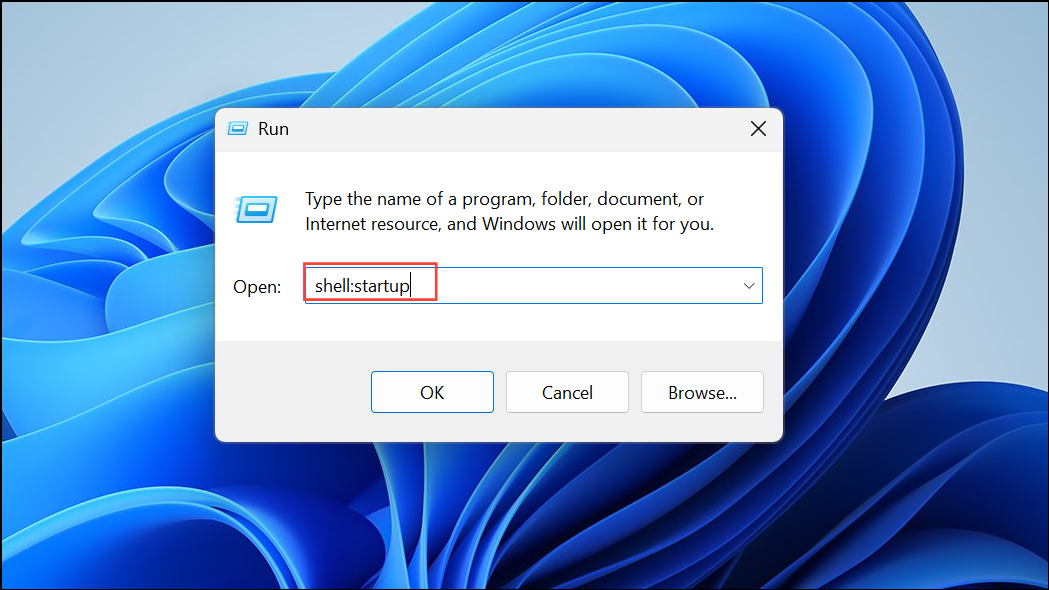
shell:common startup in the Run dialog. Remove Xbox shortcuts as needed.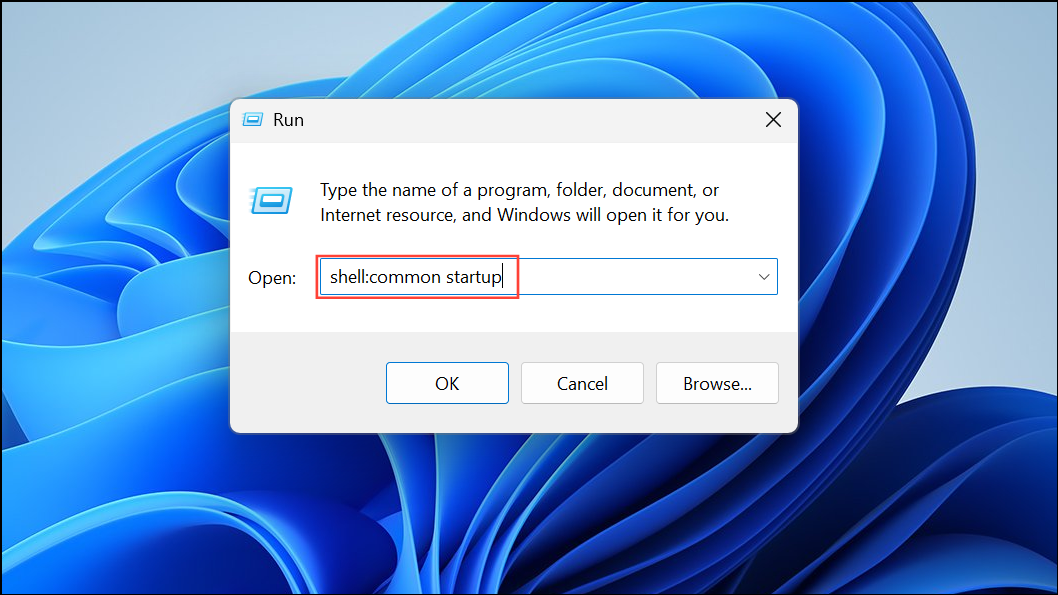
Prevent Xbox App Startup via Group Policy (Advanced/Enterprise)
For IT administrators or advanced users managing multiple devices, Group Policy can control Xbox app startup. This method is most effective in enterprise environments:
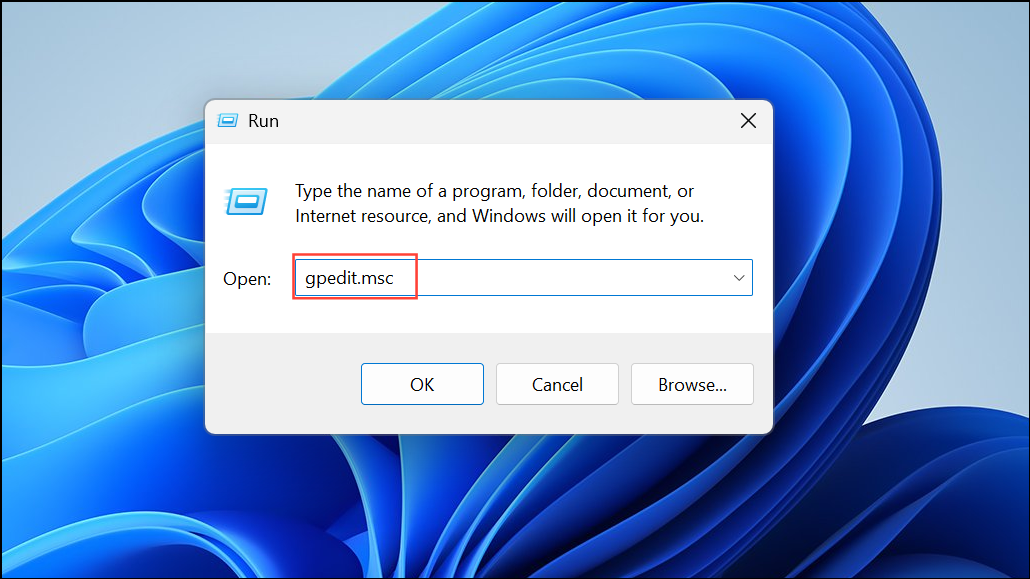
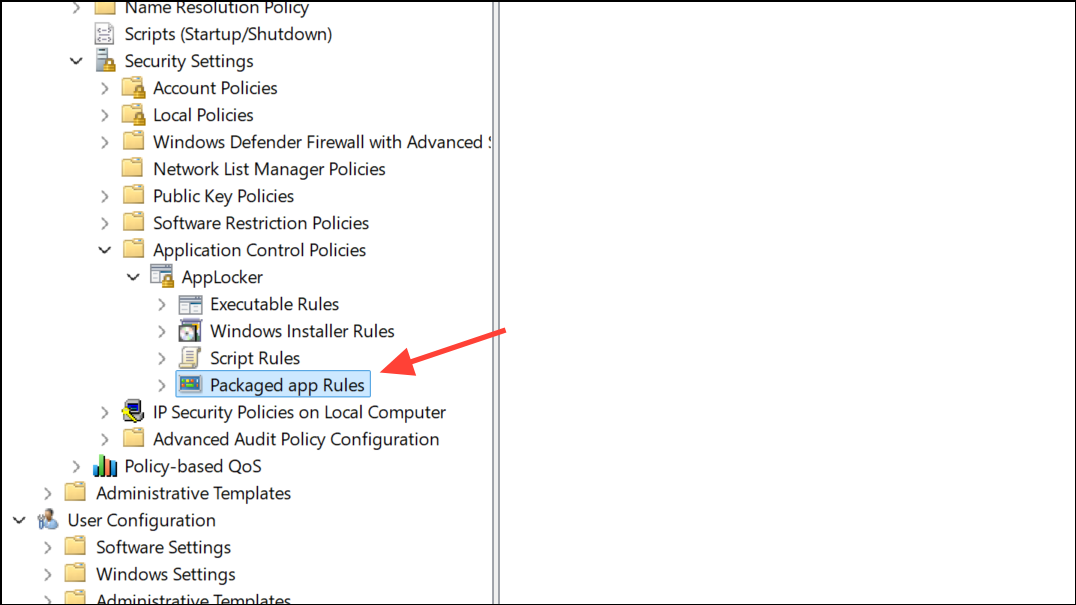
Microsoft.XboxApp package, preventing it from running at startup or being used at all.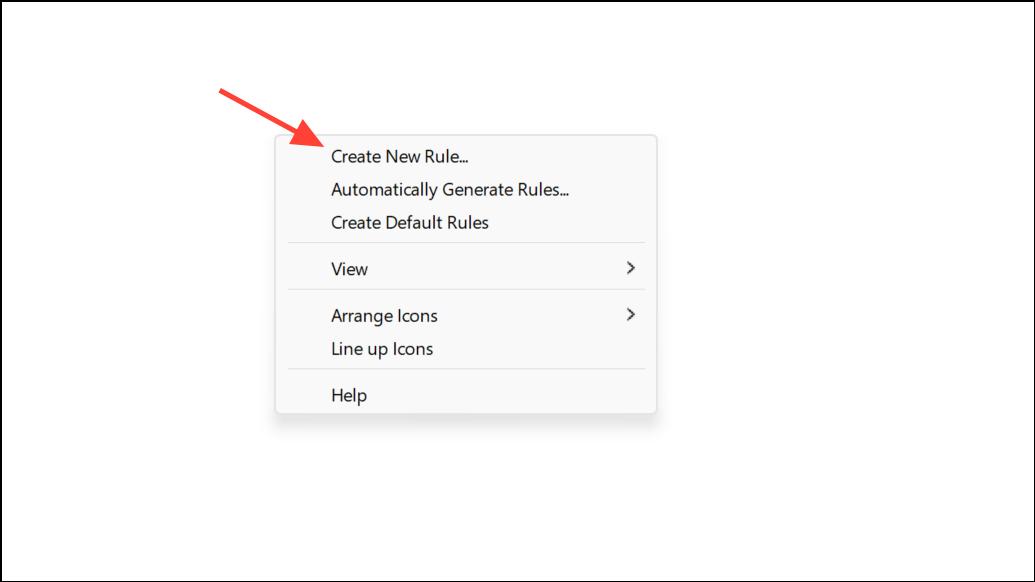
Additional Tips: Troubleshooting Persistent Xbox App Startup
If the Xbox app keeps returning or reinstalls itself after removal, several factors may be responsible:
- Windows updates or feature upgrades can reinstall system apps like Xbox Game Bar.
- Third-party apps or games may reinstall the Xbox app as a dependency.
- Microsoft Store settings may trigger automatic updates or reinstallation.
To minimize these occurrences, disable automatic app updates in the Microsoft Store and routinely check startup entries after major Windows updates. If the Xbox app persists, tools like Autoruns (from Microsoft Sysinternals), Revo Uninstaller, or SophiApp can help identify and remove stubborn startup entries.
Disabling the Xbox app from starting automatically in Windows 11 streamlines your system’s boot process and keeps resources focused on your essential tasks. If you need the app again, you can always launch it manually or re-enable its startup option.





