

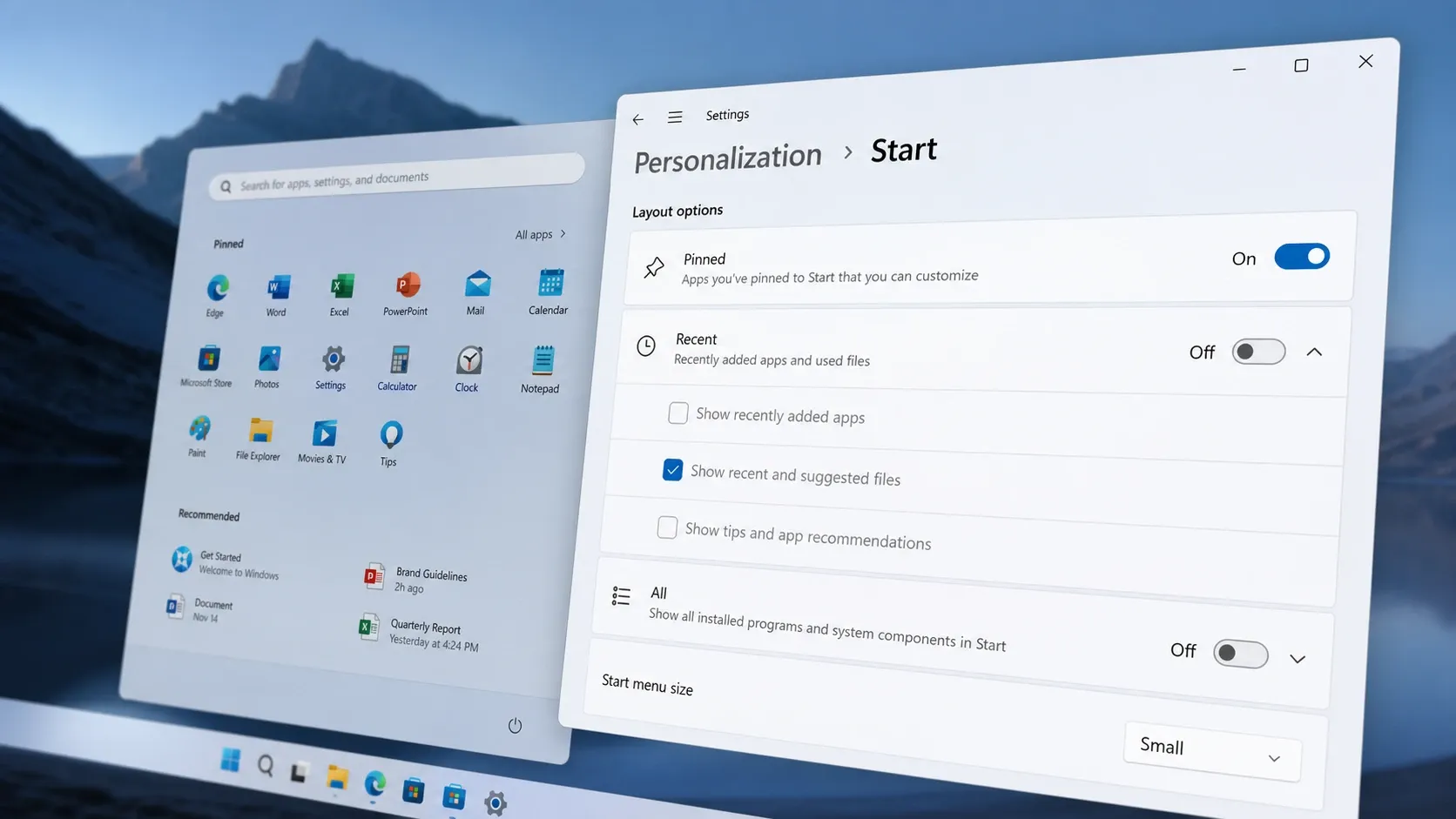
Windows 11 is gaining real control over the Start menu for the first time since the operating system launched. A redesigned version adds three size choices, lets you independently show or hide the Pinned, Recent, and All sections, and even hides your name and profile picture. The changes arrive with build 26300.8553 in the Experimental Channel for Windows Insiders, though they don’t always switch on automatically.
What the new Start menu size and customization settings change
The redesign keeps the three familiar sections but gives each one its own switch. You can now turn Pinned, Recent, and All on or off in any combination, including leaving the menu nearly empty. Microsoft also renamed the old “Recommended” section to “Recent,” which surfaces recently opened files and newly added apps in something closer to real time.
On top of that, a Start menu size control adds preset layouts. The Automatic option scales the menu to your display, which is why it often feels oversized on smaller screens. Small shrinks the footprint, while Large keeps the expanded look. There’s no free-form dragging like Windows 10 offered, so you’re choosing between fixed presets rather than any custom dimension.
| Setting | Options | Effect |
|---|---|---|
| Start menu size | Automatic, Small, Large | Picks a preset footprint; applies instantly |
| Pinned | On / Off | Shows or hides pinned apps |
| Recent (formerly Recommended) | On / Off, apps and/or files | Shows recently added apps and opened files |
| All | On / Off, Grid or List view | Shows or hides the full app list |
| Name and profile picture | On / Off | Hides your account details from the menu |
These settings are part of Microsoft’s broader Windows K2 push to address long-standing complaints. Changes apply right away, so you don’t need to sign out or reboot just to switch sizes.
Change Start menu size in Settings
If your PC already has the redesign, the native controls are the simplest route. No tools or downloads are needed.
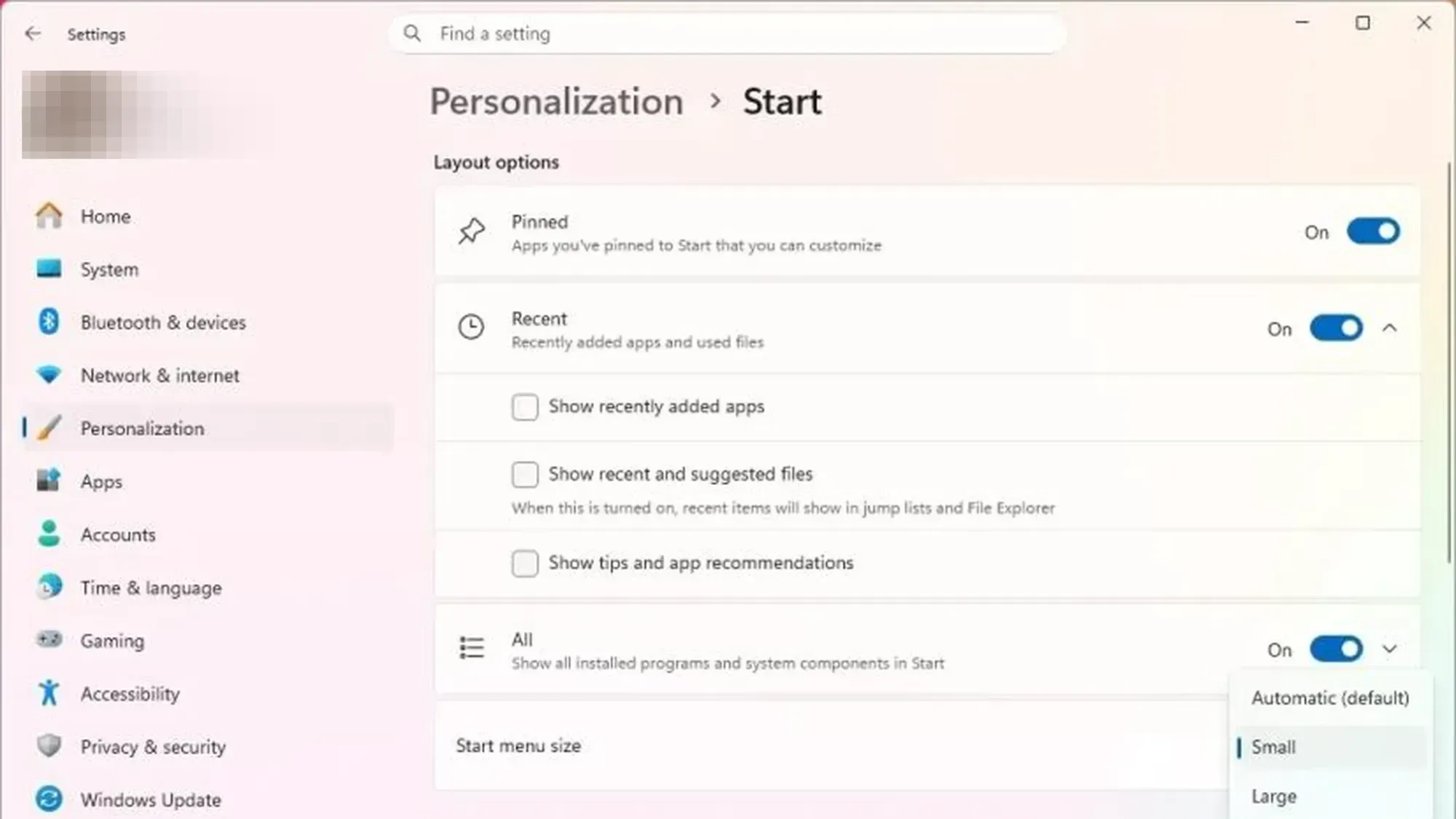
From the same page you can flip the Pinned, Recent, and All toggles, switch All apps between Grid and List view, and turn off the name and profile picture.
Enable the new Start menu with ViveTool
When the redesign hasn’t appeared on a supported Insider build, you can flip the hidden feature flags manually. This works on the Experimental Channel where build 26300.8553 is rolling out.
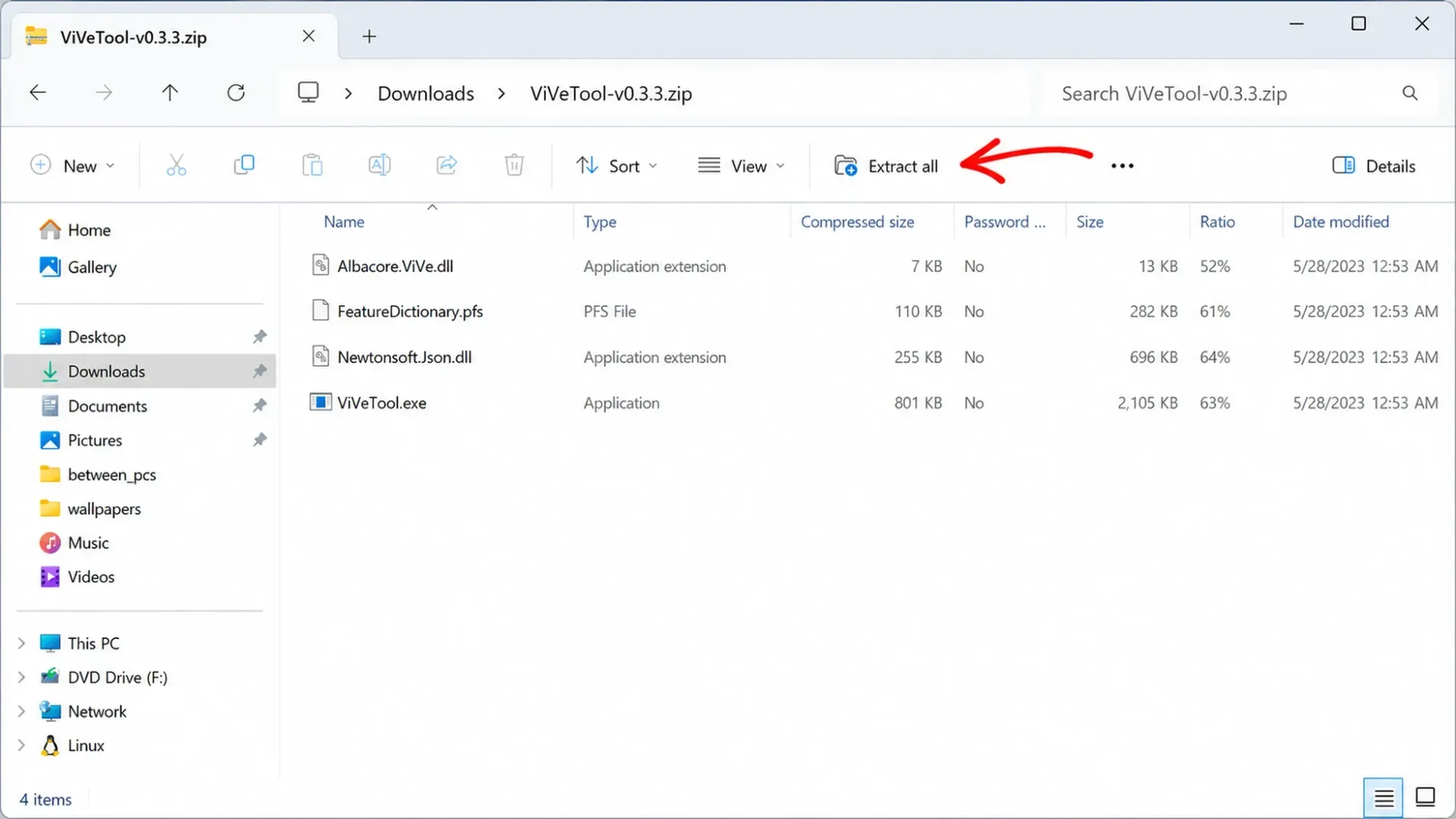

cd c:\folder\path\ViveTool-v0.x.xvivetool /enable /id:61754985,61225604,61596616,61596617,61596618,61596619To roll the change back, repeat the same steps but swap the enable command for the disable version.
vivetool /disable /id:61754985,61225604,61596616,61596617,61596618,61596619Set the Start menu size with a registry file
Once the redesign is active, you can also switch sizes by writing a single registry value. The size lives under HKEY_CURRENT_USER\Software\Microsoft\Windows\CurrentVersion\Start as a DWORD named StartMenuSize.
| Size | StartMenuSize value |
|---|---|
| Automatic (default) | 00000000 |
| Small | 00000001 |
| Large | 00000002 |
A small .reg file applies the value without opening the registry editor by hand.
Windows Registry Editor Version 5.00

[HKEY_CURRENT_USER\Software\Microsoft\Windows\CurrentVersion\Start]
"StartMenuSize"=dword:00000001
Save the text as a .reg file, double-click it, and approve the prompts to merge. If Smart App Control is enabled, unblock the file first. Change the final digit to 0 or 2 to match the size you want.
How to confirm it worked and why it may not appear
You’ll know the feature is live when a Start menu size drop-down shows up under Layout options in Settings, alongside separate toggles for Pinned, Recent, and All. Switching to Small visibly shrinks the menu the moment you select it, and the Recommended label is replaced by Recent.
If nothing changes after the ViveTool command, check the most common causes:
- Your PC isn’t on build 26300.8553 in the Experimental Channel, where these changes are rolling out.
- The feature IDs have already been retired because Microsoft merged the redesign into a later build.
- You skipped the restart, so the flags haven’t loaded yet.
Microsoft has confirmed the size and customization controls will expand to all Windows 11 users through the Insider Program before reaching stable builds later this year. Until then, the native Settings option is the safest path, with ViveTool and the registry file reserved for those already running experimental builds.



