
Application errors linked to nvoglv32.dll frequently disrupt programs that rely on NVIDIA graphics and OpenGL on Windows 11. These crashes can present as access violations, startup failures, or freezes, impacting both games and productivity software. The root causes typically include driver incompatibility, DLL file corruption, antivirus interference, or incomplete application installations. Addressing these issues promptly restores system stability and allows affected programs to launch and function correctly.
Update NVIDIA Graphics Drivers
Driver updates from NVIDIA often resolve known bugs and compatibility issues, including those causing nvoglv32.dll crashes. Installing the latest Game Ready Driver can restore normal operation for most users.
Run dialog by pressing Windows + R. Type devmgmt.msc and press Enter to launch Device Manager.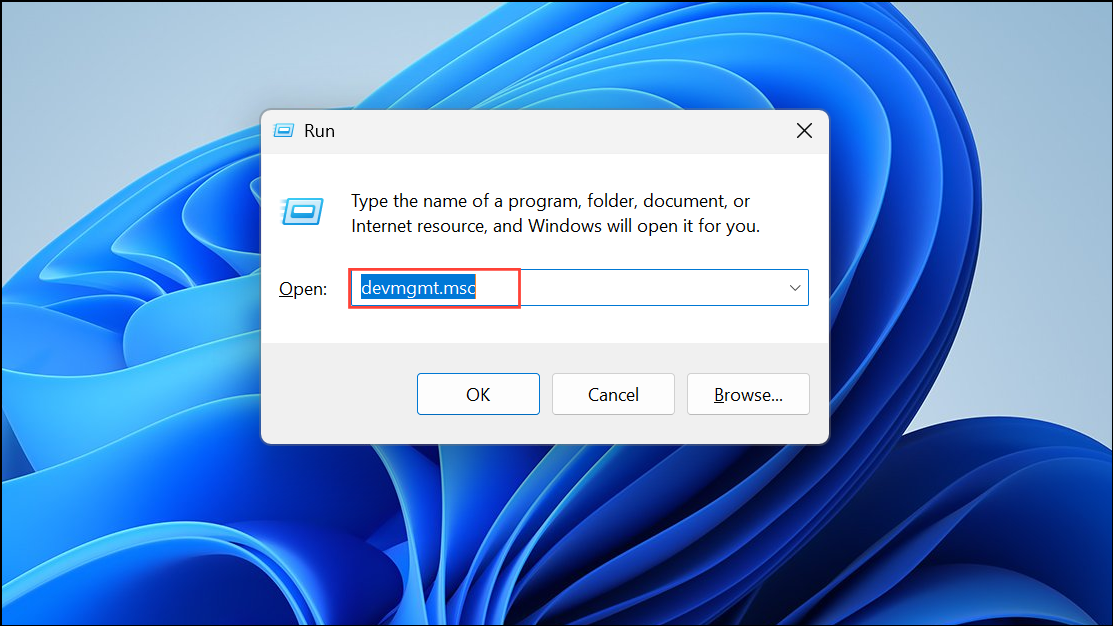
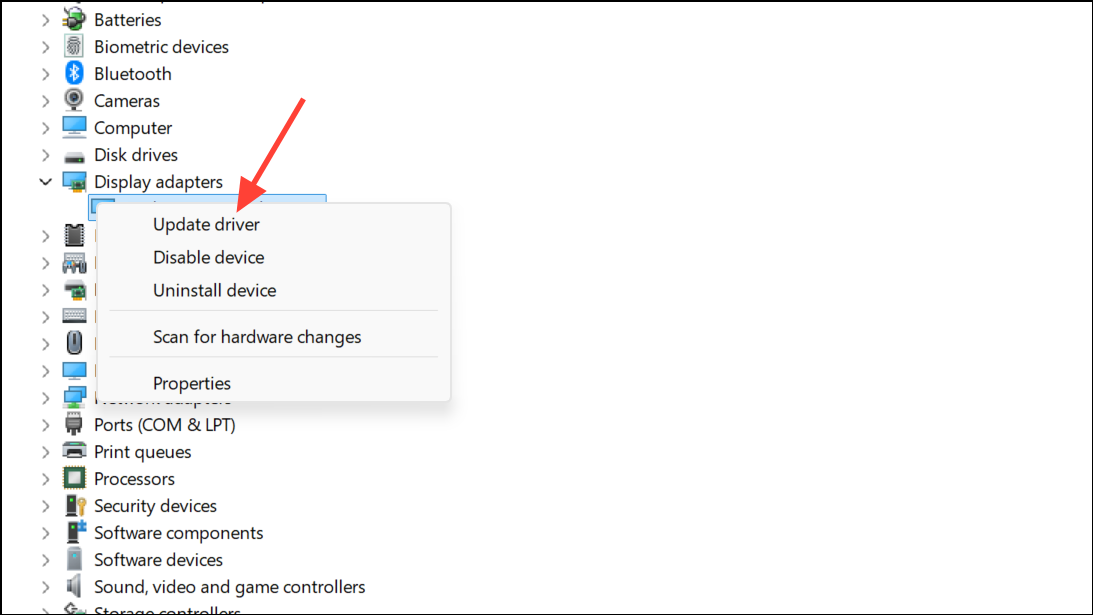
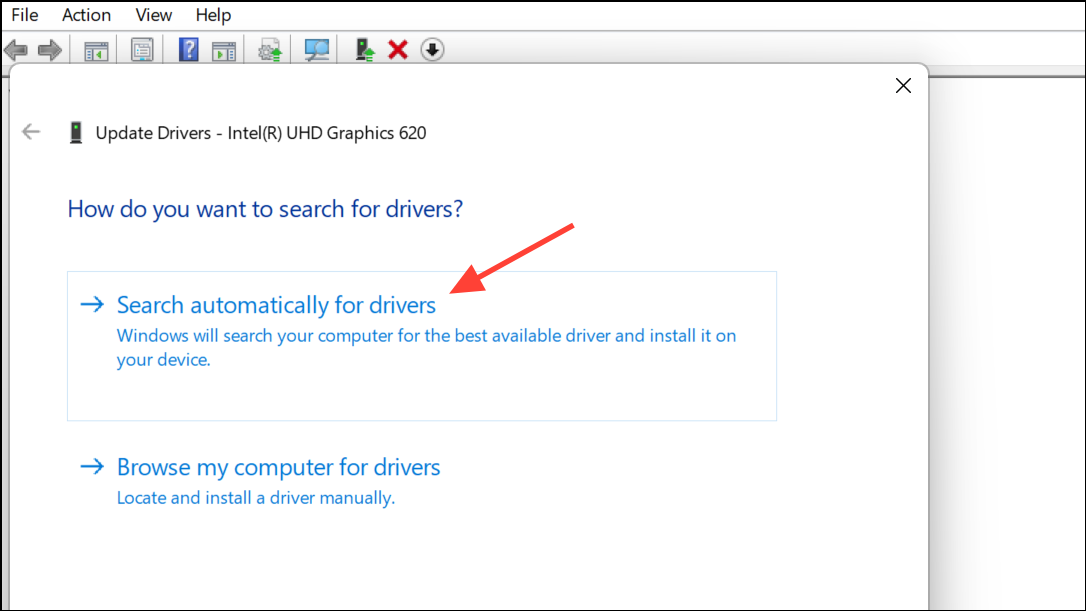
If Windows cannot find a newer driver, visit the NVIDIA Driver Download page, select your GPU model, and download the latest Game Ready Driver for Windows 11. Run the installer, choose Custom (Advanced), and check Perform a clean installation to overwrite previous driver files.
Reinstall NVIDIA Graphics Drivers
Corrupted or incomplete driver installations can persist even after updates. Performing a full uninstall followed by a clean reinstallation can resolve persistent nvoglv32.dll errors.
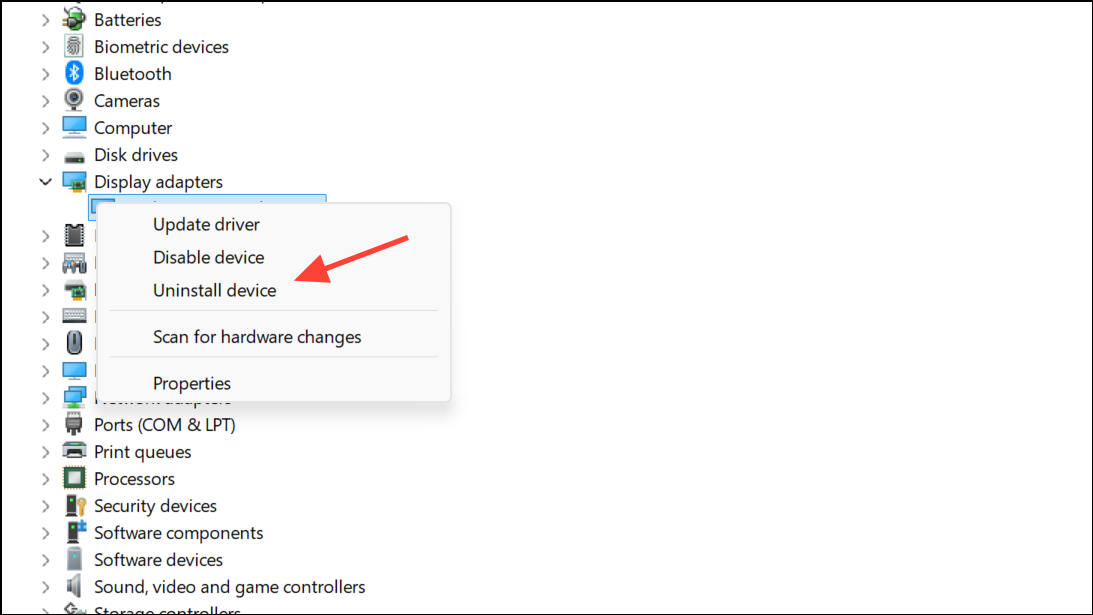
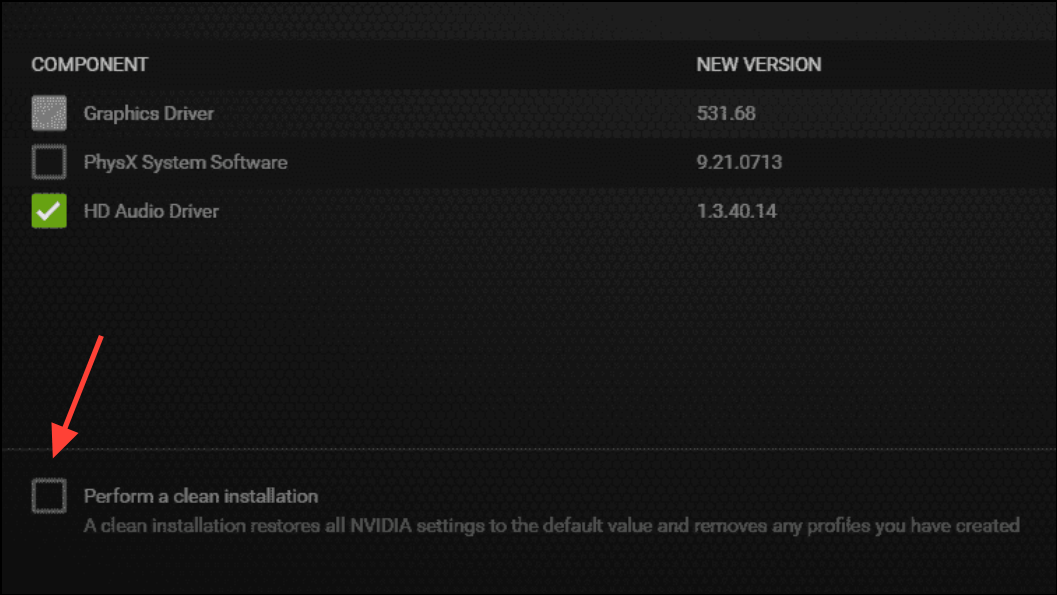
For especially stubborn cases, use the Display Driver Uninstaller (DDU) tool in Safe Mode to remove all traces of previous NVIDIA drivers before reinstalling.
Add or Replace the Nvoglv32.dll File
Missing or corrupted nvoglv32.dll files can prevent applications from starting or cause repeated crashes. Replacing the DLL with a known good copy can restore functionality.
C:\WINDOWS\System32\DriverStore\FileRepository\(look for a folder starting withnv_dispi.inf_amd64_or similar)C:\WINDOWS\SysWow64(for 32-bit applications on 64-bit systems)
Whitelist Nvoglv32.dll in Windows Security or Antivirus
Security software may mistakenly quarantine or block nvoglv32.dll, causing repeated crashes or preventing applications from accessing GPU features. Whitelisting the DLL restores proper access.
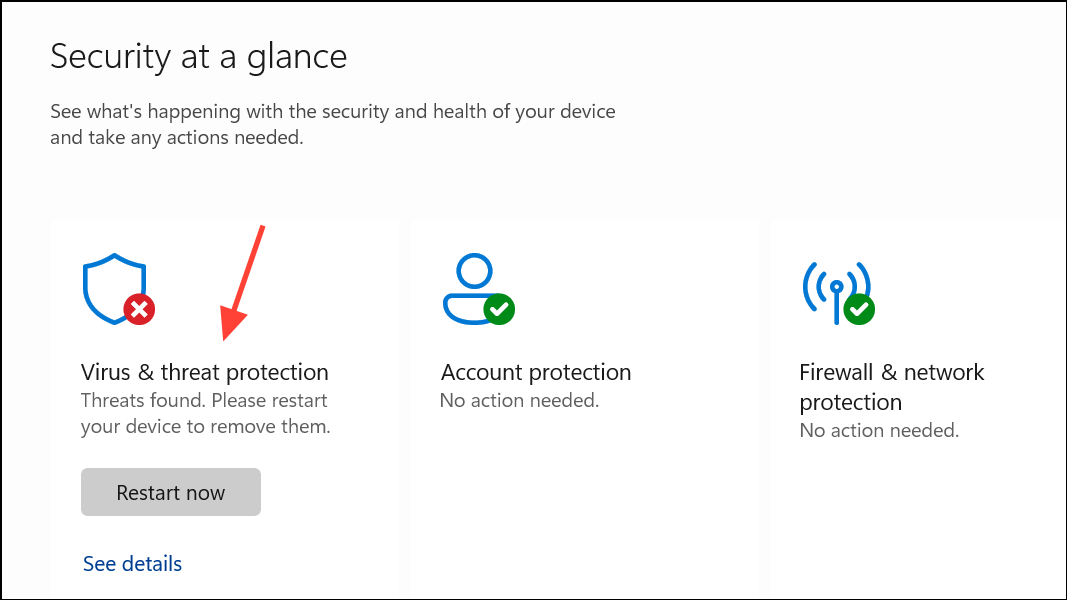
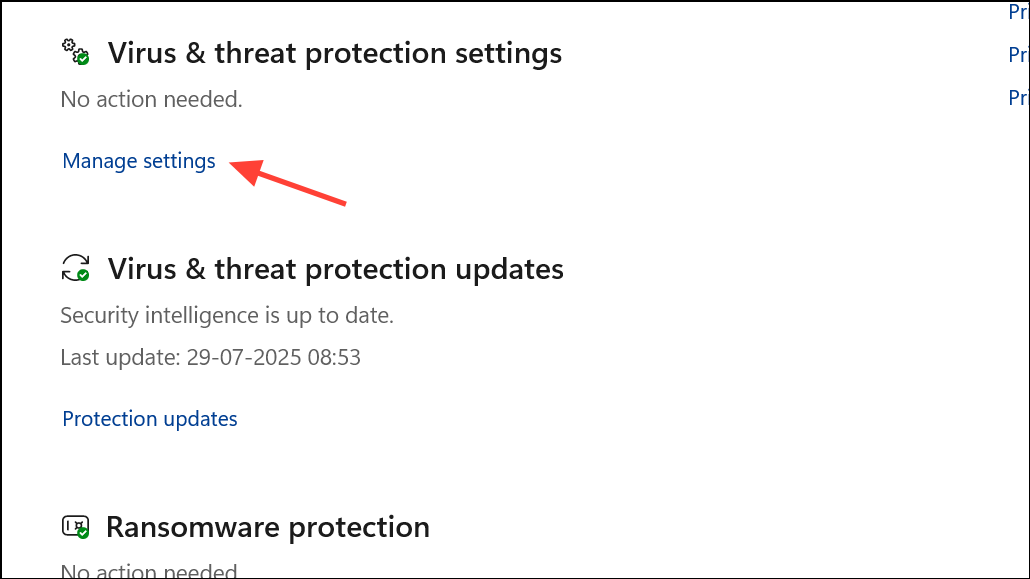
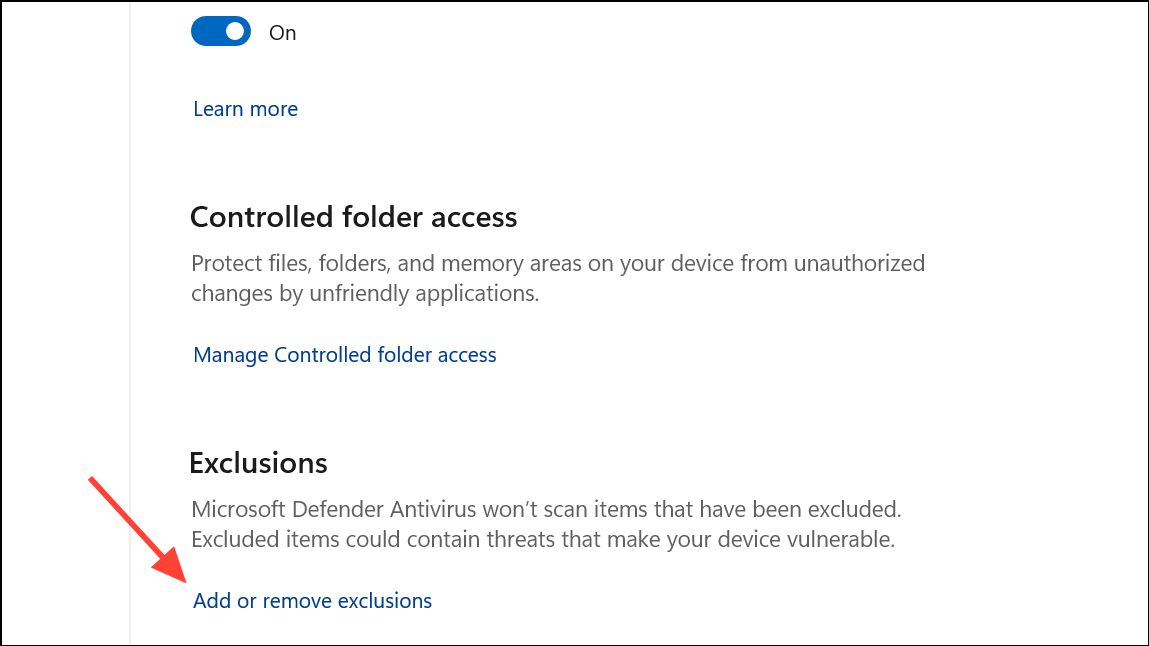
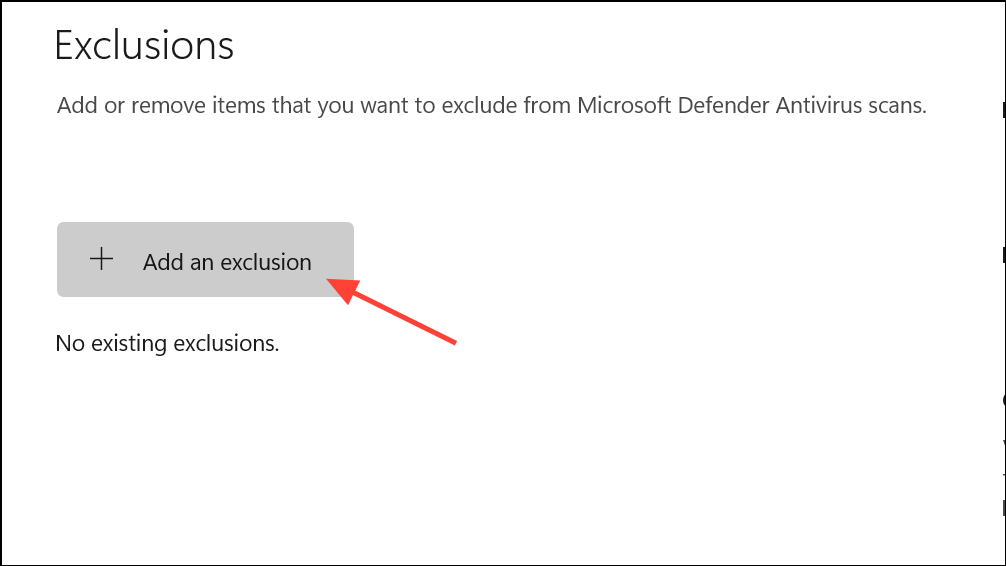
If you use third-party antivirus software, follow its documentation to add an exclusion for nvoglv32.dll as well.
Reinstall the Affected Application or Game
Improper or incomplete installations can prevent programs from accessing required DLLs, resulting in crashes. Reinstalling the affected app or game can resolve these issues.
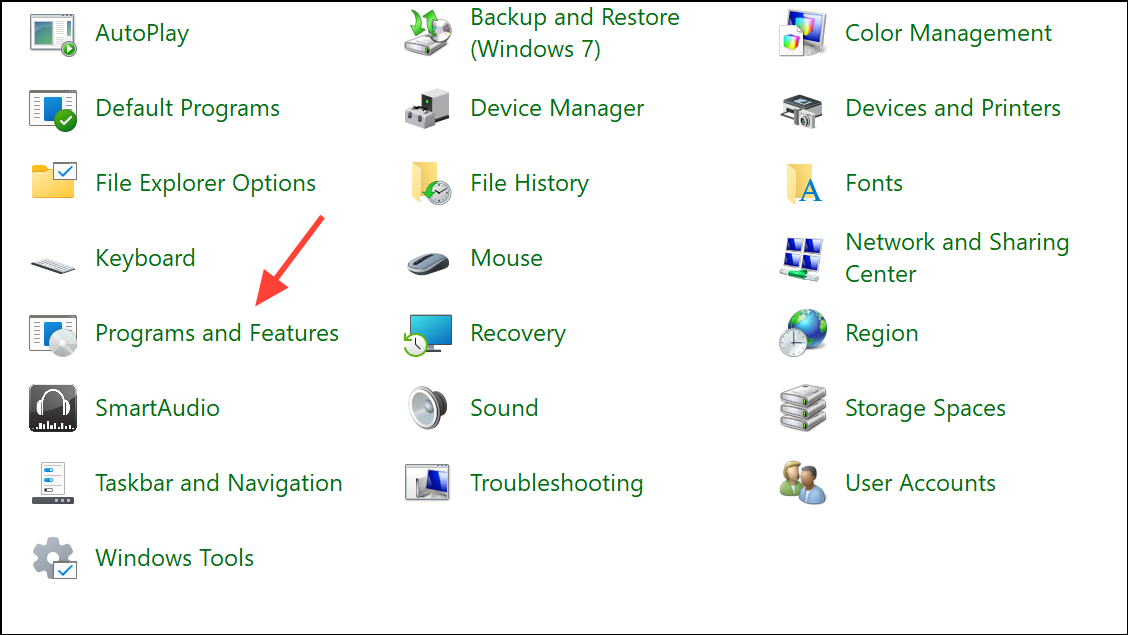
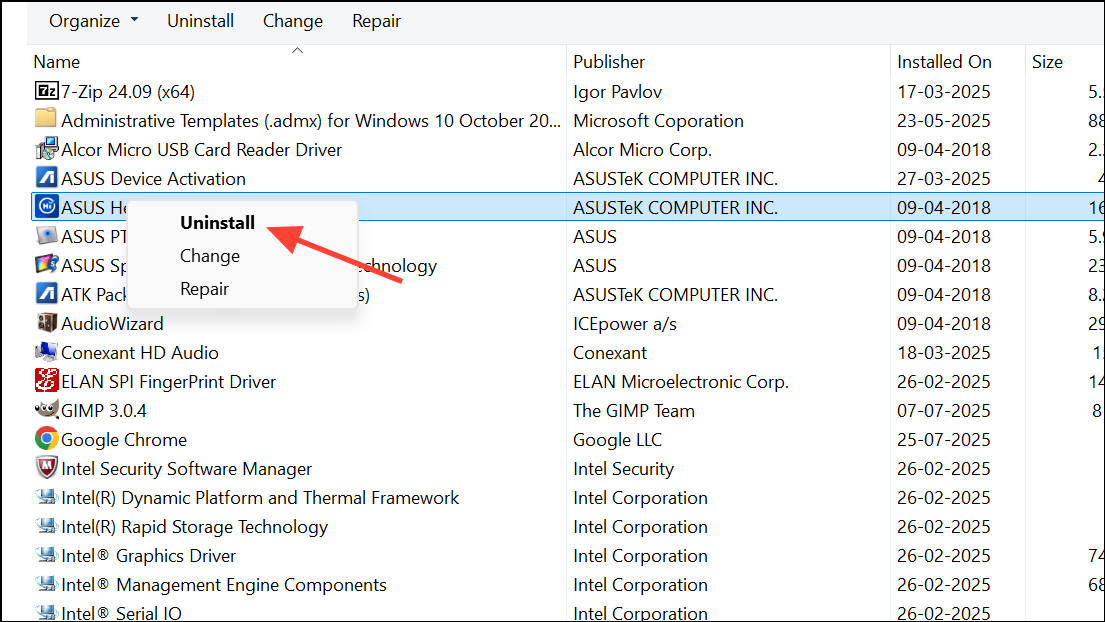
If problems persist, consider using a reputable software uninstaller to remove leftover files and registry entries before reinstalling.
Additional Troubleshooting Steps
In some cases, hardware issues or system file corruption may contribute to persistent nvoglv32.dll errors. Running Windows Memory Diagnostic (MdSched), checking for Windows updates, and scanning for system file corruption using sfc /scannow and DISM /Online /Cleanup-Image /RestoreHealth can help identify and resolve deeper system-level problems. If you use enterprise security tools (such as CrowdStrike Falcon), coordinate with your IT department to ensure they are not interfering with NVIDIA drivers.
Applying these targeted fixes restores reliable access to NVIDIA graphics features and resolves application crashes linked to nvoglv32.dll on Windows 11. Keeping drivers up to date and monitoring antivirus actions will help maintain system stability moving forward.



