How to Fix Black Screen After Shut Down on Windows 11
Restore access to your Windows 11 system when a black screen appears after shutdown, update, or restart by following these targeted troubleshooting steps.
Restore access to your Windows 11 system when a black screen appears after shutdown, update, or restart by following these targeted troubleshooting steps.
by Pallav Pathak
System shutdown on Windows 11 sometimes leads to a black screen on the next startup, often with no error message or visible cause. This issue interrupts normal use, risks unsaved data, and can make recovery seem intimidating—especially after a recent update or hardware change. Resolving it requires a methodical approach, starting with the most reliable solutions and progressing to more advanced recovery options if necessary.
Wait a few moments, then turn it back on. If the black screen persists, shut down again and disconnect all non-essential peripherals, such as external drives, USB devices, printers, and additional monitors.
Restart the system with only the keyboard, mouse, and primary display connected. This step rules out conflicts or issues caused by faulty accessories or external hardware.
If the PC powers on but the screen remains black, try waking the display or resetting the graphics driver. Simultaneously press Windows + Ctrl + Shift + B. If the graphics subsystem is responsive, you may hear a brief beep or see the screen flicker, which indicates the driver has been reset. If this shortcut has no effect, continue to the next step.
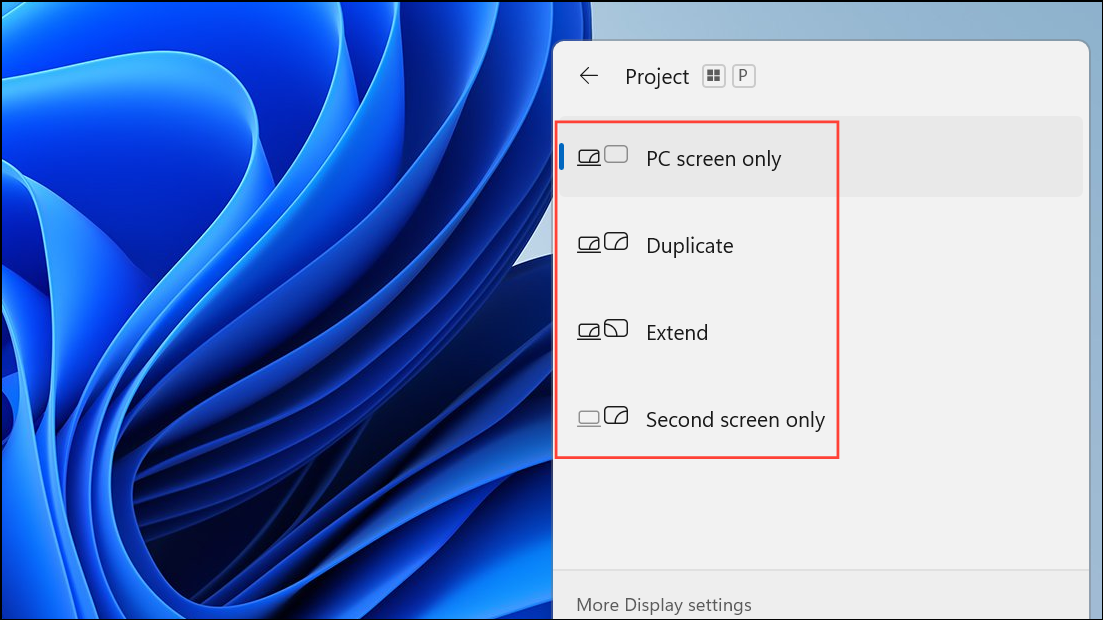
Windows 11 can sometimes direct video output to the wrong display, especially after updates or when using multiple monitors. Press Windows + P to open the projection menu (even if you can’t see it), then tap P once and press Enter to cycle through display modes (PC screen only, duplicate, extend, second screen only).
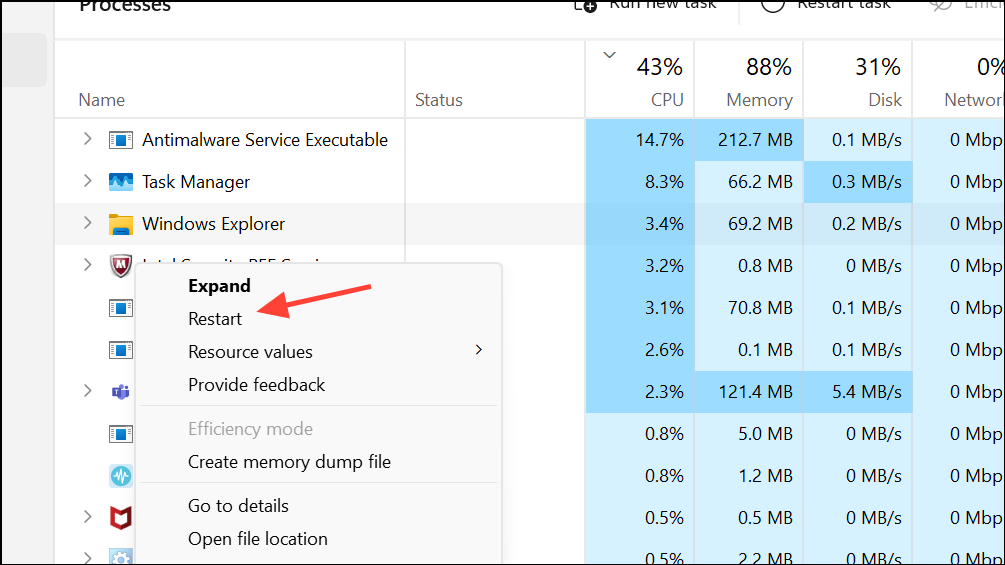
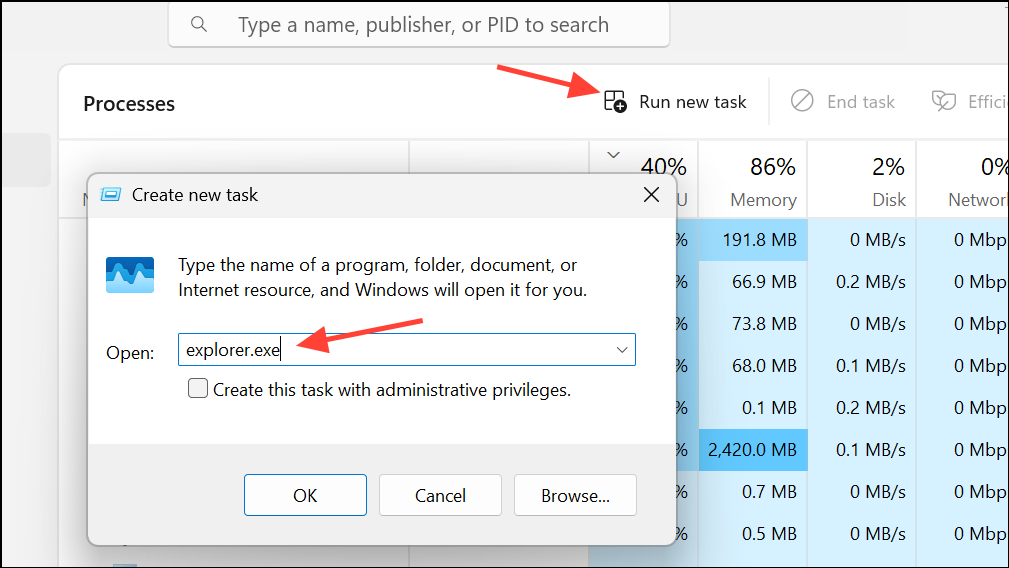
If Windows Explorer is not listed, click File > Run new task, type explorer.exe, and press Enter. This process reloads the user interface, which often resolves a black screen caused by a failed startup of the desktop environment.
If you cannot access Task Manager or normal startup remains unavailable, force the system into Windows Recovery Environment (WinRE). Power off your PC by holding the power button for 10 seconds. Repeat this power-on, power-off cycle two to three times.
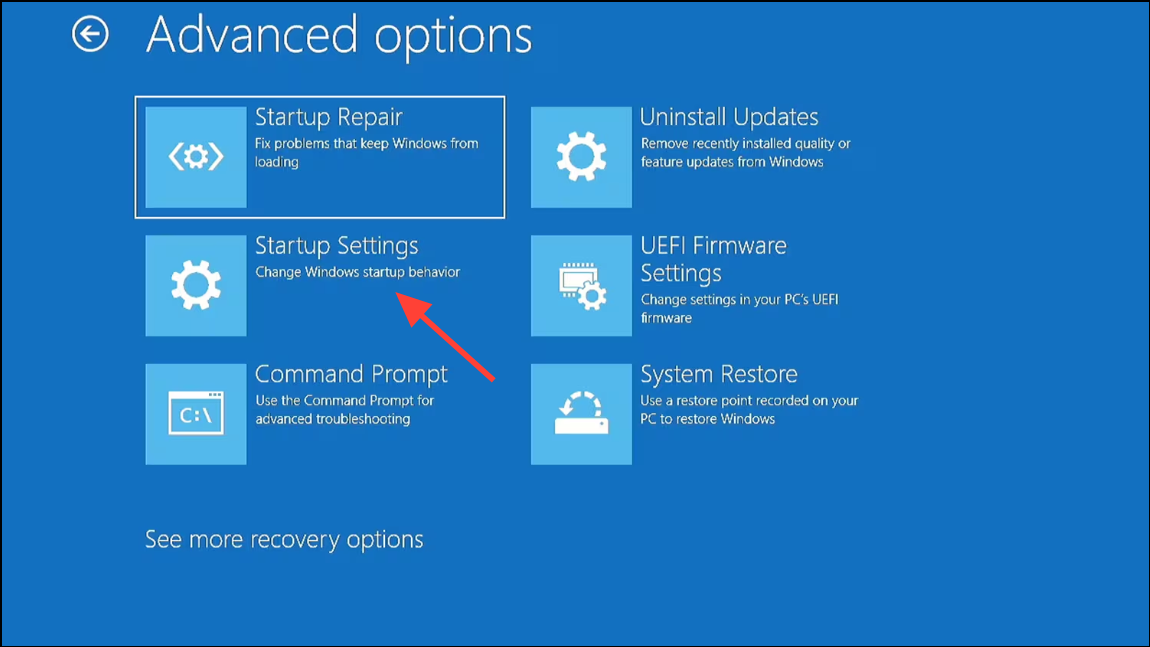
On the third start, Windows should display the “Automatic Repair” or “Recovery” screen. Select Advanced options > Troubleshoot > Advanced options > Startup Settings > Restart.
When the Startup Settings menu appears, press F5 to choose “Safe Mode with Networking.” Safe Mode loads a minimal set of drivers and disables most third-party software, making it easier to identify whether a driver, update, or application is the root cause.
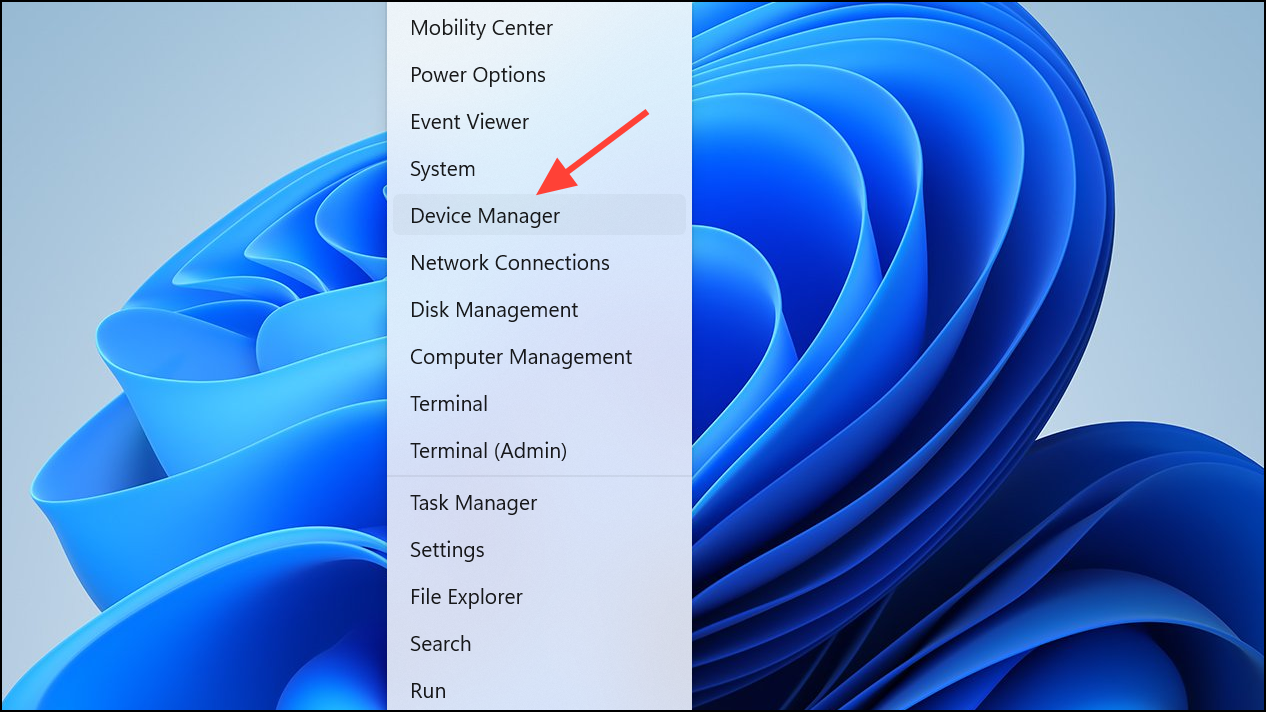
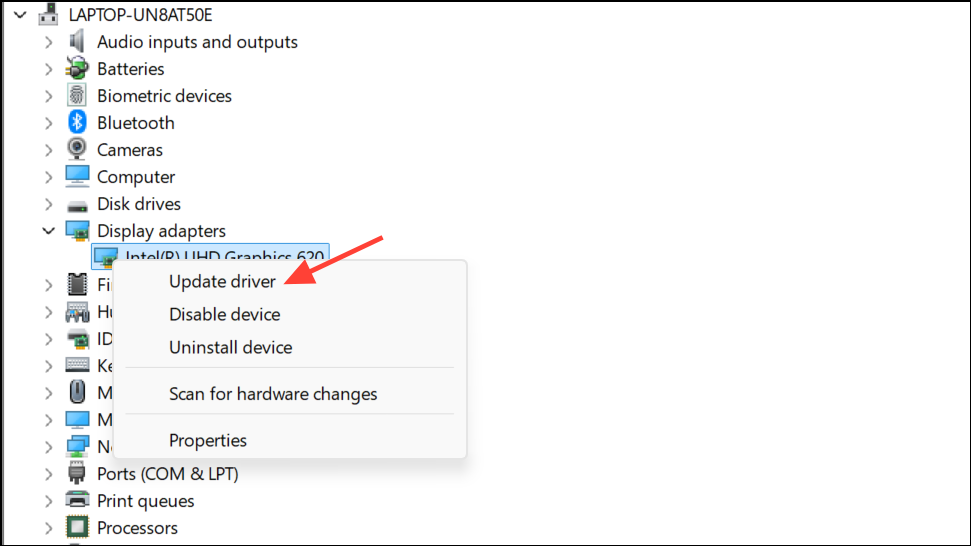
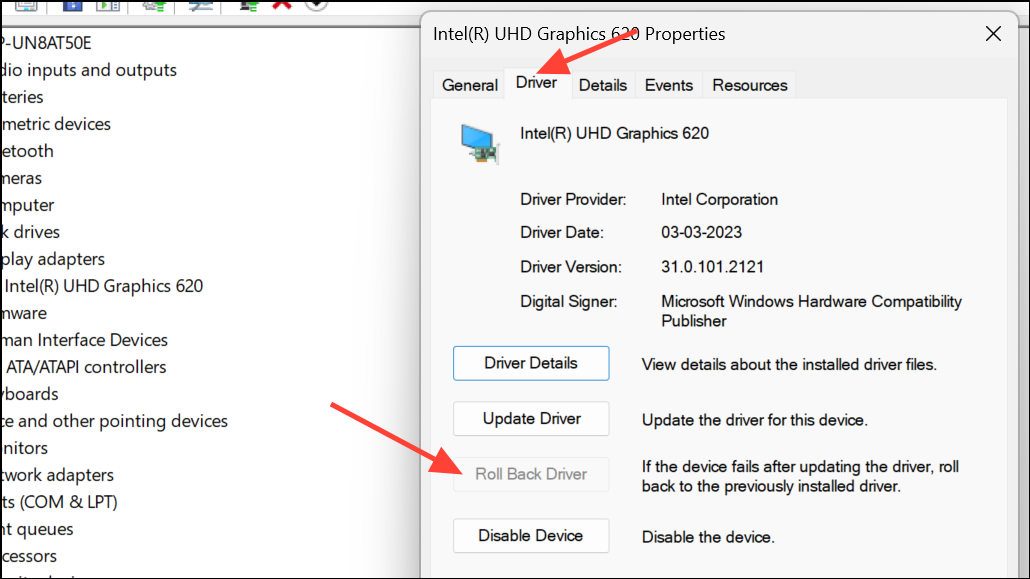
If Safe Mode works, you can proceed with further troubleshooting steps, such as updating or rolling back drivers, uninstalling problematic software, or running system scans.
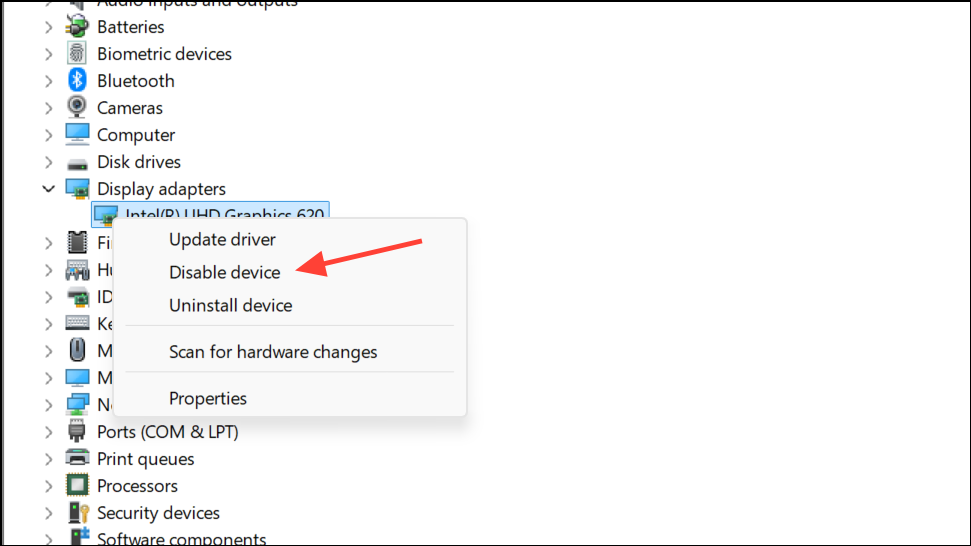
If neither option works, you can also select Disable device to force Windows to use basic display drivers, which may restore basic functionality for further troubleshooting.
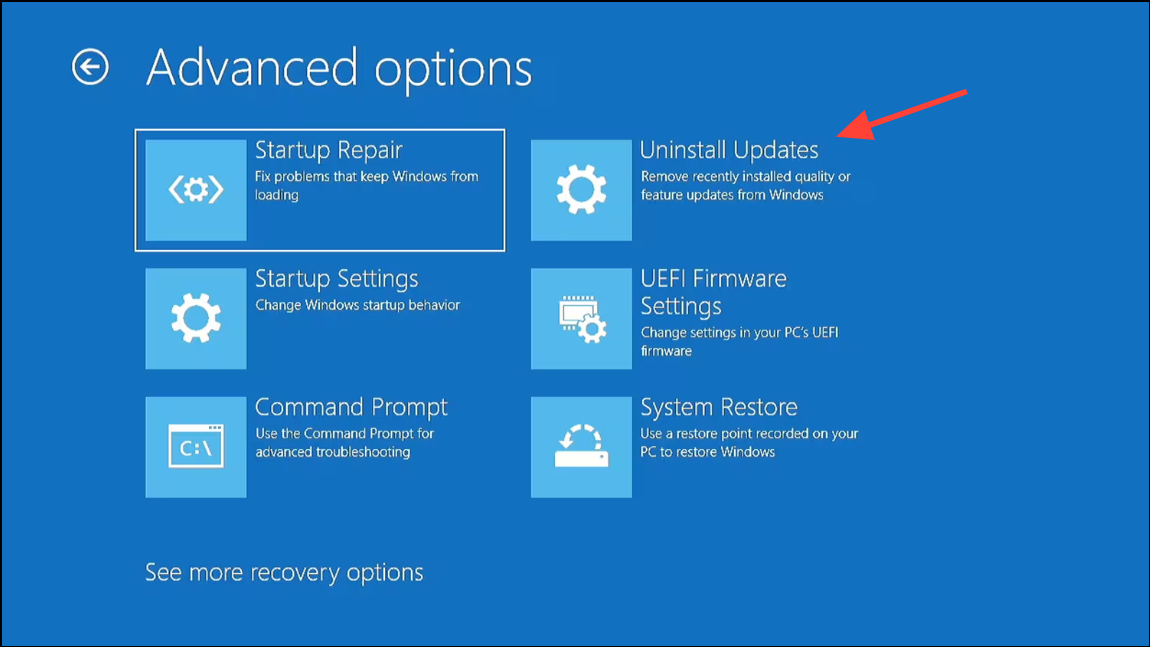
Windows updates occasionally introduce compatibility issues that result in black screens after shutdown or restart. In Safe Mode or from the WinRE Advanced options menu, choose Uninstall Updates.
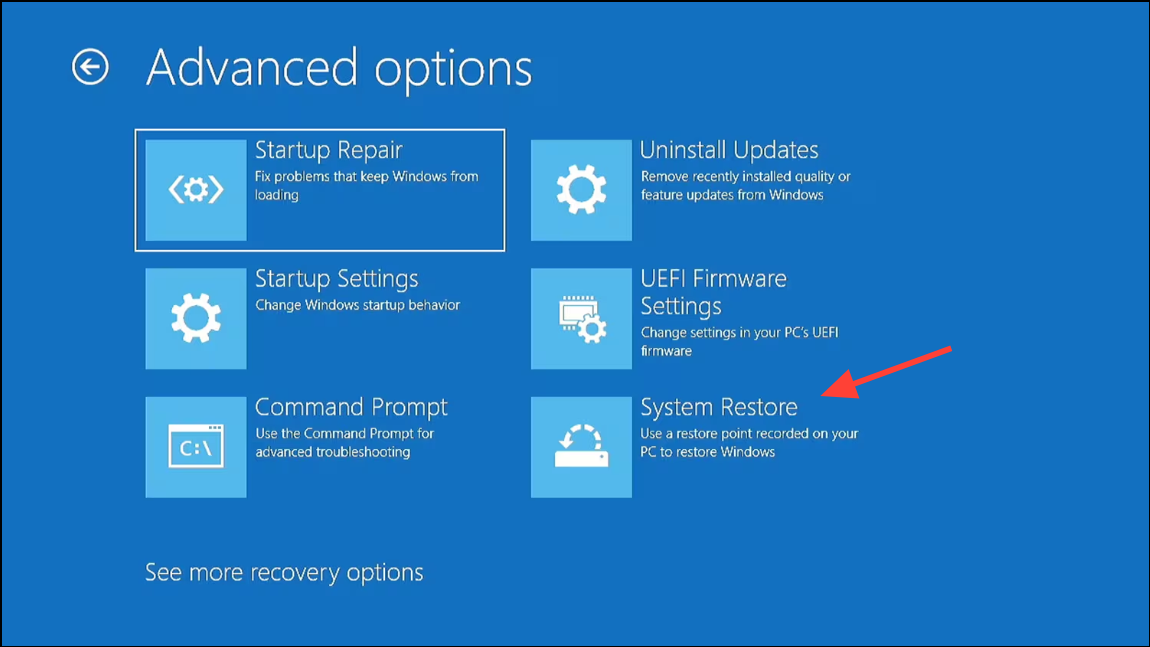
If previous steps fail, use System Restore to revert your PC to a state before the black screen problem began. In WinRE, select Troubleshoot > Advanced options > System Restore.
Choose a restore point from before the last shutdown or update. If no restore points are available, consider a Reset this PC operation, which reinstalls Windows while giving you the option to keep or remove personal files.
Note: Be aware that resetting will remove installed apps and settings, so back up important data if possible.
Check and Adjust Power Settings (Disable Fast Startup)
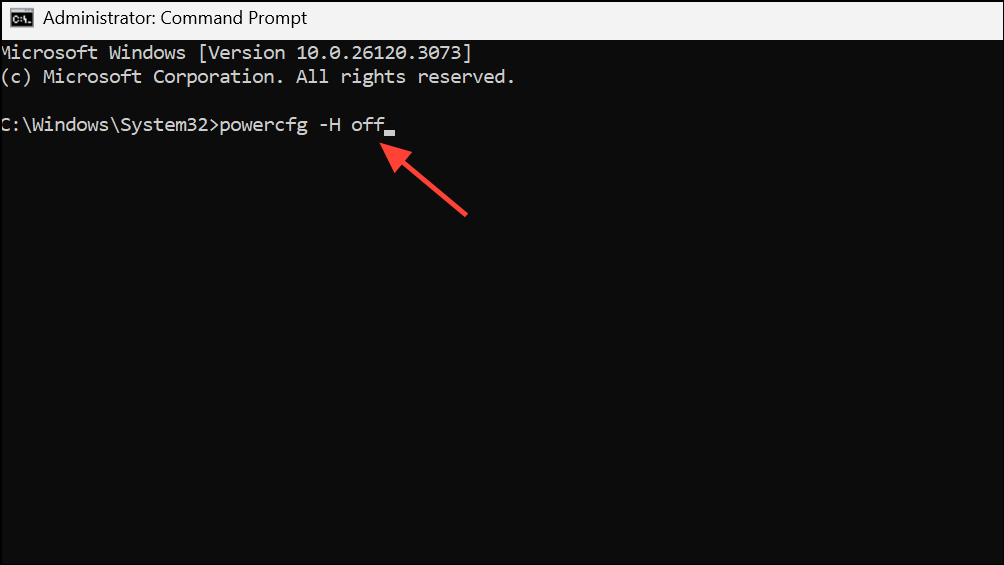
Fast Startup is a Windows feature that speeds up boot times by using a hybrid shutdown process. However, it can cause black screen problems, especially after updates or hardware changes. To disable Fast Startup, open a Command Prompt with administrator privileges and enter:
powercfg -H off
This command turns off hibernation and Fast Startup, forcing Windows to perform a full shutdown and startup cycle, which often resolves persistent black screen issues after shutdown.
If the black screen persists after all software troubleshooting, inspect hardware connections inside your PC. Reseat memory modules and graphics cards, check for loose cables, and test with a different monitor or cable if available.
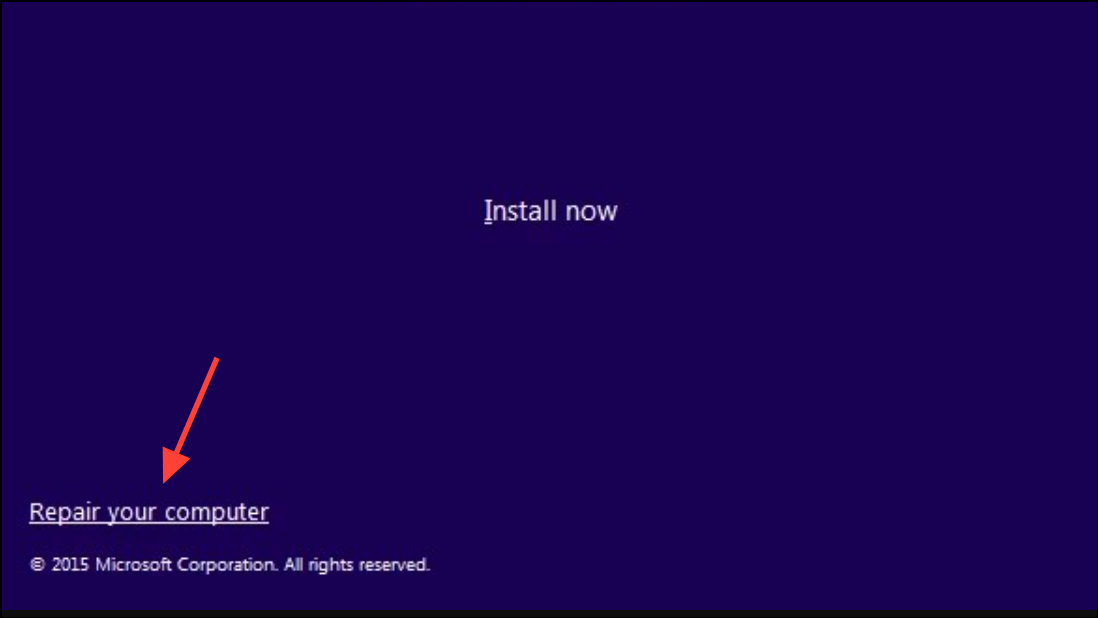
Boot from the USB, choose Repair your computer > Troubleshoot > Command Prompt, and launch notepad.exe. From Notepad, use File > Open to access your files and copy them to an external drive.
Resolving a black screen after shutdown on Windows 11 usually involves a mix of hardware checks, driver management, and system recovery options. Taking a systematic approach restores normal operation and helps prevent similar issues in the future.