
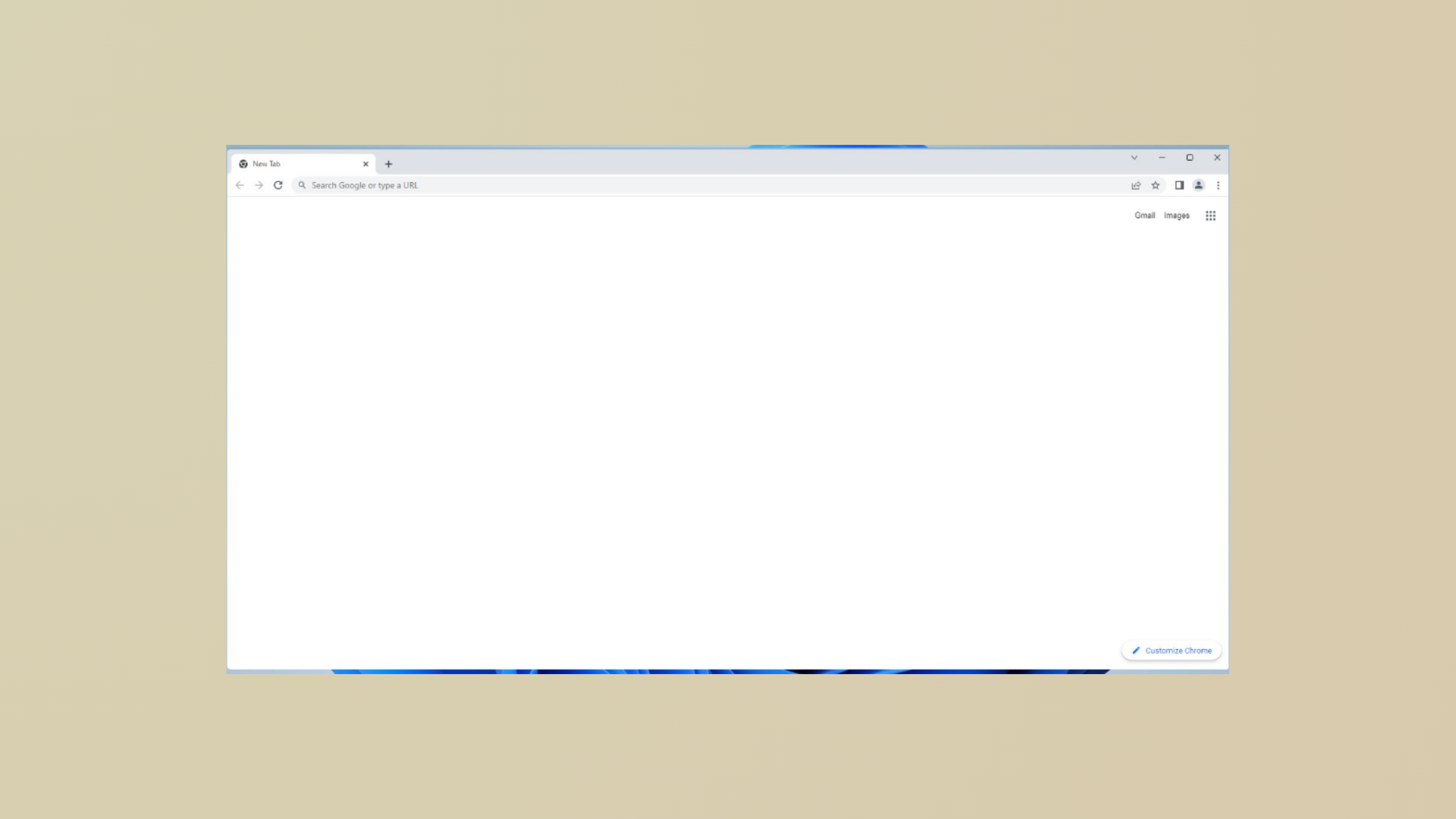
Opening Google Chrome only to see a blank or white screen—with no visible tabs, address bar, or buttons except for minimize, maximize, and close—prevents access to websites and browser settings. This issue disrupts web access, and in some cases, standard troubleshooting like reinstalling the browser or clearing cache does not resolve the problem. Below are the most effective methods to fix Chrome’s blank or white screen on Windows and Linux, based on community reports and technical solutions.
Turn Off Hardware Acceleration
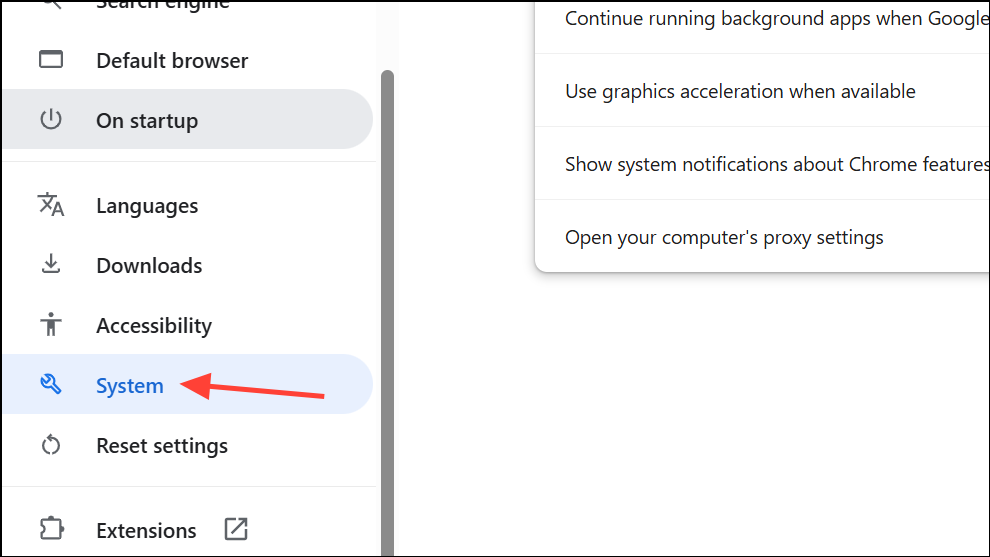
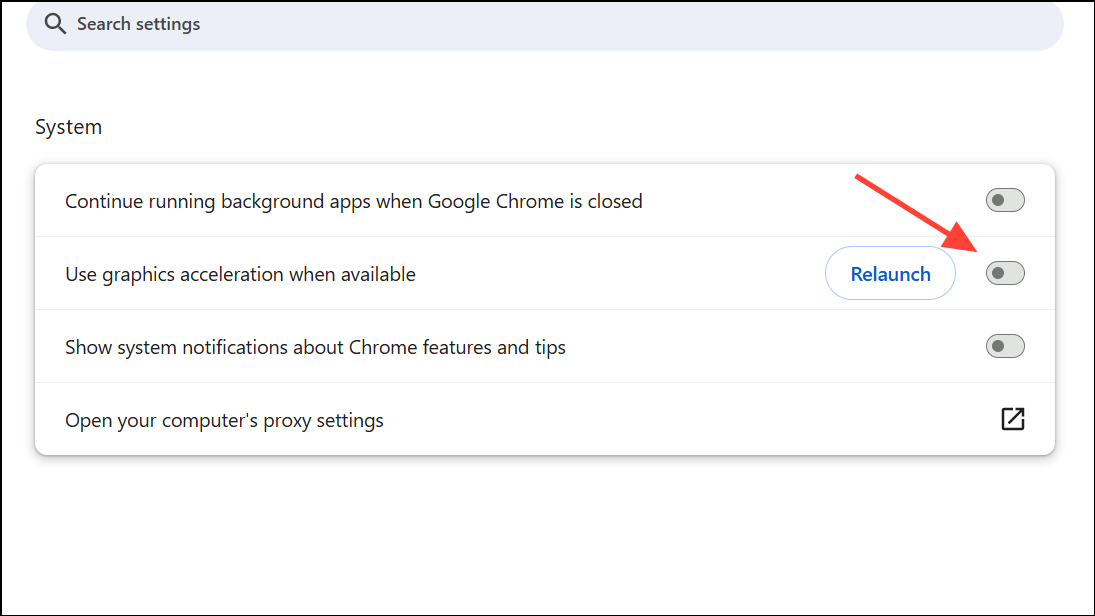
Chrome’s hardware acceleration feature shifts graphical processing tasks from the CPU to the GPU. While this can speed up browsing, it sometimes causes display issues, including a white or blank screen on startup.
Ctrl+Shift+N), do so. This sometimes bypasses the white screen and allows access to settings.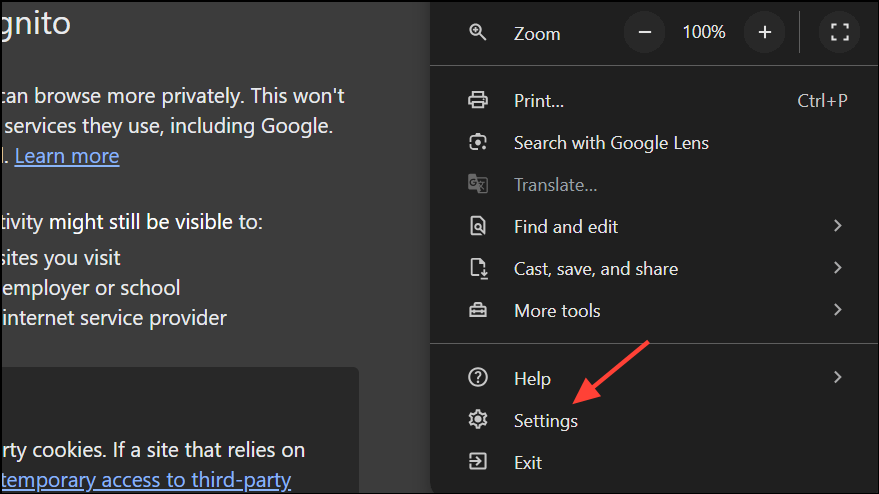
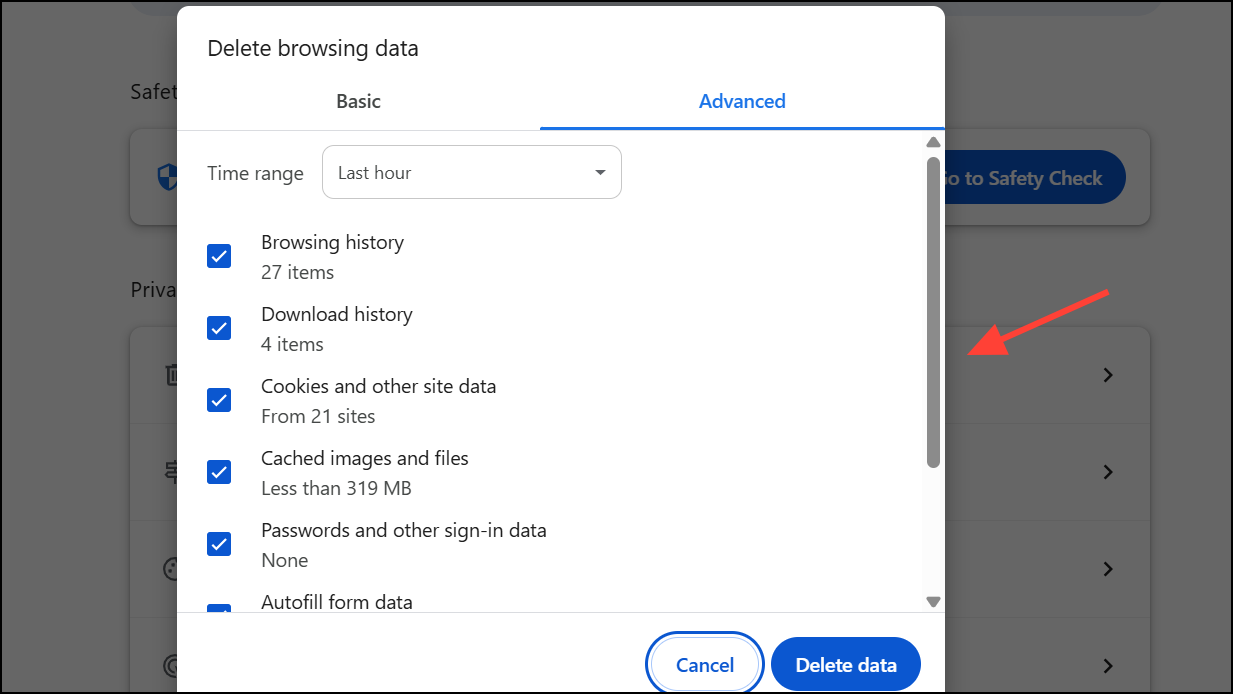
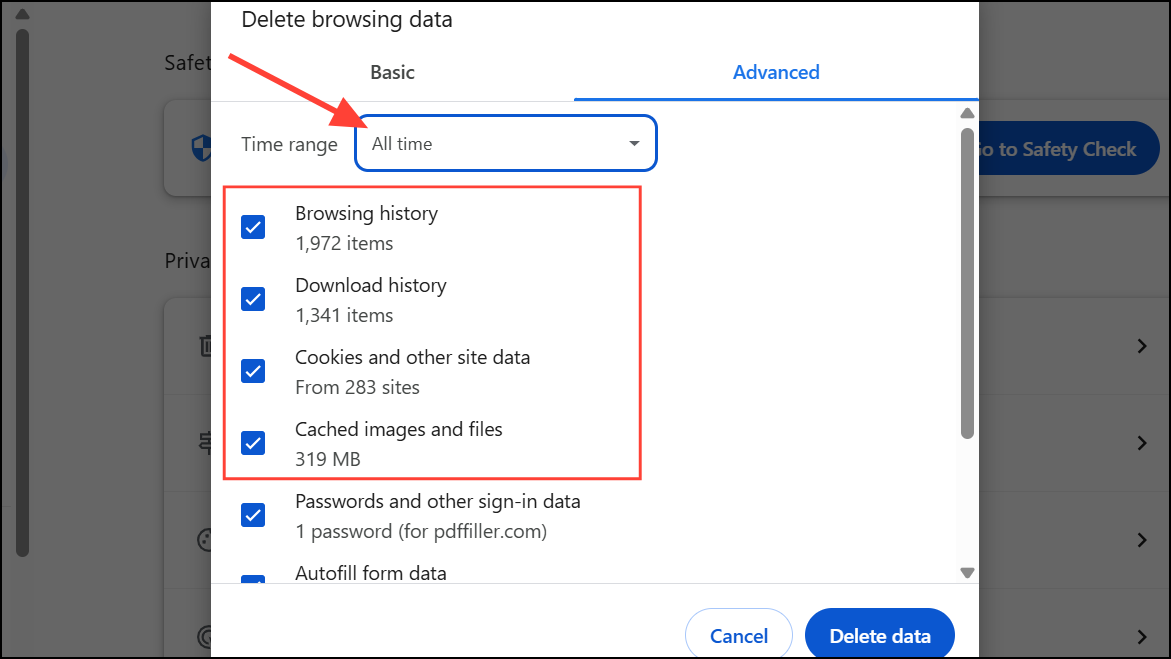
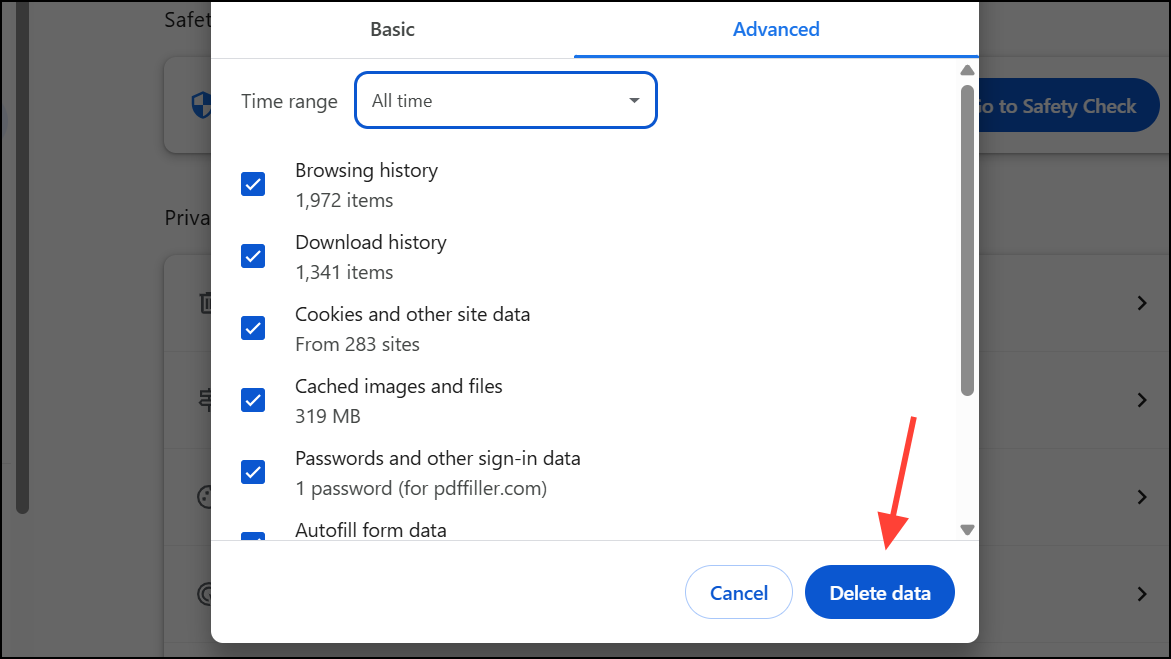
Clear Browser Cache and Site Data
Corrupted cache files can prevent Chrome from displaying content. Clearing cache and site data removes potentially problematic files and forces Chrome to load fresh content.
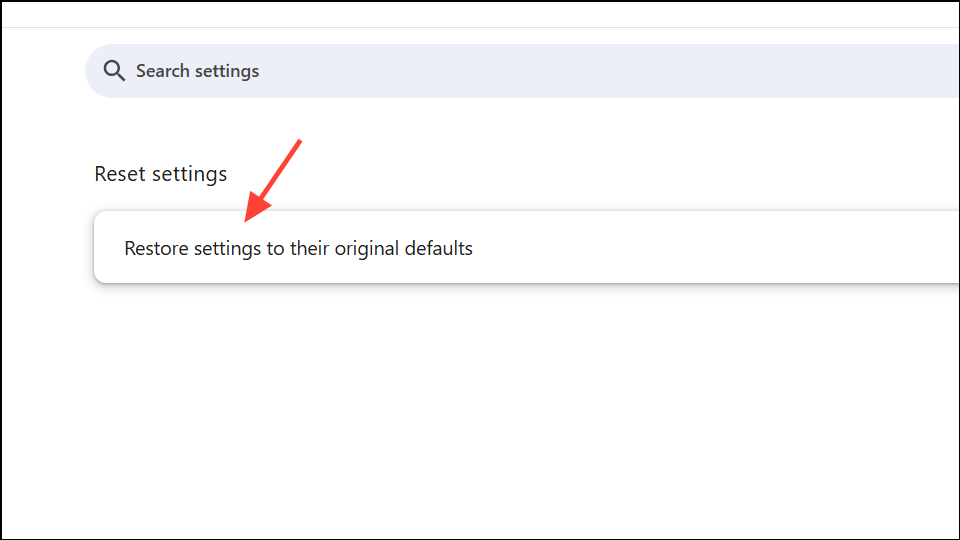
Reset Chrome to Default Settings
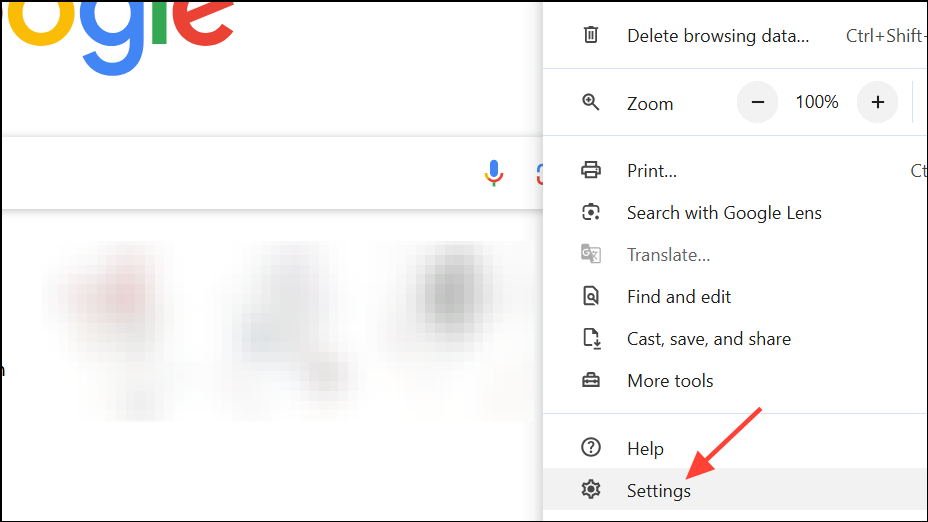
Extensions, themes, or misconfigured settings may cause Chrome to display a white screen. Resetting Chrome returns all settings to their original state and disables extensions.
Reinstall Chrome with a Clean Profile
Simply uninstalling and reinstalling Chrome may not remove all user data. A persistent white screen can result from corrupted user profiles or leftover files. Performing a clean install removes all Chrome data and creates a new profile.
C:\Users\[YourName]\AppData\Local\Google\Chrome and delete or rename the User Data folder. On Linux, remove or rename ~/.config/google-chrome.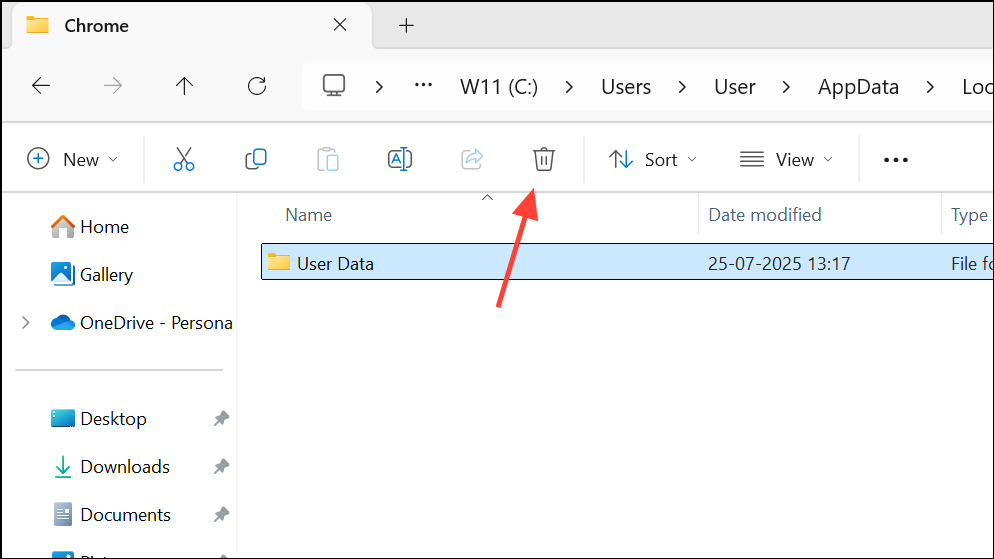
Disable GPU via Shortcut (Windows Only)
For cases where Chrome does not display the address bar or settings, you can force Chrome to start without GPU acceleration by editing the shortcut properties.
"C:\Program Files\Google\Chrome\Application\chrome.exe" --disable-gpu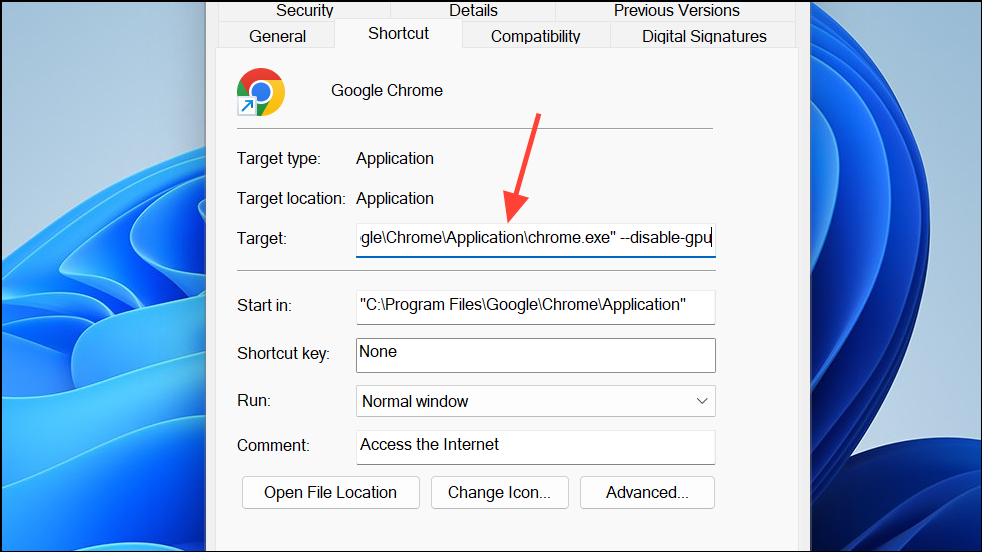
Additional Troubleshooting Tips
- Try opening Chrome in Incognito mode (
Ctrl+Shift+N). Some users report they can access settings this way even when normal mode shows a white screen. - Check for operating system compatibility. Chrome versions after 109 no longer support Windows 7 or 8.1, which may cause display problems. Upgrade your OS if possible.
- If you use developer tools or have enabled JavaScript debugging, disable these features or delete the
.vsfolder in your project directory, as this may affect Chrome’s rendering. - Update your graphics drivers. Outdated or incompatible GPU drivers sometimes cause display issues in Chrome.
- If the problem recurs after a fresh install, try using an alternative browser to confirm if the issue is Chrome-specific or system-wide.
Resolving Chrome’s blank or white screen typically involves disabling hardware acceleration, clearing cache, resetting or reinstalling the browser, or forcing Chrome to bypass GPU rendering. If none of these steps work, consider seeking help in Chrome’s community forums or switching browsers until a future update addresses the issue.





