

Bugcode NDIS Driver blue screen errors frequently interrupt Windows 11 systems, often causing repeated crashes after login or during network activity. These BSODs usually point to issues with the ndis.sys file—a core system component responsible for network driver operations. Addressing this problem requires a combination of updated drivers, hardware checks, and targeted troubleshooting to restore system stability.
Update Network Drivers Directly from the Manufacturer
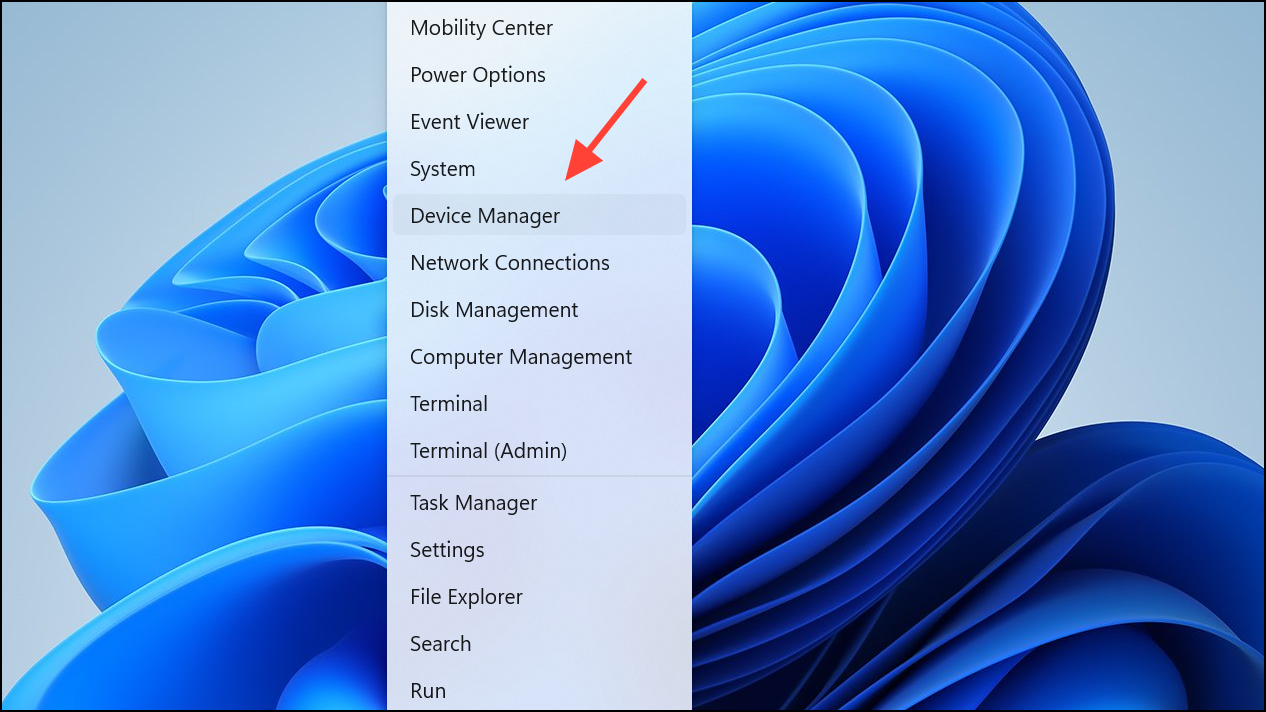
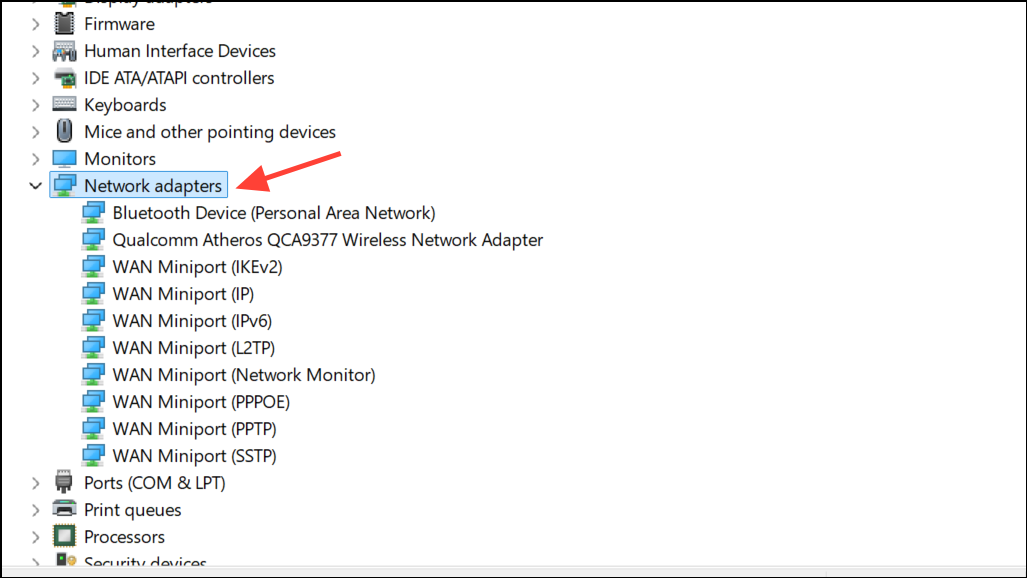
Update driver. However, instead of relying solely on Windows to find updates, visit your device or motherboard manufacturer’s website. Download the latest network driver for your specific model and operating system version.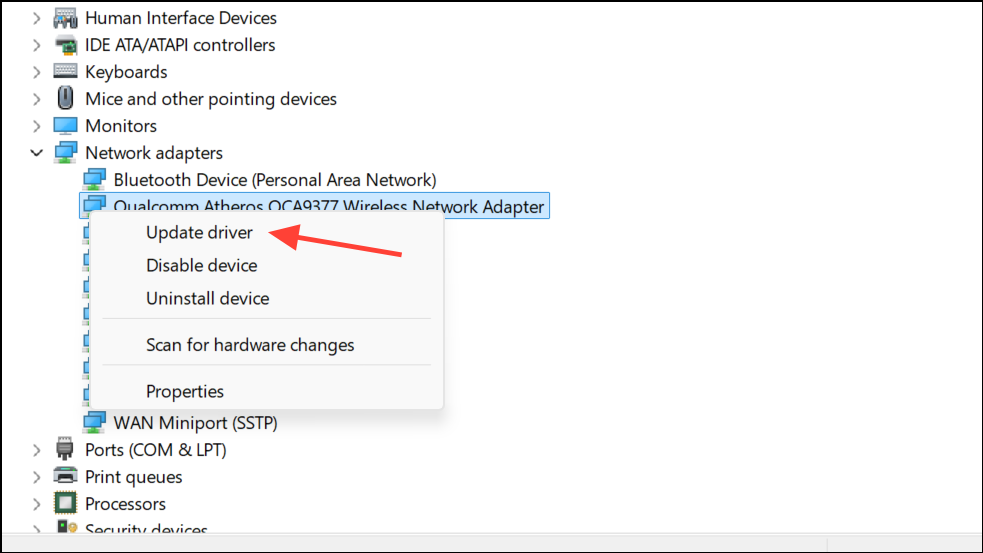
Using the manufacturer’s official driver ensures you get the most recent and compatible version, which often resolves persistent NDIS-related BSODs. Device Manager or Windows Update may only offer outdated drivers, as seen when users found 2021 versions via Device Manager but 2024 releases on the manufacturer’s site.
Test for Hardware Issues Related to Network Devices
Some users have reported that certain router security modes (e.g., WPA2 PSK) can trigger BSODs with specific Wi-Fi cards. Adjusting the router’s security mode, such as switching to “WPA+WPA2 PSK,” may resolve the issue if hardware replacement is not immediately possible.
Repair System Files and Check for Corruption
Command Prompt as an administrator by searching for cmd, right-clicking the result, and selecting Run as administrator.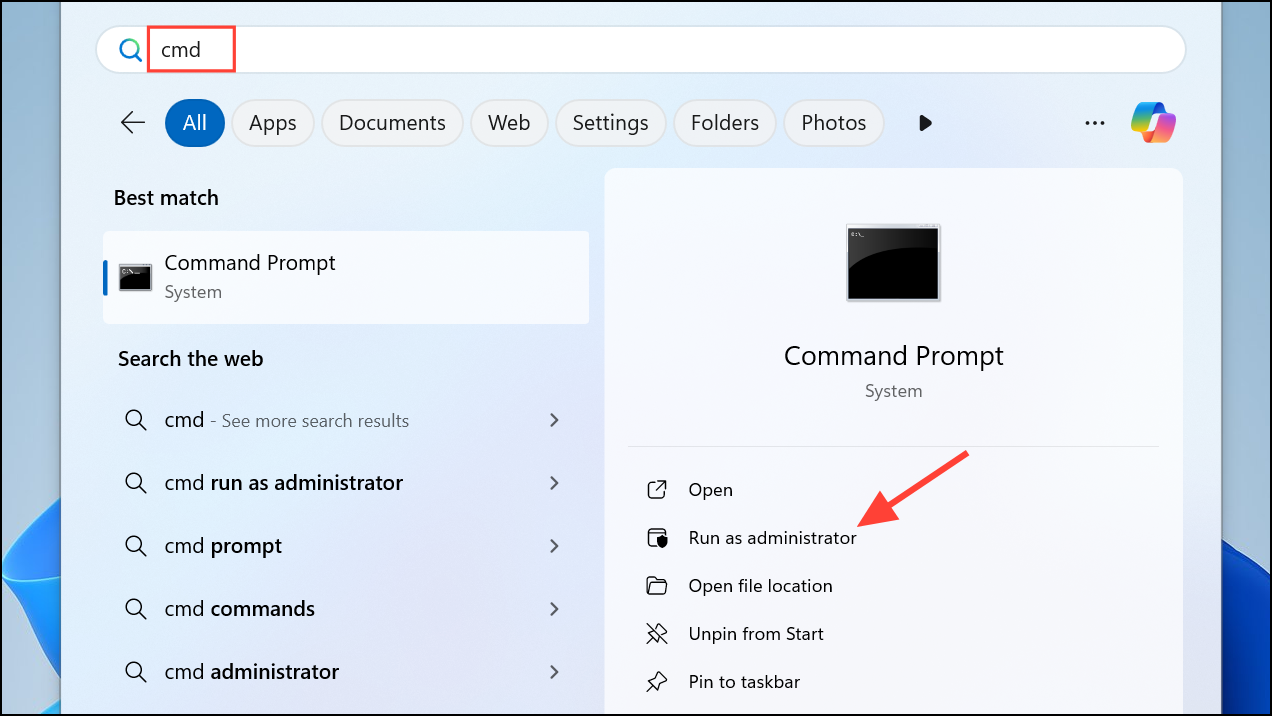
sfc /scannow
chkdsk /f /r
DISM /Online /Cleanup-Image /RestoreHealth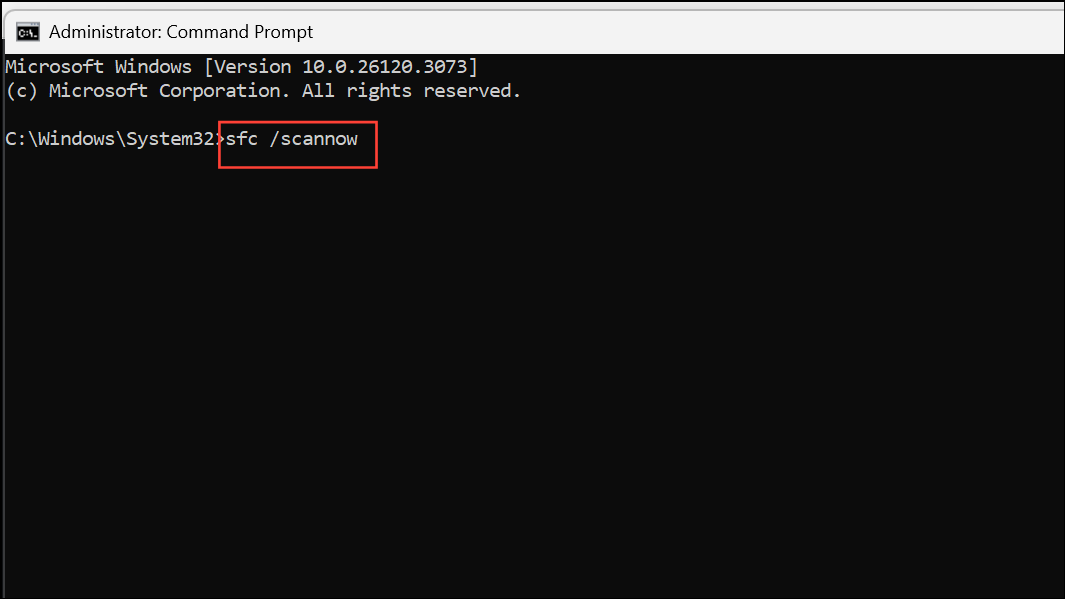
sfc /scannow checks and repairs system files, chkdsk /f /r scans for disk errors, and DISM /Online /Cleanup-Image /RestoreHealth restores Windows image health. Restart your computer after running these commands.Corrupted system files can contribute to BSODs by preventing network drivers from functioning correctly. These commands address underlying file and disk issues that may be causing the NDIS driver crash.
Scan for Malware and Remove Threats
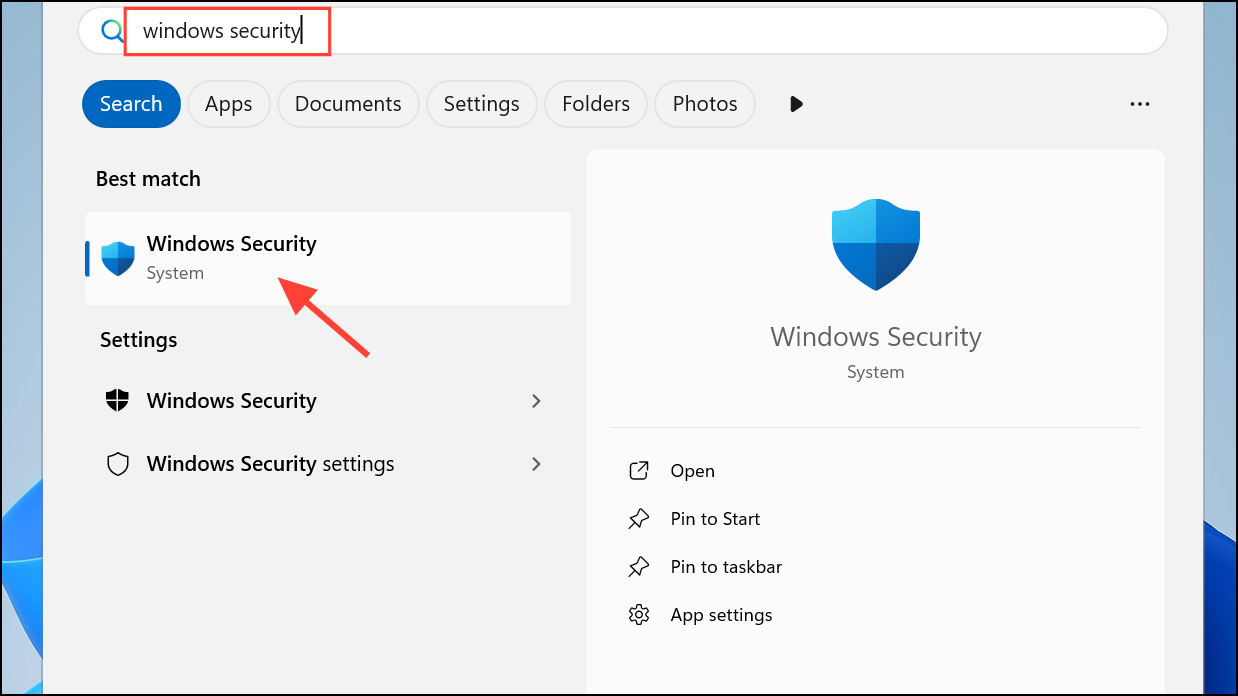
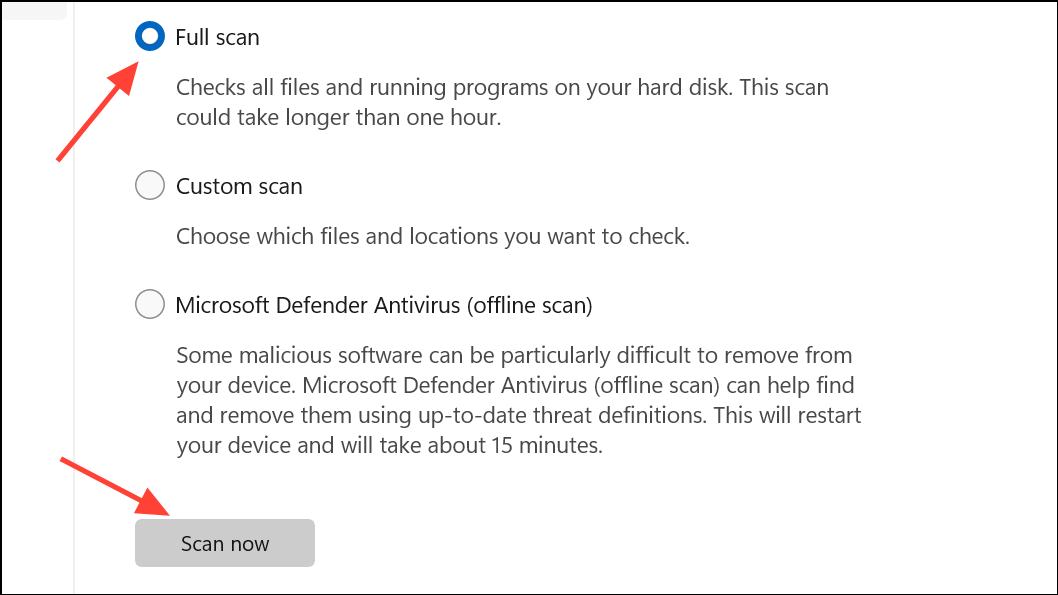
Malware can target system files like ndis.sys, causing instability or repeated crashes. Ensuring your system is free from malicious software is essential for lasting stability.
Restore System or Adjust BIOS Settings
System Restore to revert your system to a point before the BSODs began. Search for Create a restore point in the Start menu, launch it, and follow the prompts to restore your system.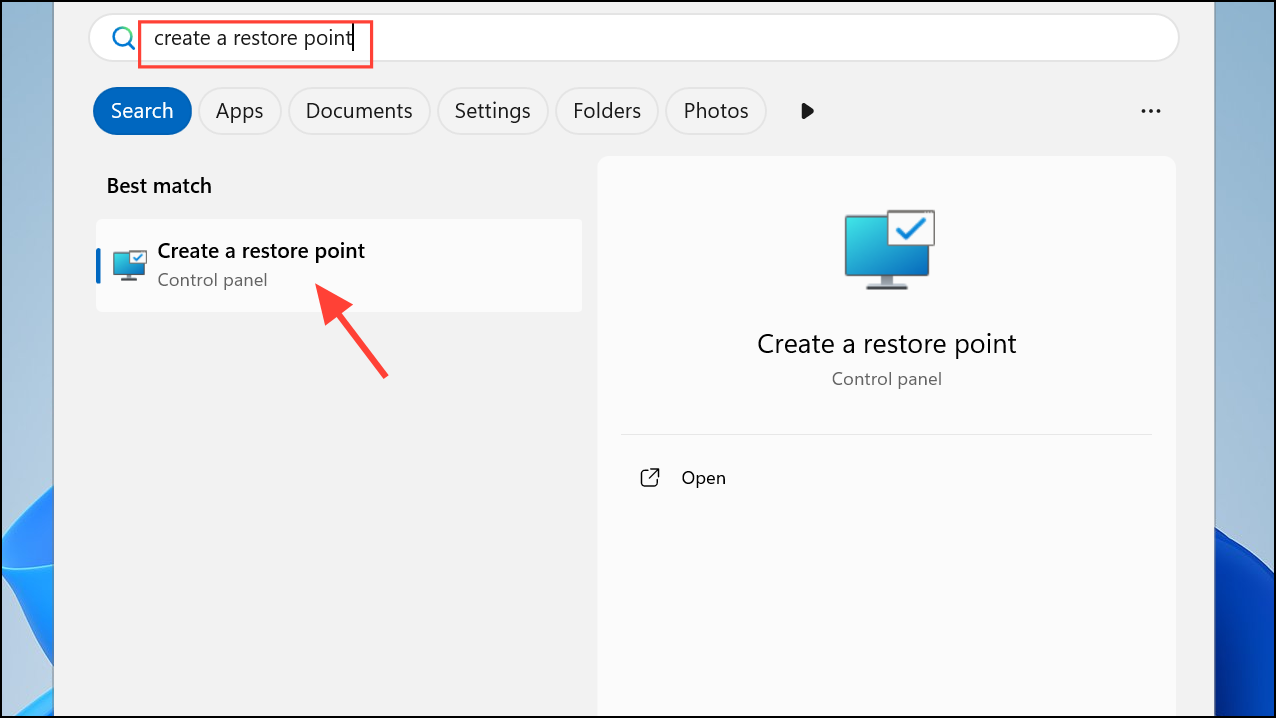
Del or F2 during startup). Disable the onboard Wi-Fi device under Onboard Devices Configuration. Complete the Windows installation, then install the correct Wi-Fi drivers from the manufacturer’s site before re-enabling Wi-Fi in BIOS.Some motherboards, especially certain ASUS models, have known compatibility issues with onboard Wi-Fi and Windows 10/11 until the correct drivers are installed. Disabling Wi-Fi during installation and setup can allow Windows to complete without BSODs, after which you can safely re-enable the device with updated drivers.
Addressing Bugcode NDIS Driver BSODs on Windows 11 typically comes down to updating your network drivers directly from the manufacturer, checking for hardware or router compatibility issues, and repairing any corrupted system files. Following these steps usually restores stability and prevents further blue screen interruptions.



