
Command Prompt windows that close immediately after opening prevent users from running essential commands, disrupt troubleshooting, and sometimes impact other software that relies on CMD. This behavior on Windows 11 often points to a misconfigured registry, problematic startup entries, or interference from malware or third-party applications. Addressing the root cause restores normal access to CMD and improves overall system stability.
Delete the Autorun Value from the Windows Registry
Win + R, typing regedit, and pressing Enter. Approve any User Account Control prompts.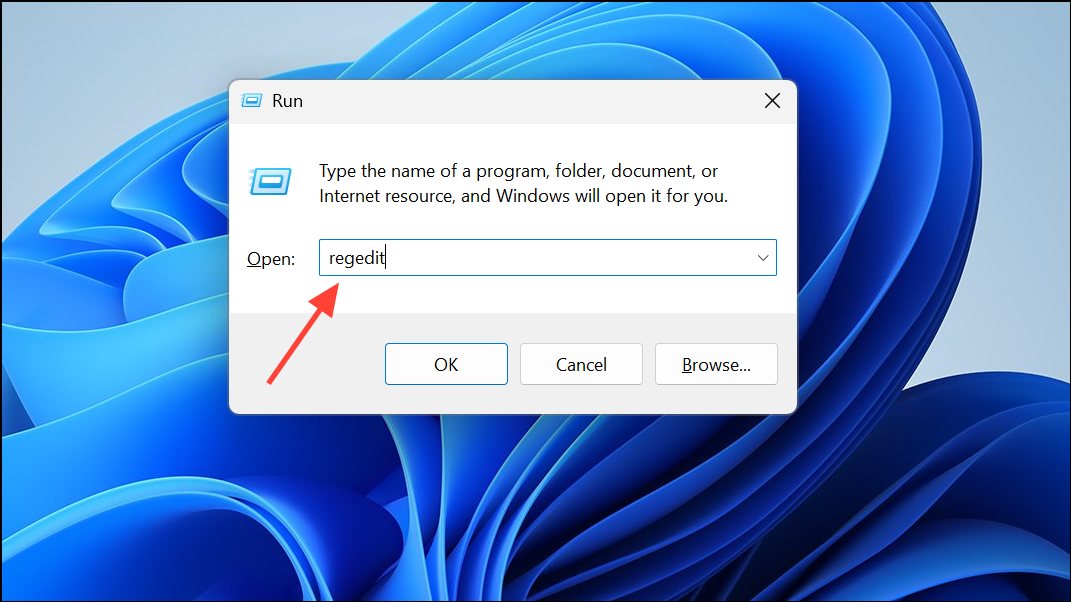
HKEY_CURRENT_USER\Software\Microsoft\Command Processor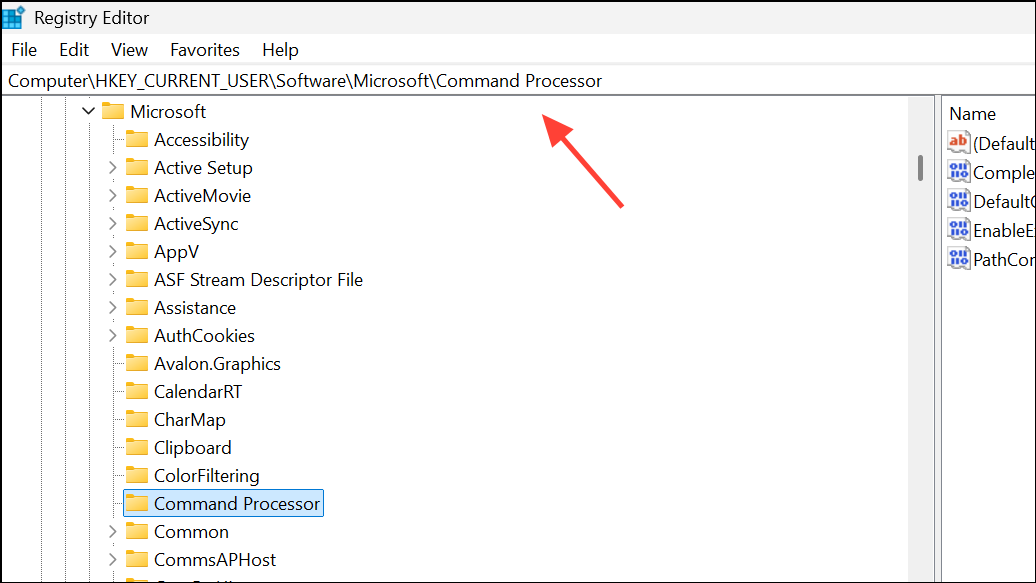
autorun. If it exists, right-click this value and select Delete. Confirm any prompts to remove it. This value can cause CMD to execute a command or script at launch, which may result in CMD closing instantly if the command is faulty or points to a missing file.Scan for Malware and Viruses
Malware or unwanted programs can alter system behavior, including CMD window functionality. Running a thorough scan helps detect and remove problematic software.
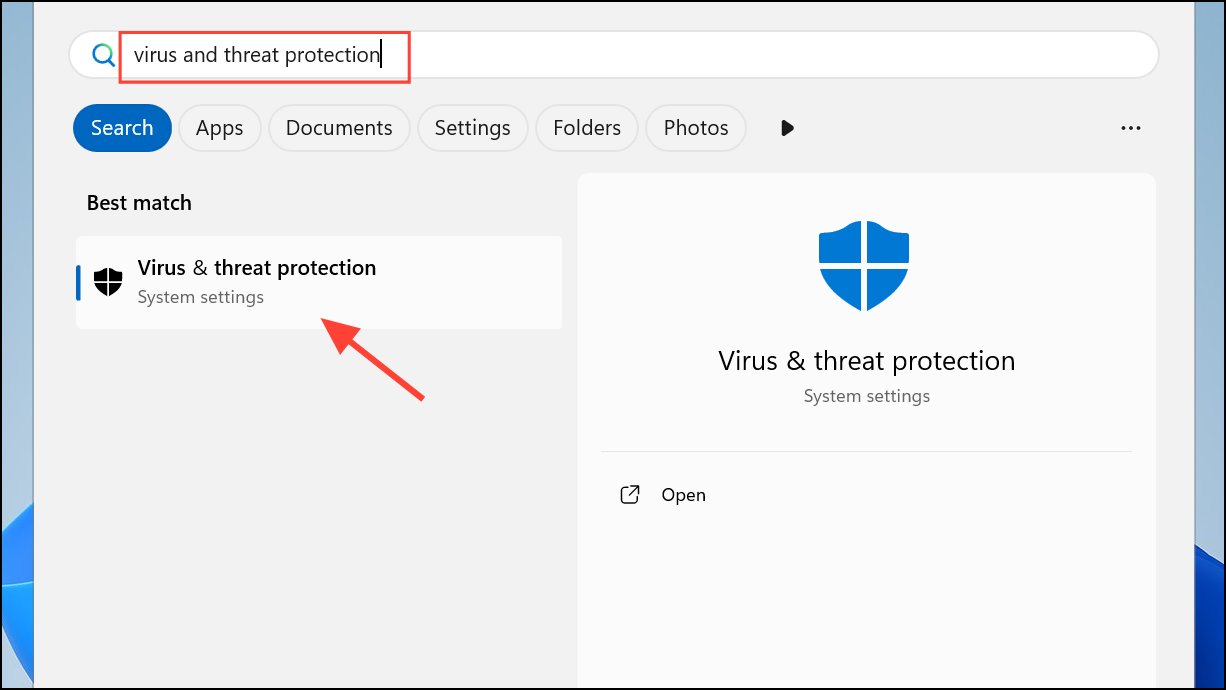
Scan options and select Full scan. Click Scan now to begin. Wait for the scan to complete and follow any prompts to quarantine or remove detected threats.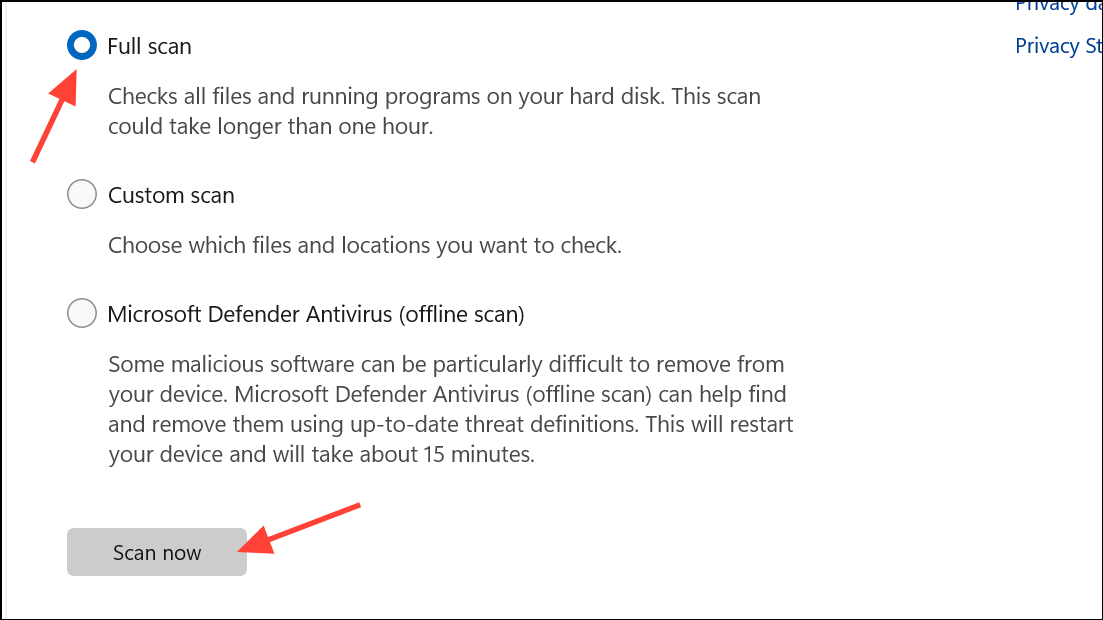
Once scans are complete, restart your PC and check if Command Prompt remains open after launching.
Remove CMD Shortcuts from Startup Folders
Startup entries can trigger CMD to open and close rapidly at login or during regular use. Removing unnecessary shortcuts prevents unwanted CMD windows from launching.
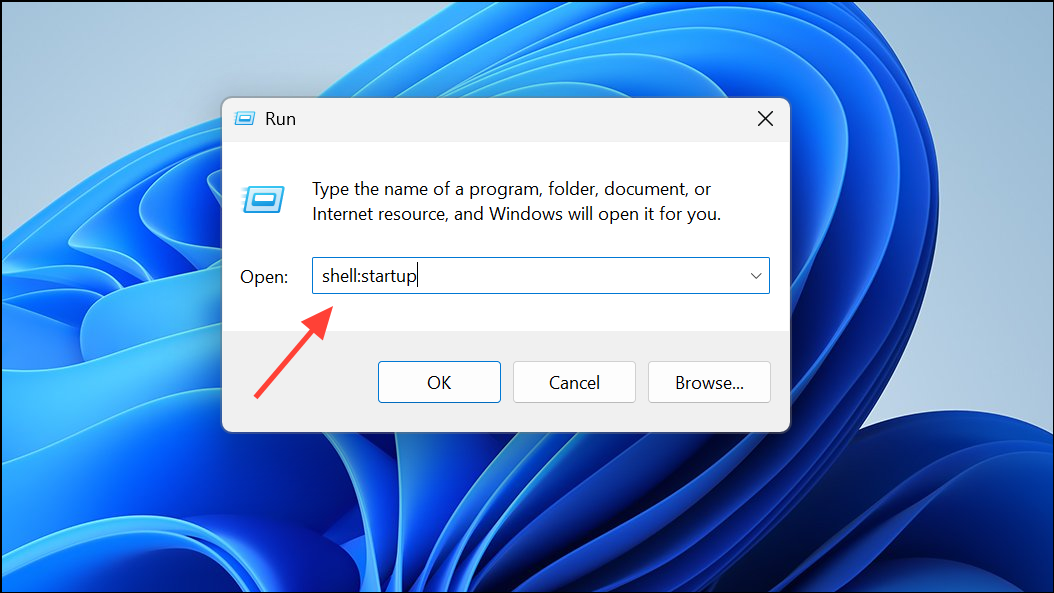
cmd.exe or batch files (.bat, .cmd). Delete these shortcuts if they are not intentionally placed there by you.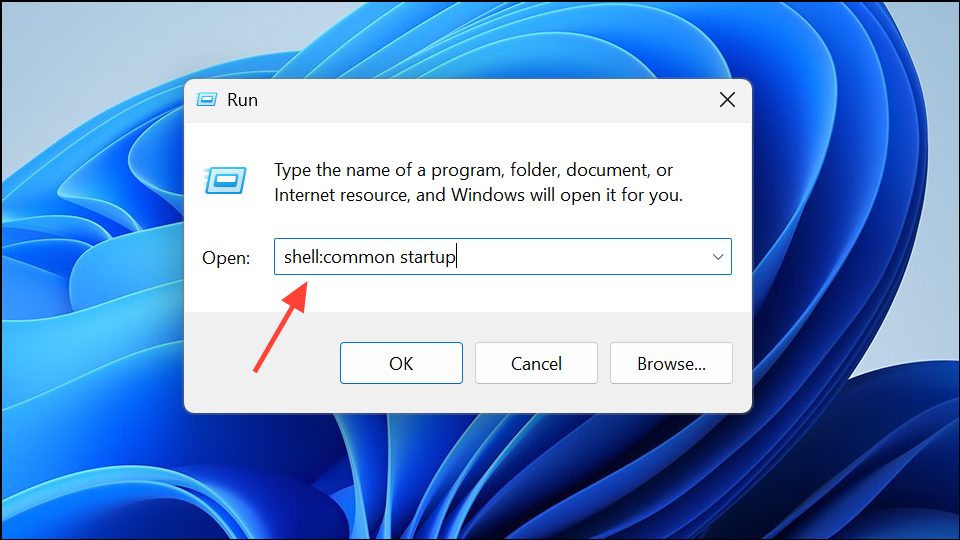
Restart your PC and see if the CMD window issue persists.
Disable CMD-Related Startup Entries in Task Manager
Some background applications or scheduled tasks can cause CMD to open and close automatically. Disabling unnecessary startup items can isolate the cause.
cmd.exe, batch files, or unfamiliar applications. Right-click these entries and select Disable.Perform a Clean Boot to Identify Conflicting Software
A clean boot starts Windows with only essential drivers and services. This helps identify if third-party software is causing CMD to close immediately.
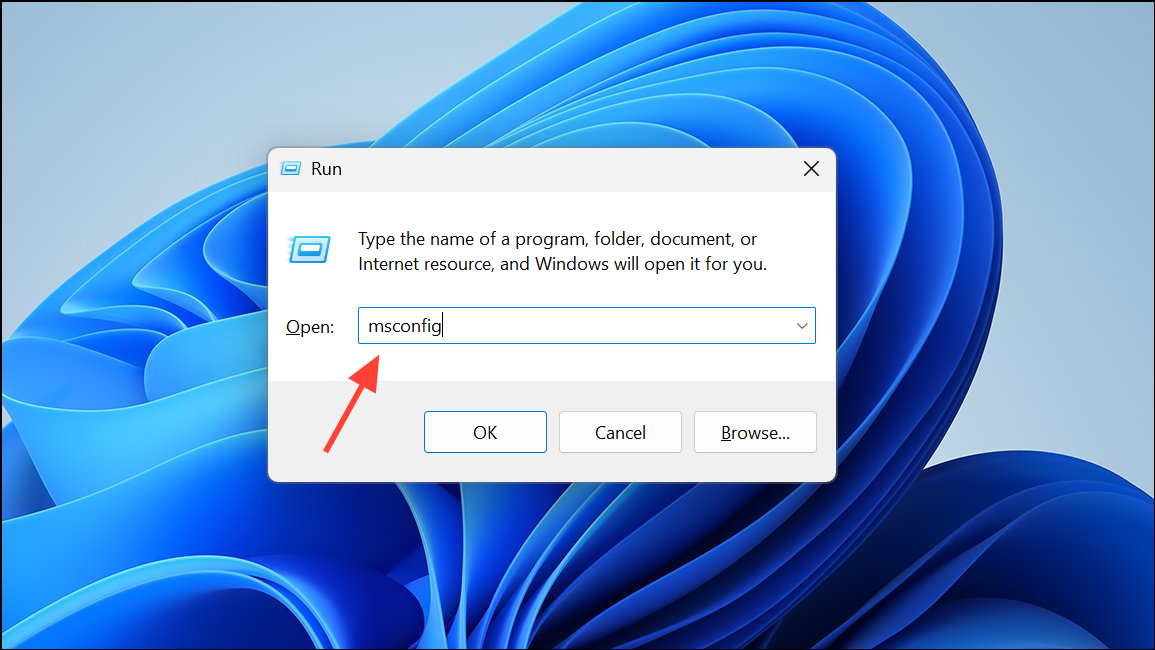
Services tab, check Hide all Microsoft services, then click Disable all.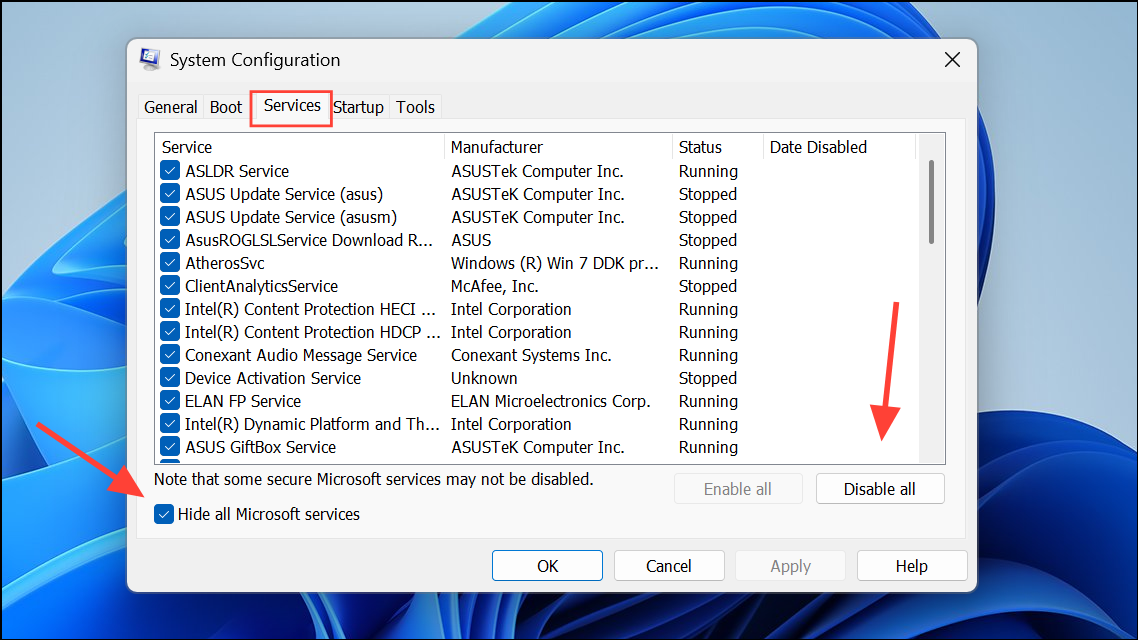
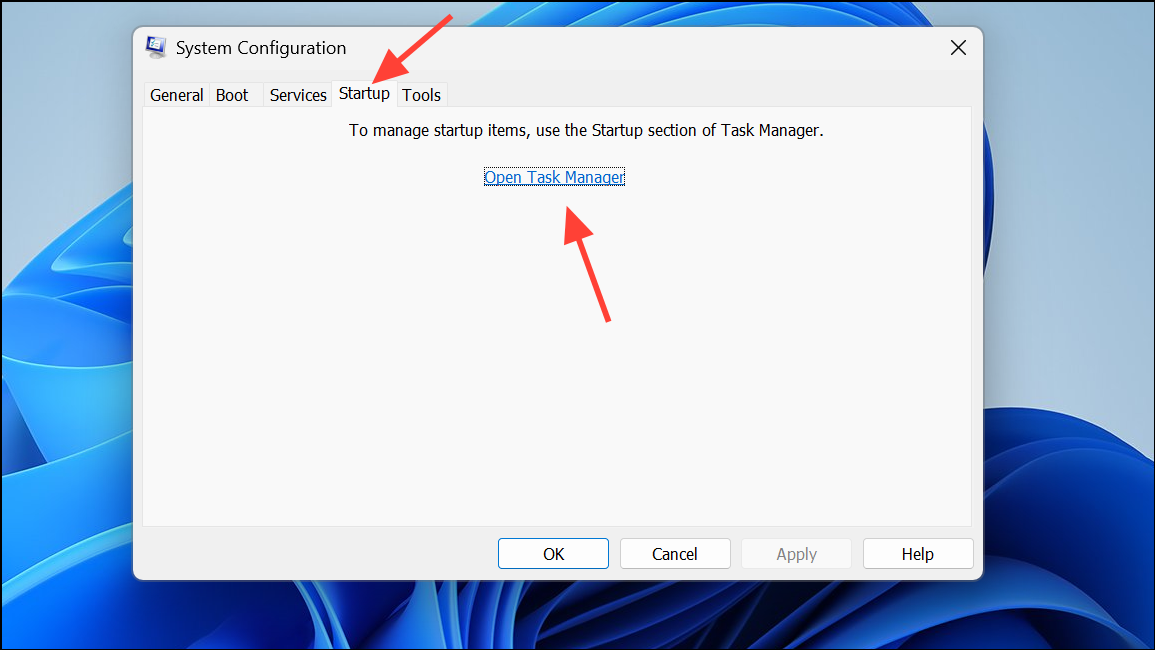
If CMD works after a clean boot, re-enable items one at a time to identify the offending program or service. Uninstall or update the problematic software as needed.
Check for Corrupted System Files
Corrupted system files can disrupt CMD functionality. System File Checker and DISM tools can repair these files.
PowerShell, right-clicking it, and selecting Run as administrator.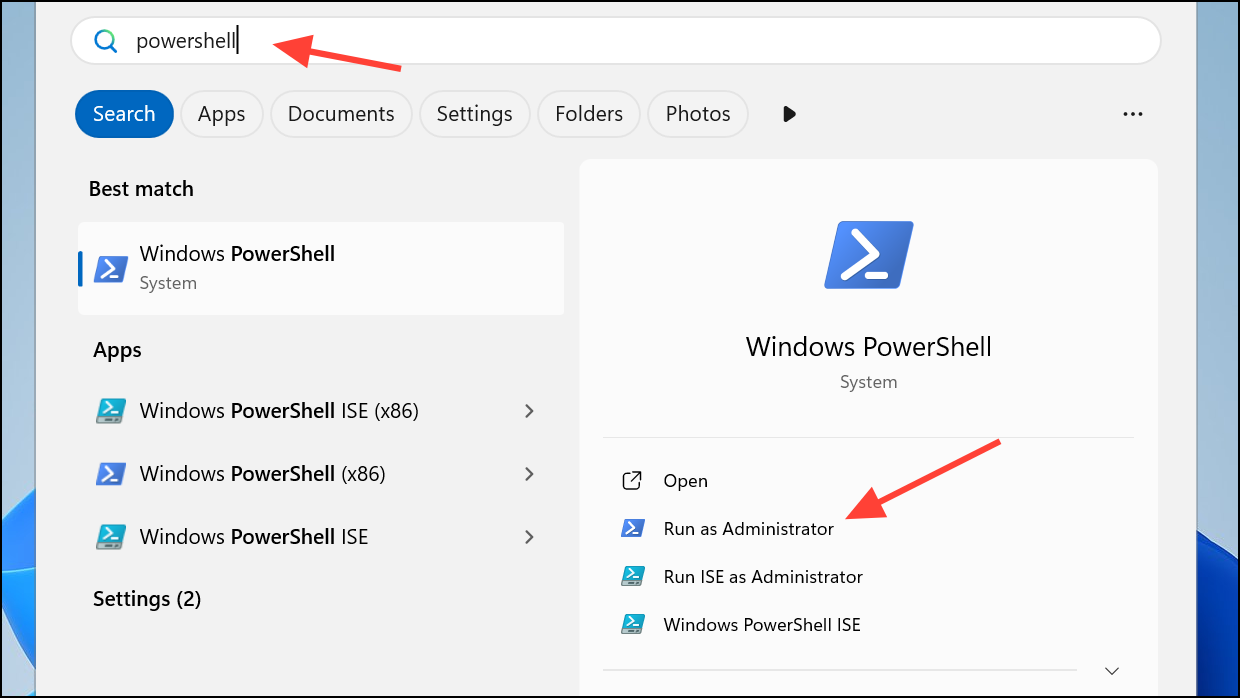
sfc /scannow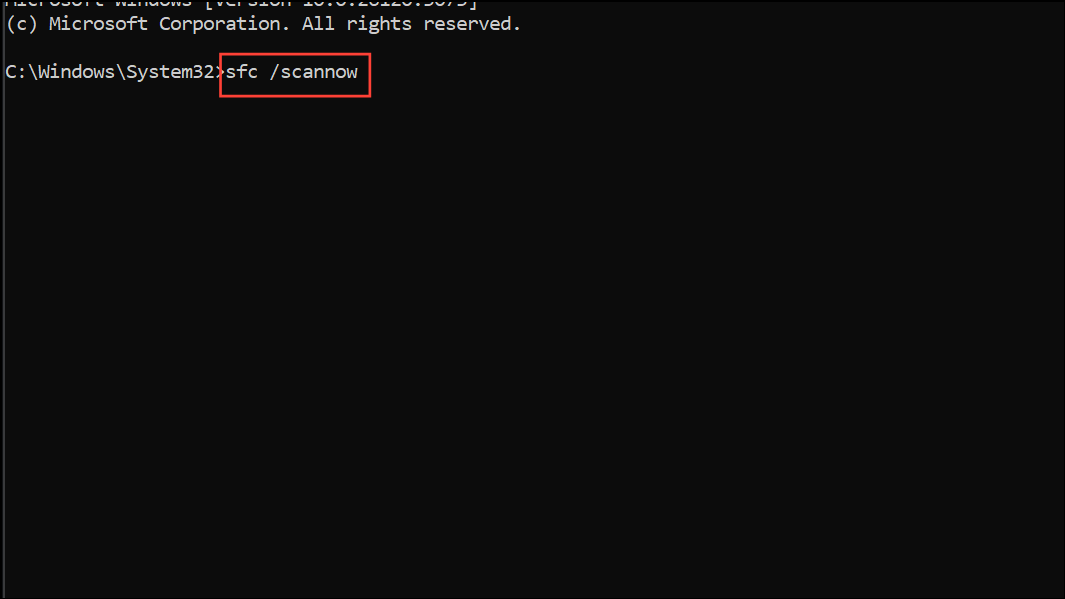
DISM.exe /Online /Cleanup-image /Scanhealth
DISM.exe /Online /Cleanup-image /Restorehealth
DISM.exe /Online /Cleanup-image /StartComponentCleanup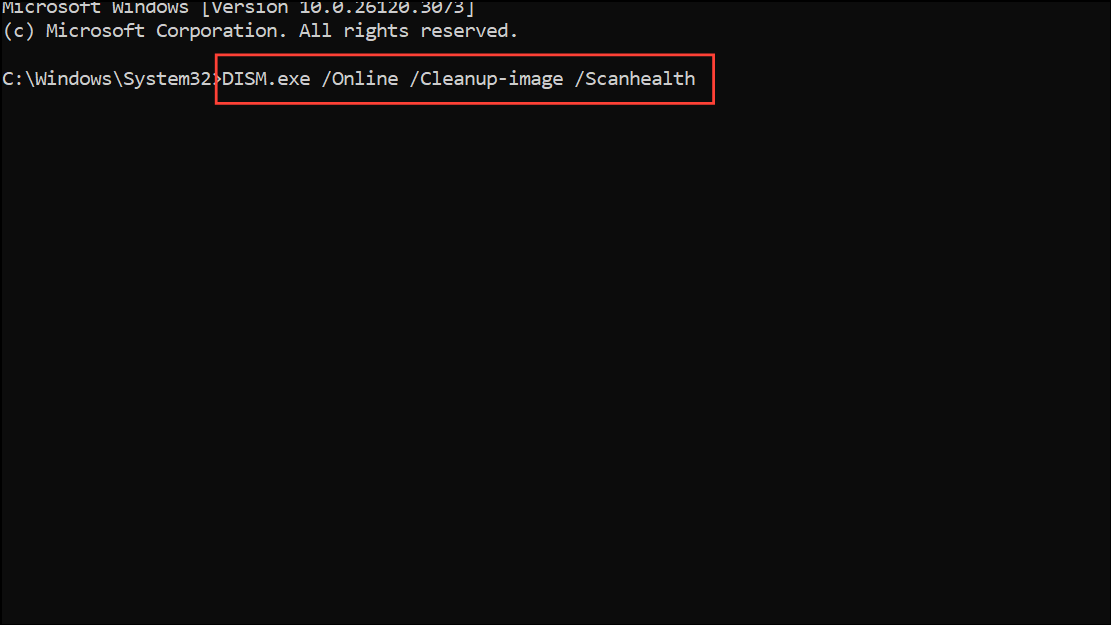
Create a New User Profile
If the above steps do not resolve the issue, the problem may be isolated to your user account. Creating a new profile can help determine if this is the case.
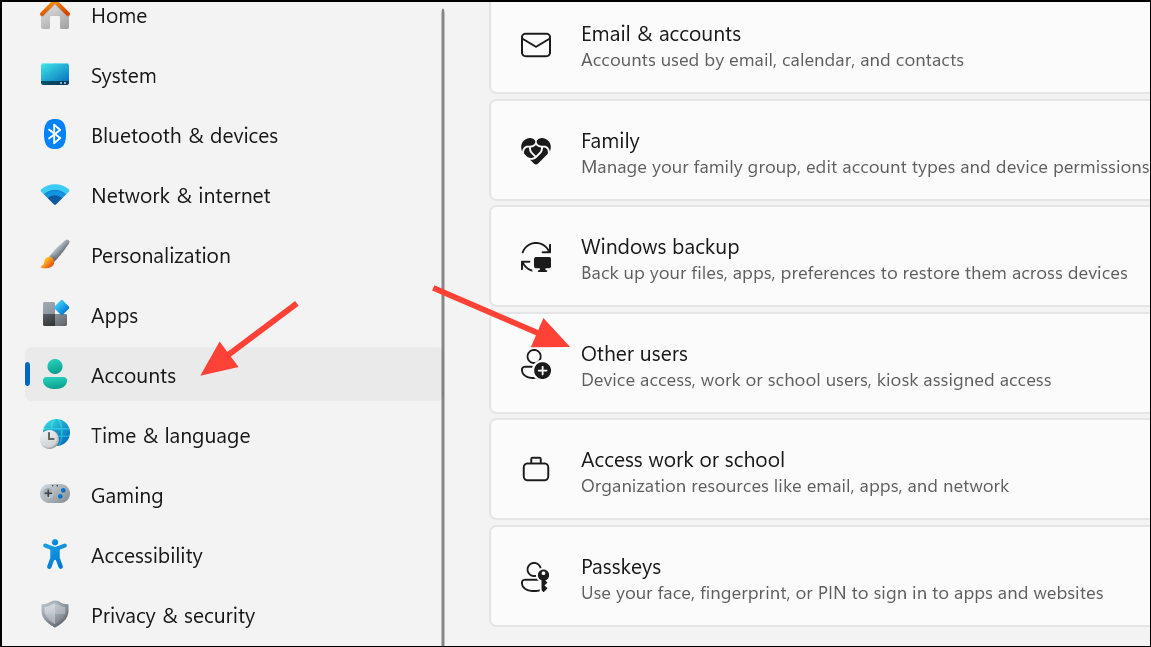
Add account to create a new user. Log in with the new account and test Command Prompt. If it works, consider migrating your files to the new profile.
Resolving the automatic closure of Command Prompt on Windows 11 often comes down to cleaning up registry autorun entries, disabling problematic startup programs, and scanning for malware. Regular maintenance and cautious installation of third-party software can help prevent this issue from recurring.



