

Conditional formatting rules in Excel can stop working when formulas are misconfigured, ranges are set incorrectly, or cell data types don’t match rule requirements. This leads to missing highlights, colors not appearing, or inconsistent formatting across your spreadsheets. Addressing these issues requires a methodical check of rule formulas, cell formats, and the order of applied rules.
Check Formula Logic and Cell References
Incorrect formula syntax or improper use of absolute and relative cell references disrupts conditional formatting. Excel applies the formula to each cell in the specified range, so references must align with how the rule is meant to work. For example, using =$A$2="TEXT" will lock the rule to cell A2, but =A2="TEXT" will adjust for each row.
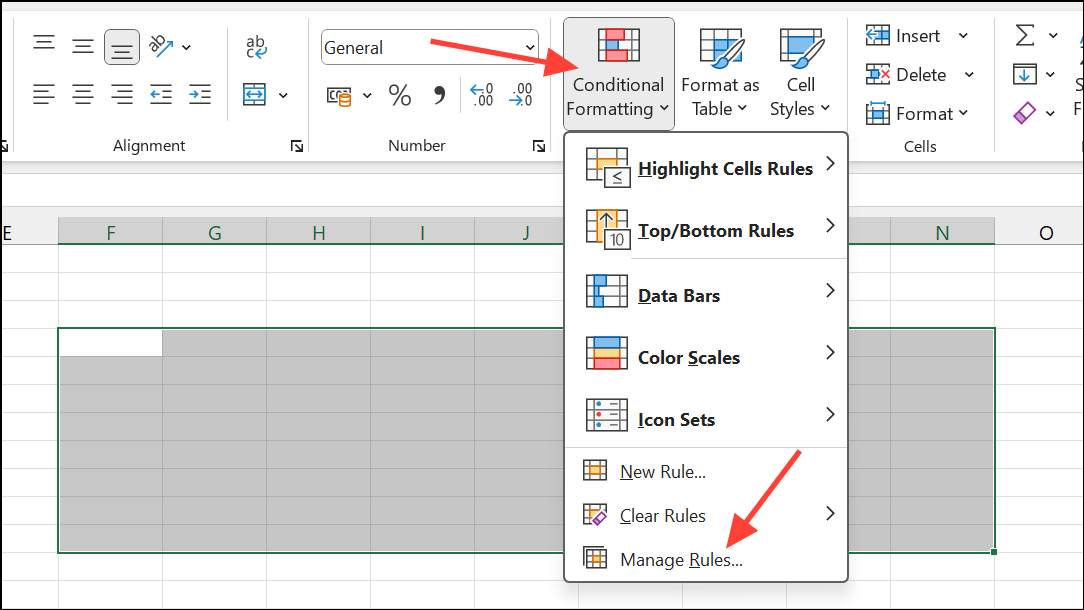
- Absolute references (e.g.,
=$A$2) keep both row and column fixed. - Mixed references (e.g.,
=$A2) fix the column but allow the row to change. - Relative references (e.g.,
=A2) adjust both row and column as the rule is applied across the range.
=). Omitting this prevents Excel from evaluating the formula.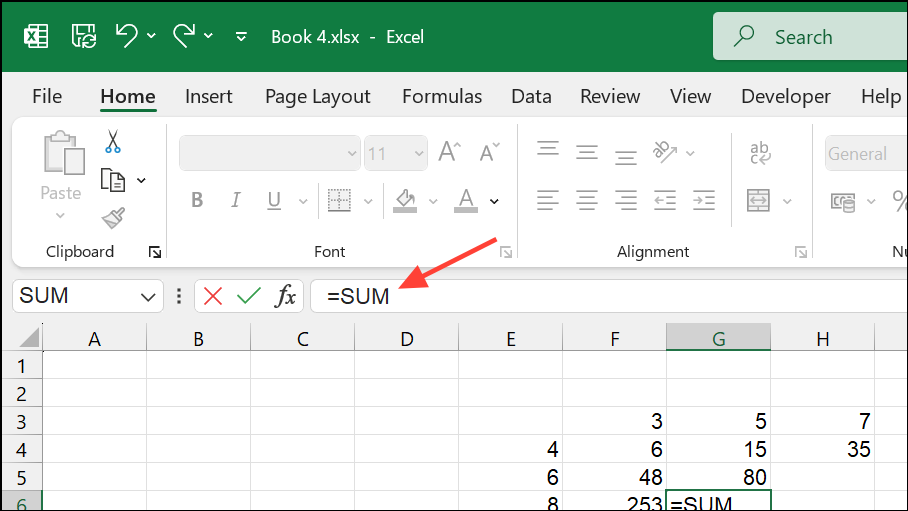
Verify the Range Applied to the Rule
If conditional formatting only works for part of your data, the “Applies to” range may be incomplete or misaligned. Excel can also behave unexpectedly if you copy rules without updating the “Applies to” range or formula references.
=$A$2:$A$100 for a single column, or =$A$2:$H$100 for multiple columns).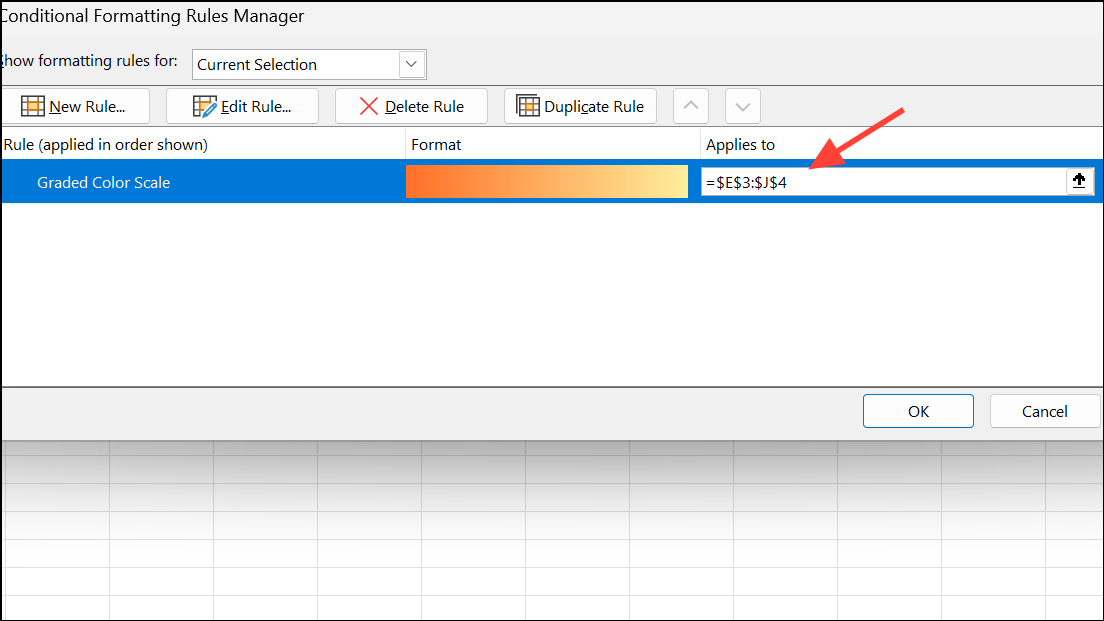
=$Z$4:$Z$16,$Z$19:$Z$31).=A2="TEXT").Check Cell Data Types and Formatting
Conditional formatting rules that rely on numbers or percentages will not work correctly if the underlying cell format is set to text or another incompatible type.
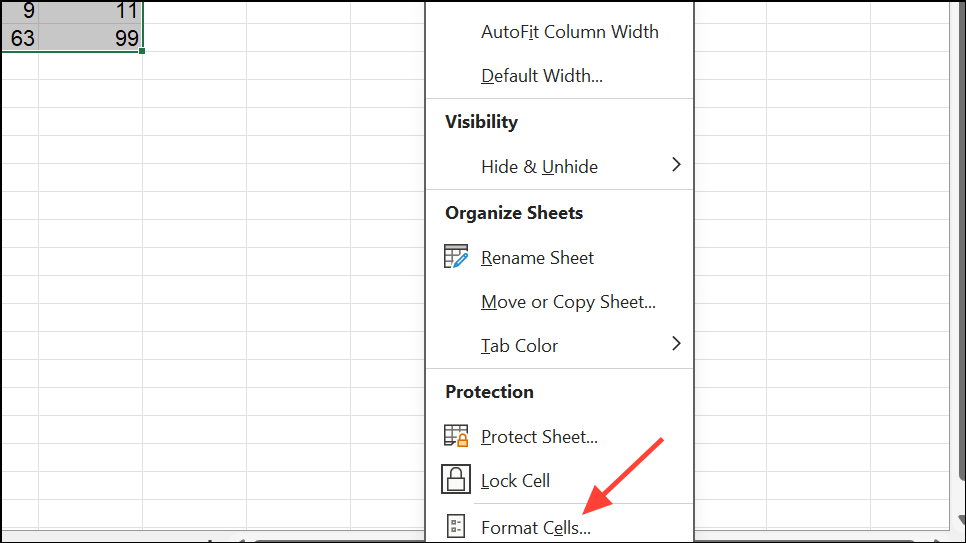
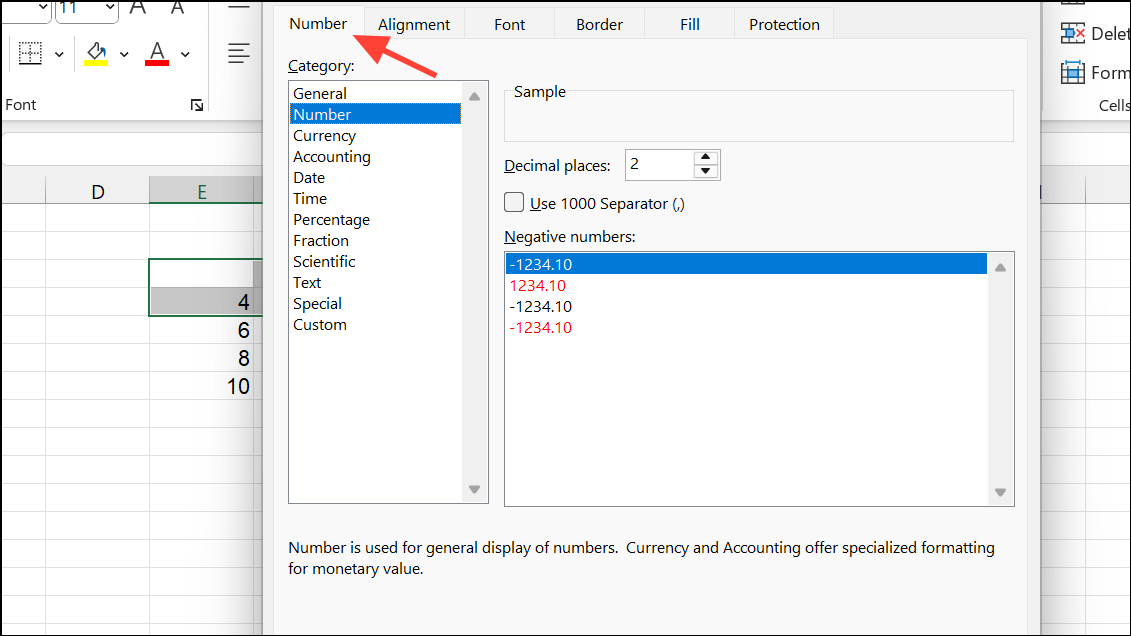
Cells formatted as text may not evaluate as numbers in rules, leading to missing or incorrect formatting. Reformatting to the correct type allows rules to work as intended.
Resolve Rule Conflicts and Rule Order
When multiple conditional formatting rules overlap, Excel applies them in order from top to bottom. If two rules set the same property (like background color) for the same cell, the higher rule takes precedence.
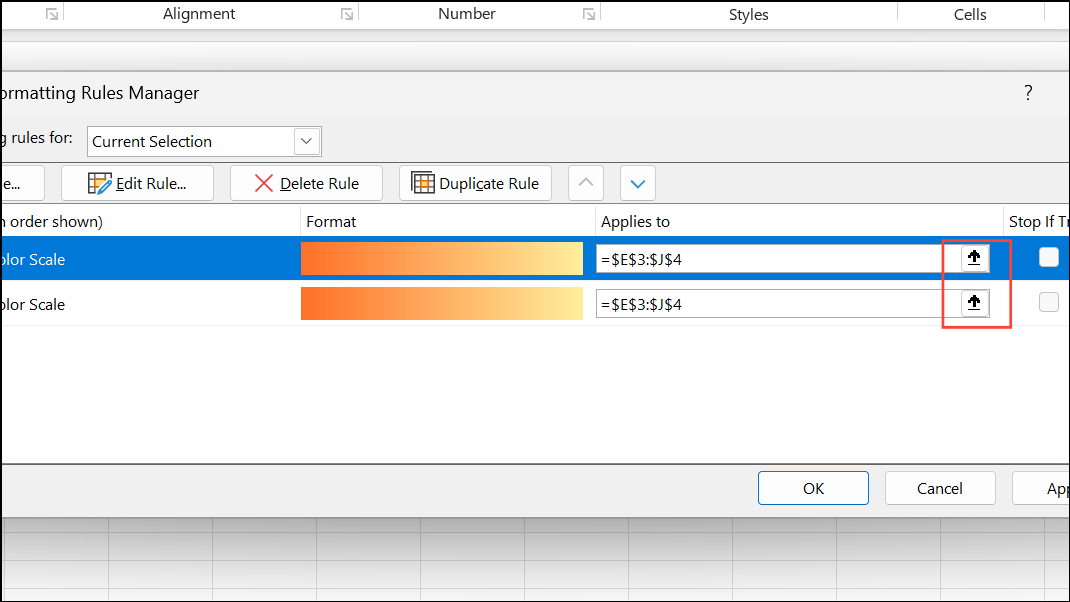
For example, if one rule sets the background color for values greater than 95% and another for values less than 95%, overlapping ranges can cause only the top rule to be visible.
Address File Corruption or Compatibility Issues
Corrupted Excel files or version incompatibilities can cause conditional formatting to stop working or behave inconsistently, especially when opening files created in newer Excel versions with older software.
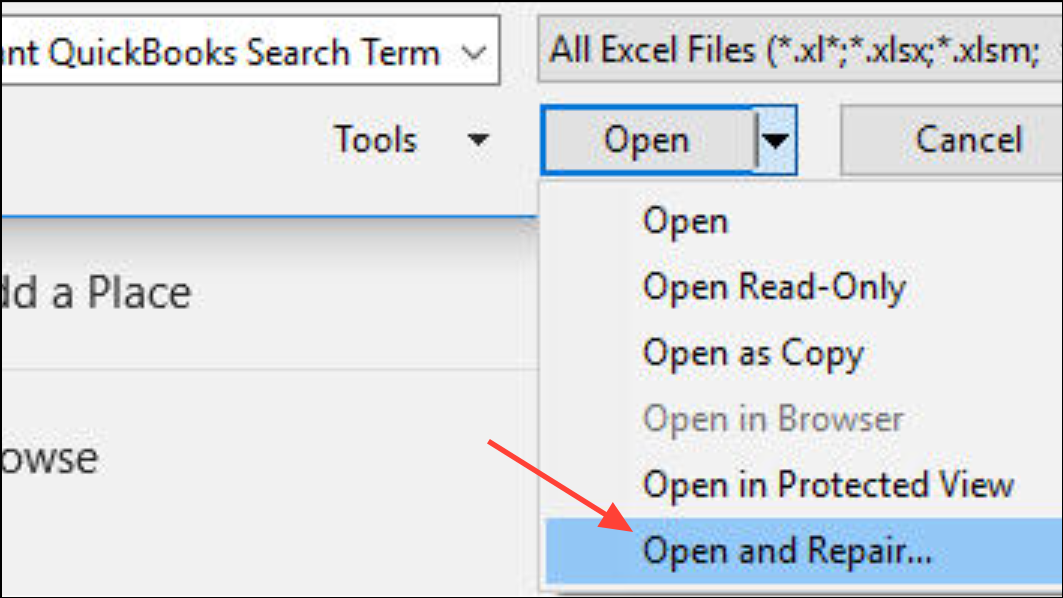
Tips for Creating Effective Conditional Formatting Rules
- Always write formulas as if for the first cell in the “Applies to” range.
- Use absolute references only when you want a fixed cell across all formatted cells.
- Test rules on a small sample before applying to large ranges.
- Regularly review the order and overlap of your rules to avoid conflicts.
- For complex logic, use “Use a formula to determine which cells to format” and test the formula in a worksheet cell first.
By systematically reviewing formulas, ranges, cell formats, and rule order, you can restore conditional formatting functionality and achieve consistent, visually clear results in your Excel spreadsheets.
Once you align cell references, ranges, and data types, conditional formatting will apply rules reliably and accurately highlight your data.





