
Microsoft Edge’s InPrivate browsing mode sometimes fails to open, appears greyed out, or causes the browser to crash on Windows 11. These issues can block access to private browsing, disrupt workflows, or limit privacy. Addressing these problems involves updating Edge, checking account and policy restrictions, resetting the browser, and, if necessary, creating a new user profile or repairing system files.
Update Microsoft Edge
Running an outdated version of Edge can cause compatibility problems and prevent InPrivate mode from working properly. Updates often include bug fixes that resolve these issues.
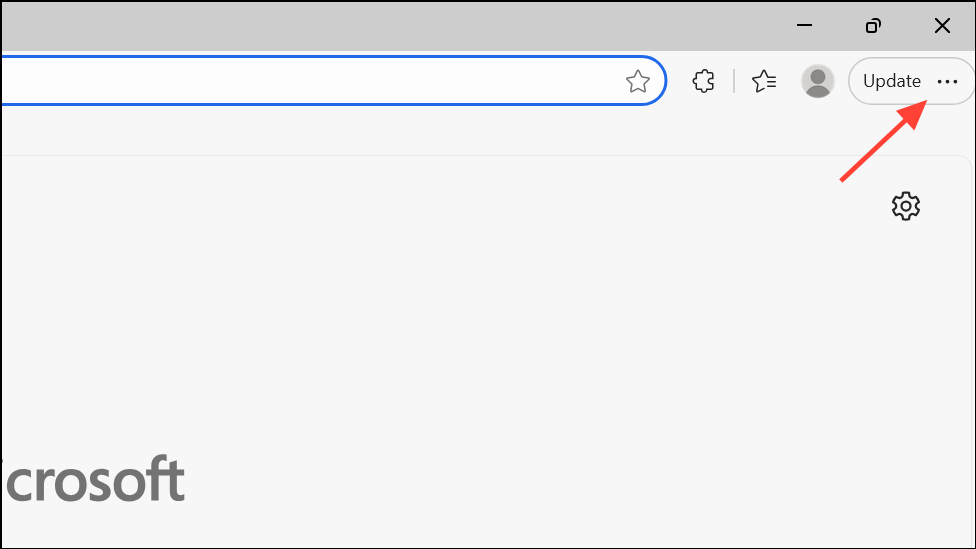
Help & Feedback > About Microsoft Edge. Edge will automatically check for updates and begin downloading if any are available.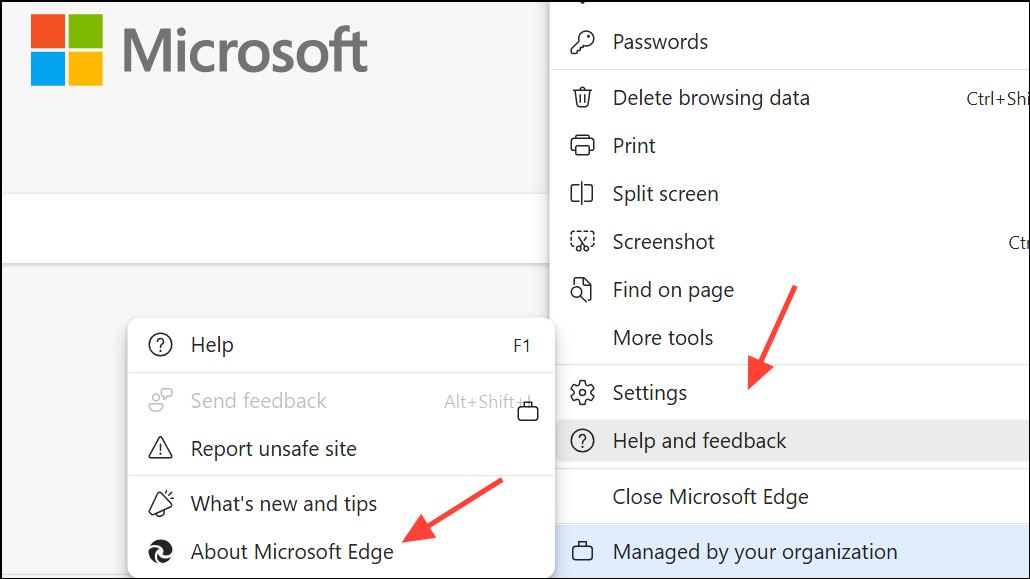
Check Account Type and Family Safety Restrictions
InPrivate mode may be unavailable if your Windows account is set up as a child account or is restricted by Microsoft Family Safety. These settings can block private browsing as a parental control measure.
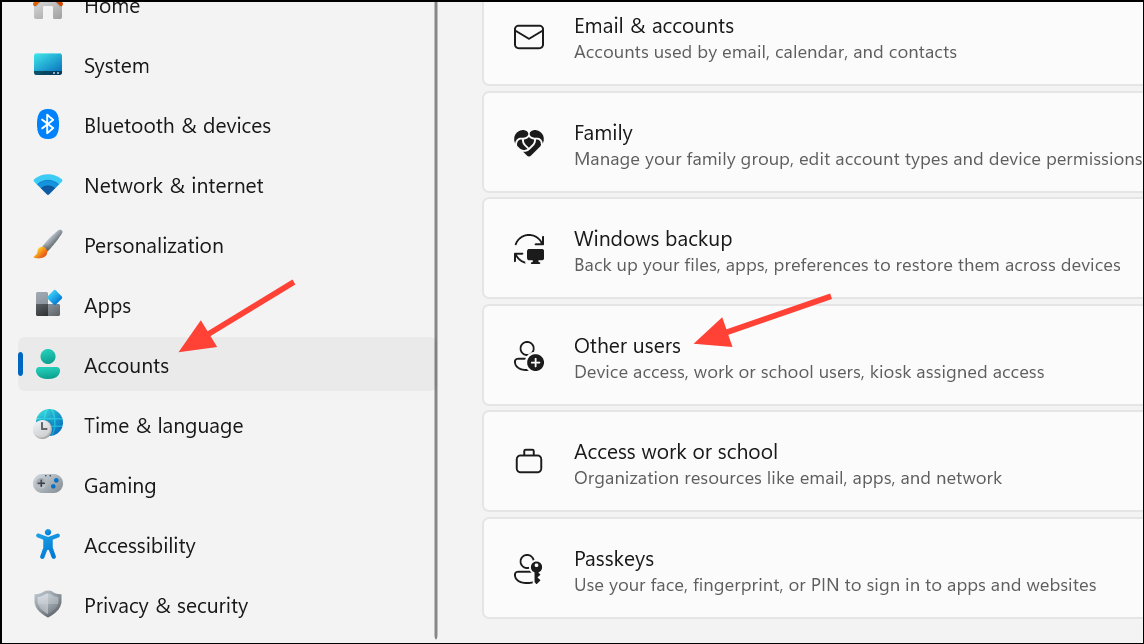
Your info and select Sign in with a local account instead to convert. Restart Windows after making changes.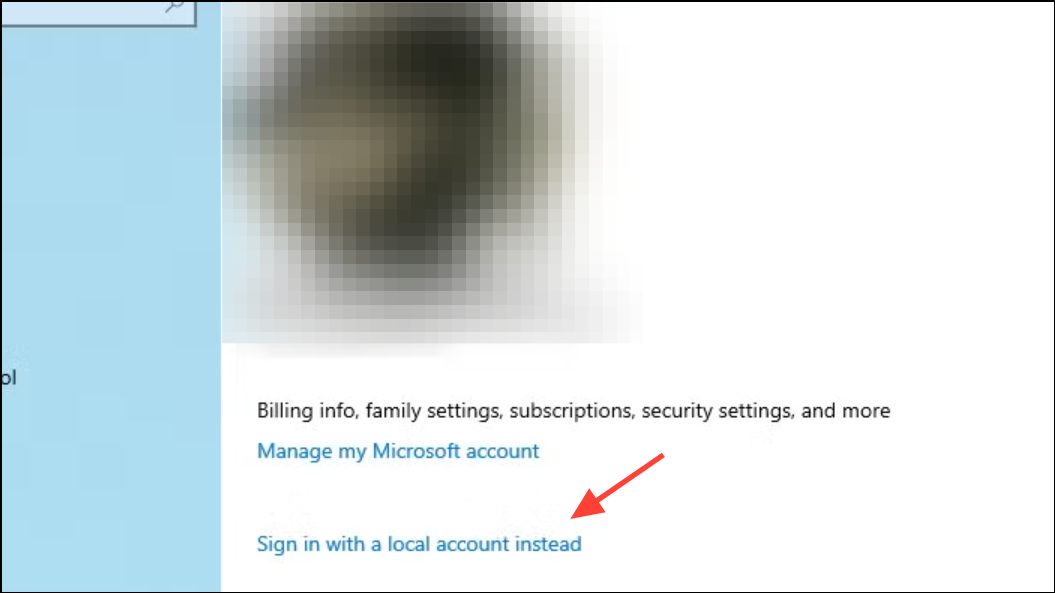
Review Registry and Group Policy Settings
Group Policy or Registry settings can disable InPrivate mode, especially on managed or work devices. Adjusting these settings can restore access to private browsing.
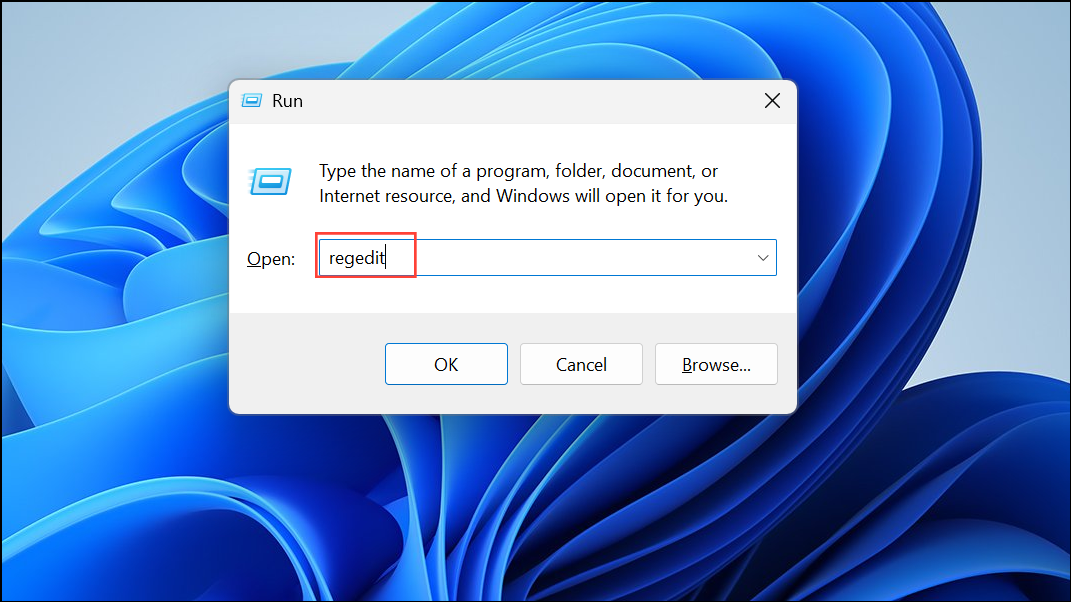
HKEY_CURRENT_USER\Software\Policies\Microsoft\Edge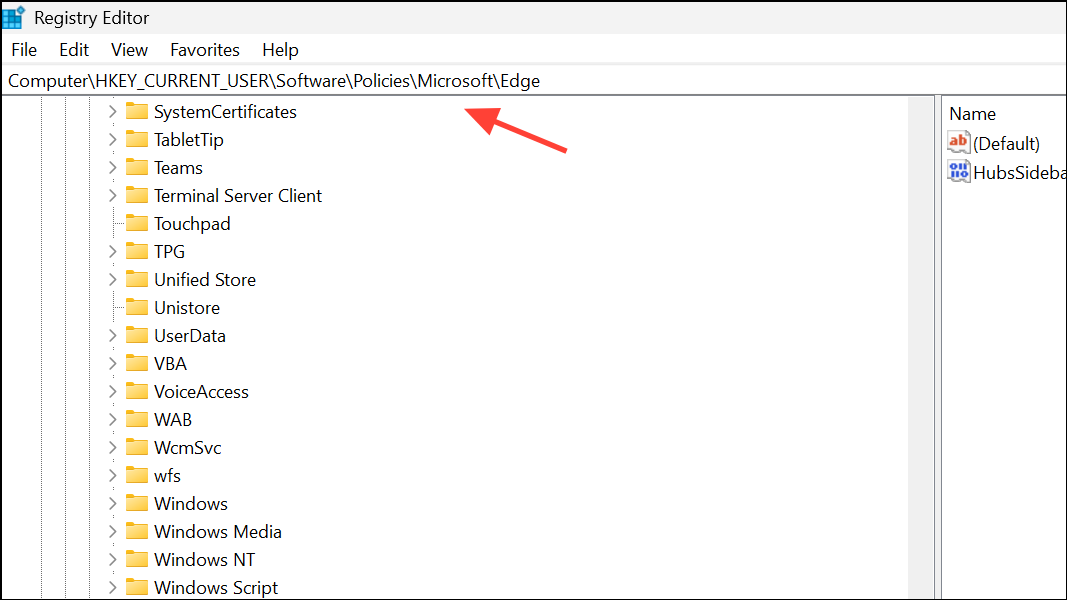
or, for system-wide changes:
HKEY_LOCAL_MACHINE\Software\Policies\Microsoft\EdgeInPrivateModeAvailability. Set its data to 0 (Available) or delete the value to restore default behavior. A value of 1 disables InPrivate mode, while 2 forces InPrivate mode only.Computer Configuration > Administrative Templates > Microsoft Edge > Allow InPrivate browsing and set it to Enabled to permit InPrivate mode. Note: The Group Policy Editor is not available in Windows 11 Home edition.Reset Microsoft Edge to Default Settings
Corrupted settings or extensions can prevent InPrivate mode from working. Resetting Edge restores default settings without affecting your saved passwords or favorites.
Restore settings to their default values and confirm. This will reset your startup page, new tab page, search engine, and pinned tabs, and will disable all extensions and clear temporary data such as cookies.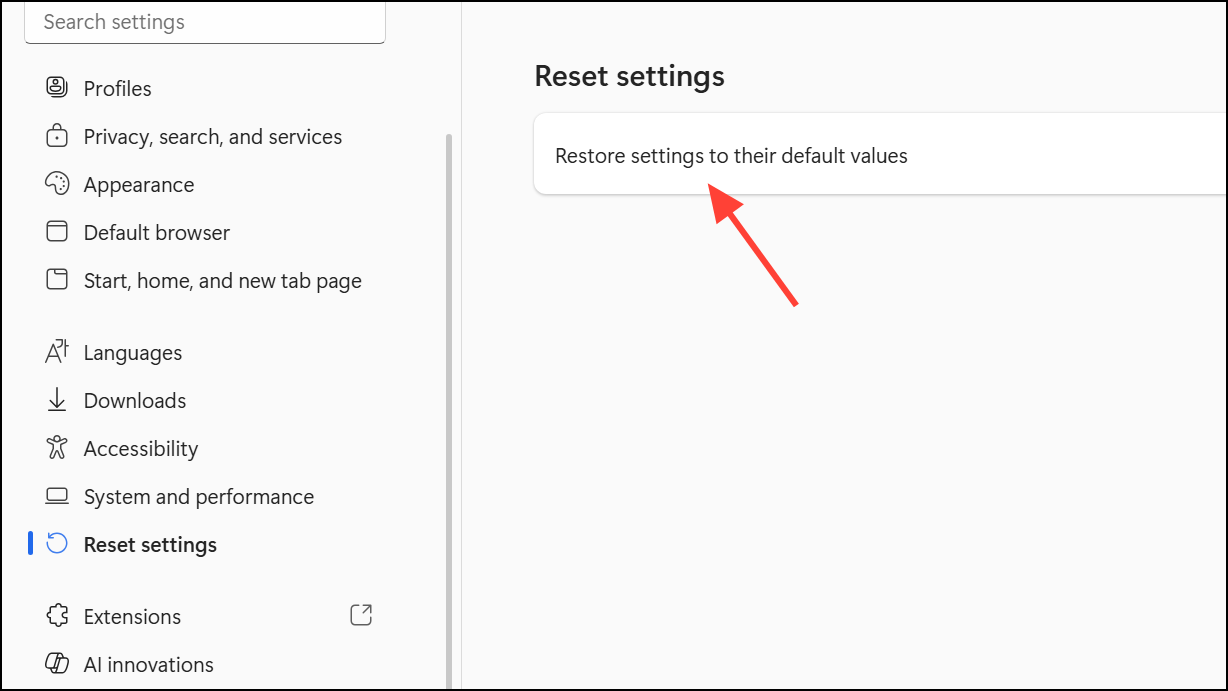
Create a New User Profile
If your user account is corrupted, Edge’s InPrivate mode may stop working. Creating a new Windows user profile can resolve profile-specific issues.
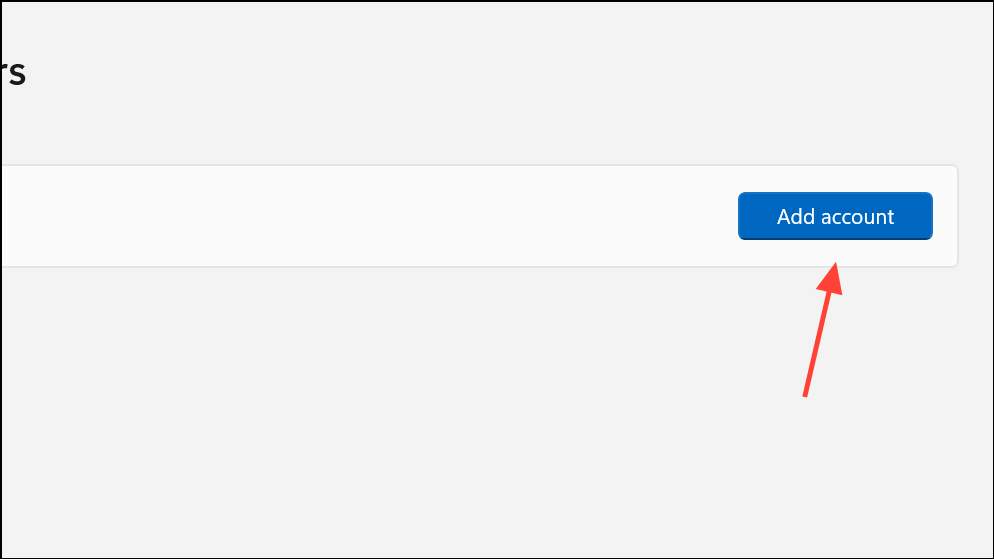
Repair or Reinstall Edge
Persistent issues may require repairing or reinstalling Edge. This can fix damaged browser files that block InPrivate mode.
Check for Temporary Bugs or System Issues
Occasionally, temporary bugs or system glitches can disrupt InPrivate mode. Restarting your computer can clear these transient issues. If Edge still fails, running a system file check can detect and repair corrupted Windows files.
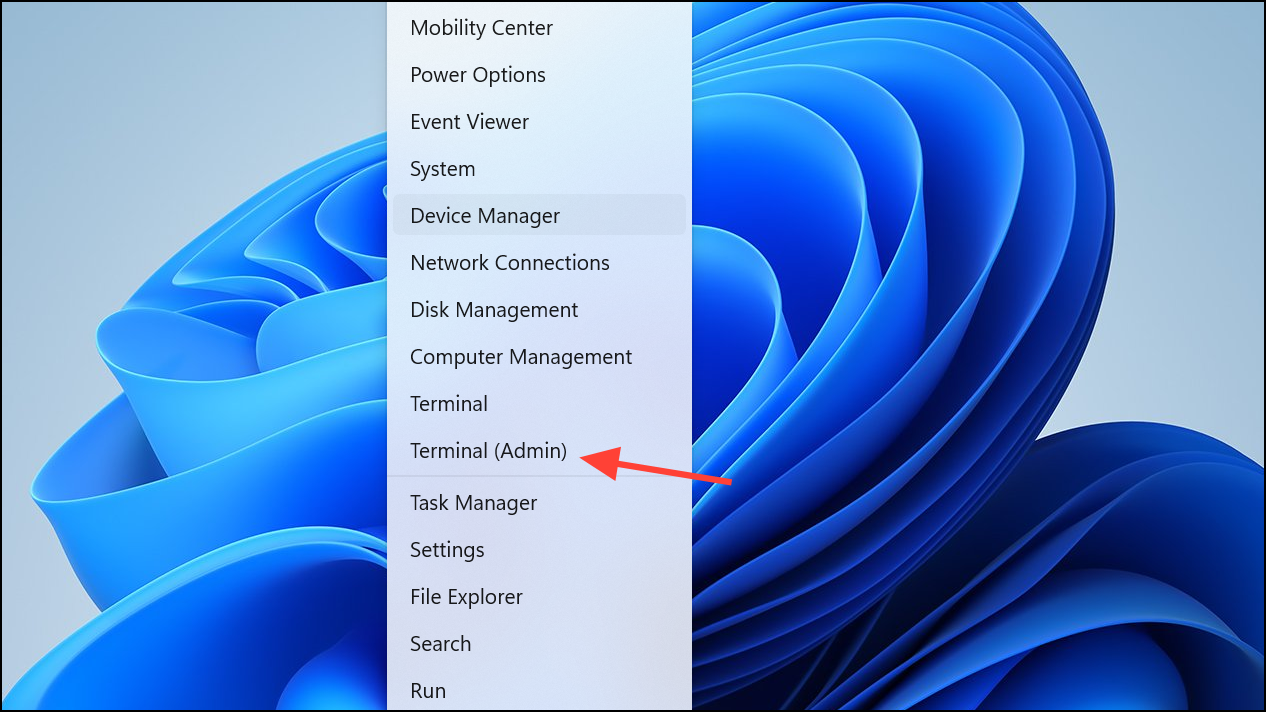
sfc /scannow and press Enter. Wait for the scan to complete and follow any instructions provided.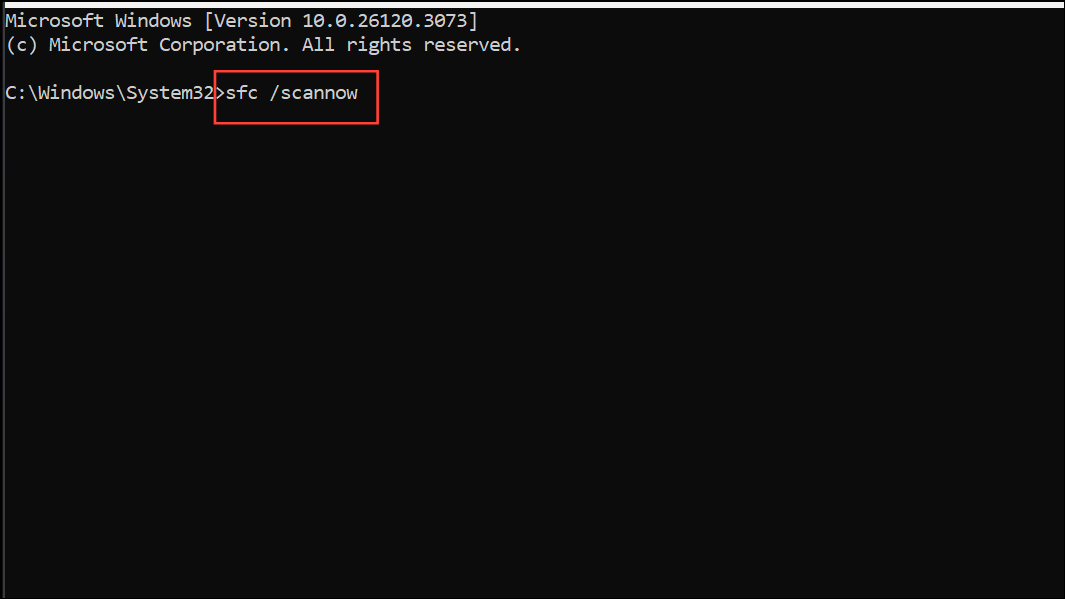
These steps resolve most cases of InPrivate mode not working in Edge on Windows 11. Keeping Edge updated and monitoring account restrictions prevents similar issues in the future.





