
Microsoft Edge sometimes displays a “Profile Error: Some features may not be available. Something went wrong.” message at startup, causing the browser to crash or get stuck during sign-in. This issue disrupts access to Microsoft accounts, work tools, and synced data, making it difficult to use Edge for essential tasks. The error typically arises from corrupted user data files, problematic extensions, third-party antivirus interference, or lingering Edge processes.
End All Microsoft Edge Processes
Background Edge processes can prevent the browser from launching correctly, resulting in the profile error screen. Stopping these processes ensures a clean restart and often resolves the issue.
Ctrl + Shift + Esc to open Task Manager. If you prefer, right-click the Windows logo and select Task Manager.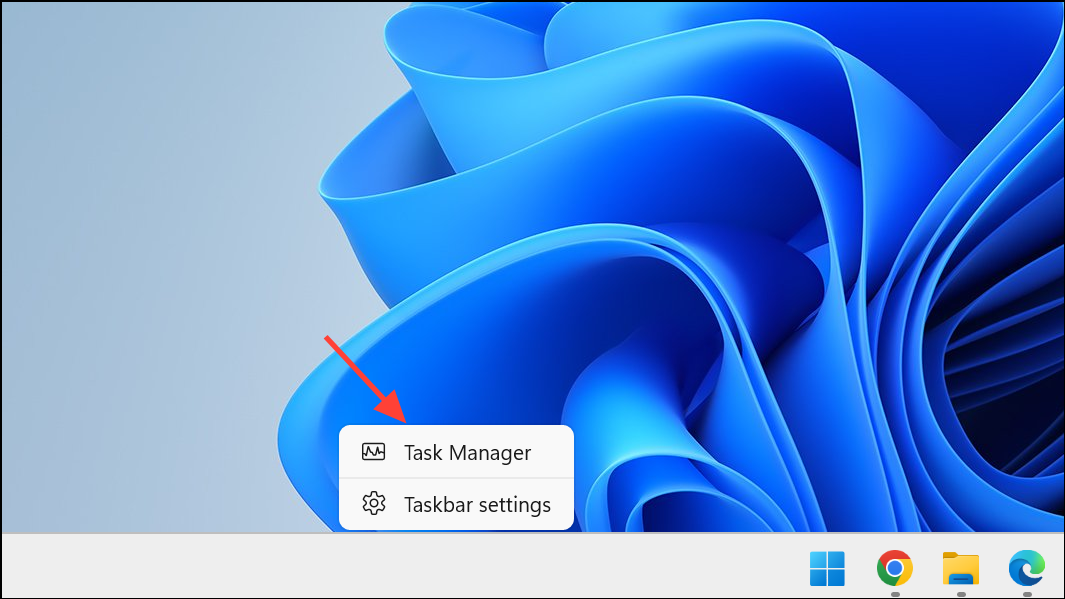
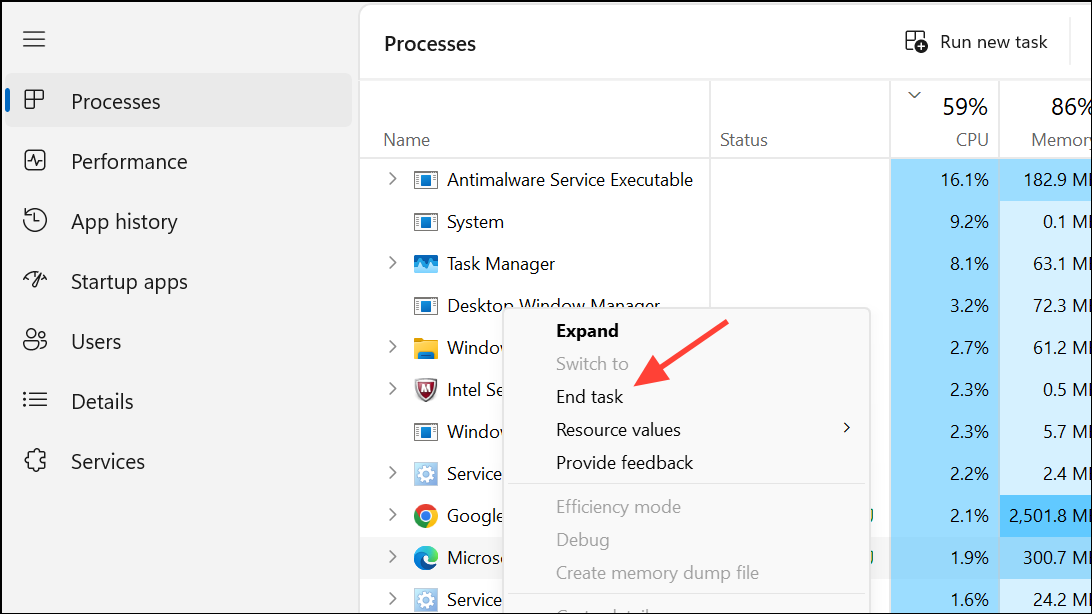
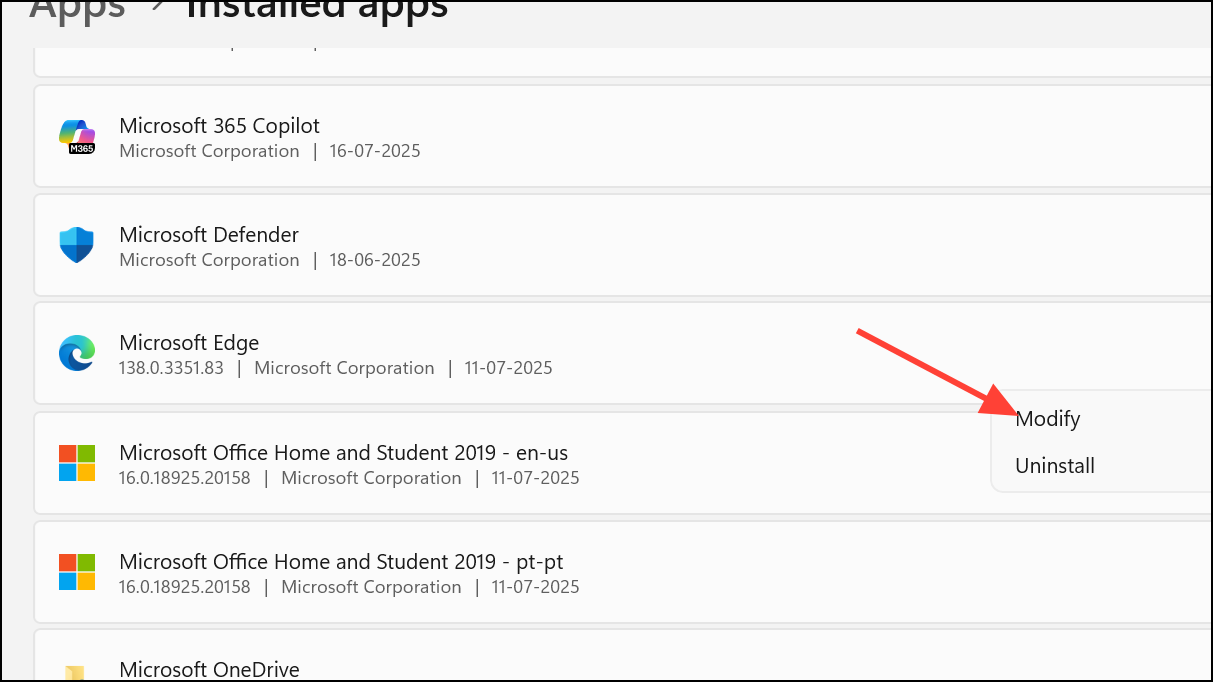
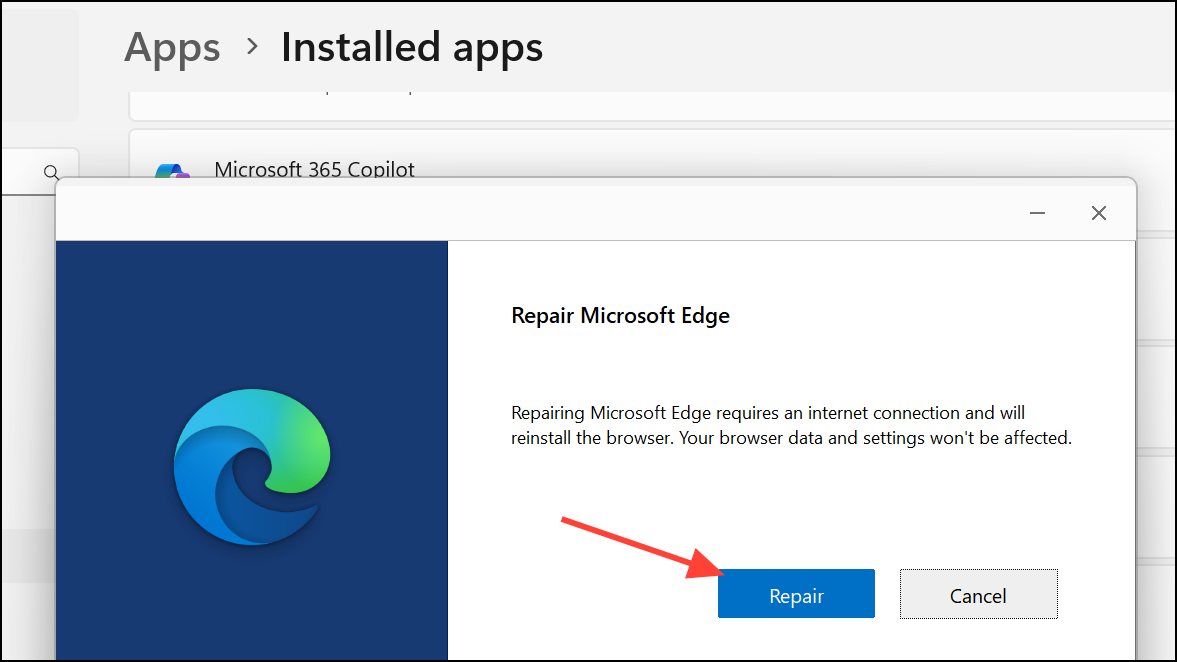
Repair Microsoft Edge via Windows Settings
Repairing Edge reinstalls core files without affecting your data, fixing corruption that can trigger profile errors.
Delete Corrupted Web Data Files
Corrupted profile or web data files often lead to persistent profile errors. Removing these files forces Edge to recreate them, clearing the error.
C:\Users\<your-username>\AppData\Local\Microsoft\Edge\User Data\Default (replace <your-username> with your actual Windows username).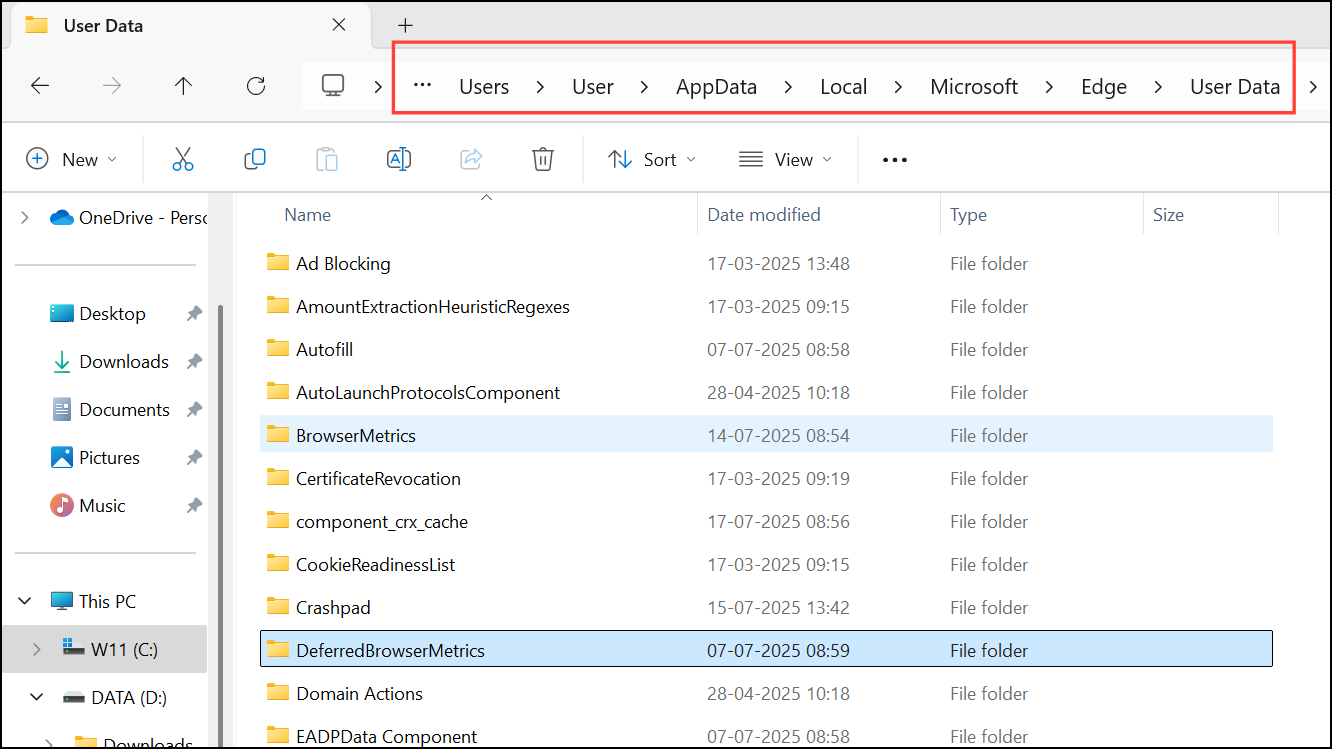
Disable Third-Party Antivirus Temporarily
Some antivirus programs interfere with Edge’s processes, blocking profile components and causing errors. Temporarily disabling the antivirus or adding Edge to its whitelist can help diagnose and resolve the problem.
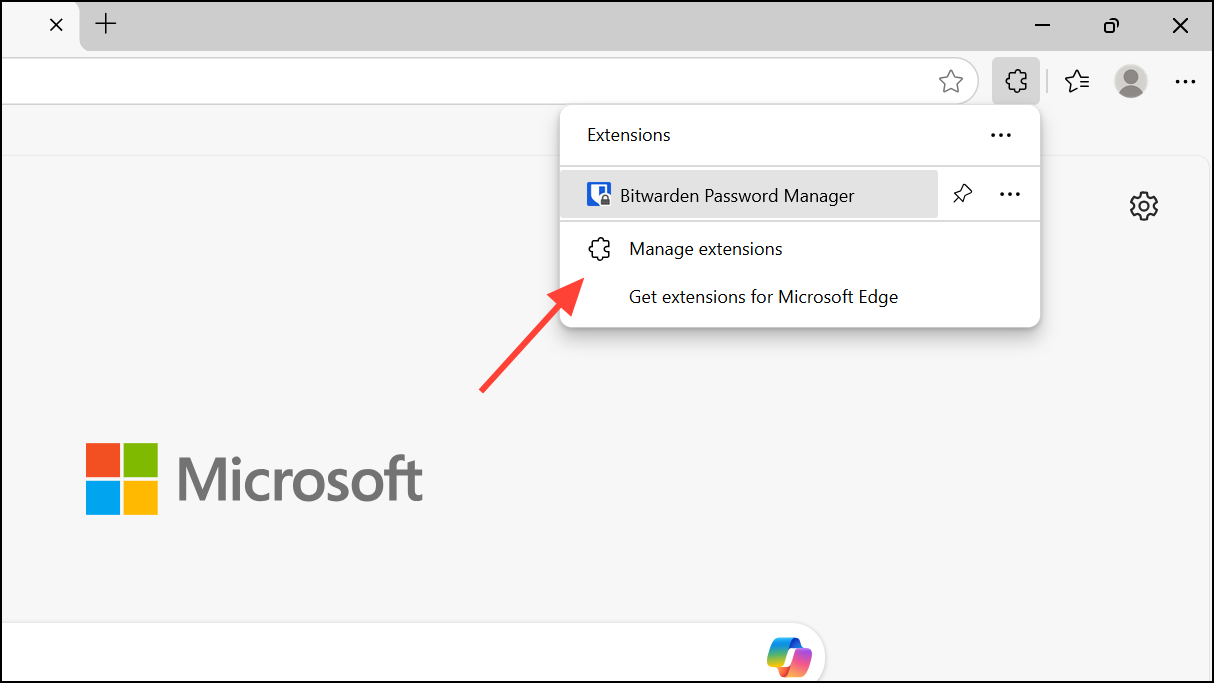
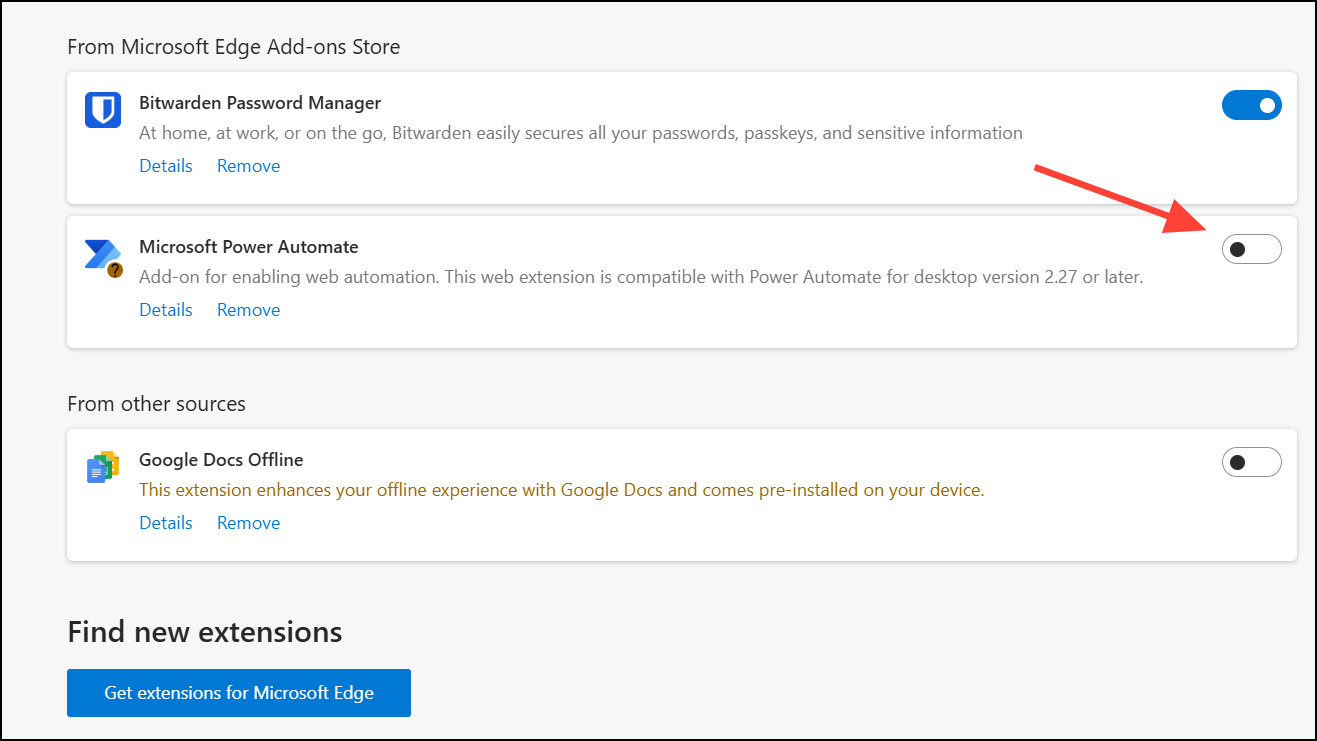
Remove or Disable Browser Extensions
Problematic or outdated extensions can conflict with Edge’s profile system, leading to startup errors. Disabling all extensions helps identify if one is causing the issue.
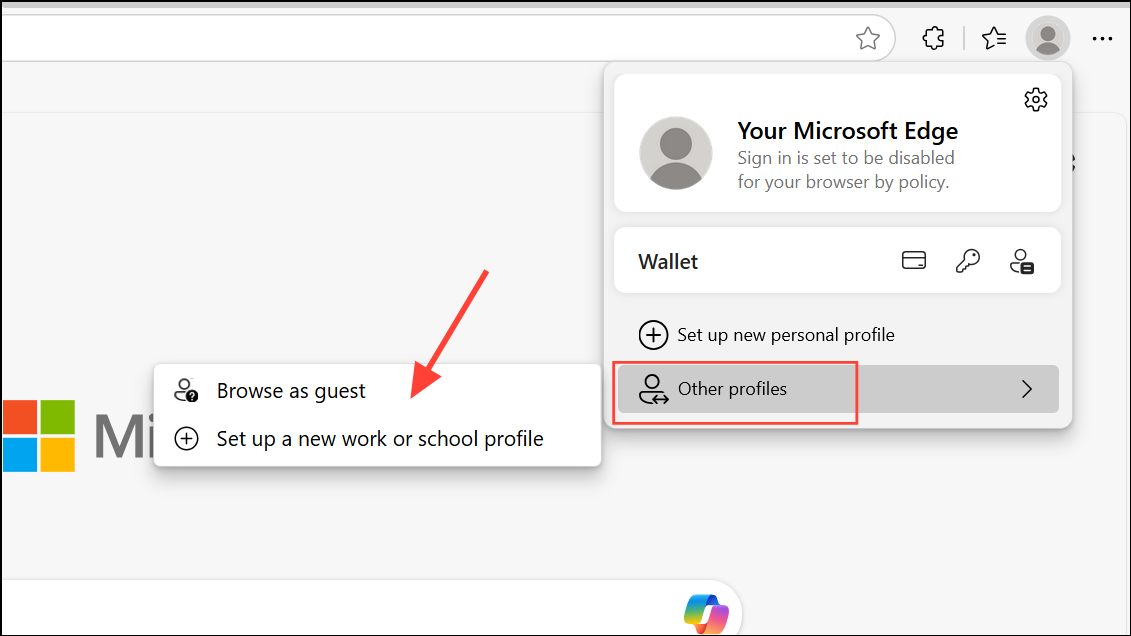
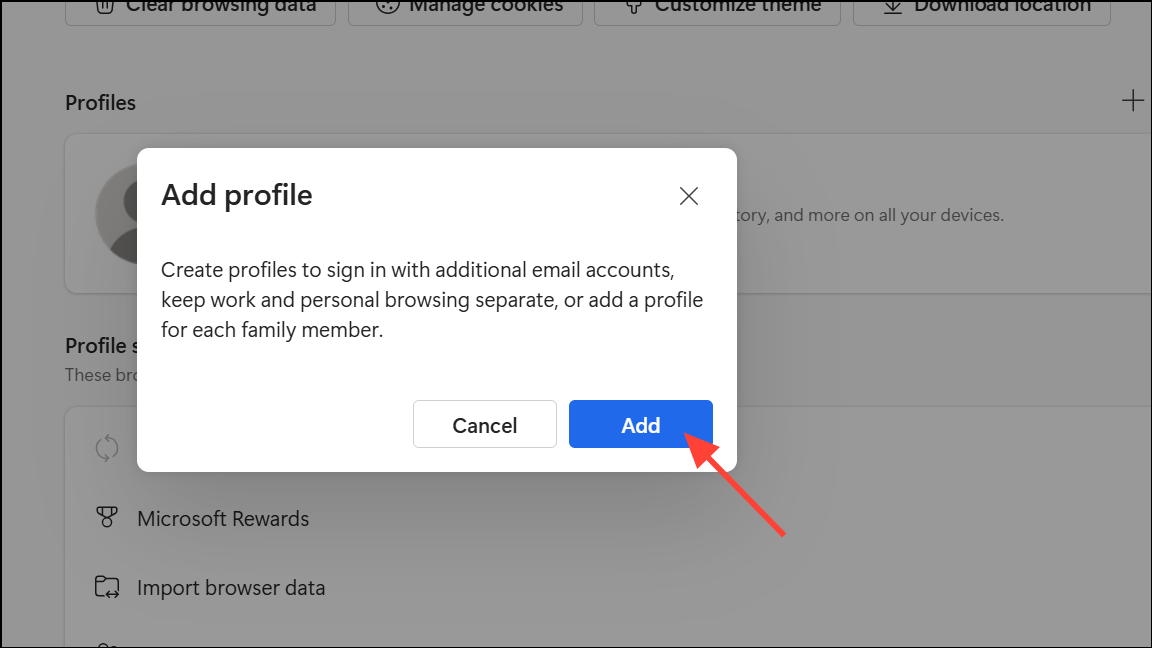
Create a New Edge User Profile
If none of the above solutions work, your current Edge profile may be irreparably corrupted. Creating a new user profile restores normal browser function, though you may need to resync your data.
Resolving the Edge “Profile Error” screen restores access to your synced data and browser features—try these approaches in order for the most reliable fix.





