
Error 0x000000EF (“CRITICAL PROCESS DIED”) occurs when a critical system process in Windows 11 unexpectedly stops functioning. This issue triggers a Blue Screen of Death (BSOD), causing your system to crash and possibly enter a restart loop. Causes range from corrupted system files and faulty drivers to hardware issues and malware infections.
To fix this error, start troubleshooting with the most effective methods outlined below.
Method 1: Run System File Checker (SFC) and DISM Tools
Corrupted or missing system files are a common cause of the CRITICAL PROCESS DIED error. Windows provides built-in utilities to scan and repair these files.
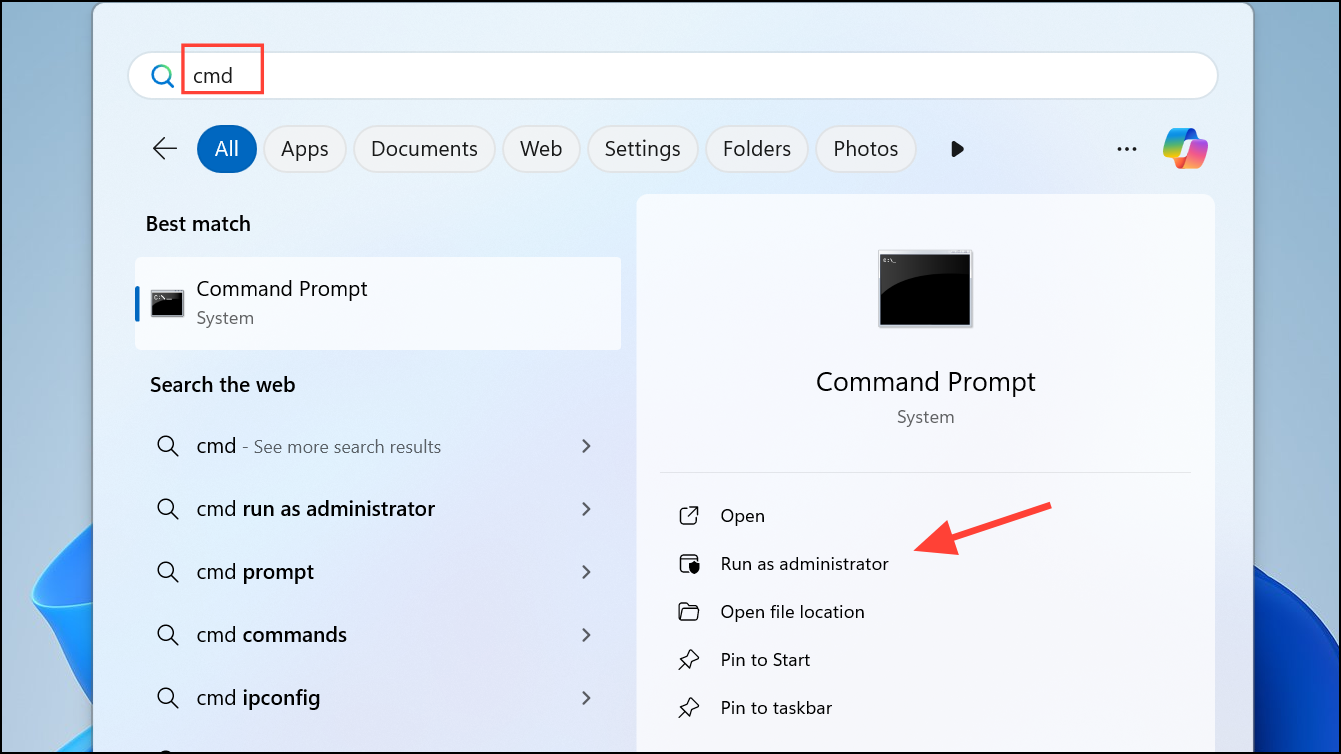
sfc /scannow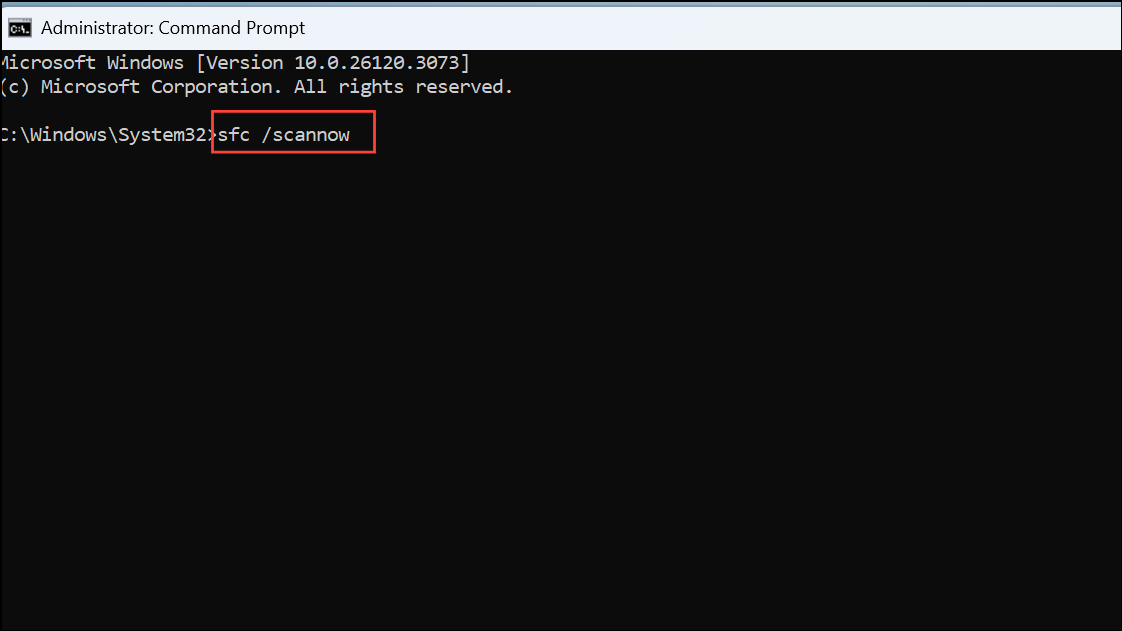
Wait until the scan completes. It may take several minutes. If the SFC tool reports issues it cannot fix, proceed to the next step.
DISM /Online /Cleanup-Image /RestoreHealth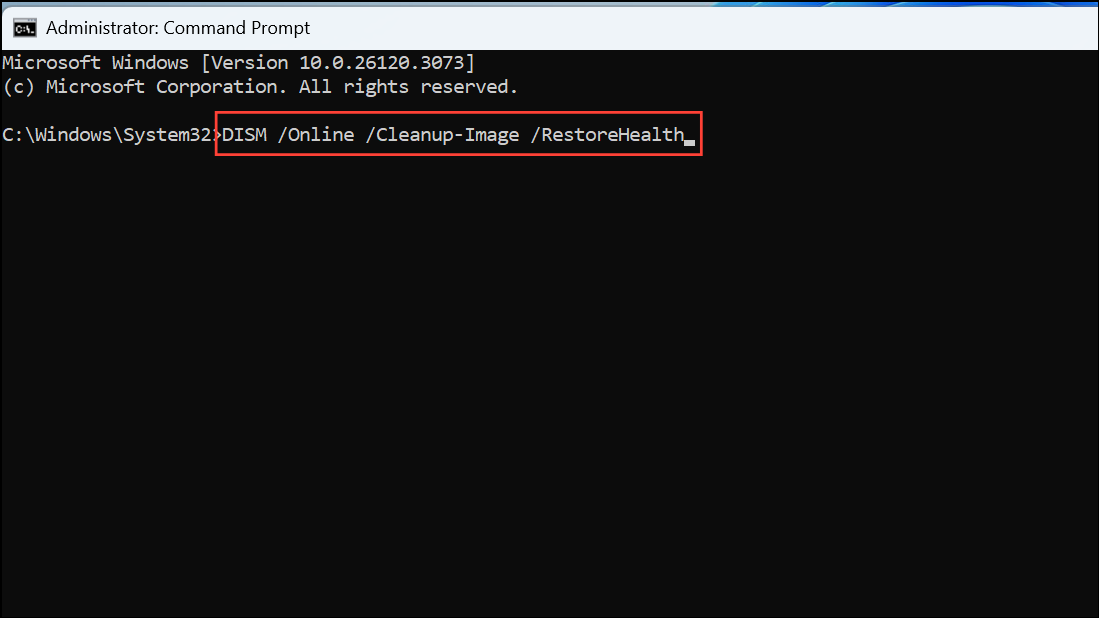
Once DISM completes, restart your computer and check if the error persists.
Method 2: Update Device Drivers
Faulty or outdated device drivers can cause critical system processes to fail. Updating your drivers helps resolve compatibility issues.
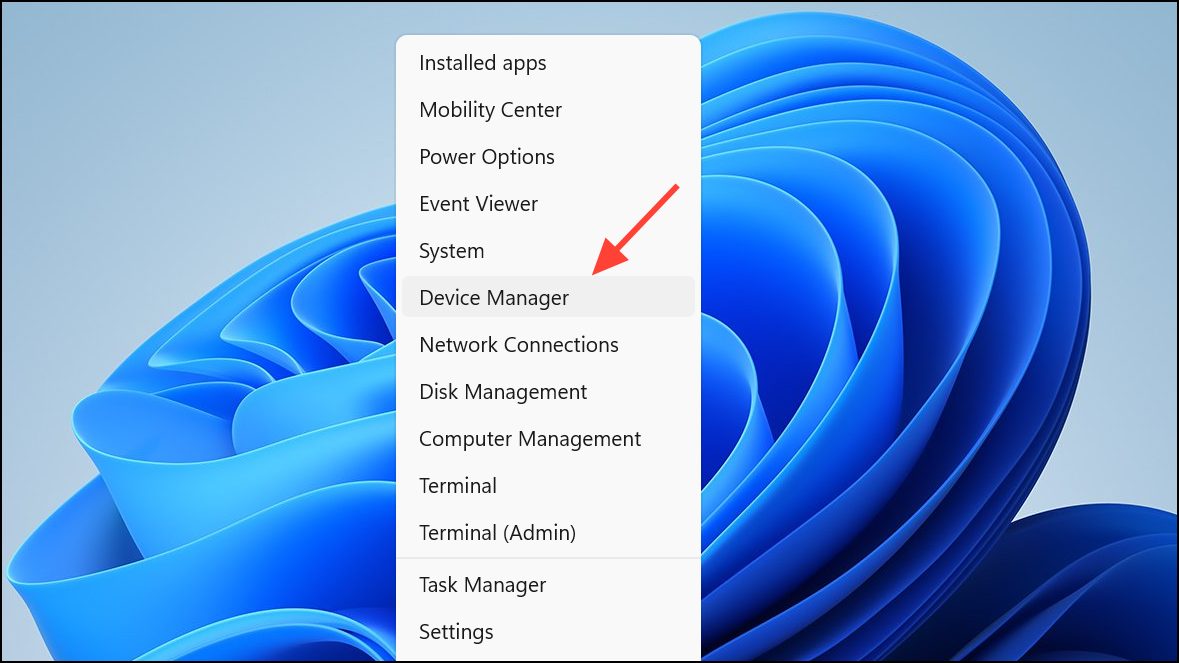
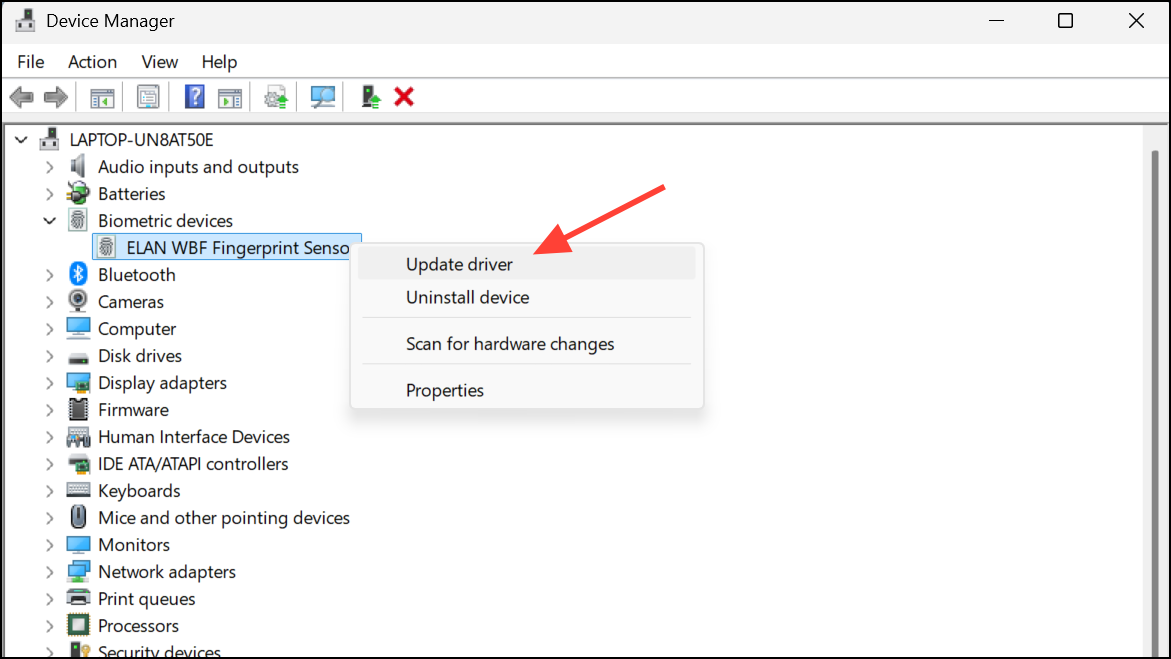
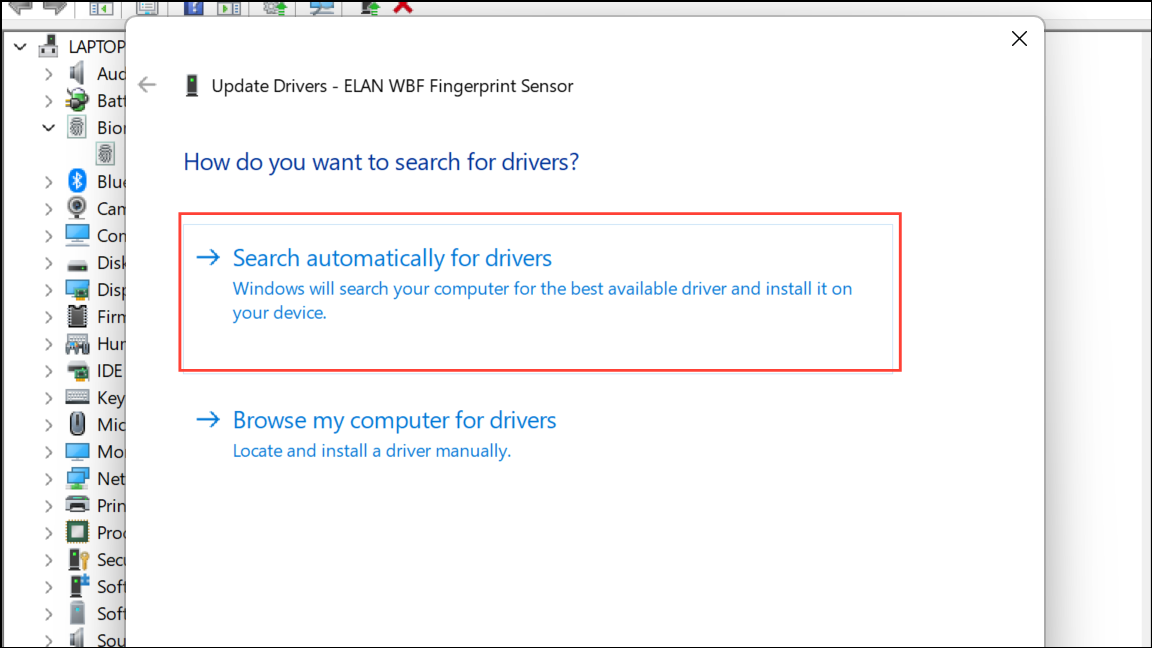
After updating all problematic drivers, reboot your system.
Method 3: Perform a Clean Boot
A clean boot helps identify conflicts caused by third-party software or services.
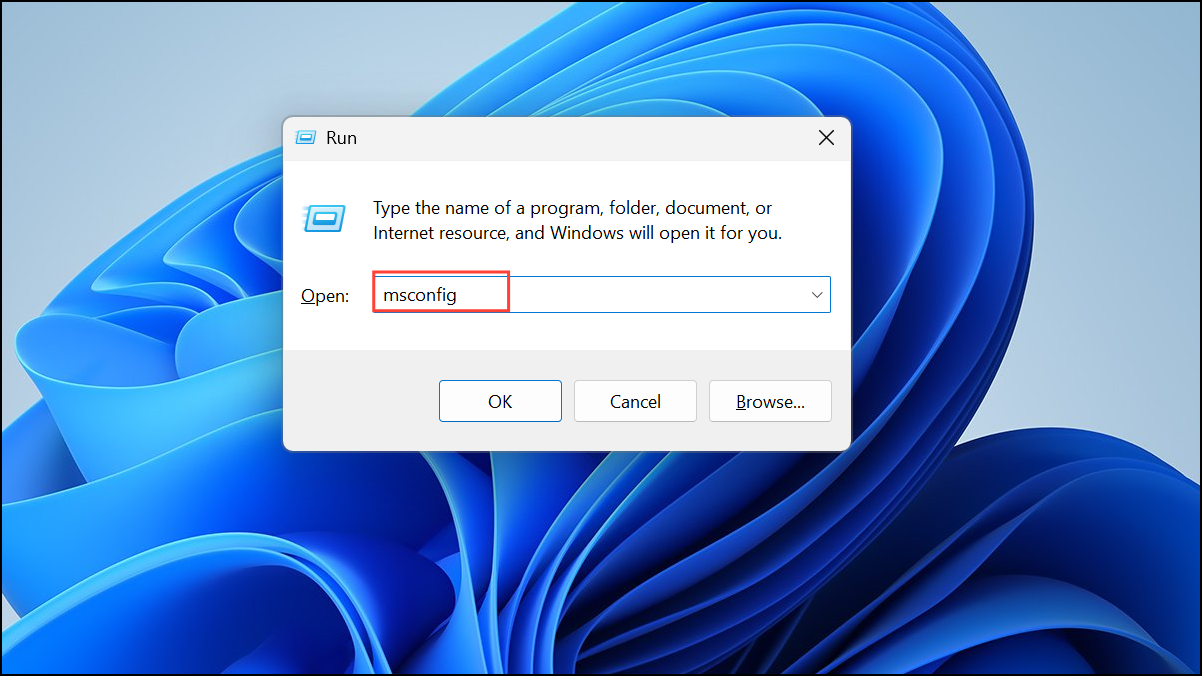
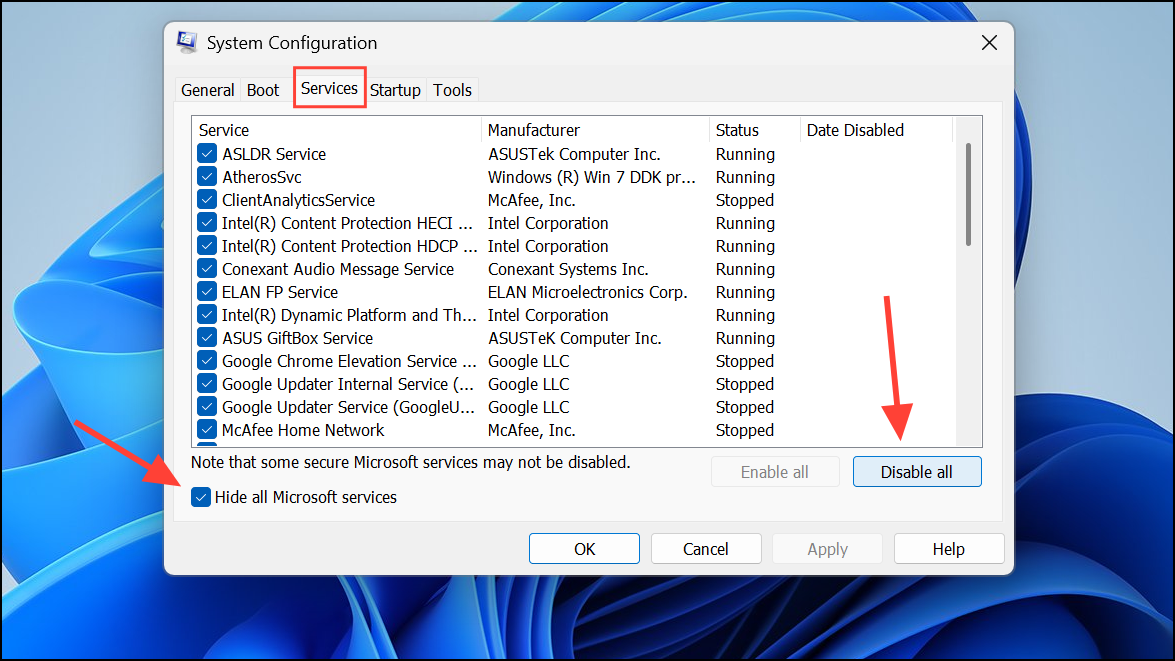
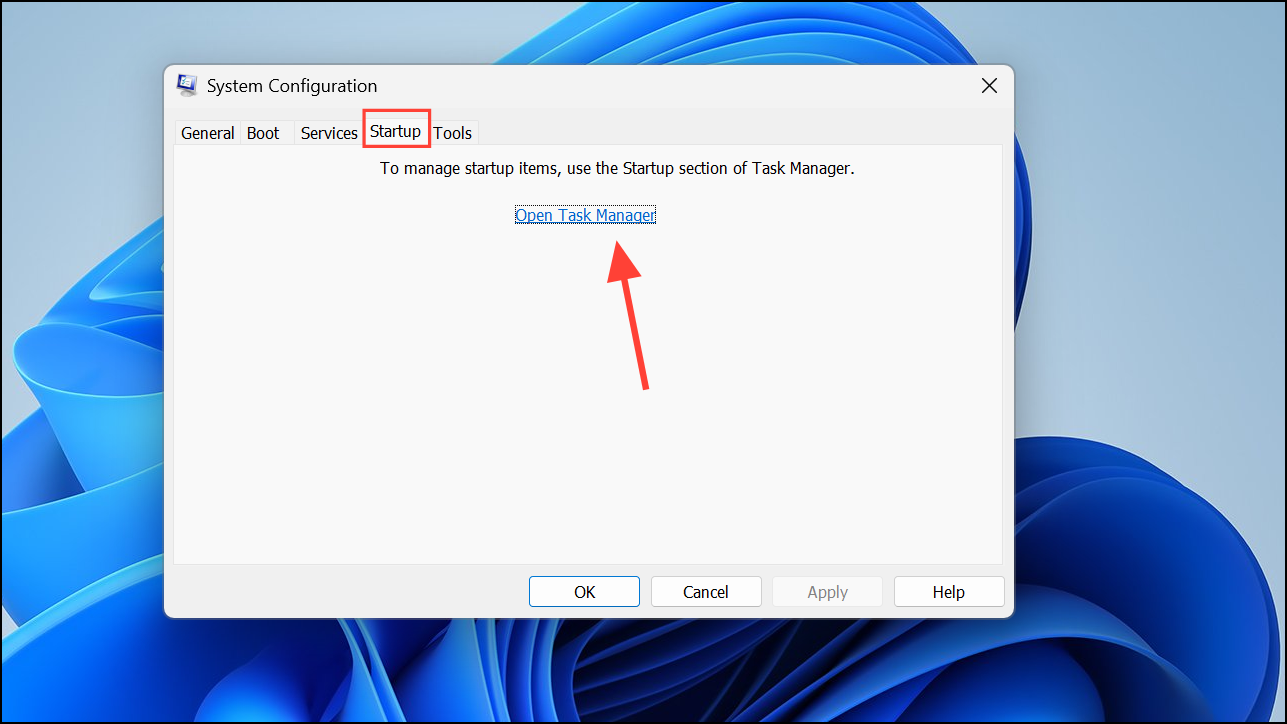
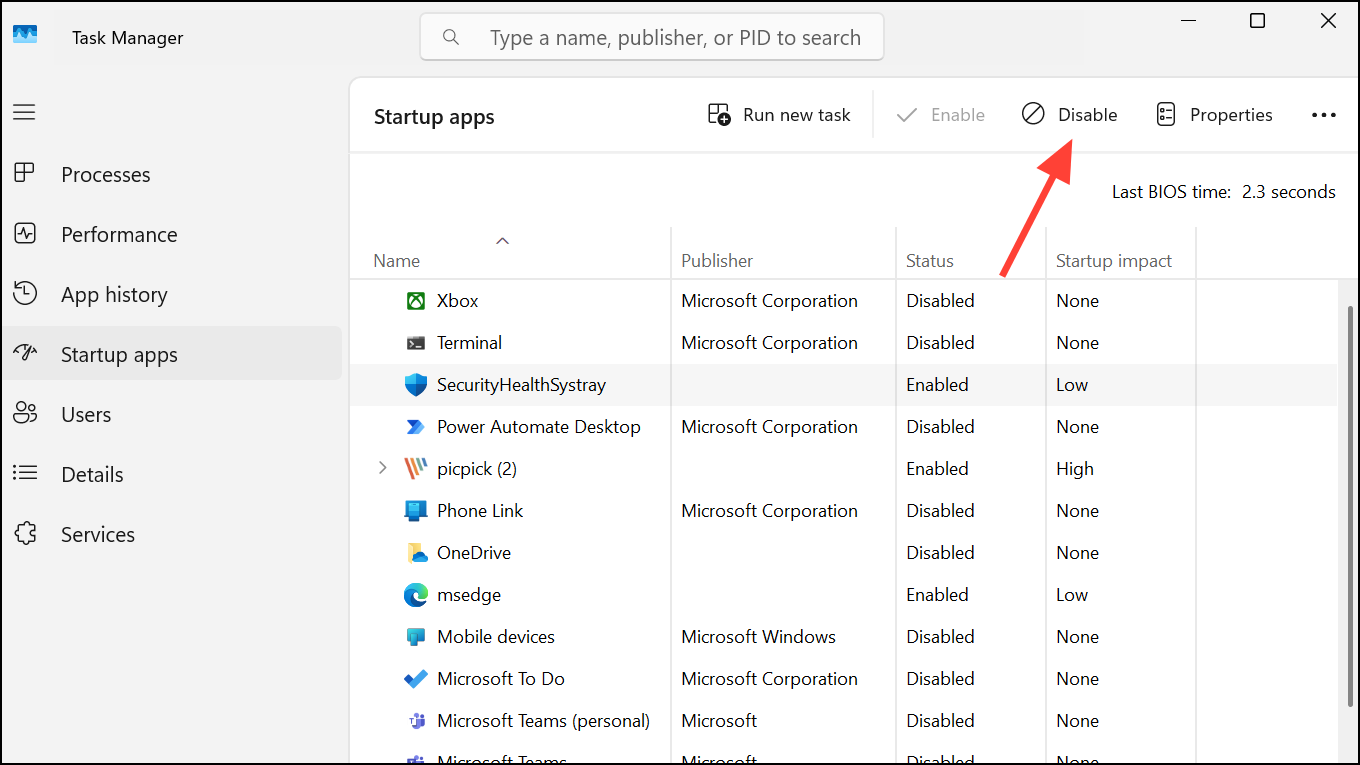
Method 4: Run Windows Memory Diagnostic
Faulty RAM modules can trigger the CRITICAL PROCESS DIED error. Test your memory using Windows Memory Diagnostic.
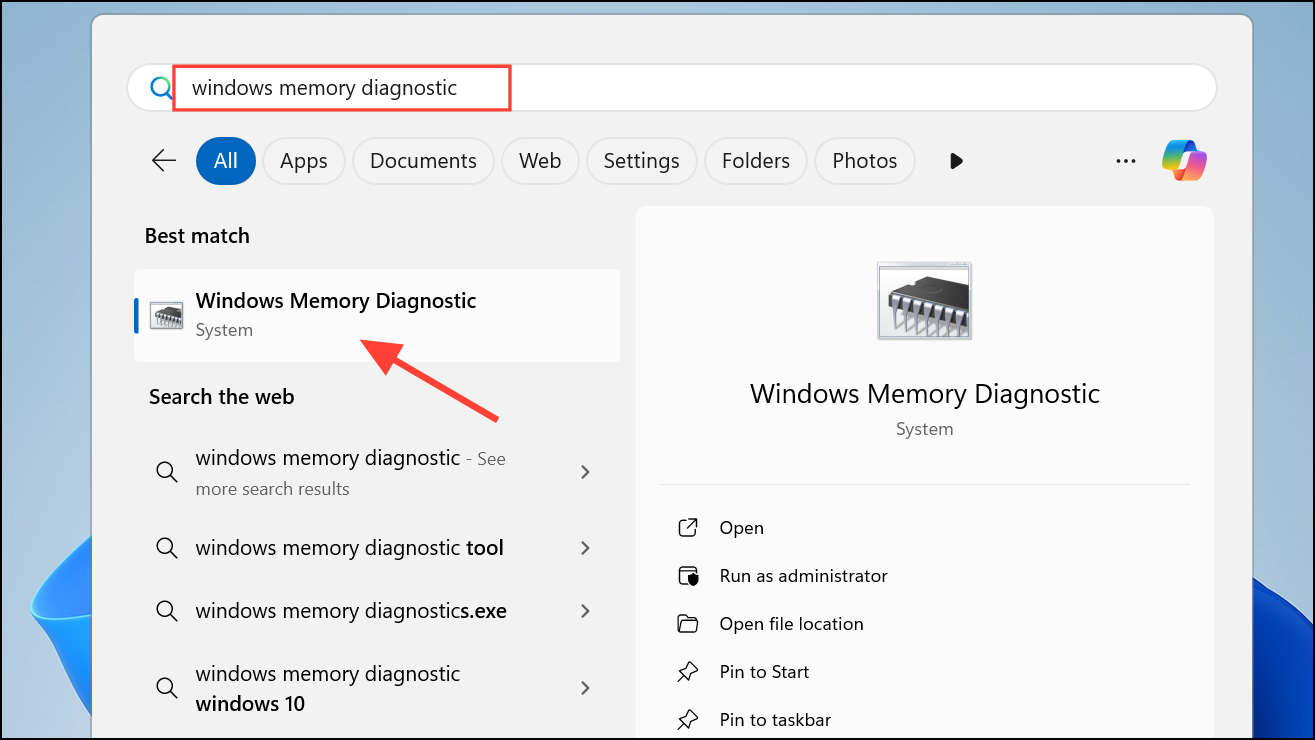
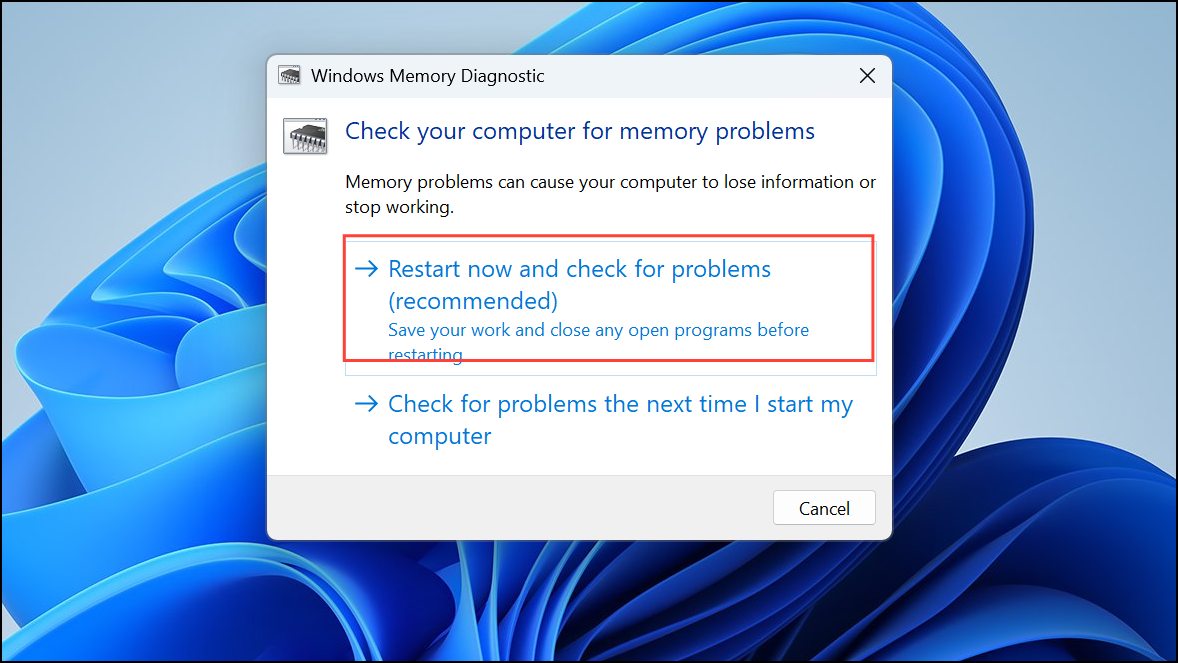
Your system will restart and perform the memory check. Replace any RAM modules if errors are detected.
Method 5: Use System Restore
If the issue began after recent system changes, reverting your system to an earlier state may resolve the error. This requires you to have set up a restore point earlier.
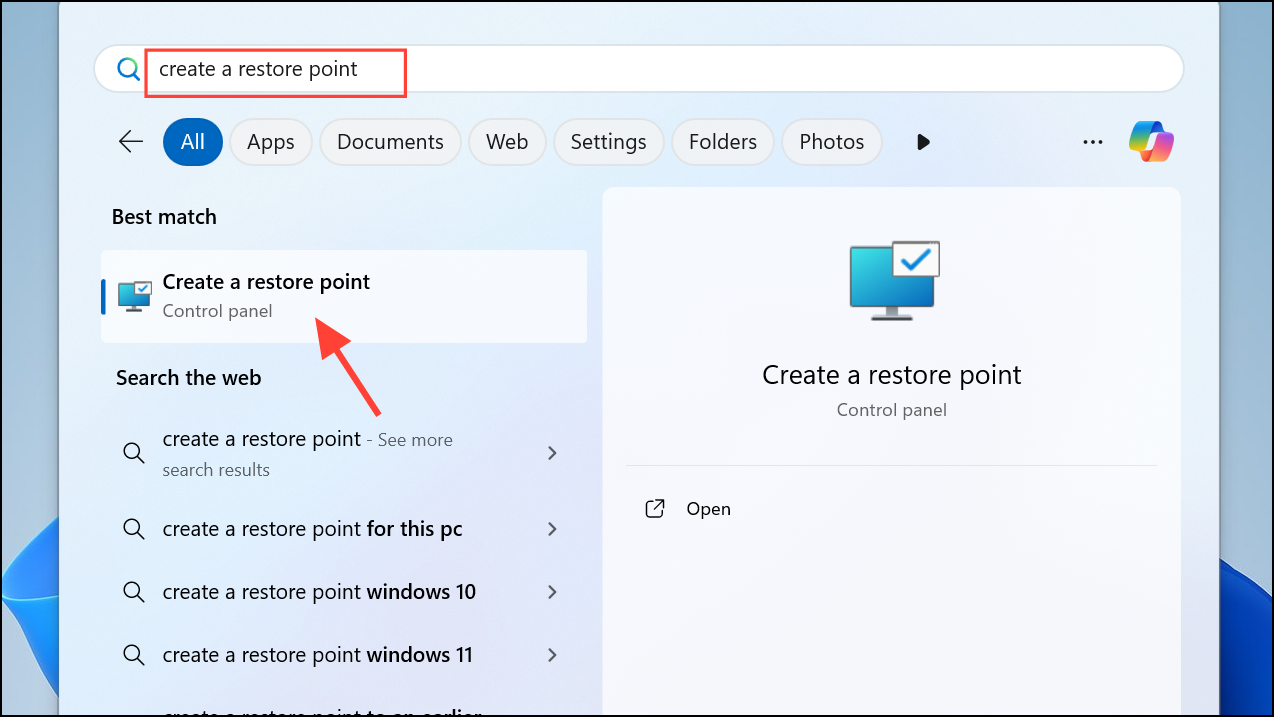
Your PC will restart after the restore completes.
Method 6: Reset Windows 11
If previous methods fail, resetting your system can eliminate persistent issues by reinstalling Windows.
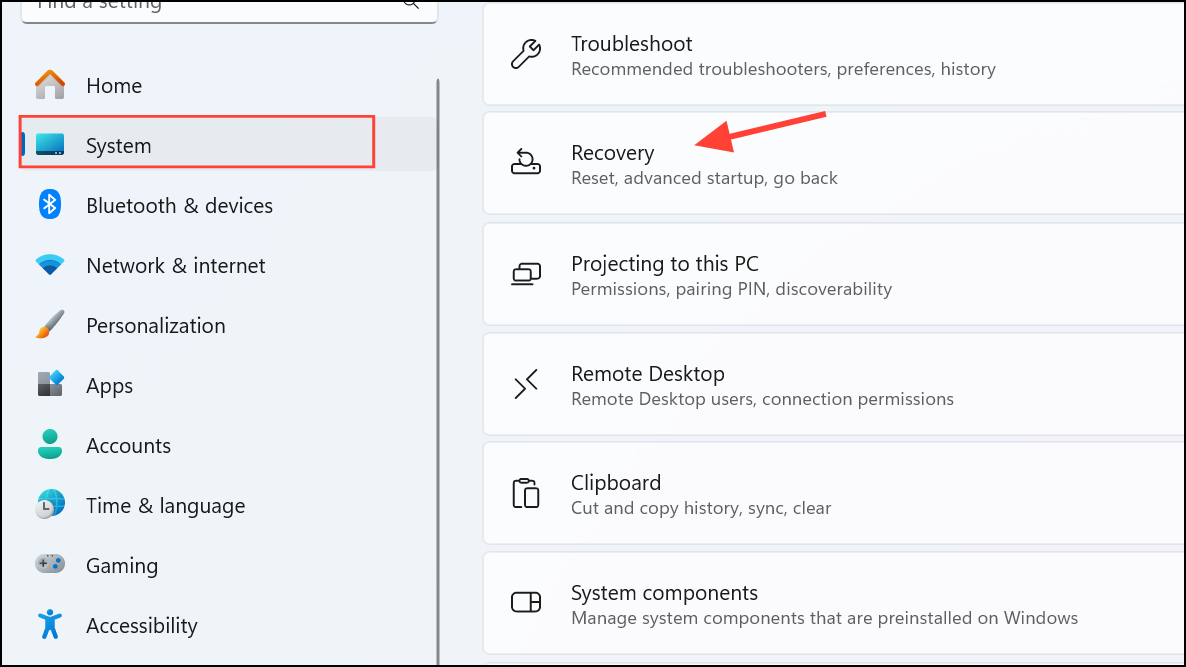
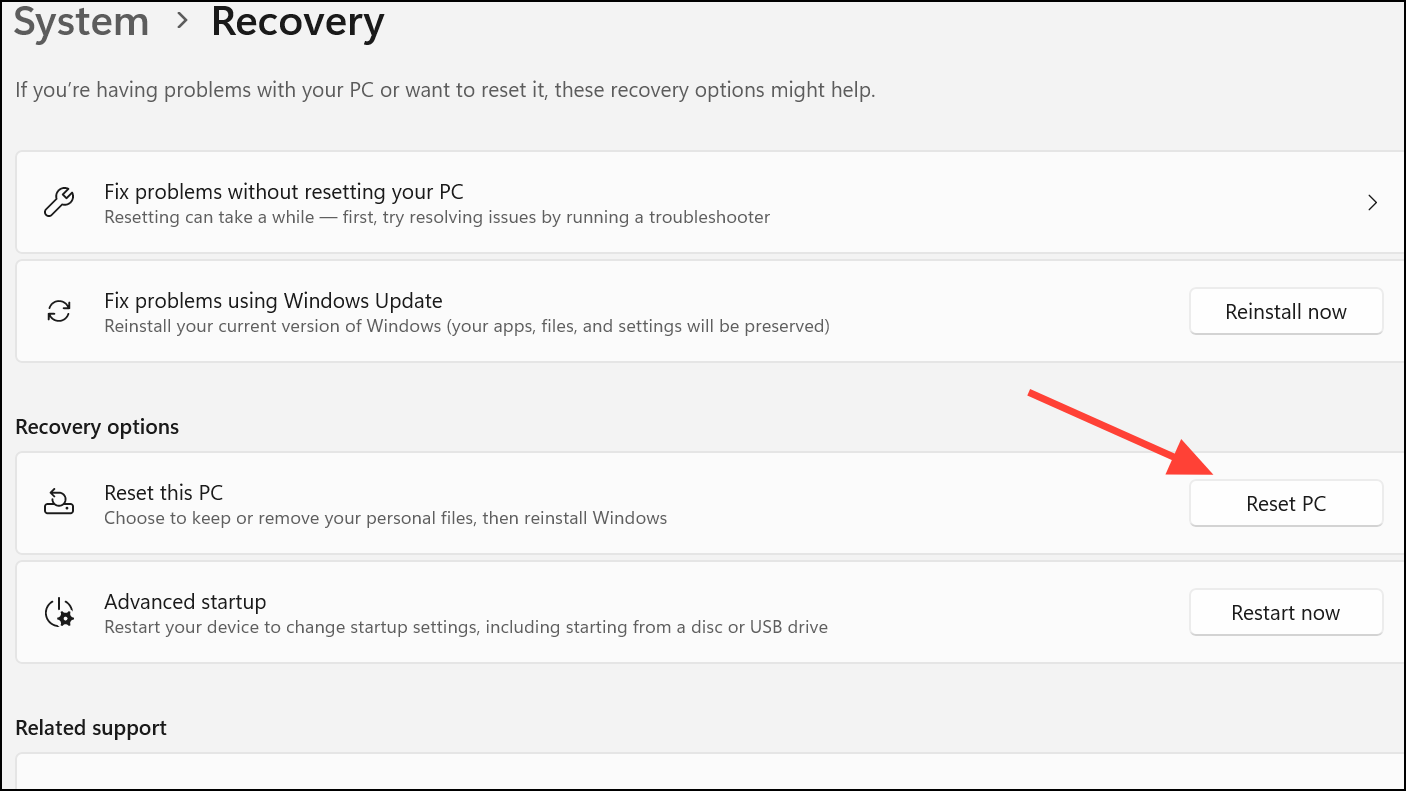
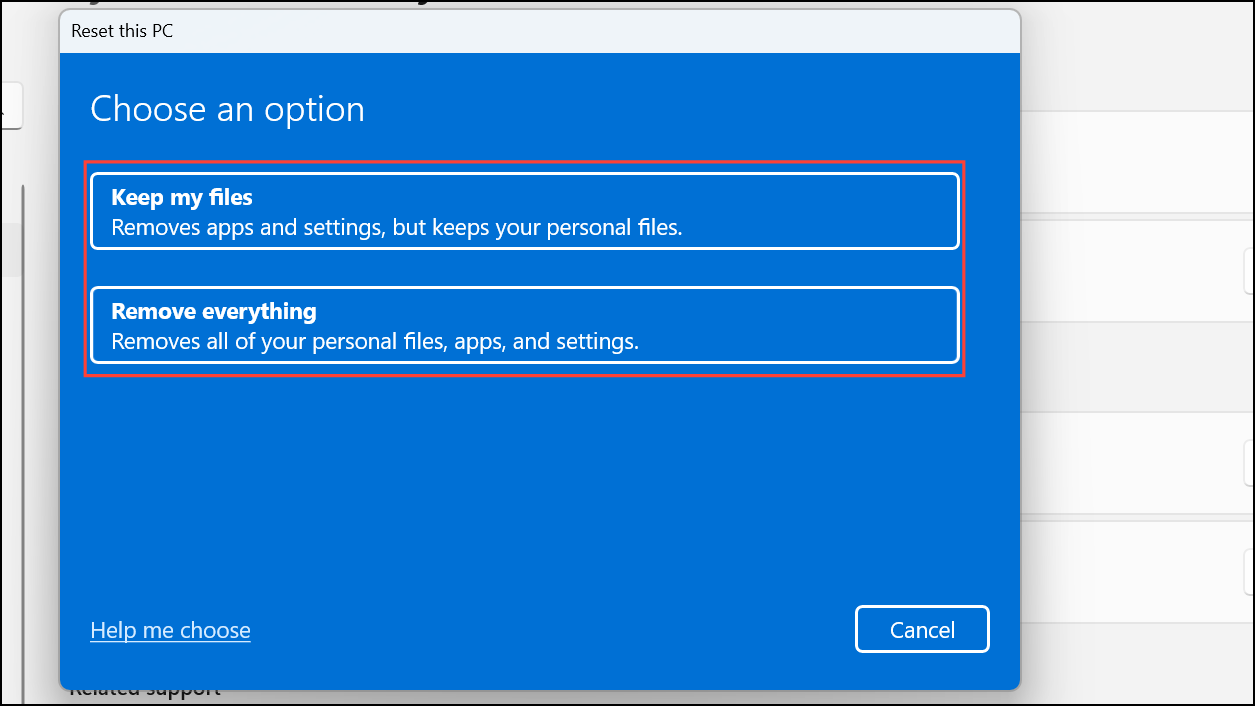
Your PC will restart multiple times during this process.
Method 7: Check for Malware
Malware infections can disrupt critical system processes. Run a thorough virus scan using Windows Security or a trusted antivirus program.
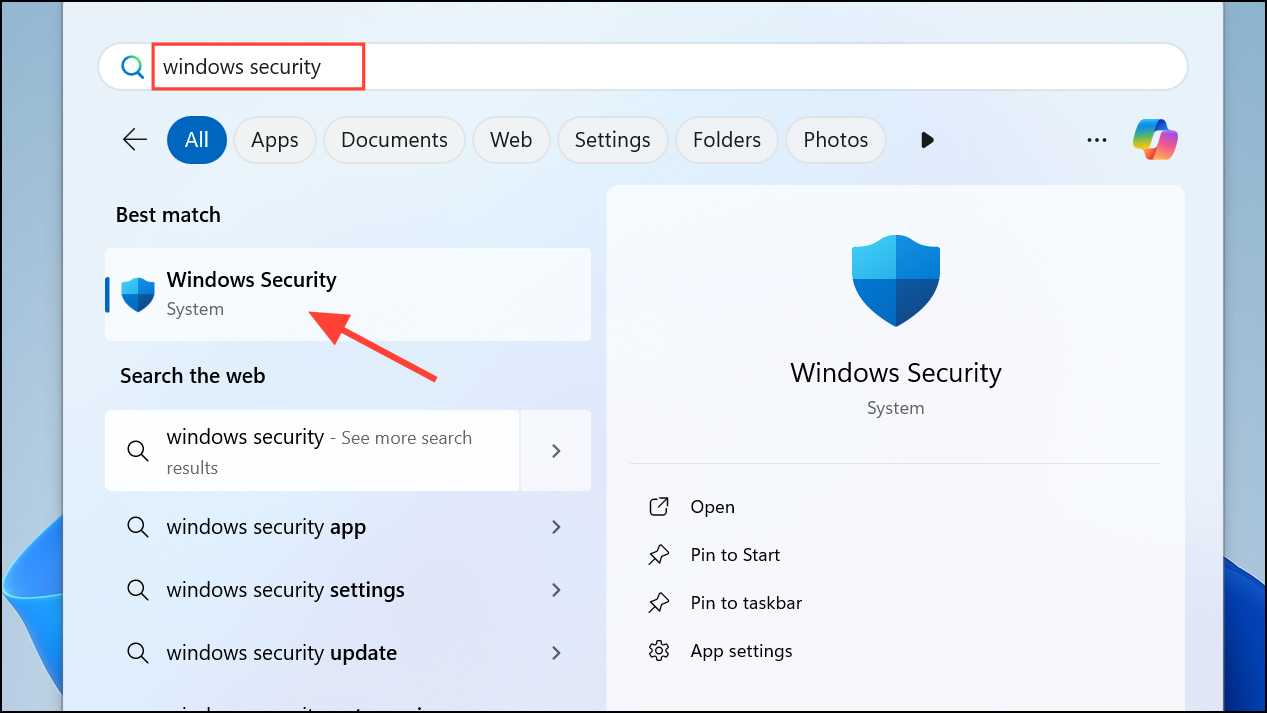
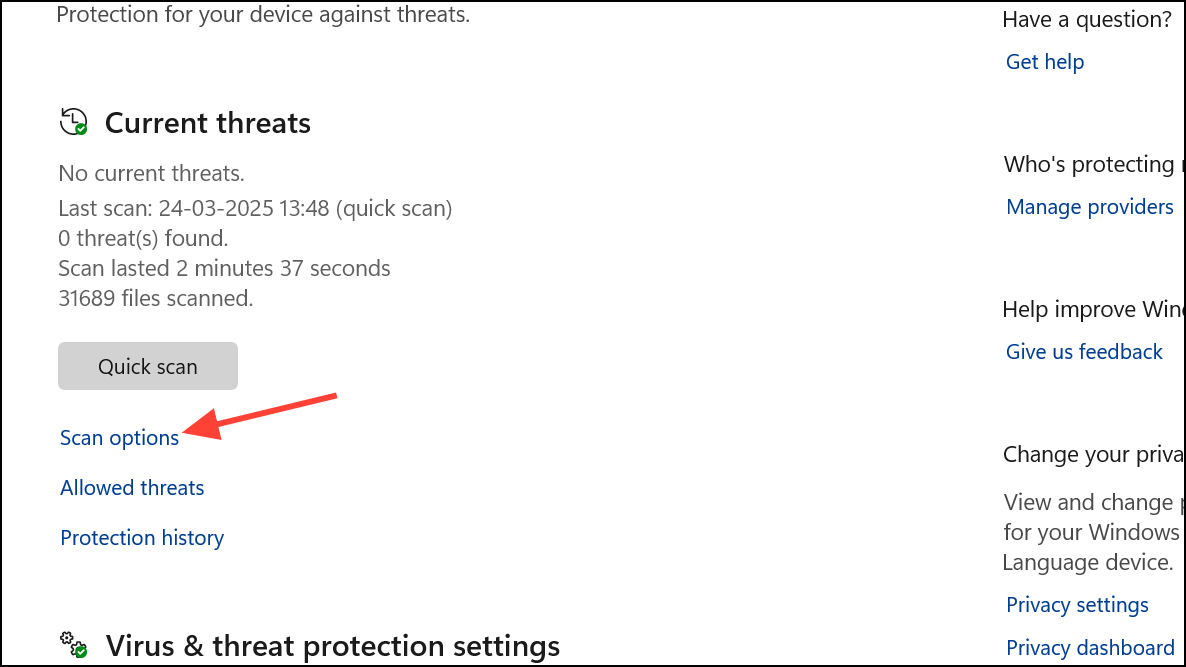
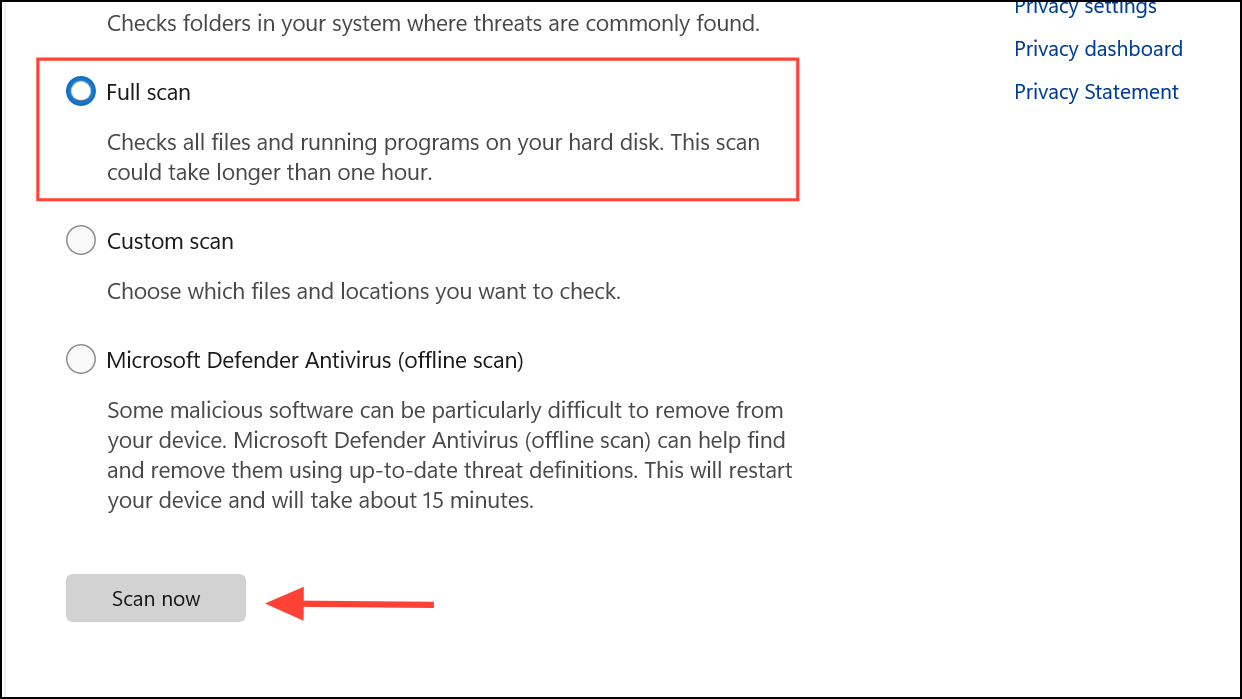
Allow the scan to complete and remove any detected threats.
After resolving the error, regularly update your system, drivers, and antivirus software to prevent future occurrences. If the problem continues despite these solutions, consider seeking professional technical support.



