
Receiving the message Something went wrong and your PIN isn't available (code: 0x80070006) on the Windows 11 sign-in screen blocks access to your device and disrupts daily workflow. This error often appears after system updates, sleep mode, or unexpected shutdowns, and typically signals a problem with Windows Hello PIN authentication data or related system files. Addressing this issue restores access and prevents recurring lockouts.
Reset Your PIN Using Microsoft Account Verification
Resetting the PIN through Windows Settings or the login screen is the most direct solution when you still have access to your Microsoft account credentials. This method uses secure account verification to replace the corrupted or inaccessible PIN data.
I forgot my PIN under the PIN entry field. If you are already logged in, open Settings with Windows + I, then go to Accounts > Sign-in options and choose I forgot my PIN under Windows Hello PIN.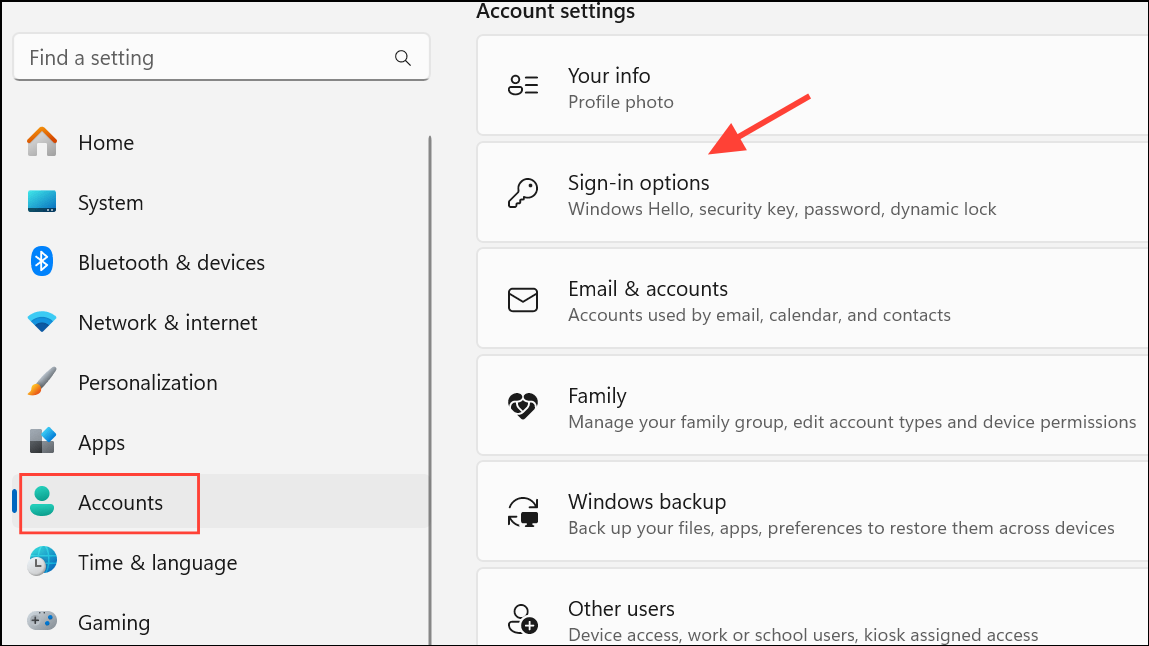
Delete the NGC Folder to Remove Corrupted PIN Data
If resetting the PIN does not work or the I forgot my PIN option fails to respond, the next step is to delete the NGC folder, which stores Windows Hello PIN configuration files. Corruption in this folder frequently causes PIN-related errors.
Shift and clicking Restart on the sign-in screen, then navigate to Troubleshoot > Advanced Options > Command Prompt.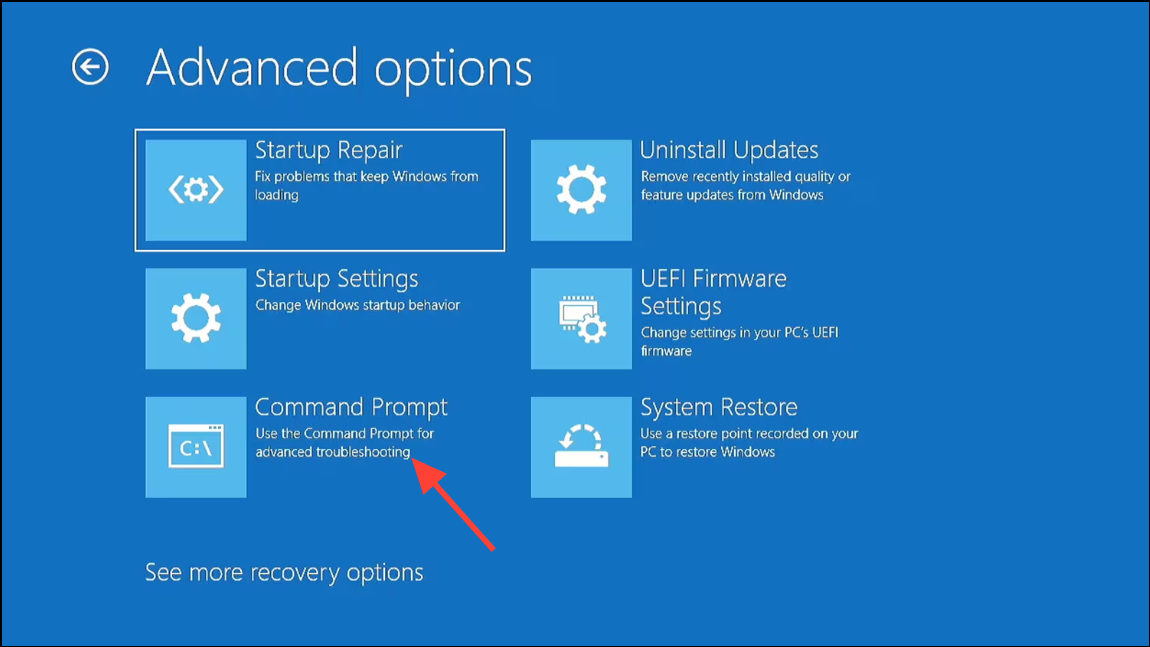
C:\Windows\ServiceProfiles\LocalService\AppData\Local\Microsoft\NGC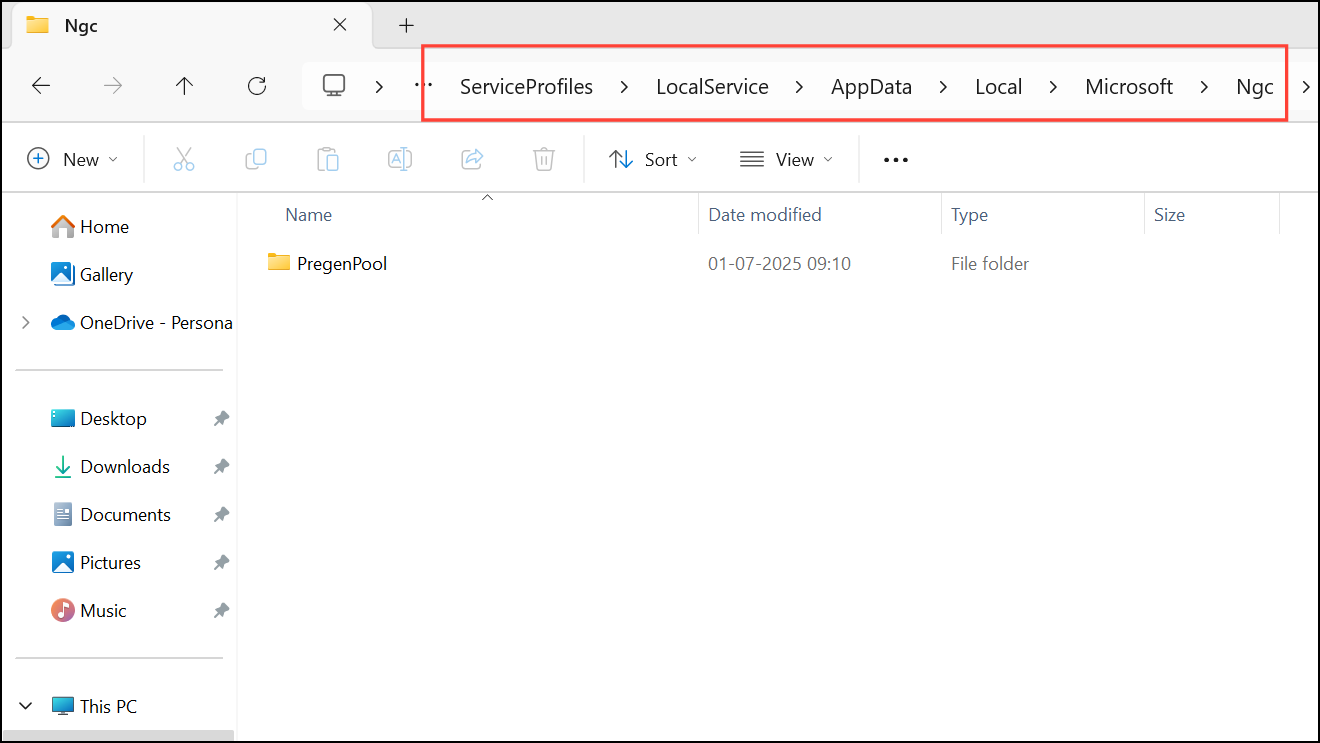
If you see a permissions error, right-click the NGC folder, select Properties, go to the Security tab, and click Advanced to change the owner to your current user account. Grant yourself full control permissions.
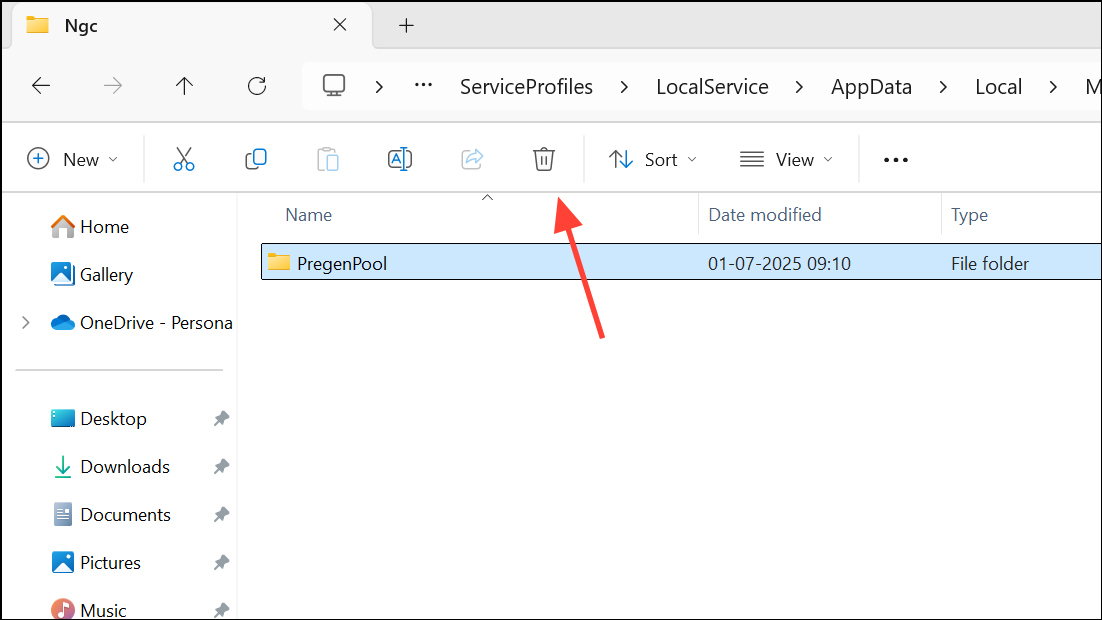
Settings > Accounts > Sign-in options to set up a new PIN under Windows Hello PIN.Run the System File Checker (SFC) to Repair Corrupted System Files
System file corruption can disrupt Windows Hello services and authentication. Running the built-in System File Checker tool detects and repairs damaged or missing files, restoring system reliability.
Windows + S, type cmd, right-click Command Prompt, and select Run as administrator.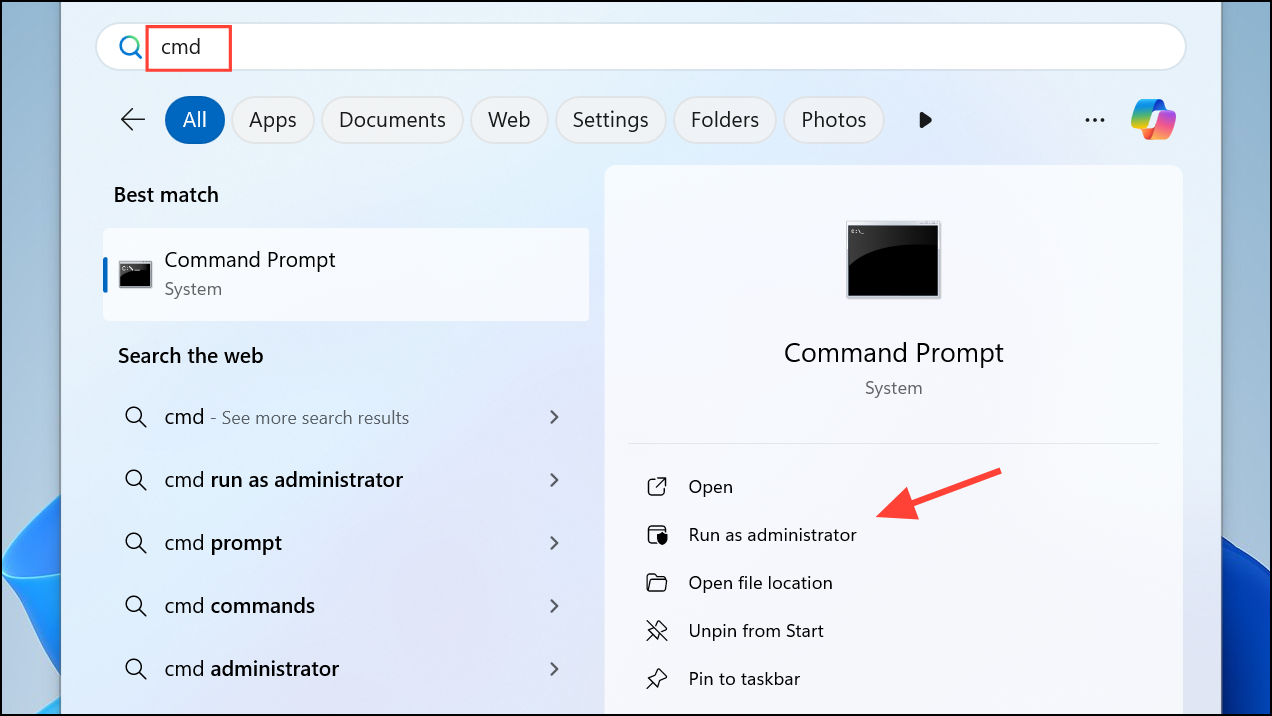
sfc /scannow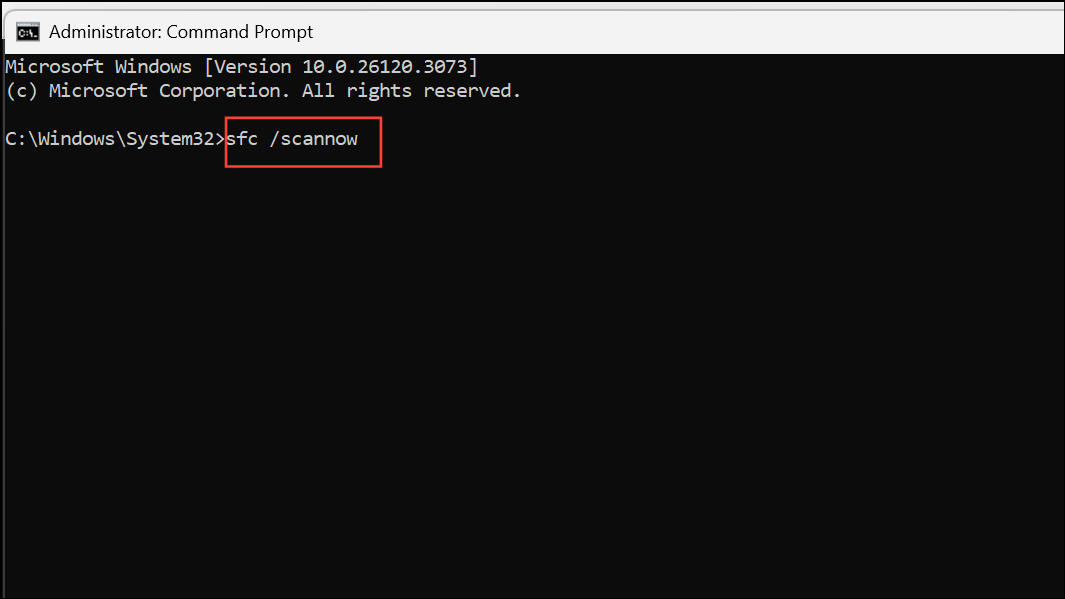
Check and Re-Enable TPM in BIOS Settings
Trusted Platform Module (TPM) is a hardware security component required for Windows Hello PIN. If TPM is disabled in the BIOS, PIN authentication will fail with errors like 0x80070006.
F2, Del, or Esc immediately after powering on, depending on your device manufacturer.Enabled.Settings > Accounts > Sign-in options.Remove and Re-Add PIN via Safe Mode or Recovery Environment
If you cannot access the desktop at all, use Windows Recovery Environment to enable the built-in administrator account or create a new user profile. This approach provides an alternative way to bypass the PIN issue and regain device access.
Shift and select Restart from the power menu to enter the recovery environment.net user administrator /active:yes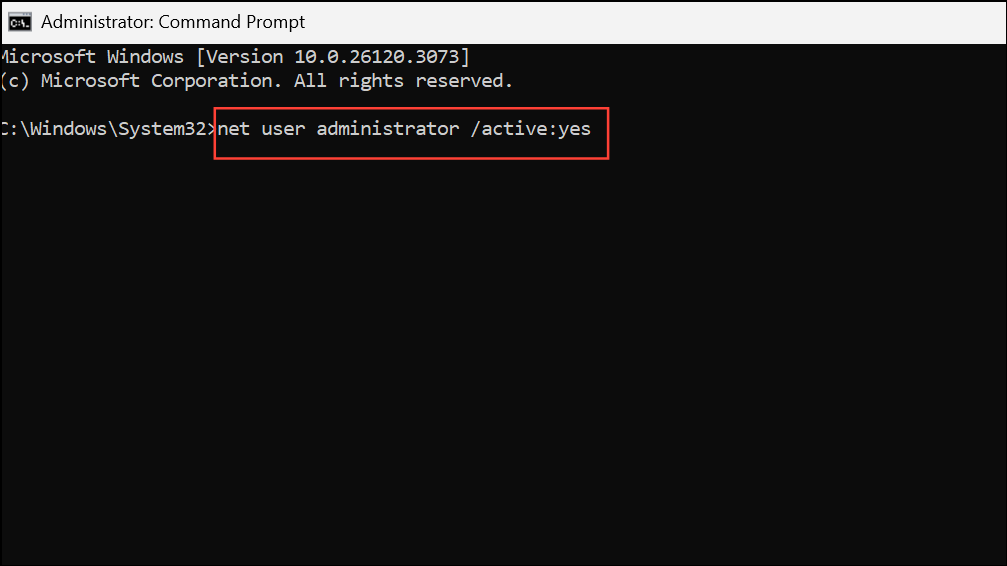
This command enables the built-in administrator account.
Settings > Accounts > Other users.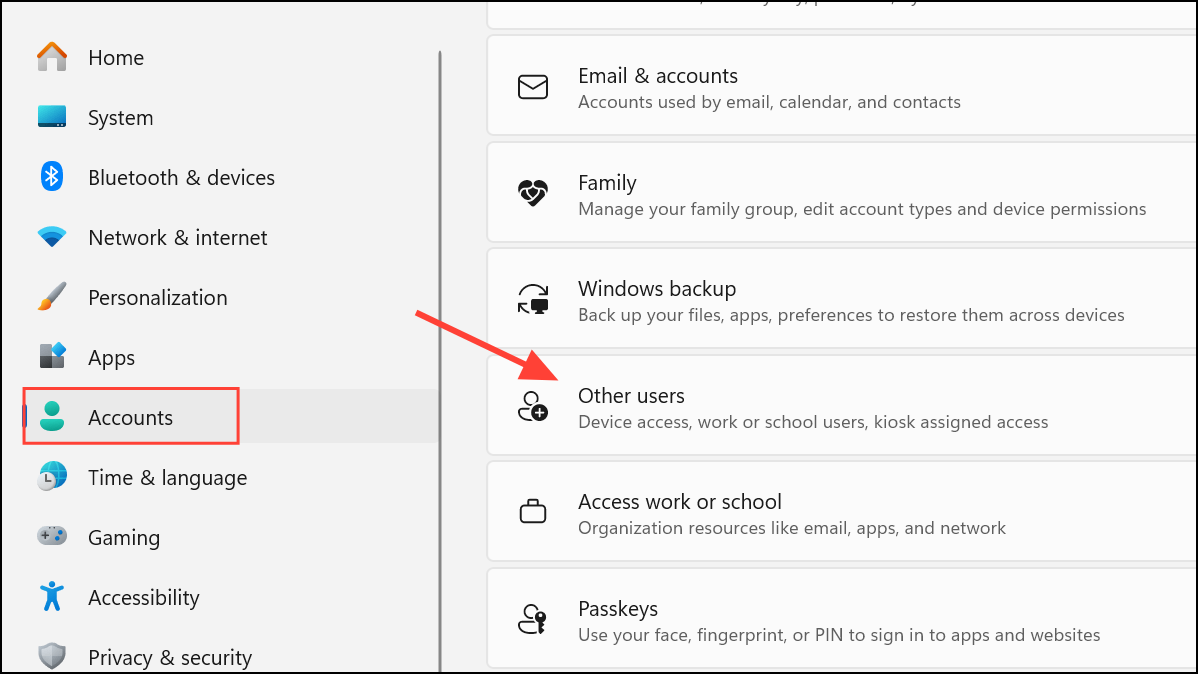
Sign-in options. This process restores access when the original user profile is locked by PIN errors.Restore System Using System Restore or Recovery Drive
When all other methods fail or if the PIN issue started after a recent update or software change, restoring the system to an earlier working state can resolve persistent authentication problems.
Troubleshoot > Advanced options > System Restore. Follow the prompts to select a restore point from before the PIN error appeared.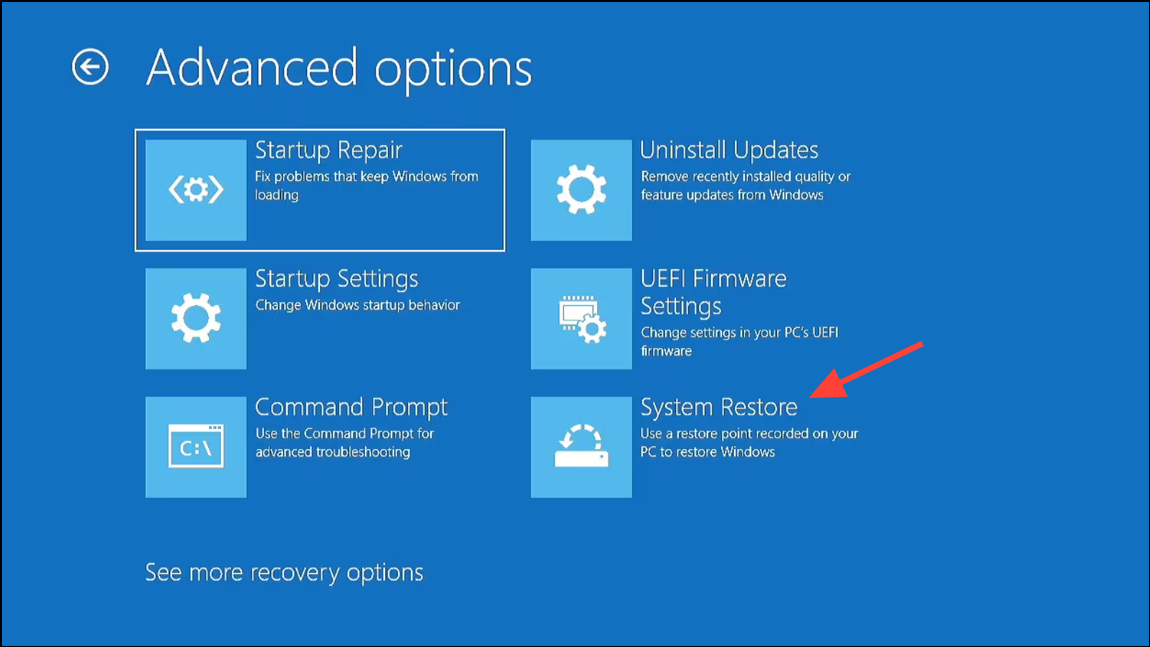
Resolving error 0x80070006 and the “Something went wrong and your PIN isn’t available” message in Windows 11 restores fast, secure sign-in. If these steps do not resolve the issue, consider a full system reset or seek professional support to avoid data loss.



