
Formatting loss in Excel files disrupts data readability and undermines reporting accuracy. When cell colors, number formats, fonts, or layouts revert after saving and reopening, the root cause often lies in how the file is saved, the file type, or underlying file corruption. Addressing this problem requires checking file formats, compatibility, and Excel settings to ensure that formatting persists as intended.
Save the File in the Correct Excel Format
File > Save As. In the dialog box, select Excel Workbook (*.xlsx) from the “Save as type” dropdown menu. If you see .xls as the default, consider switching to .xlsx for better compatibility and to support all modern formatting features.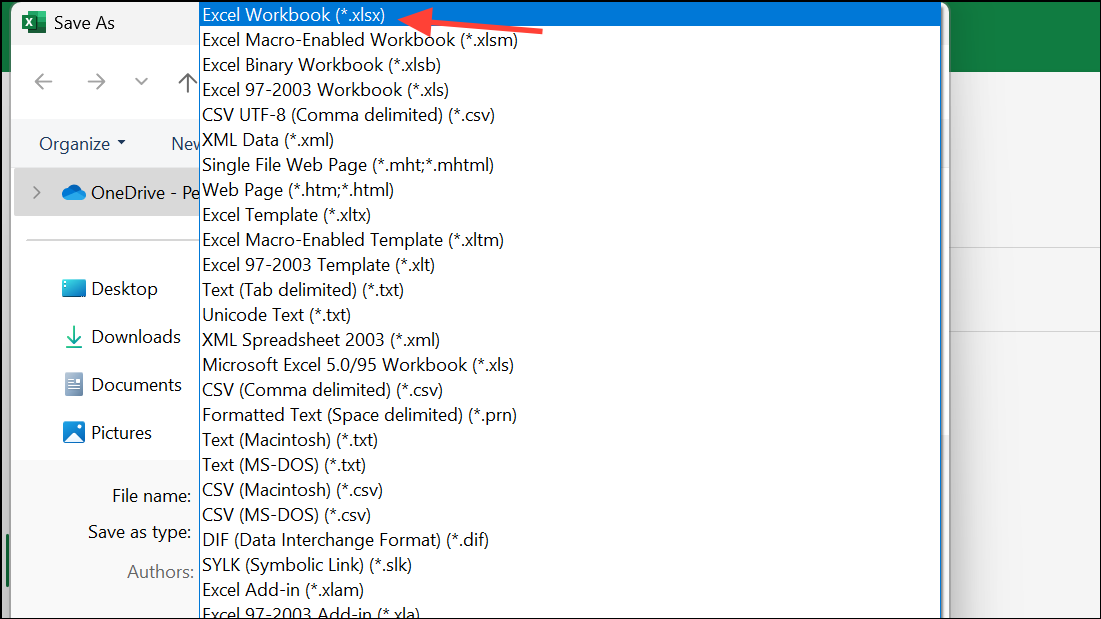
Save. This ensures that Excel stores formatting details alongside your data. After saving, reopen the file to verify that your formatting changes persist.Convert Data Properly When Working with CSV or TXT Files
CSV and TXT files only store raw data, not formatting. When you open such files in Excel, any formatting you apply will be lost once you save and reopen the file in its original format. To make formatting changes stick, you must convert the data to an Excel workbook.
File > Save As and select Excel Workbook (*.xlsx) as the file type. This step is critical—if you save as CSV or TXT, formatting will be discarded.=TEXT(A1,"yyyy-mm-dd") for date conversion) to ensure the exported values match your requirements. Copy and paste the results as values before saving as CSV.Check for Compatibility Mode and Older Excel Formats
Files saved in older Excel formats (.xls) or opened in Compatibility Mode may not support all formatting features. This can result in lost or altered formatting when saving or reopening the file.
File > Info > Convert (in recent versions of Excel) to upgrade the file to the current format. This action unlocks full formatting capabilities.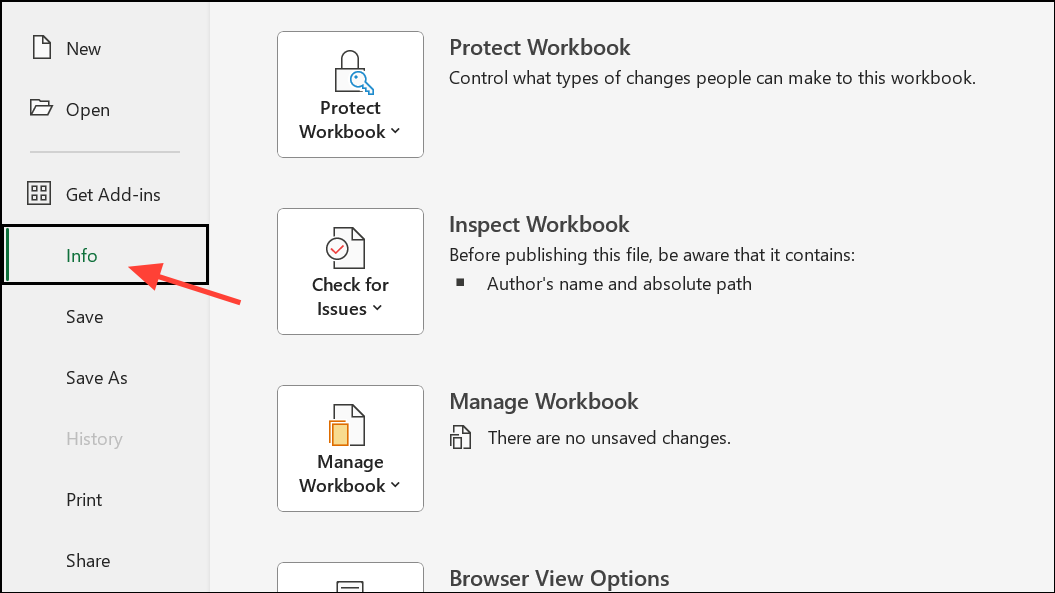
Repair Corrupted Excel Files
File corruption can prevent Excel from saving formatting or even opening files correctly. Symptoms include missing formatting, unreadable content, or error messages when saving.
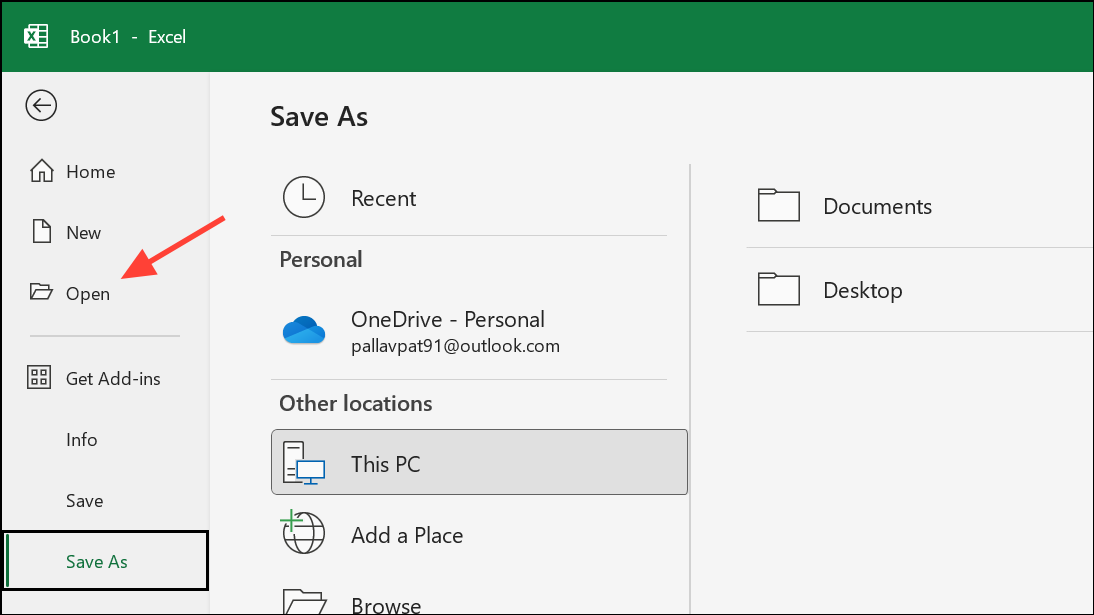
Open button, then choose Open and Repair. This built-in tool attempts to fix corruption and recover lost formatting.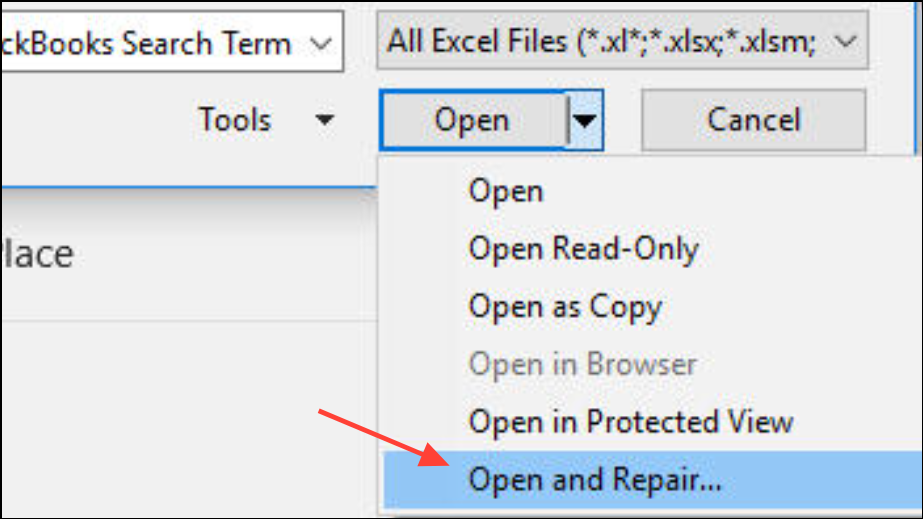
Adjust Excel Settings and Templates
Incorrect Excel options or custom templates can override or block formatting changes. For example, non-standard default fonts, cell styles, or templates may cause formatting to reset unexpectedly.
File > Options. Review settings under the “General” and “Advanced” tabs. Ensure default font and style settings are appropriate for your needs.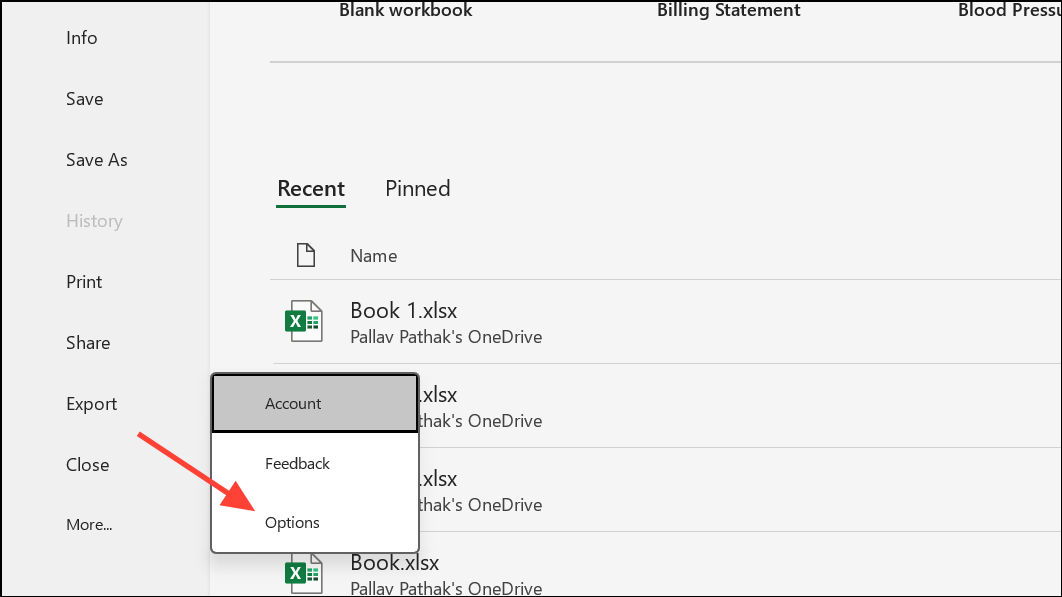
Normal.xltx). Delete or rename any custom templates in your templates folder to rule out template-related issues.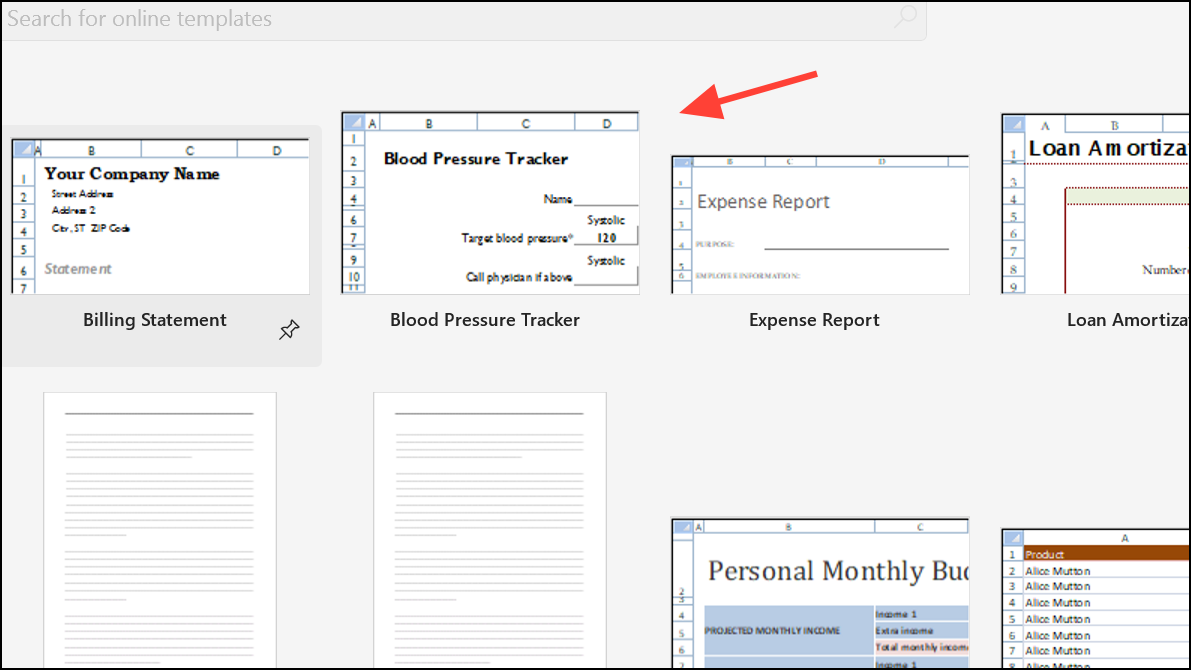
Clear Conflicting or Hidden Formatting
Overlapping or hidden formatting rules, such as conditional formatting or merged cells with conflicting styles, can prevent Excel from saving your intended appearance.
Clear > Clear Formats to remove all existing formatting.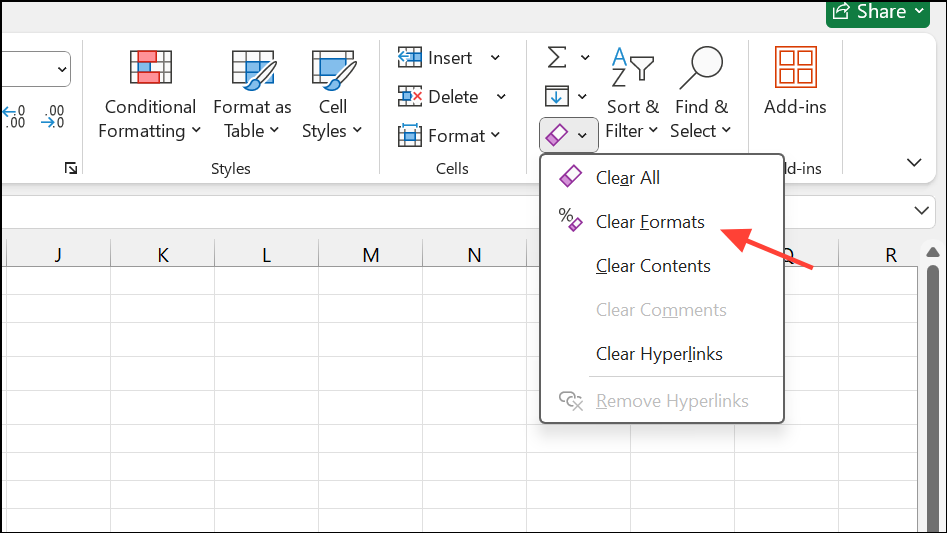
Home > Conditional Formatting > Manage Rules and adjusting or deleting as needed.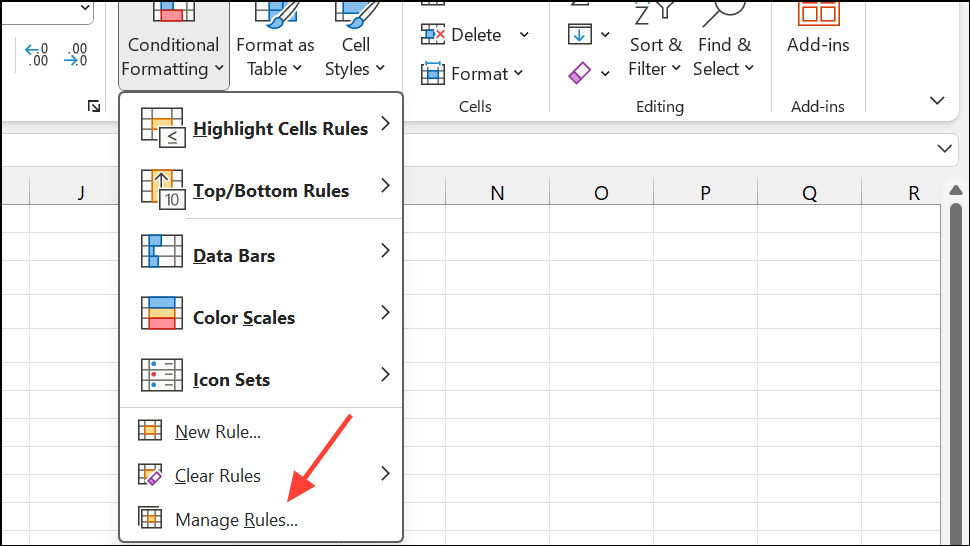
Additional Tips for Persistent Formatting Issues
- Run Excel in Safe Mode by holding
Ctrlwhile launching the program or by typingexcel /safein the Run dialog. This disables add-ins that might interfere with formatting. - Update Excel to the latest version through Microsoft 365 updates to benefit from bug fixes and compatibility improvements.
- If the issue occurs only with shared files, check if collaborators are overwriting formatting or if shared workbook features are enabled, as these can restrict formatting options.
Switching to the correct file format and checking for compatibility issues resolves most Excel formatting problems. If issues persist, repairing the file or adjusting Excel settings can restore full formatting functionality.





