File History in Windows 10 and 11 provides a straightforward way to automatically back up personal files to an external drive. However, users often notice that File History skips the OneDrive folder or certain subfolders, such as Documents or Pictures, even when these are included in the backup settings. This issue typically arises because of how OneDrive manages cloud files and local file availability, especially with the Files On-Demand feature. Below, you’ll find effective solutions to ensure your OneDrive folders are properly included in your File History backups, along with additional troubleshooting steps for persistent issues.
Method 1: Make OneDrive Files Available Offline to Enable File History Backup
File History only backs up files that are physically present on your device. OneDrive’s Files On-Demand feature saves disk space by keeping files in the cloud until you open them. These cloud-only files appear in File Explorer but are not actually stored on your computer, so File History skips them. To ensure all OneDrive files are included in backups, you must configure OneDrive to keep files available offline.
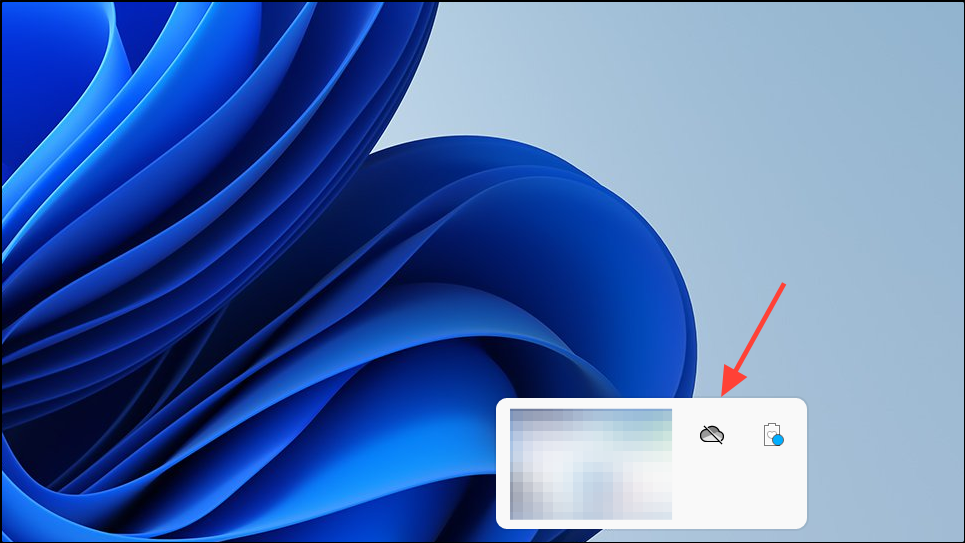
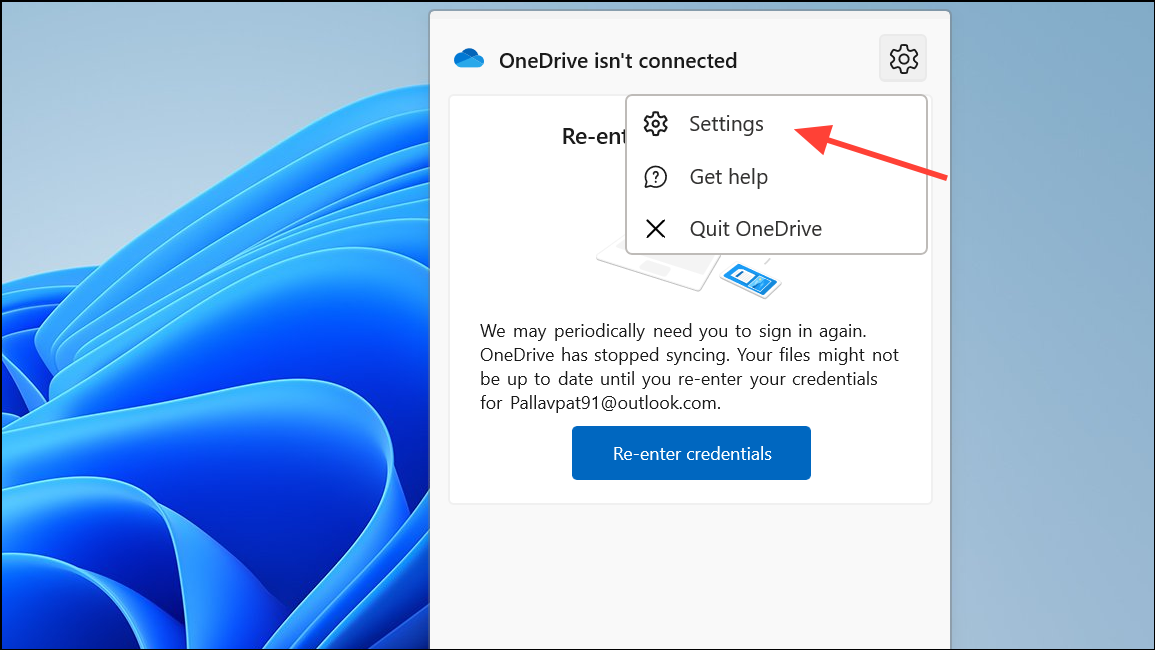
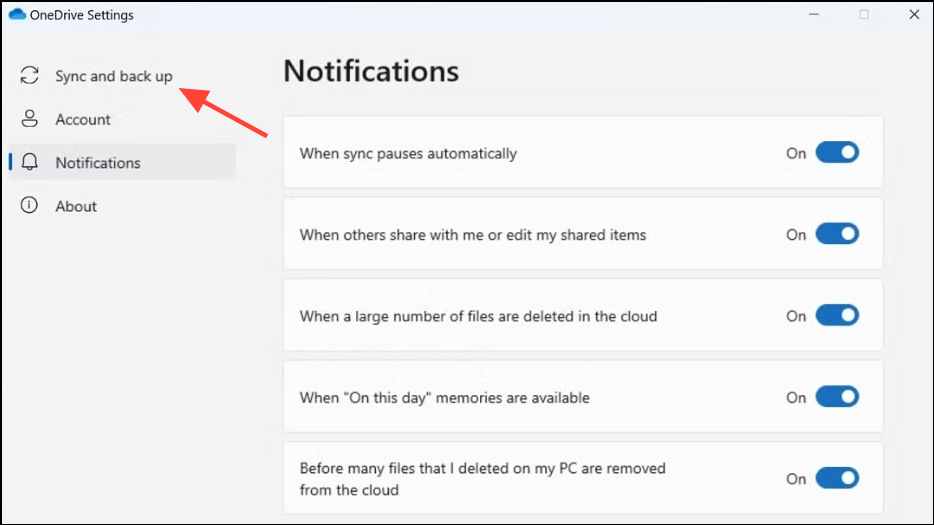
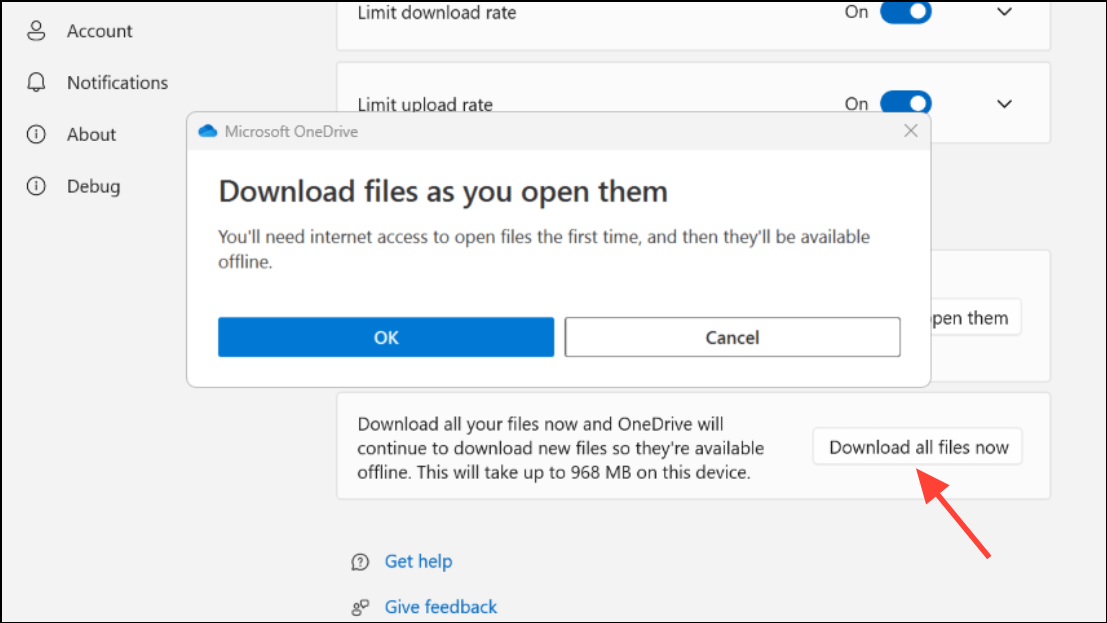
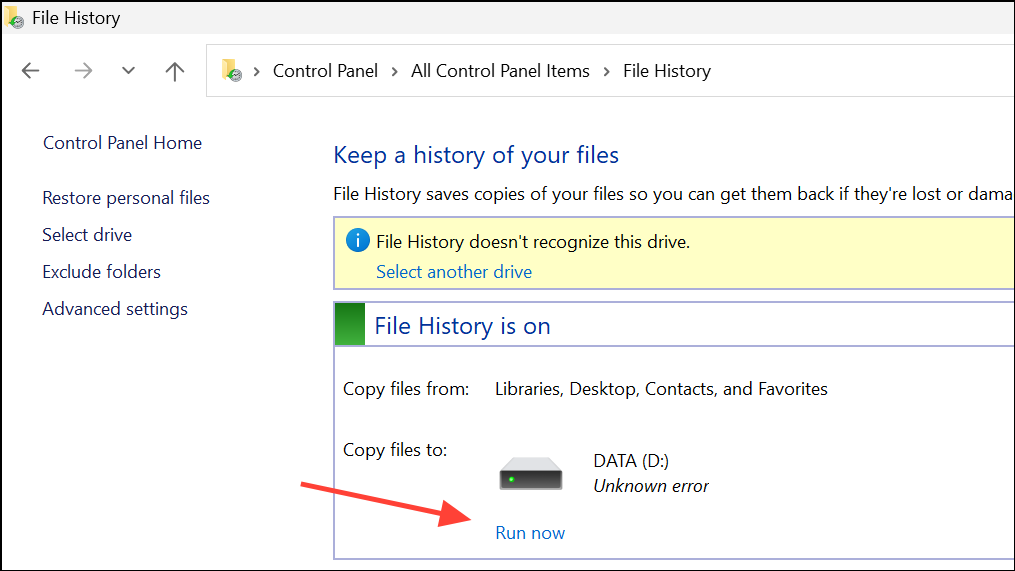
This approach ensures all OneDrive files are present on your computer, allowing File History to copy them to your external drive. Be aware that downloading all files can use significant disk space, especially if your OneDrive contains large amounts of data.
Method 2: Confirm OneDrive Folders Are Set to ‘Always Keep on This Device’
Sometimes, you may want to selectively make only certain OneDrive folders available offline instead of the entire OneDrive library. This is useful if you have limited local disk space.
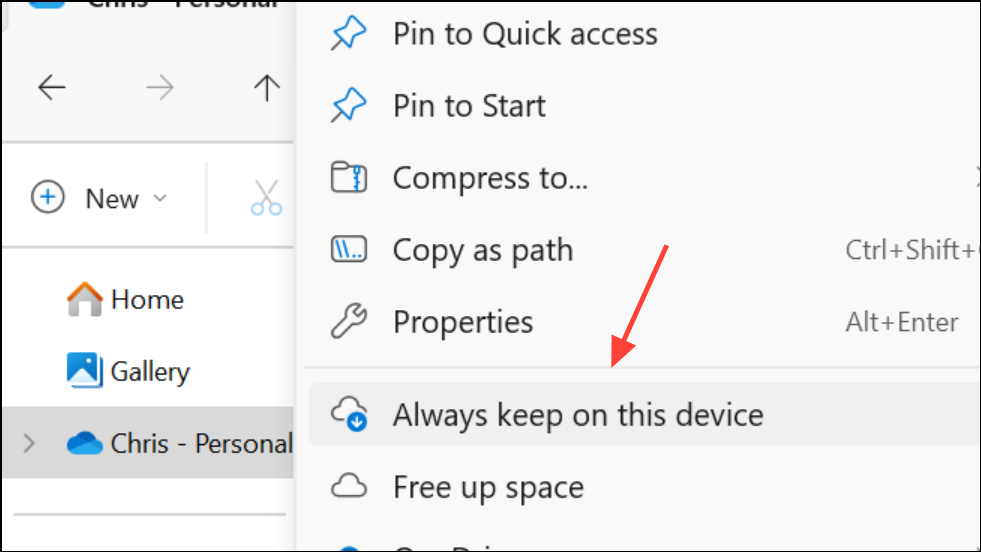
This method gives you control over which folders are kept offline, reducing disk usage while ensuring critical folders are backed up locally.
Method 3: Reset OneDrive Sync and Reconfigure File History
If File History continues to skip OneDrive folders after making them available offline, the issue may be due to sync glitches or a corrupt File History database. Resetting OneDrive and File History can resolve this.
wsreset.exe and hit Enter.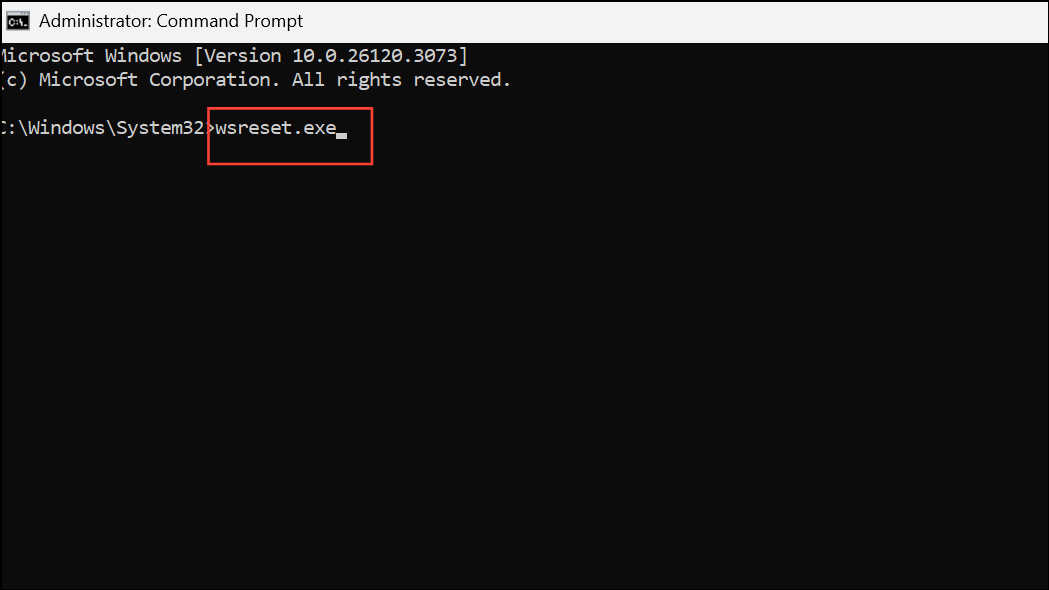
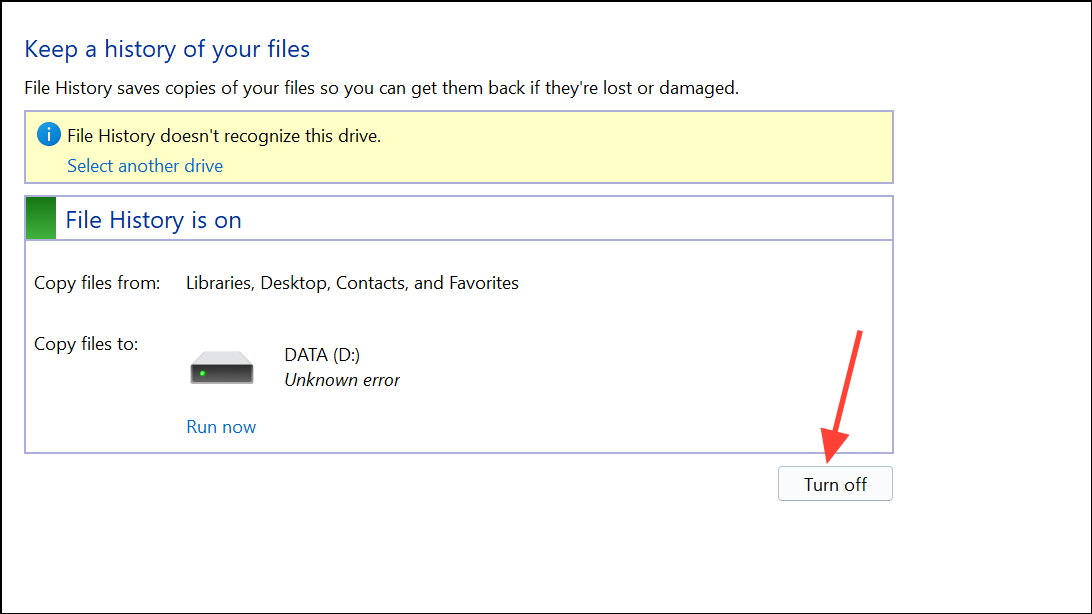
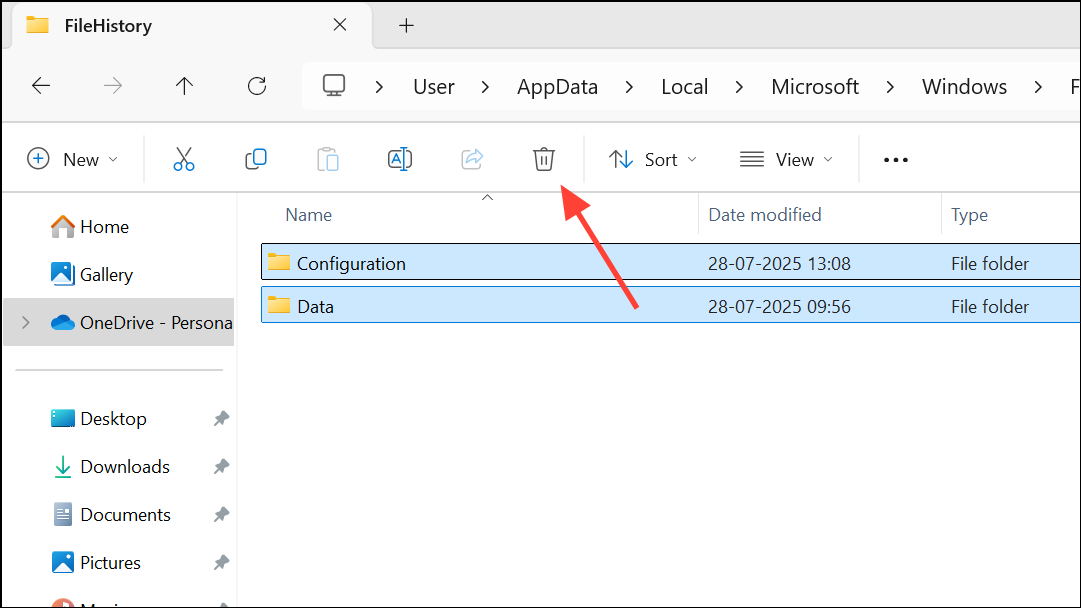
This reset process addresses issues caused by out-of-sync databases or corrupted backup histories, giving you a fresh start for both OneDrive and File History.
Method 4: Exclude or Customize Folder Selection in File History
If you want to avoid backing up OneDrive folders, or only want to back up specific local folders, customize your File History settings.
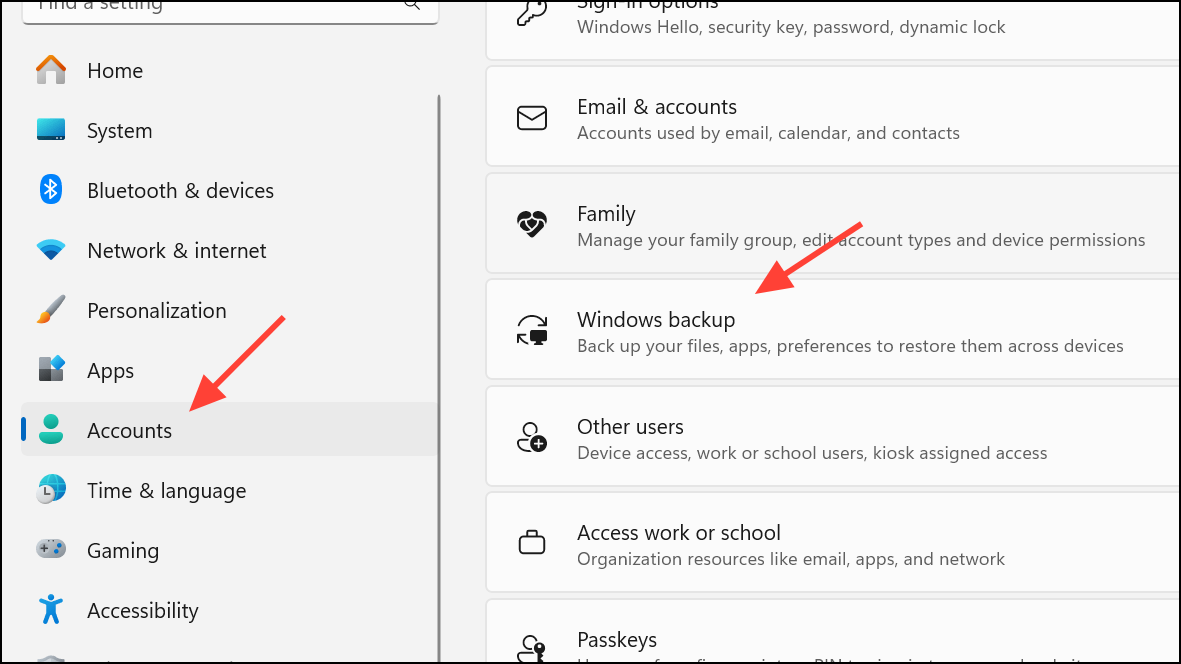
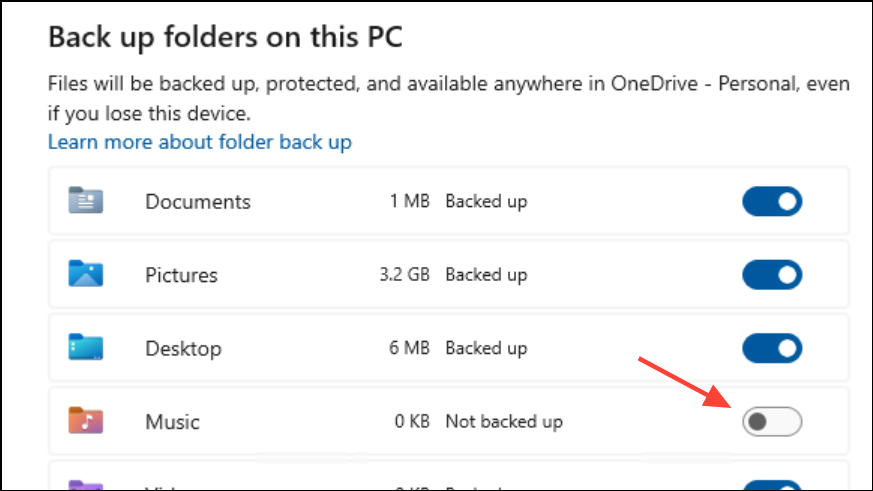
This customization helps avoid errors related to OneDrive and ensures your backup only includes necessary files.
Additional Troubleshooting for Persistent File History Issues
When File History still fails to back up OneDrive folders, or you receive errors such as STATUS_WAIT_2 (0x80070002) or 8100002F, consider these steps:
- Check your external drive for errors using the Error checking tool in the drive’s Properties > Tools tab.
- Run sfc /scannow and DISM /Online /Cleanup-Image /RestoreHealth from an elevated Command Prompt to repair system files.
- Ensure the File History service is running. Press
Win + R, typeservices.msc, and confirm the File History Service is set to Automatic. - Check that your external backup drive is formatted as NTFS, which is required for File History.
- Review the Windows Event Viewer for File History errors to pinpoint causes.
If File History remains unreliable, consider using dedicated backup software such as Macrium Reflect or AOMEI Backupper for more consistent local backups, especially if you require point-in-time restore versions or system image backups.
By making OneDrive files available offline and resetting sync and backup settings, File History can reliably include your cloud files in local backups. Regularly review your backup configuration to ensure all critical data is protected both locally and in the cloud.