
Websites failing to load in Google Chrome can break workflows, interrupt research, and stall communication. A blank screen, endless spinning circle, or partially loaded content often signals a problem with browser data, settings, or system resources. Addressing the root cause—whether it’s a corrupted cache, malfunctioning extension, or hardware conflict—restores Chrome’s ability to display web pages reliably.
Clear Chrome Cache and Cookies
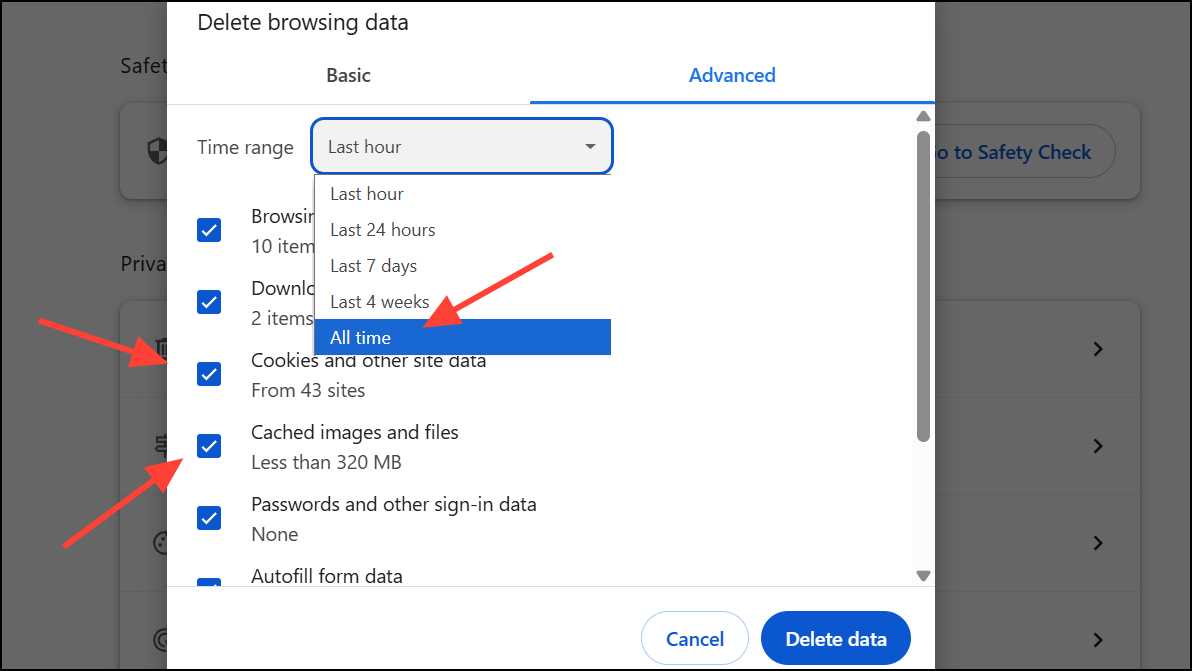
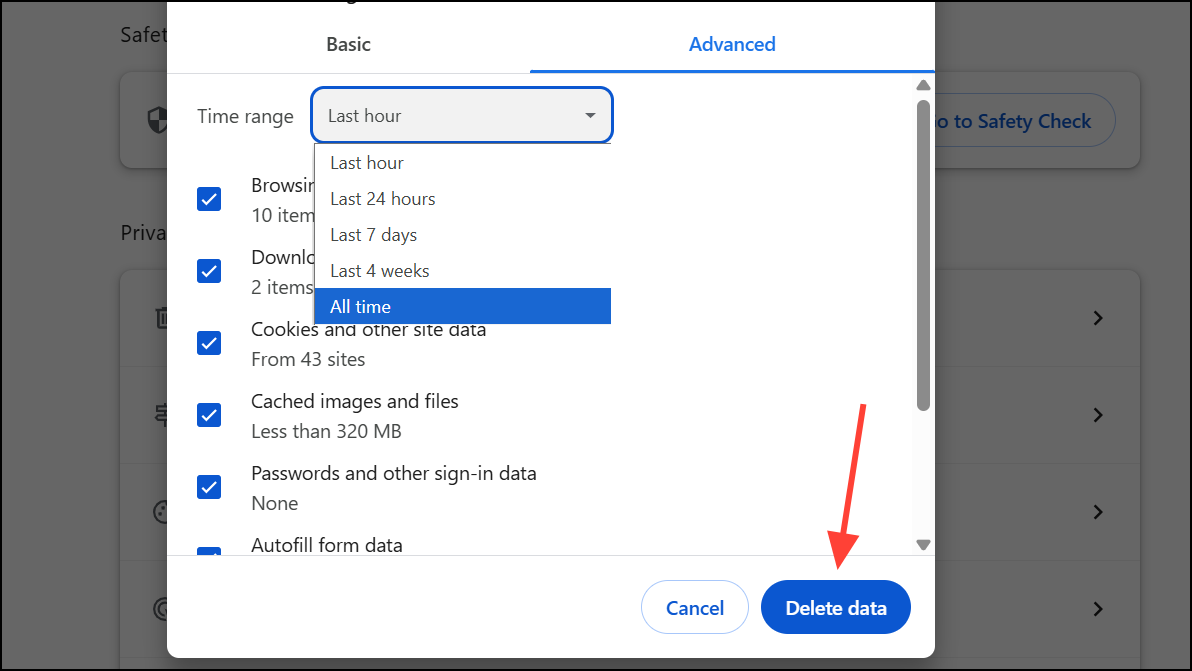
Corrupted or outdated cache files and cookies frequently prevent Chrome from loading pages correctly. Regularly clearing these files forces Chrome to retrieve up-to-date website data, resolving most display and loading issues.
Ctrl + Shift + Delete (Windows) or Command + Shift + Delete (Mac) to access the Clear Browsing Data menu.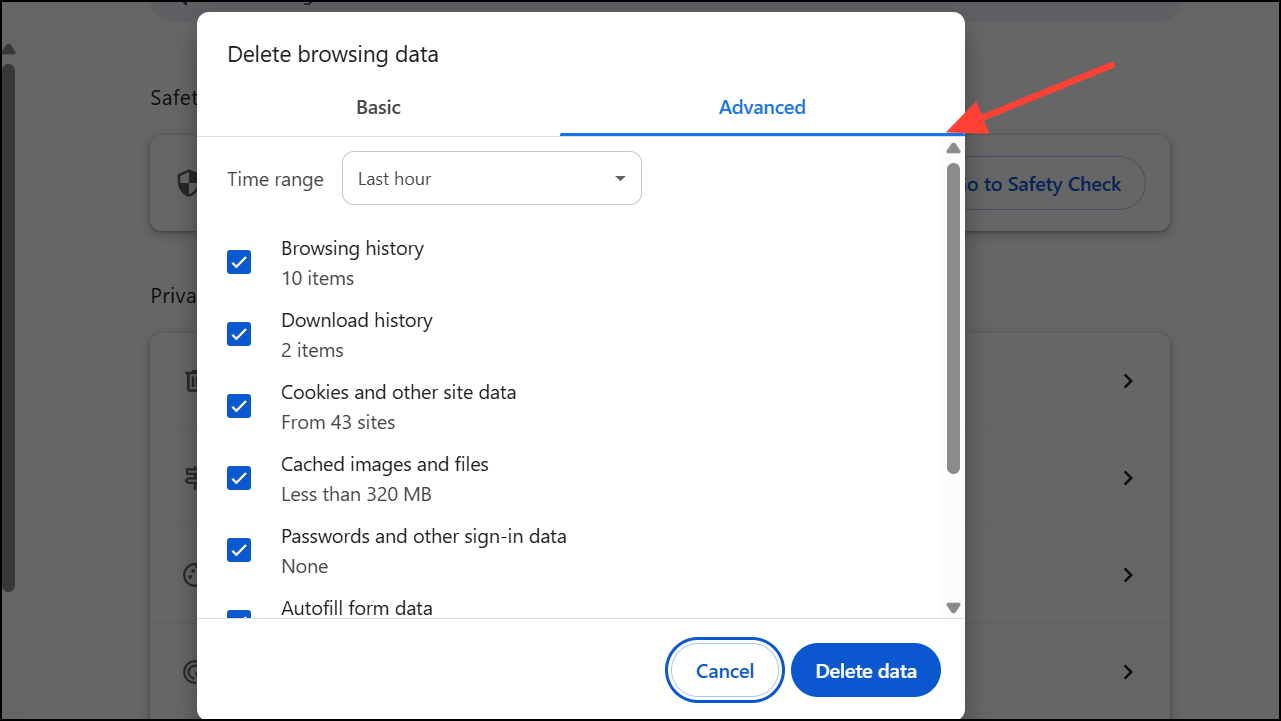
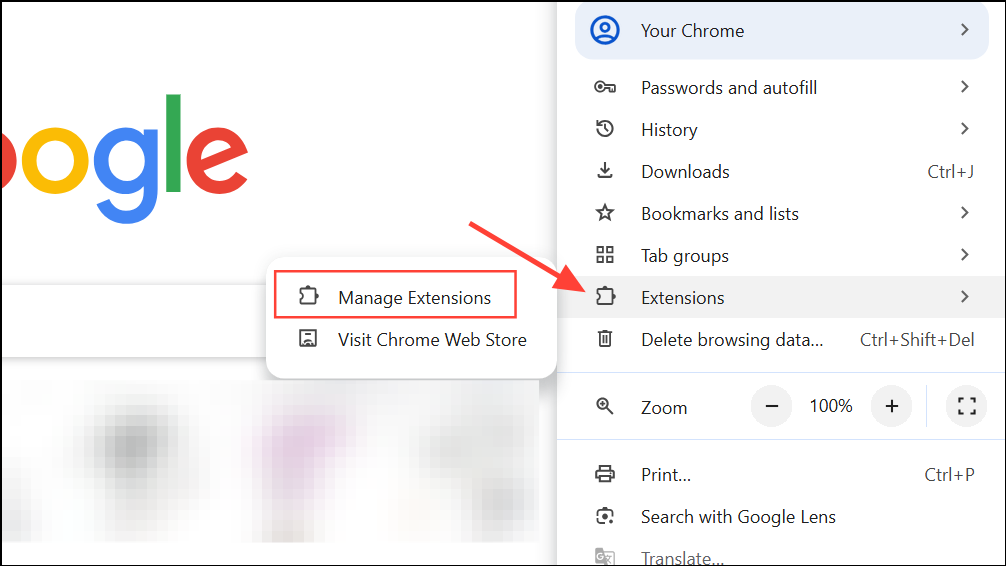
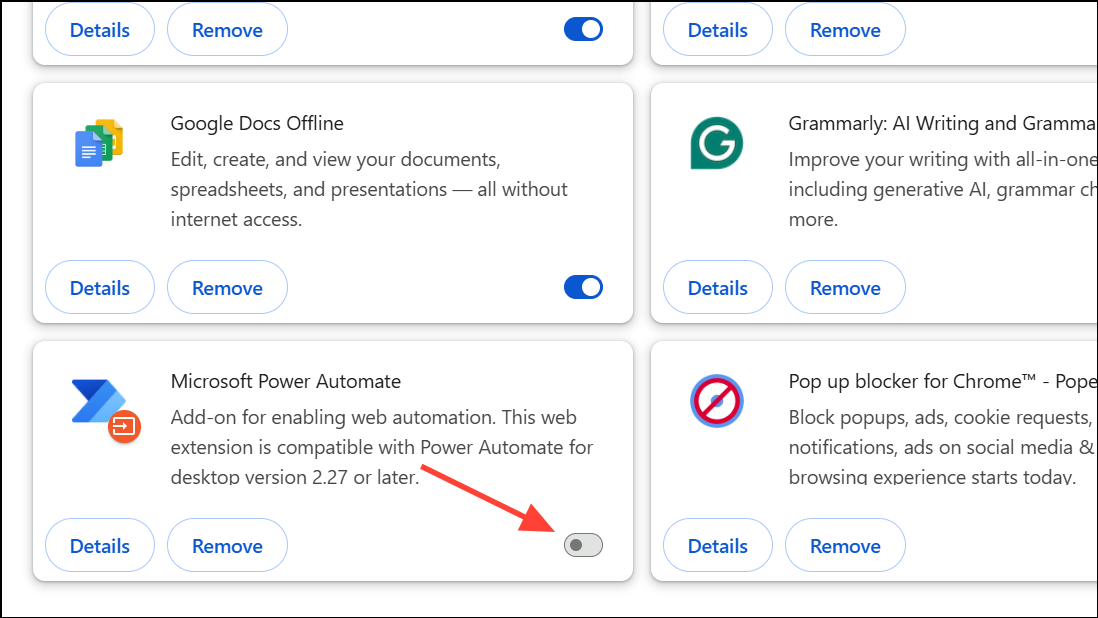
Disable Browser Extensions
Unstable or incompatible extensions can disrupt Chrome’s ability to render web content. Disabling extensions helps isolate conflicts and restores normal browser function.
Update Google Chrome
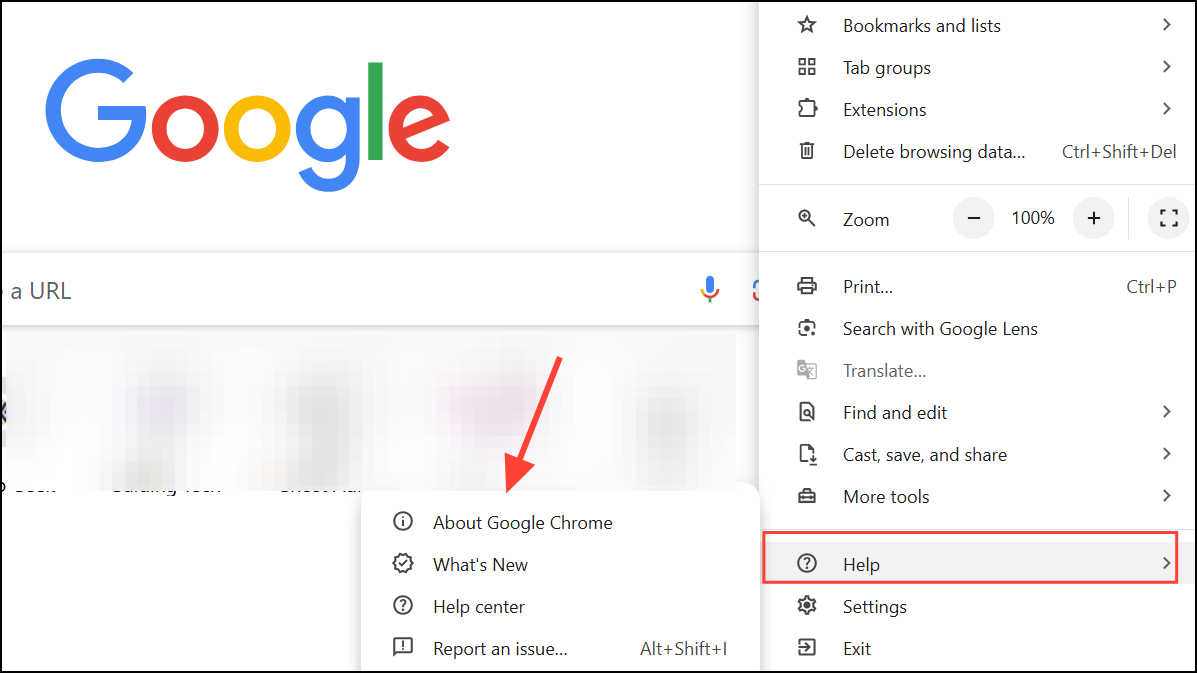
Running outdated versions of Chrome can introduce compatibility problems with modern websites and web technologies. Updating Chrome ensures bug fixes and security patches are applied, which can directly improve page loading reliability.
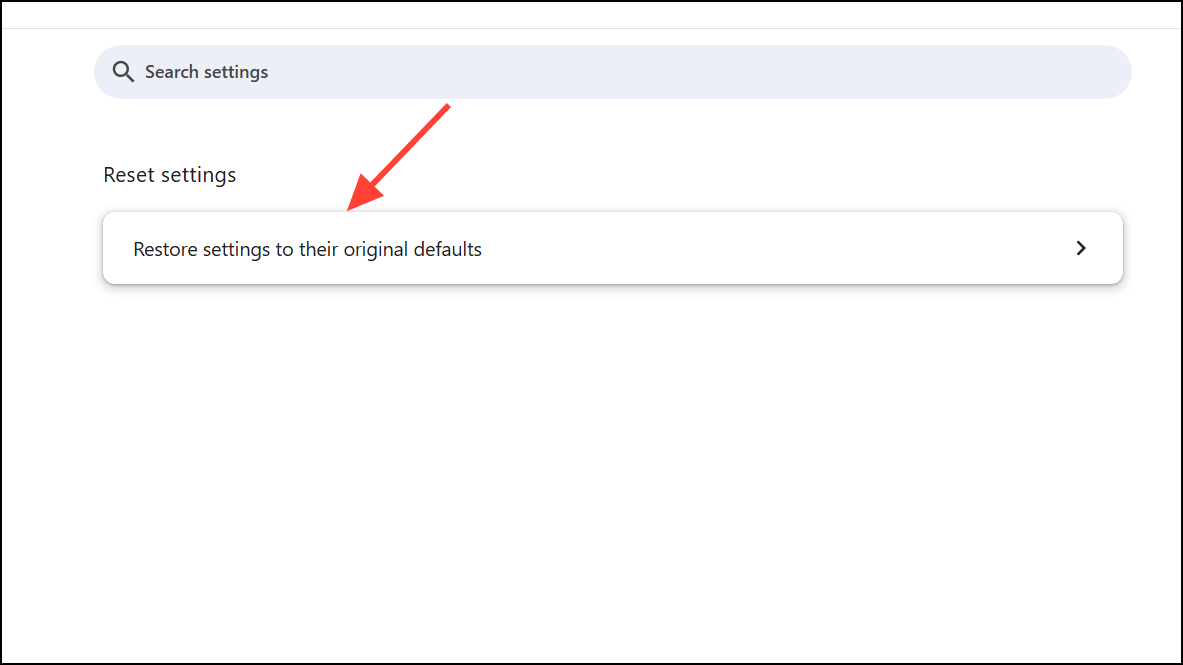
Reset Chrome Settings to Default
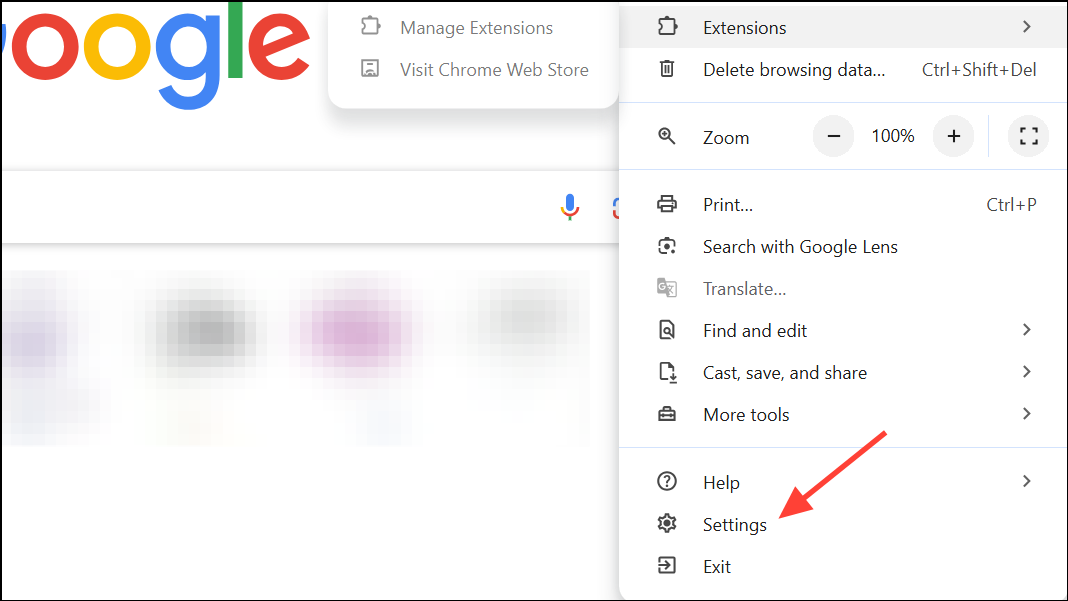
Misconfigured or conflicting browser settings can prevent pages from loading. Resetting Chrome to its default state reverts settings such as homepage, search engine, and content permissions, while preserving bookmarks and passwords.
Check Internet Connection and DNS Settings
Unstable or misconfigured network connections can block Chrome from accessing websites. Testing connectivity and adjusting DNS settings can resolve these issues.
8.8.8.8 and 8.8.4.4).ipconfig /flushdns to clear the DNS resolver cache.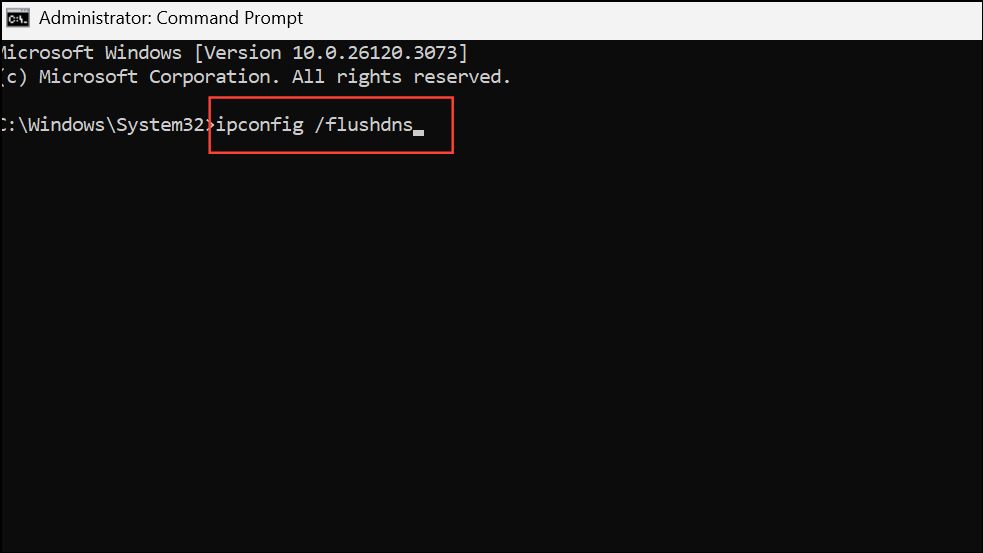
Disable Hardware Acceleration
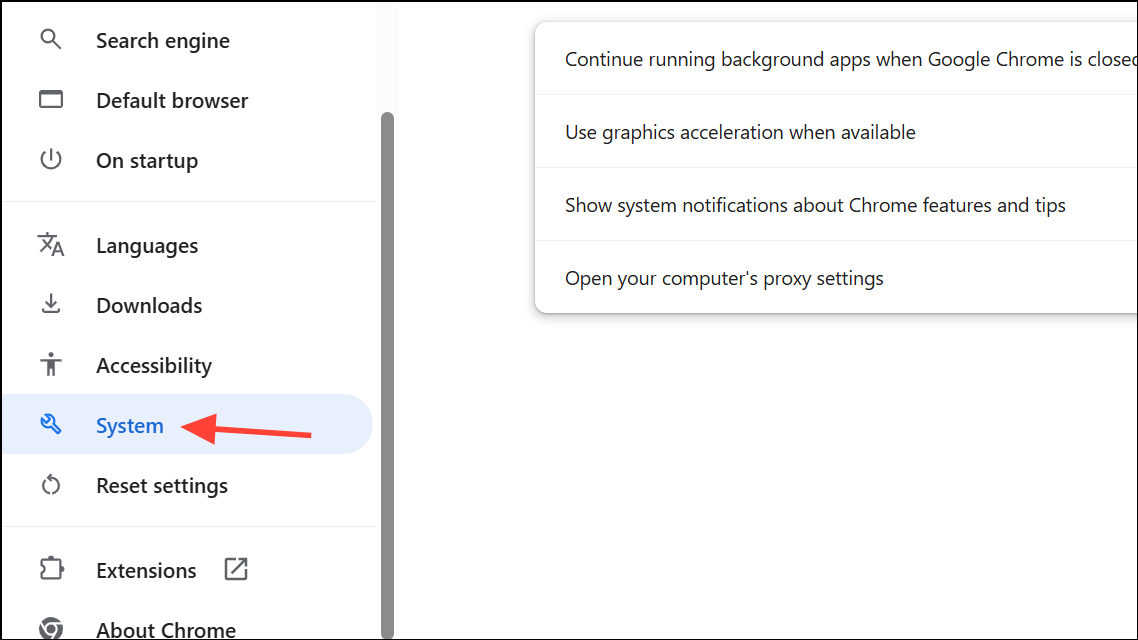
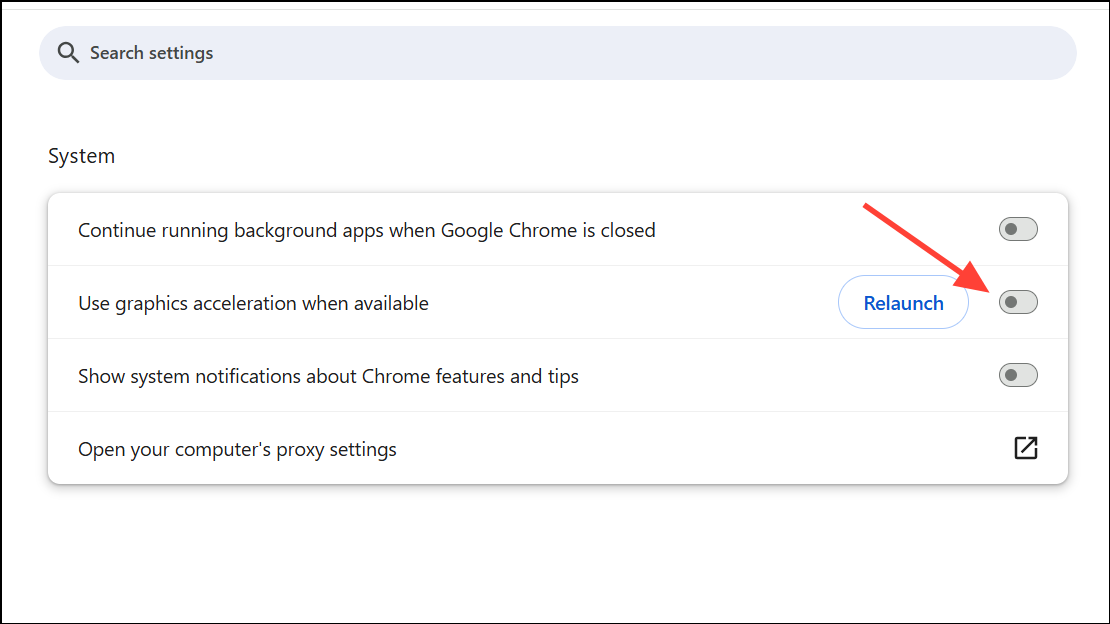
Hardware acceleration offloads graphic rendering to your GPU for better performance, but it can cause display issues on some systems. Disabling this feature often resolves flickering, incomplete page loads, or graphical glitches.
Remove Corrupted Cache and Profile Data (Linux/Ubuntu)
On Linux systems, Chrome may display garbled graphics or fail to load pages after system updates. Deleting specific cache directories can resolve these persistent issues.
~/.config/google-chrome/Default/GPUCache/ and ~/.cache/google-chrome/ directories.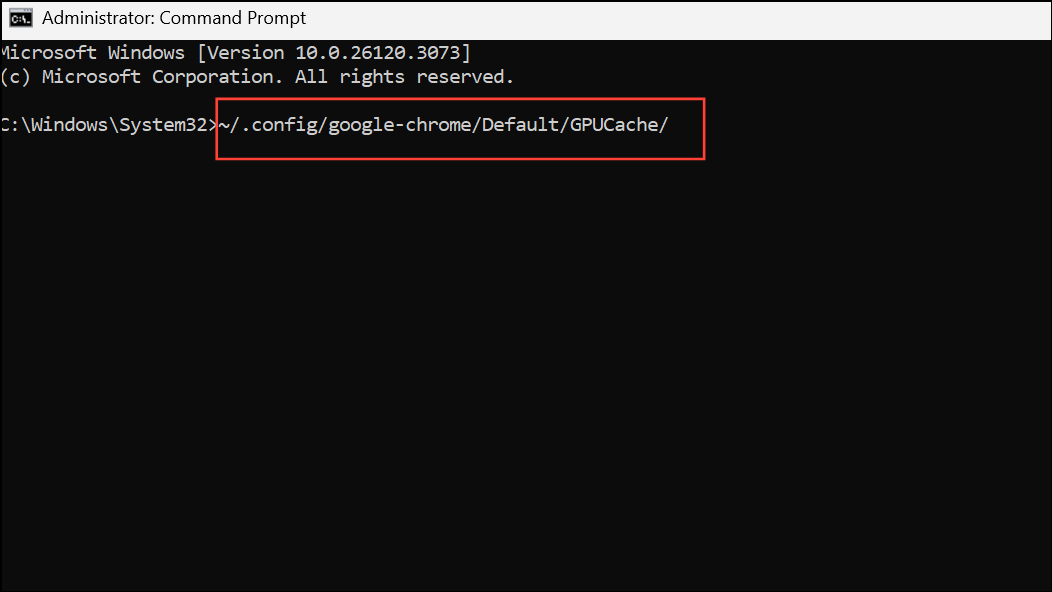
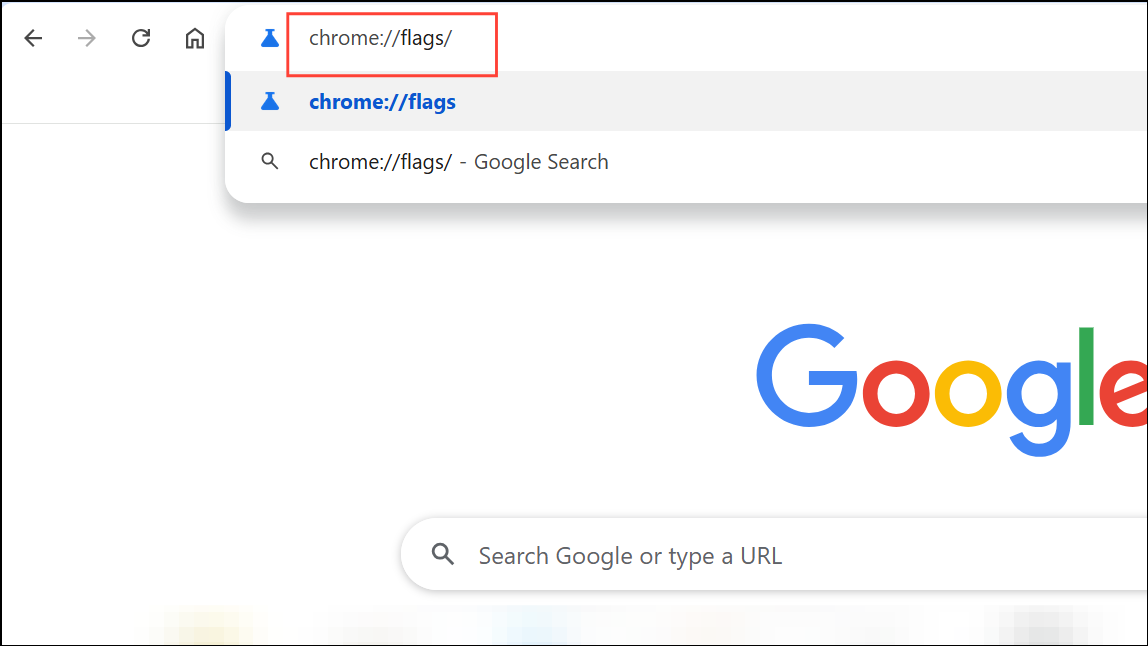
Disable Experimental Features (chrome://flags)
Enabling experimental features or flags in Chrome can introduce instability. Some users report web page loading issues after enabling certain flags, such as TLS 1.3 hybridized Kyber support.
Temporarily Disable Antivirus or Security Software
Antivirus programs can mistakenly block Chrome’s access to the internet or interfere with browser processes. Temporarily disabling your antivirus helps determine if it’s the source of the problem.
Reinstall Google Chrome
Corrupted browser files or persistent errors may require a complete reinstall. This process removes Chrome and its data, so back up bookmarks and settings before proceeding.
%USERPROFILE%\AppData\Local\Google\Chrome\User Data on Windows or ~/.config/google-chrome/ on Linux.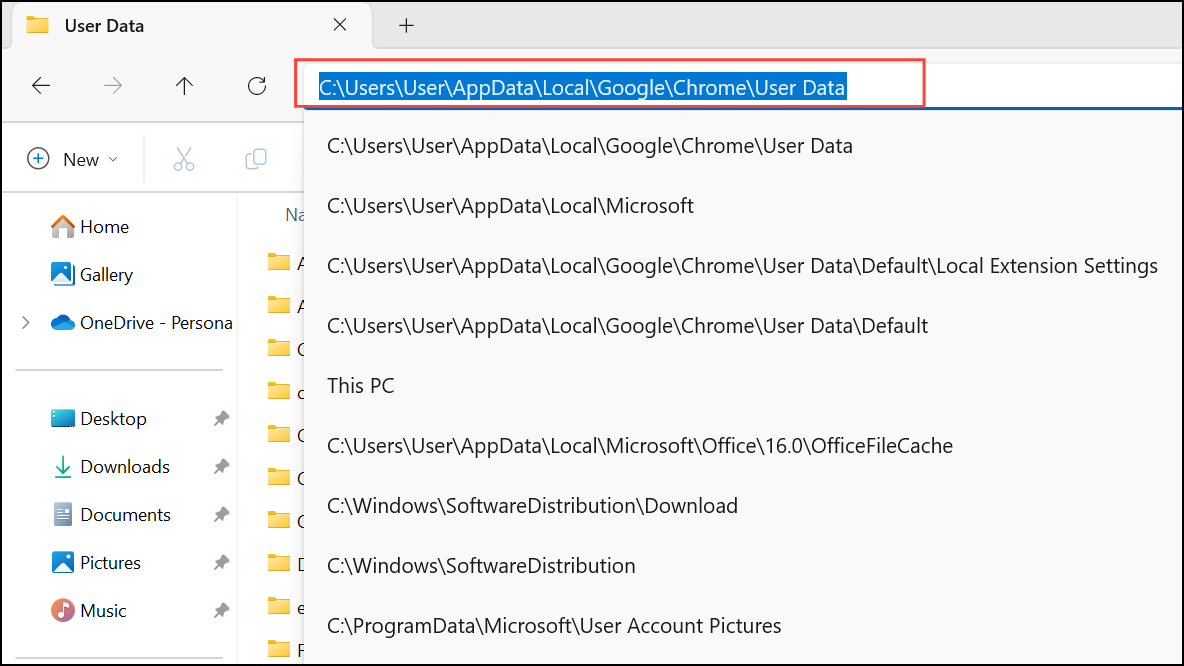
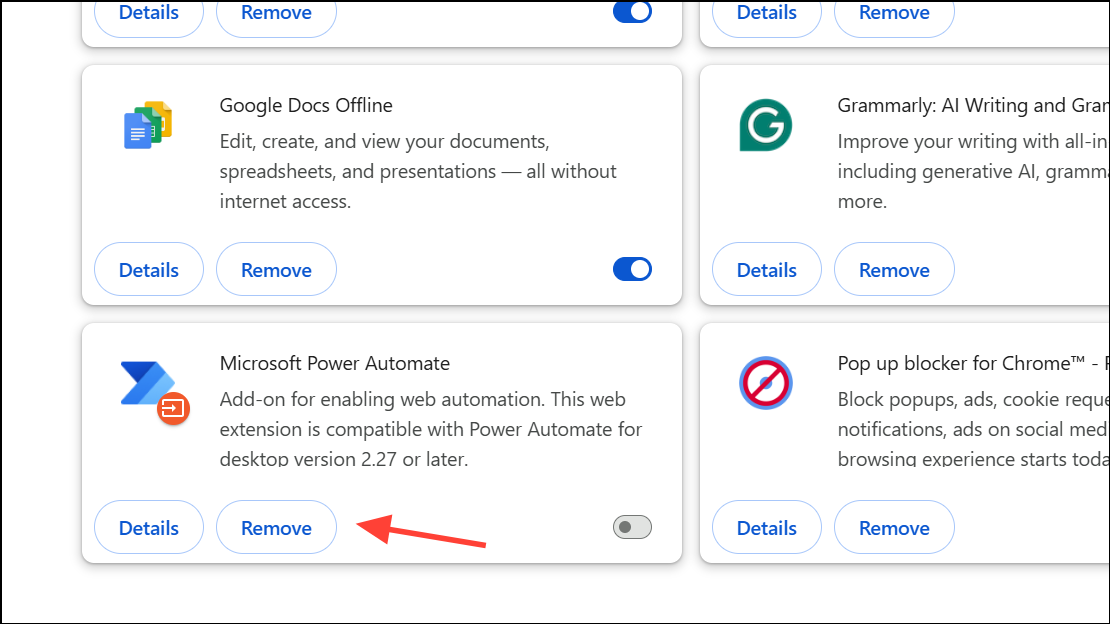
Remove or Update Problematic Extensions and Themes
Some extensions and themes can cause persistent loading problems. Removing or updating outdated, suspicious, or resource-intensive add-ons often improves browser performance and stability.
Regular maintenance—such as clearing cache, updating Chrome, and reviewing installed extensions—optimizes browser reliability and speeds up page loading. If problems persist after these steps, consider checking for system updates, scanning for malware, or using an alternative browser as a temporary workaround.





