
Web applications, video streaming, and daily productivity tasks can grind to a halt when Google Chrome starts running slowly. Users report issues like tabs taking minutes to load, unresponsive interfaces, and video playback delays—even on high-end hardware. These slowdowns often occur after recent updates or when specific extensions are active, affecting both Windows and macOS users. Addressing Chrome’s sluggishness requires a focused approach, starting with the most effective methods and working through additional troubleshooting steps as needed.
Disable Problematic Extensions and Ad Blockers
Resource-heavy or incompatible browser extensions are a leading cause of Chrome slowdowns. Recent user feedback highlights that certain ad blockers, especially AdBlock and AdBlock Plus, can significantly degrade Chrome’s performance—particularly on YouTube and other media-rich sites. Malwarebytes Browser Guard and the Adobe Acrobat extension have also been identified as culprits. Even if you have previously disabled or hidden extensions, ensure they are fully turned off or removed, as simply unpinning them does not stop them from running.
⋮ (three-dot menu) in the top-right corner of Chrome, then select Extensions > Manage Extensions.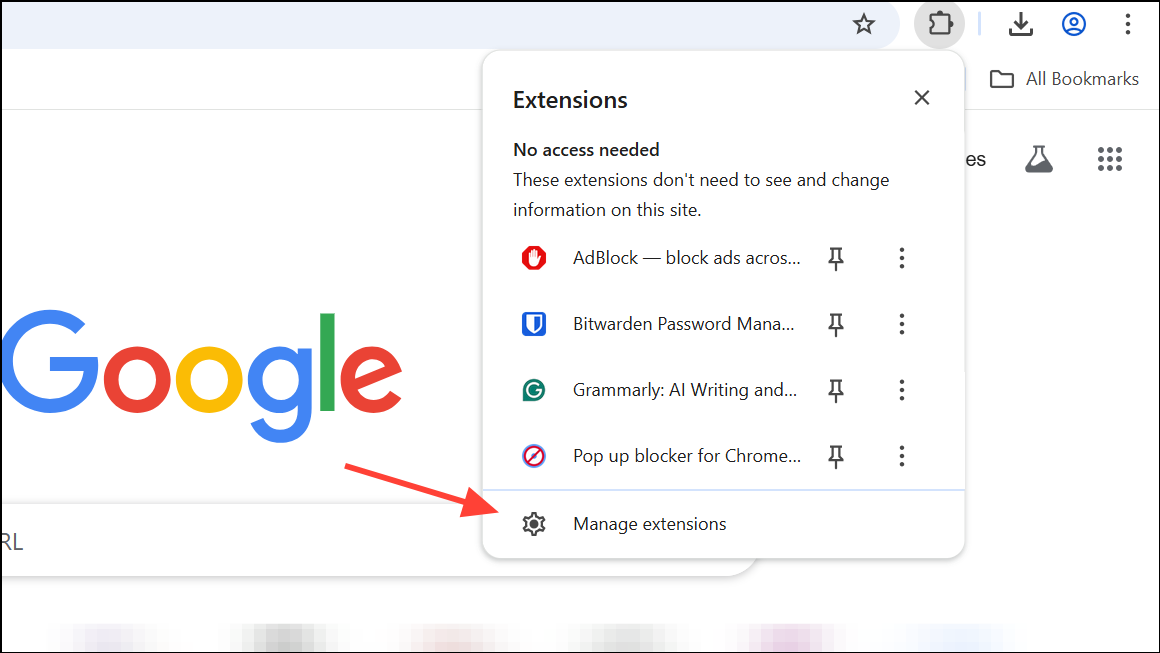
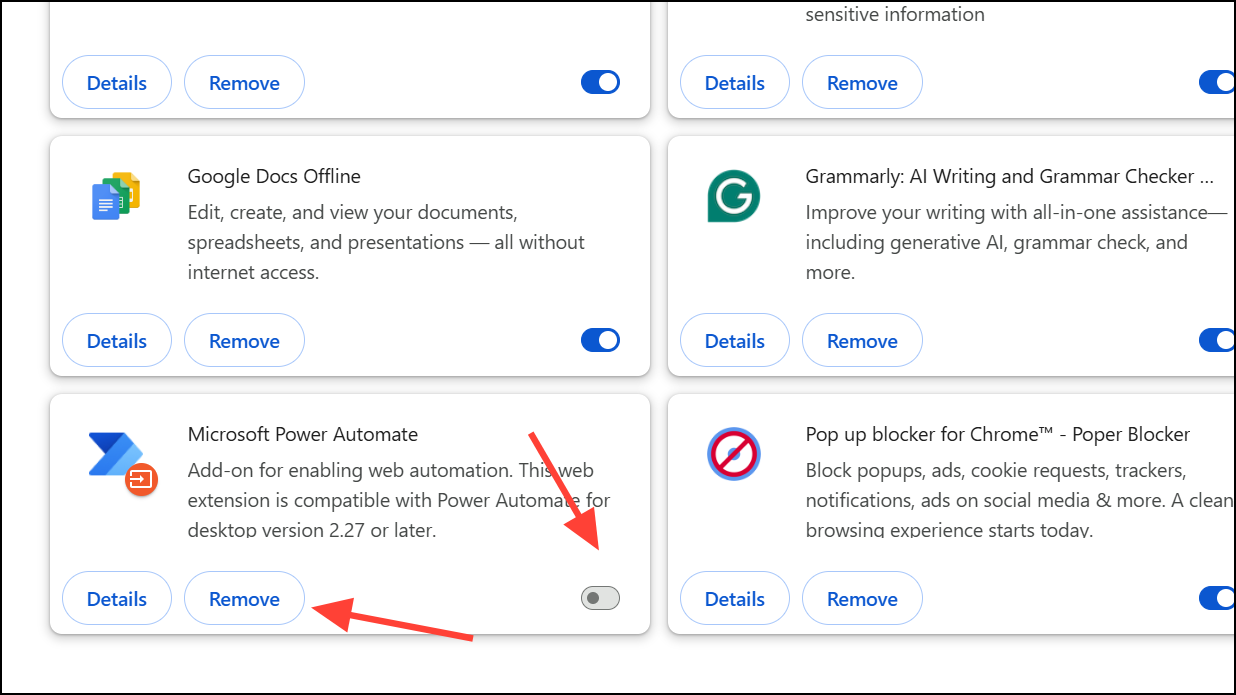
For users who rely on ad blocking, switching from AdBlock or AdBlock Plus to uBlock Origin (especially the Lite version) has been reported to maintain ad blocking functionality without causing slowdowns.
Update Google Chrome to the Latest Version
Outdated versions of Chrome can contain bugs or compatibility issues that slow down browsing. Google regularly releases updates that address performance and security problems.
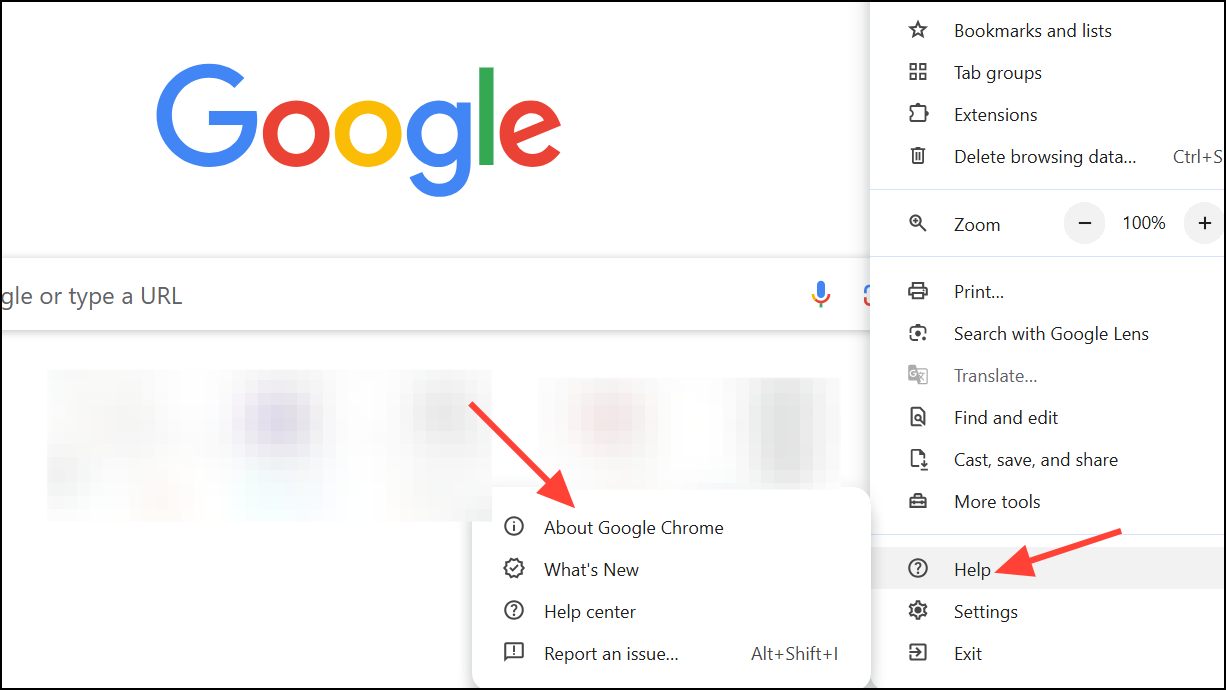
Keeping Chrome up to date ensures you benefit from recent fixes and optimizations that can resolve slow performance.
Clear Cache, Cookies, and Browsing Data
Accumulated cache files, cookies, and browsing history can slow down Chrome by overloading its storage and processing resources. Clearing this data can restore browser speed, especially if you notice delays when loading websites or switching tabs.
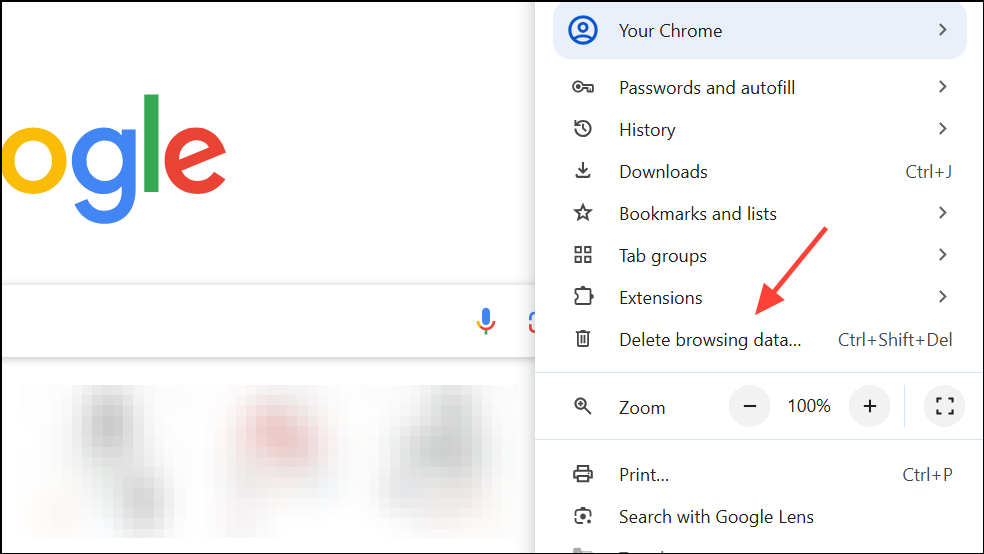
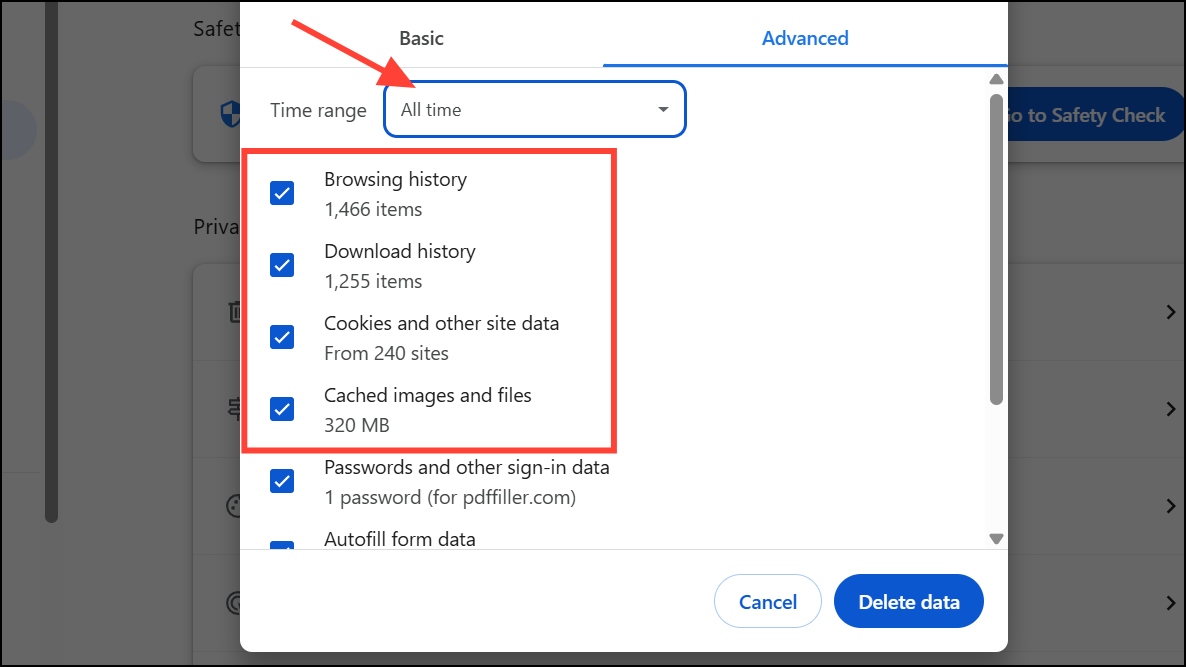
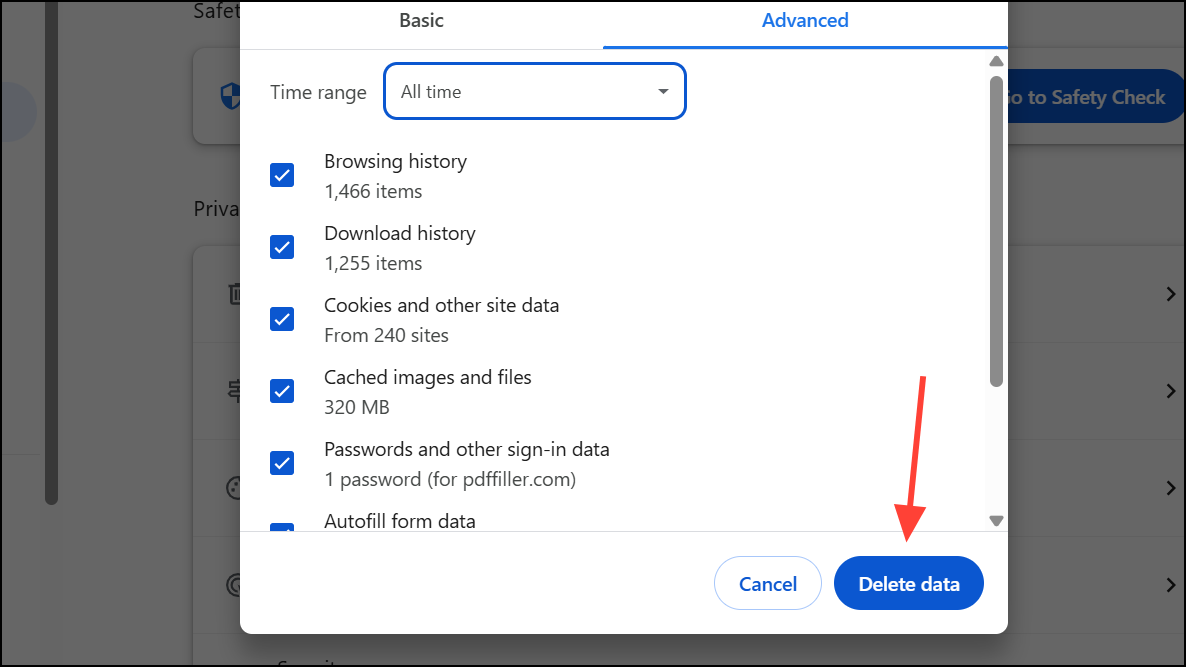
This process can resolve issues caused by corrupted or excessive stored data.
Adjust Chrome’s Performance and Preloading Settings
Chrome includes built-in performance controls that manage how it handles memory, tab activity, and page preloading. Adjusting these settings often results in immediate speed improvements, especially after recent browser updates that introduced new features like Memory Saver and tab efficiency modes.
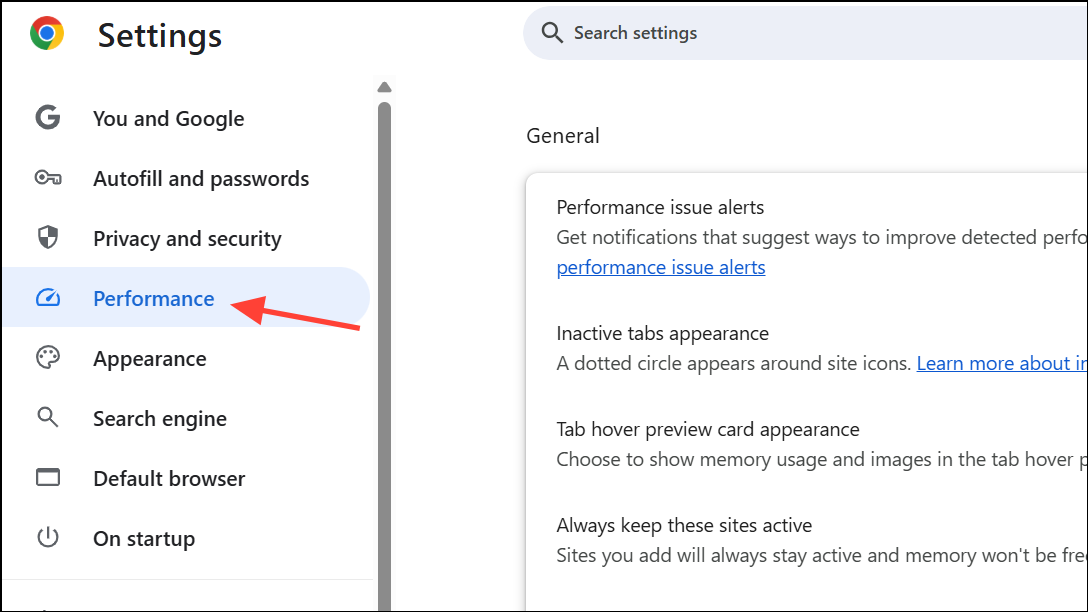
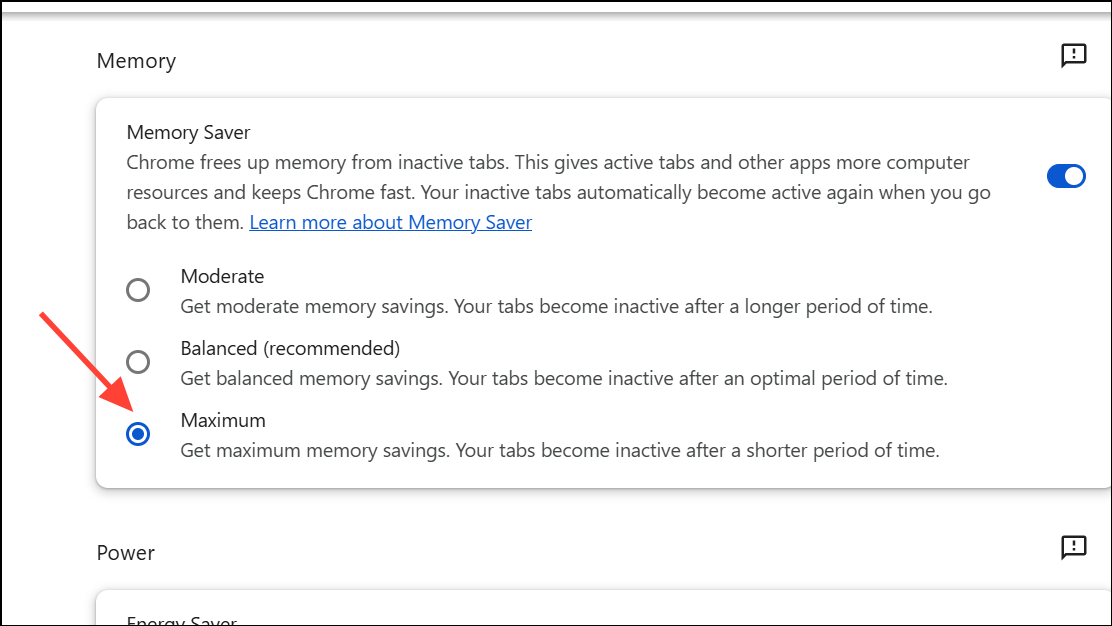
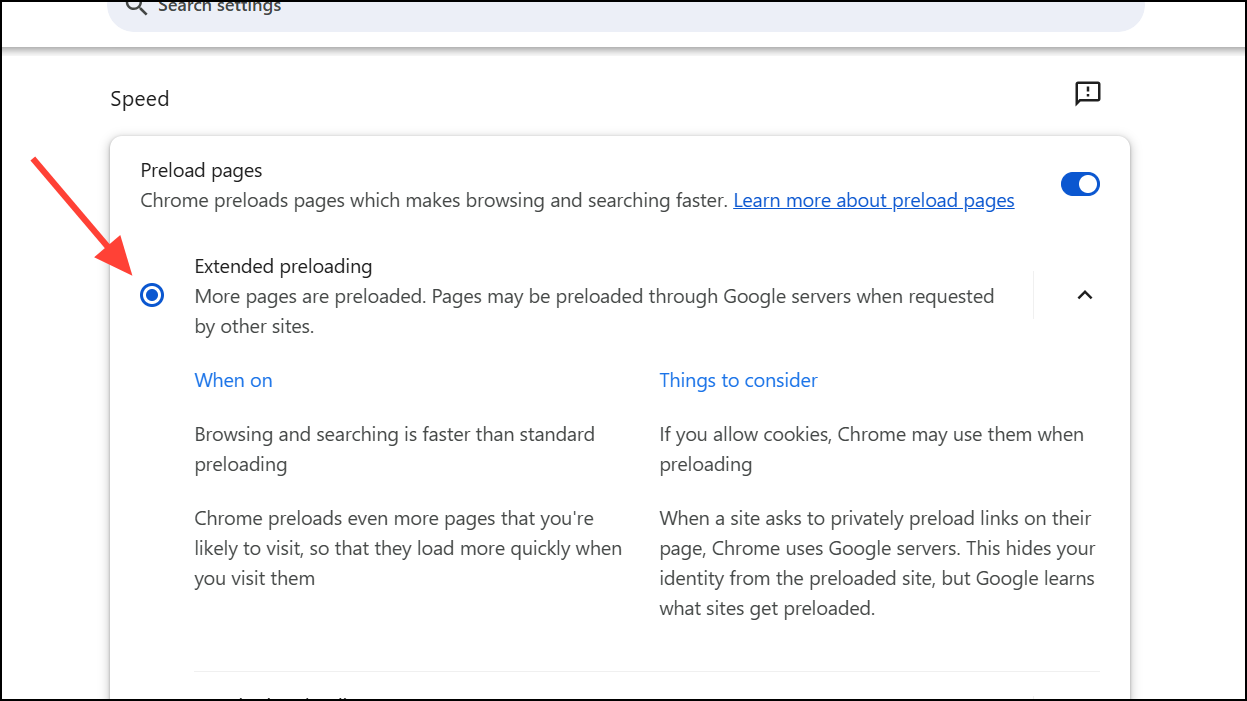
Some users have also experienced issues with Chrome’s efficiency mode being enforced by Windows. To check and adjust this, open Task Manager, right-click on Chrome processes, and disable efficiency mode if it is enabled.
Close Unused Tabs and Limit Active Sessions
Running dozens of open tabs or multiple browser sessions can overwhelm even high-spec computers, as each tab consumes memory and processing power. Chrome’s Task Manager (Shift + Esc) allows you to see which tabs and extensions use the most resources.
X on each tab or using Ctrl + W (⌘ + W on Mac).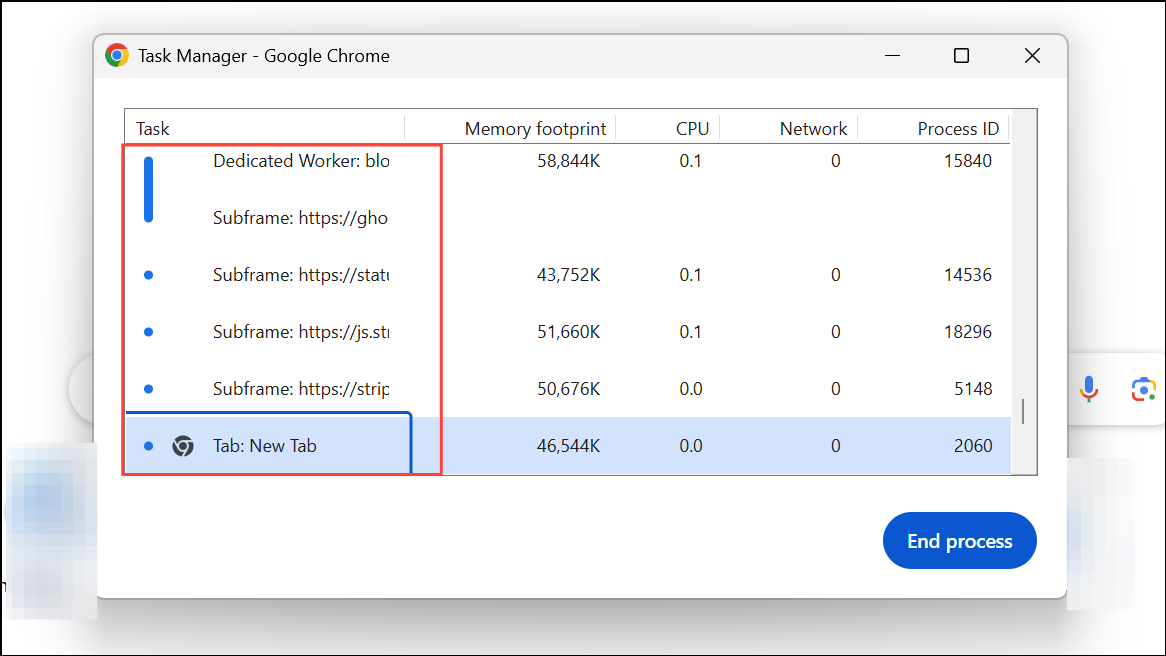
Reducing tab clutter directly improves Chrome’s responsiveness and speeds up loading times.
Reset Chrome to Default Settings
Persistent slowdowns after trying the above methods may indicate corrupted settings or profiles. Resetting Chrome restores it to its original state, removing all extensions, custom settings, and temporary data, but retaining bookmarks and saved passwords.
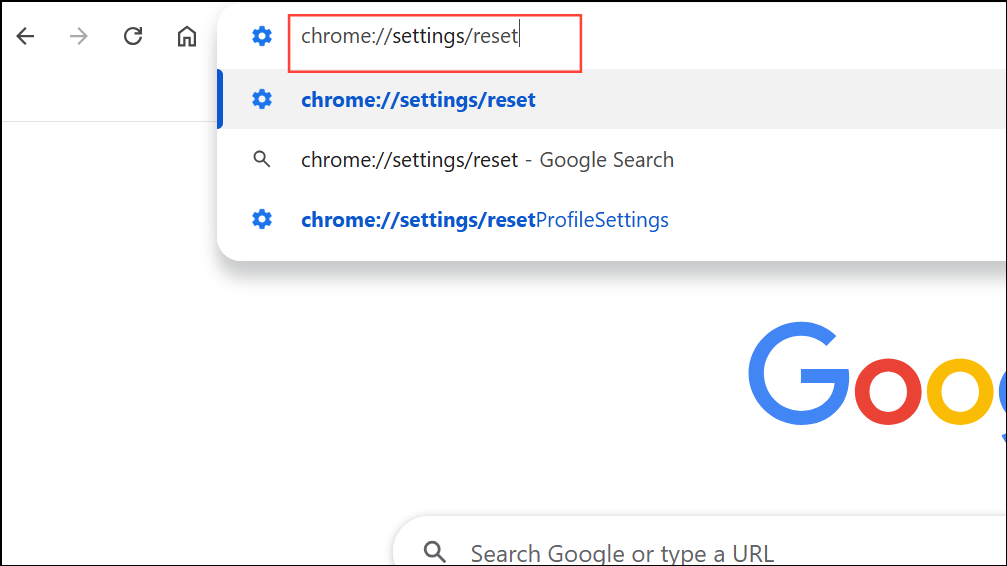
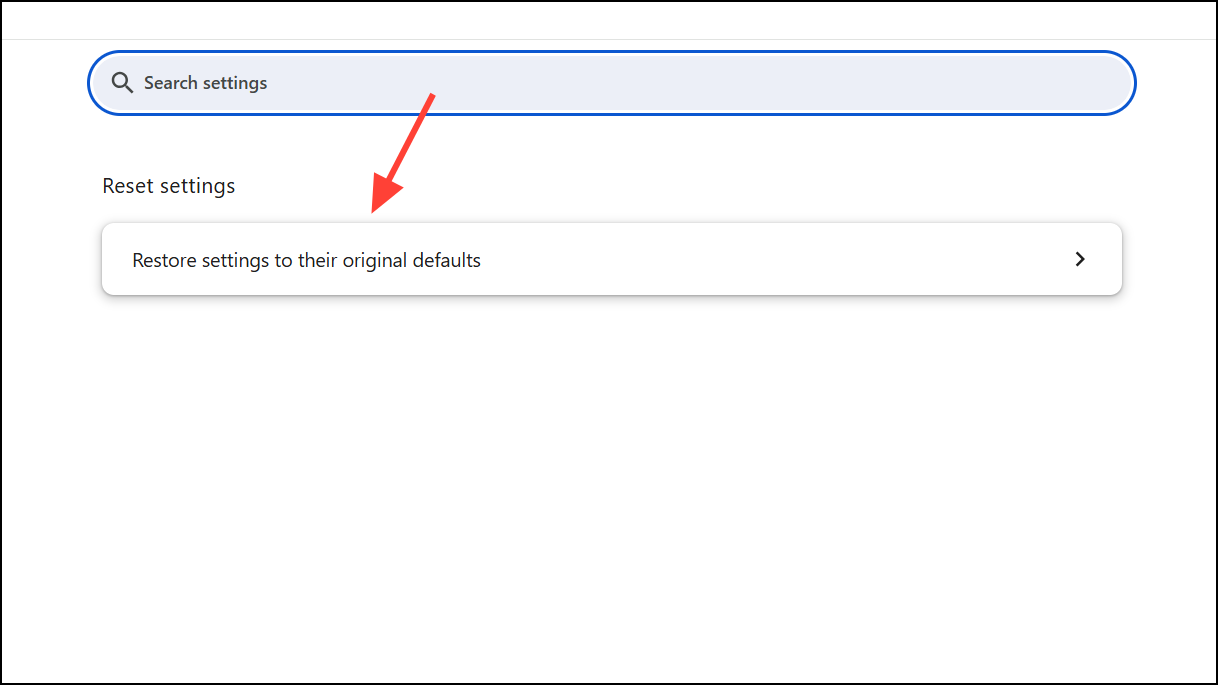
After the reset, sign in to your Google account if desired and reinstall only essential extensions, testing performance before adding more.
Check for Malware and System Issues
Malicious software or unwanted programs can hijack browser resources, causing Chrome to lag or freeze. While Chrome’s built-in Cleanup Tool is no longer available, running a reputable anti-malware scan remains an effective way to detect and remove threats.
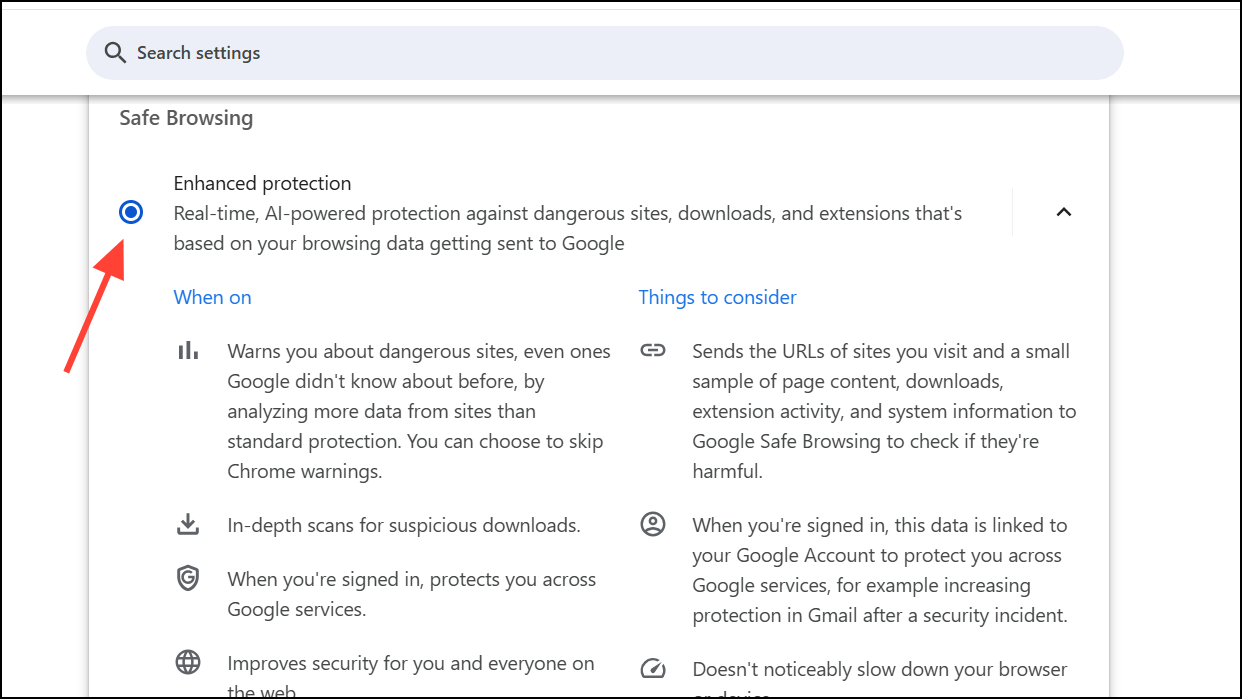
For ongoing protection, enable Enhanced Protection in Chrome’s Privacy and Security settings to increase real-time threat detection.
Optimize System Power and Network Settings
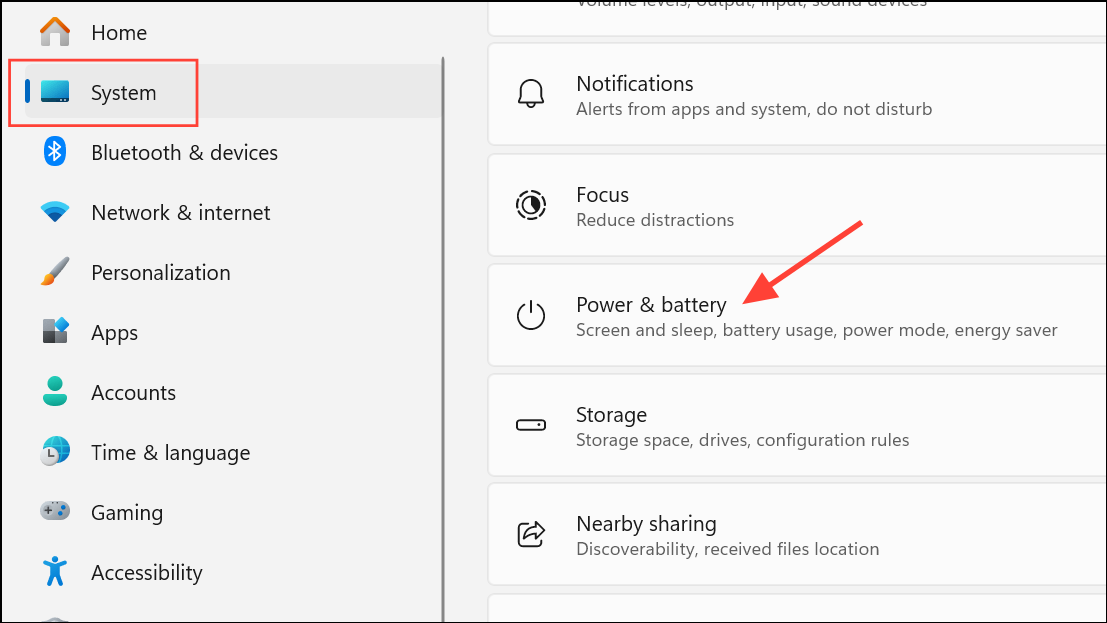
Energy-saving modes on laptops can throttle system performance, slowing down Chrome and other applications. Switching to a high-performance power plan can resolve these issues.
Consider switching to a public DNS provider (such as Google DNS or Cloudflare) if you suspect DNS issues, or connect through a VPN with optimized routing for further troubleshooting.
Following these targeted solutions addresses the most common and impactful causes of slow performance in Google Chrome. Regularly reviewing extensions, keeping Chrome updated, and managing settings can keep your browser running quickly and reliably.





