
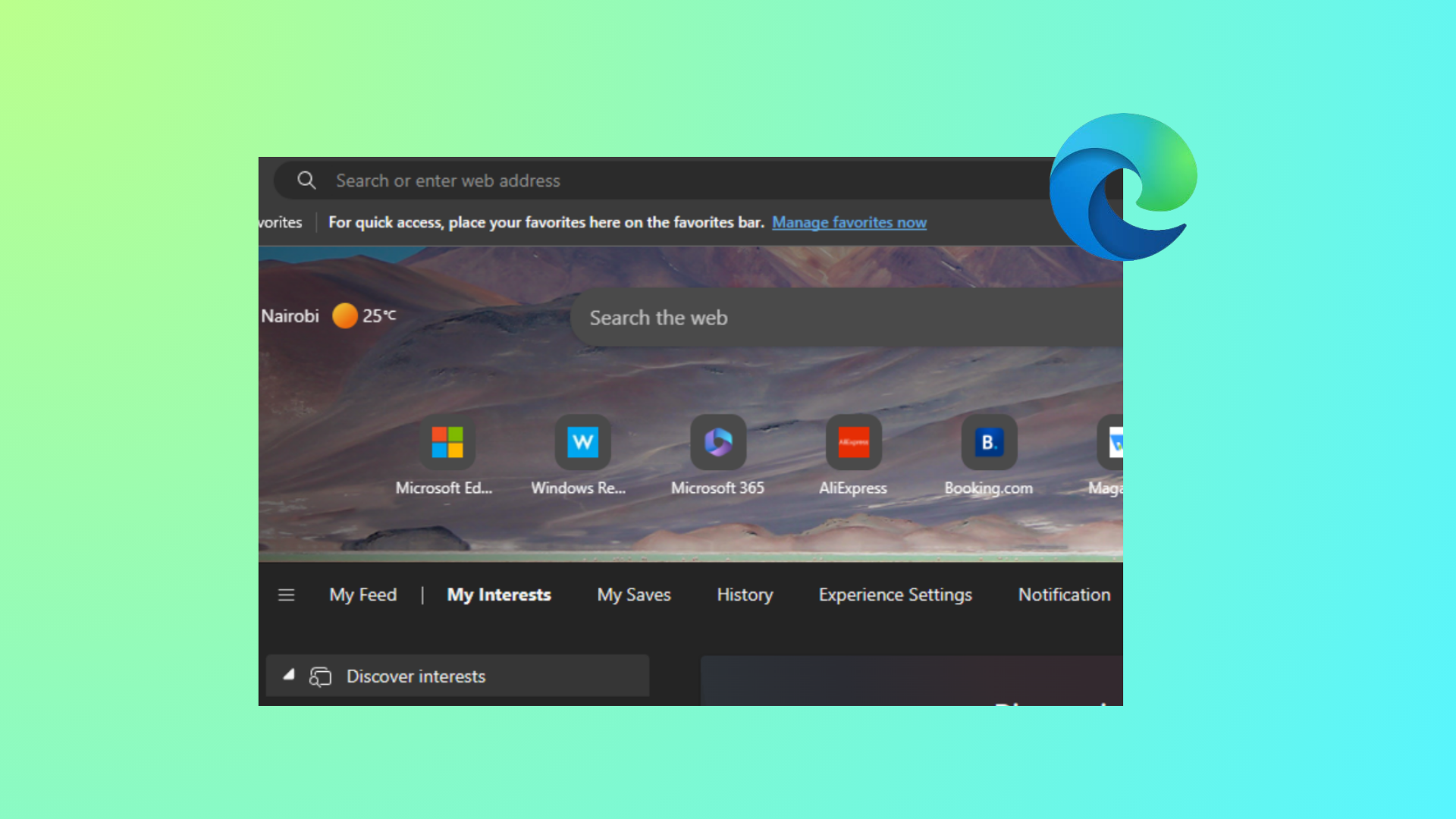
Quick Links on the Microsoft Edge New Tab page provide shortcuts to frequently visited sites, but for users seeking a cleaner interface or stricter focus, these tiles can be distracting. Recent updates to Edge have changed how these links are managed, leading to confusion about which settings are available and which methods truly remove Quick Links. Below, you’ll find the most effective ways to hide or disable Quick Links on the Edge New Tab page, whether you’re an individual user or managing multiple devices.
Disable Quick Links via New Tab Page Settings
Ctrl + T or clicking the plus (+) icon next to your open tabs.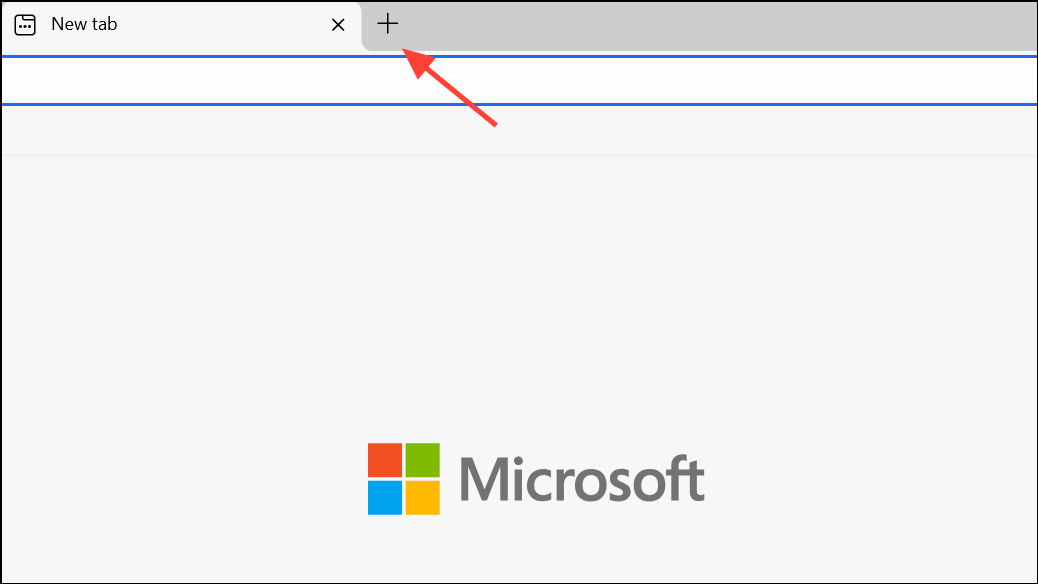
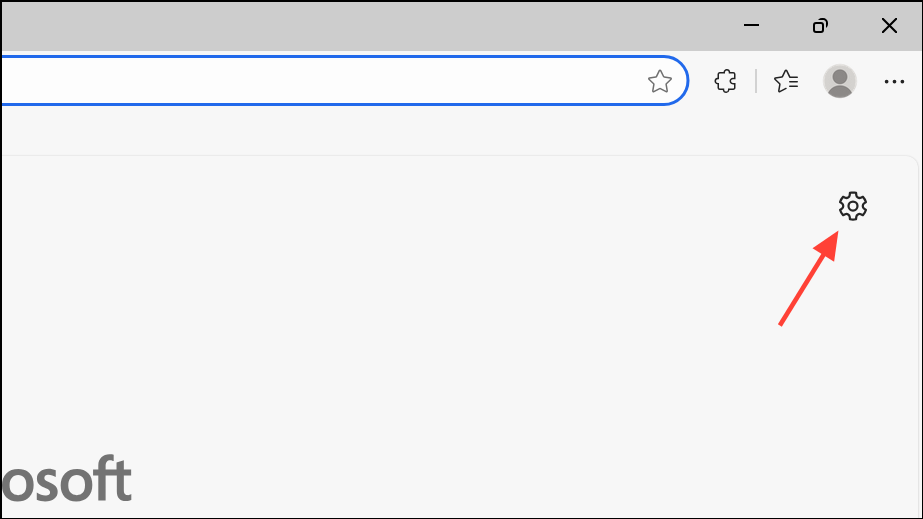
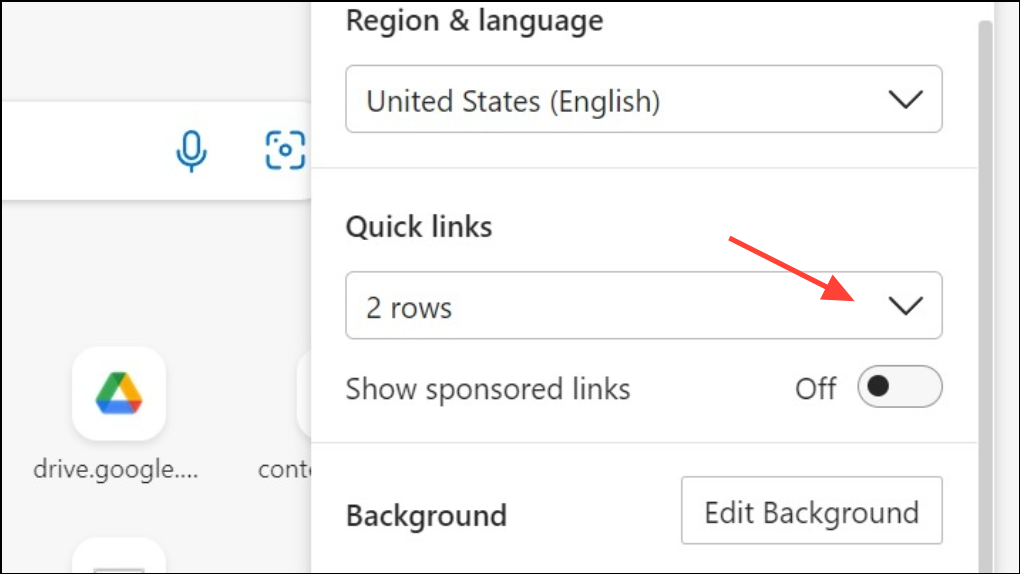
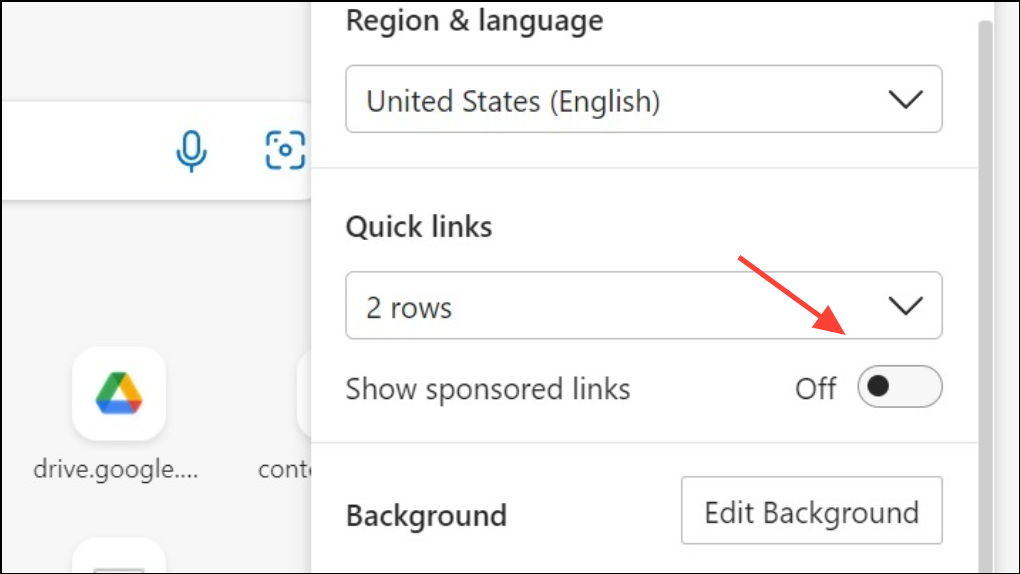
This method works for most users on current versions of Edge, but some updates or A/B testing may temporarily remove or relocate these settings. If you do not see the option, proceed to the next method.
Disable Quick Links via Edge Settings Menu
Alt + F) in the upper-right corner.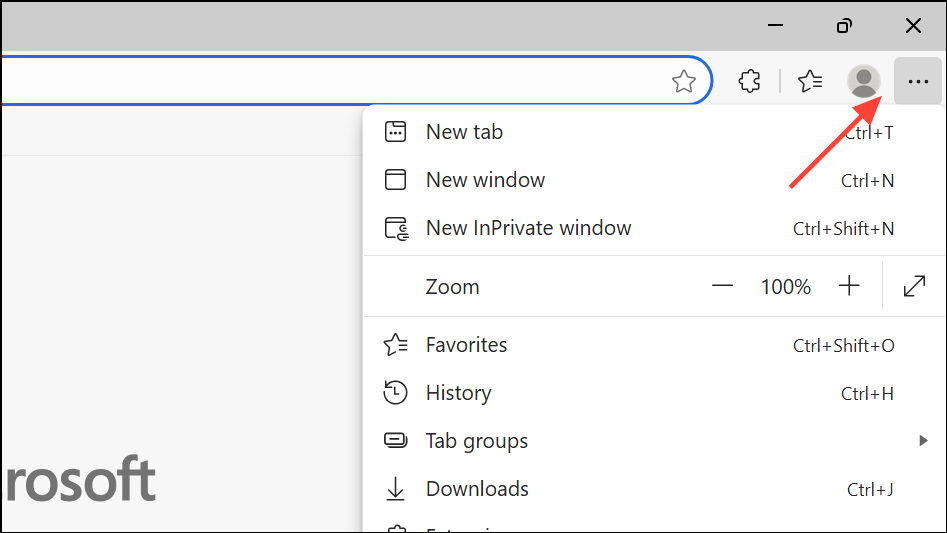
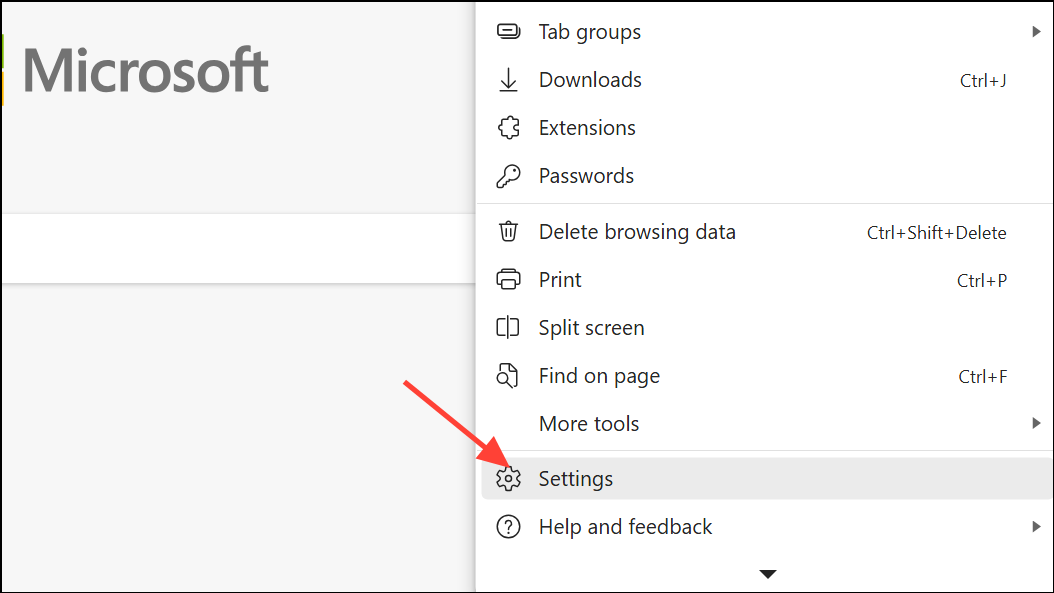
If you do not see these options, your Edge version may have limited customization due to recent updates or organizational policies. In such cases, administrative methods are required.
Disable Quick Links for All Users Using Registry Editor
For system administrators or users who want to enforce this setting across all accounts on a device, the Windows Registry can be modified to disable Quick Links. This method requires administrative privileges and caution, as incorrect changes to the registry can cause system issues.
Win + R to open the Run dialog, type regedit, and press Enter. Approve any User Account Control prompts.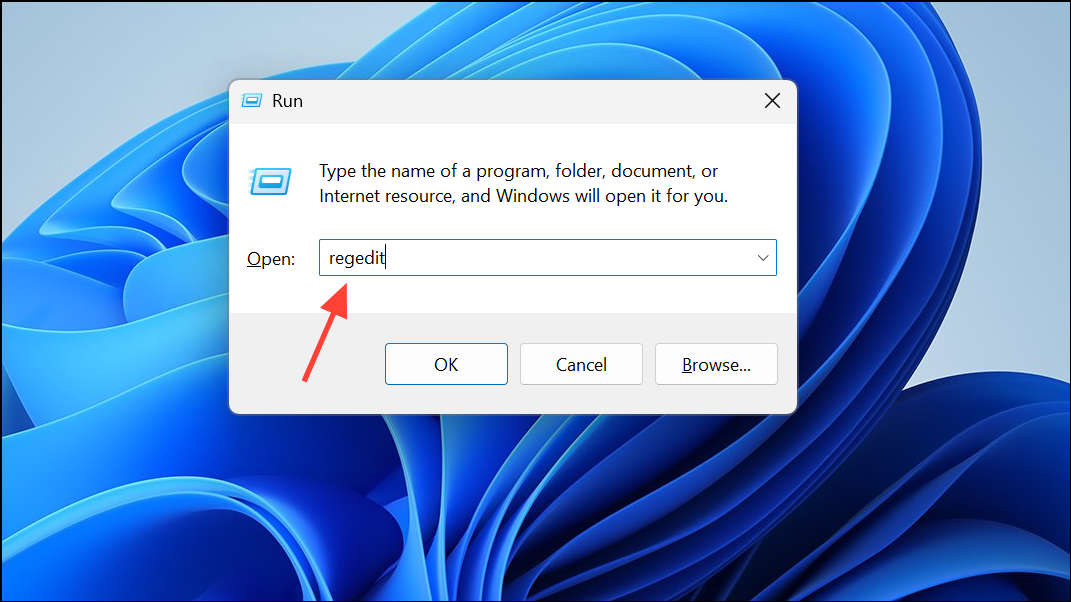
HKEY_LOCAL_MACHINE\SOFTWARE\Policies\Microsoft\Edge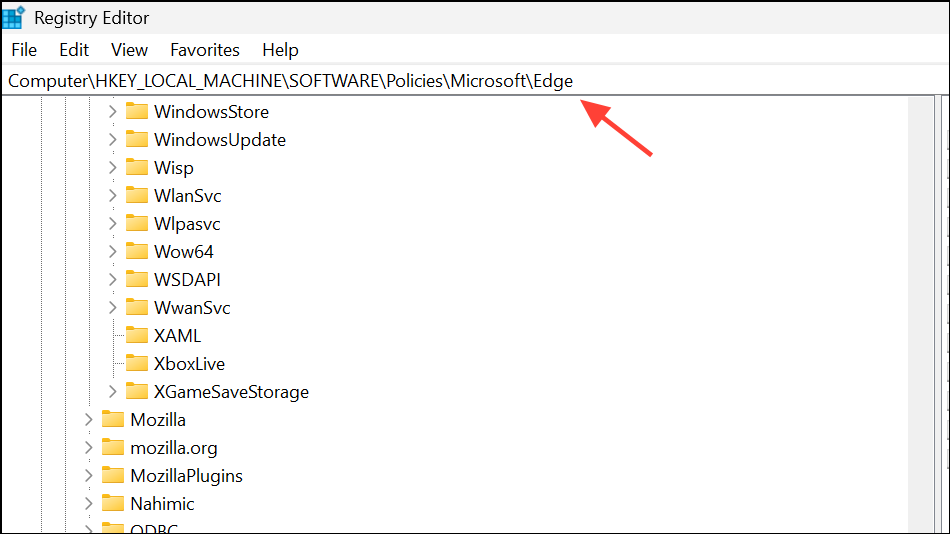
Edge key, right-click an empty area, choose New > DWORD (32-bit) Value, and name it NewTabPageQuickLinksEnabled.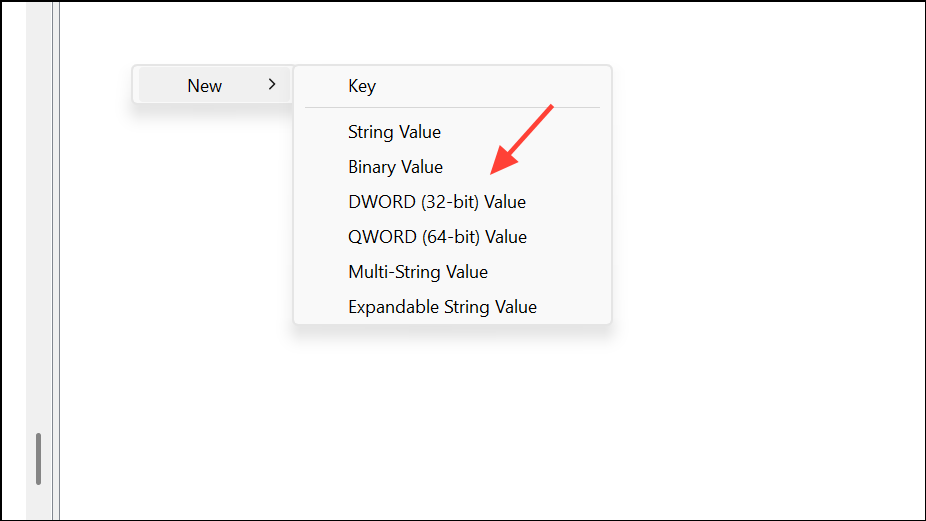
NewTabPageQuickLinksEnabled and set its value to 0 to disable Quick Links. Click OK to save.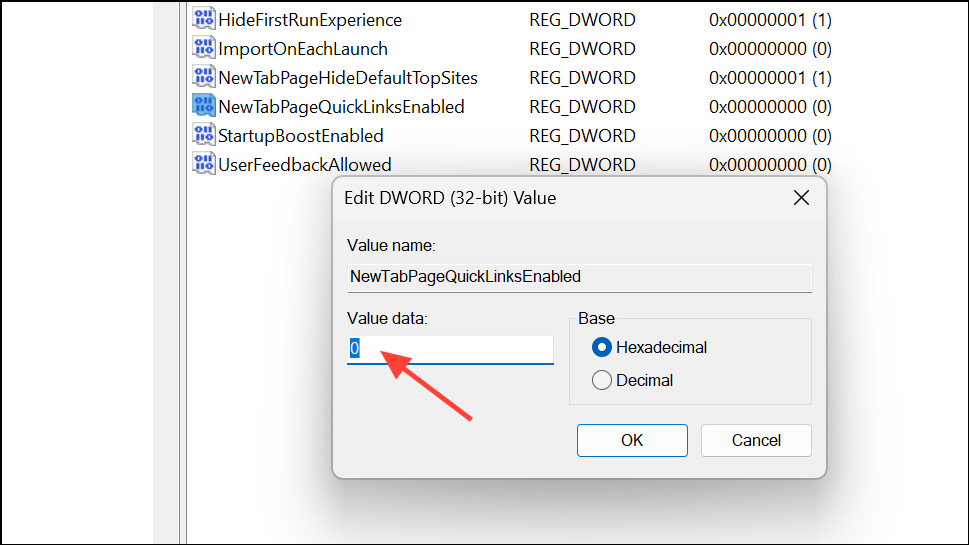
To restore Quick Links, delete the NewTabPageQuickLinksEnabled value or set it to 1.
Disable Quick Links via Group Policy (Enterprise and Education)
Organizations using Windows Pro, Enterprise, or Education editions can manage Quick Links using Group Policy. This approach is ideal for deploying settings across multiple devices.
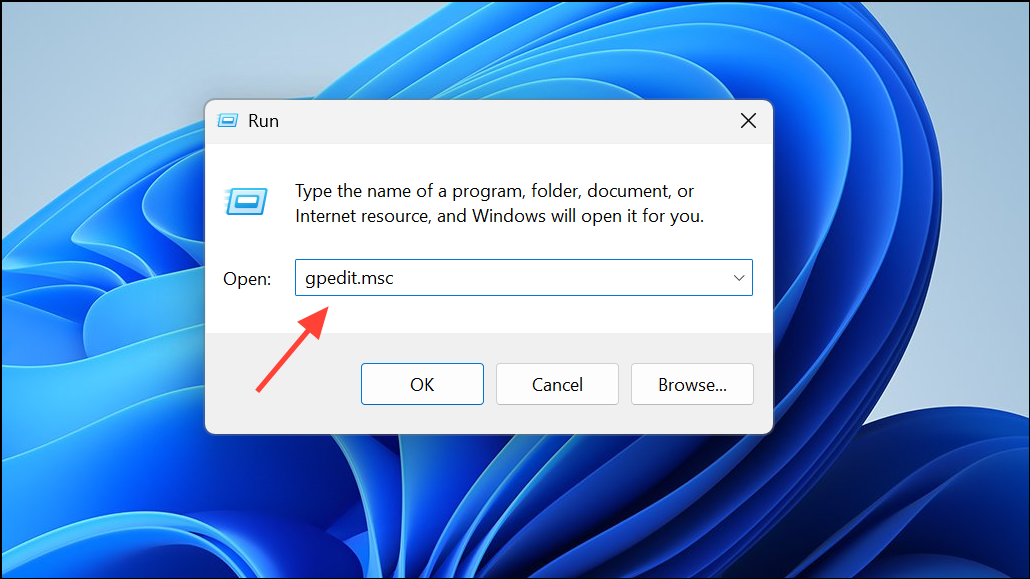
NewTabPageQuickLinksEnabled).After applying this policy, users will no longer see Quick Links on the New Tab page, and the toggle in settings will be unavailable.
Disable Quick Links via Microsoft Intune (Cloud Management)
For organizations managing devices through Microsoft Intune, Quick Links can be disabled by configuring an Administrative Template profile.
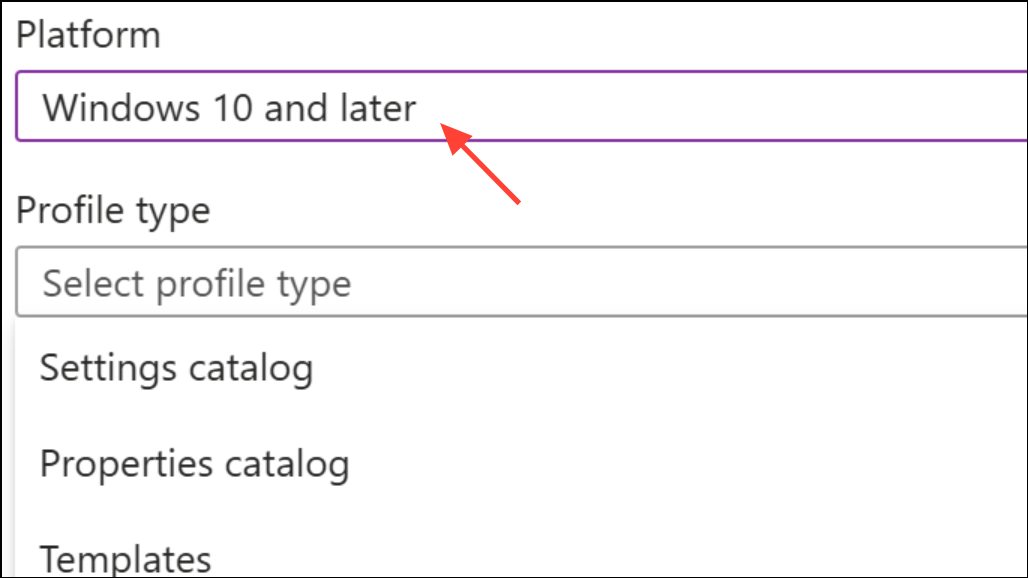
After the policy is applied, Quick Links will be hidden for all targeted users, and the option to add or show them will be unavailable.
Additional Notes and Troubleshooting
Recent Edge updates occasionally remove or relocate the Quick Links setting for some users due to staged rollouts or A/B testing. If you notice the manual setting is missing, using the Registry or Group Policy methods above remains effective. For enterprise environments, conflicting settings in Intune and the M365 Admin Center can override each other, so ensure only one configuration source manages the New Tab page experience.
Manual removal of individual Quick Links is possible by hovering over a tile and clicking the three-dot menu, but this does not prevent Edge from adding new Quick Links based on browsing activity unless the feature is fully disabled as described above.
Hiding Quick Links on the Microsoft Edge New Tab page streamlines your browsing space and minimizes distractions, whether for personal focus or organizational policy. If settings shift after Edge updates, revisiting these steps or using administrative controls ensures your preferences persist.





