
Audio output can stop working in Windows 11 immediately after a system update, leaving the speaker icon disabled or showing “No Audio Devices Connected.” This issue interrupts video playback, meetings, and basic computer use. The following steps address the most effective solutions first, including driver repairs, device settings, and system troubleshooting, based on recent user reports and official documentation.
Update or Reinstall Audio Drivers
Driver conflicts or corruption are a leading cause of audio loss after Windows 11 updates. Reinstalling or updating the audio driver restores communication between the operating system and your hardware.
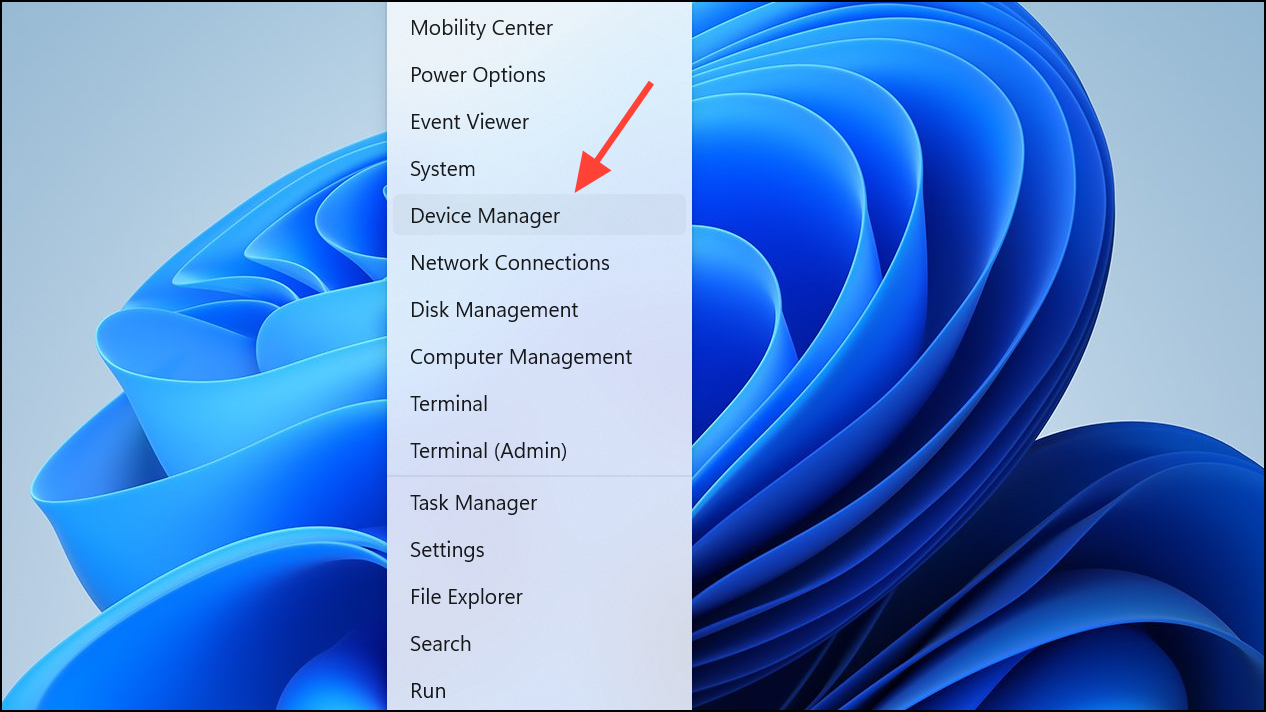
Sound, video and game controllers. If your audio device is missing, look for any unknown devices or items with a yellow exclamation mark.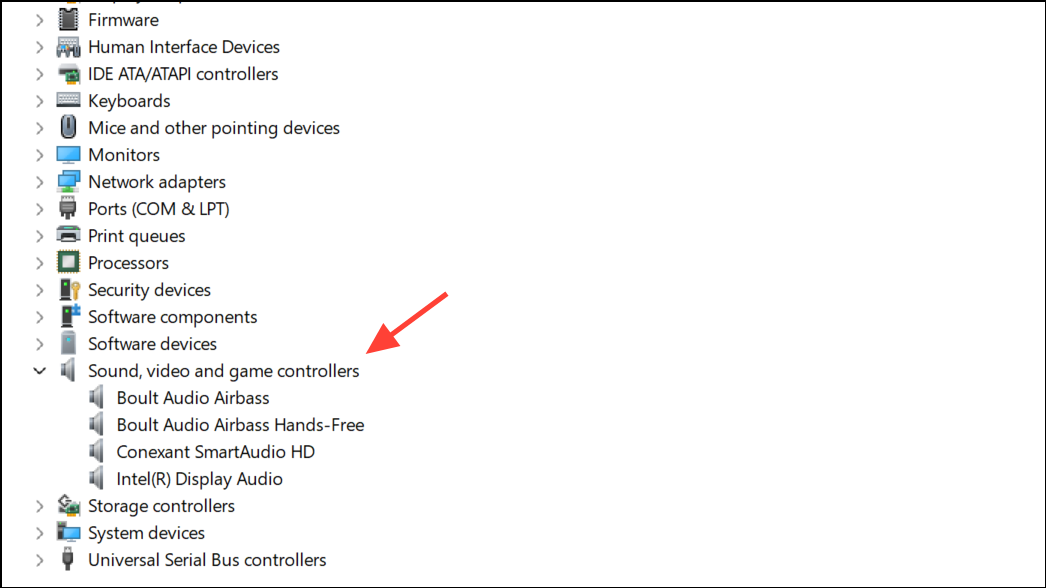
Update driver. Then choose Search automatically for drivers.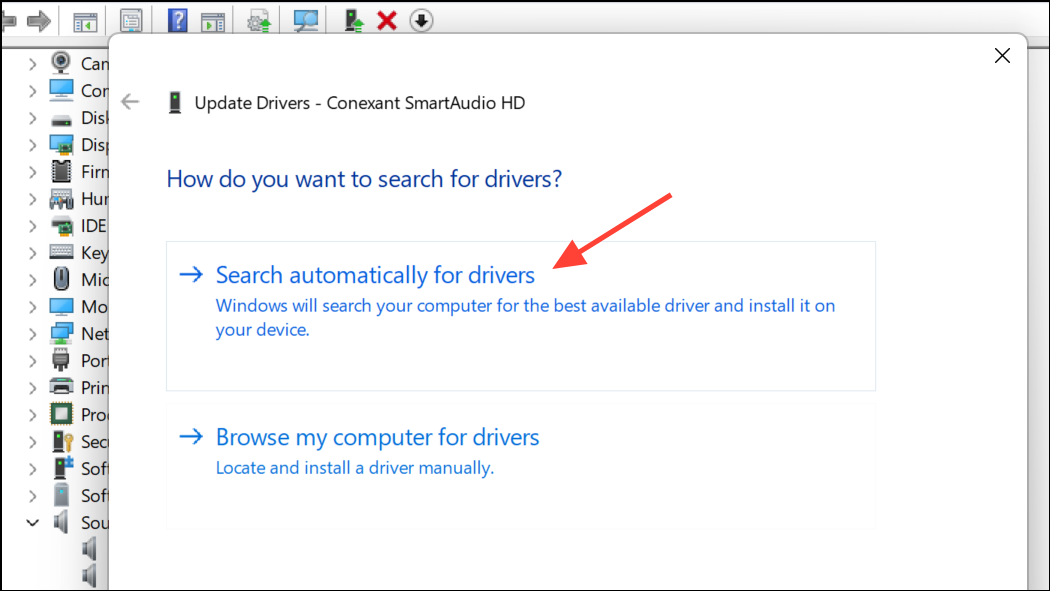
Uninstall device. Confirm and restart your computer. Windows will attempt to reinstall the correct driver automatically on reboot.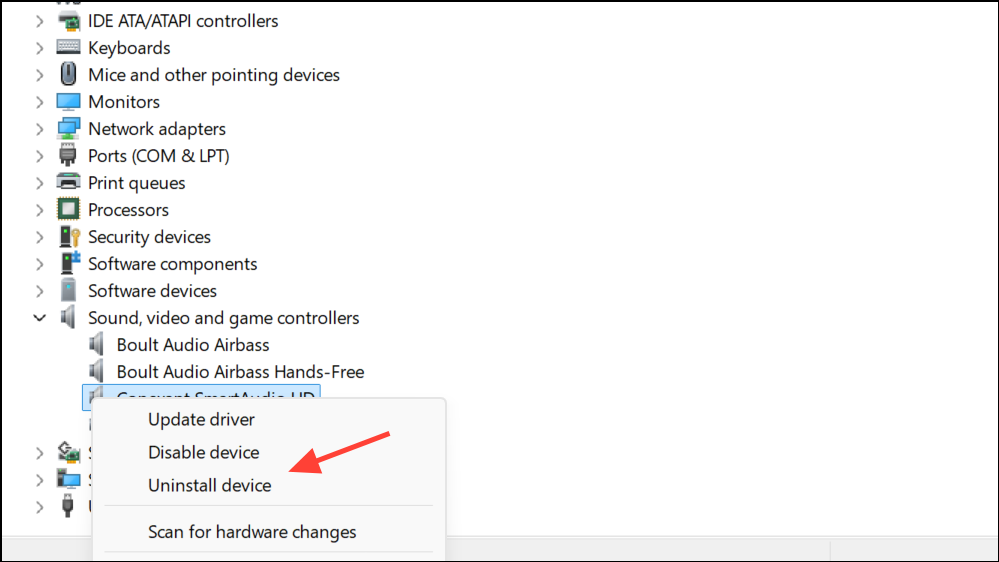
Roll Back Audio Driver
Occasionally, a new driver installed by Windows Update causes compatibility problems. Rolling back to a previous version can immediately restore sound.
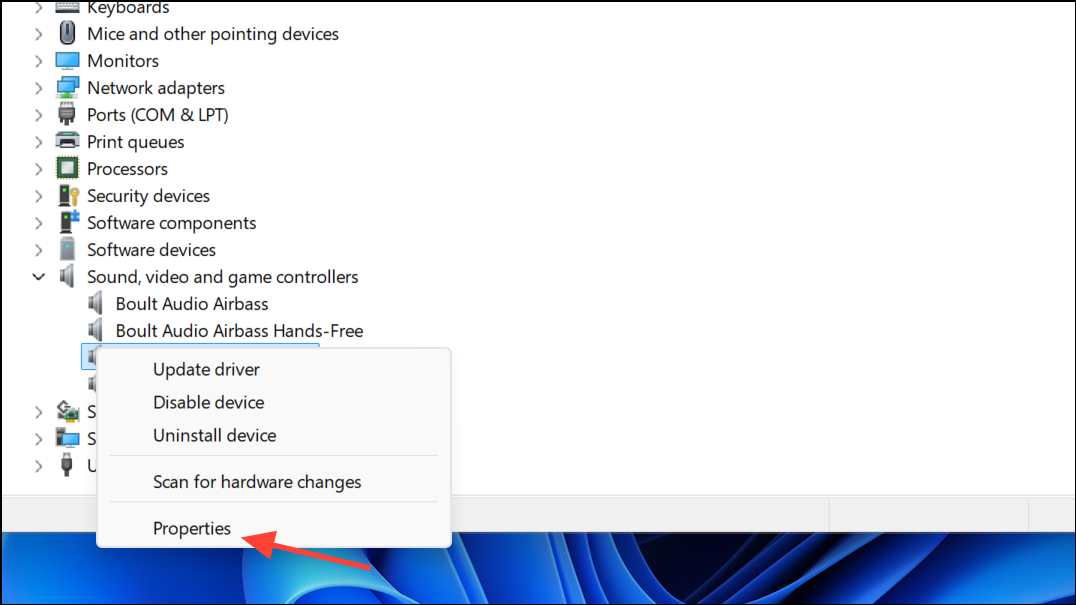
Driver tab and select Roll Back Driver if the option is available. Follow the prompts and restart your computer.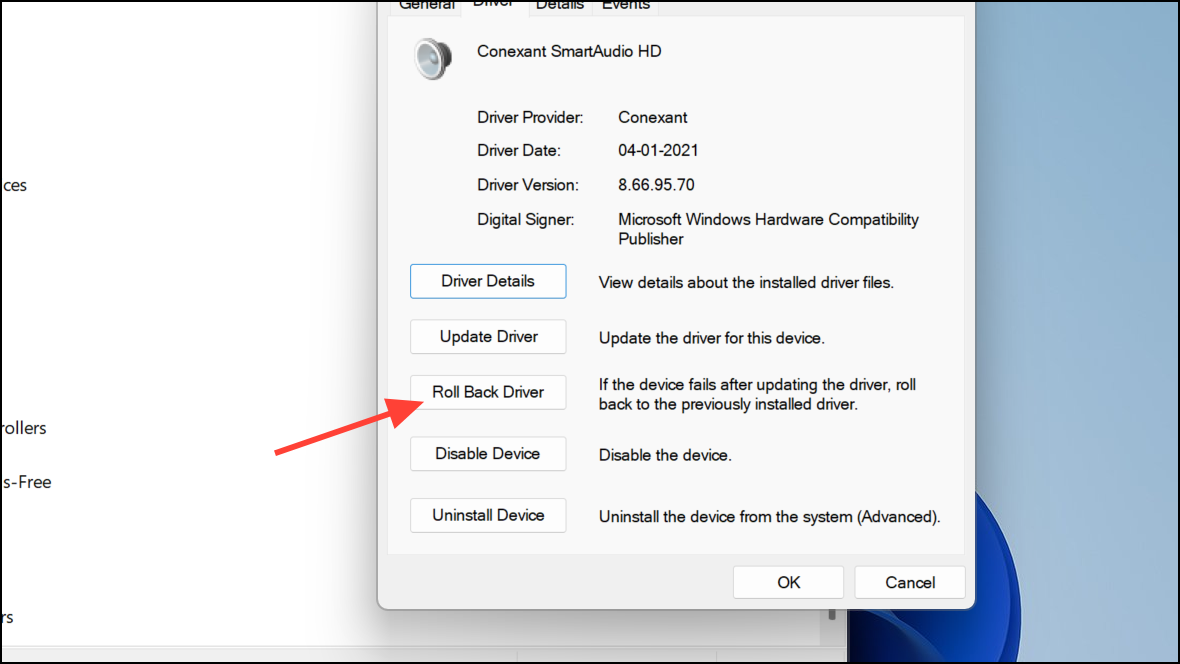
This step is especially effective if the issue began immediately after a Windows update or a driver upgrade.
Check and Set Default Audio Output Device
Updates can reset your default audio device, causing sound to route to the wrong output (such as a disconnected monitor or disabled port).
Sound settings. Under Output, select your main device and click Use as default for audio.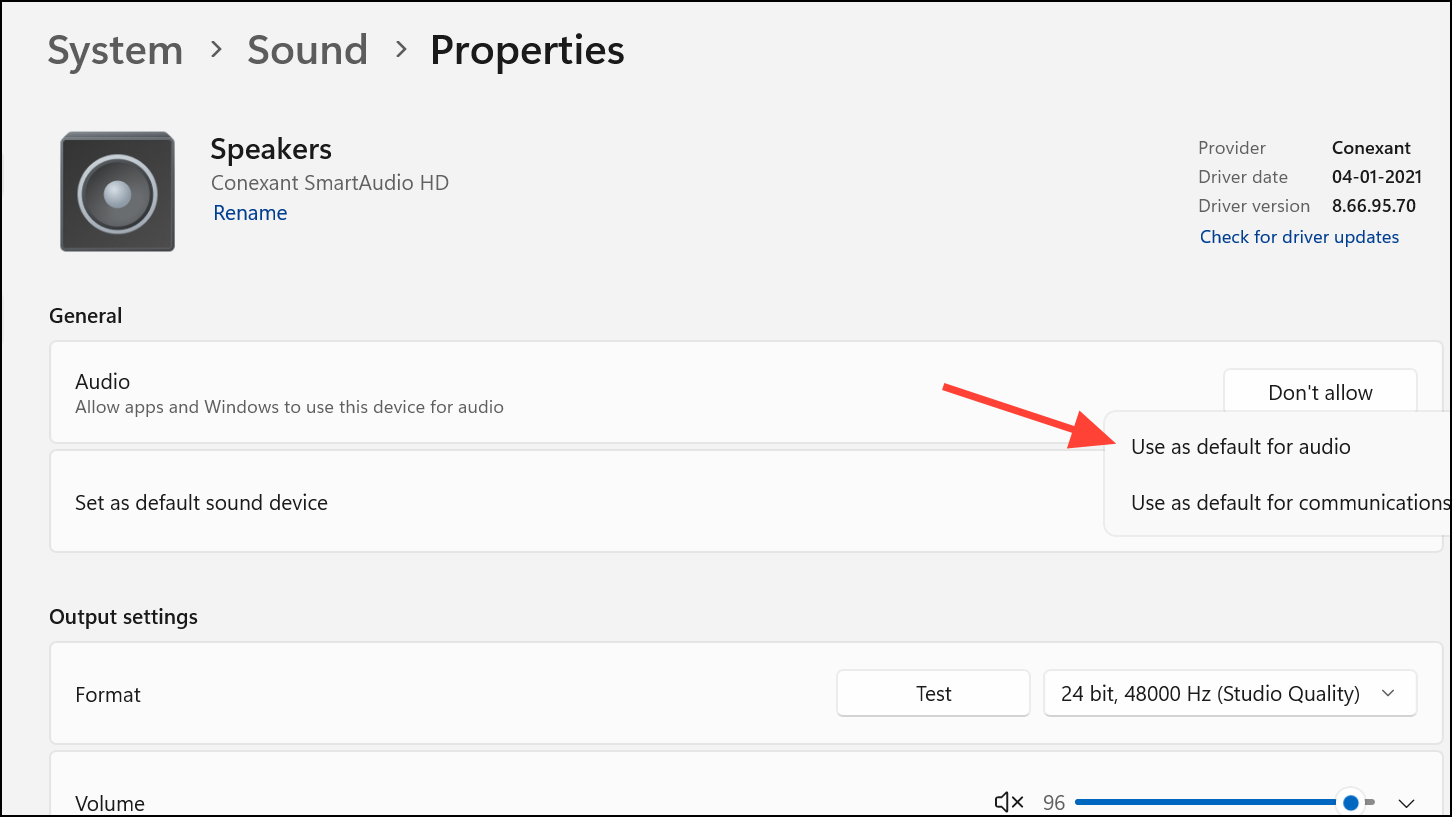
Run the Windows Audio Troubleshooter
Windows 11 includes a built-in troubleshooter that automatically diagnoses and repairs common audio problems.
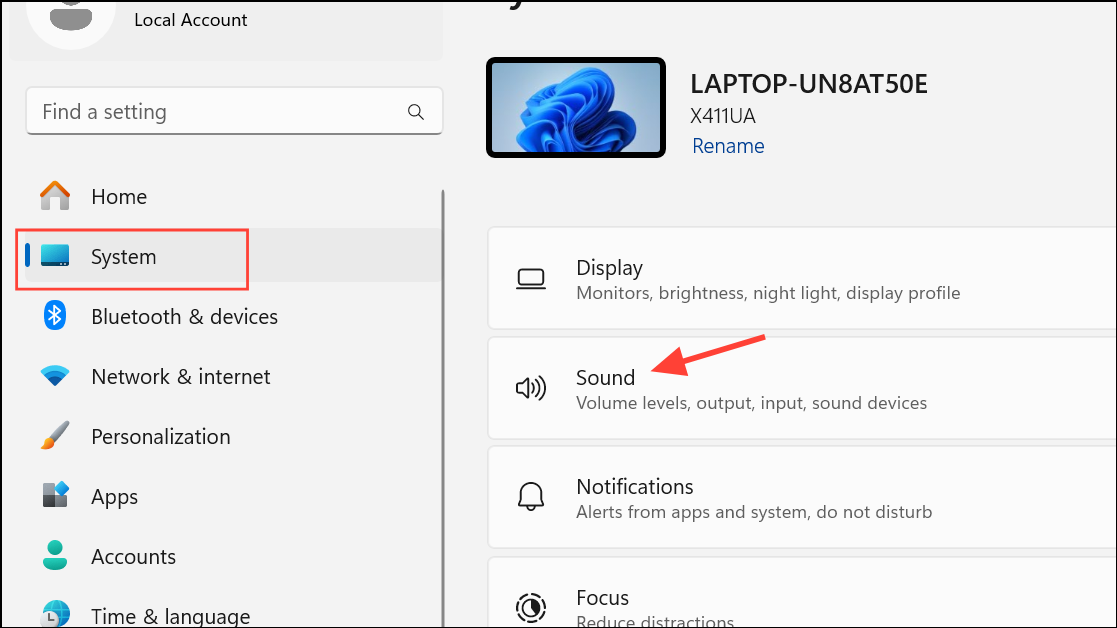
Troubleshoot common sound problems and select Troubleshoot next to your output device. Follow the on-screen instructions.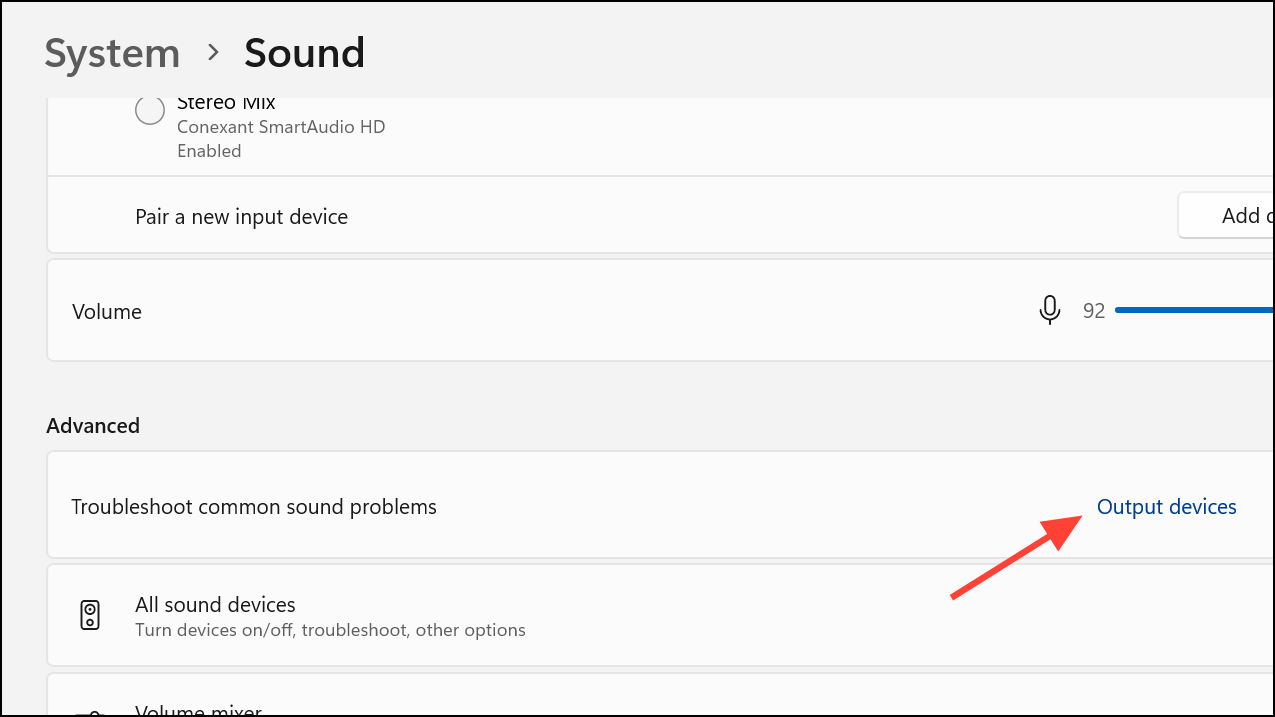
Restart Audio Services
Audio services may fail to start correctly after an update. Restarting them restores audio processing on your system.
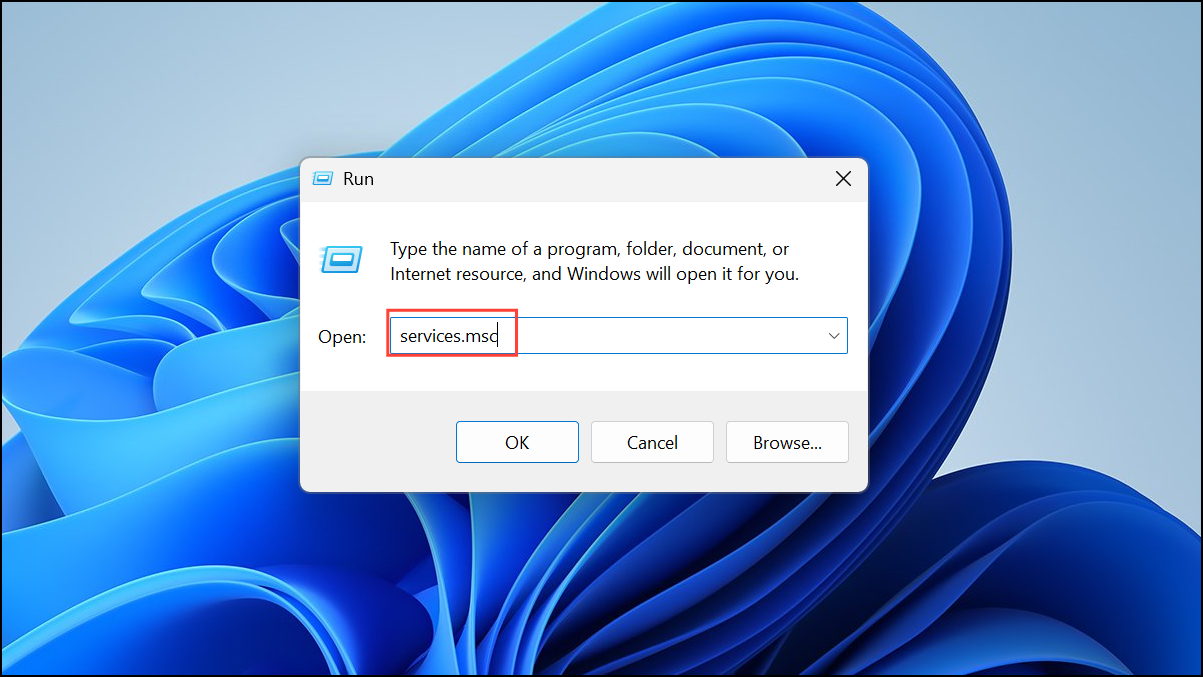
- Windows Audio
- Windows Audio Endpoint Builder
- Remote Procedure Call (RPC)
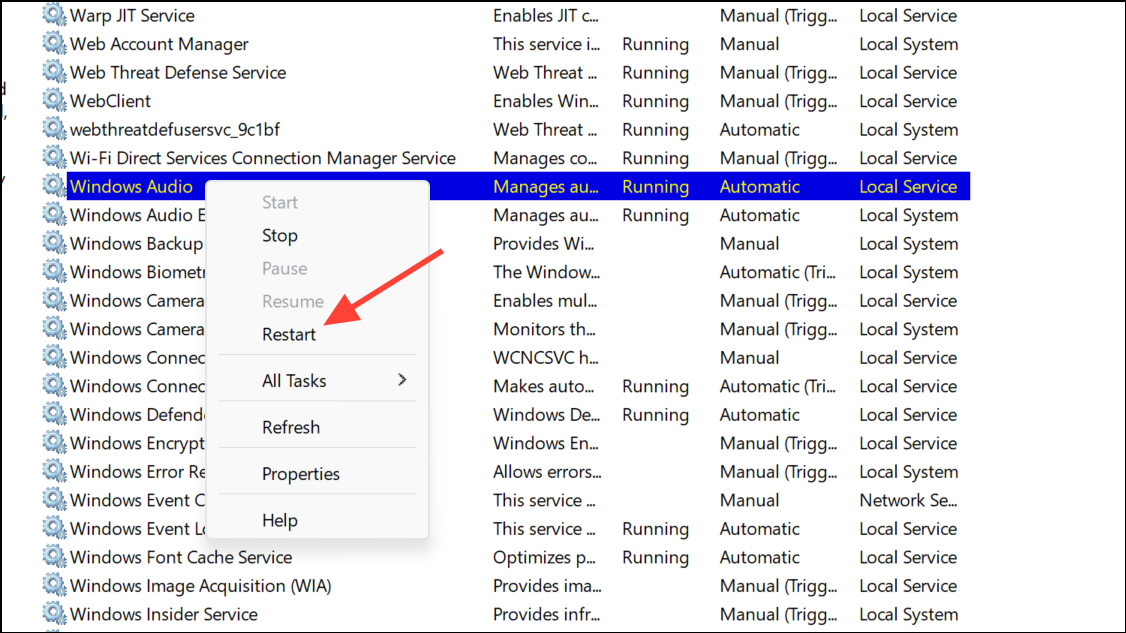
If any service is not running, right-click and select Start. Confirm that their startup type is set to Automatic.
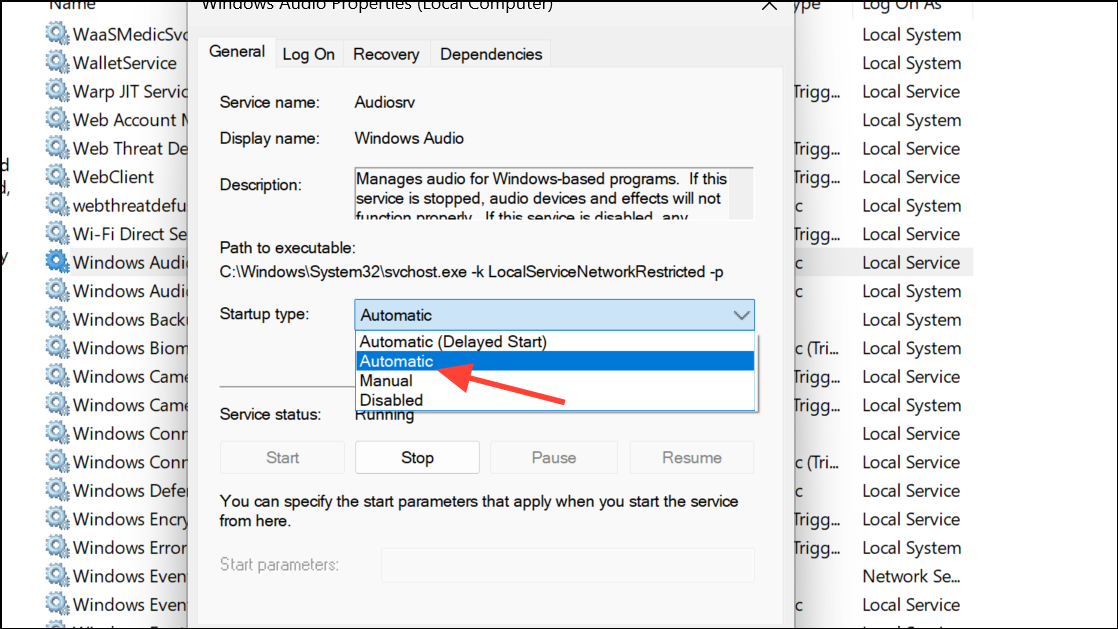
Disable Audio Effects
Audio effects or “enhancements” may cause compatibility problems after updates, resulting in silence or distortion.
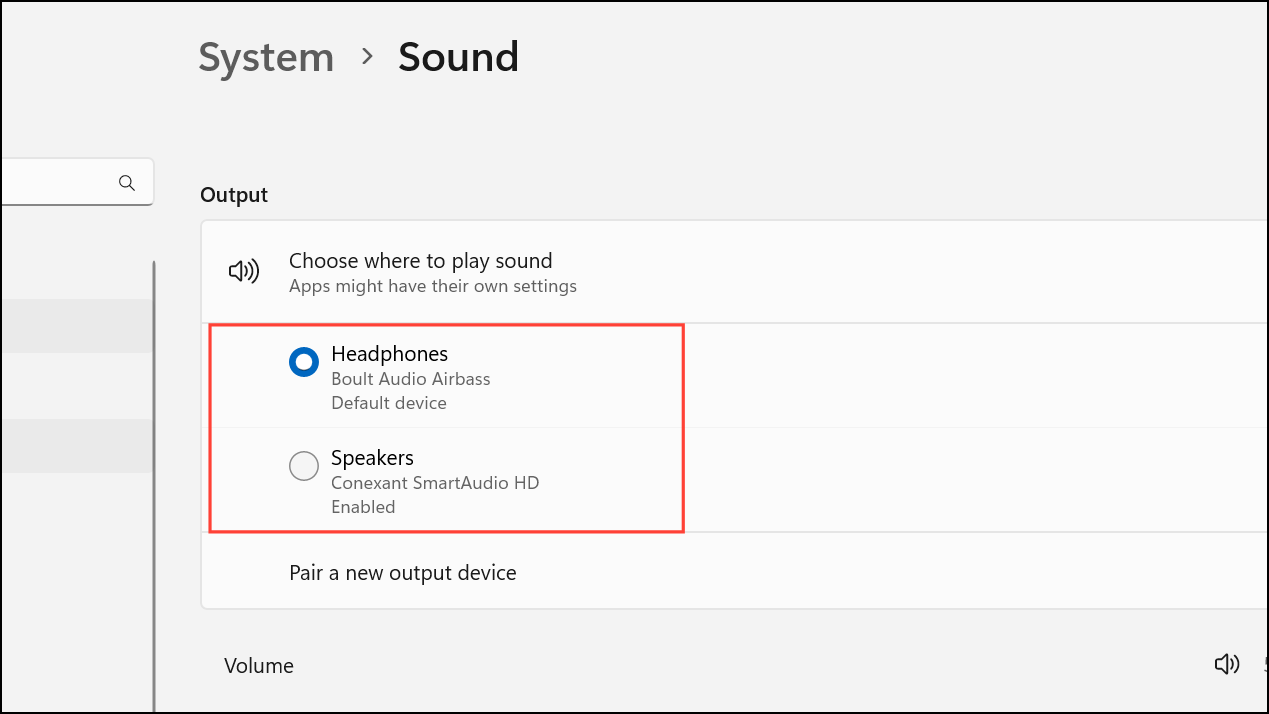
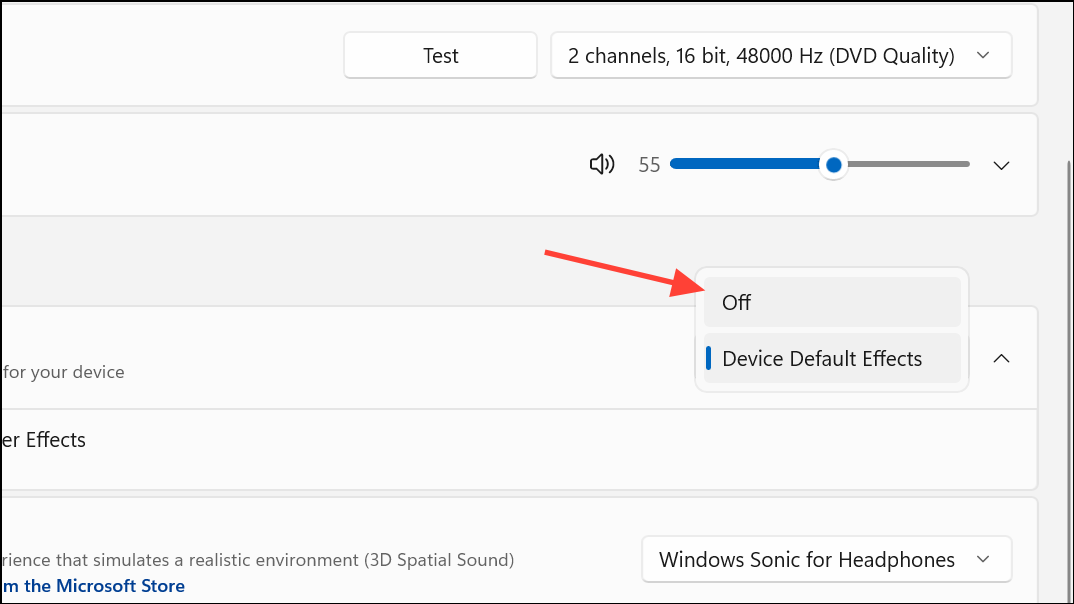
Alternatively, right-click the speaker icon, go to Sounds, select your playback device, click Properties, and disable all enhancements under the Enhancements tab.
Check Physical Connections and Hardware
Loose or incorrectly placed cables, unplugged speakers, or malfunctioning ports can appear as software problems.
Restore System or Reinstall Windows (Last Resort)
If none of the above steps restore audio, a system restore or a clean Windows installation may be required. This approach reverts your PC to a previous state where sound was functioning or completely refreshes your operating system.
System Restore in the Start menu and follow the prompts to restore from a point before the update.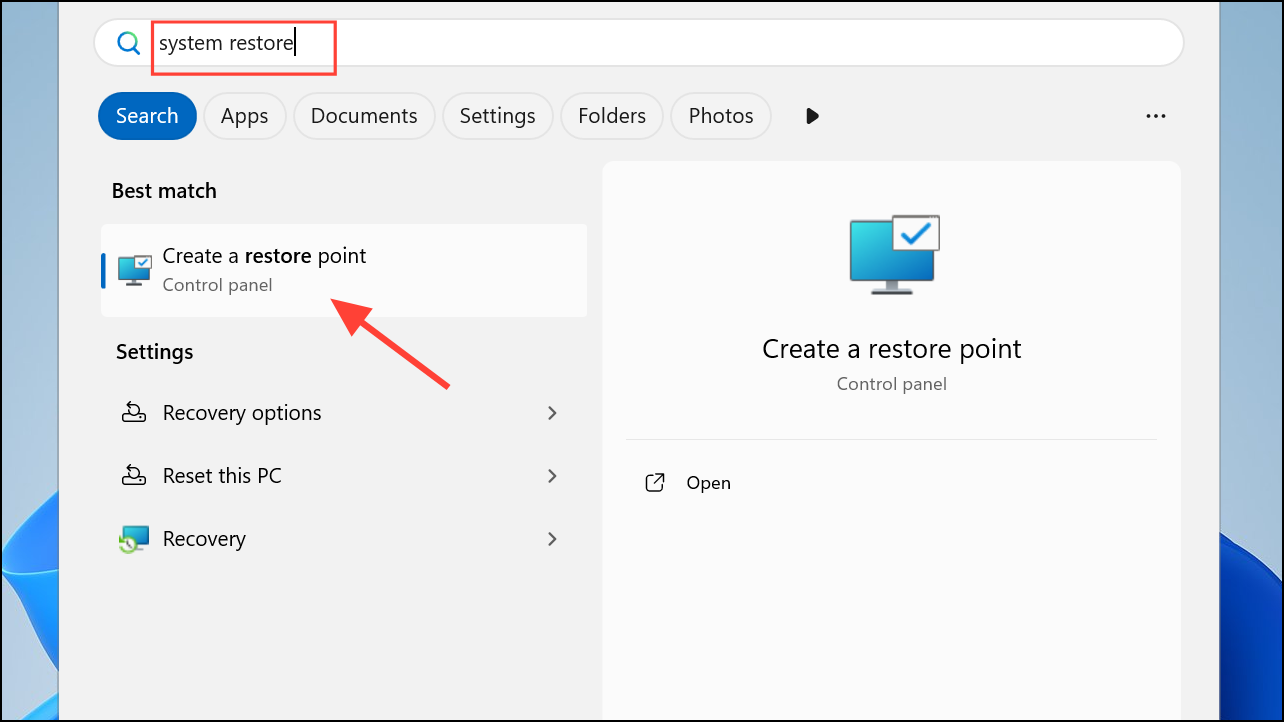
Regularly updating drivers from your device manufacturer and checking sound settings after major updates can prevent audio problems in the future. If problems persist, contacting official support or your hardware vendor may be necessary for hardware diagnostics.



