
Windows 11 updates require a minimum amount of free storage on your system drive—typically the C: drive—to download, unpack, and install new files. When your PC reports a “not enough disk space” error during an update, the process halts until you provide the required space. This can happen even if you have plenty of storage on other drives or external devices, because Windows primarily uses the system partition for updates. Below are proven methods to resolve this error and complete your Windows 11 update successfully.
Free Up Disk Space Using Built-In Windows Tools
Before resizing partitions, try removing unnecessary files and applications to reclaim storage on your system drive. Windows includes several utilities to help you identify and delete files safely.
Disk Cleanup by typing it into the Start menu search bar. Select your C: drive, then check file types such as temporary files, system logs, and previous Windows installations. Click “OK” to delete the selected items.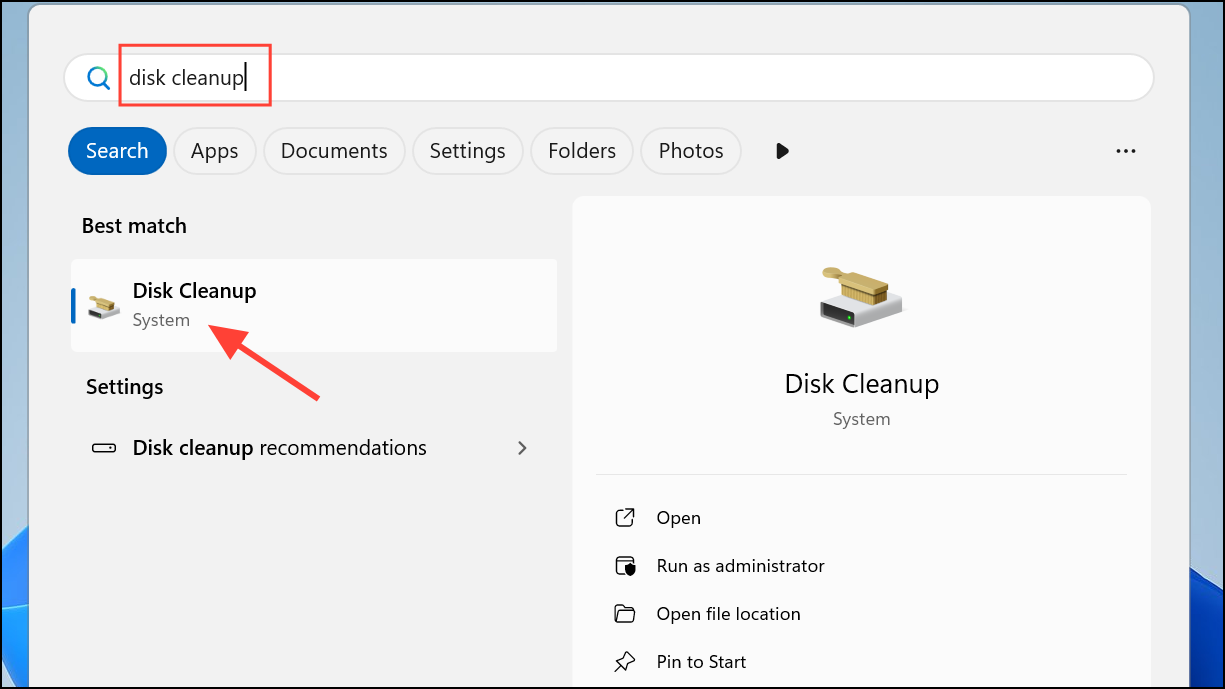
Settings > System > Storage and enable Storage Sense. This feature automatically deletes unused files, empties the Recycle Bin, and clears temporary files according to your preferences. You can also use “Cleanup recommendations” to review large or unused files, cloud-synced files, and unused apps for removal.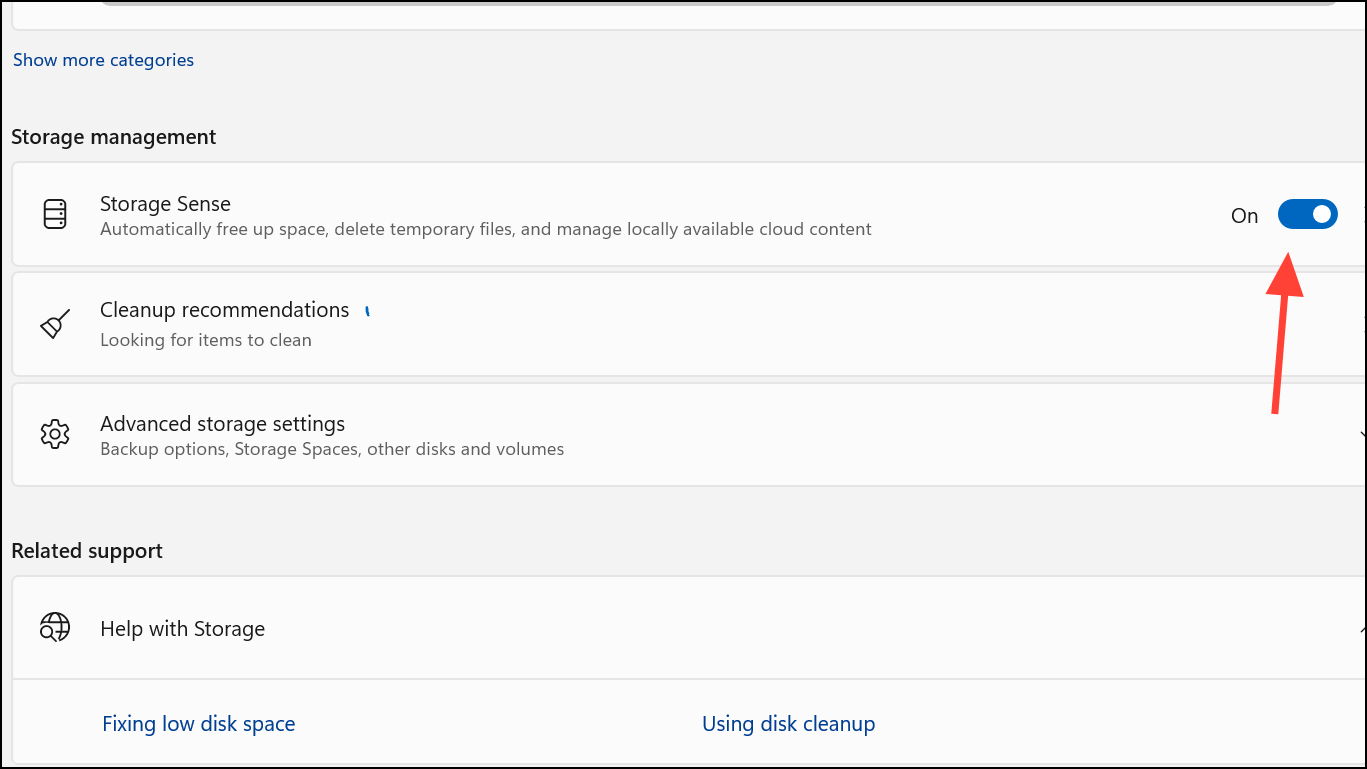
Settings > Apps > Installed Apps. Select the app and choose “Uninstall.”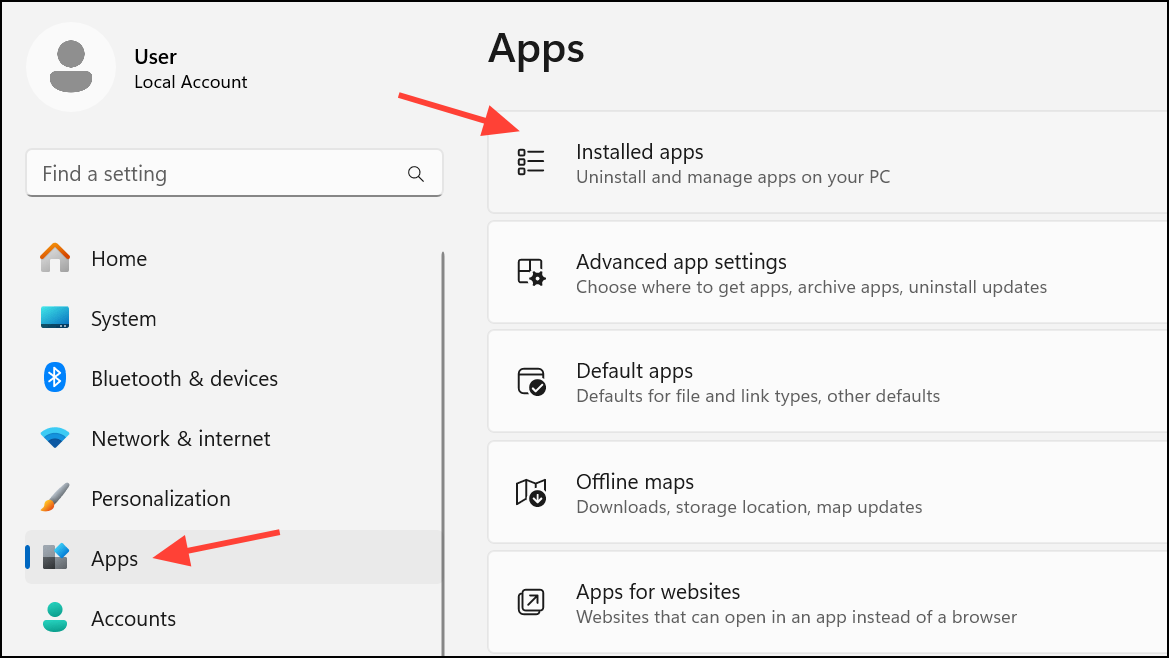
These steps can reclaim several gigabytes of space, often enough to allow the update to proceed without further intervention.
Use an External Storage Device During the Update
When you still lack sufficient internal space after cleanup, Windows 11 allows you to use an external drive—such as a USB flash drive or SD card—to temporarily store update files. This approach is especially useful for devices with limited built-in storage, like tablets or small SSD laptops.
Settings > Windows Update. If Windows detects insufficient space, you’ll see a “Fix issues” option. Click it to launch the update assistant.Note that you still need a minimum amount of free space on your system drive for the update to succeed—usually at least 8 GB. The external device supplements, rather than replaces, this requirement.
Move Personal Files and User Folders to Another Drive
Relocating personal files or entire user folders (such as Documents, Pictures, and Downloads) to another internal or external drive can quickly clear space on your C: drive without deleting important data.
This method is particularly effective for users with a secondary internal drive (such as D:) or a large external drive. If you encounter permission errors, ensure you have administrative privileges, or try moving individual files instead of entire folders.
Disable Hibernation and Adjust Virtual Memory Settings
Hibernation and virtual memory (pagefile) features create large hidden files on your system drive, sometimes consuming several gigabytes. Disabling or reducing these features can free up significant space, especially on devices with limited storage.
cmd in the Start menu, right-clicking, and selecting “Run as administrator.” To disable hibernation, enter the following command and press Enter:powercfg /hibernate off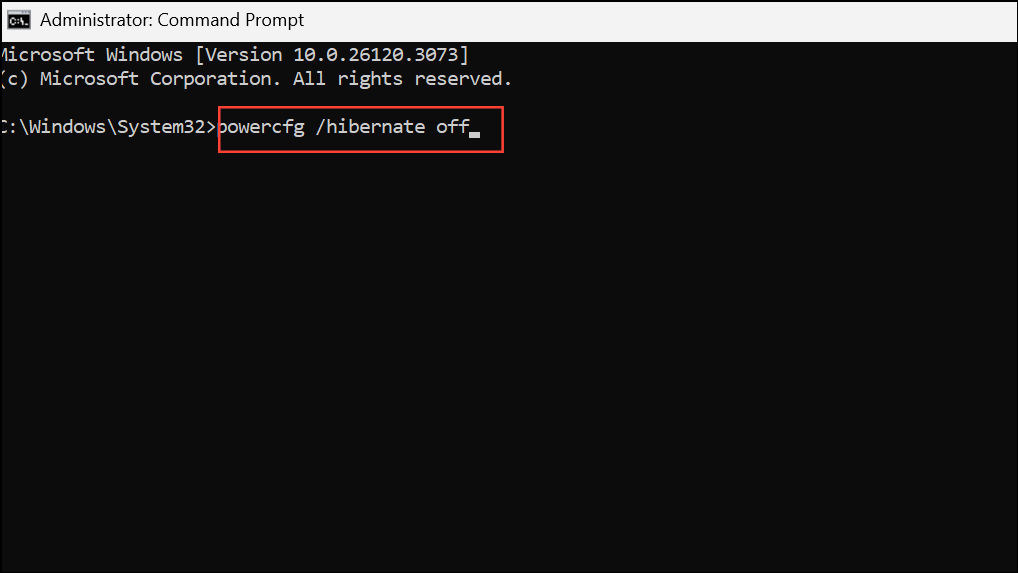
This command deletes the hiberfil.sys file, freeing up space immediately. If you want to re-enable hibernation later, use powercfg /hibernate on.
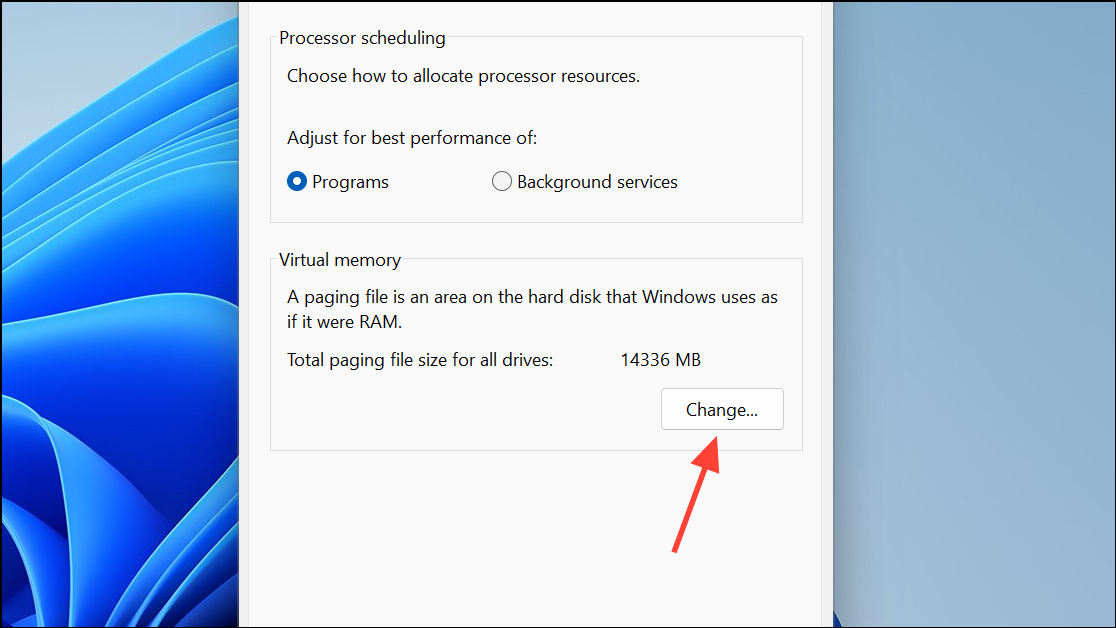
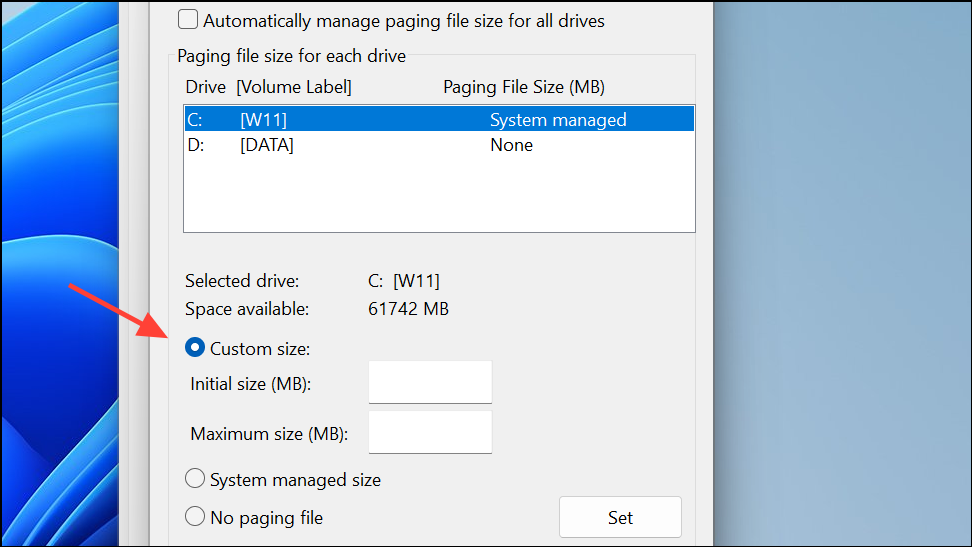
Reducing or disabling virtual memory may impact performance if your system runs out of RAM, so only use this method temporarily to complete the update.
Check for Disk Errors and Hidden Storage Issues
Corrupted file systems or hidden disk quotas can cause Windows to misreport available space, triggering update errors even when you appear to have enough storage.
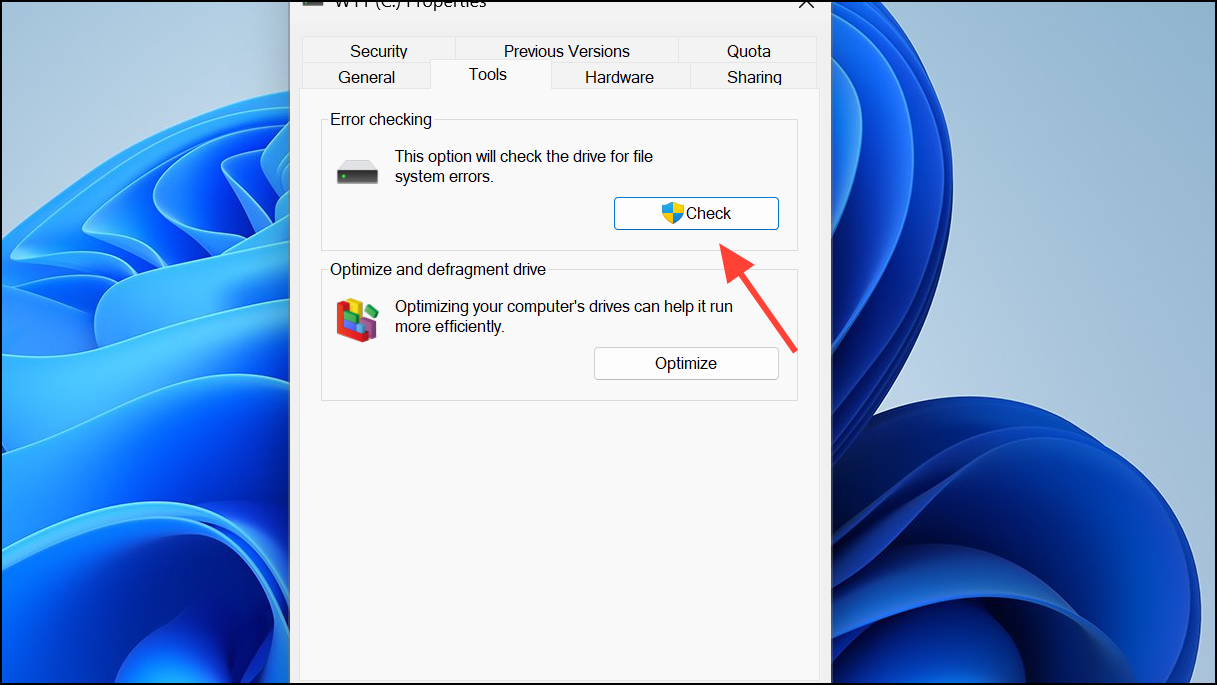
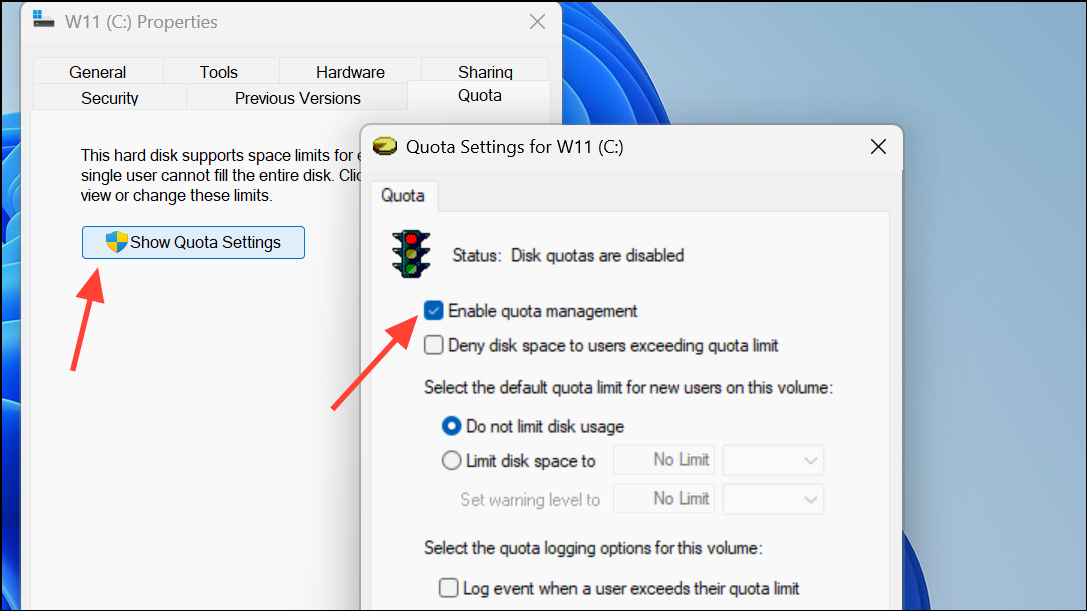
These steps resolve hidden issues that can block updates, especially on systems managed by organizations or with complex storage setups.
Extend the System Partition to Increase Free Space
Expanding the C: drive is the most effective way to resolve disk space errors during Windows 11 updates, especially if your drive is nearly full and other cleanup methods haven’t provided enough space. By allocating additional unallocated or unused space from other partitions to your C: drive, you directly address the root cause of the update failure.
By expanding your system partition, cleaning up files, using external storage, or tweaking system settings, you can resolve “not enough disk space” errors and keep your Windows 11 installation current. Regularly monitoring your storage and moving large files off your C: drive will help prevent future update interruptions.



