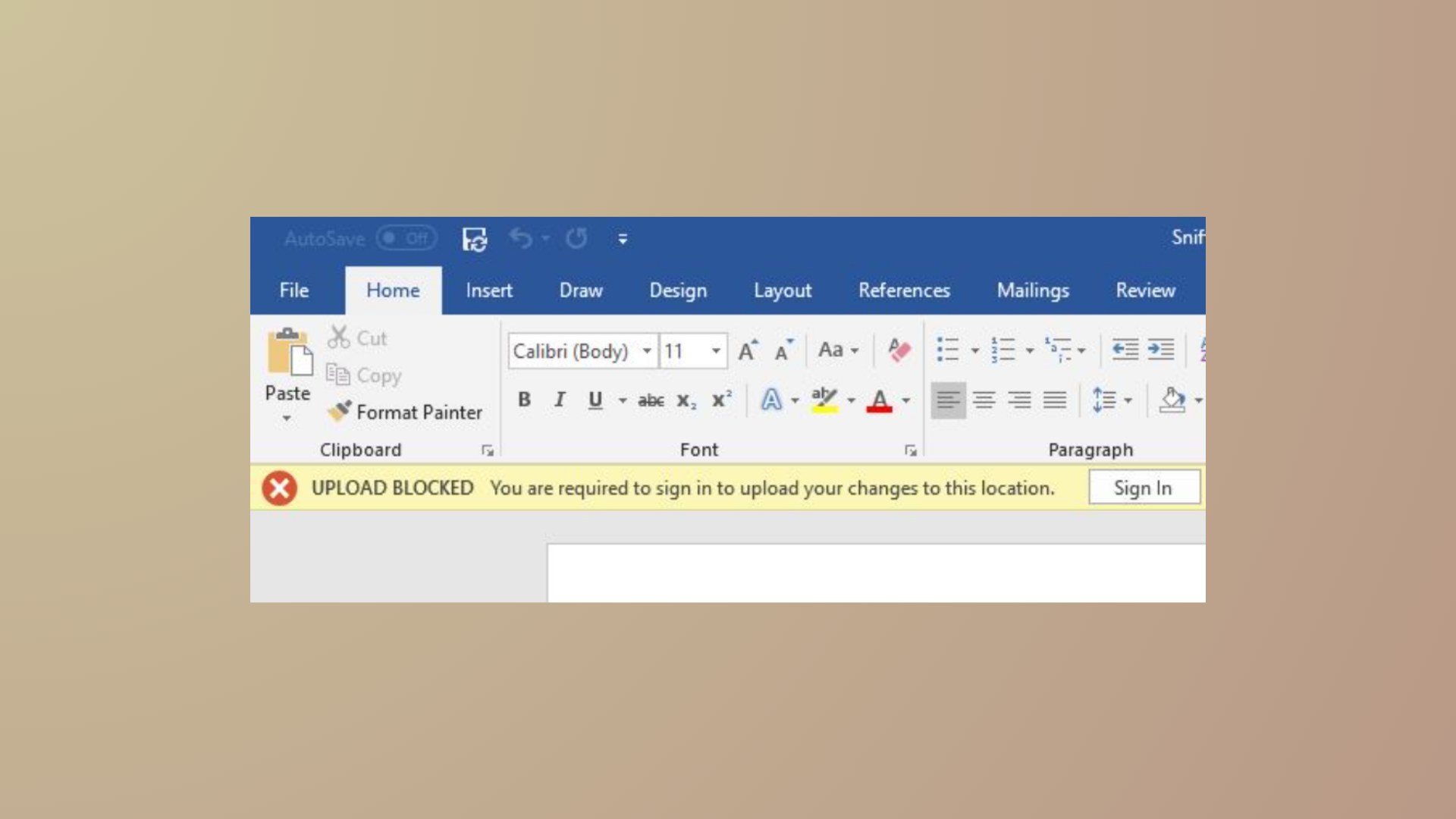
OneDrive failing to launch at Windows startup interrupts seamless file syncing, forcing users to open the app manually every session. This issue often traces back to disabled startup settings, conflicting group policies, or registry values that block OneDrive from auto-starting. Addressing these root causes restores automatic launches and keeps your files synchronized without extra effort.
Check and Enable OneDrive Startup Settings
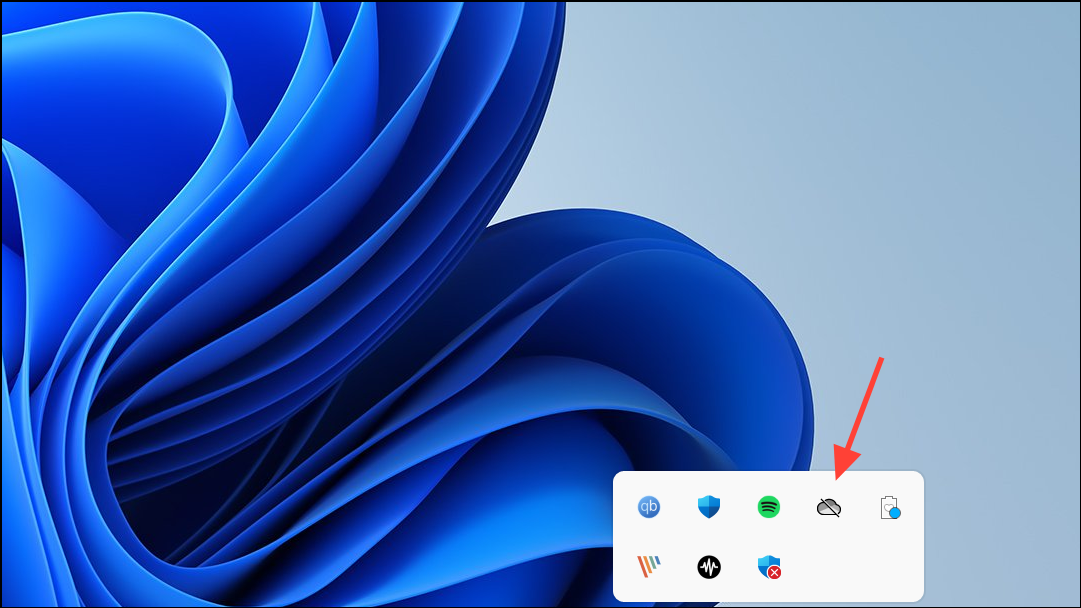
Start OneDrive automatically when I sign in to Windows is checked. This setting directs Windows to launch OneDrive every time you log in.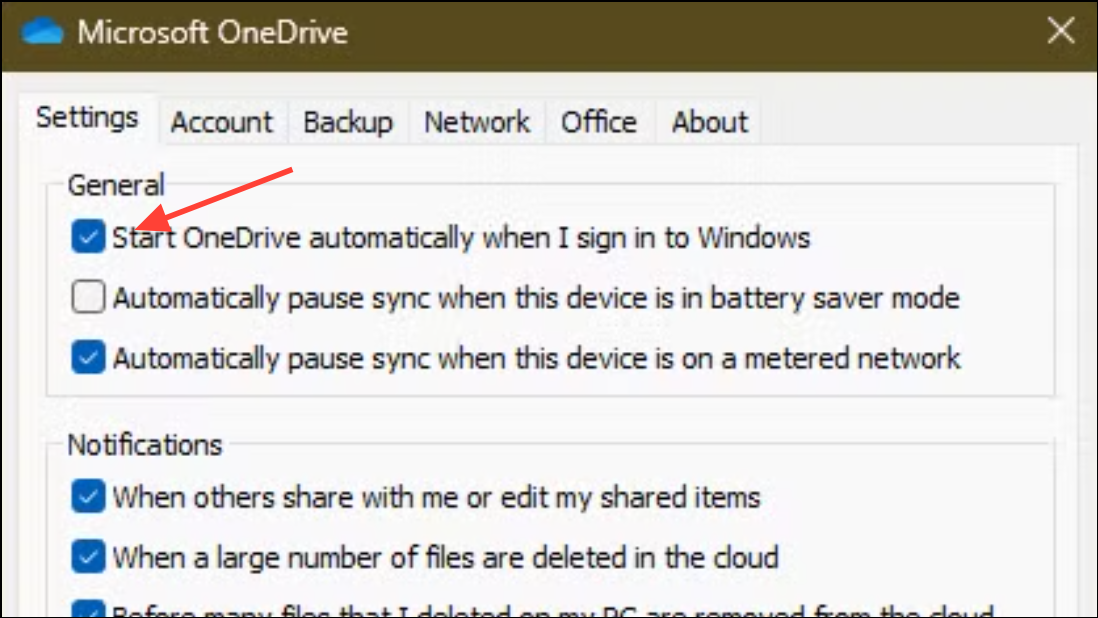
Enable OneDrive in Windows Startup Apps
Ctrl + Shift + Esc to open Task Manager. Alternatively, right-click the taskbar and select Task Manager.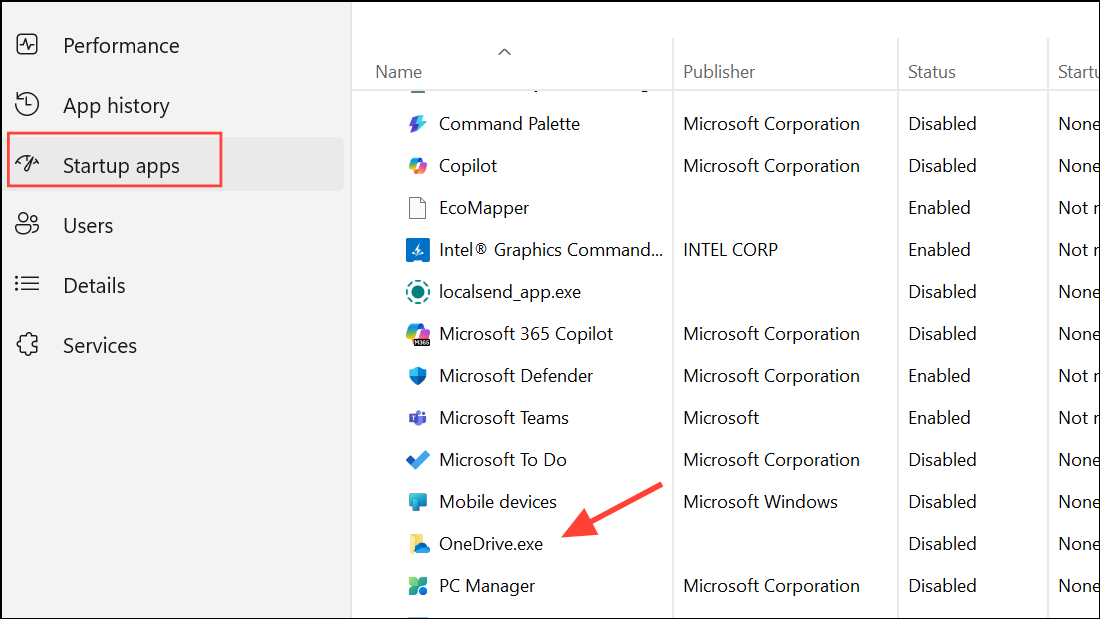
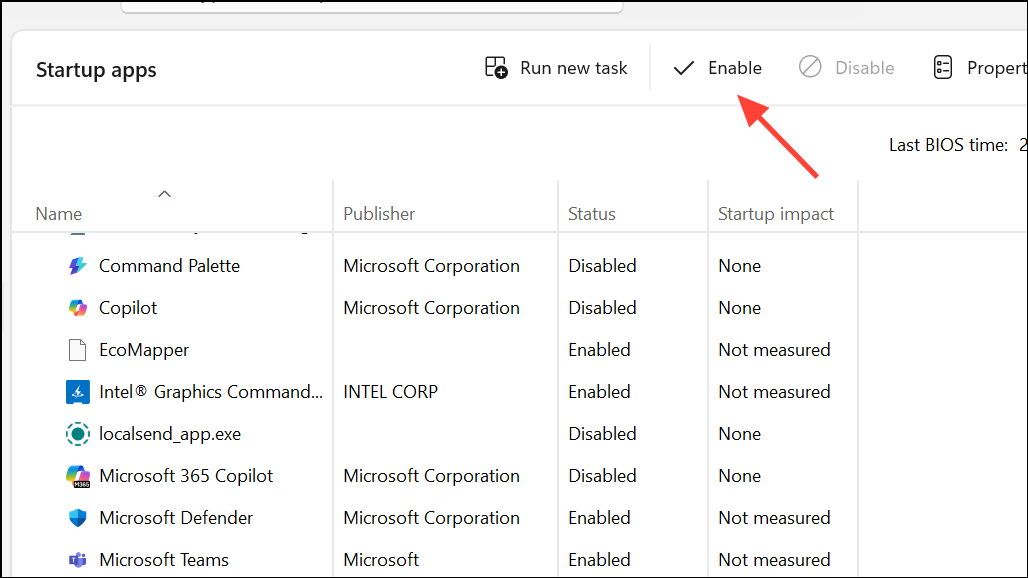
Modify Registry to Allow OneDrive Startup
Sometimes, group policies or registry keys prevent OneDrive from launching at startup, especially on devices managed by organizations or after certain Windows updates.
Windows + R to open the Run dialog, then type regedit and press Enter. Click Yes if prompted by User Account Control.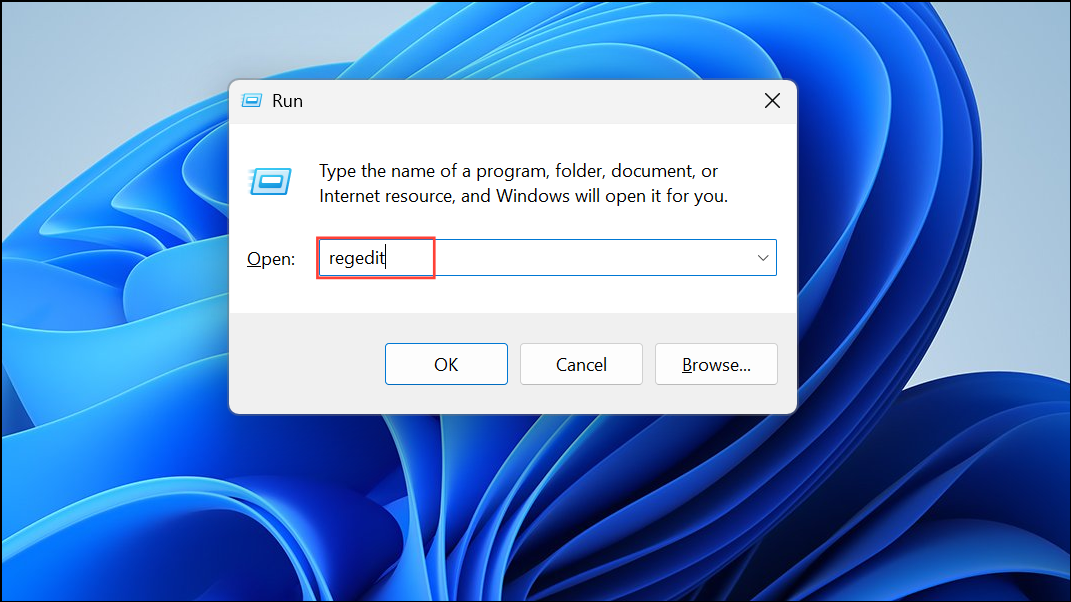
HKEY_LOCAL_MACHINE\Software\Policies\Microsoft\Windows\OneDriveIf you don’t see the OneDrive key, skip to the next section. Otherwise, check for a value named DisableFileSyncNGSC.
DisableFileSyncNGSC. If its value is set to 1, OneDrive is blocked from running. Change the value to 0 and click OK.Reset OneDrive Application
Corrupted OneDrive settings or files can prevent the app from starting with Windows. Resetting OneDrive restores default configurations without deleting your files.
OneDrive. Right-click the result and select Open file location.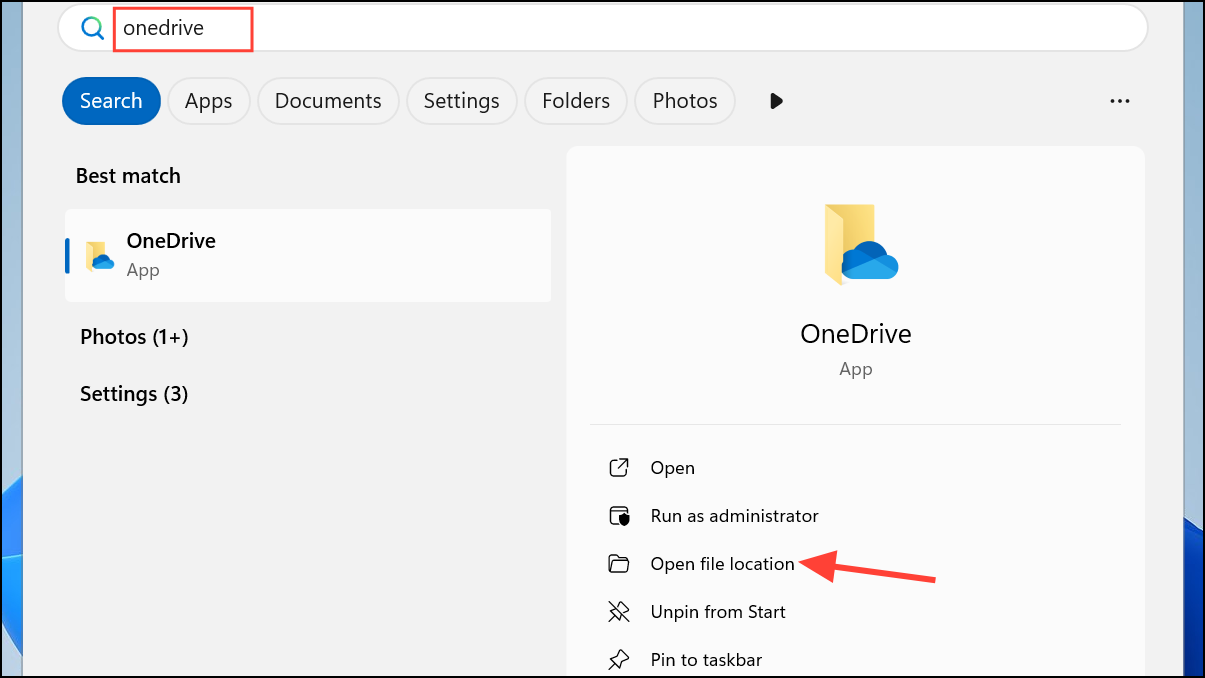
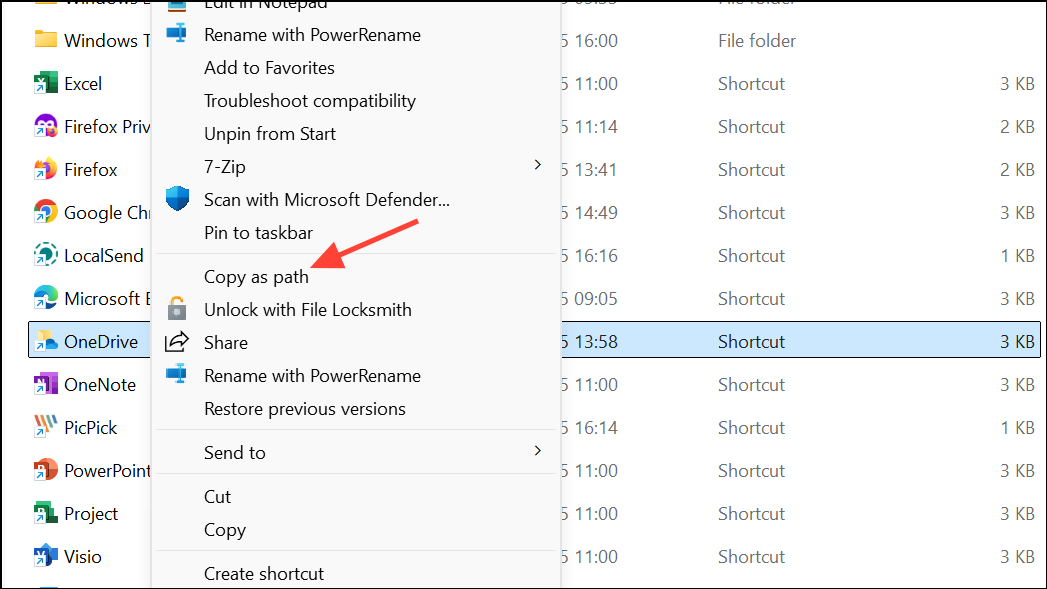
Windows + R to open the Run dialog. Paste the copied path and add /reset at the end. For example:"C:\Program Files\Microsoft OneDrive\OneDrive.exe" /reset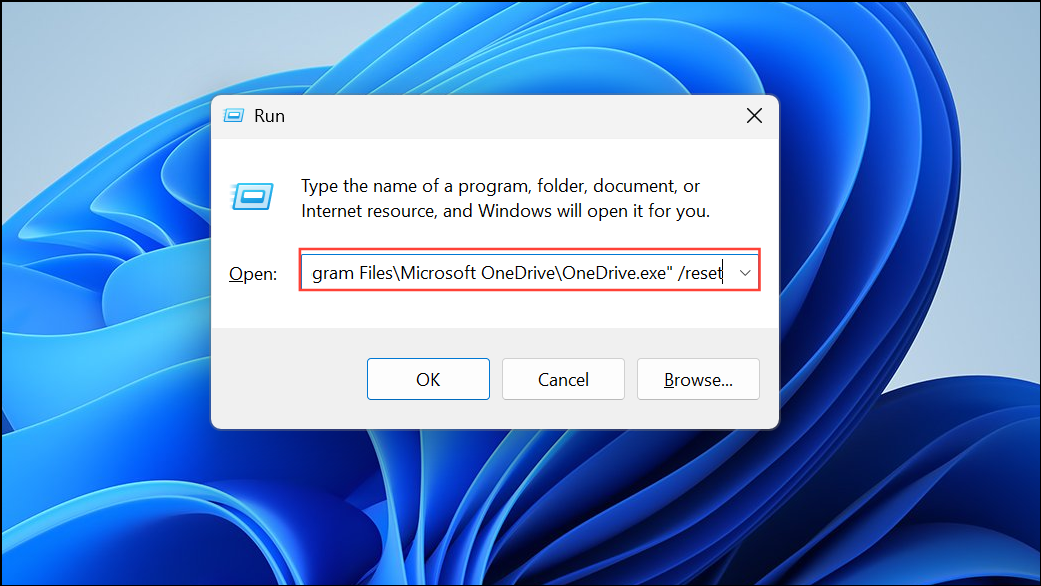
Click OK to run the reset command. Wait a few minutes for OneDrive to reset, then restart your computer. Open OneDrive and check its settings to ensure automatic startup is enabled.
Add or Repair OneDrive Startup Registry Entry
If the OneDrive startup entry is missing from the registry, adding it manually can resolve persistent startup issues.
HKEY_CURRENT_USER\Software\Microsoft\Windows\CurrentVersion\Run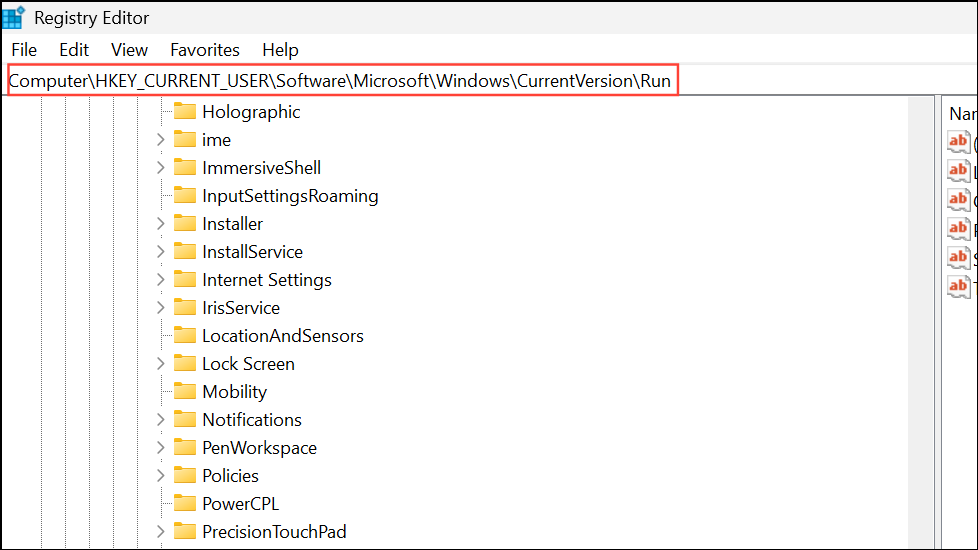
OneDrive. If it’s missing, right-click in the right pane and choose New > String Value. Name it OneDrive.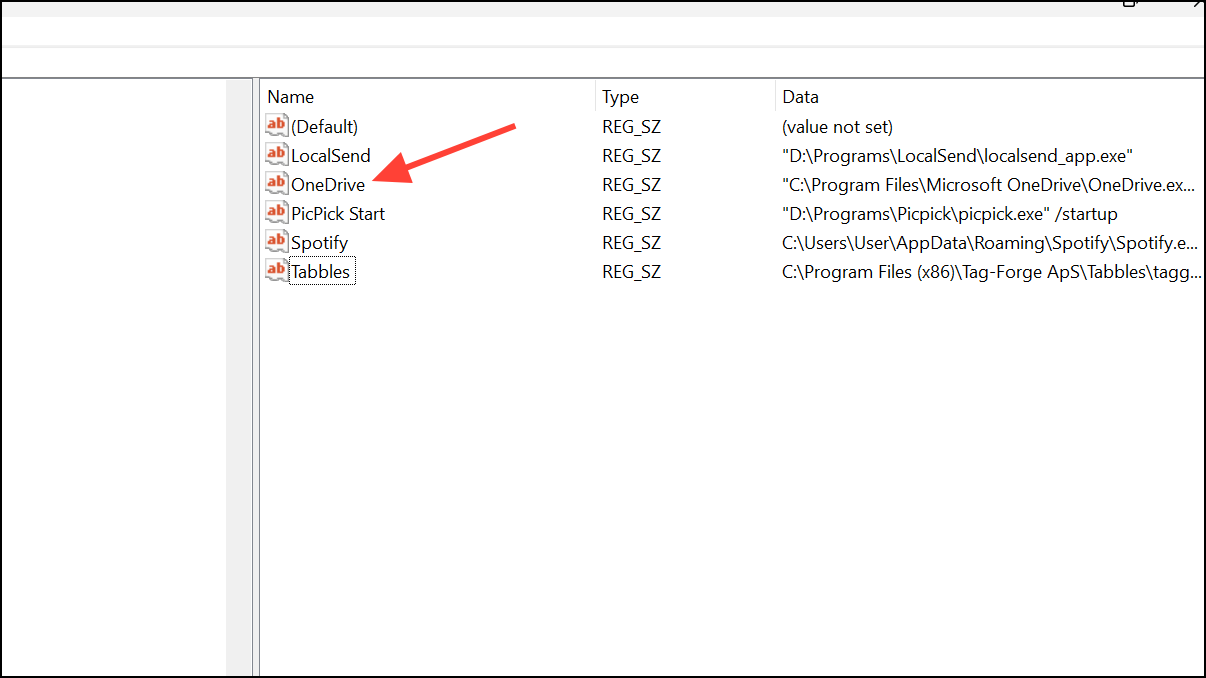
"C:\Program Files\Microsoft OneDrive\OneDrive.exe" /background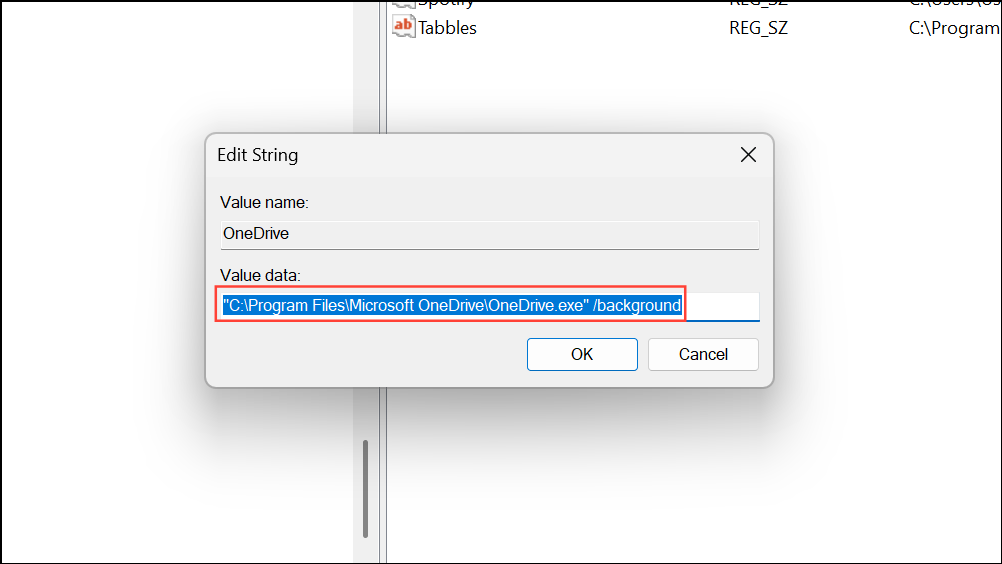
Click OK and restart your computer. This registry entry instructs Windows to start OneDrive in the background at login.
Uninstall and Reinstall OneDrive
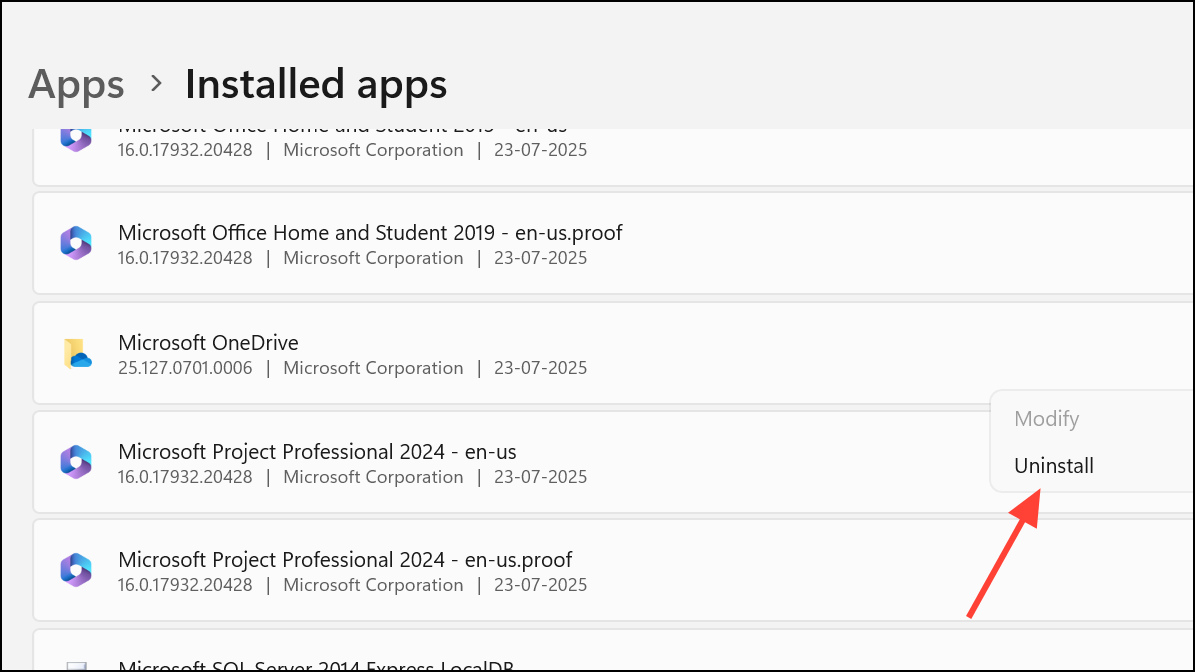
If all previous steps fail and OneDrive still does not start automatically, reinstalling the application can resolve software corruption or misconfiguration.
Windows + I, then go to Apps > Installed apps (or Apps & features in older versions).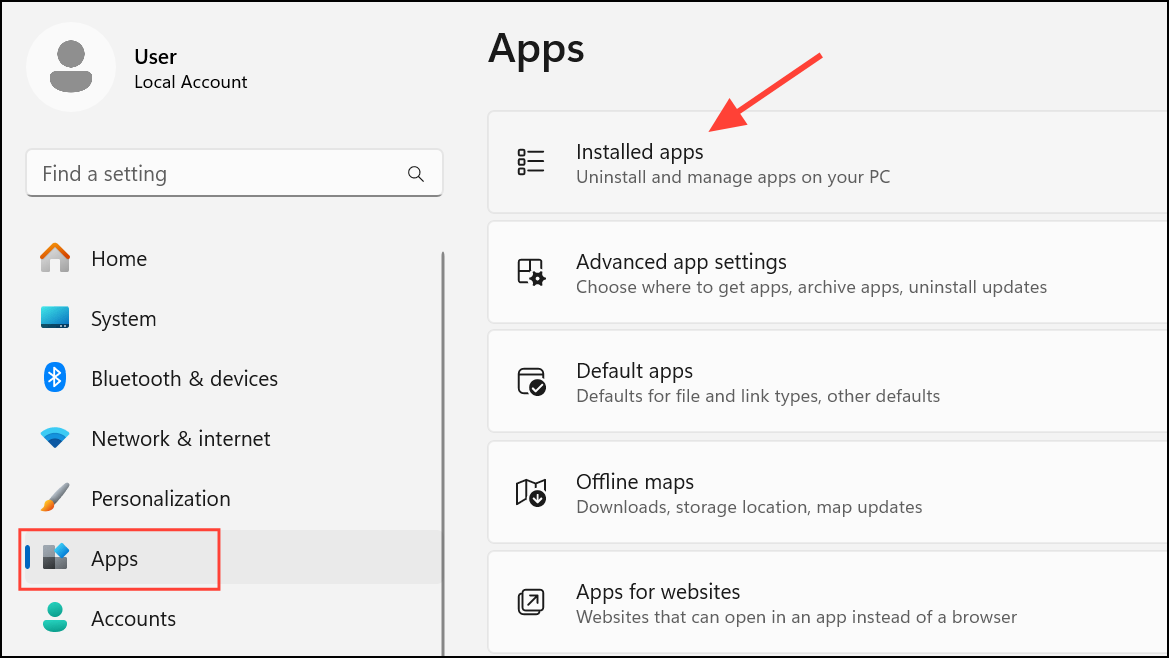
Check for Group Policy or MDM Restrictions (Advanced)
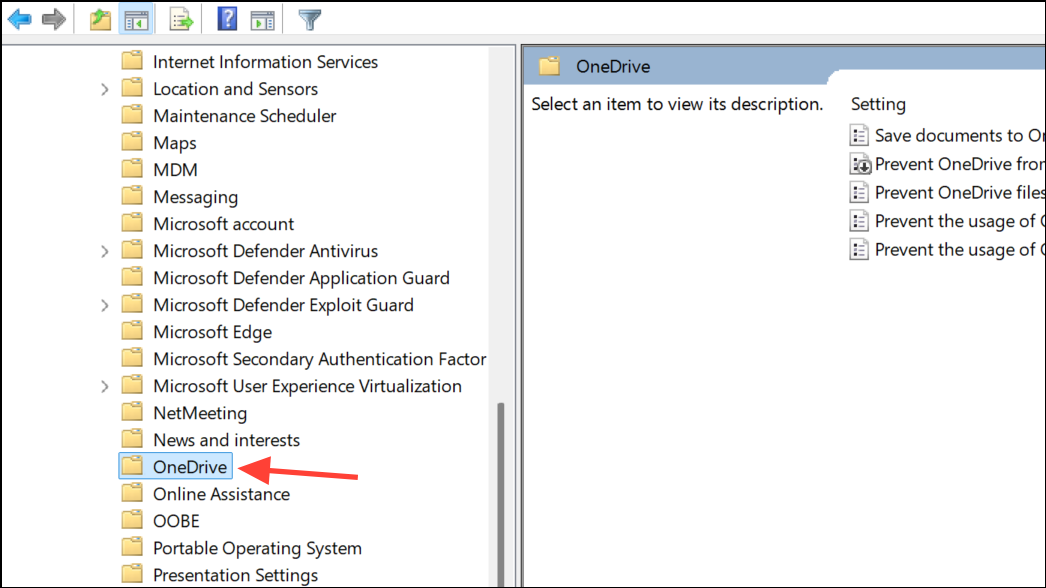
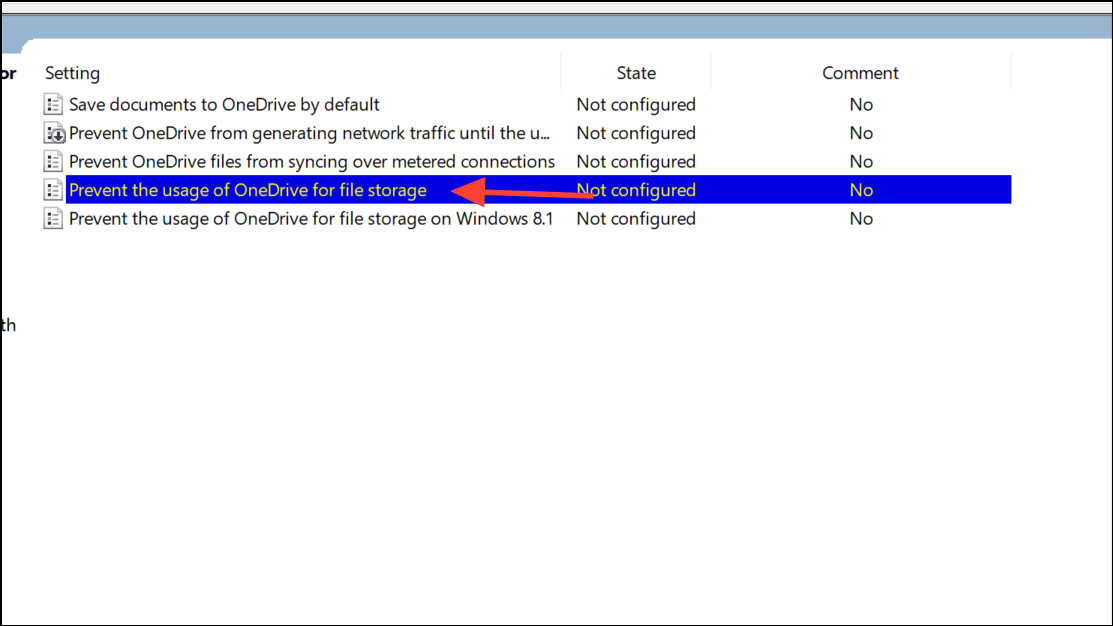
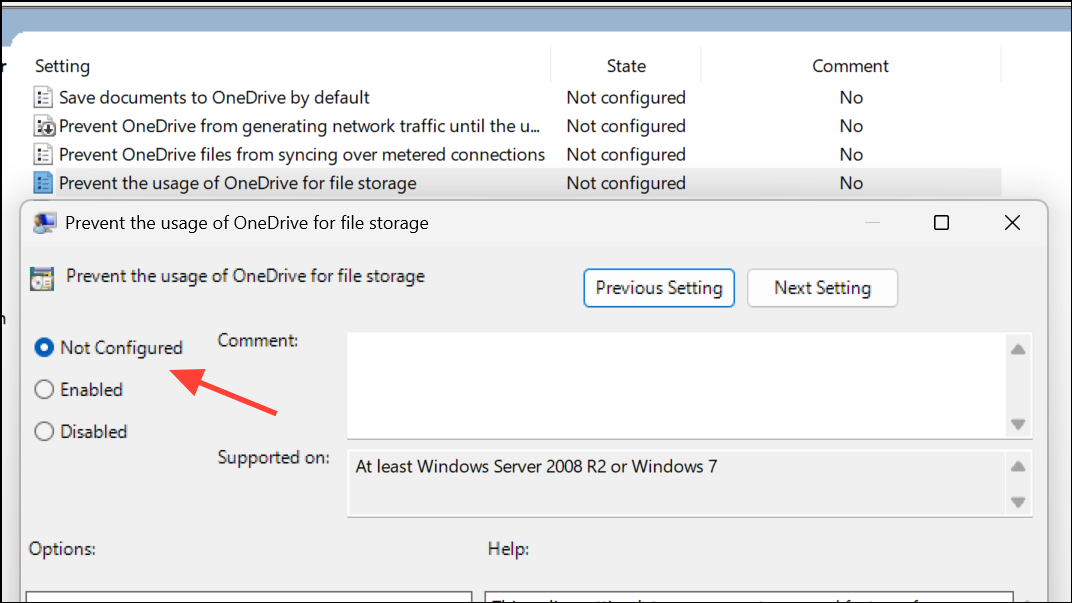
On devices managed by organizations, group policies or mobile device management (MDM) profiles may override user settings and block OneDrive from running at startup.
Windows + R, typing gpedit.msc, and pressing Enter.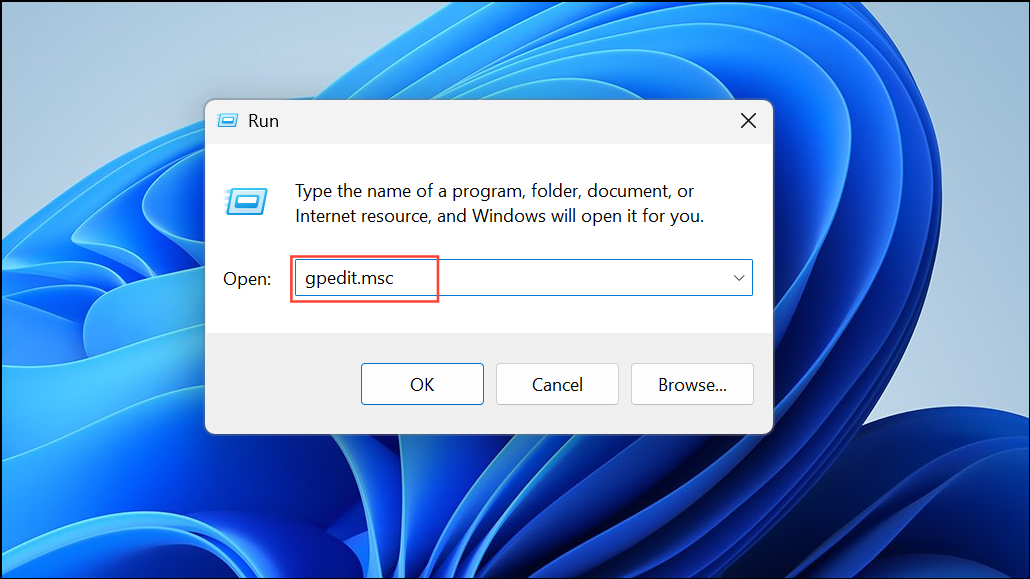
Restoring OneDrive’s automatic startup ensures your files remain synchronized and accessible as soon as you log in. If issues persist after these steps, checking for Windows updates or seeking IT support may be necessary for deeper troubleshooting.