How to Fix OneDrive Personal Vault Not Showing in Windows 11
Follow these troubleshooting steps to restore access to your Personal Vault in OneDrive on Windows 11.
Follow these troubleshooting steps to restore access to your Personal Vault in OneDrive on Windows 11.
by Pallav Pathak
The OneDrive Personal Vault provides an extra layer of security for sensitive files, but occasionally, it may fail to appear in Windows 11’s File Explorer. This problem usually stems from synchronization issues, incorrect settings, or outdated software. Follow these detailed steps to resolve the issue and regain access to your protected files.
Method 1: Update and Restart OneDrive
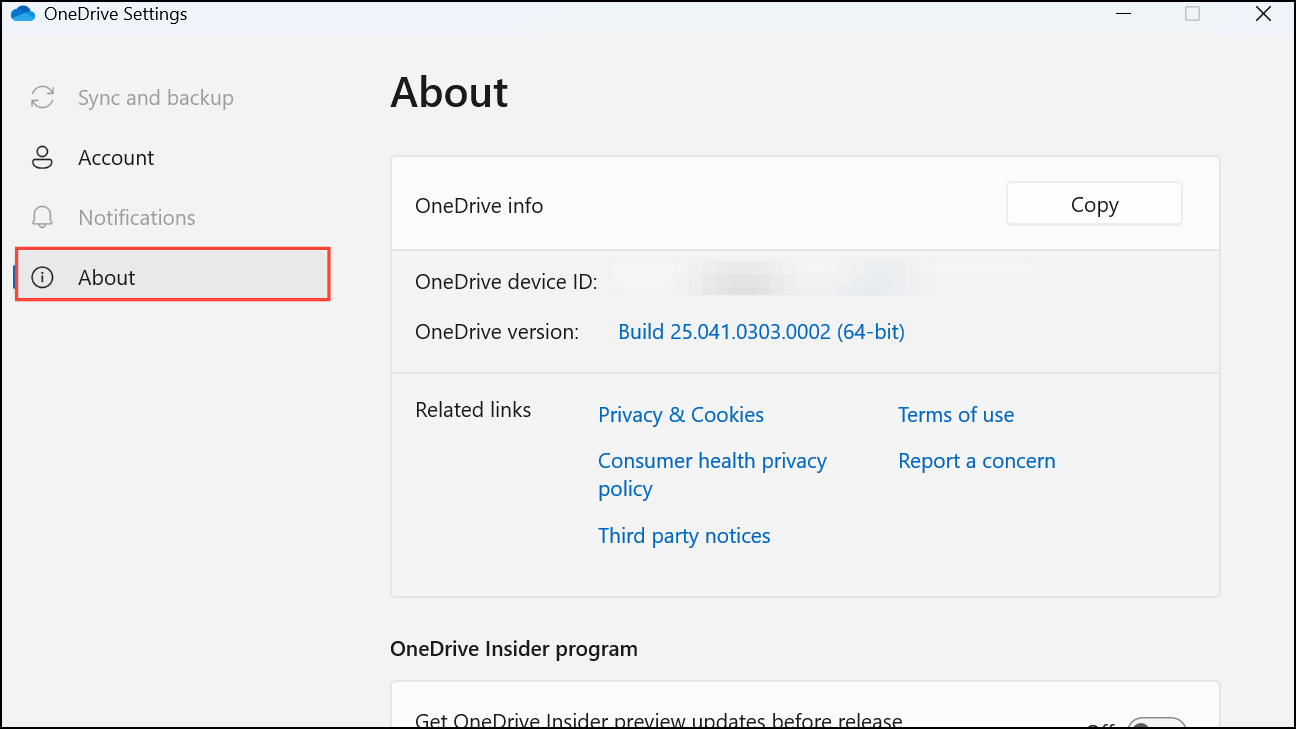
One of the most common reasons the Personal Vault doesn’t show up is due to an outdated or unresponsive OneDrive client. Updating and restarting OneDrive typically resolves this.
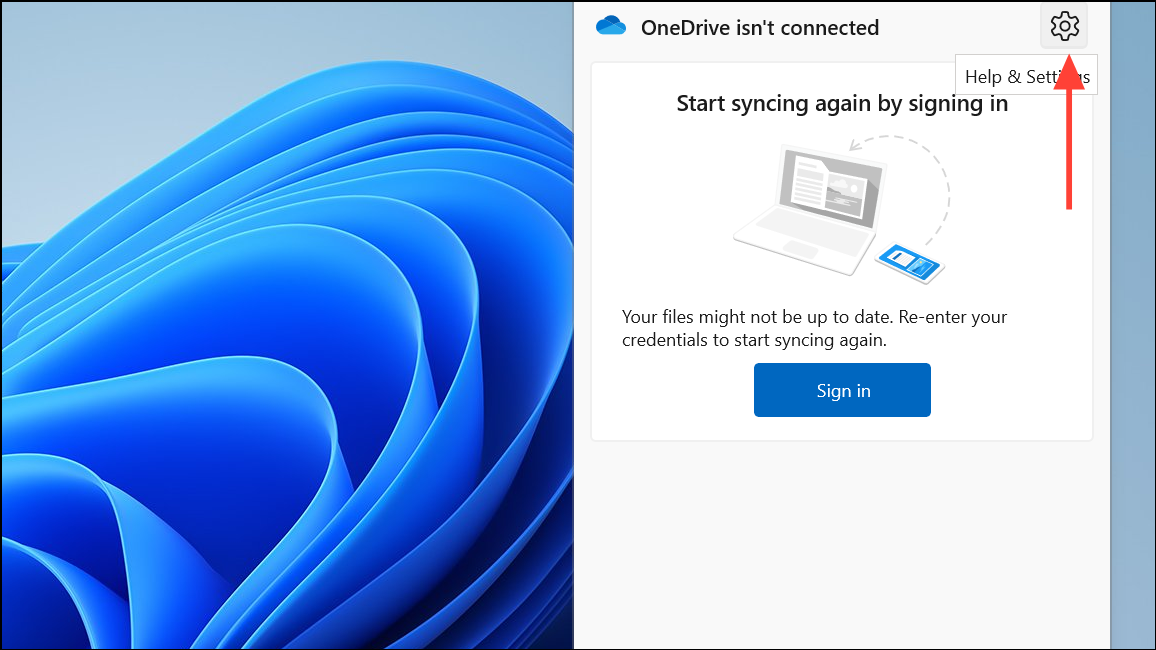
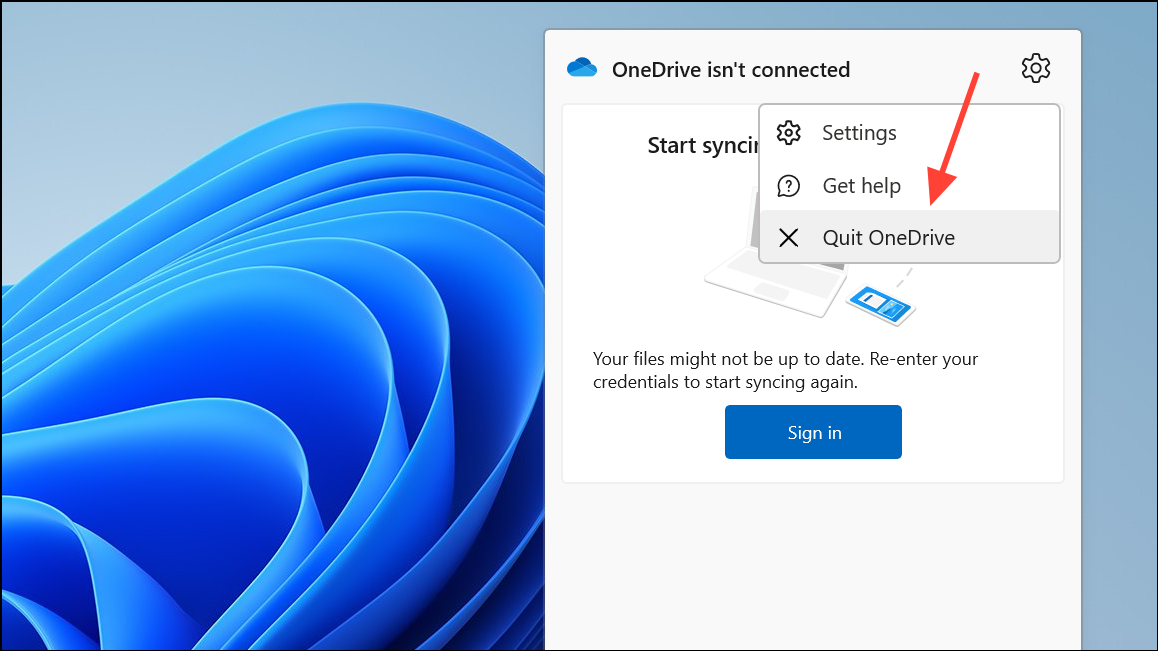
Restart the OneDrive app to refresh its connection. Right-click the OneDrive icon again and select Quit OneDrive. Then, reopen OneDrive by typing OneDrive into the Windows 11 search bar and select the app.
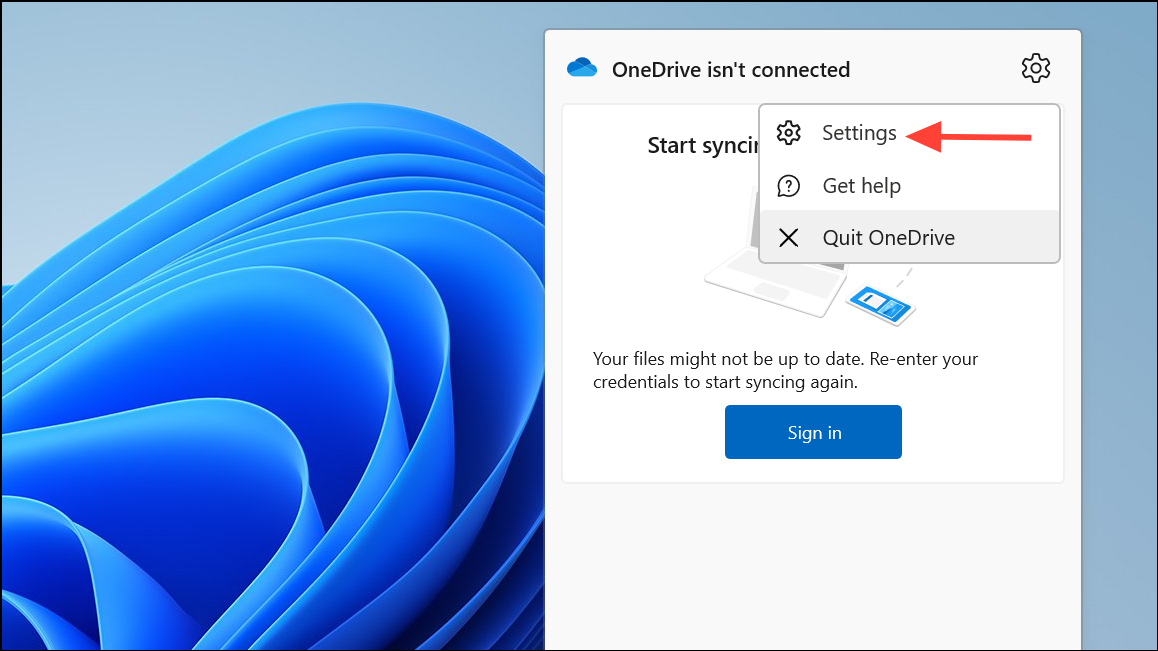
On the storage management page, locate the Personal Vault option and ensure it is activated. If it’s off, toggle it on and follow any prompts provided.
After restarting, download the latest version of OneDrive from the official Microsoft OneDrive website and install it. Follow the installation wizard carefully and sign in with your Microsoft account credentials.
Once installed and synced, open File Explorer to confirm whether the Personal Vault is now visible.
With these methods, you should successfully restore your OneDrive Personal Vault in Windows 11. If the issue persists, consider checking for Windows updates or contacting Microsoft support for further assistance.