Windows 11 systems often experience significant slowdowns when OneDrive is actively syncing or managing a large number of files. File Explorer may become sluggish, CPU usage can spike, and disk activity may increase, especially if OneDrive is handling many files or large data sets. These slowdowns are not always caused by hardware limitations or poor internet connections; instead, they often result from how OneDrive syncs, indexes, and interacts with other software and system settings. Addressing these performance issues requires a combination of targeted configuration changes and troubleshooting steps.
Restart OneDrive to Clear Temporary Issues
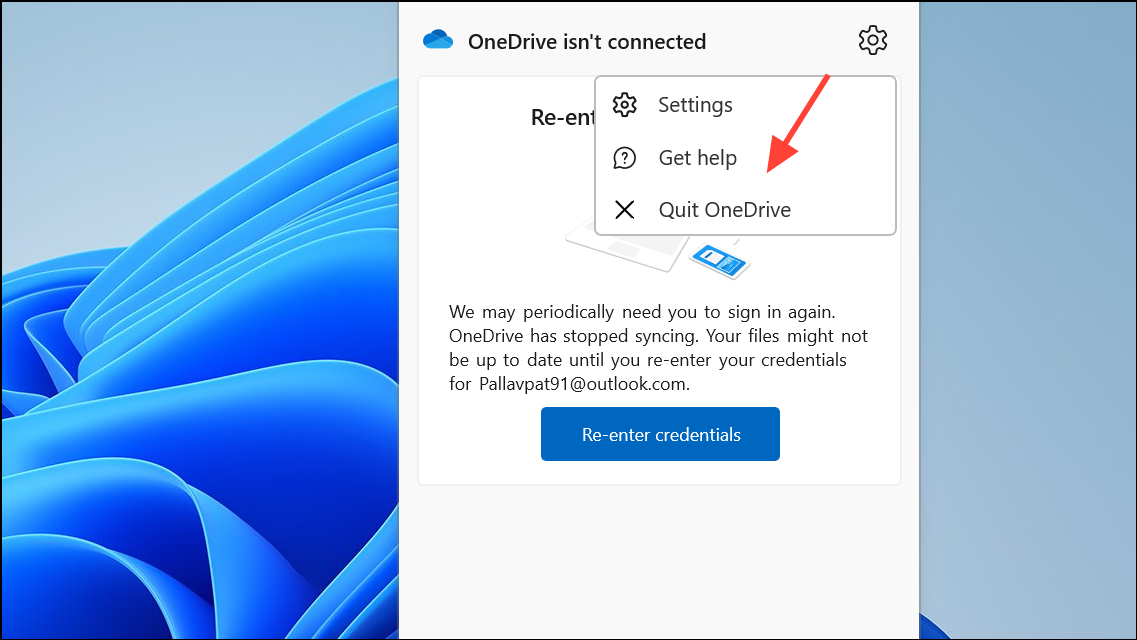
OneDrive and selecting the app. This restart clears temporary glitches that can accumulate during long sync sessions.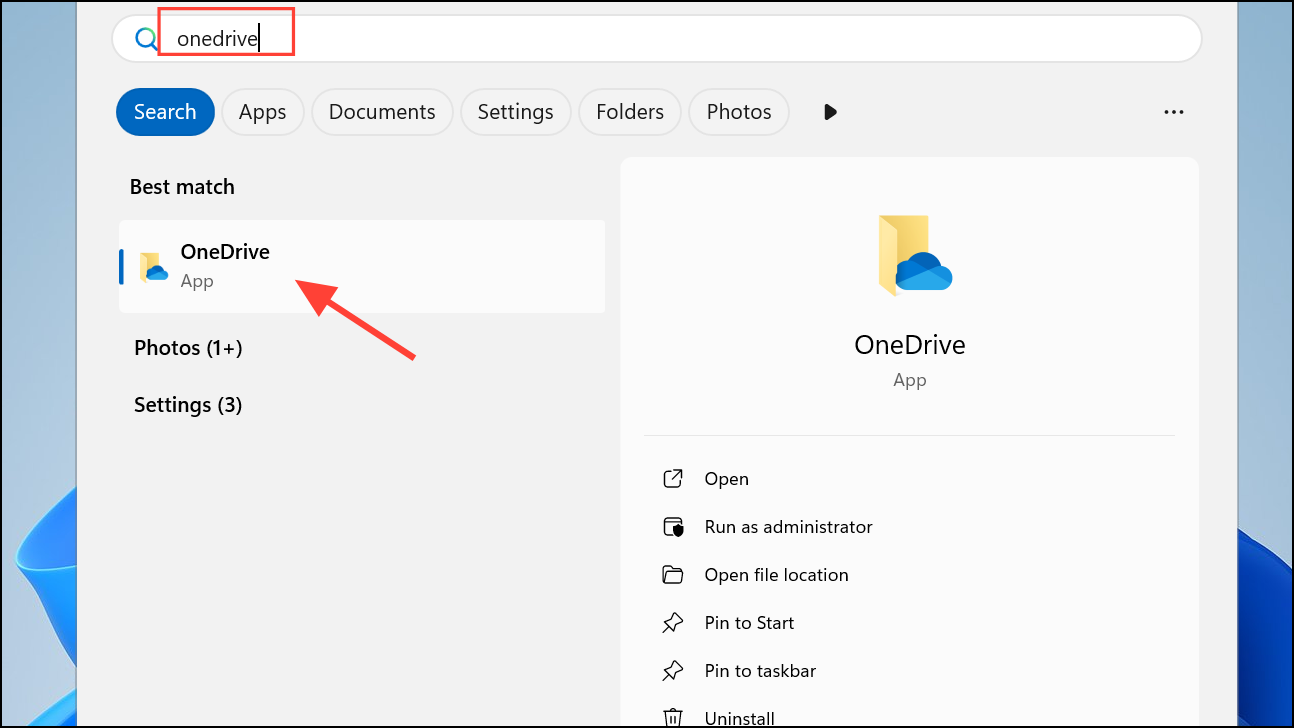
Check and Optimize Internet Connection
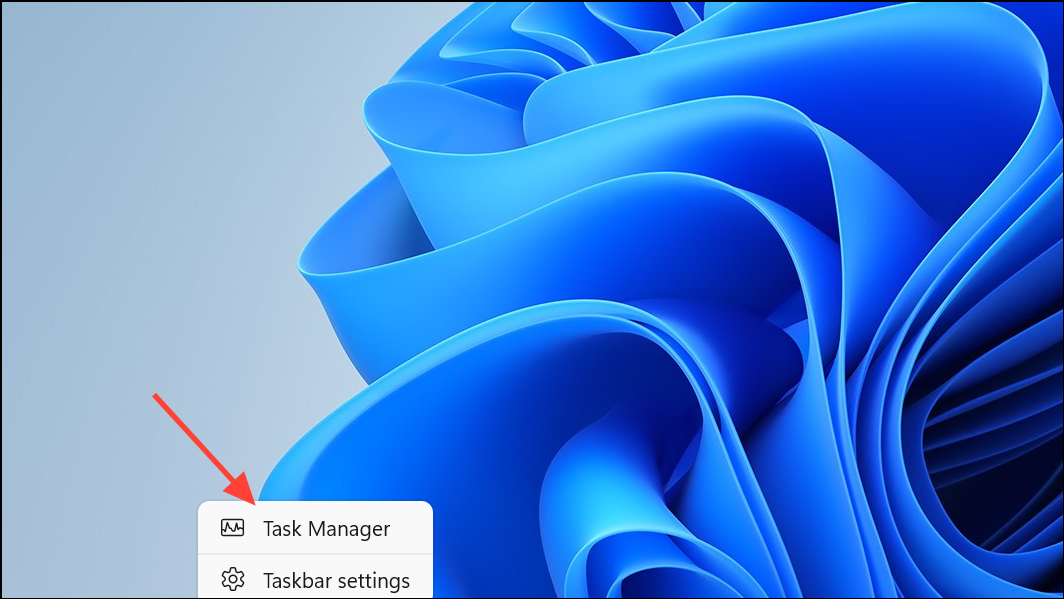
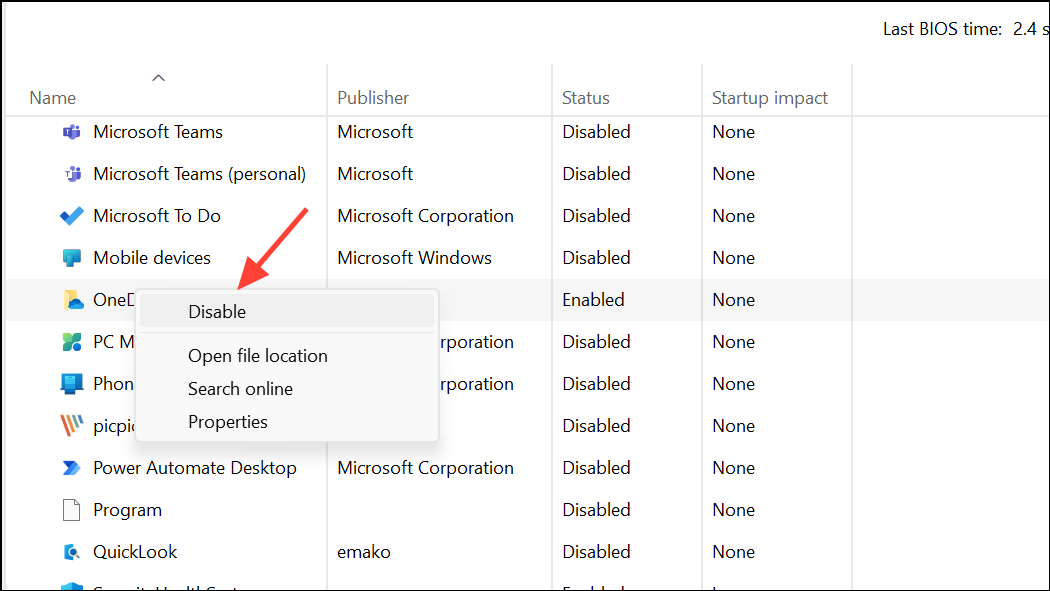
Disable OneDrive from Startup Programs
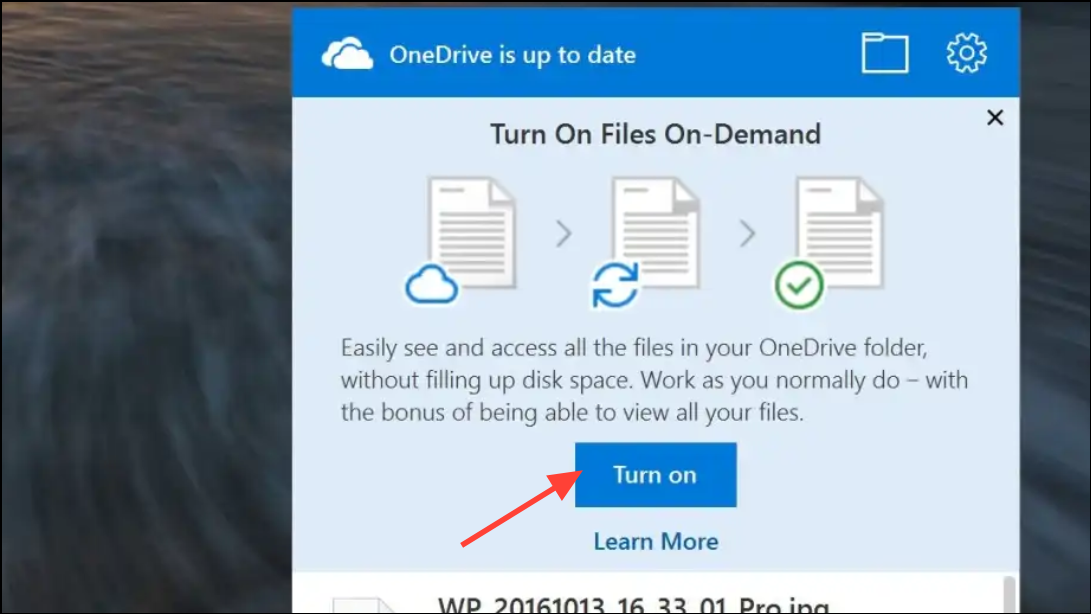
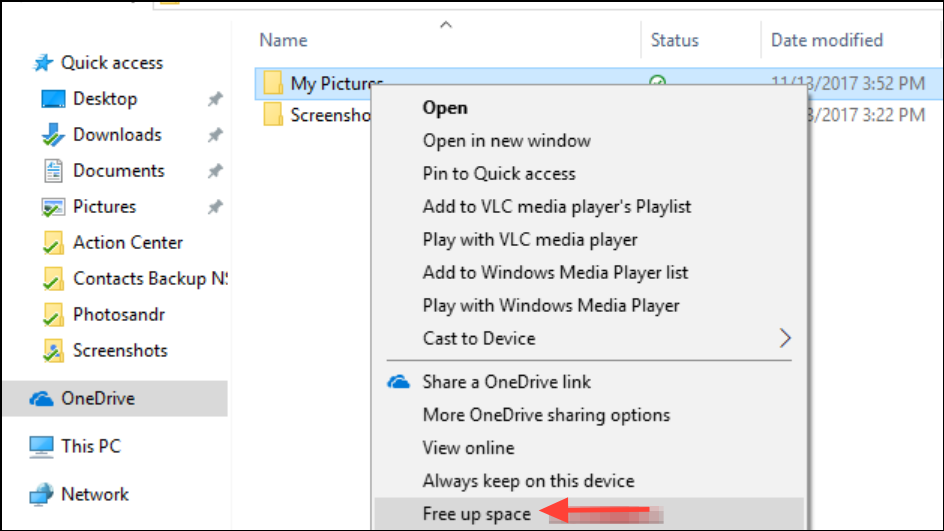
Use Files On-Demand to Reduce Local Resource Usage
Files On-Demand allows you to keep files in the cloud and only download them when accessed, lowering disk and CPU usage.
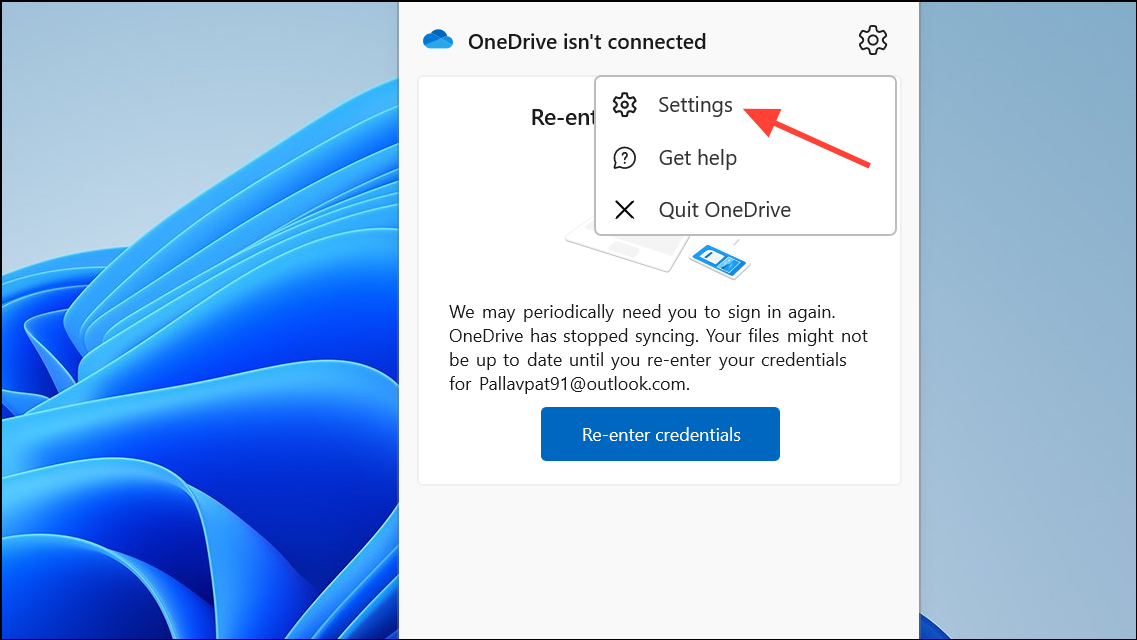
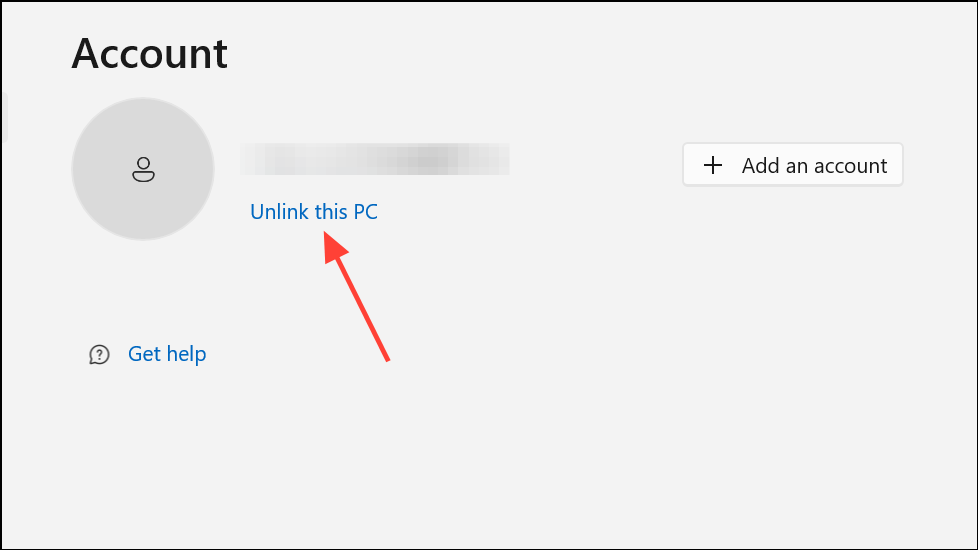
Unlink and Reconnect Your OneDrive Account
Unlinking and re-linking OneDrive can resolve sync stalls and performance issues caused by account or configuration errors.
Reset OneDrive Application
Resetting OneDrive clears cached settings and resolves persistent sync or performance problems.
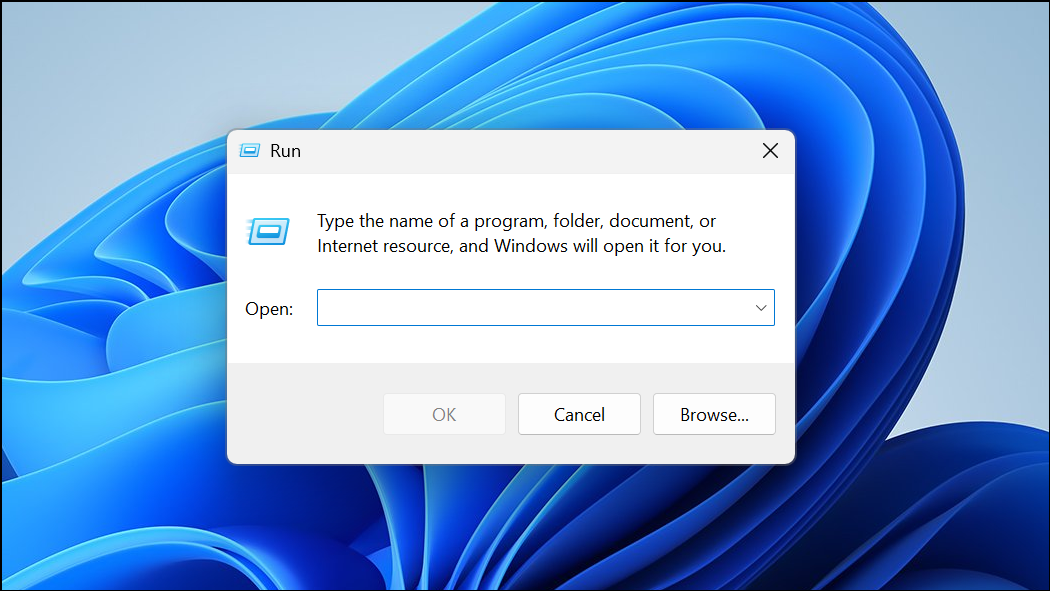
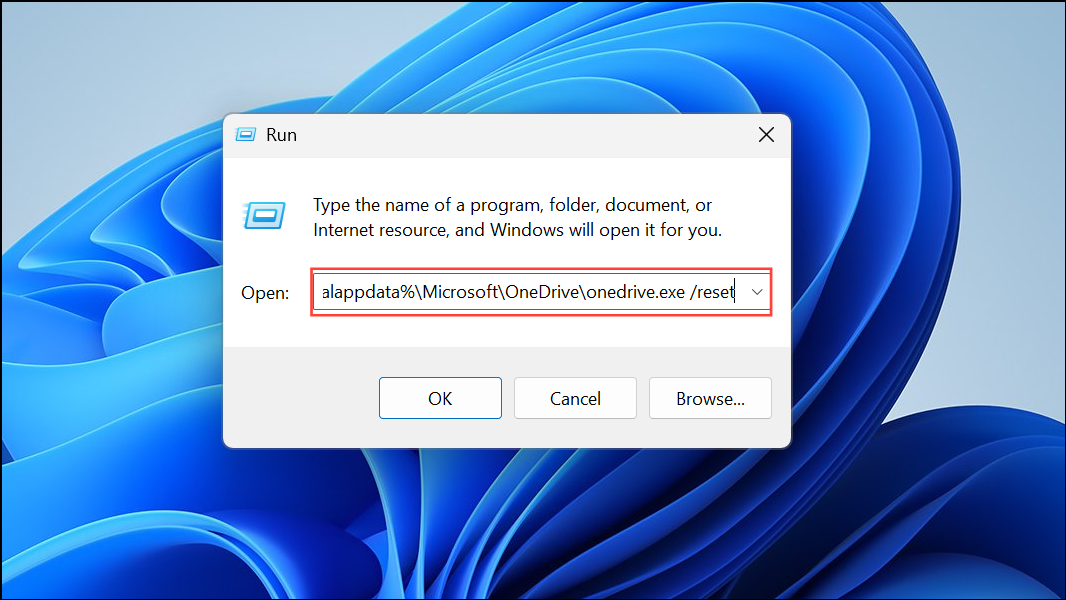
C:\Program Files\Microsoft OneDrive\onedrive.exe /resetC:\Program Files (x86)\Microsoft OneDrive\onedrive.exe /reset
After resetting, OneDrive will reinitialize and begin syncing your files again.
Check for Conflicts with Antivirus or Other Sync Software
Antivirus and firewall programs can interfere with OneDrive’s file operations, causing delays or high resource use. Similarly, running multiple sync clients (like Dropbox or iCloud) can create conflicts.
Delete OneDrive Temporary and Cache Files
Accumulated temp files can slow down sync and fill up storage. Clearing them can restore normal operation.
C:\Users\yourusername\AppData\Local\Microsoft\OneDrive\setup\logs and delete UserTelemetryCache.otc and UserTelemetryCache.otc.session.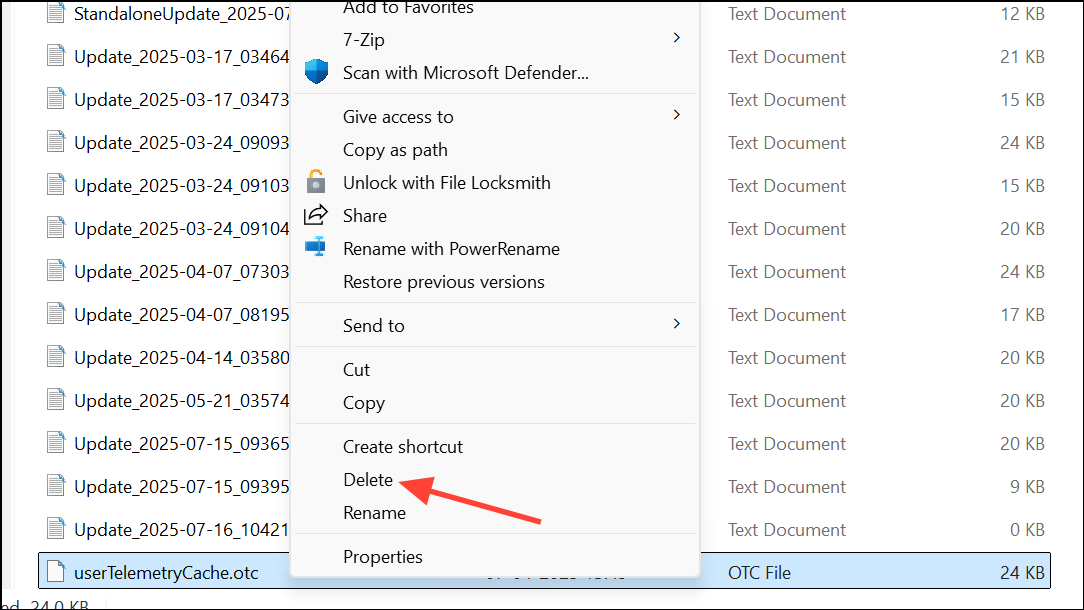
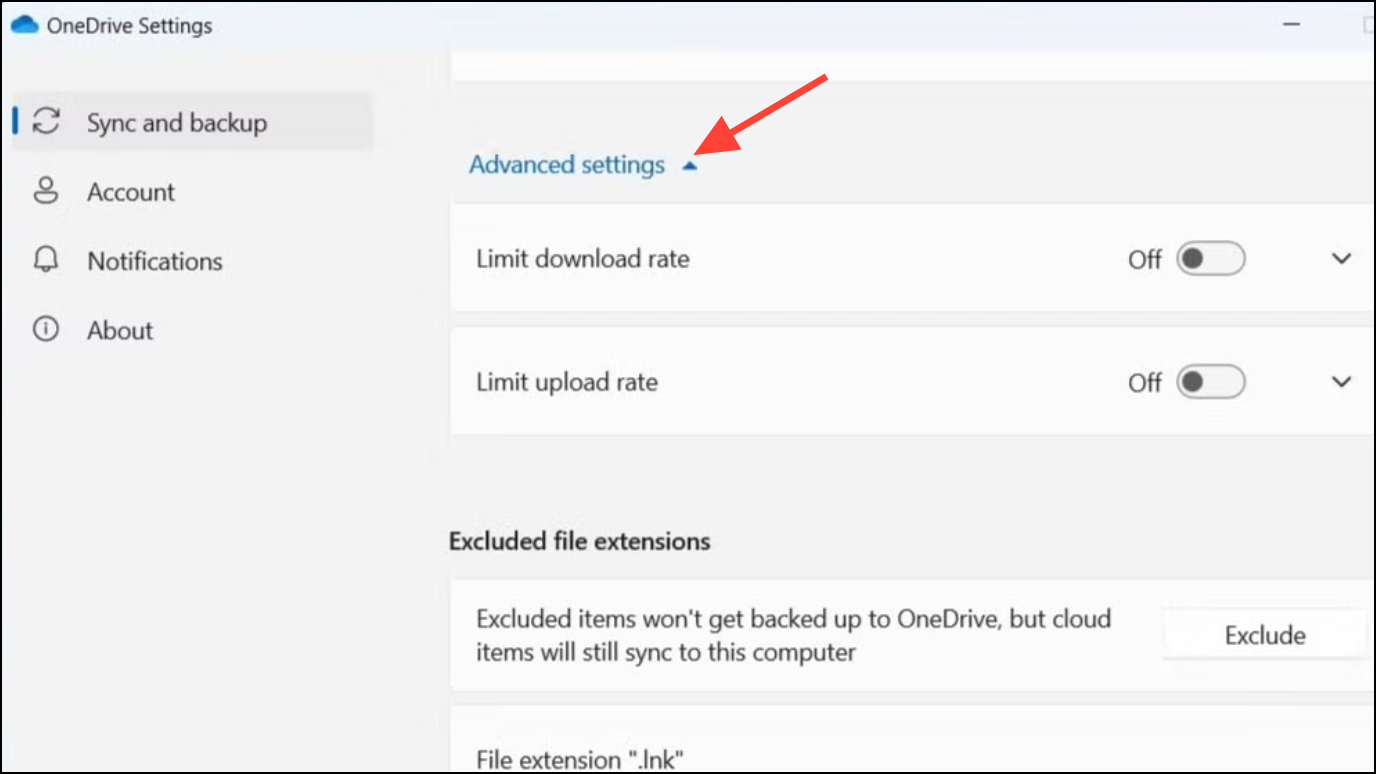
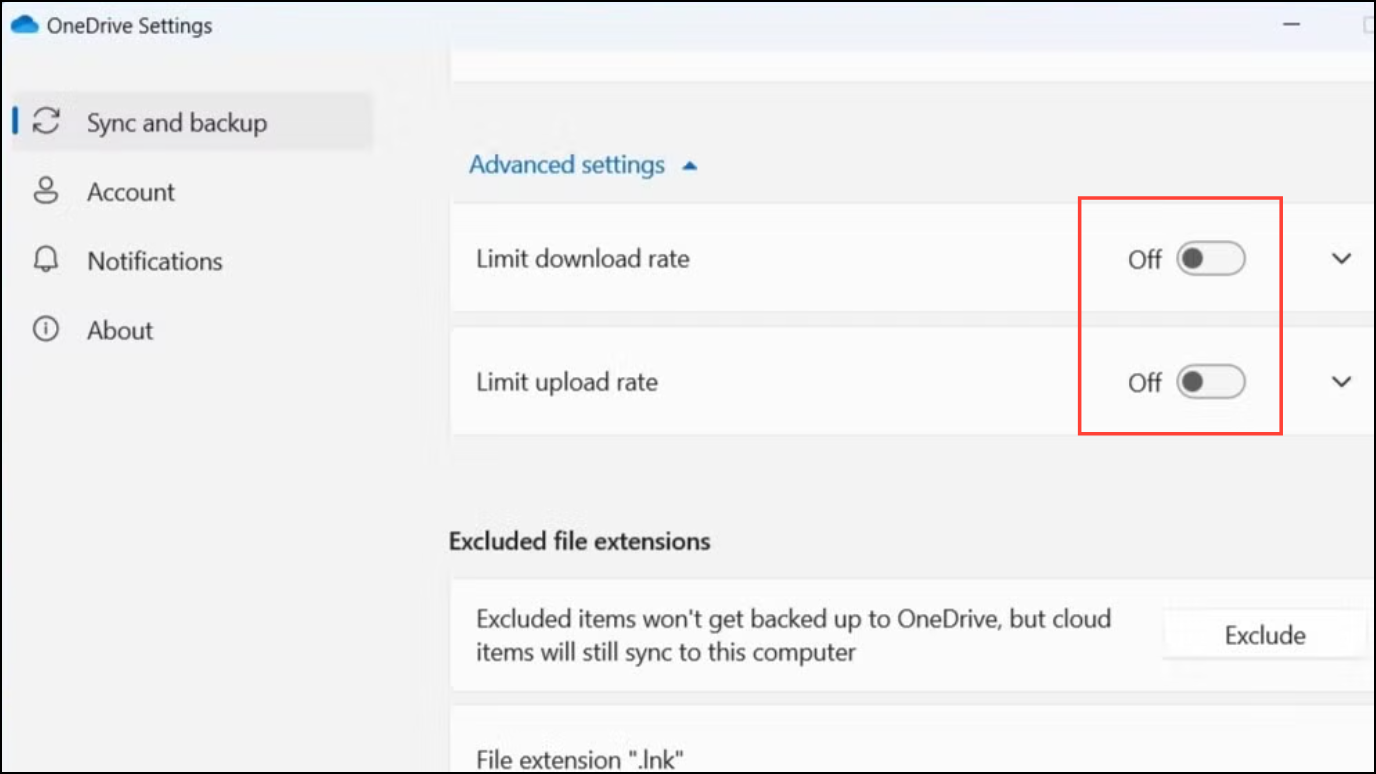
OneDriveSetup file from C:\Users\yourusername\AppData\Local\Microsoft\OneDrive.Remove Speed Limits in OneDrive Network Settings
OneDrive allows users to set upload and download rate limits, which can inadvertently restrict sync performance.
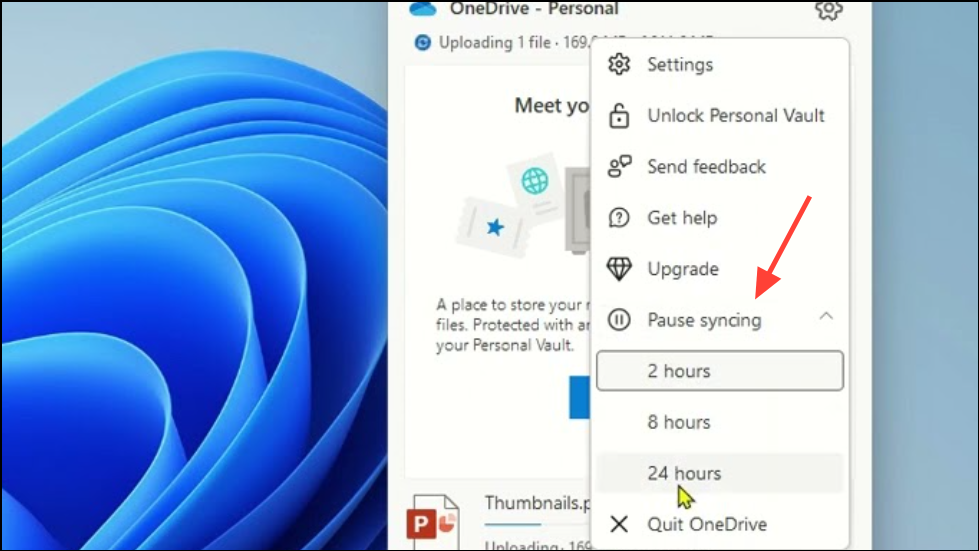
Sync Files During Idle Hours
Scheduling sync operations for times when you’re not actively using your computer, such as overnight, can prevent OneDrive from competing with your work for system resources and bandwidth.
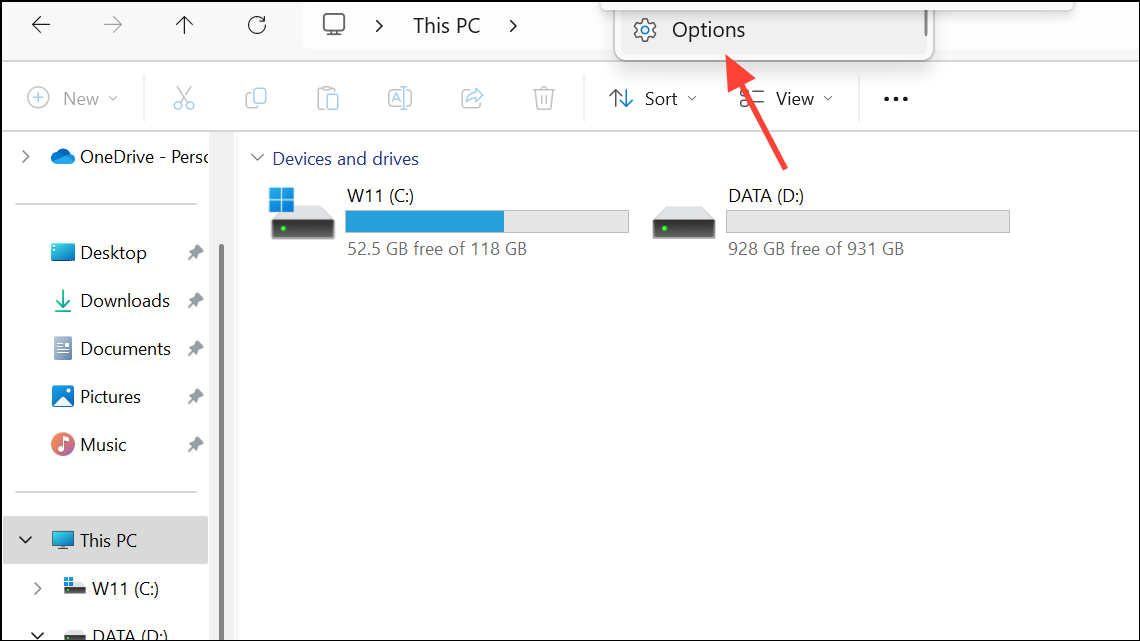
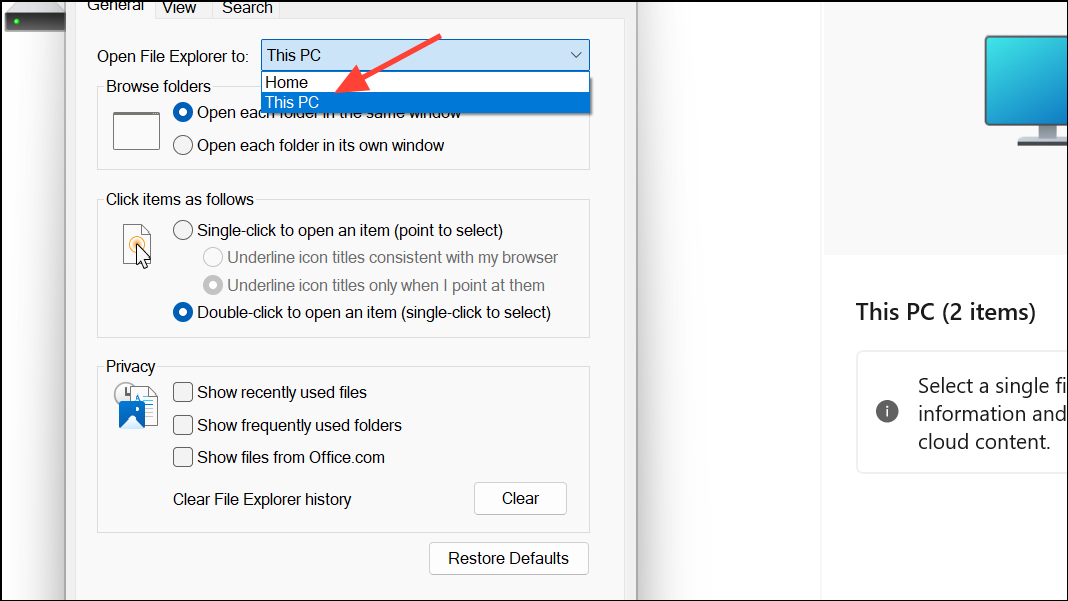
Adjust File Explorer and OneDrive Integration Settings
Account-Based Insights and similar features in File Explorer can slow down folder loading, especially when OneDrive is set as the default folder.
Update Device Drivers and System Software
Outdated GPU, storage controller, or motherboard drivers can cause bottlenecks when OneDrive interacts with your hardware.
Reset or Reinstall Windows if Issues Persist
Some users report persistent OneDrive slowdowns only on Windows 11, with normal performance on Windows 10. If all previous steps fail, consider a clean installation of Windows 11 or reverting to a previous version, as certain updates or configurations may introduce unresolved bugs.
Resolving OneDrive slowdowns on Windows 11 requires a combination of app resets, system tweaks, and sometimes hardware updates. Applying these steps should restore your PC’s speed and make file syncs much smoother.