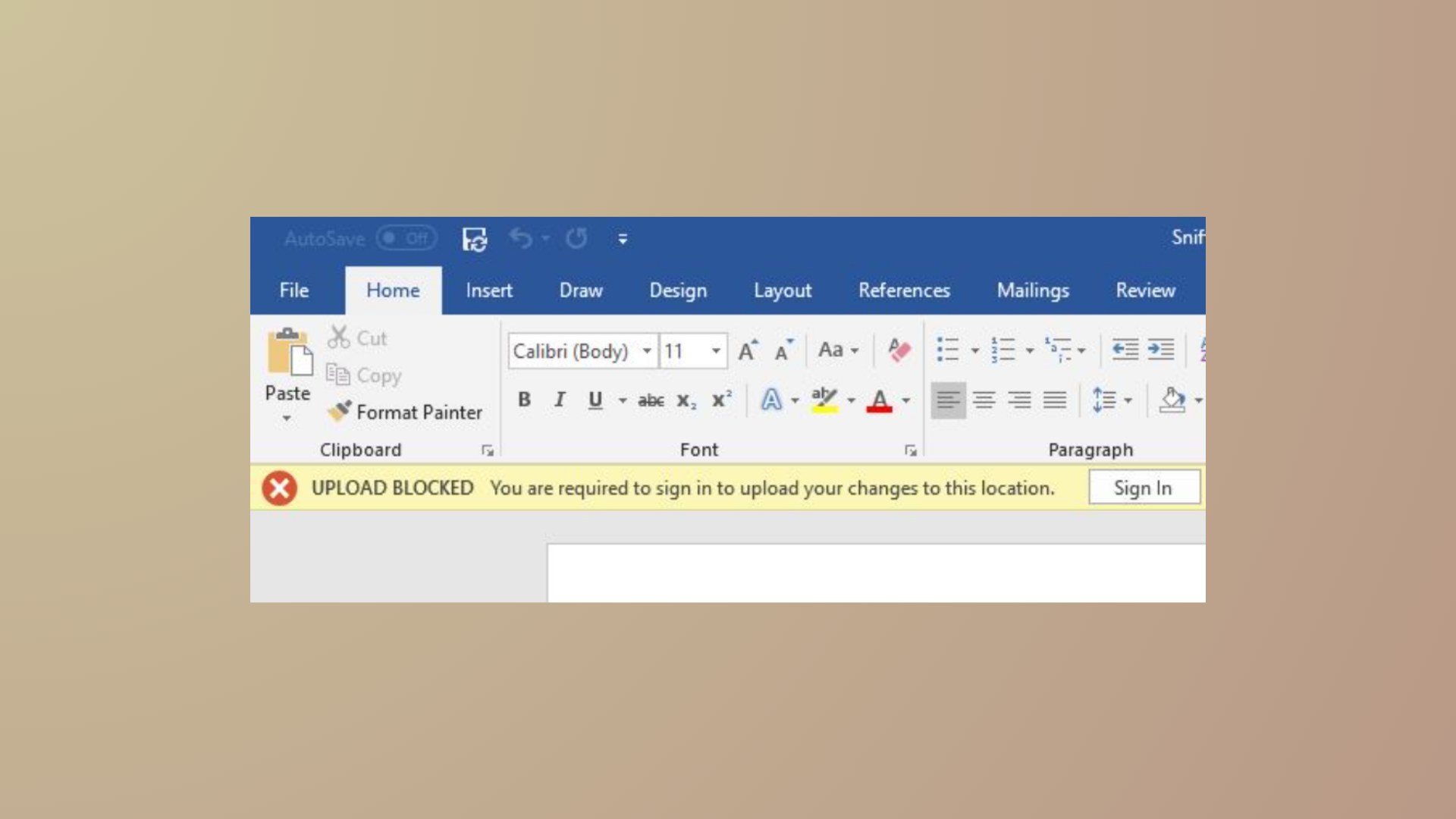
OneDrive repeatedly showing “Preparing to upload” instead of syncing files usually signals a problem with file structure, storage limits, or a backlog of changes. This issue can interrupt workflows, prevent access to updated files across devices, and complicate business operations that depend on timely cloud backups. Addressing the root causes—such as zero-byte files, storage shortages, or sync glitches—restores normal upload speeds and keeps your files available when and where you need them.
Remove Zero-Byte Files Blocking Sync
Zero-byte files—files with a size of 0 bytes—often disrupt OneDrive’s syncing process, causing it to stall at the “Preparing to upload” stage. These files may be remnants of interrupted transfers or application errors and can block the sync queue until removed.
Open in PowerShell as administrator or Open in Terminal to launch a PowerShell window at the correct path.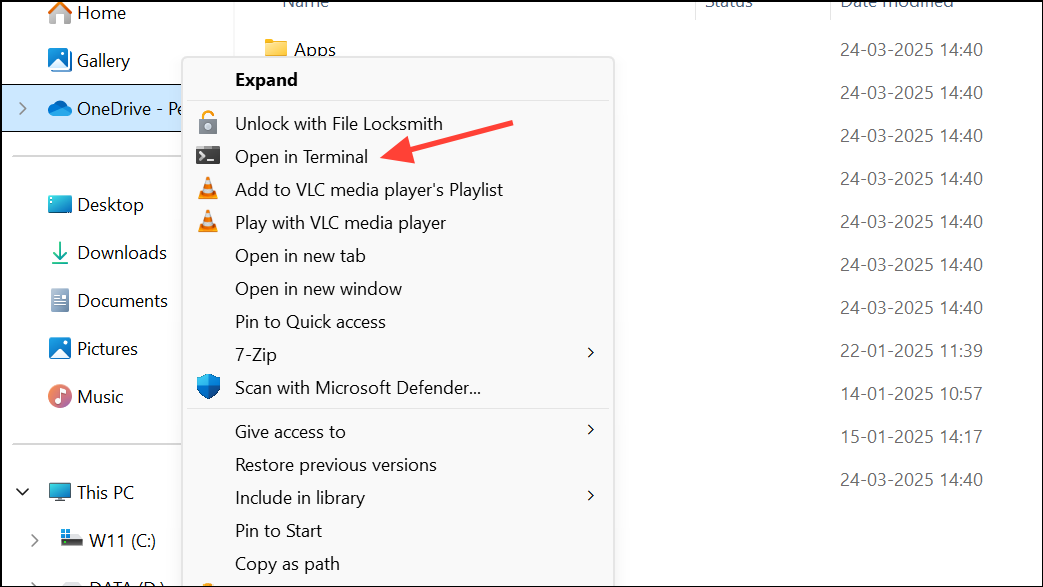
Get-ChildItem -File -Recurse | Where-Object { $_.Length -eq 0 } | Remove-Item -Force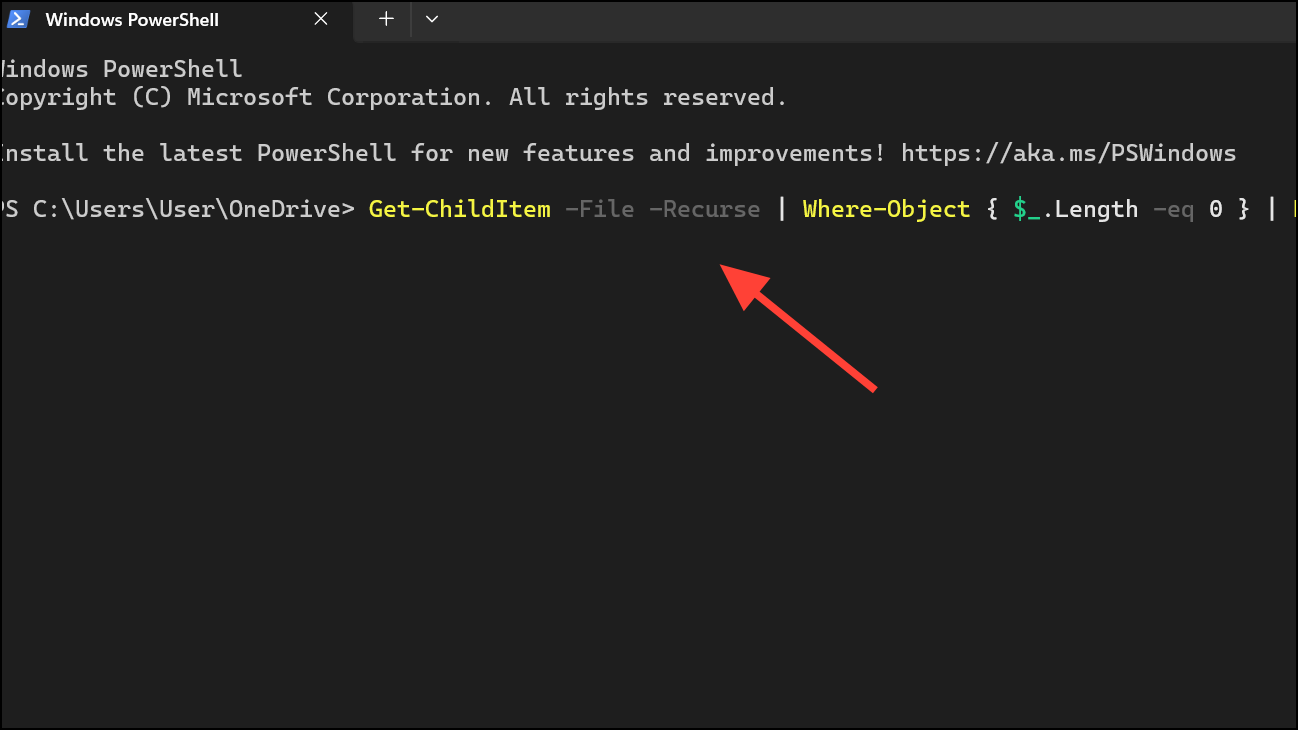
This removes all empty files, allowing OneDrive to resume syncing. If you want to first identify zero-byte files before deleting them, run:
Get-ChildItem -File -Recurse | Where-Object { $_.Length -eq 0 } | Tee-Object -FilePath ".\ZeroByteFiles.txt"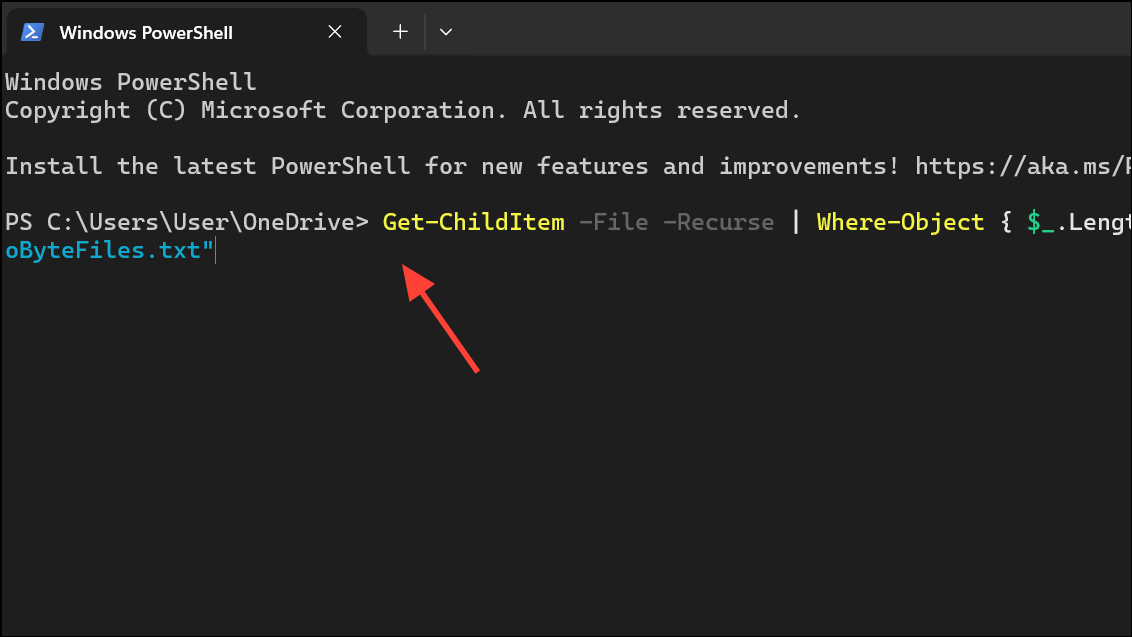
Review the generated ZeroByteFiles.txt to confirm which files will be removed.
Pause and Resume OneDrive Sync
Temporarily pausing and then resuming OneDrive can clear minor glitches and force a refresh of the sync connection. This approach is quick and often resolves the stuck “Preparing to upload” status caused by temporary sync errors.
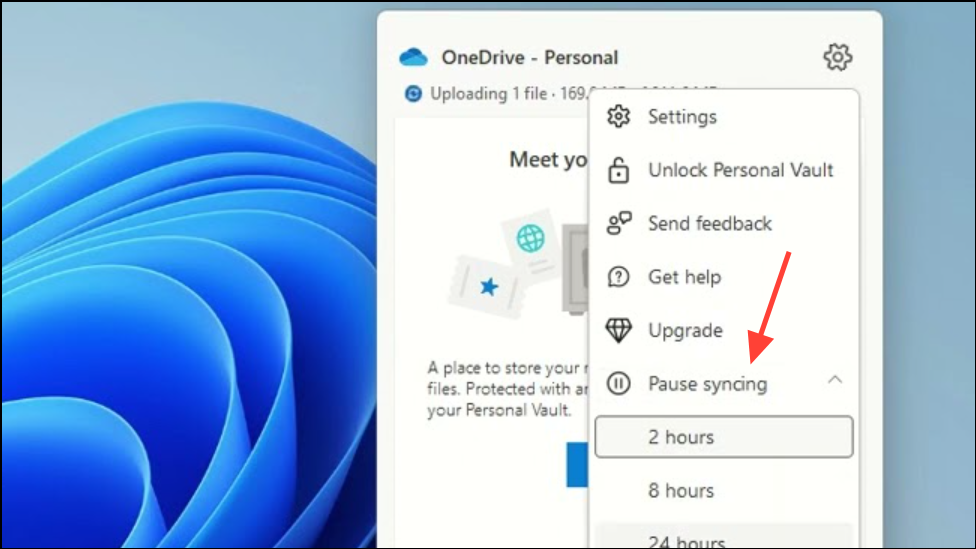

This process restarts the sync engine and can resolve temporary upload stalls.
Check Storage Limits and Free Up Space
OneDrive cannot upload new files if your storage quota is full or if your local drive is out of space. This limitation can cause uploads to remain stuck indefinitely.
Properties, and use Disk Cleanup to remove redundant files and ensure enough free space for OneDrive to operate.Update OneDrive to the Latest Version
Running an outdated version of OneDrive can result in sync failures, compatibility problems, and persistent upload issues. Keeping OneDrive updated ensures you have the latest bug fixes and performance improvements.
Settings > Apps > Microsoft OneDrive > Uninstall.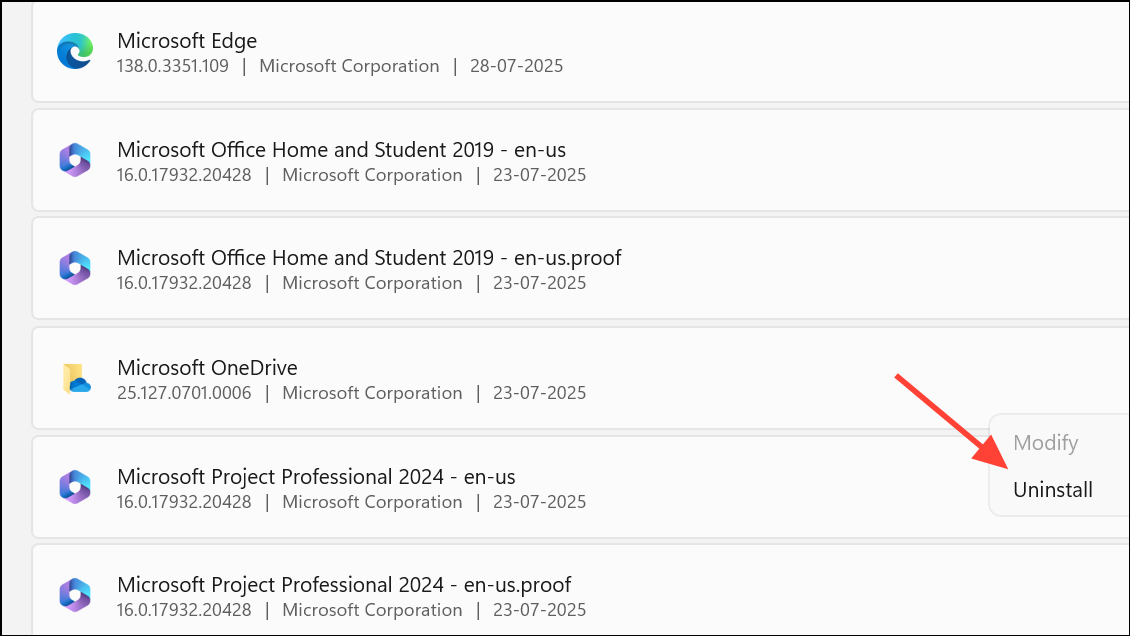
Check File Name Lengths and Invalid Characters
OneDrive enforces strict rules on file names and paths. Files with names that are too long or contain restricted characters can halt syncing and trigger the “Preparing to upload” message.
- File names must be under 255 characters.
- Avoid characters such as
" * : < > ? / \ |in file or folder names. - Check for invalid file types or extensions that OneDrive does not support.
Shorten file names or move files to folders with shorter paths as needed, then try syncing again.
Unlink and Reset OneDrive
Resetting OneDrive disconnects your account and clears cached settings, which can resolve persistent sync issues caused by configuration errors or corrupted cache data.
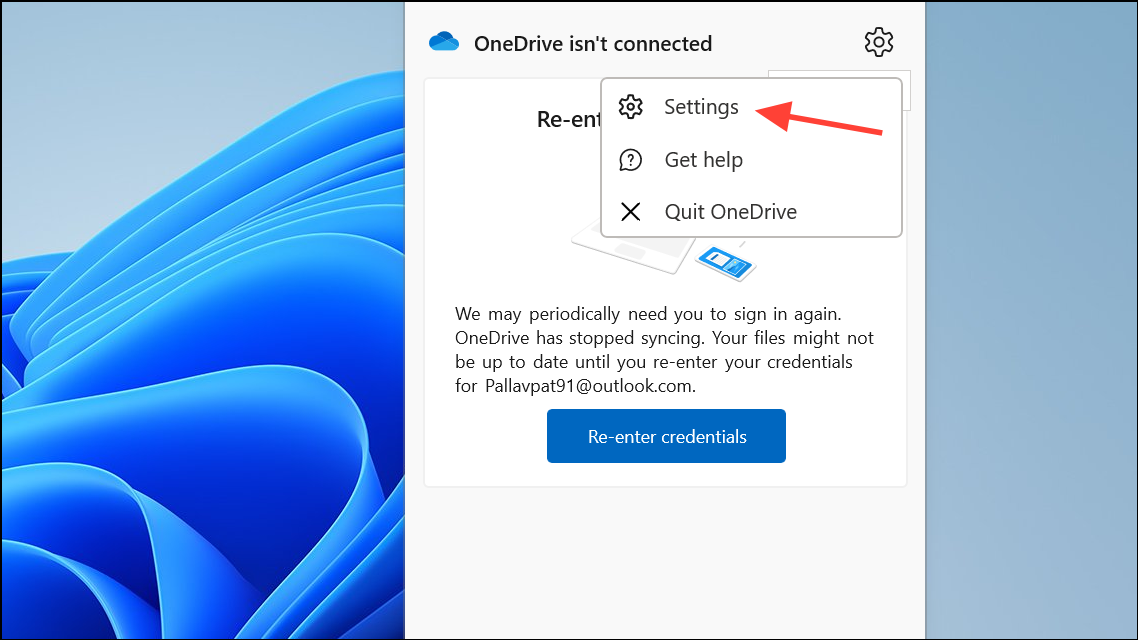

Win + R to open the Run dialog, enter %localappdata%\Microsoft\OneDrive\onedrive.exe /reset, and press Enter.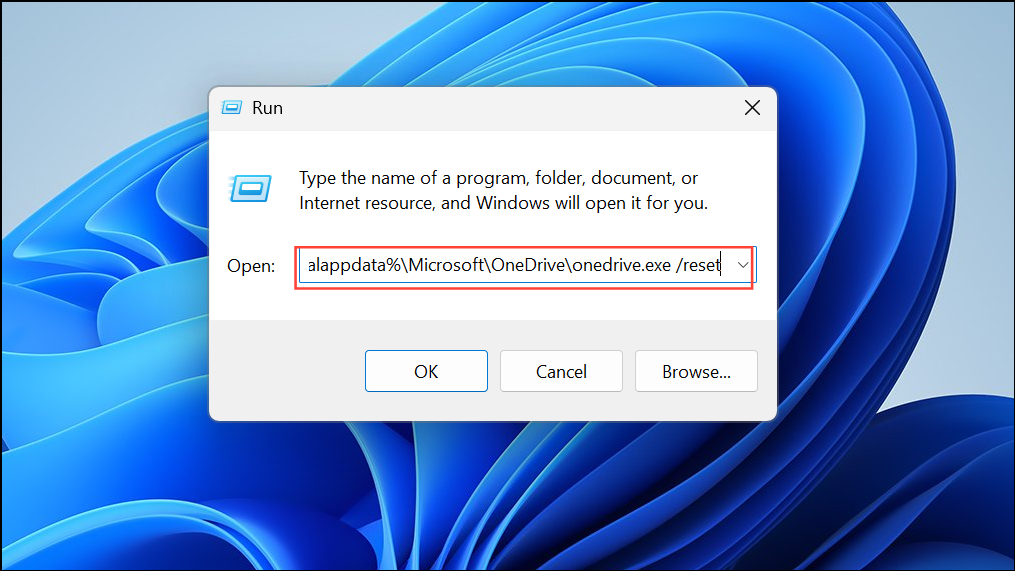
%localappdata%\Microsoft\OneDrive\onedrive.exe to restart the app. Re-sign in and reconfigure your sync folders.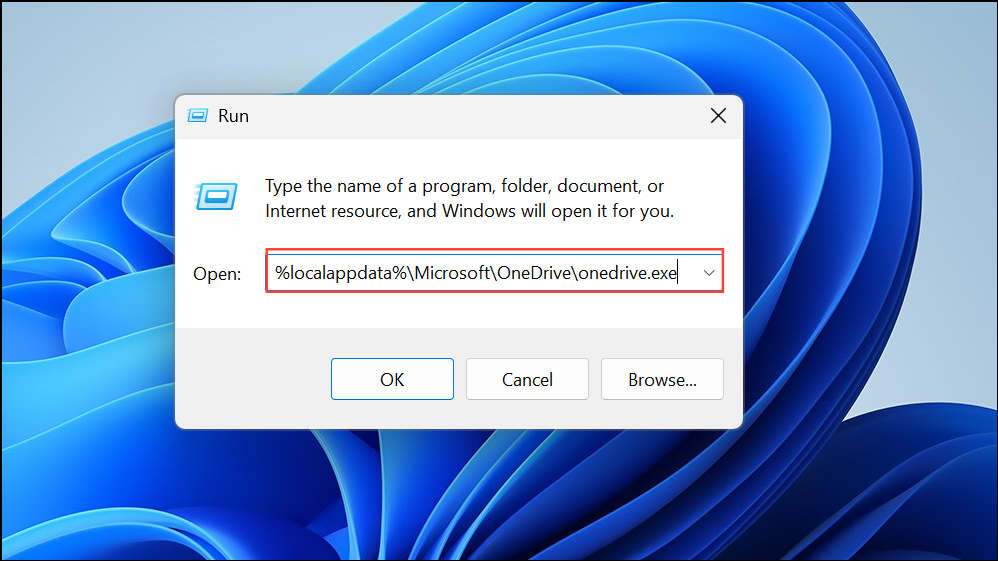
Break Up Large Upload Batches
Uploading thousands of files or very large files at once can overwhelm OneDrive’s sync engine, causing it to freeze at “Preparing to upload.” Dividing uploads into smaller groups improves reliability and upload speed.
This approach is especially effective for large migrations or initial uploads.
Review OneDrive Sync Limits and Restrictions
OneDrive has technical limits on the number of files, maximum file size, and total number of items per account. Exceeding these limits can cause indefinite “Preparing to upload” status.
- The maximum file size for uploads is 250 GB per file.
- Personal OneDrive accounts can sync up to 100,000 files per library.
- Business accounts may have higher limits, but performance drops with very large libraries.
If you approach these thresholds, consider archiving old files, splitting libraries, or using third-party transfer tools for bulk migrations.
Try Alternative Sync or Transfer Tools
If built-in troubleshooting fails or you need to move massive volumes of data between cloud services, third-party tools can streamline the process. Services like MultCloud or CBackup allow direct cloud-to-cloud transfers, bypassing local bandwidth limits and avoiding sync stalls.
This is particularly effective for businesses migrating from Dropbox, Google Drive, or SharePoint to OneDrive.
Resolving the “Preparing to upload” issue in OneDrive often requires targeted troubleshooting—removing zero-byte files, checking storage, or breaking up uploads usually restores normal syncing. Regularly updating OneDrive and monitoring file limits can prevent future stalls so your files stay accessible and up to date.