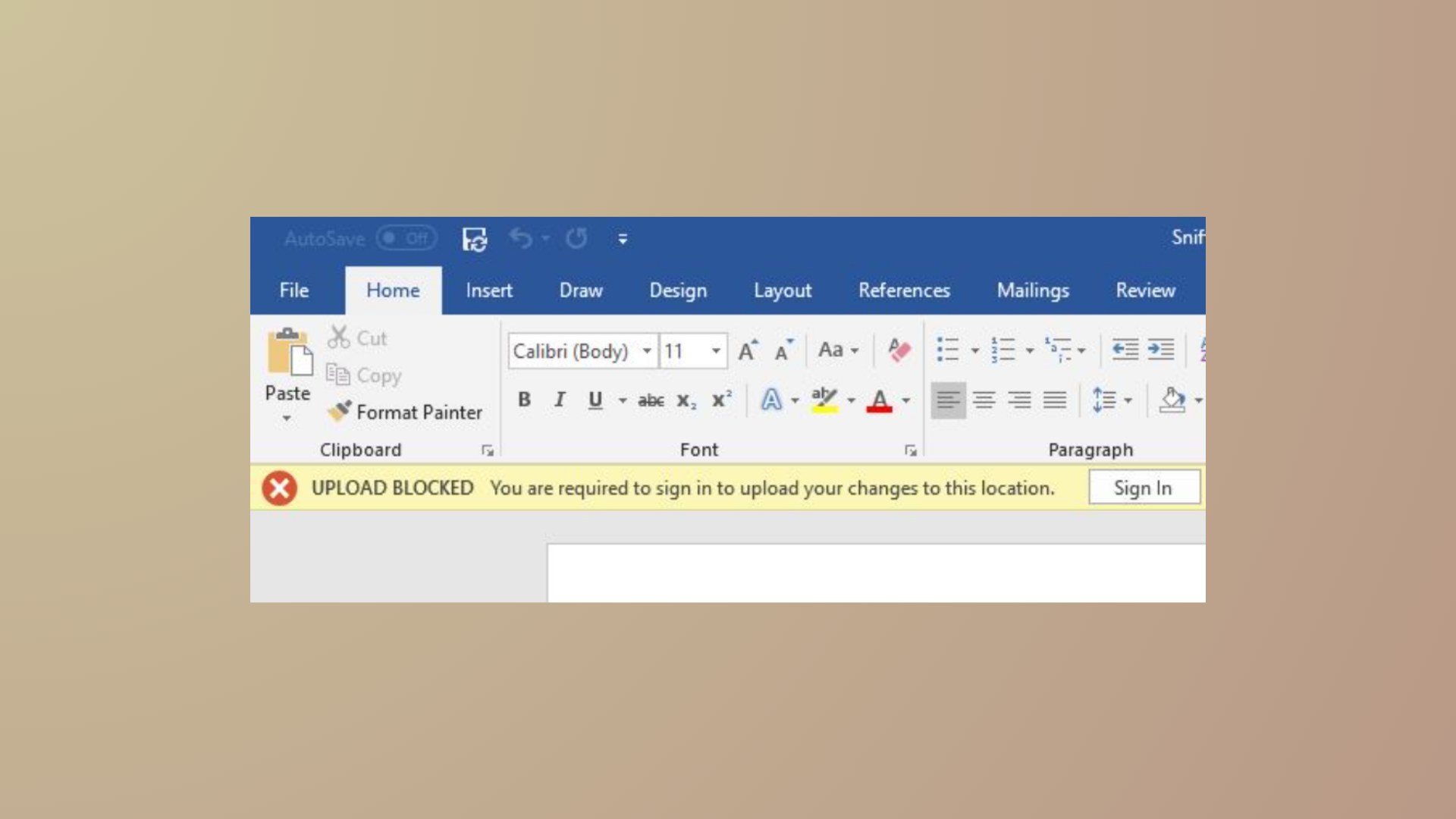
OneDrive may display an “Unable to move shortcut” error when you attempt to relocate a shared folder shortcut or when shared folders unexpectedly appear as internet shortcuts (.url files) in File Explorer. This disrupts direct file access, collaboration, and syncing—especially on Windows 10/11 or for users on Microsoft 365 Family and Personal plans. The issue often arises due to backend migrations, deleted or unshared folders, or conflicting sync states. Below are the most effective solutions to restore normal folder functionality and resolve shortcut errors.
Remove the Problematic Shortcut Using OneDrive Web
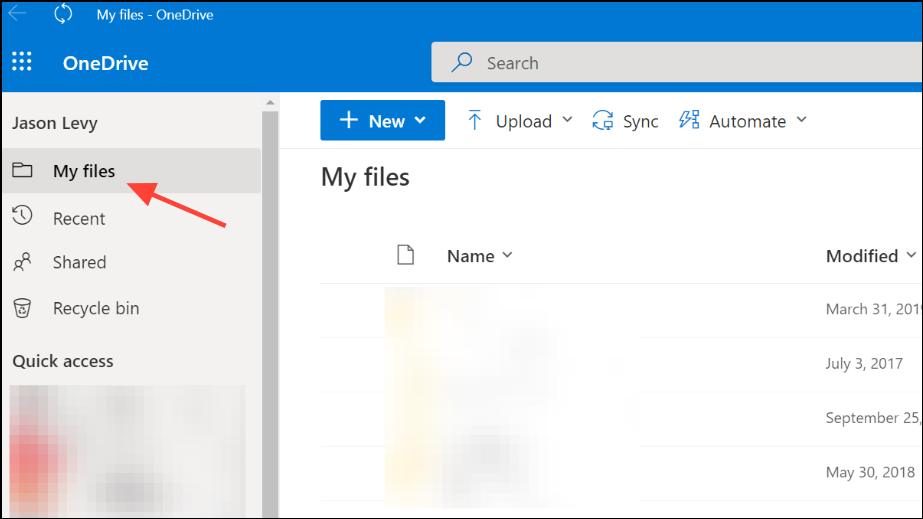
When a shared folder is deleted by the owner or permissions change, the shortcut may persist locally but cannot be moved or accessed. Removing the shortcut through the OneDrive web interface reliably clears the error and updates File Explorer within a few minutes.
Move the Shortcut Back to the Root Folder
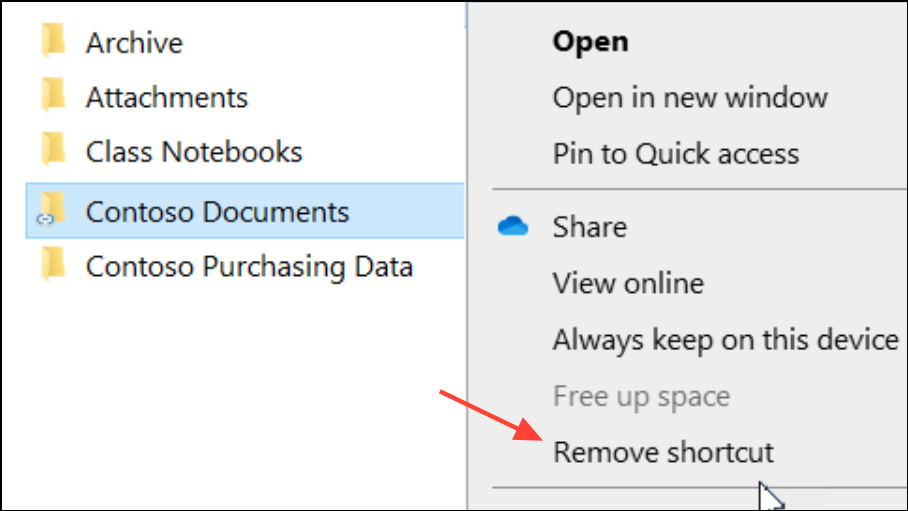
OneDrive’s sync engine expects shared folder shortcuts to reside in the root of your OneDrive directory. Attempting to move a shortcut into a subfolder can cause sync errors or prevent the shortcut from working.
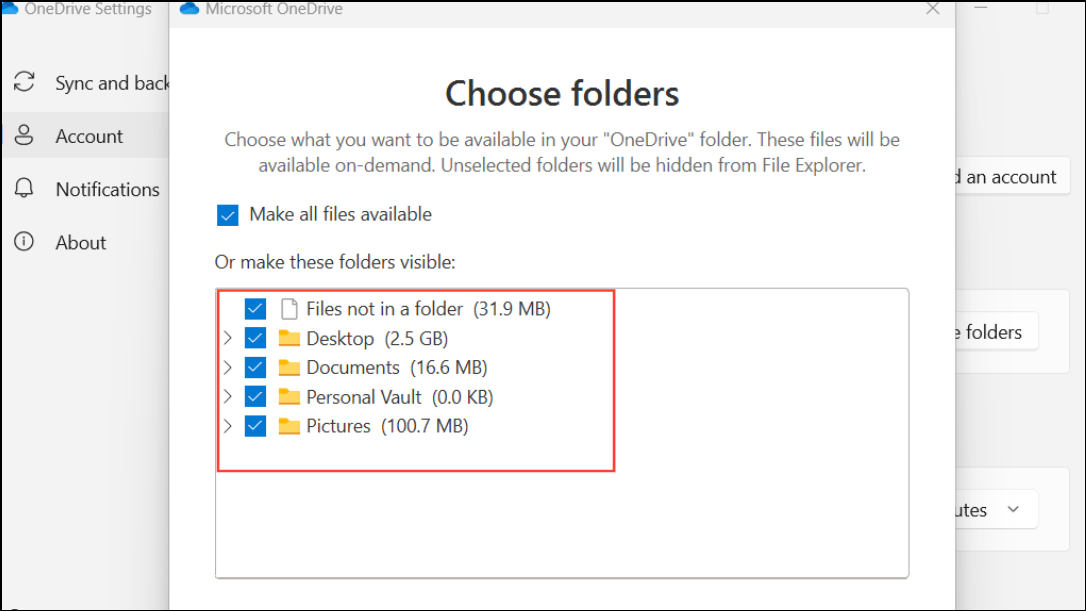
Stop Syncing and Delete the Shortcut Locally
When a shortcut cannot be removed from File Explorer, stopping the sync for the affected folder and deleting it locally can help.
Update the OneDrive Application
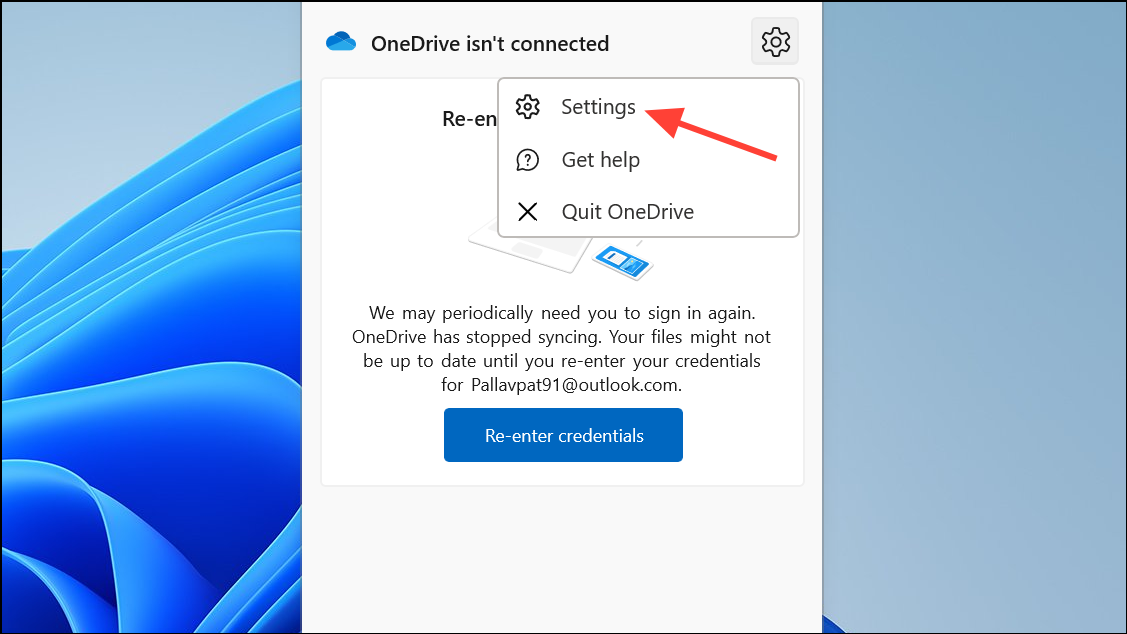
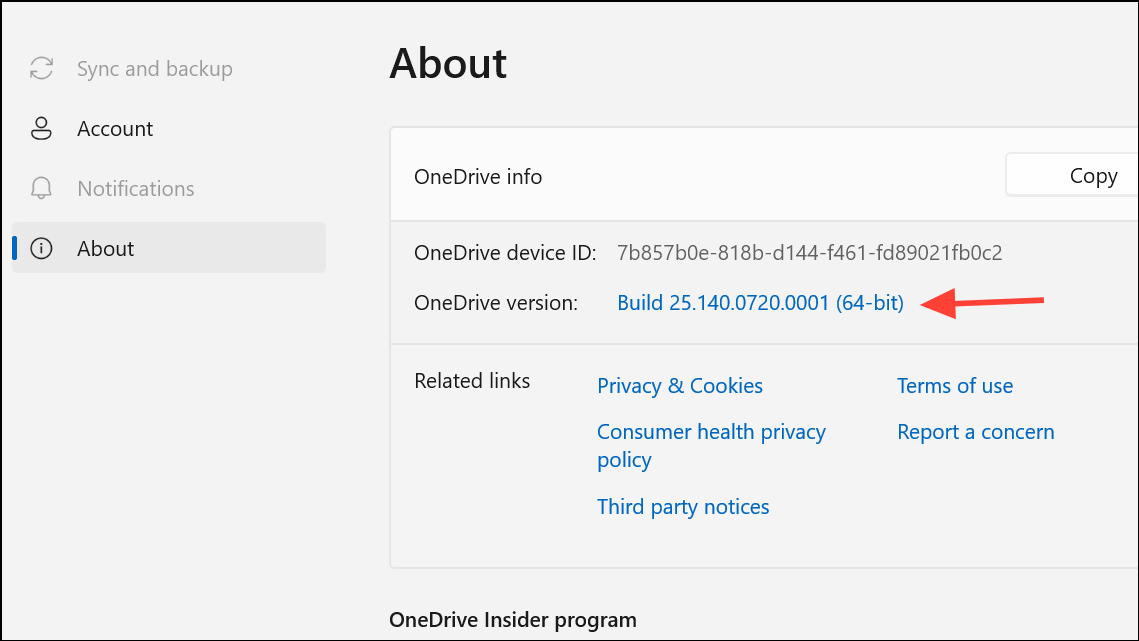
Outdated OneDrive clients may struggle to process shared folder shortcuts correctly, particularly during backend migrations or after system updates.
Reset the OneDrive Sync Client
Resetting OneDrive clears cached settings and forces a fresh sync, which often resolves persistent shortcut issues. Note that for large accounts, resyncing may take some time.
%localappdata%\Microsoft\OneDrive\onedrive.exe /reset
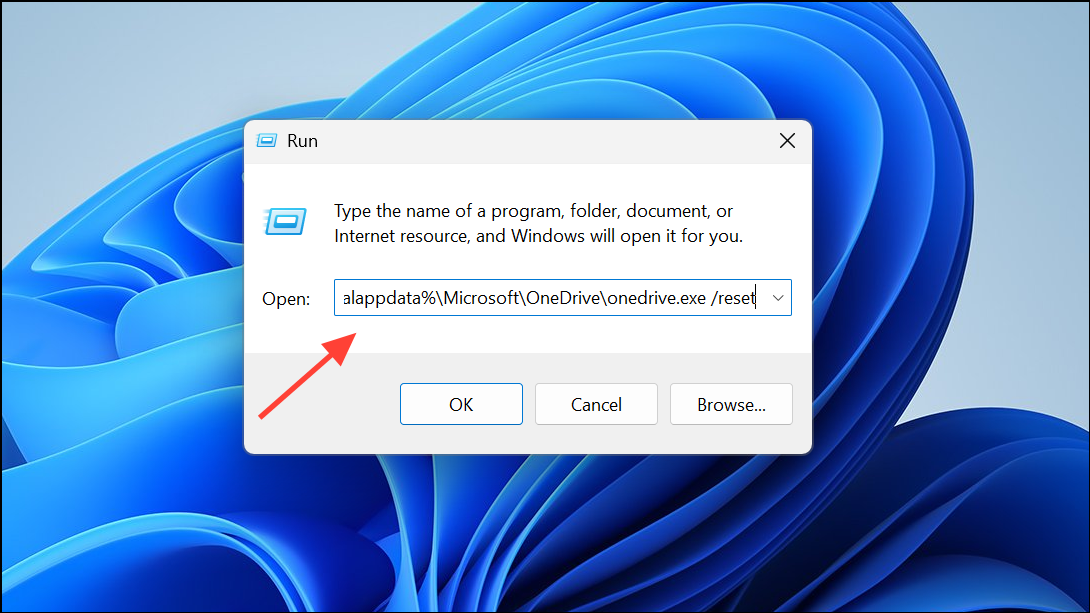
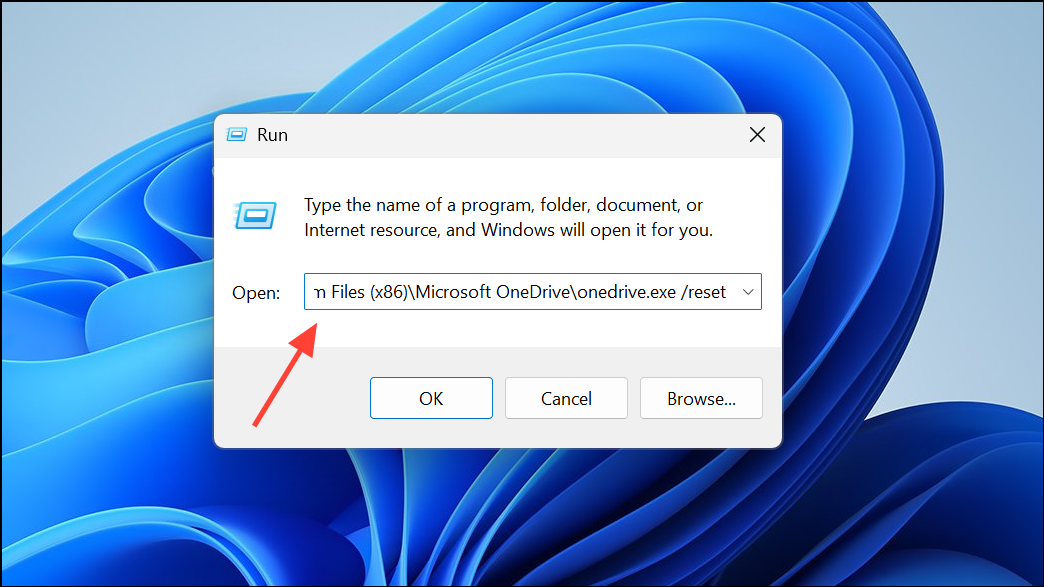
If you receive an error, try these alternate commands one at a time:
C:\Program Files\Microsoft OneDrive\onedrive.exe /reset
C:\Program Files (x86)\Microsoft OneDrive\onedrive.exe /reset
Understand Current Limitations Due to Microsoft Backend Migration
Since mid-2024, Microsoft has been migrating OneDrive backend systems, especially affecting Family and Personal plan users. During migration, shared folders may convert to .url internet shortcuts, disabling direct File Explorer access. Microsoft indicates that when both the owner and recipient accounts are migrated, normal folder syncing will resume automatically. No permanent fix is available until migration completes, but you can access shared folder contents via onedrive.live.com in your browser.
- Monitor Microsoft’s official issue tracker for updates.
- If you urgently need local access, consider using third-party tools like Cyberduck, RaiDrive, or Rclone to mount OneDrive shared folders as network drives. These tools work around the shortcut limitation but require additional setup and may have limitations compared to native sync.
Alternative Workarounds and Notes
Some users have found that creating a new Microsoft account and sharing the folder with it can temporarily restore normal syncing, but this method may only work until all accounts are migrated. Others have reported that after several days or weeks, the issue resolves itself as Microsoft completes migration in the background. Always back up important files before making changes to your sync setup.
For business or enterprise accounts, these shortcut issues are less common. If you manage a team or business, check if a business subscription resolves your needs more reliably.
Directly removing or managing shortcuts from the OneDrive web interface, updating the sync client, or resetting OneDrive often resolves shortcut errors. If the issue persists due to backend migration, browser access or third-party tools provide temporary workarounds until Microsoft completes the transition.