
Unexpected shutdowns during video playback on Windows 11 often point to deeper hardware or driver issues, rather than simple software glitches. These abrupt power-offs can interrupt streaming, cause data loss, and sometimes signal risks to your system’s stability. Addressing the most probable causes—power supply failures, overheating, and graphics driver problems—can restore reliable video playback and prevent further disruptions.
Check and Replace the Power Supply Unit (PSU)
Sudden shutdowns during video playback are frequently linked to a failing or inadequate power supply. The PSU delivers electricity to all components, and if it cannot maintain stable output under load, the system will power off to protect itself. Signs of PSU issues include random shutdowns, burning smells, or unusual noises from the unit. Even if the PSU is relatively new, manufacturing defects or electrical surges can cause early failure.
Update or Reinstall Graphics Card Drivers
Outdated or corrupted graphics drivers can trigger crashes or shutdowns during video playback, especially when hardware acceleration is enabled. Keeping drivers current ensures compatibility with Windows 11 and streaming platforms.
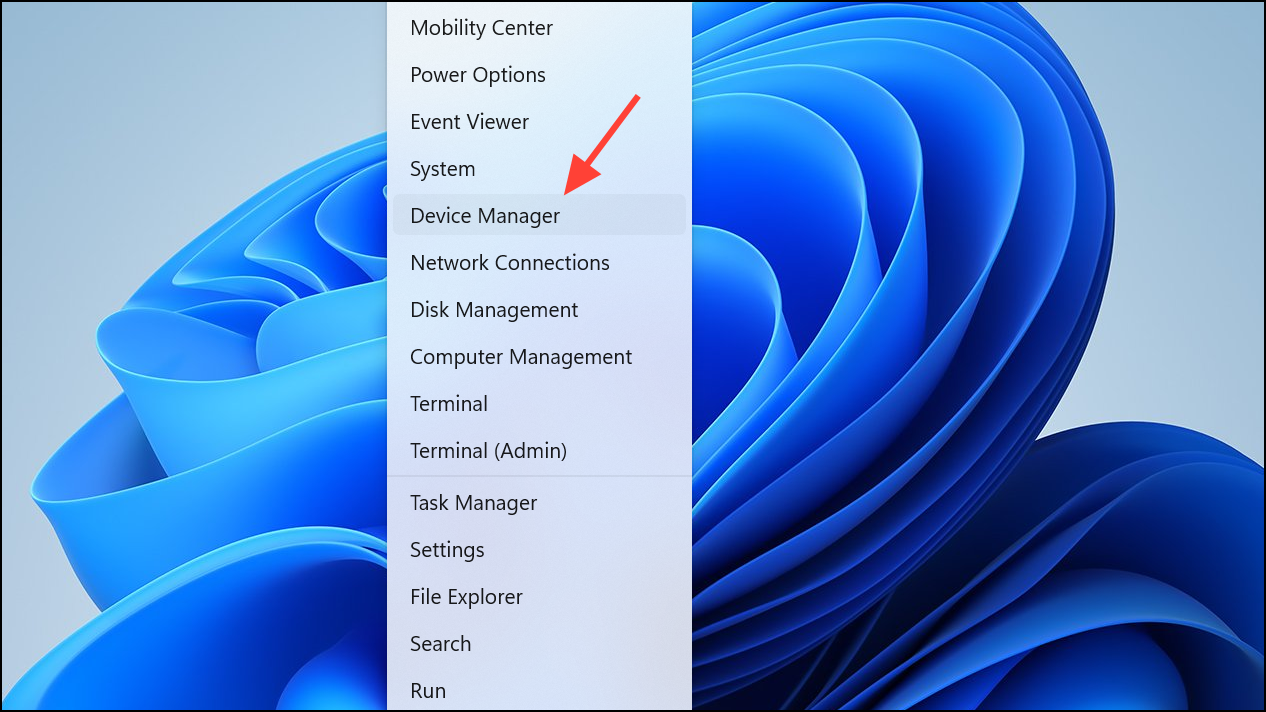
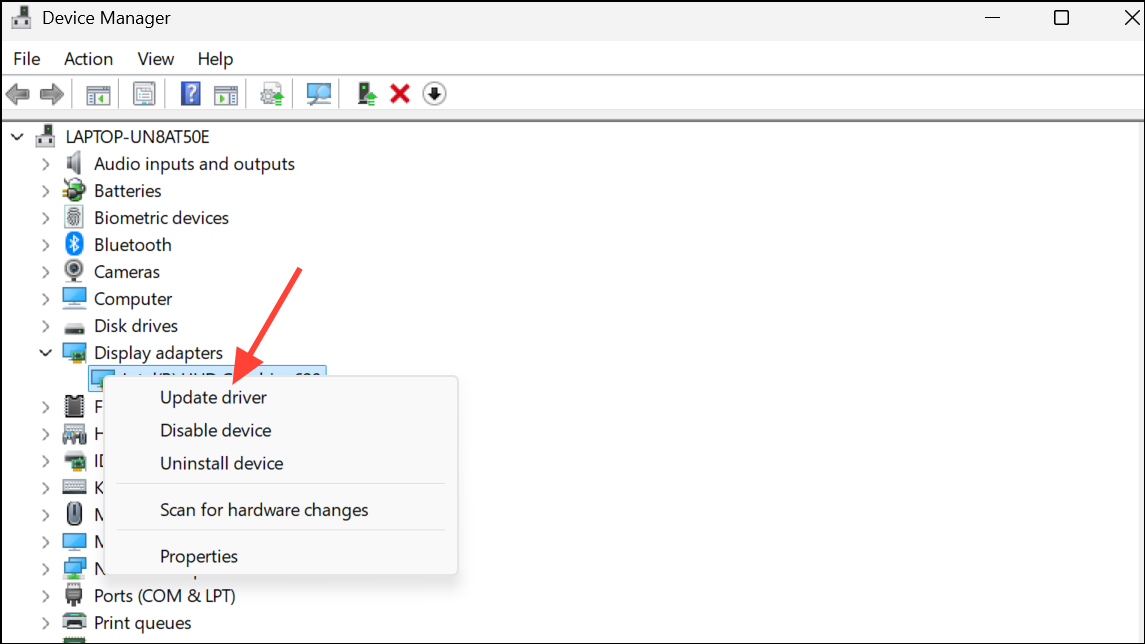
Search automatically for drivers and allow Windows to find and install the latest version. If no new driver is found, visit your GPU manufacturer’s website (NVIDIA, AMD, or Intel) to manually download the latest driver for your card and Windows 11.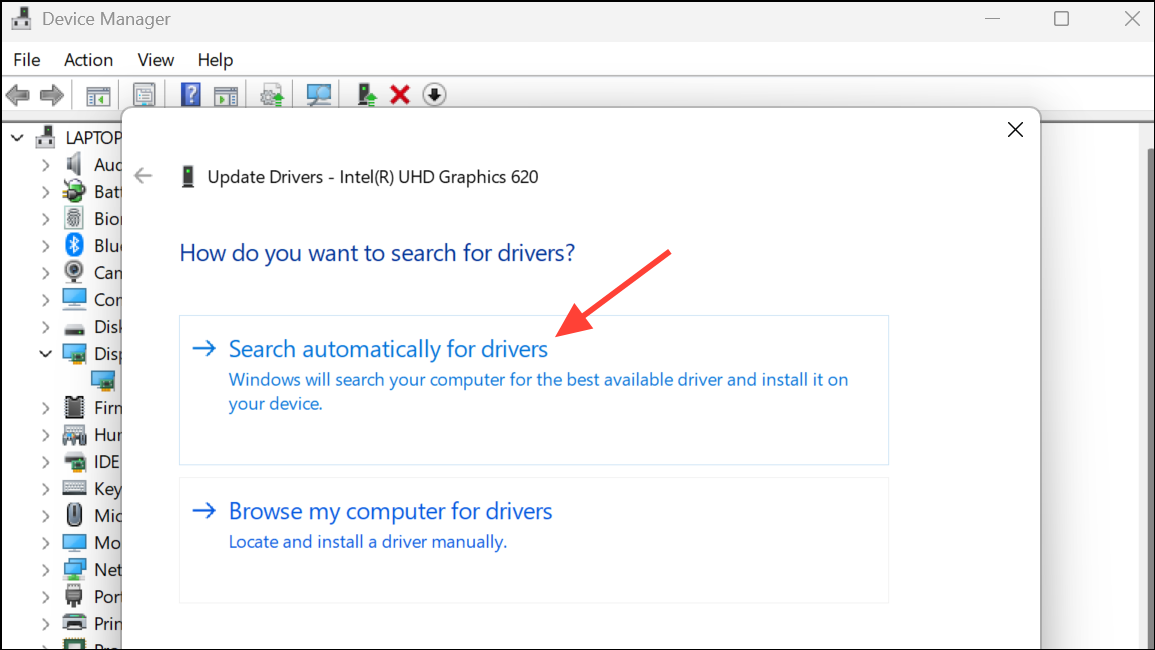
Monitor and Address Overheating
Video playback can increase CPU and GPU temperatures, especially on systems with dust buildup, blocked vents, or aging thermal paste. Overheating triggers thermal shutdowns to prevent hardware damage.
Scan for Malware and System Corruption
Malware or corrupted system files can destabilize Windows 11, causing unexpected shutdowns when system resources spike during video playback.
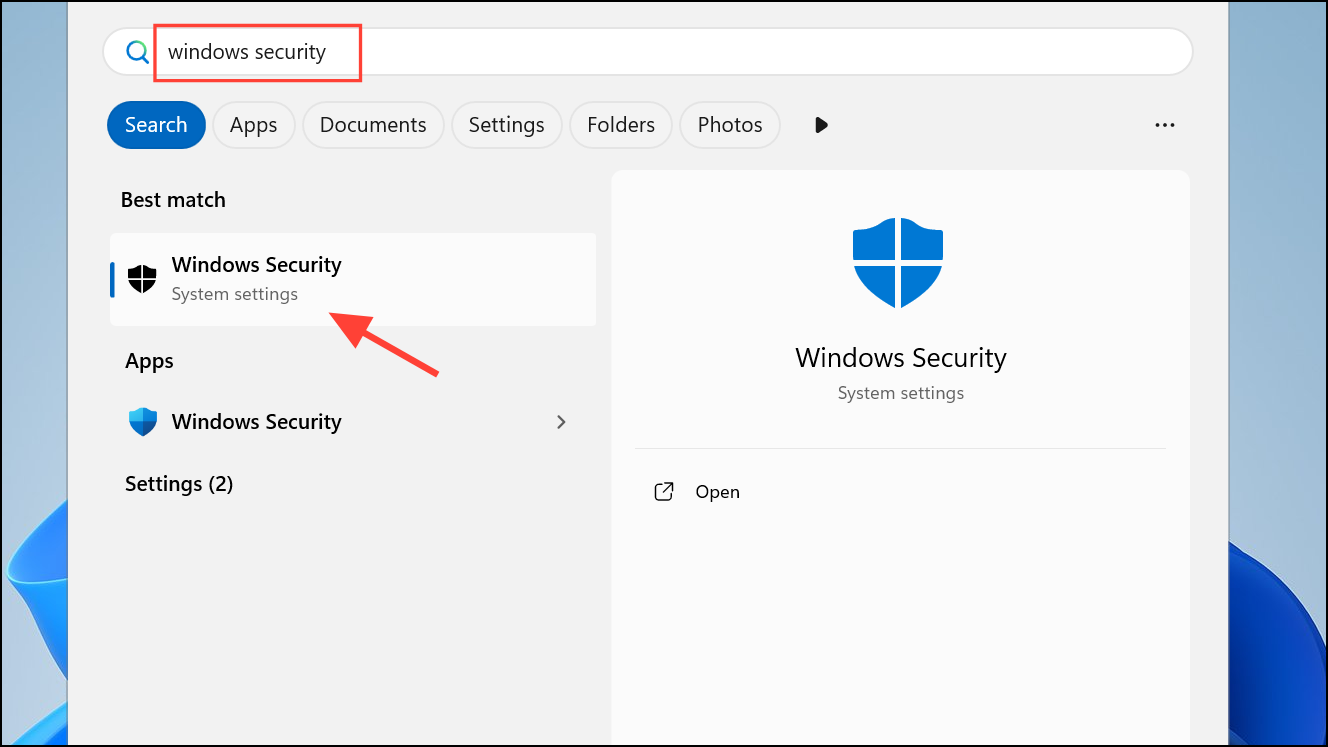
Virus & threat protection, then Scan options. Choose Microsoft Defender Offline scan and start the scan. This will check for rootkits and persistent malware.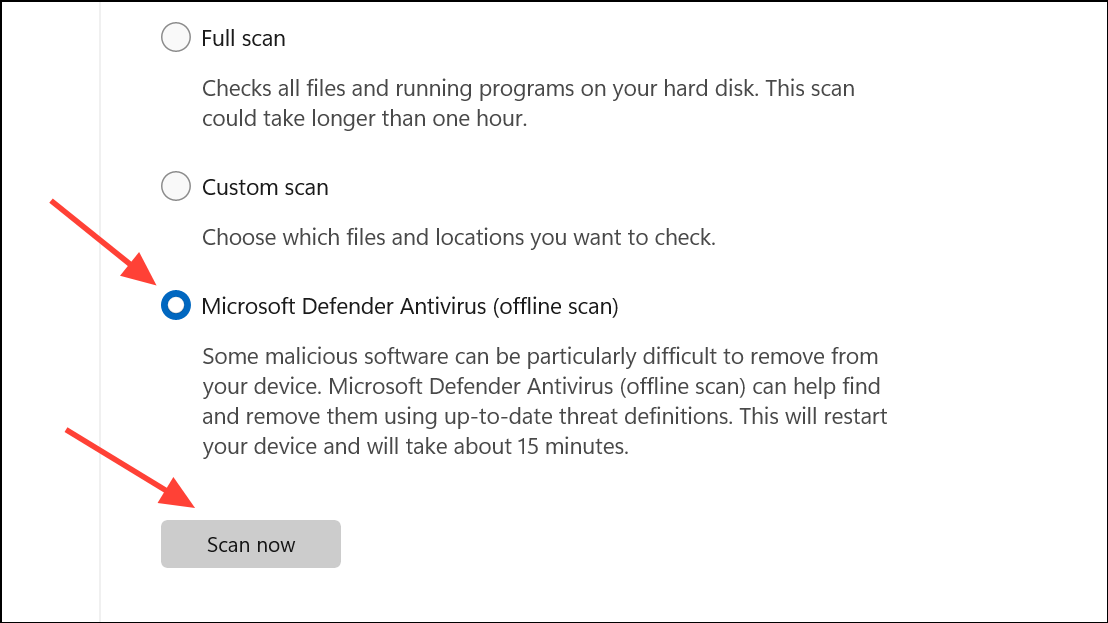
Command Prompt as administrator and run sfc /scannow to check for and repair corrupted Windows files.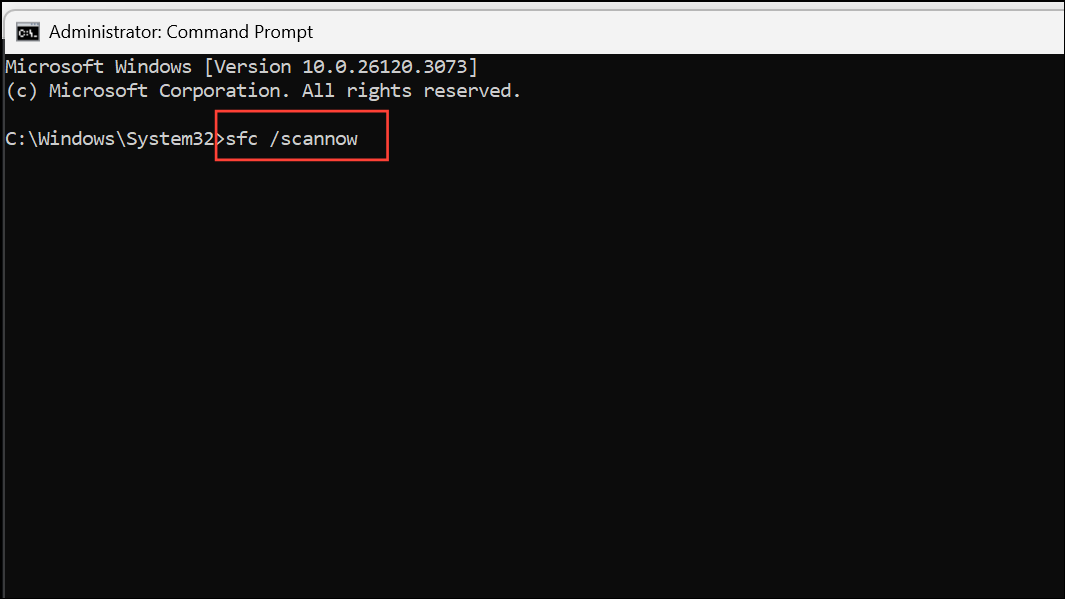
Inspect Event Viewer Logs for Clues
Windows Event Viewer can provide clues about the cause of shutdowns, especially if hardware or driver errors are recorded before the crash. However, sudden power loss from hardware issues may only generate generic “Kernel-Power” errors.
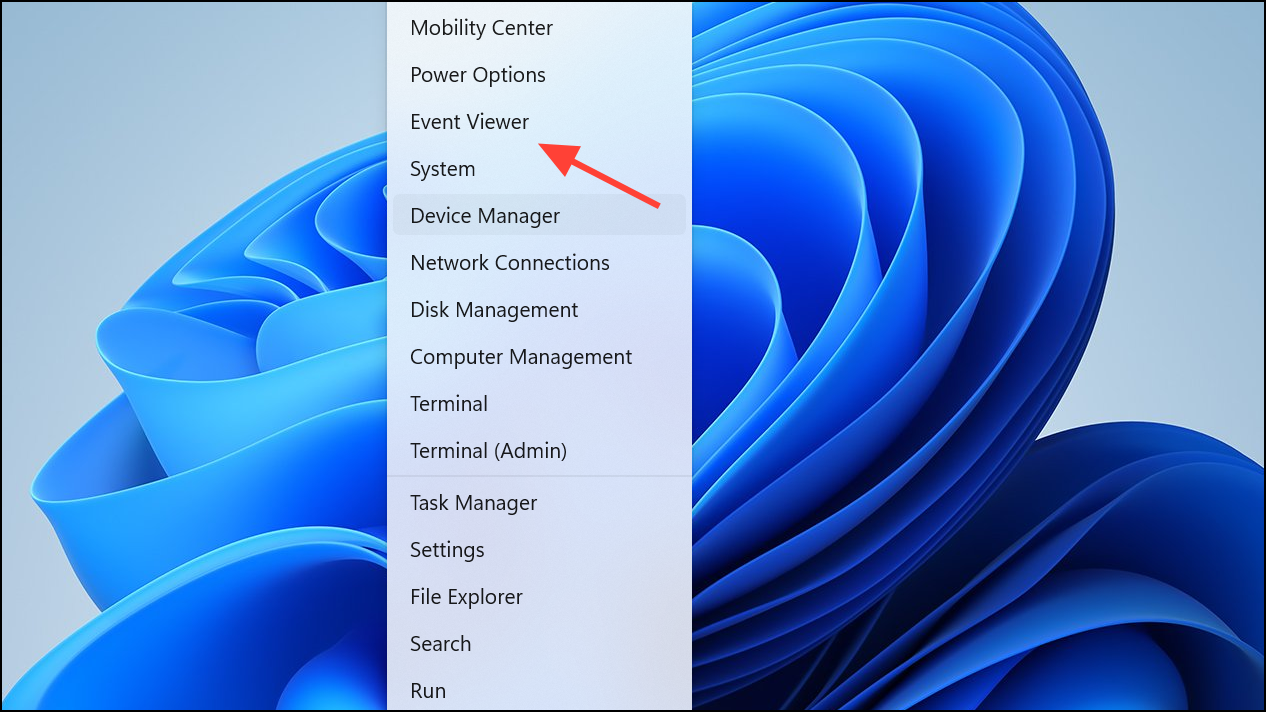
Windows Logs and select System. Look for errors or warnings with timestamps matching your shutdown events. “Kernel-Power” event 41 indicates a sudden loss of power, often due to hardware failure.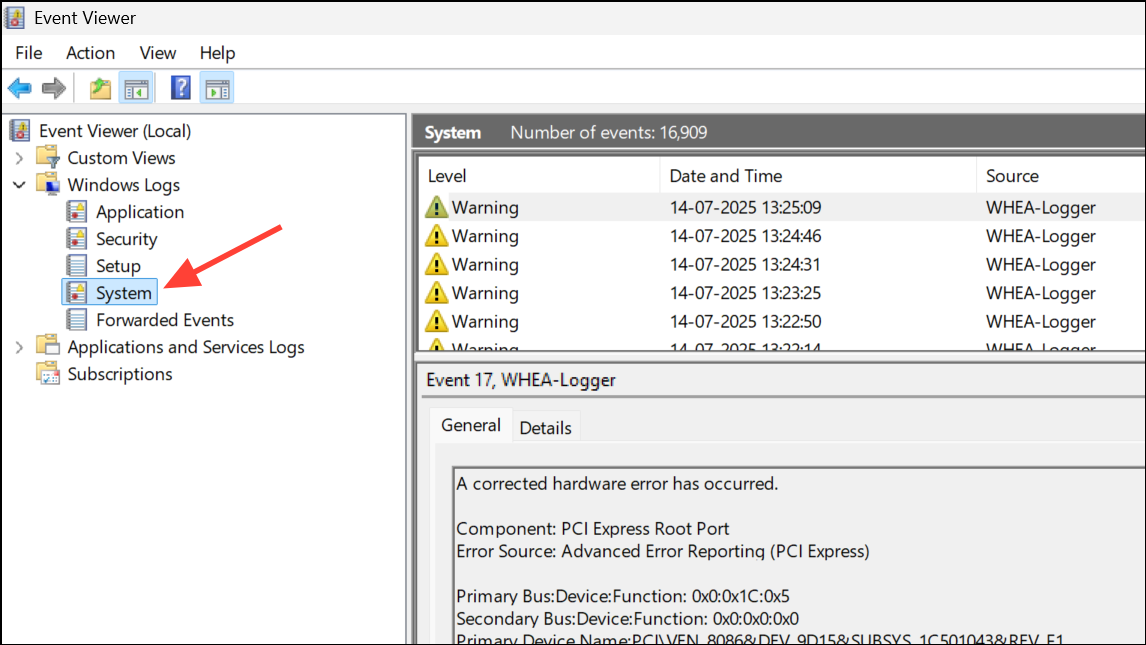
Additional Considerations and Maintenance Tips
- Connect your PC directly to a wall outlet or a high-quality surge protector, avoiding overloaded extension cords.
- Ensure all internal power cables, especially to the motherboard and GPU, are firmly seated. Use separate cables for multi-connector GPUs instead of daisy-chaining.
- If you recently updated Windows or your GPU drivers before shutdowns began, try rolling back to a previous version to test for compatibility issues.
- For persistent or hard-to-diagnose issues, consider professional hardware diagnostics, as intermittent motherboard or storage failures can also cause shutdowns.
By systematically checking hardware, updating drivers, and monitoring for overheating, you can resolve most shutdowns during video playback on Windows 11. Regular cleaning and cautious cable management further reduce the risk of future interruptions.



