
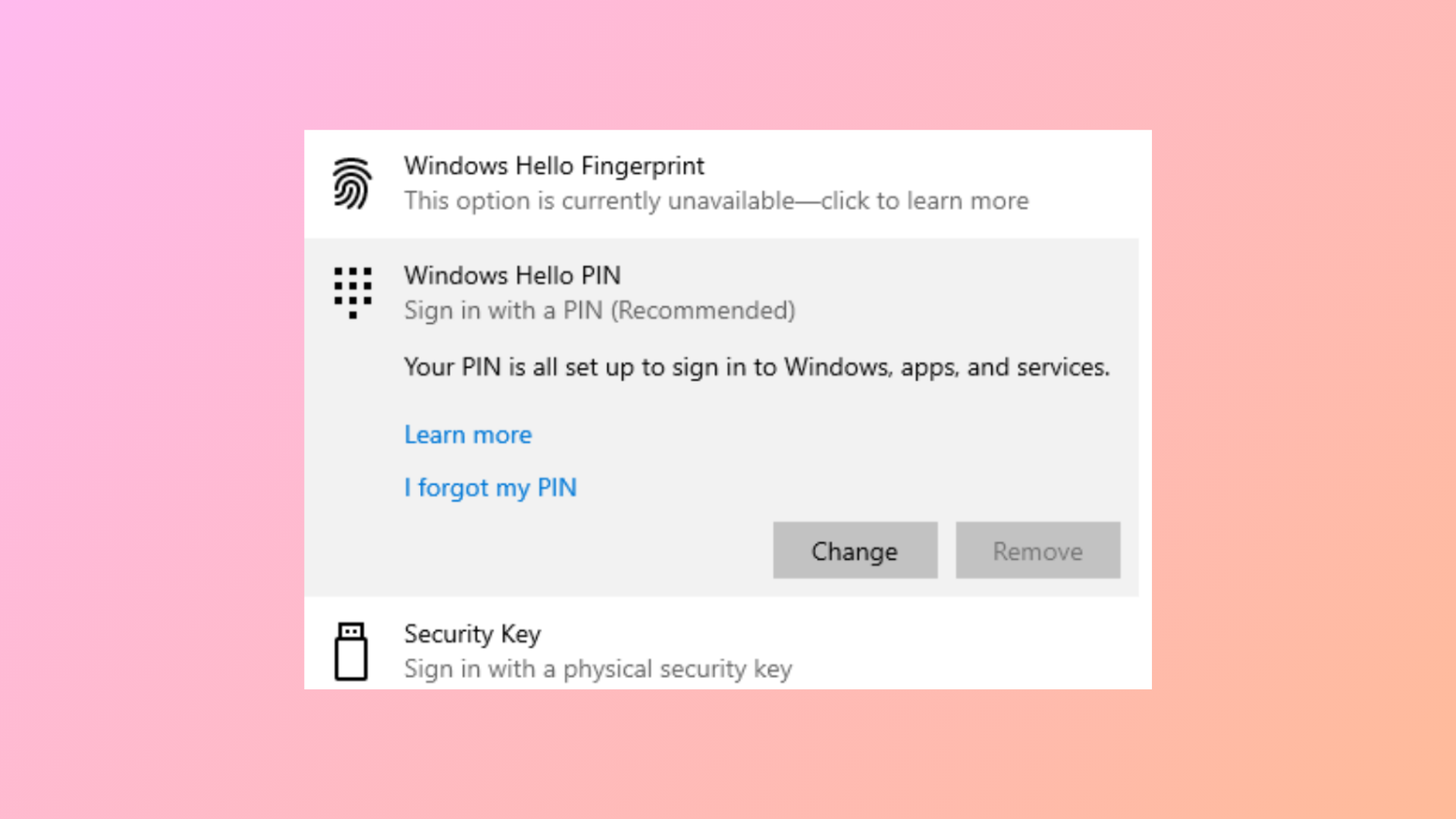
Windows 11 sometimes prevents users from removing their Windows Hello PIN by disabling (greying out) the “Remove” button in Sign-in Options. This restriction can block you from switching to password sign-in or other authentication methods, especially if you’re managing device access or troubleshooting login issues. Several system policies, account settings, or device configurations can cause this limitation, but you can resolve it by adjusting the right settings or using advanced tools.
Method 1: Disable “Only Allow Windows Hello Sign-In” Setting
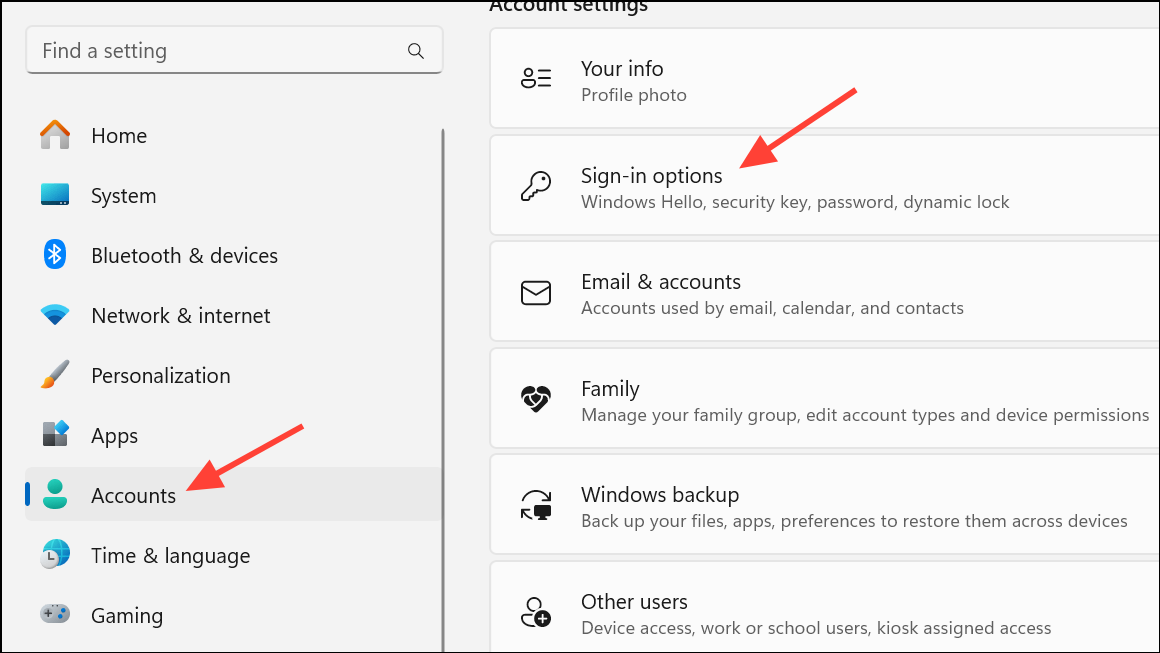
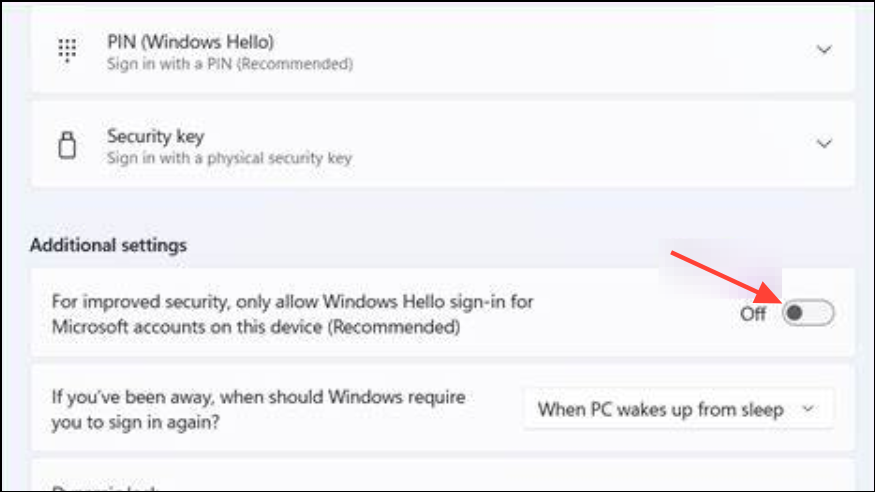
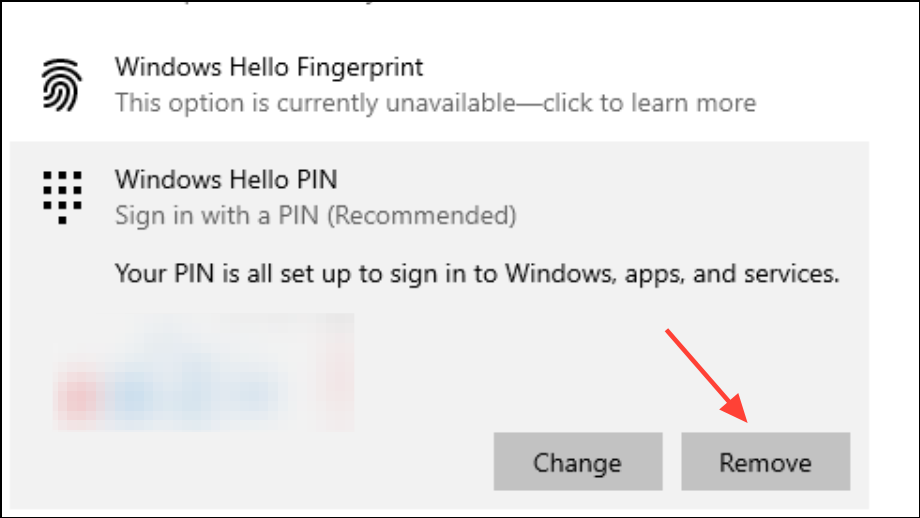
Method 2: Re-enable Password Sign-In for Local Accounts
Windows Hello PIN removal requires a password to be set on your account. If password sign-in is disabled or missing, you must enable it or set a password first.
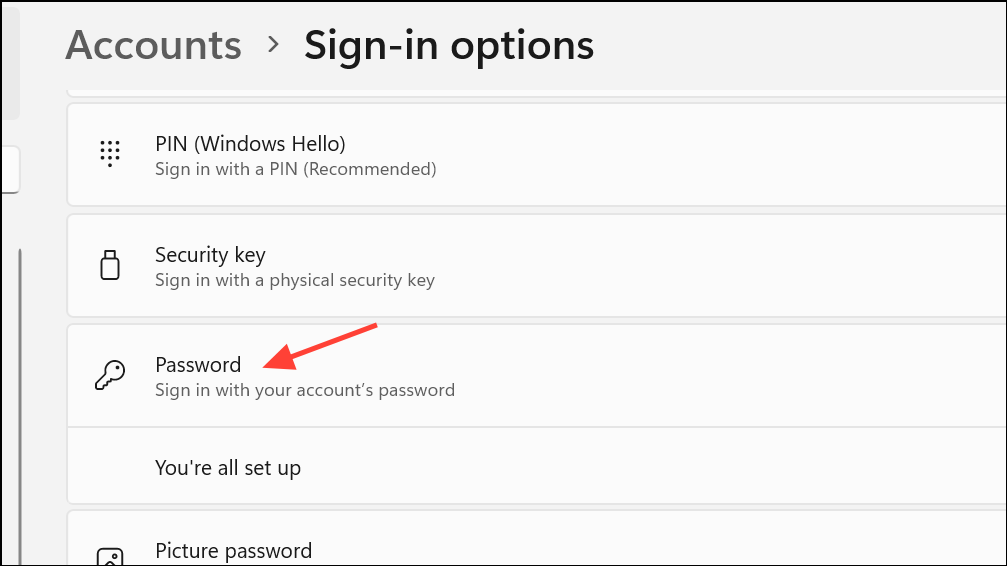
Method 3: Turn Off Passwordless Microsoft Account
Microsoft accounts with passwordless sign-in enabled can also prevent PIN removal. You’ll need to disable this feature through your Microsoft account’s security settings.
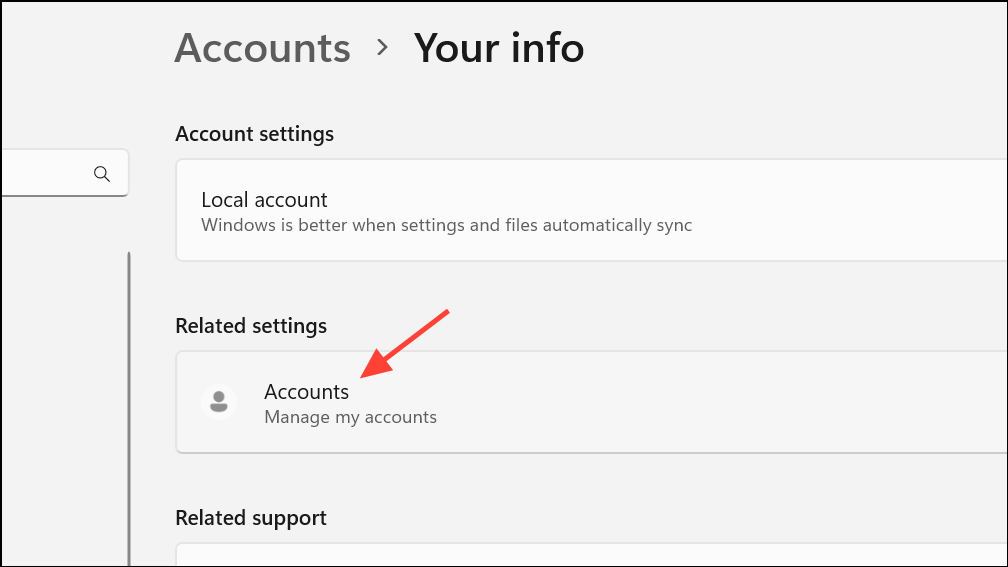
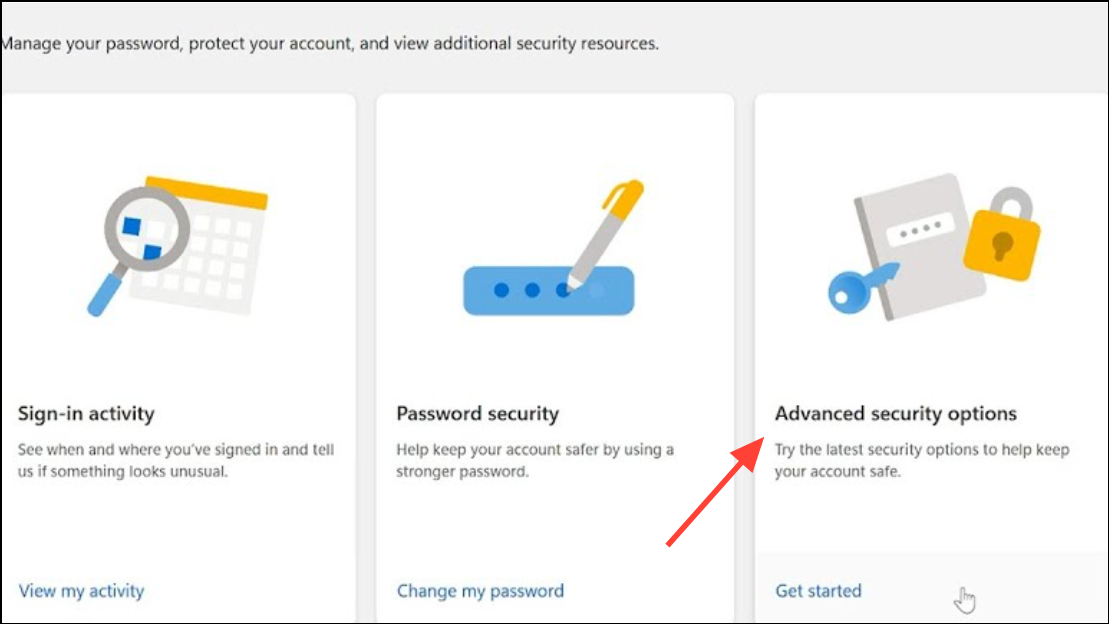
Method 4: Use “I Forgot My PIN” to Remove PIN
If the Remove button stays greyed out, use the “I forgot my PIN” feature as a workaround. This method can reset or clear the PIN requirement.
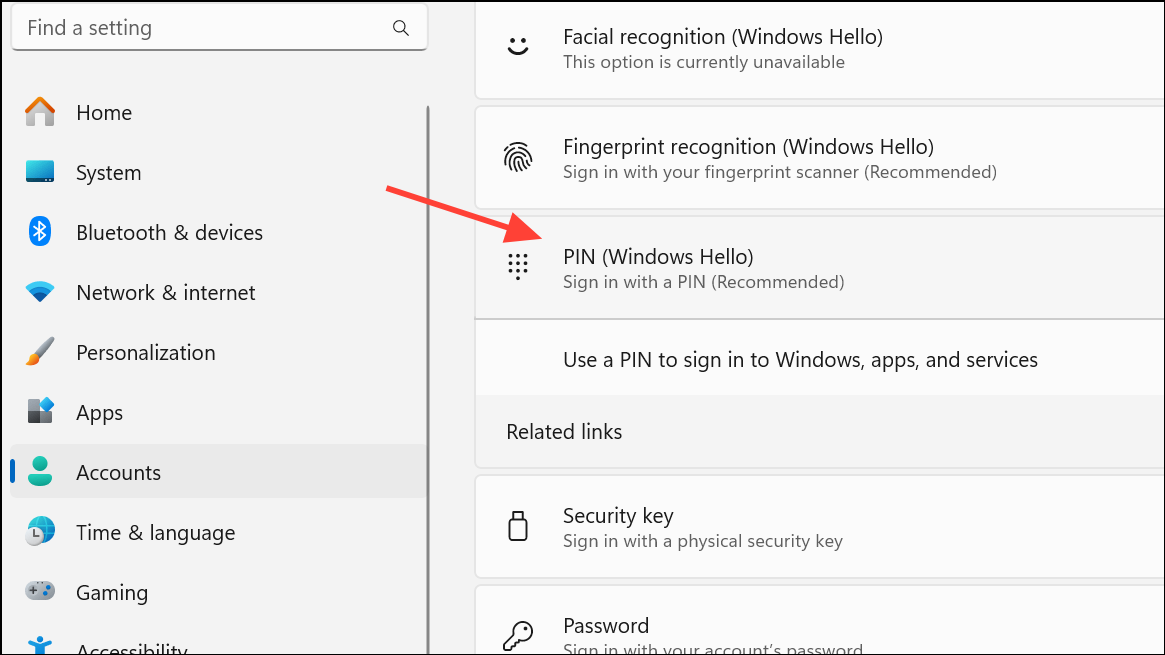
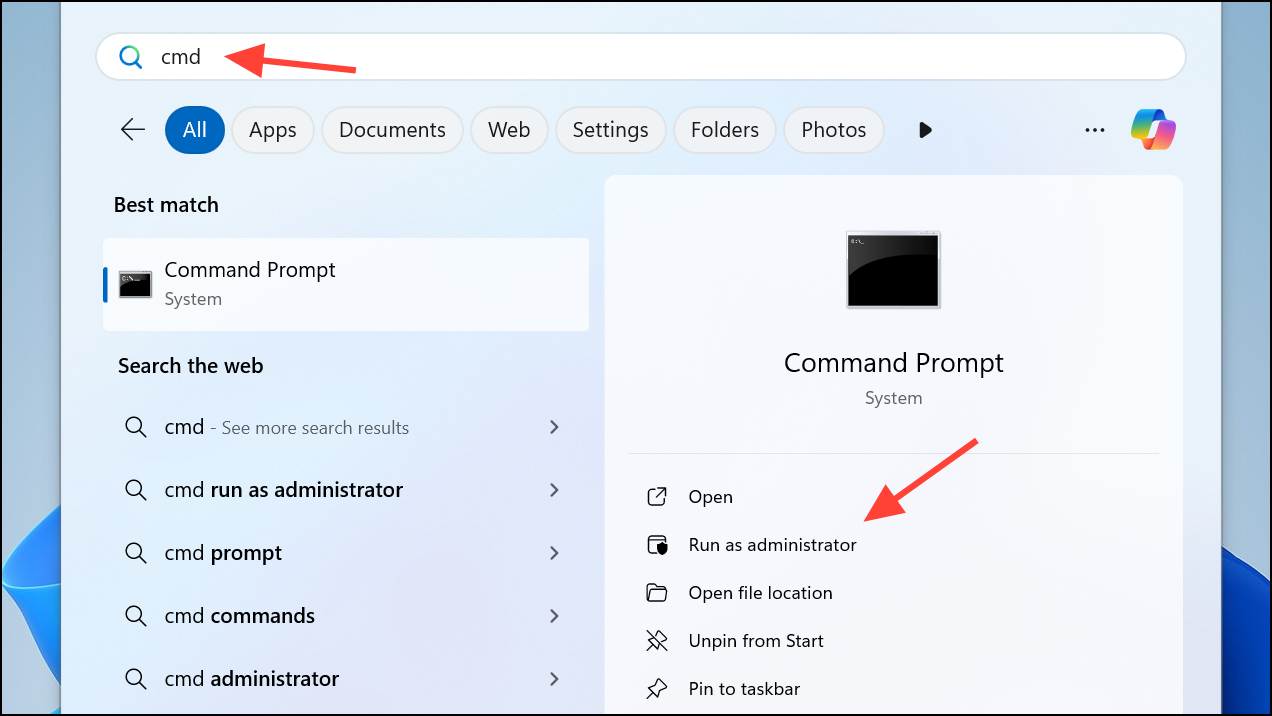
Method 5: Remove PIN via Command Prompt (Advanced)
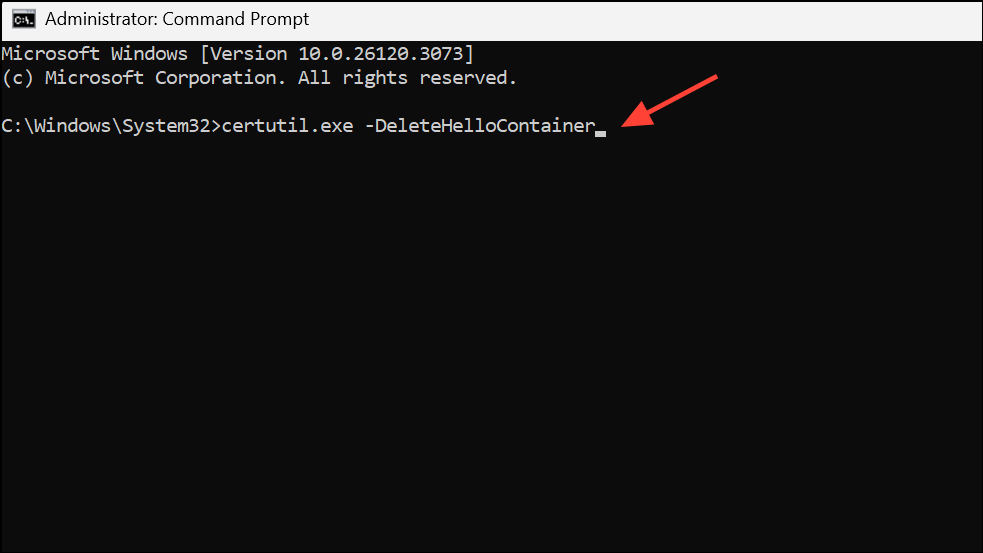
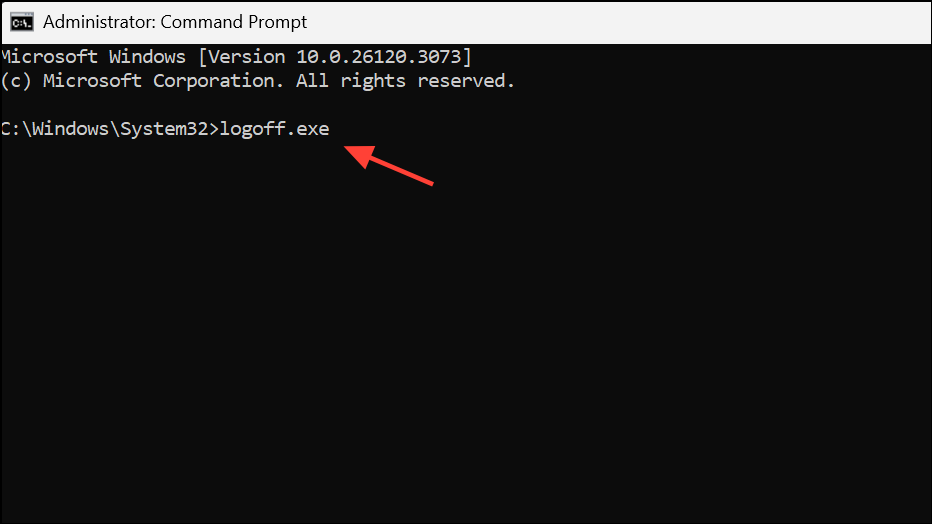
For persistent issues, especially on business or domain-joined devices, you can delete Windows Hello for Business registrations using the command line. This removes all local Hello credentials, including PIN, Face, and Fingerprint sign-in.
certutil.exe -DeleteHelloContainer
logoff.exe
Method 6: Delete the Ngc Folder (PIN Storage)
The Ngc folder stores PIN configuration data. Removing it can reset the PIN requirement, but may force you to set up a new PIN before removal is possible.
C:\Windows\ServiceProfiles\LocalService\AppData\Local\Microsoft\NGC. If you can’t access this folder, you may need to take ownership and grant permissions.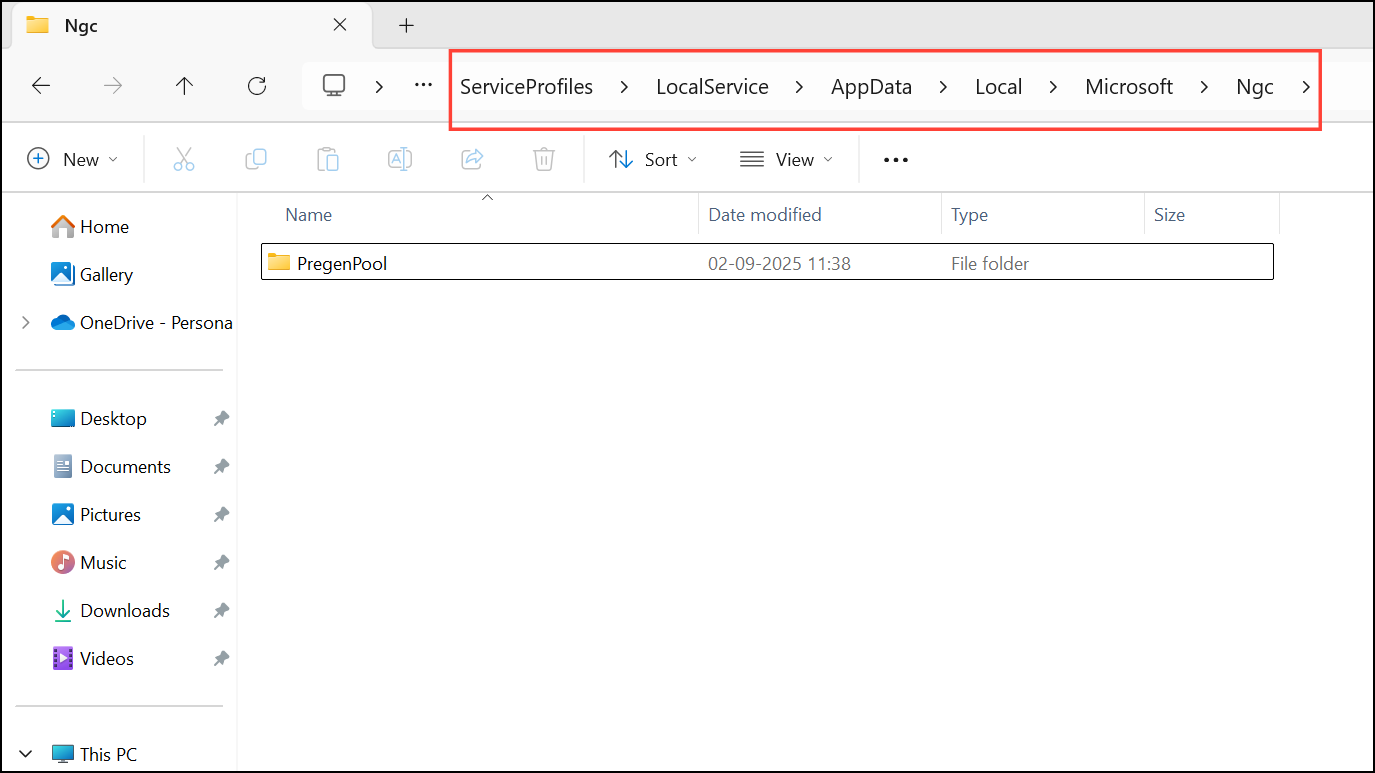
powershell -windowstyle hidden -command "Start-Process cmd -ArgumentList '/s,/c,takeown /f C:\Windows\ServiceProfiles\LocalService\AppData\Local\Microsoft\NGC /r /d y & icacls C:\Windows\ServiceProfiles\LocalService\AppData\Local\Microsoft\NGC /grant administrators:F /t & RD /S /Q C:\Windows\ServiceProfiles\LocalService\AppData\Local\Microsoft\Ngc & MD C:\Windows\ServiceProfiles\LocalService\AppData\Local\Microsoft\Ngc & icacls C:\Windows\ServiceProfiles\LocalService\AppData\Local\Microsoft\Ngc /T /Q /C /RESET' -Verb runAs"
Additional Tips and Troubleshooting
- On managed or domain-joined devices, group policy or Intune settings may enforce Windows Hello PIN. Contact your IT administrator if you cannot change sign-in settings.
- Switching from a Microsoft account to a local account can sometimes restore the Remove button, but may affect access to Microsoft services.
- If you see messages like “This setting is managed by your administrator,” local policy or registry edits may be required.
- Always ensure you have a password set before attempting to remove your PIN, as Windows requires at least one sign-in method.
Resolving a greyed-out Remove PIN option in Windows 11 usually involves adjusting security settings or account configurations. With the right approach, you can regain control over your sign-in preferences and streamline your login process.



