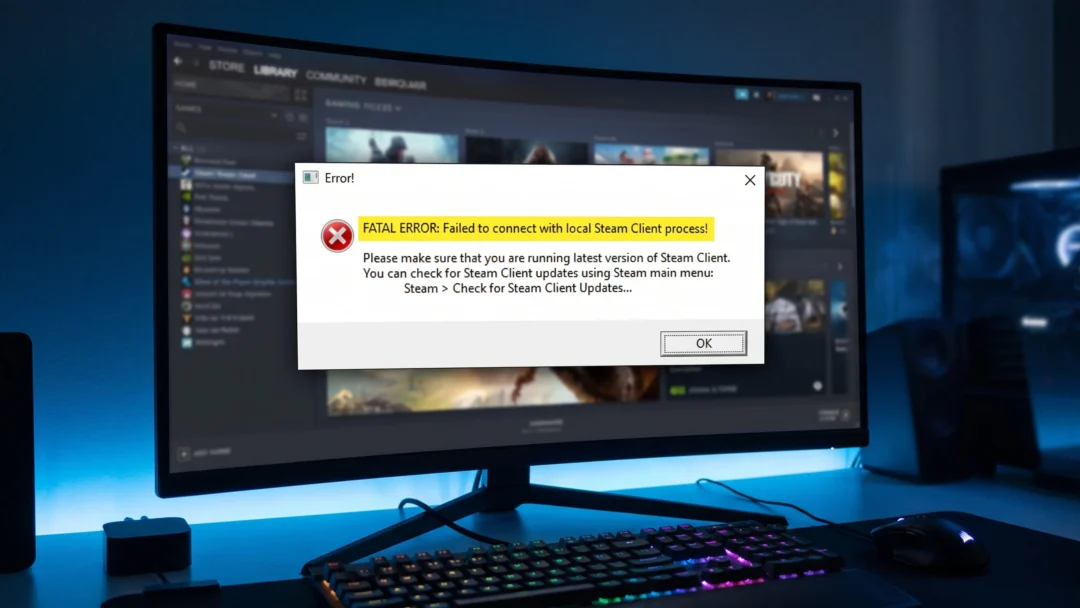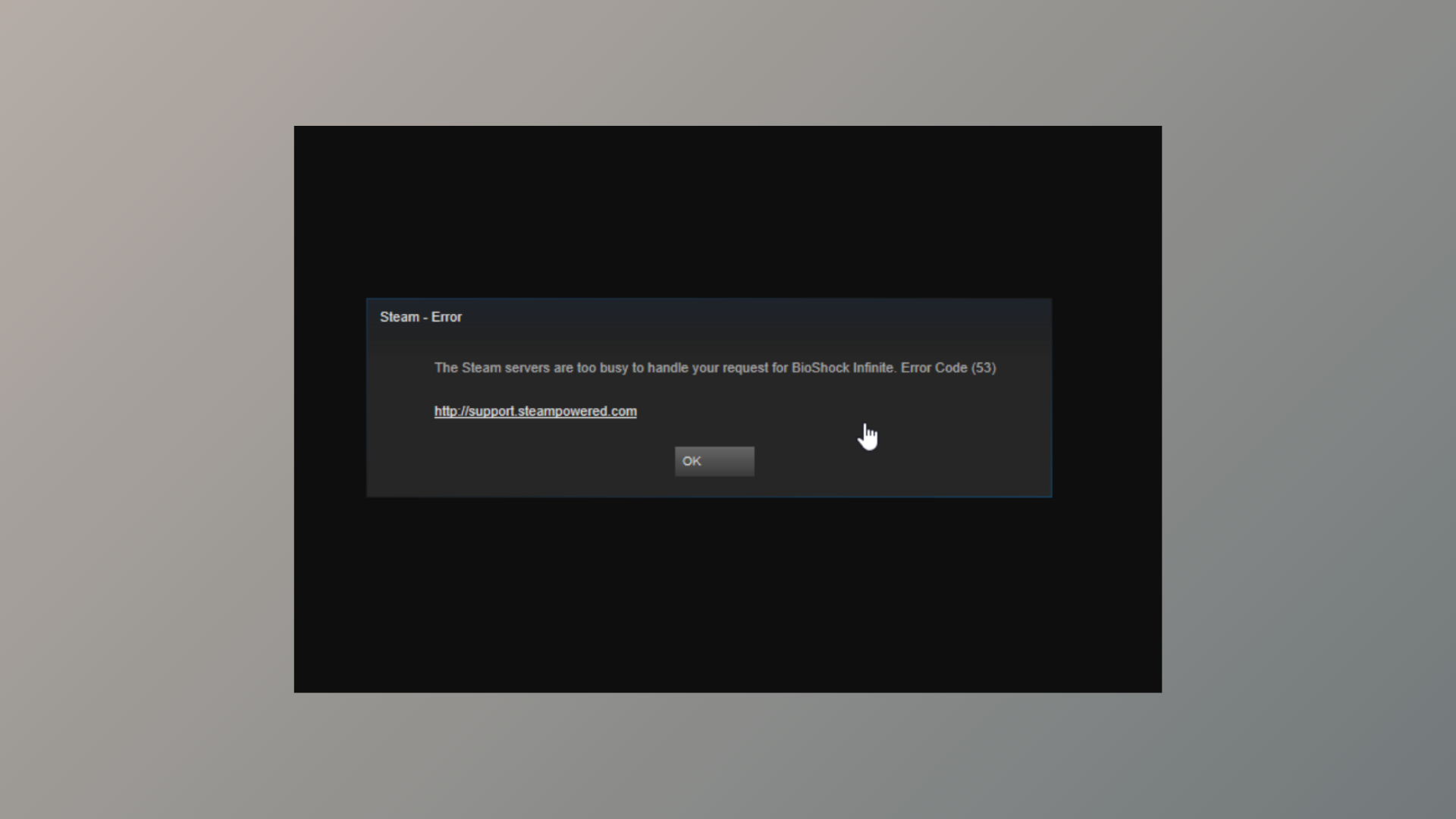
“Steam servers are too busy to handle your request. Error code 53.” This error message interrupts game launches or downloads, often leaving users unable to play titles they own. While the wording suggests a server-side problem, the root cause is frequently a local system or network issue. Addressing the most common triggers—like antivirus interference, network misconfiguration, or file system problems—restores access and prevents future disruptions.
Disable Antivirus Real-Time Scanning (Especially McAfee)
Antivirus software, particularly McAfee’s real-time scanning, is a leading cause of Steam error code 53. When active, it can block Steam’s attempts to read or write files during game installation or launch. Temporarily disabling real-time scanning allows Steam to complete these operations without interference.
This method resolves the error for most users running McAfee. If you use a different antivirus, try temporarily disabling its real-time protection to test for similar interference.
Restart Steam and Your Computer
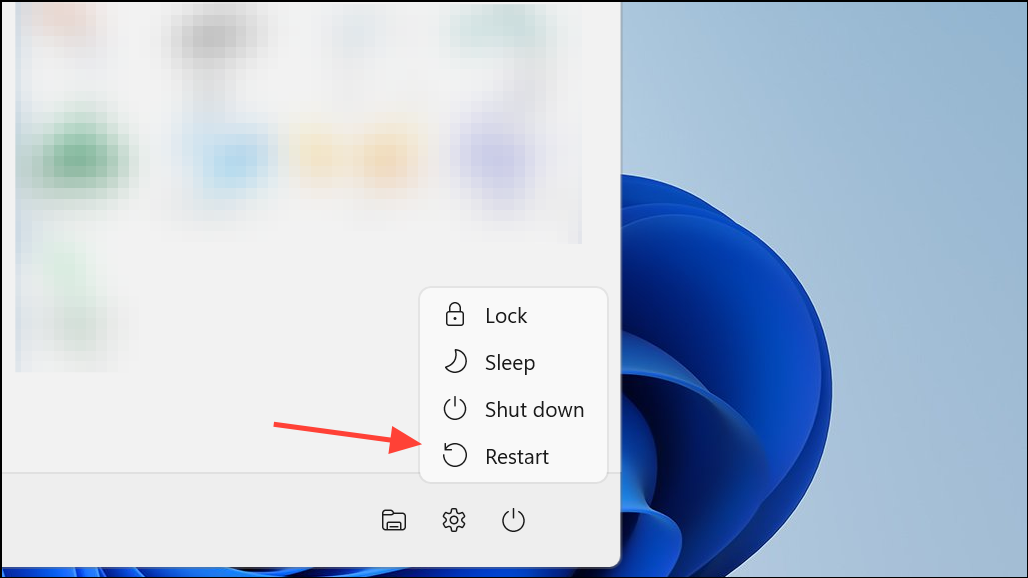
Temporary glitches in Steam or Windows can trigger error code 53, especially after updates. Restarting both the Steam client and your computer clears cached processes and resets network connections, often resolving the issue without further troubleshooting.
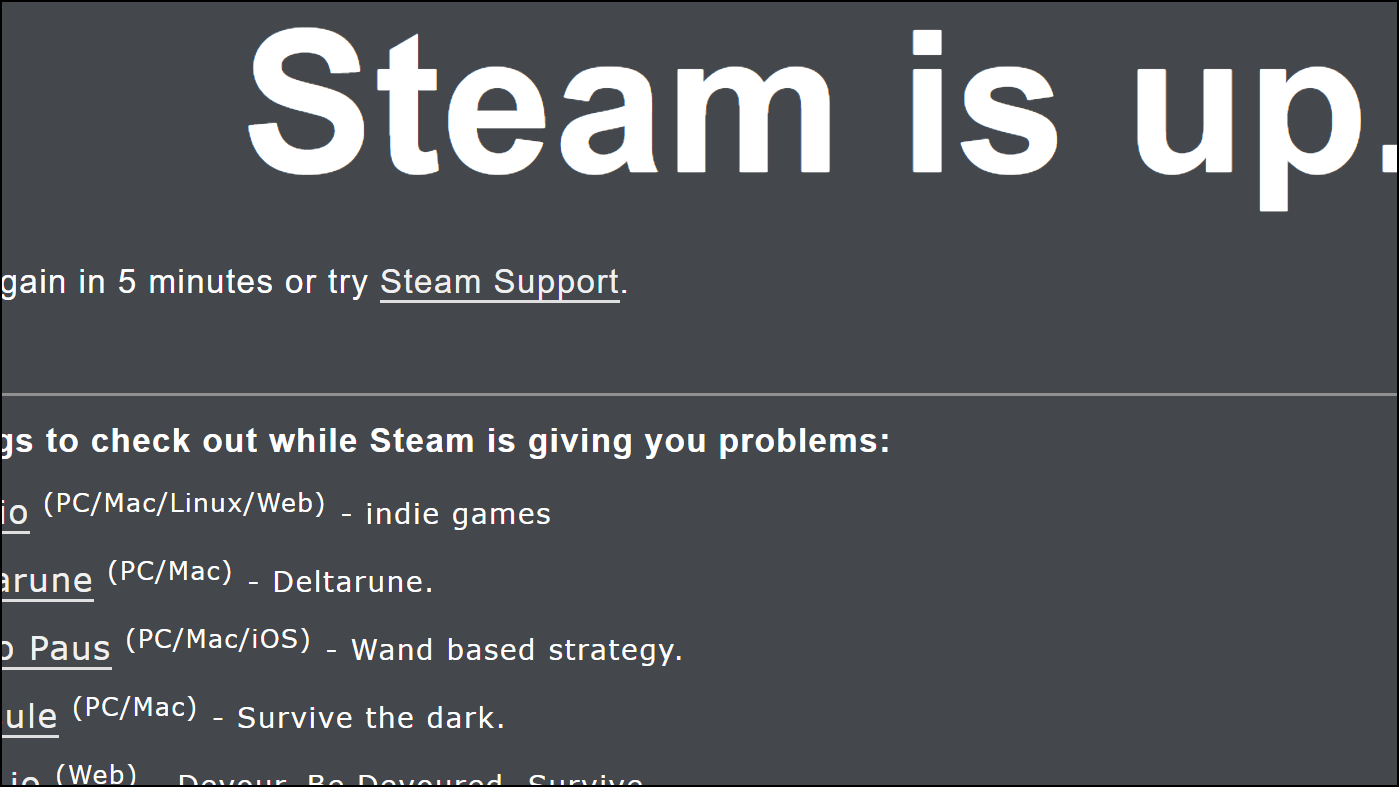
Check Steam Server Status
While rare, Steam’s servers may experience downtime or overload, especially during major game launches or sales events. If the servers are actually too busy or offline, local troubleshooting will not help until service is restored.
Test and Improve Your Network Connection
Unstable or slow internet connections can interrupt Steam’s communication with its servers, resulting in error code 53. Wired (Ethernet) connections deliver more consistent speeds than Wi-Fi and help avoid packet loss or latency spikes.
Allow Steam Through Windows Firewall
Firewall settings may block Steam’s network traffic, preventing it from downloading or launching games. Adding Steam as an exception in Windows Defender Firewall or your third-party firewall can resolve this blockage.
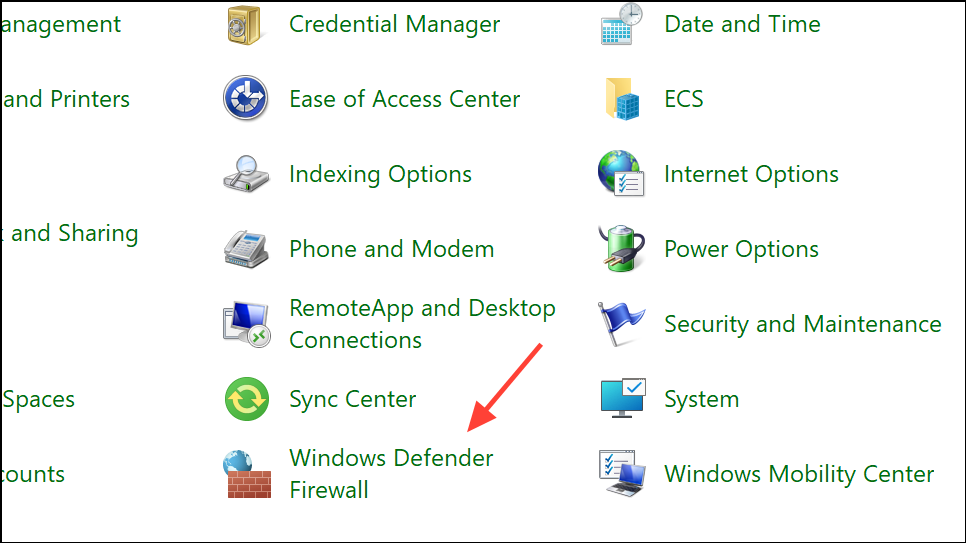
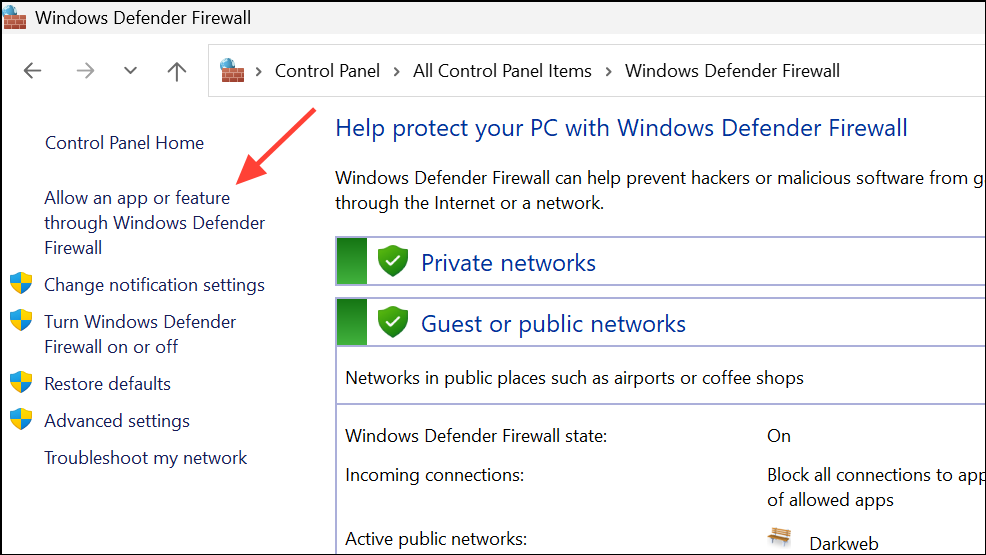
Change settings, then locate and check both Steam and the affected game for both private and public networks.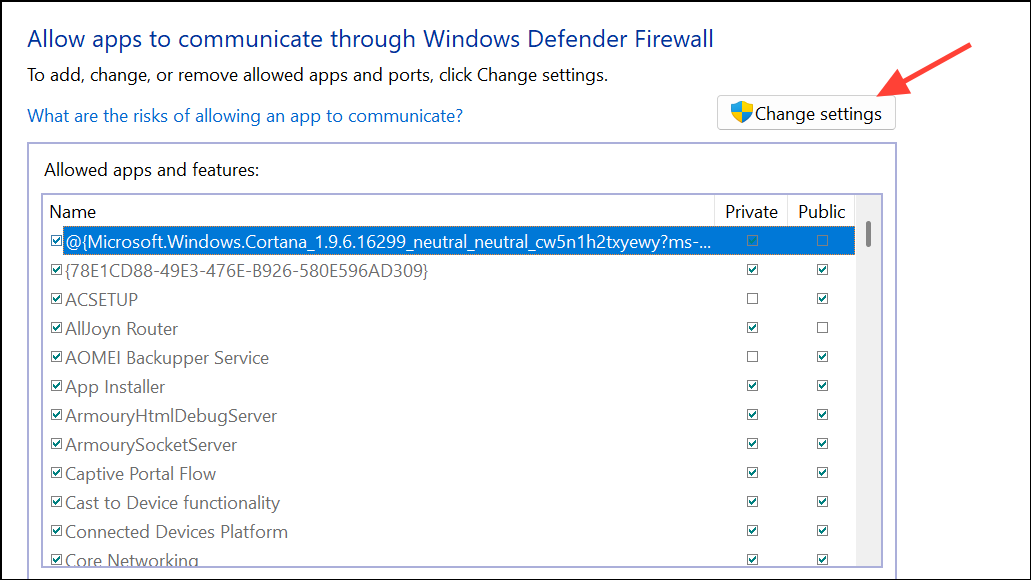
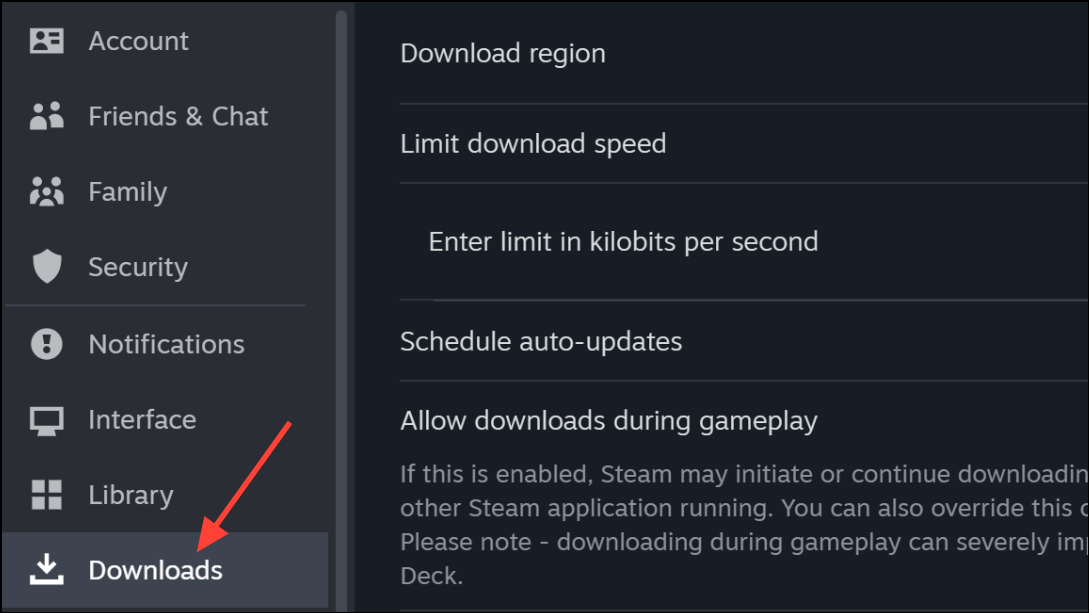
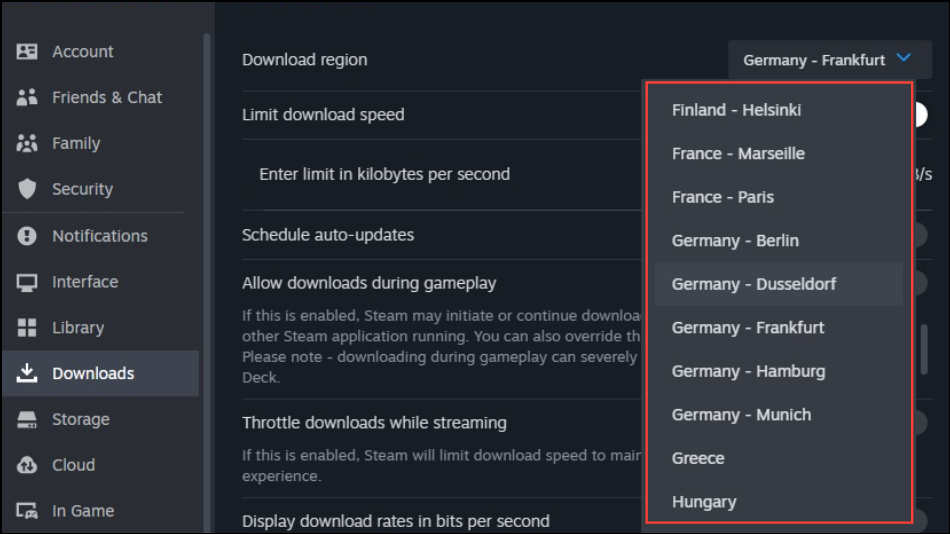
Change Steam Download Region
Steam assigns users to download servers based on their region. If your assigned server is overloaded or experiencing issues, switching to a different region can restore download and launch functionality.
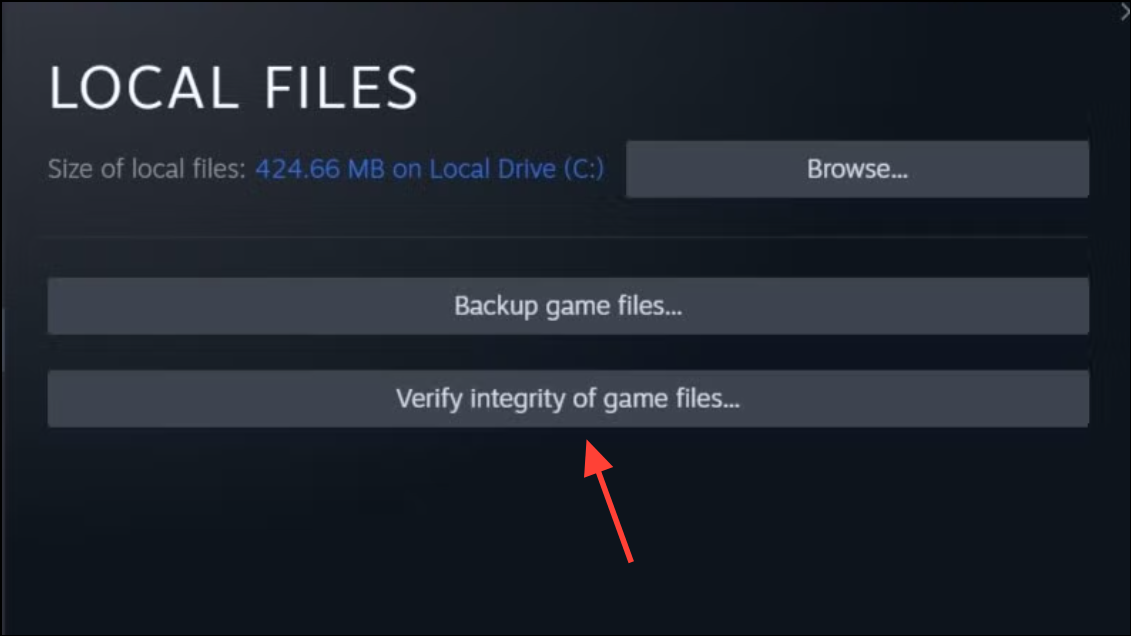
Verify and Repair Game Files
Corrupted or incomplete game files can prevent successful launches, triggering error code 53. Steam’s built-in file verification tool checks and repairs missing or damaged files.
Check Drive Format and Free Space
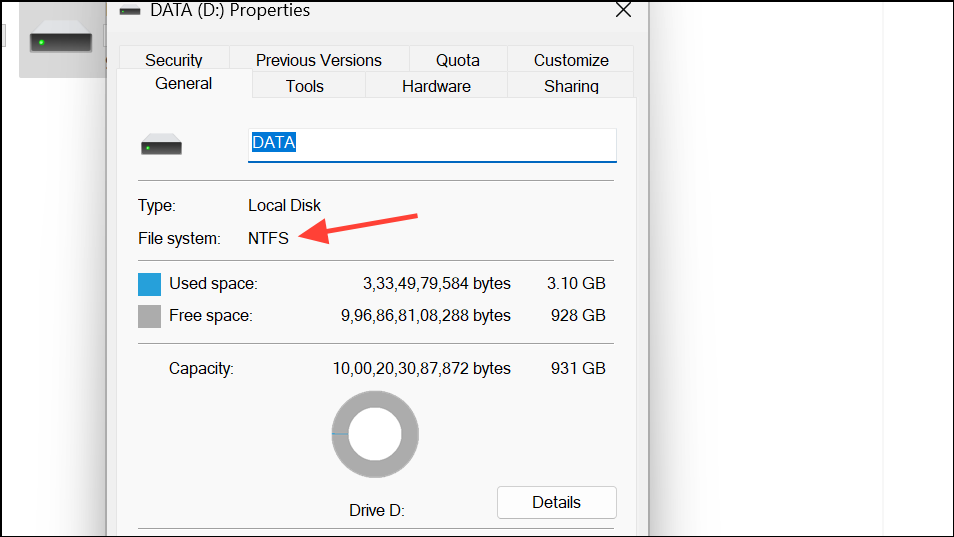
Steam requires its game library to reside on an NTFS-formatted drive, especially for larger games. Drives formatted as exFAT or FAT32 can cause file access errors. Additionally, insufficient free space may block downloads or installations.
This PC and right-click the drive containing your Steam library. Select Properties to check the file system (should be NTFS) and available free space.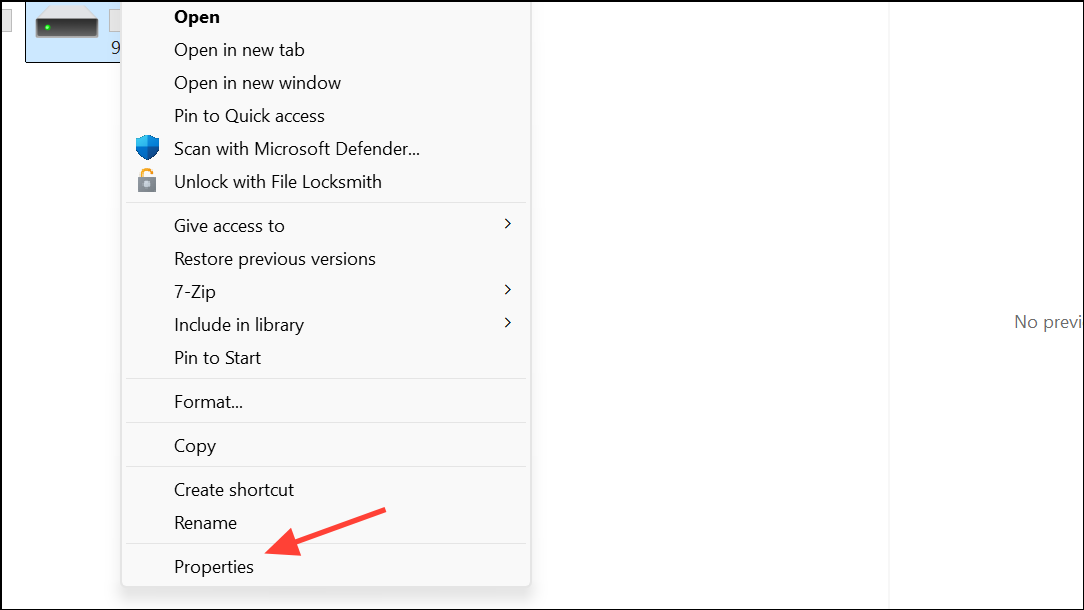
Update AMD Chipset Drivers (If Using AMD Hardware)
Users with AMD CPUs or motherboards may encounter error code 53 due to missing or outdated chipset drivers, particularly the AmdAS4 device. Installing the latest drivers from AMD’s official website resolves compatibility issues.
Device Manager, select Action > Add legacy hardware, and manually install the device as prompted.Run System File Checker
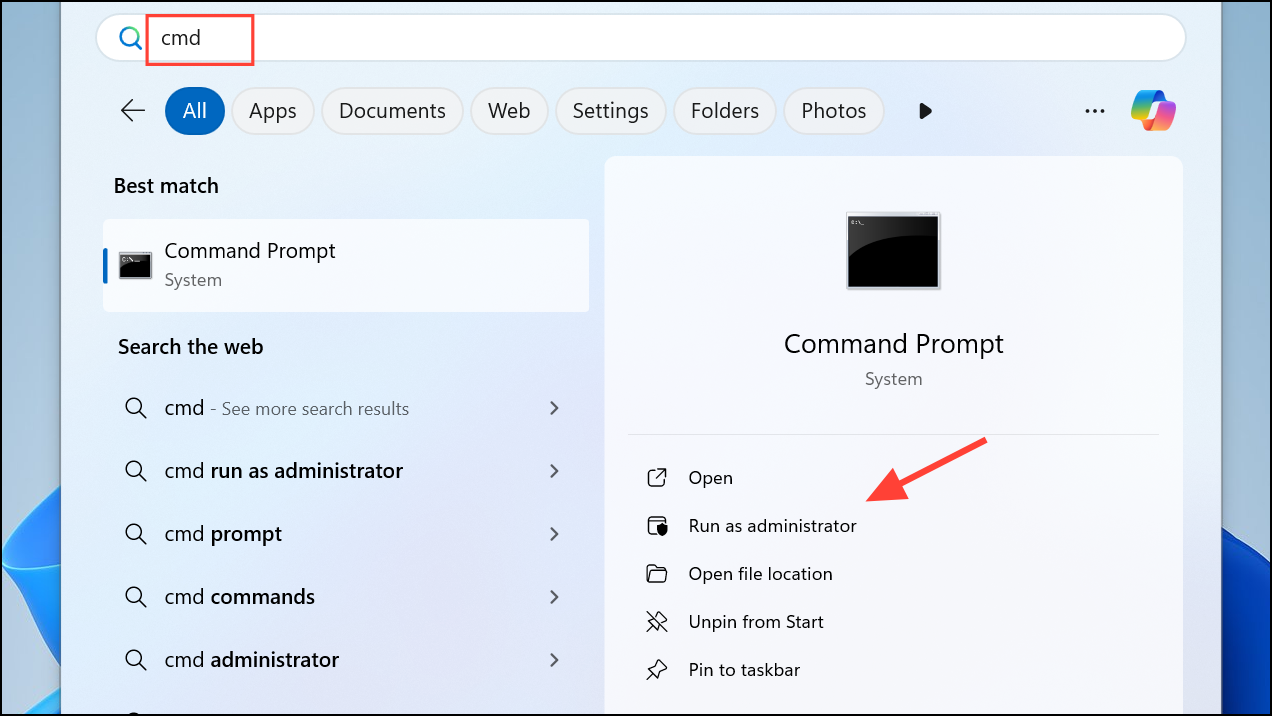
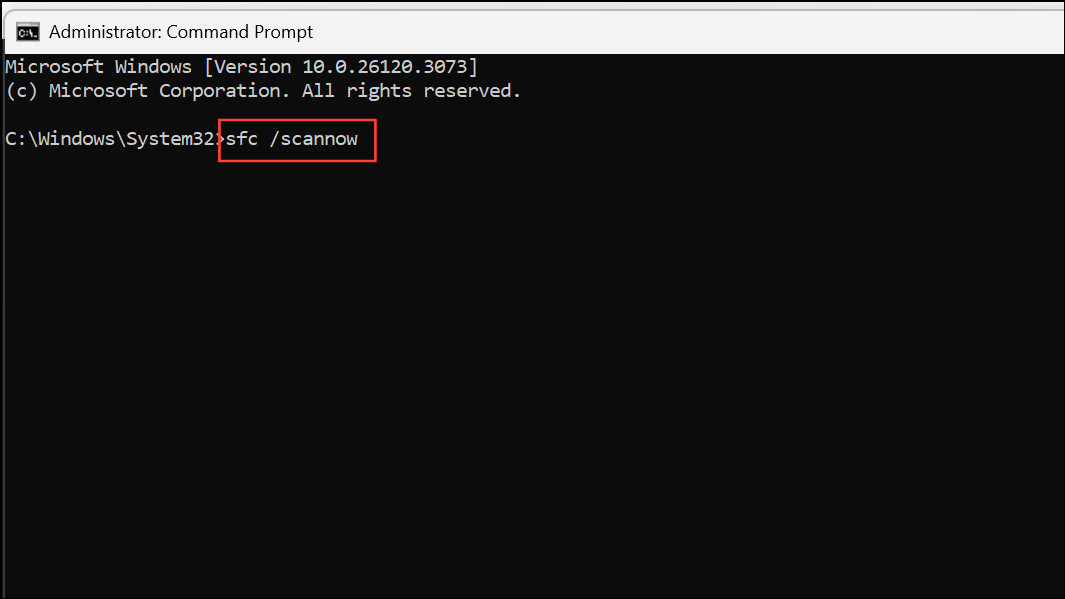
Corrupted Windows system files can disrupt Steam’s operation. The built-in System File Checker (SFC) tool scans and repairs these files.
Delete Corrupted Appmanifest Files
Some users report resolving error code 53 by deleting specific appmanifest files in the Steam directory, which can become corrupted during failed downloads or updates.
Resolving Steam error code 53 often involves a combination of these targeted steps, with antivirus and network troubleshooting yielding the fastest results. Keeping drivers updated and maintaining a stable connection ensures smoother gaming sessions going forward.