

The error message “The destination already has a file named…” appears when Windows 11 detects a file or folder with the same name at the target location during a copy or move operation. This issue can block file transfers, disrupt workflows, or create confusion, especially when the destination folder appears empty or the files are not visible in File Explorer. Several factors can trigger this problem, including hidden files, corrupted system files, hard drive errors, long file paths, and cloud sync conflicts. Addressing the root cause streamlines file management and prevents recurring transfer failures.
Check for Hidden Files and Folders
Hidden files or folders with identical names in the destination can cause Windows 11 to block the transfer, even if you cannot see them in File Explorer. Making hidden items visible helps identify and remove these conflicts.
View tab at the top, then choose Show and click Hidden items. This displays any hidden files or folders.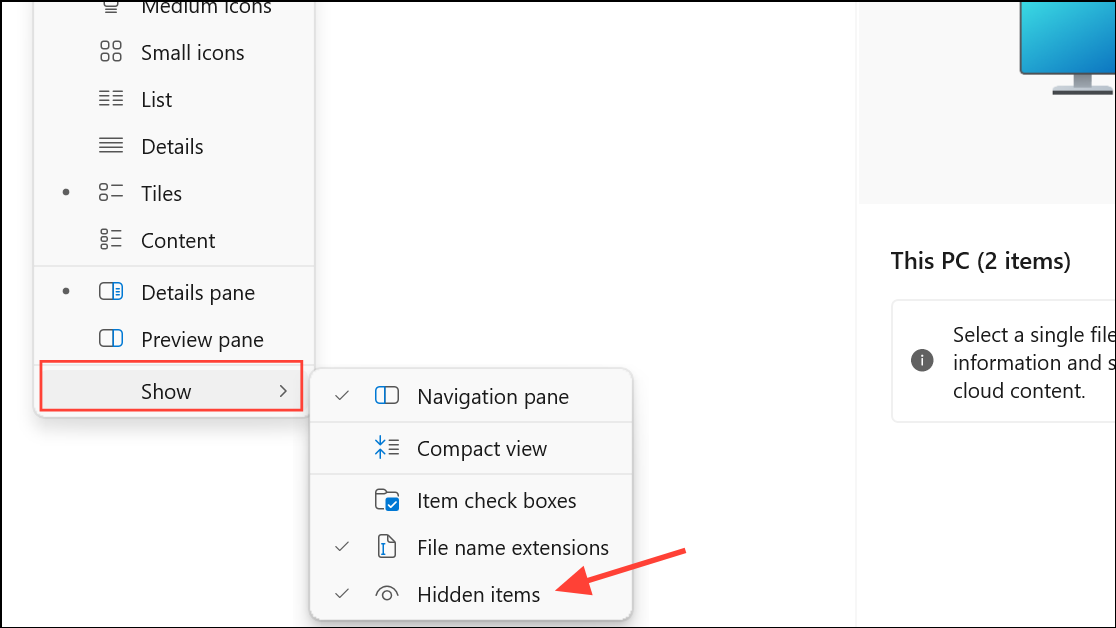
Restart File Explorer to Clear Clipboard Issues
Windows Explorer sometimes fails to update its internal state, especially after extended use or multiple file operations. Restarting File Explorer can clear stuck clipboard data and refresh the folder view, resolving transfer errors caused by temporary glitches.
File > Run new task. Type explorer.exe, check Create this task with administrative privileges, and click OK.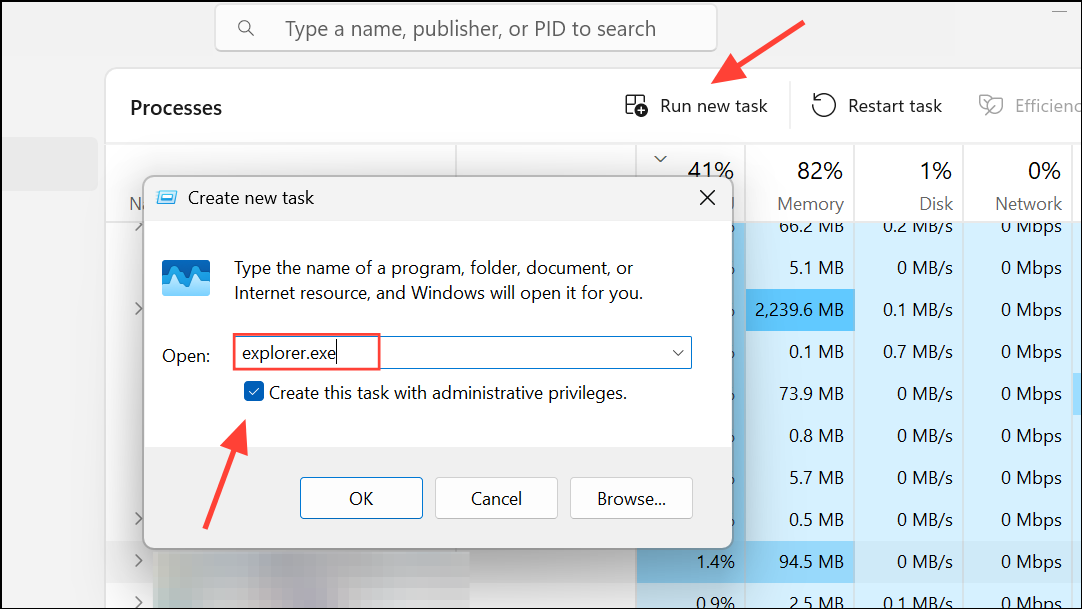
Scan for Corrupted or Missing System Files
Corrupted or missing system files can disrupt normal file operations, leading to transfer errors even when no visible conflicts exist. The System File Checker (SFC) tool repairs these issues automatically.
Win + R to open the Run dialog, type cmd, then press Ctrl + Shift + Enter to launch Command Prompt as administrator.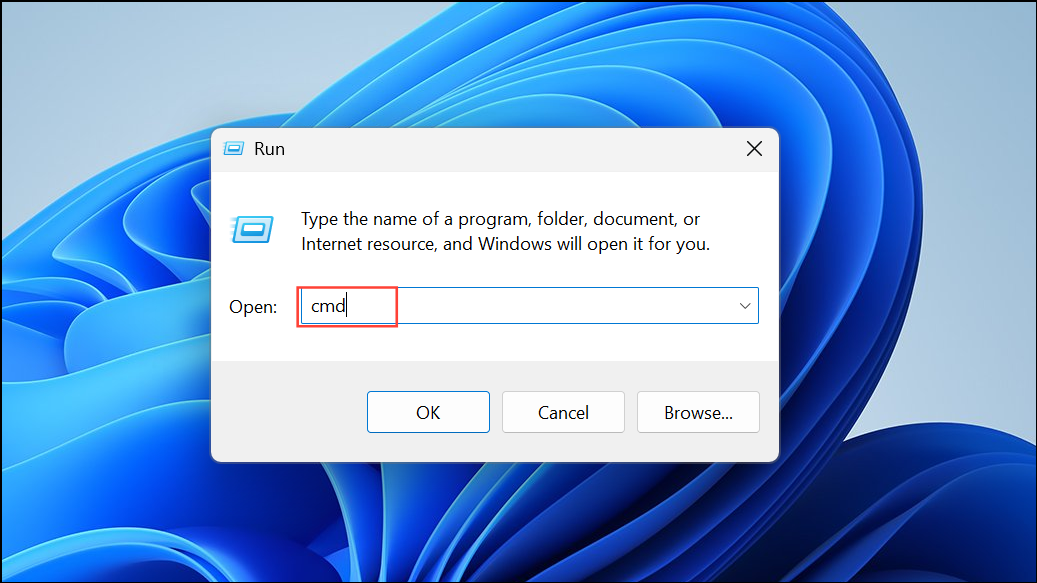
sfc /scannow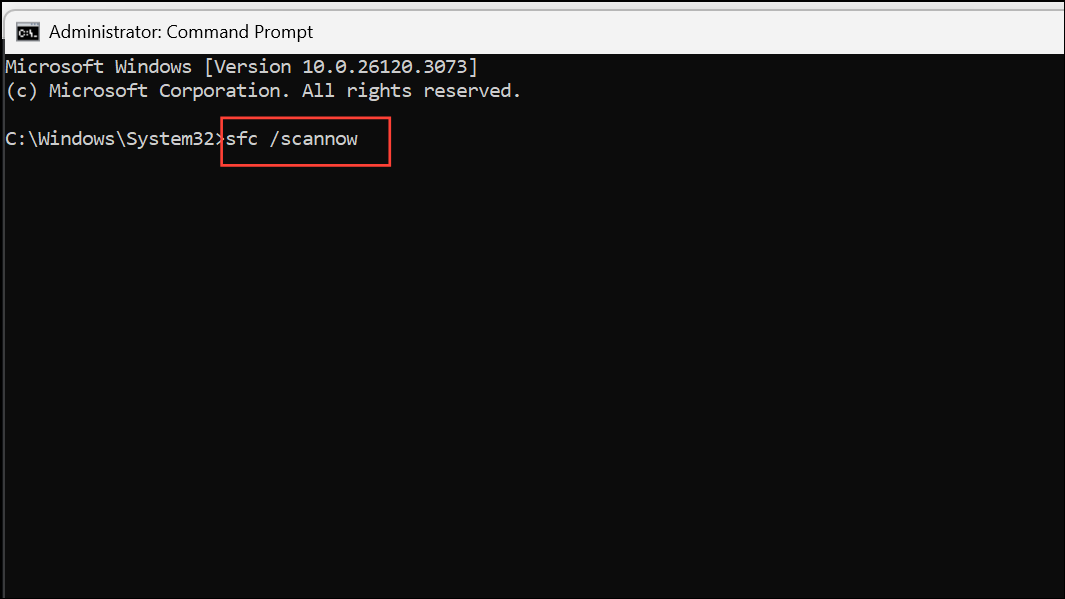
Check for Hard Drive Errors
File system errors on your drive, especially external drives or USB flash drives, can prevent Windows 11 from recognizing existing files or folders correctly. Running an error check on the drive can resolve these inconsistencies.
Properties.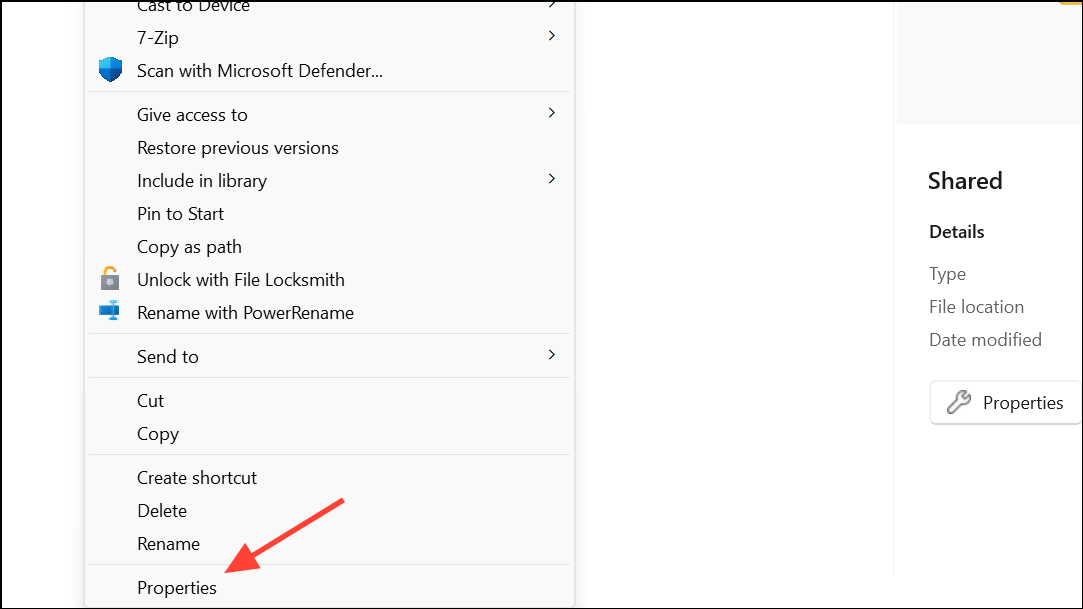
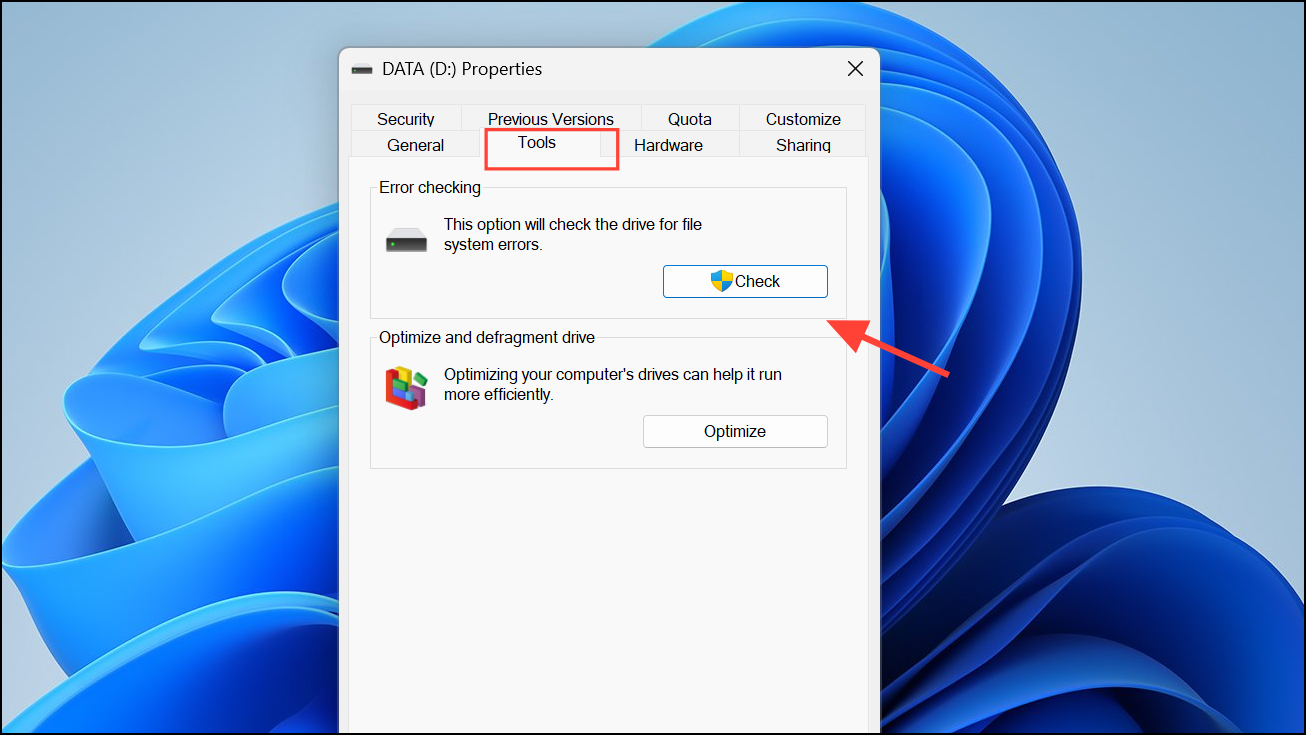
Scan for Malware or Unwanted Software
Malware can interfere with file system operations, create hidden files, or block access to certain folders. Running a comprehensive malware scan ensures that malicious software is not causing the transfer error.
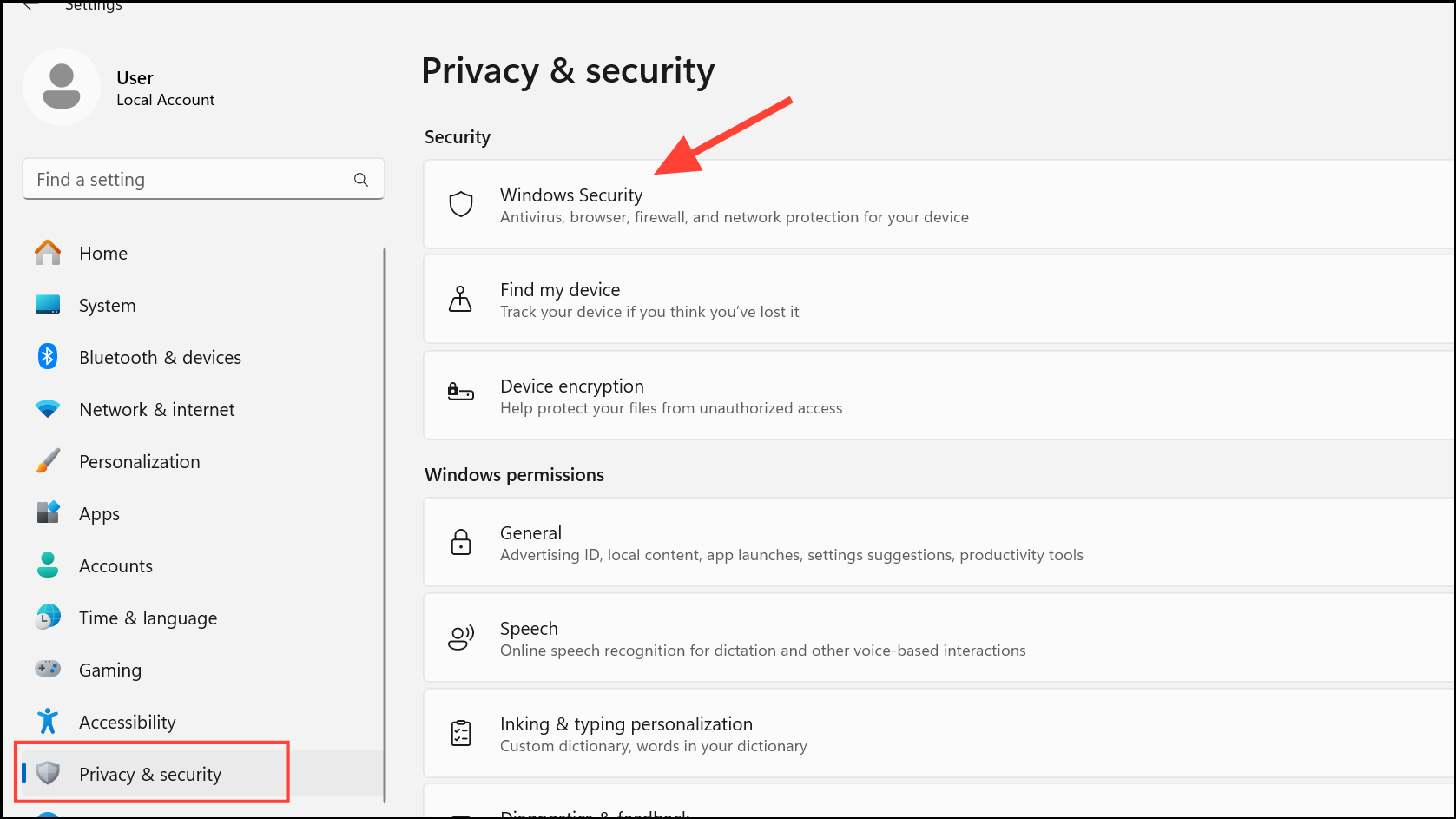
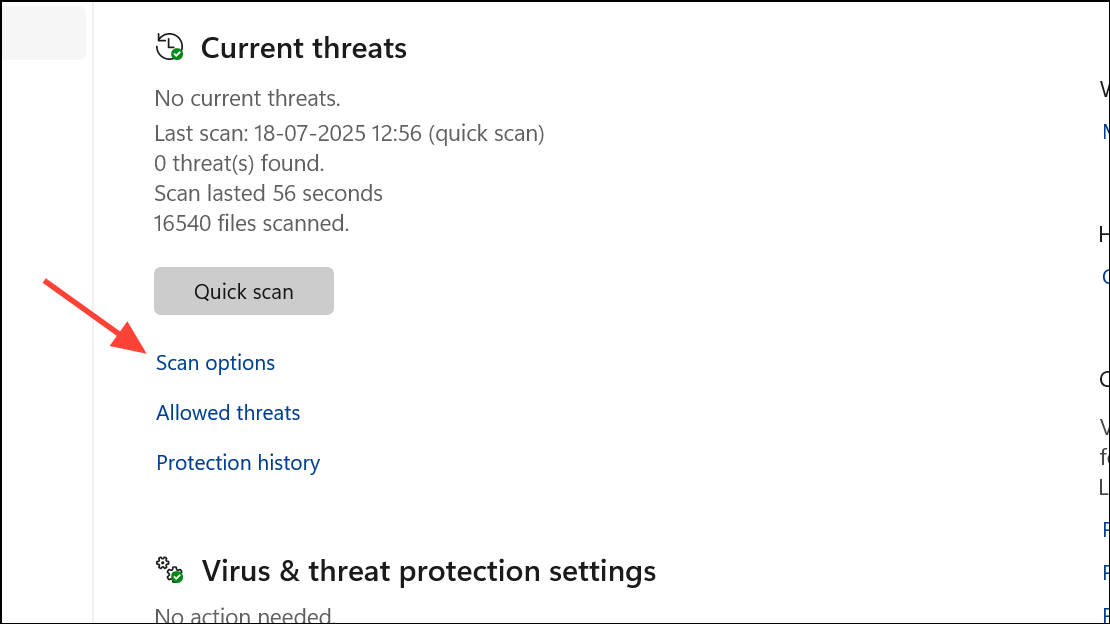
Windows Defender Offline scan and click Scan now. This scan will restart your device and check for threats outside of Windows.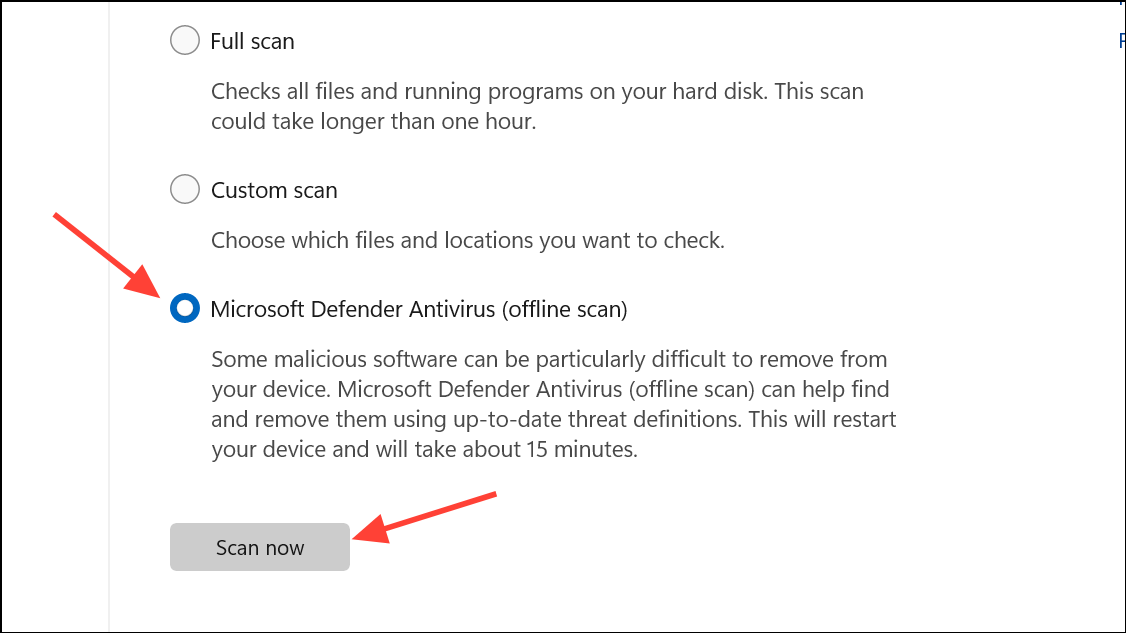
Resolve Long File Path and File Name Issues
Windows 11 supports file paths longer than 260 characters, but some applications and cloud sync services like OneDrive may still enforce this limit. If you encounter the “destination already has a file” error and suspect long file paths, shortening file or folder names, or reducing folder nesting, can resolve the problem.
$onedrive = $env:OneDriveCommercial
Get-ChildItem $onedrive -Recurse | ForEach-Object {
    if ($_.FullName.Length -gt 260) {
        "{0} = {1}" -f $_.FullName, $_.FullName.Length
    }
}
This script lists all files in your OneDrive folder with paths exceeding 260 characters.
Address OneDrive and Cloud Sync Conflicts
Cloud storage services like OneDrive can create duplicate or hidden files during sync operations, leading to misleading “destination already has a file” errors. Sync conflicts may also occur if file names or paths are too long for the cloud service to process.
Fixing the “destination already has a file” error in Windows 11 usually involves checking for hidden items, addressing file path length, scanning for system errors, or resolving cloud sync conflicts. Taking these steps restores smooth file operations and prevents future transfer interruptions.



