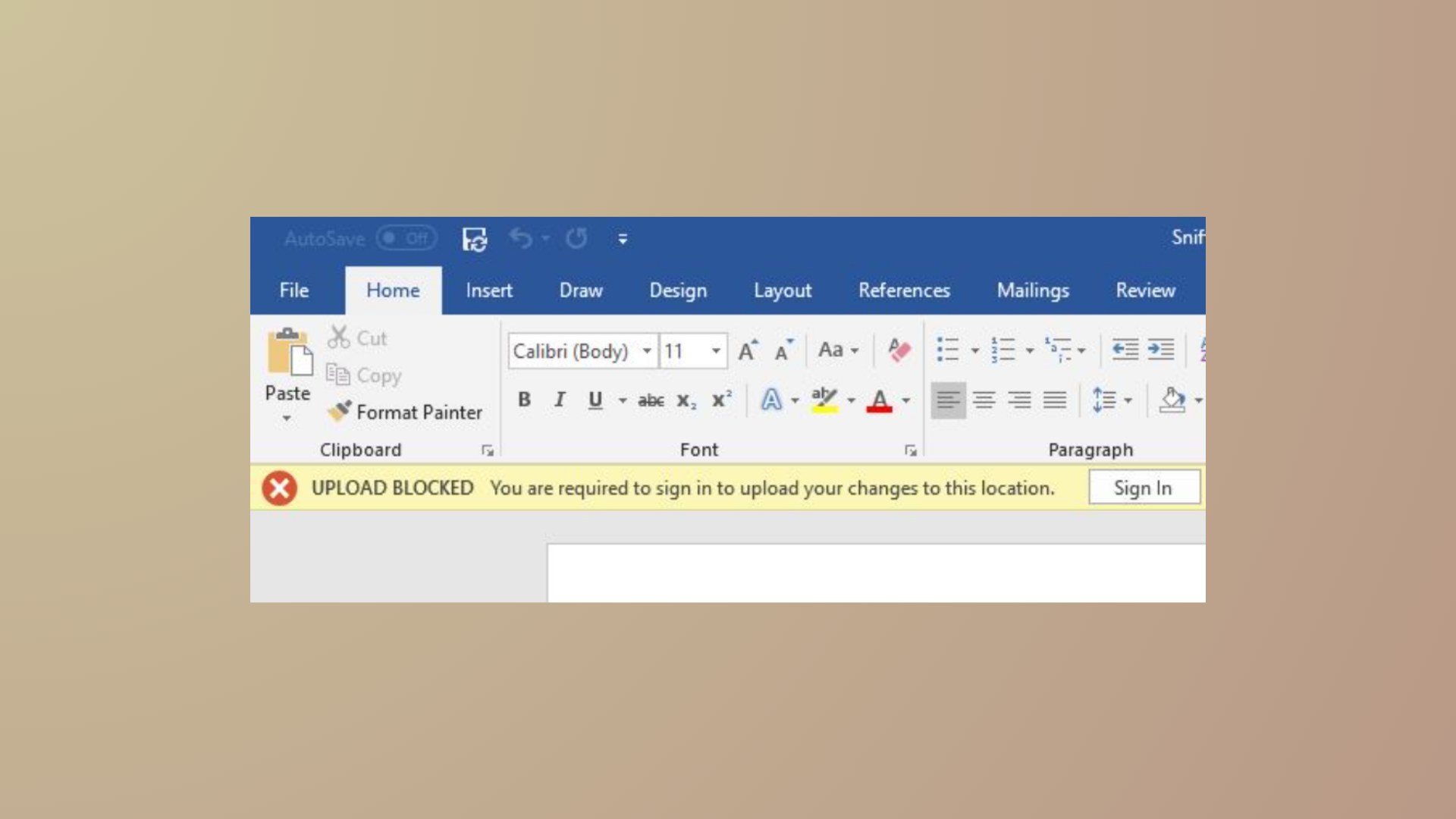
Attempting to open or sync files in OneDrive can trigger the error message: “The source and destination file names are the same.” This problem commonly arises due to Windows path length restrictions, synchronization conflicts, or unsupported characters in file or folder names. Addressing these root causes not only resolves the error but also streamlines file access and sharing across devices.
Shorten File and Folder Paths
The most frequent cause of this OneDrive error is exceeding the Windows maximum path length of 260 characters, which includes the drive letter, all folder names, and the file name itself. When the path is too long, OneDrive cannot create or sync the file locally, resulting in this error.
C:\Users\YourName\OneDrive\Projects\2024\Reports\Q1\Financials\April\Summary\Final\Report.pdf, move it to C:\Users\YourName\OneDrive\Reports\Report.pdf. This action shortens the full path and reduces the chance of hitting the character limit.Enable Long Path Support in Windows 10/11
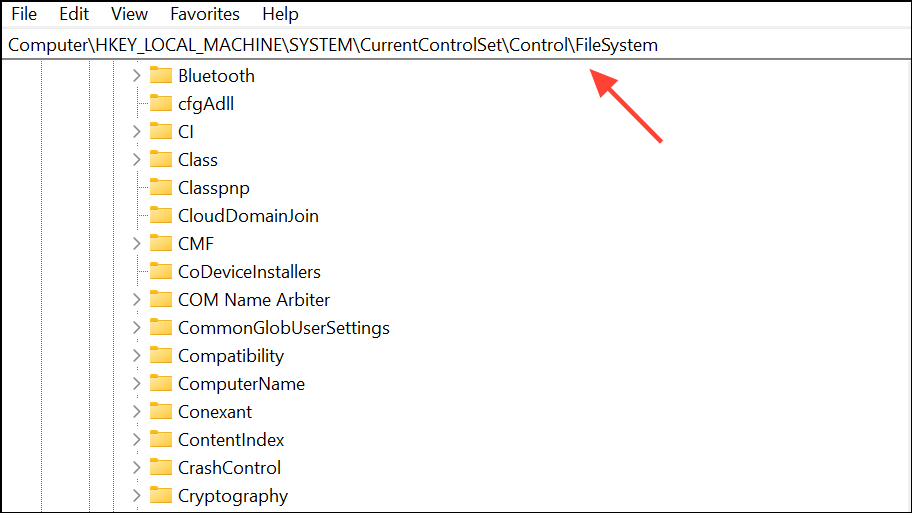
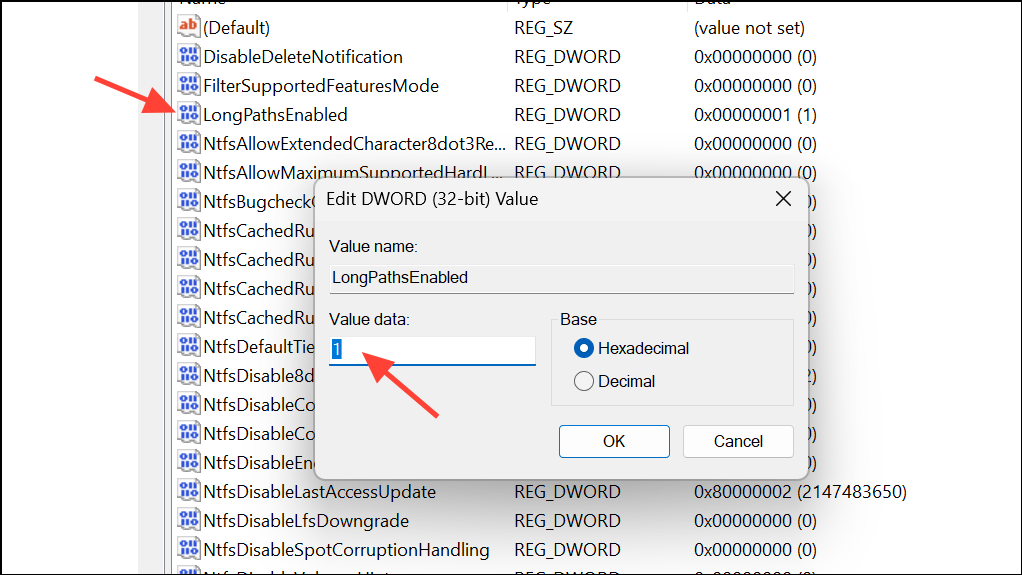
Windows 10 and 11 allow you to activate support for long file paths, which raises the limit from 260 to 32,767 characters for compatible applications. Enabling this feature can prevent OneDrive errors caused by path length.
Windows + R to open the Run dialog, type regedit, and press Enter to launch the Registry Editor.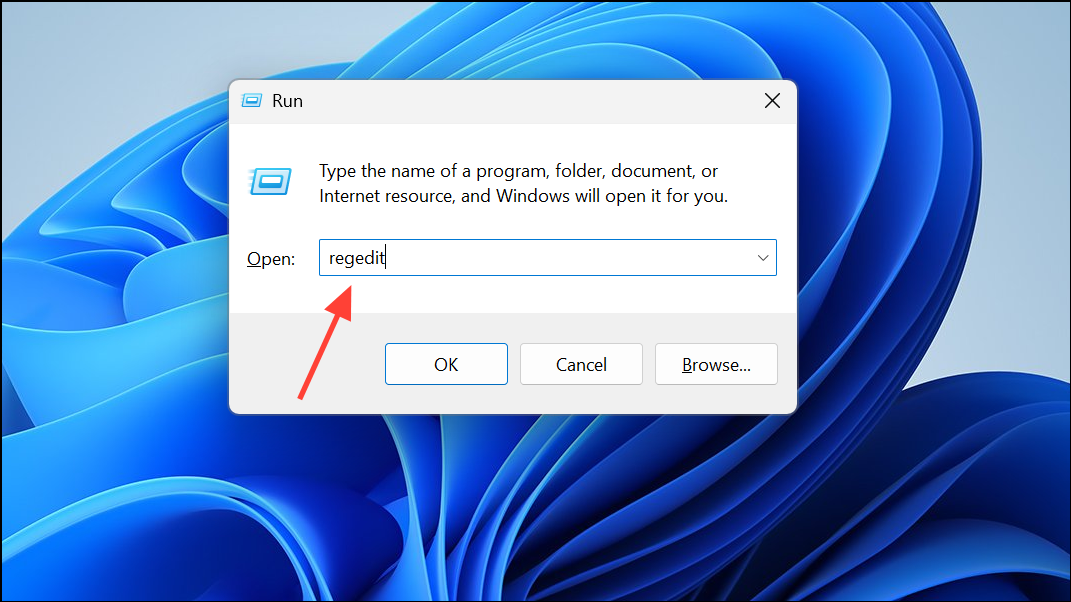
Check for Invalid Characters and Reserved Names
OneDrive and Windows restrict certain characters and names in files and folders. Using unsupported characters or reserved names can trigger sync errors.
- Remove any of these characters from file and folder names:
" * : < > ? / \ |. - Avoid reserved names such as
CON, PRN, AUX, NUL, COM0–COM9, LPT0–LPT9, .lock, desktop.ini, or any name starting with~$.
After renaming files or folders to remove invalid characters or reserved names, allow OneDrive to resync and check if the error persists.
Ensure Files Are Fully Synced and Stored Locally
OneDrive’s “Files On-Demand” feature may keep files in the cloud until you open them. Attempting to open unsynced files can cause the error if the file isn’t yet downloaded to your device.
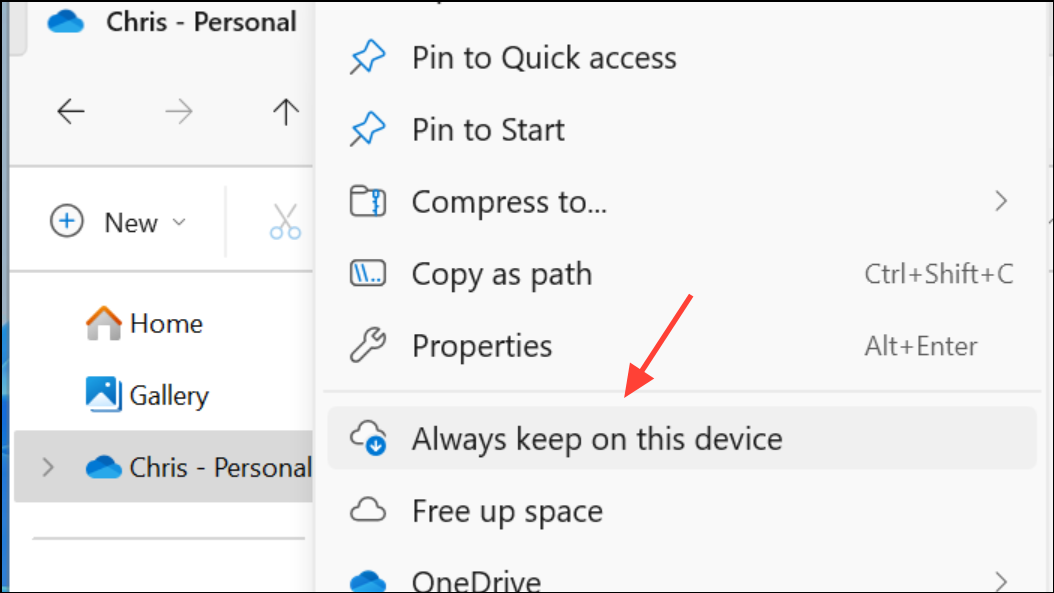
Using this approach ensures that files are present on your hard drive, eliminating issues caused by cloud-only file status.
Restart or Reset OneDrive
Temporary glitches or sync conflicts can also cause this error. Restarting or resetting OneDrive often resolves these issues.
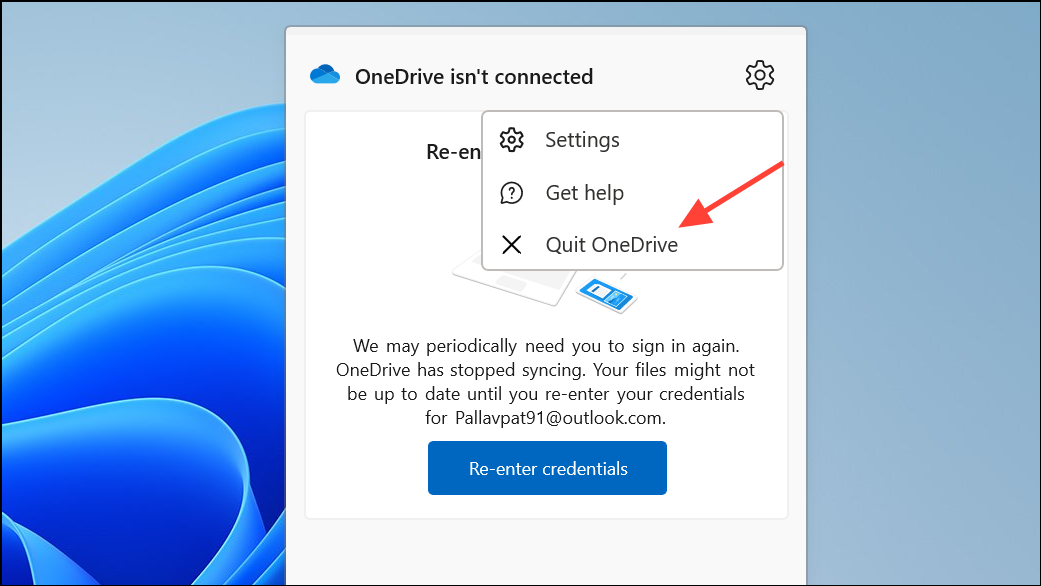
Windows + R, entering %localappdata%\Microsoft\OneDrive\onedrive.exe /reset, and pressing Enter. OneDrive will restart and attempt a full resync.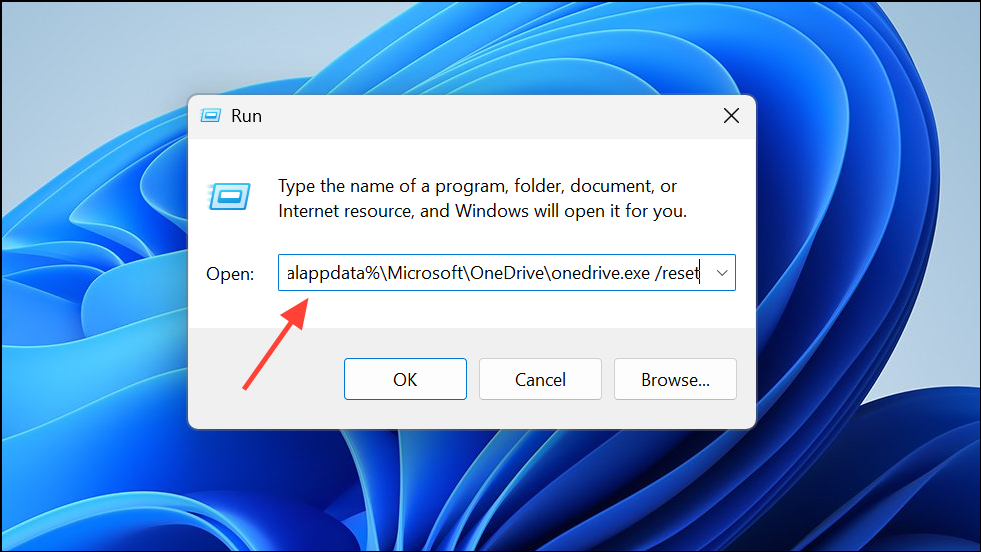
Resolve Sync Conflicts and View Problem Files
OneDrive may create duplicate or conflicted copies of files if changes occur on multiple devices before syncing. These conflicts can cause the error message to appear.
- Check for files with names like
[filename] ([computer name] conflict)and decide which version to keep. - Open OneDrive settings and select View sync problems to review and resolve any listed conflicts by renaming, deleting, or manually moving files.
Access Files Using the OneDrive Web App
If none of the above methods resolve the error, use the OneDrive website to access your files. Right-click the file in File Explorer and select View Online to open the file in your browser. This approach bypasses local path and sync issues, allowing you to work with files directly in the cloud.
Addressing path length, file naming, sync status, and OneDrive settings resolves the “The source and destination file names are the same” error, making file access smoother and minimizing sync disruptions.