
Seeing the message This extension may have been corrupted in Google Chrome means the browser detected a problem with one of your installed extensions. This can cause the extension to stop working, display errors, or disappear from your browser entirely. The issue often stems from profile corruption, file tampering, antivirus interference, or mismatches between extension files and their expected structure.
Repair the Corrupted Extension from Chrome Settings
chrome://extensions in the address bar. This brings up the Extensions management page where you can see all installed extensions and their status.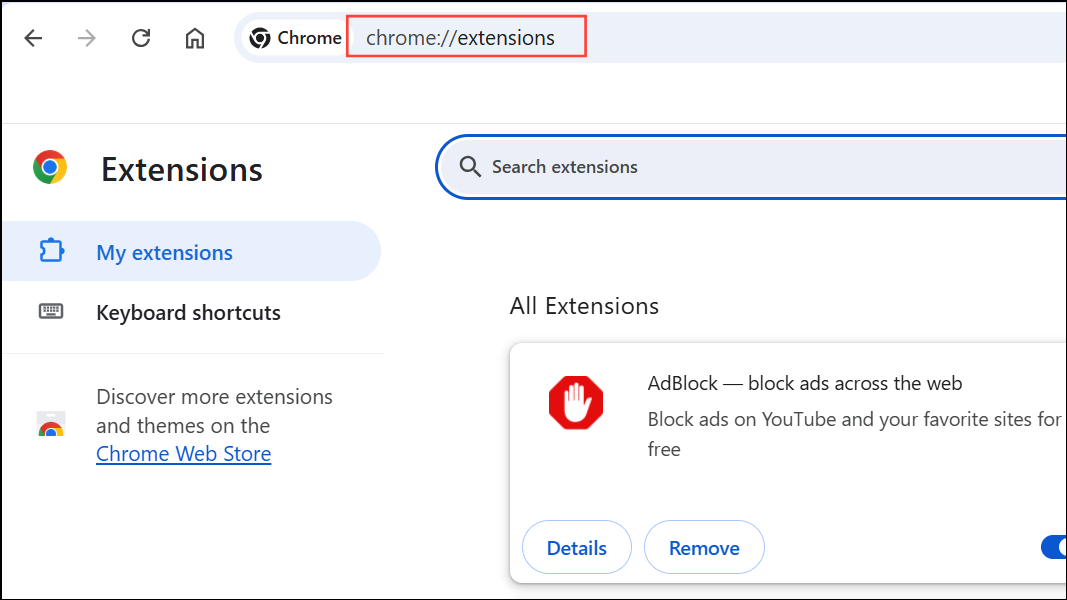
Repair button next to it. Click the Repair button. Chrome will automatically download a fresh copy of the extension from the Chrome Web Store and reinstall it, replacing any damaged files.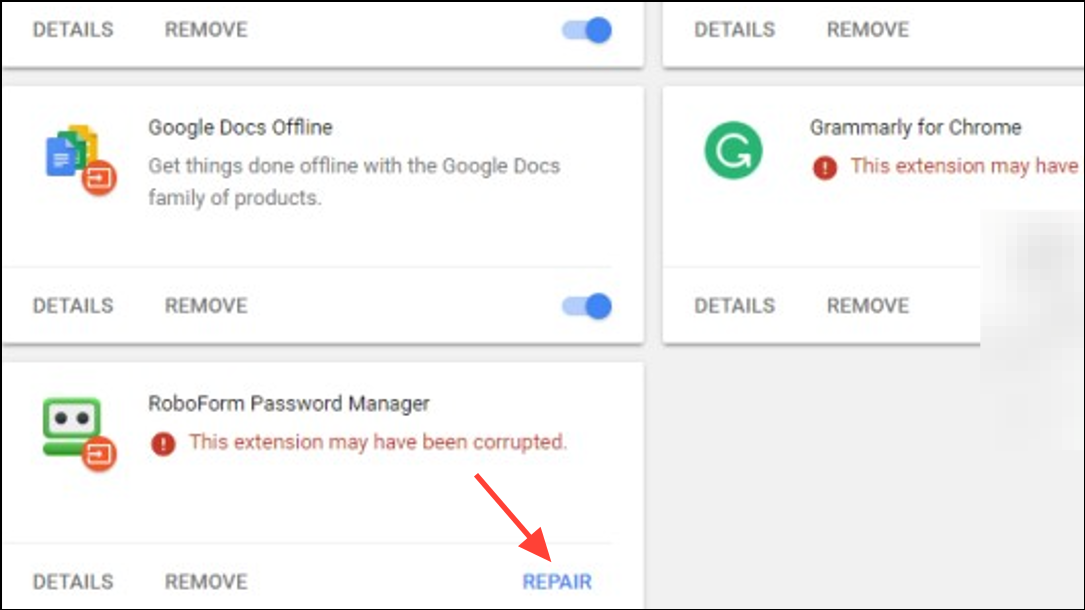
Uninstall and Reinstall the Extension
chrome://extensions page, click Remove on the affected extension to uninstall it completely. This deletes all local files associated with the extension.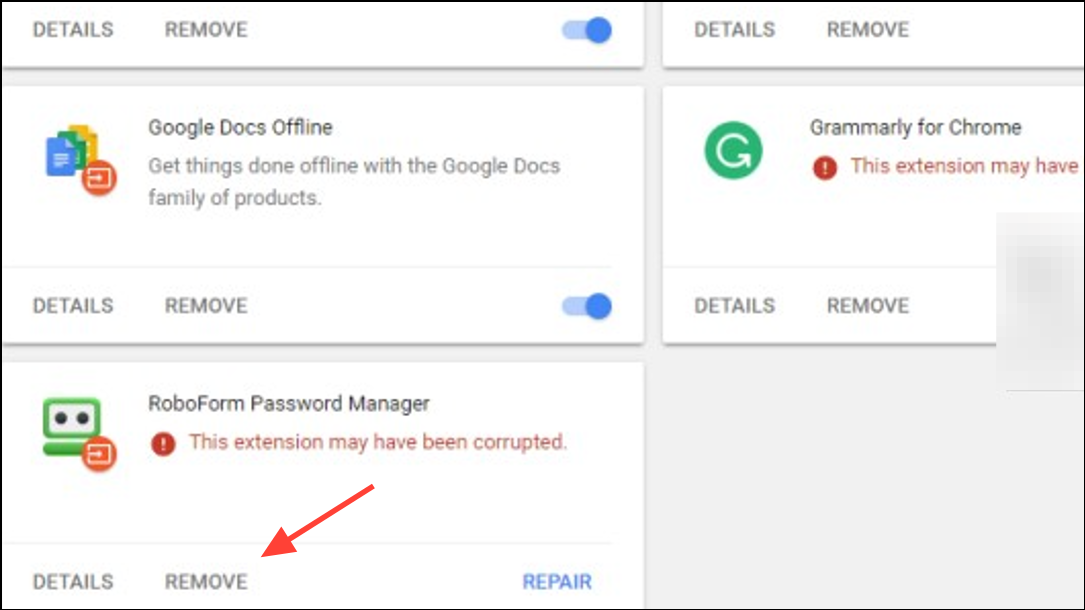
Check for User Profile or File System Issues
Corrupted or misconfigured Chrome user profiles can repeatedly trigger extension corruption. Antivirus software, file synchronization tools, or large roaming profiles may also interfere with extension files.
%LocalAppData%\Google\Chrome\User Data to your antivirus allowlist to prevent accidental removal or modification of extension files.Add under the “You and Google” section, and set up a fresh profile. Install your extensions in the new profile and check if the issue persists. This isolates the problem from any legacy data corruption in your old profile.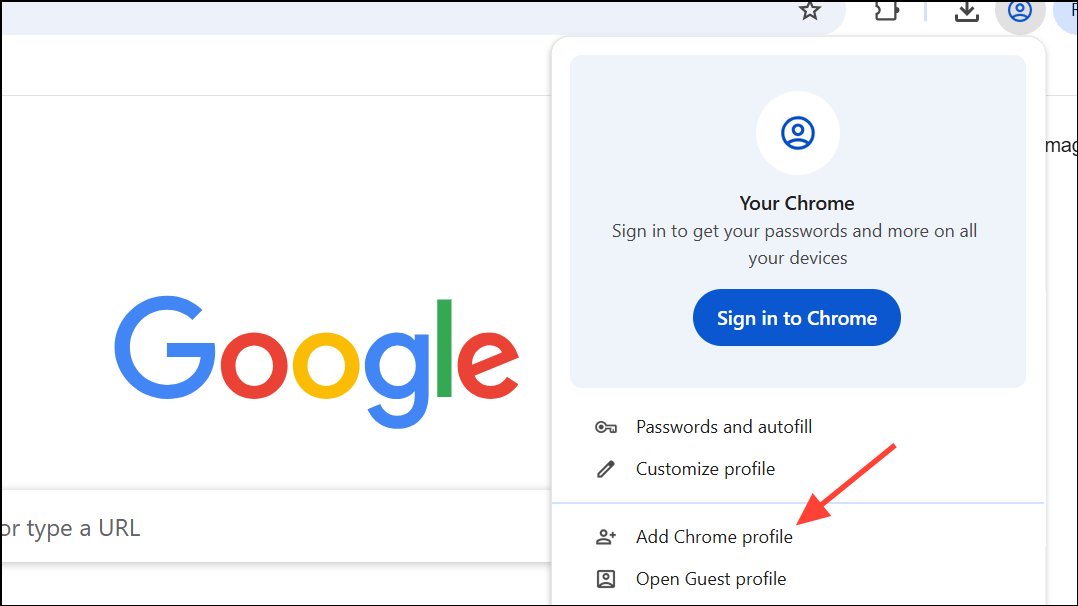
Scan for Malware and Remove Problematic Extensions
Malware or a rogue extension can modify or damage other extensions, triggering corruption warnings. Repeated corruption may indicate a deeper security problem.
Advanced: Address Sync and Database Issues
Some users experience recurring extension corruption due to Chrome’s internal database (LevelDB) growing too large or becoming unstable. This is especially common with extensions that store large amounts of data, like Tampermonkey or uBlock Origin.
%LocalAppData%\Google\Chrome\User Data\Default\Local Extension Settings and back up the relevant extension folders. If you suspect database corruption, delete the affected folders to reset extension data. Reopen Chrome and re-import your settings if available.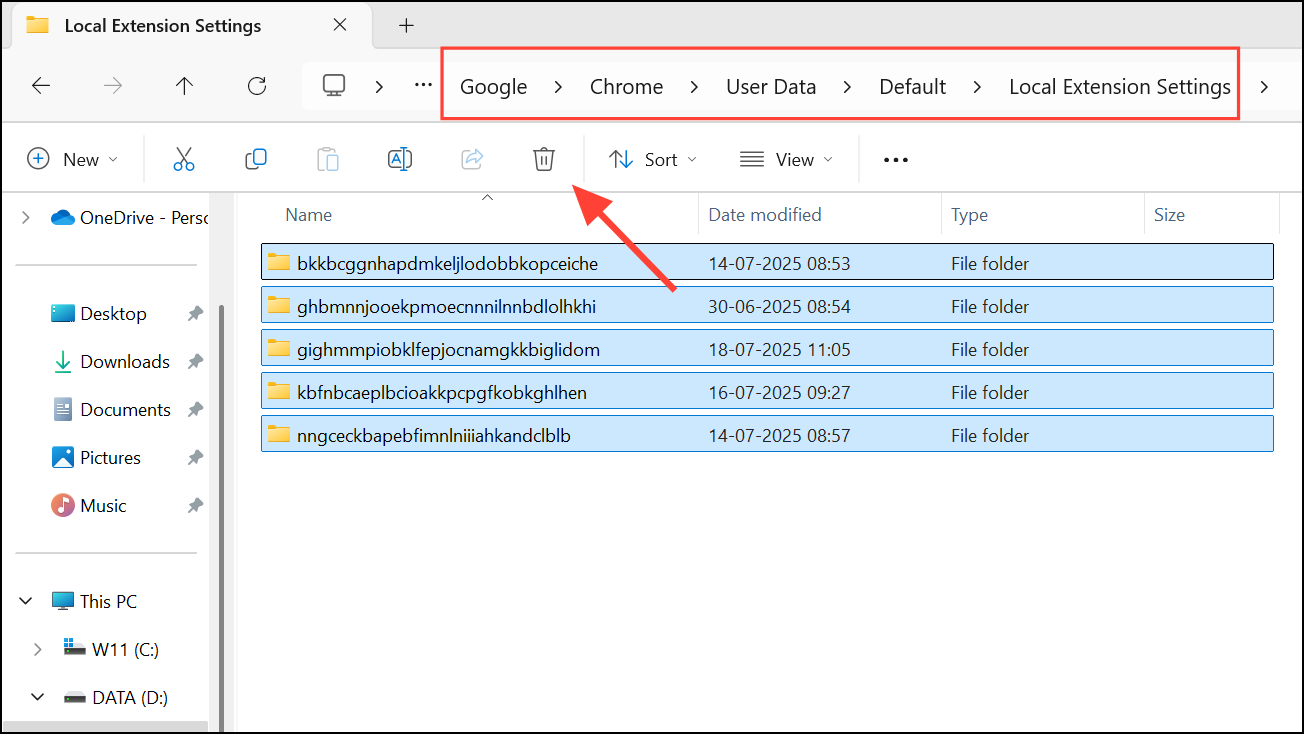
Tips for Preventing Future Extension Corruption
- Keep Chrome and all extensions updated to the latest versions.
- Avoid manual edits to extension files unless you are developing your own extensions.
- Install extensions only from trusted sources via the Chrome Web Store.
- Regularly back up your Chrome user data if you rely on critical extensions.
- Monitor antivirus or security software for false positives affecting browser files.
Resolving the “This extension may have been corrupted” error in Chrome usually involves repairing or reinstalling the extension, but persistent issues may require profile cleanup or malware scans. Taking these steps restores normal extension functionality and minimizes disruption to your browsing experience.





