
Windows 11 systems may freeze or stop responding due to issues with drivers, system files, hardware conflicts, or overloaded resources. These freezes can lock up the desktop, prevent input from the mouse or keyboard, and sometimes require a forced reboot. Addressing the root causes—whether software misconfigurations, outdated drivers, or hardware faults—restores stability and prevents future disruptions.
Update Graphics and System Drivers
Outdated or incompatible drivers, especially for the graphics card, often trigger desktop freezes in Windows 11. Driver updates resolve compatibility issues after system upgrades or new hardware installations.
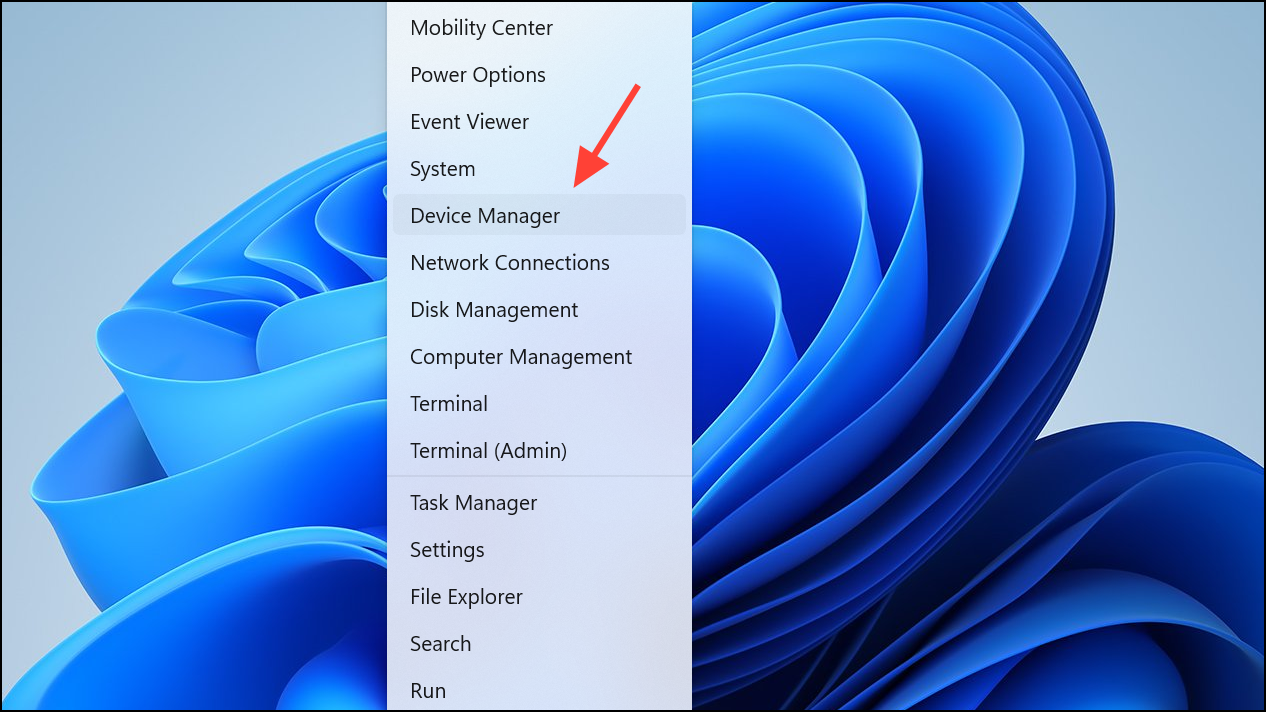
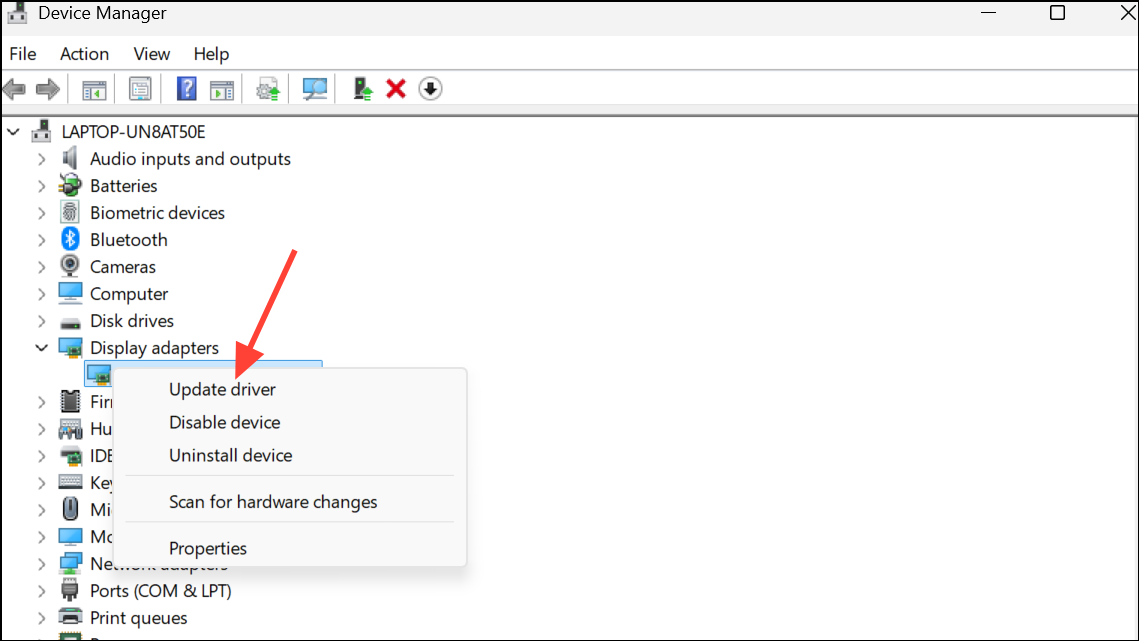
Search automatically for drivers. If a newer driver is available, Windows will install it automatically. Alternatively, visit your device manufacturer’s website to download and install the latest drivers manually.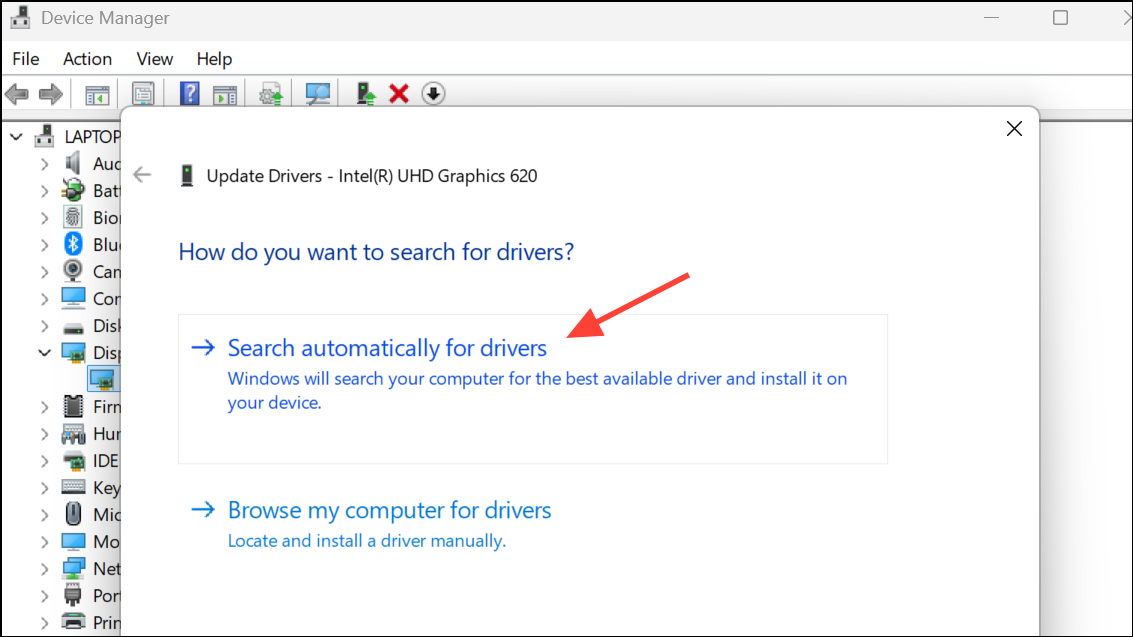
Updating drivers for other components, such as chipset and network adapters, can also prevent system conflicts that lead to freezes.
Run System File Checks and Repair Tools
Corrupted or missing system files can cause Windows 11 to freeze or become unresponsive. Built-in utilities like System File Checker (SFC) and Deployment Image Servicing and Management (DISM) repair these files and restore system stability.
cmd in the Start menu, right-clicking Command Prompt, and selecting Run as administrator.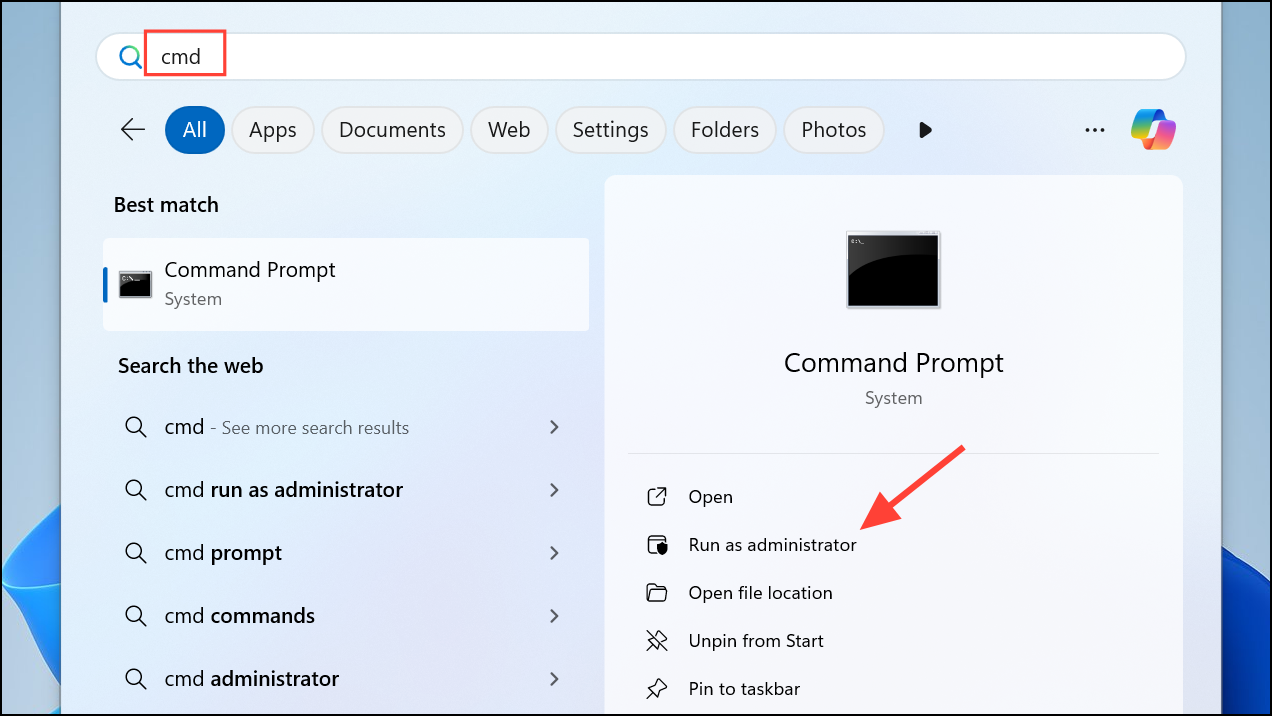
sfc /scannow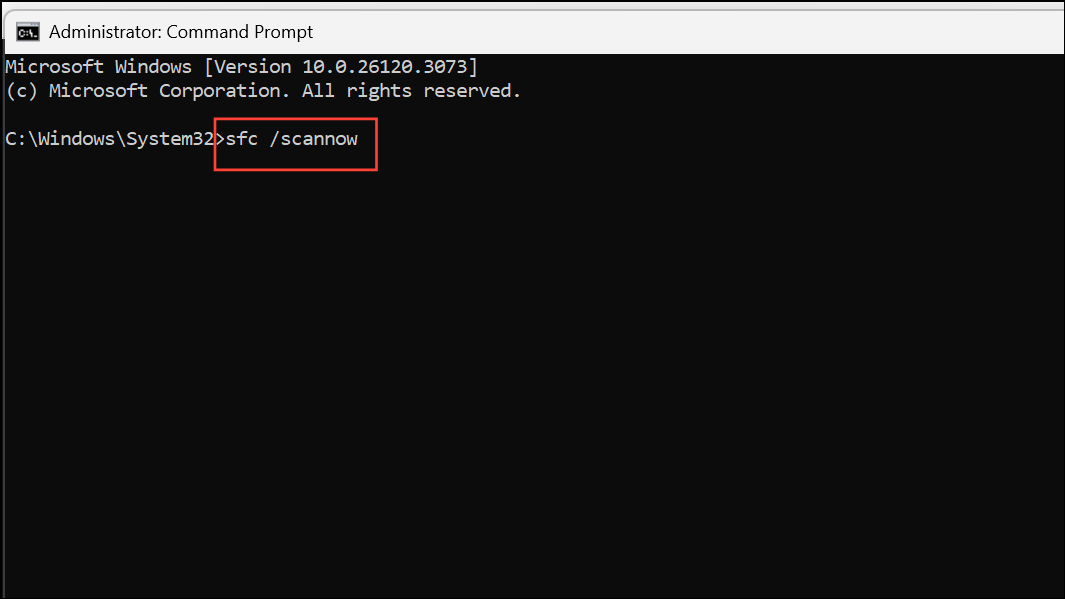
This process scans for and repairs corrupted system files. Wait for the scan to finish; it may take several minutes.
DISM /Online /Cleanup-Image /RestoreHealth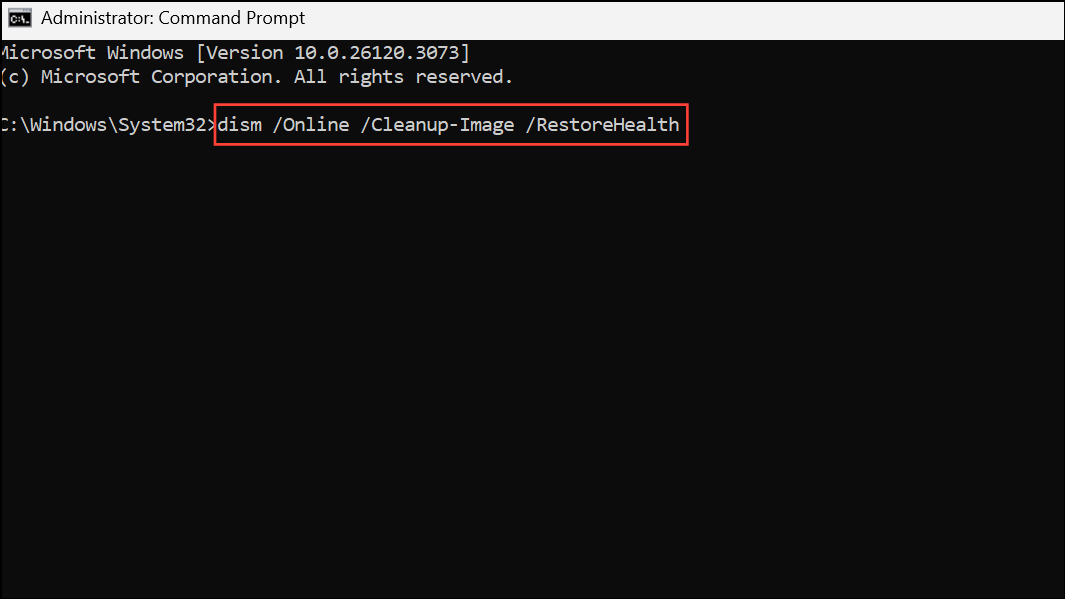
DISM checks for and repairs corruption in the Windows image, which further resolves persistent freezing problems.
Check for Windows and Optional Updates
Windows updates frequently include patches for bugs and performance issues that cause freezing. Installing the latest updates ensures system compatibility and stability.
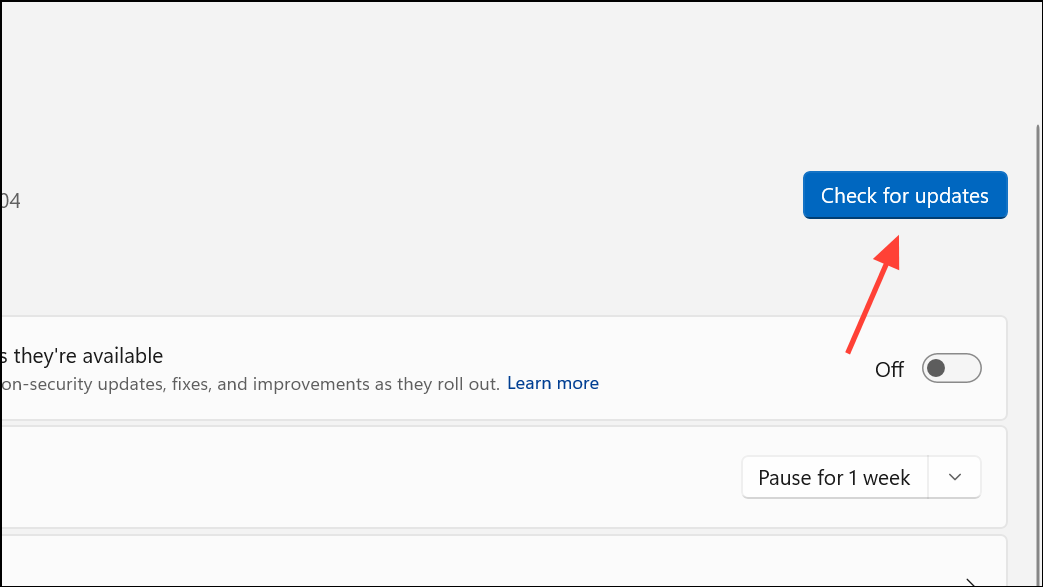
Advanced options > Optional updates and review any listed driver updates. Install those relevant to your hardware.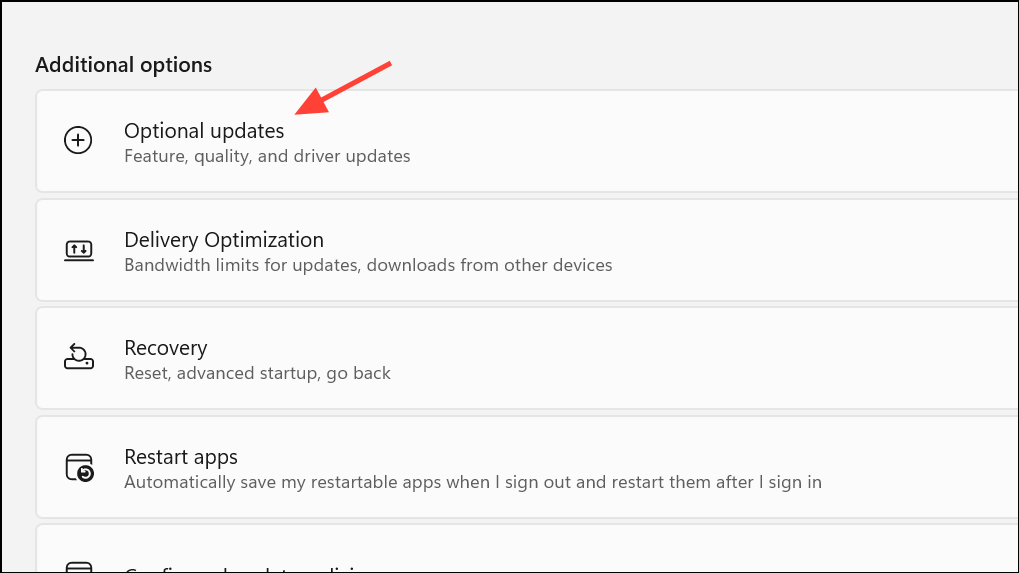
Adjust Screen Resolution and Display Settings
Improper screen resolution or incompatible display settings, especially when using high-resolution or ultrawide monitors, can overload graphics hardware and cause freezes.
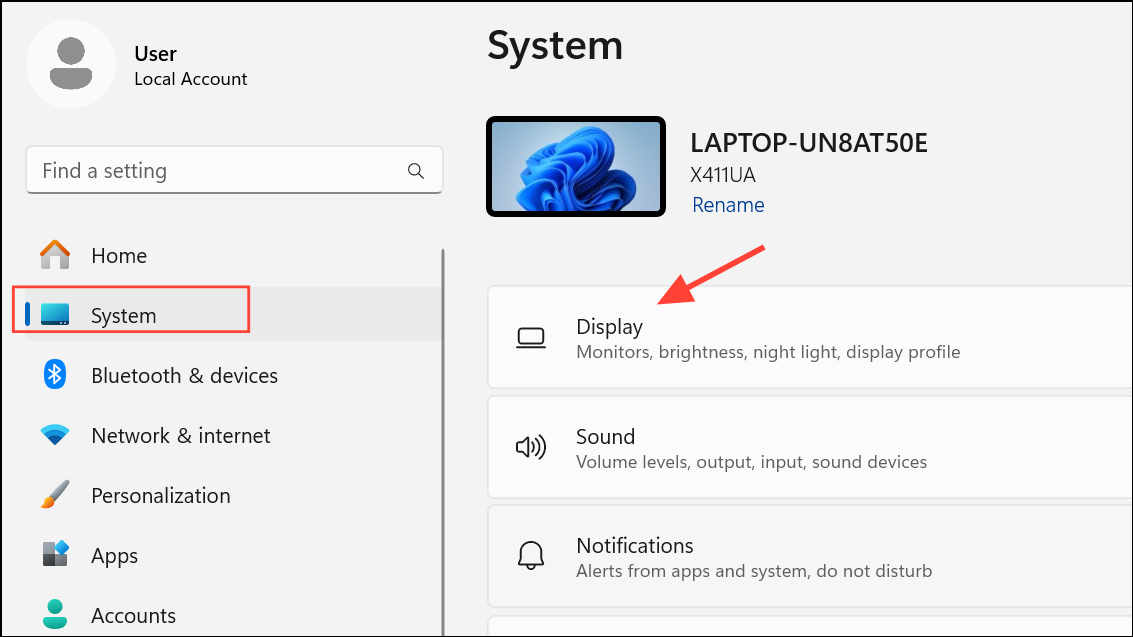
Scale & layout, select a recommended resolution that matches your monitor and graphics card capability. For ultrawide monitors, switching to a standard 16:9 aspect ratio may resolve compatibility issues.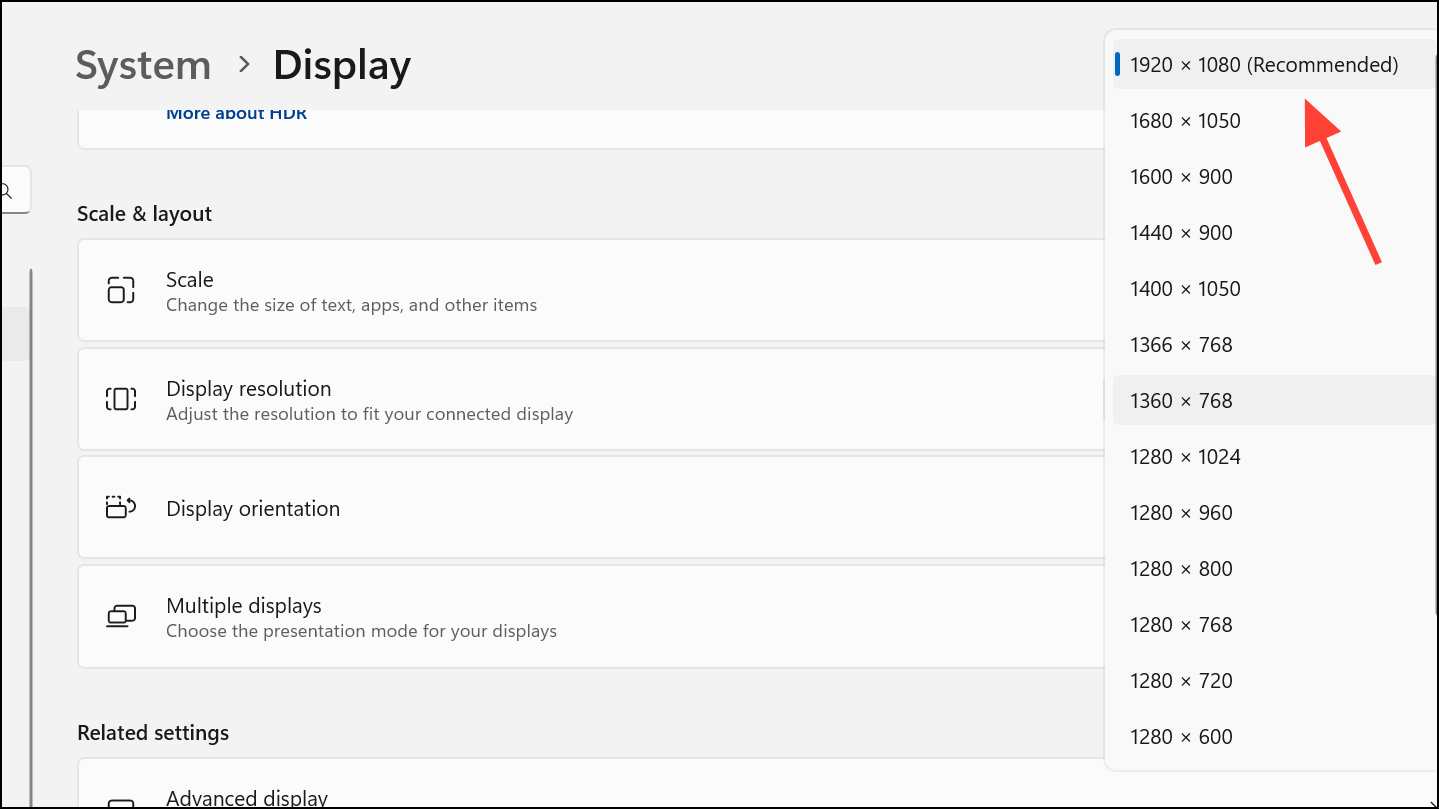
Lowering the resolution can reduce the processing load and prevent random freezes during demanding tasks.
Increase Virtual Memory
Insufficient RAM or virtual memory can lead to unresponsive applications and system freezes, particularly during resource-intensive tasks. Adjusting virtual memory (paging file) settings allocates additional space for system processes.
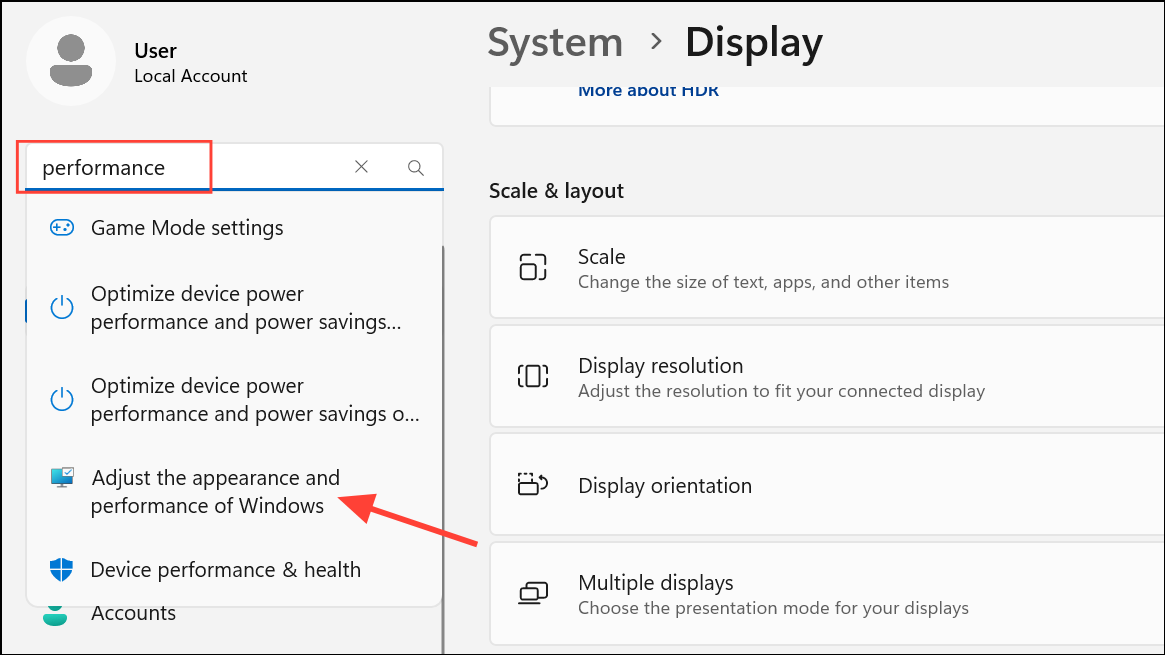
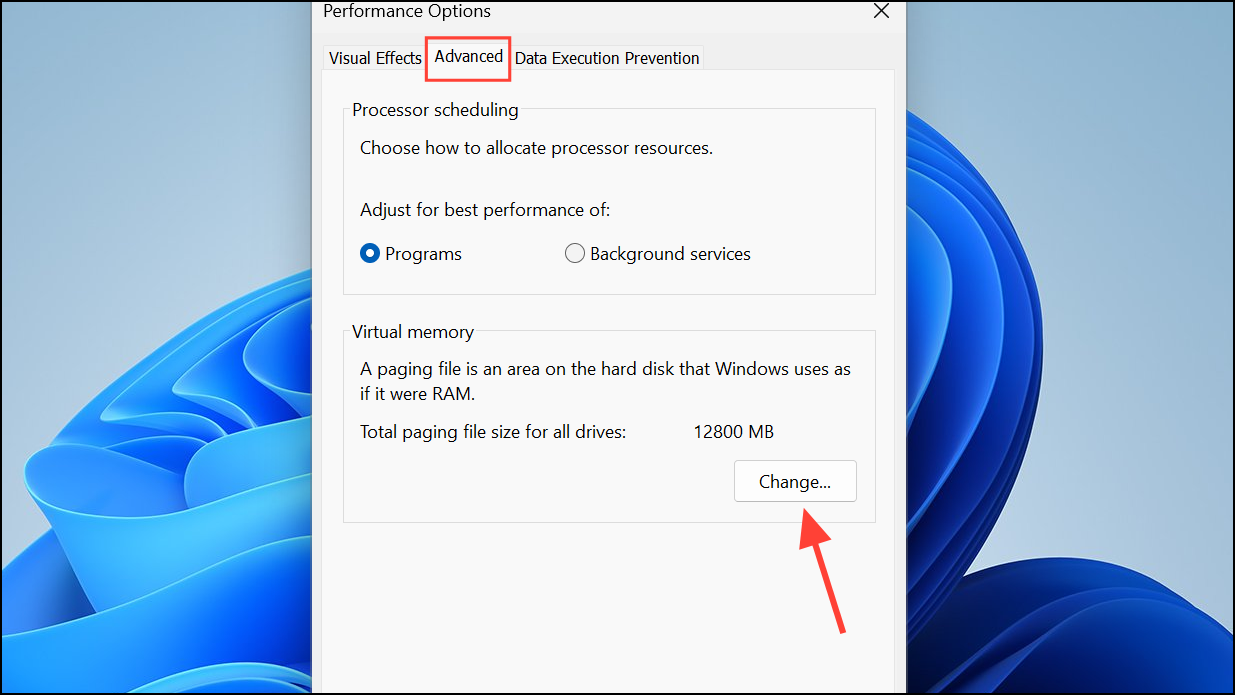
Automatically manage paging file size for all drives. Set the Initial size and Maximum size to the recommended values, then click OK to apply changes.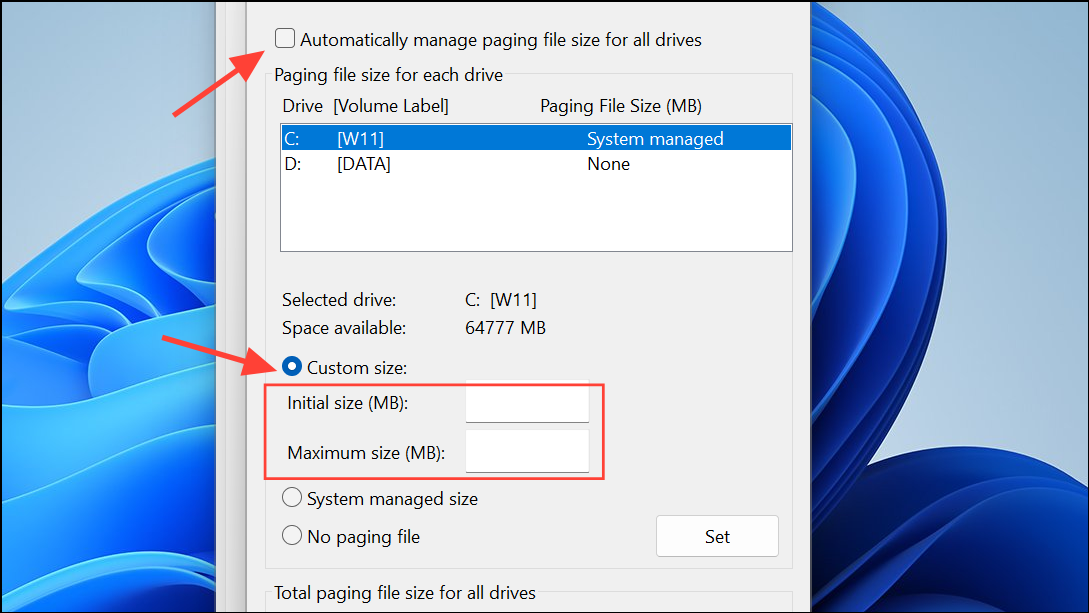
Scan for Malware and Viruses
Malware and viruses can consume system resources, disrupt processes, and trigger freezes. Running a comprehensive security scan identifies and removes malicious software.
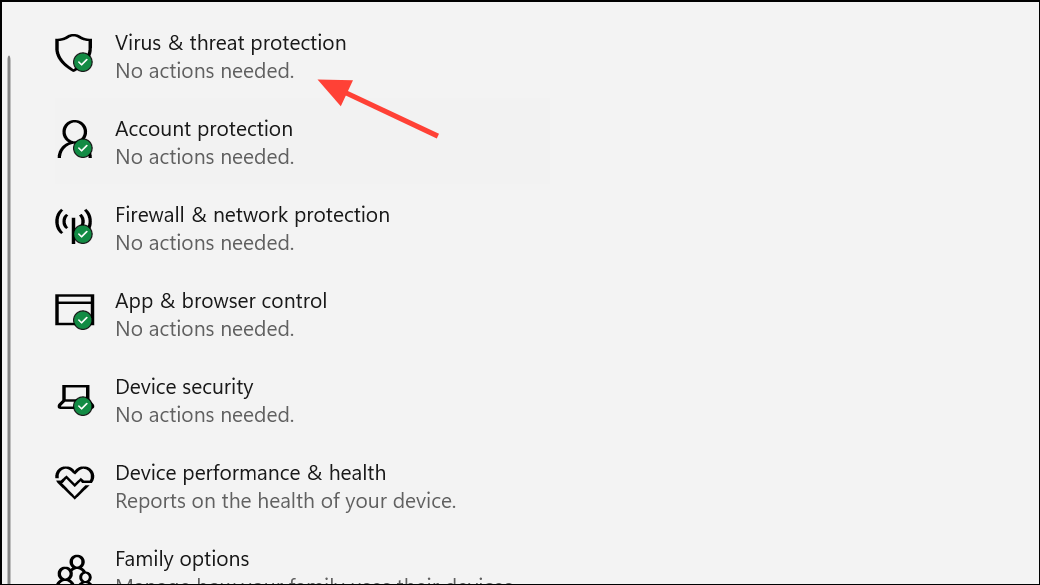
Quick scan. If threats are detected, follow prompts for a full scan or Microsoft Defender Offline scan to thoroughly clean the system.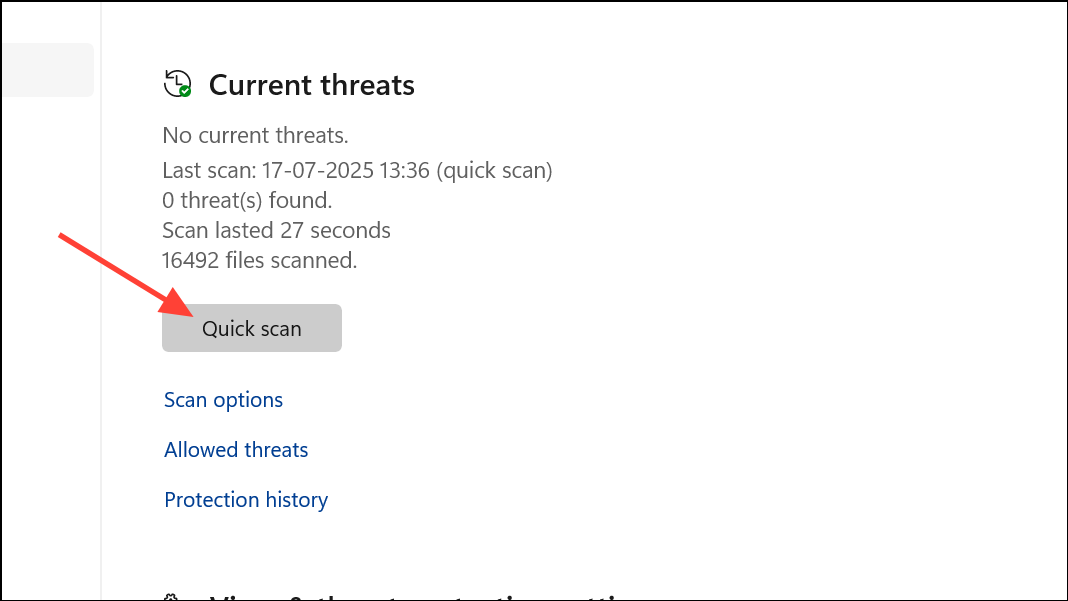
Delete Temporary Files
Accumulated temporary files can fill storage space and slow down system processes, contributing to freezes. Clearing these files removes unnecessary data and restores smooth operation.
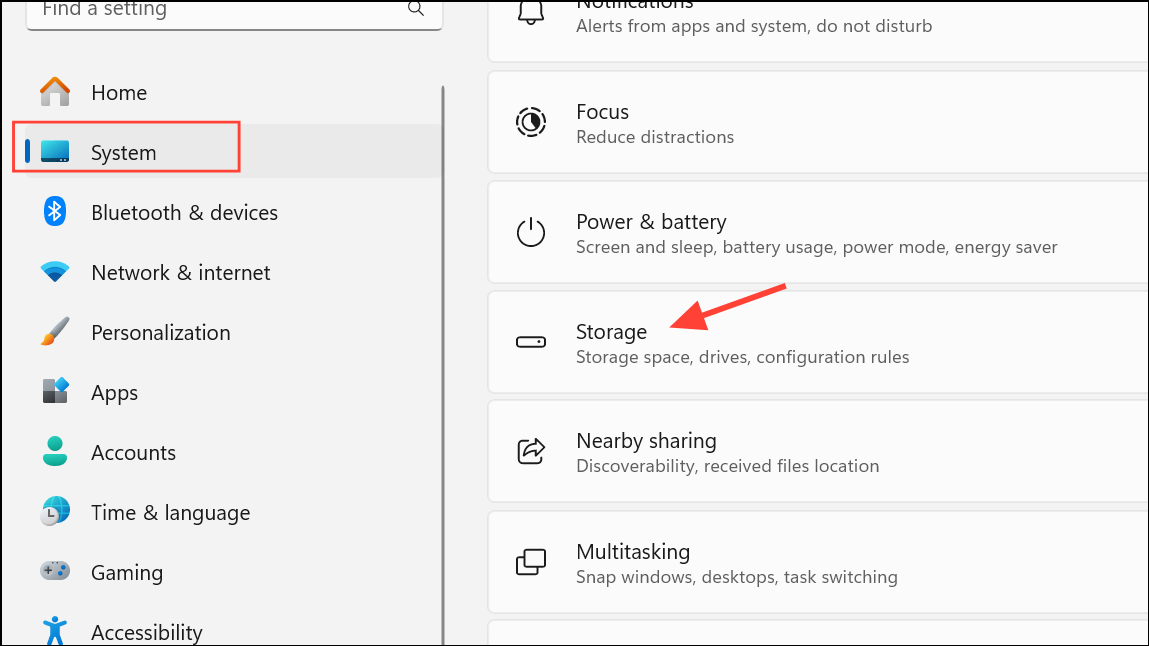
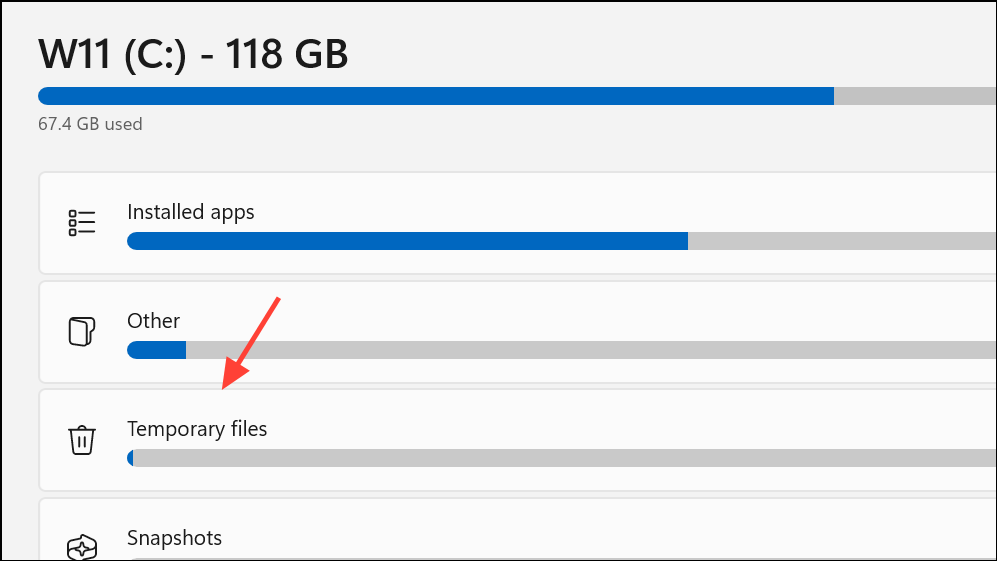
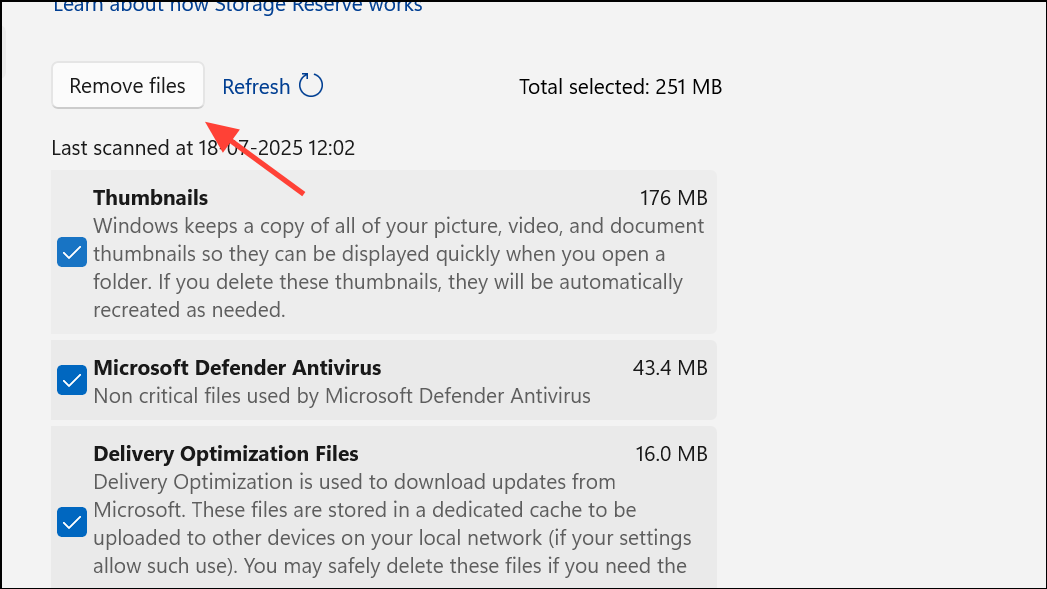
Test RAM and Hardware Components
Hardware faults, particularly with RAM or storage drives, can cause persistent freezing that software fixes cannot resolve. Running diagnostic tests helps identify failing components.
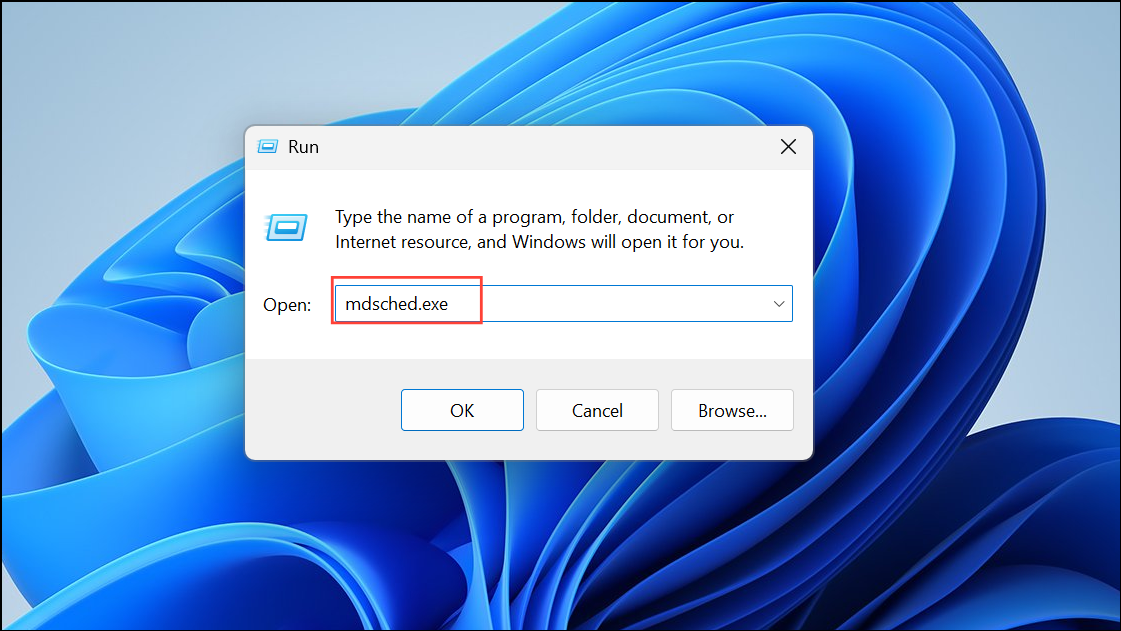
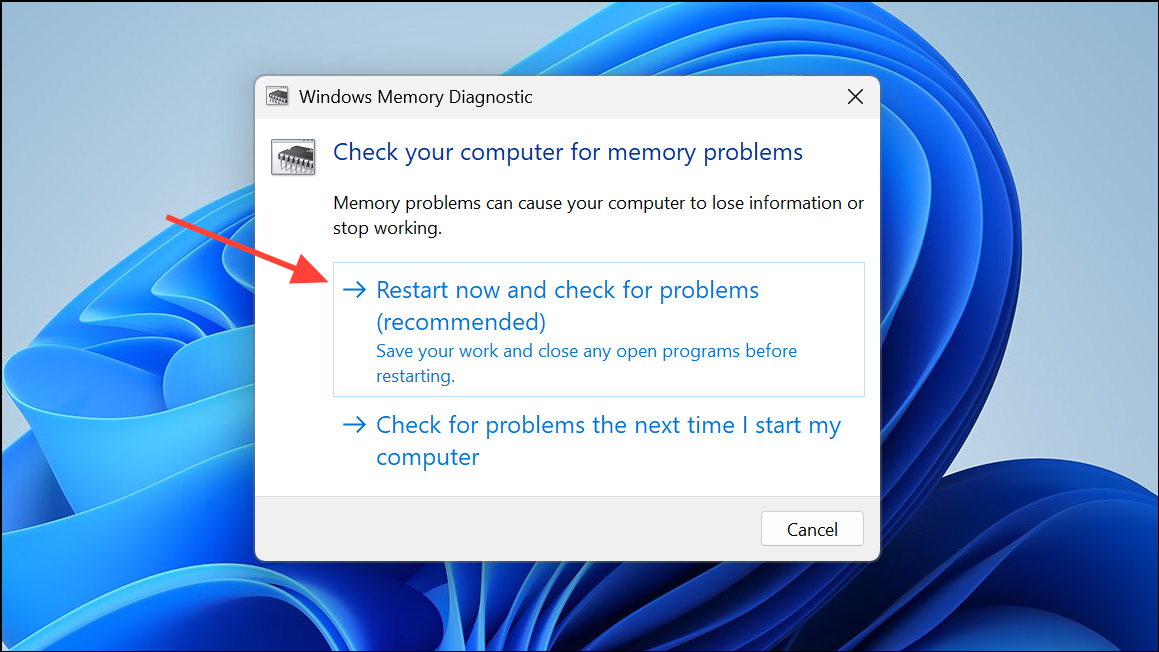
chkdsk C: /f /r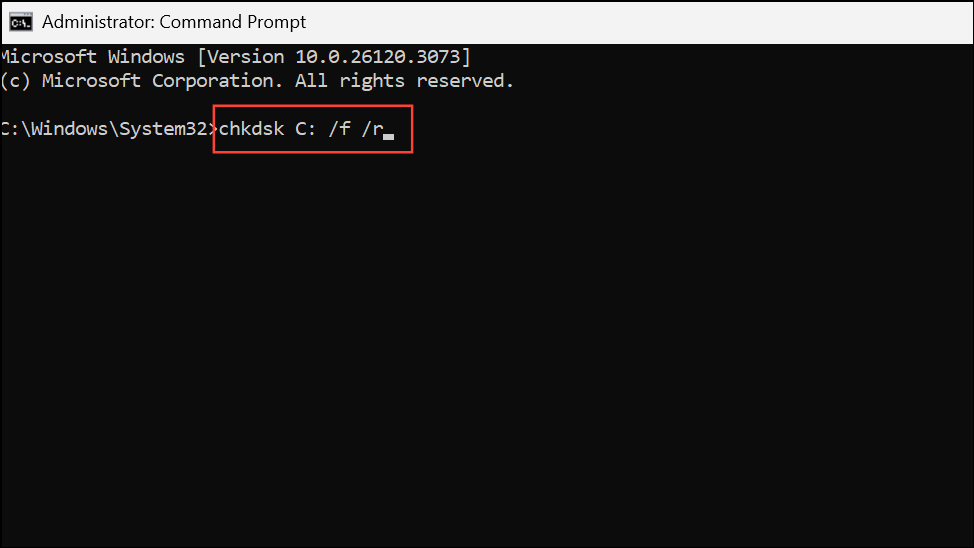
This scans for and repairs disk errors and bad sectors. Replace drives that show persistent errors.
Perform a Clean Boot
Conflicting third-party startup programs or services can interfere with system processes and cause freezes. A clean boot loads Windows with minimal drivers and services, isolating problematic software.
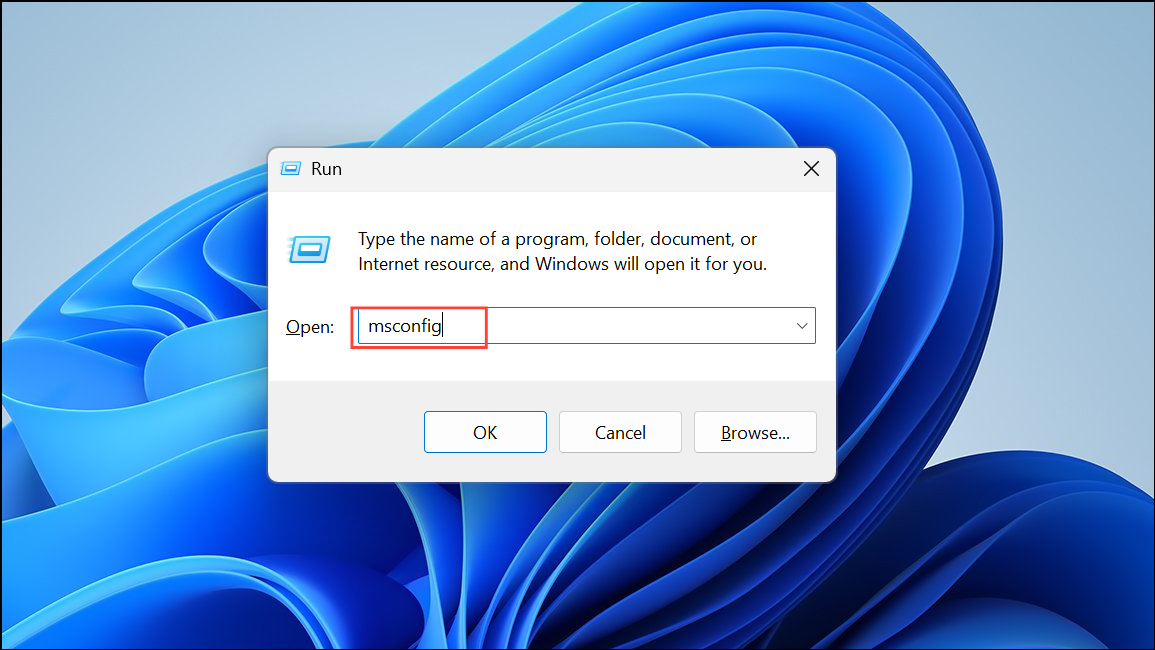
Services tab, check Hide all Microsoft services, then click Disable all.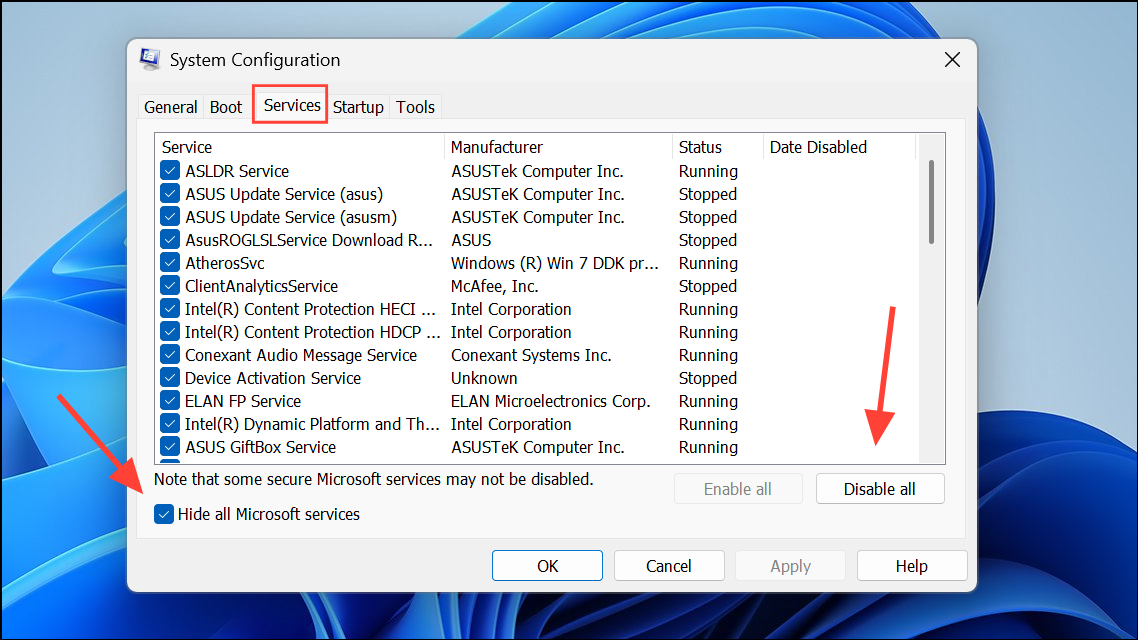
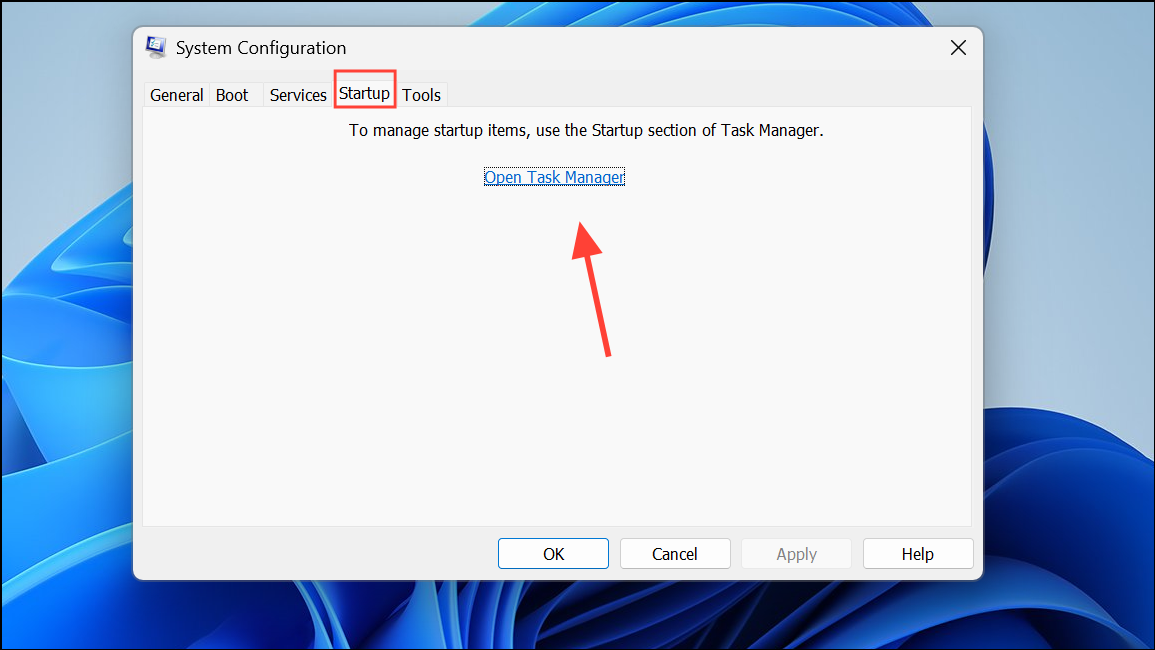
Restore from a System Restore Point
System Restore reverts your PC to a previous working state, undoing recent changes that may have caused instability. This process does not affect personal files but may remove recently installed drivers or applications.
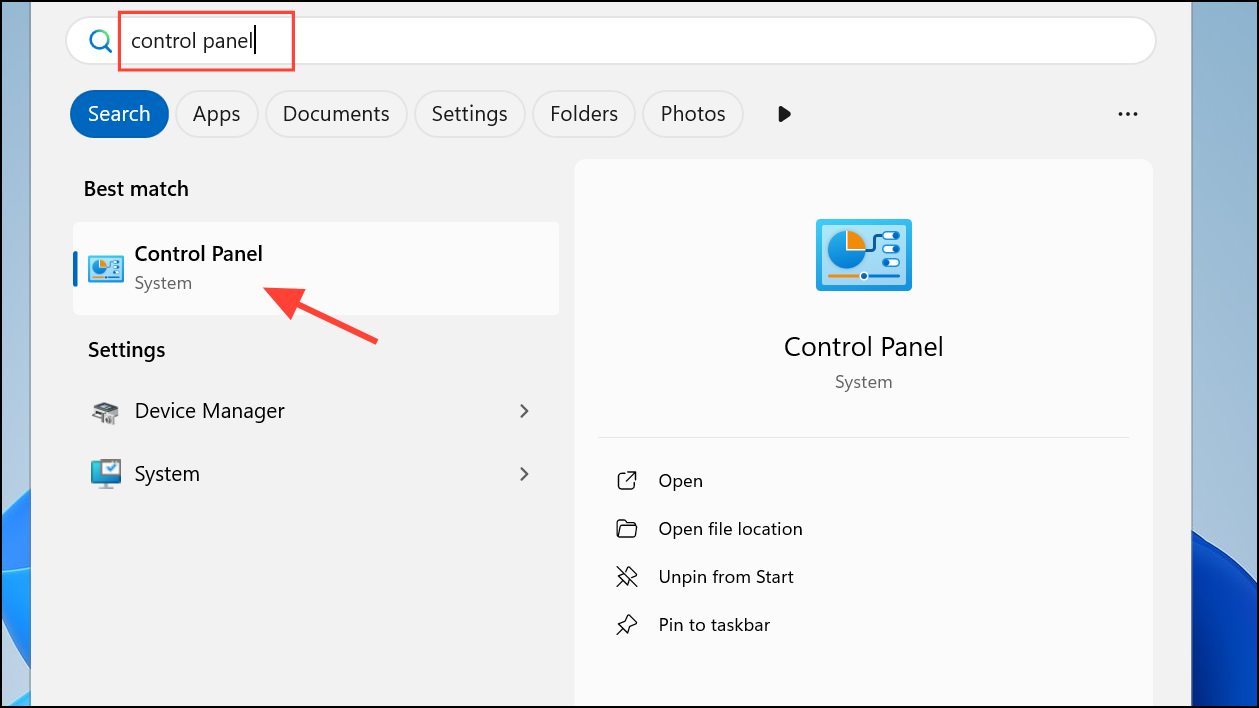
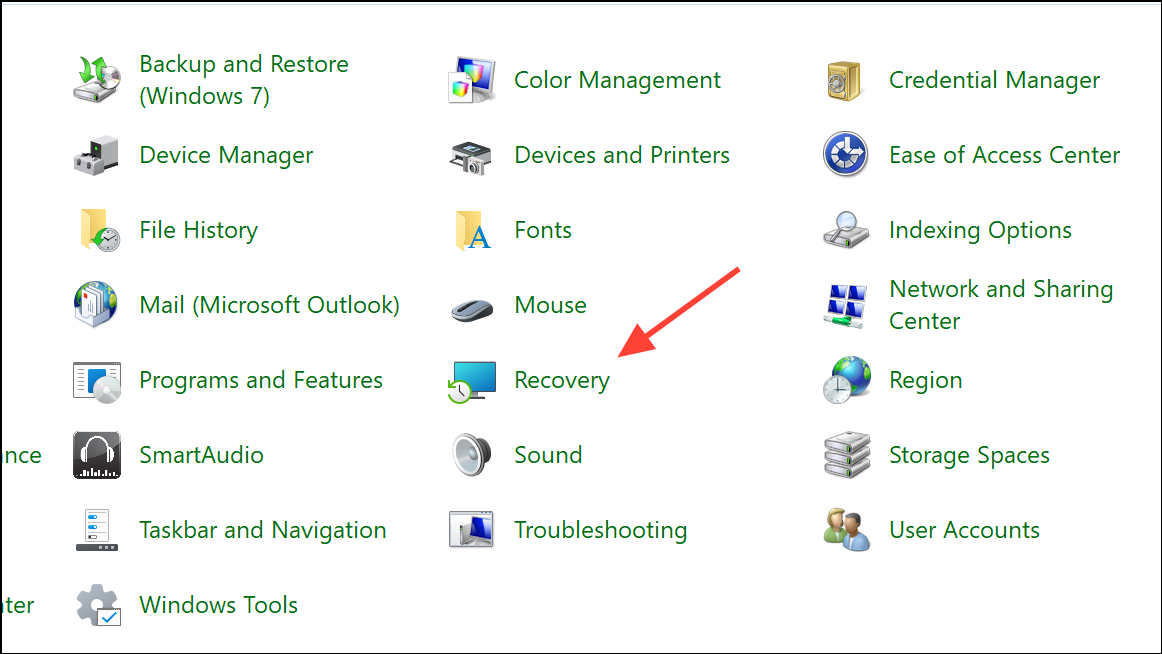
Open System Restore and follow the prompts to select a restore point before the freezing began.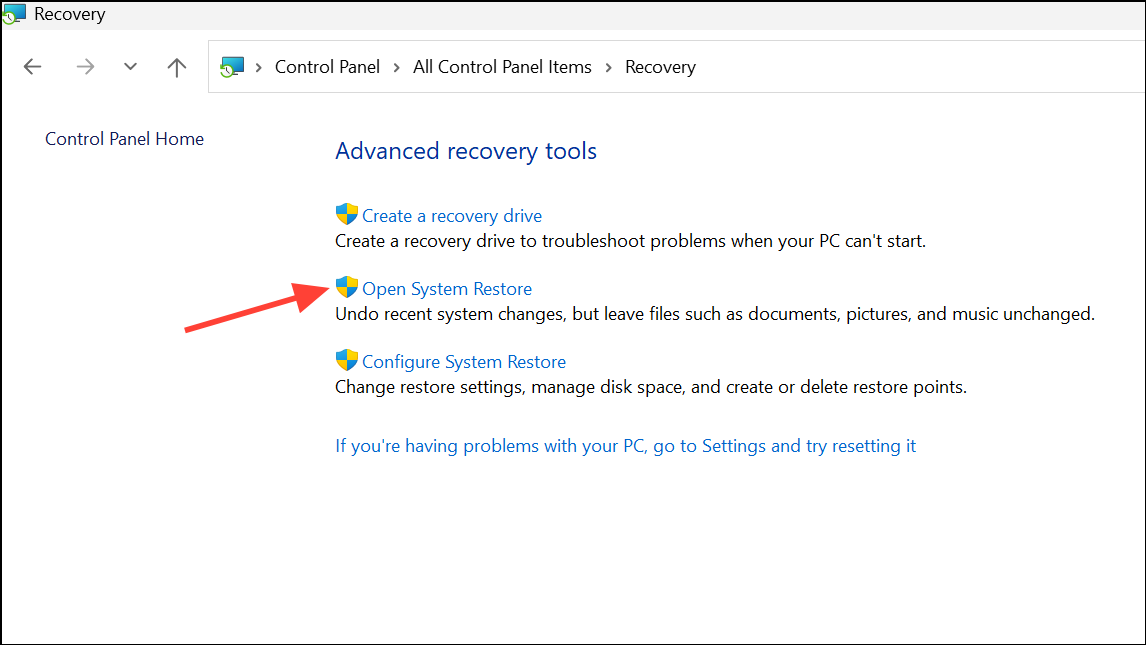
Reset or Reinstall Windows 11
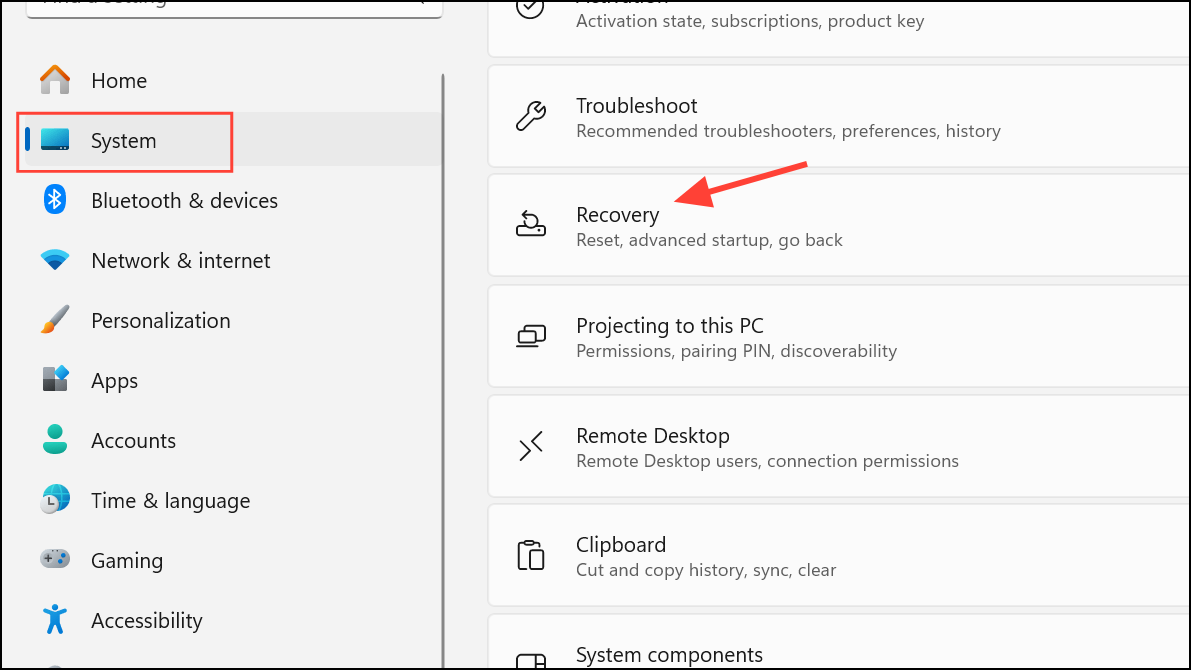
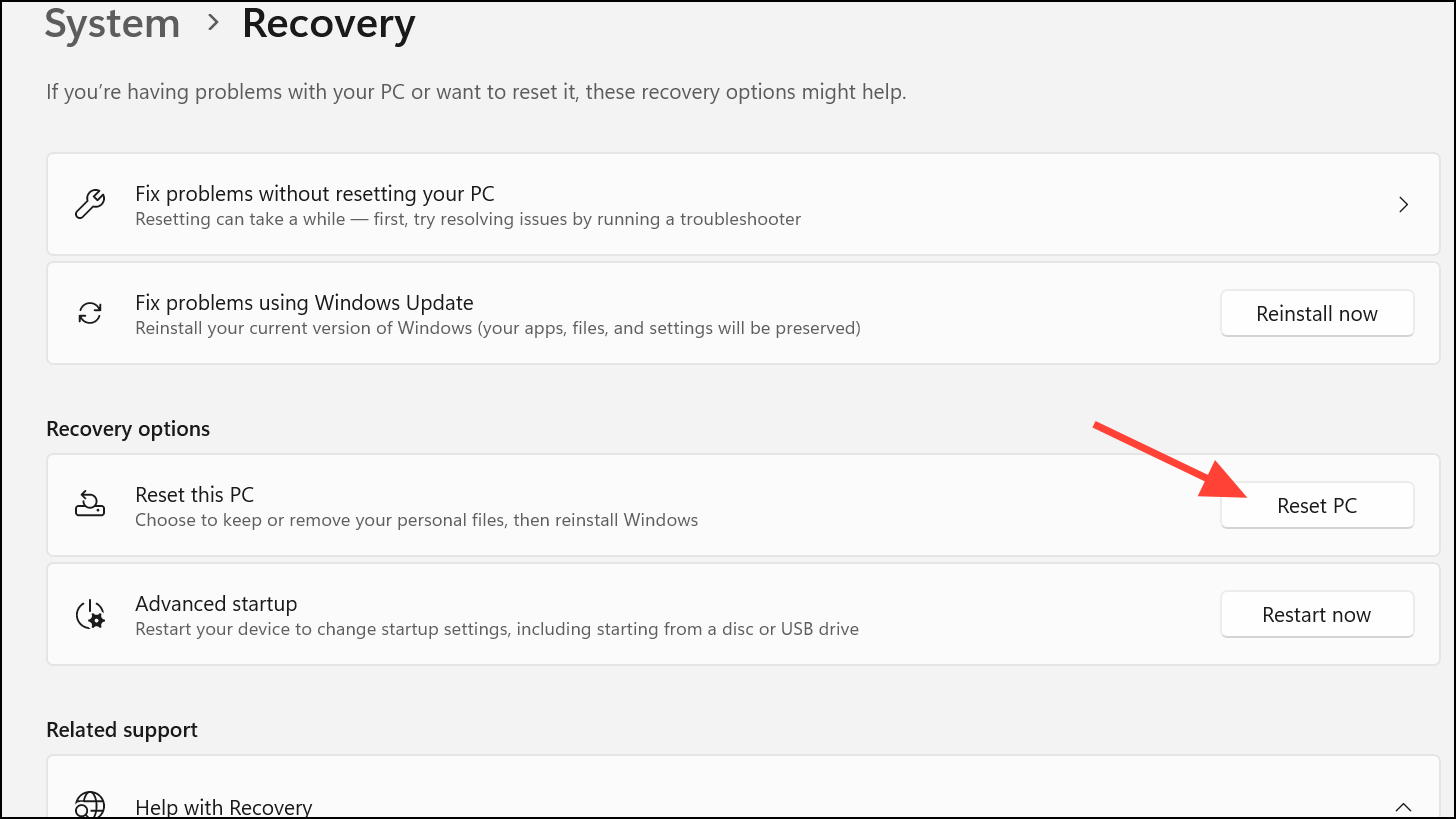
If all troubleshooting steps fail and freezing persists, resetting or reinstalling Windows 11 may be necessary. This process reinstalls the operating system, resolving deep-seated software issues. Back up important files before proceeding, as resetting or reinstalling may remove apps and settings.
Resolving desktop freezes in Windows 11 often requires a combination of driver updates, system repairs, and hardware checks. Keeping your system current and monitoring for hardware issues helps maintain reliable performance and prevents future interruptions.



