
Windows 11 sometimes displays a “No Internet” warning despite the device being fully connected and able to browse websites or run speed tests. This misreported status can block essential features such as Windows Updates, the Microsoft Store, and app connectivity, causing confusion and limiting your system’s capabilities. The underlying issue often stems from how Windows checks network connectivity, driver conflicts, DNS misconfiguration, or system service failures. Addressing these root causes restores accurate network status and re-enables blocked system features.
Update Windows and Network Drivers
Settings and navigate to Update & Security > Windows Update. Click Check for updates and install any available updates. Keeping Windows up to date ensures you have the latest fixes for network detection bugs and related system issues.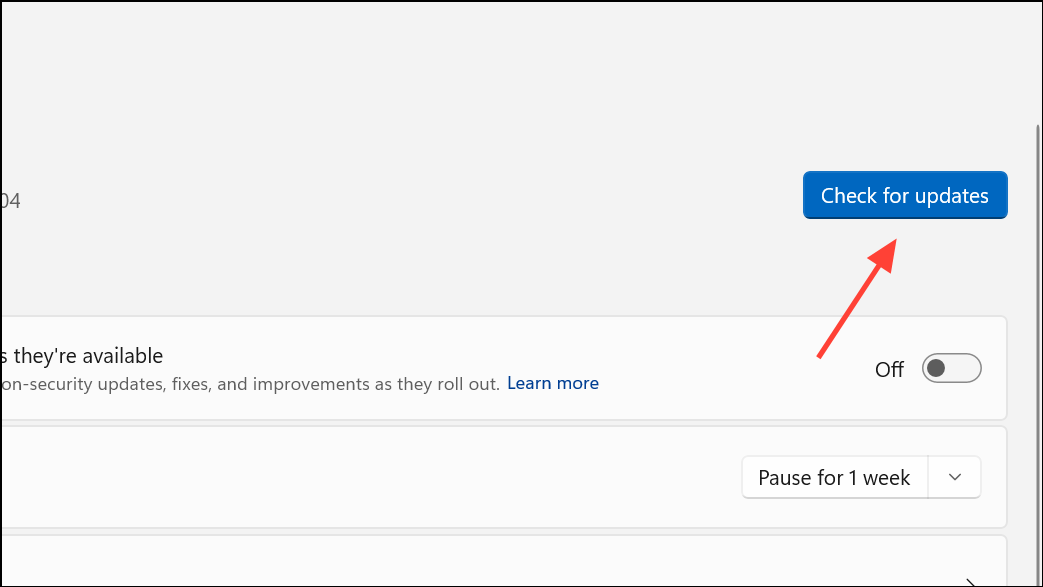
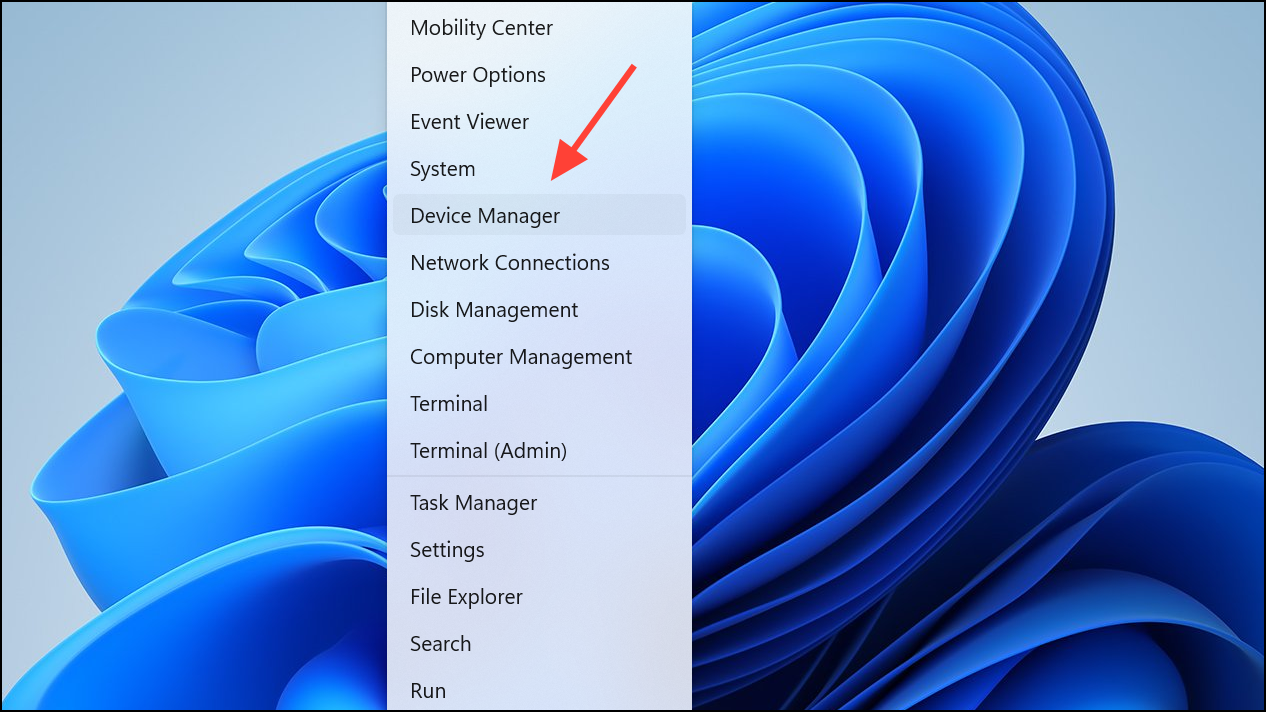
Network Adapters, right-click your active network adapter, and choose Update driver. Select Search automatically for drivers or manually install the latest driver from your hardware manufacturer’s website. Outdated or corrupted drivers often cause Windows to misreport network status.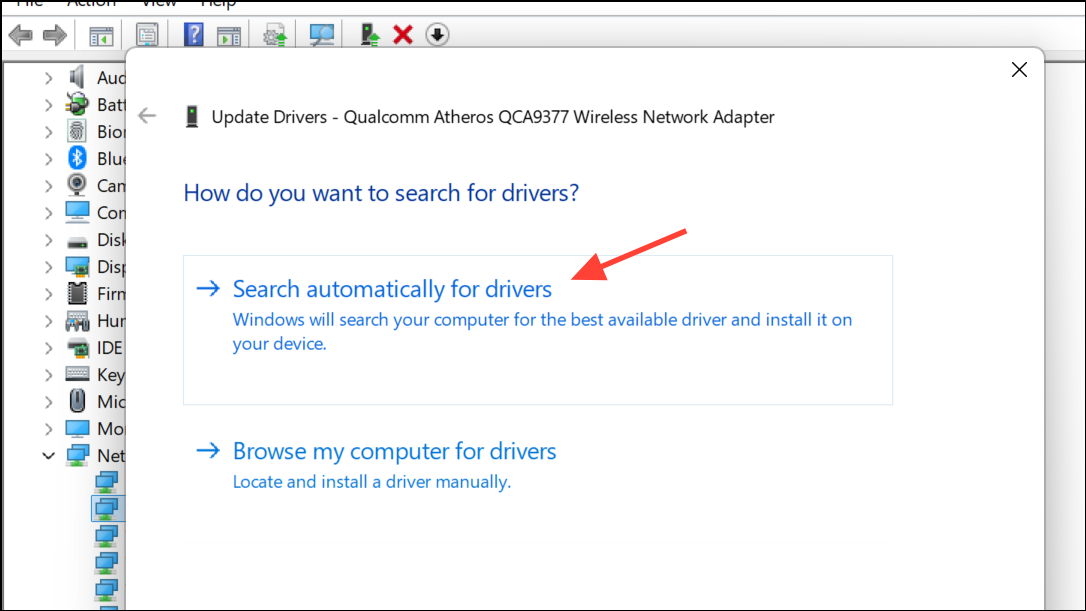
Reset Network Configuration and Services
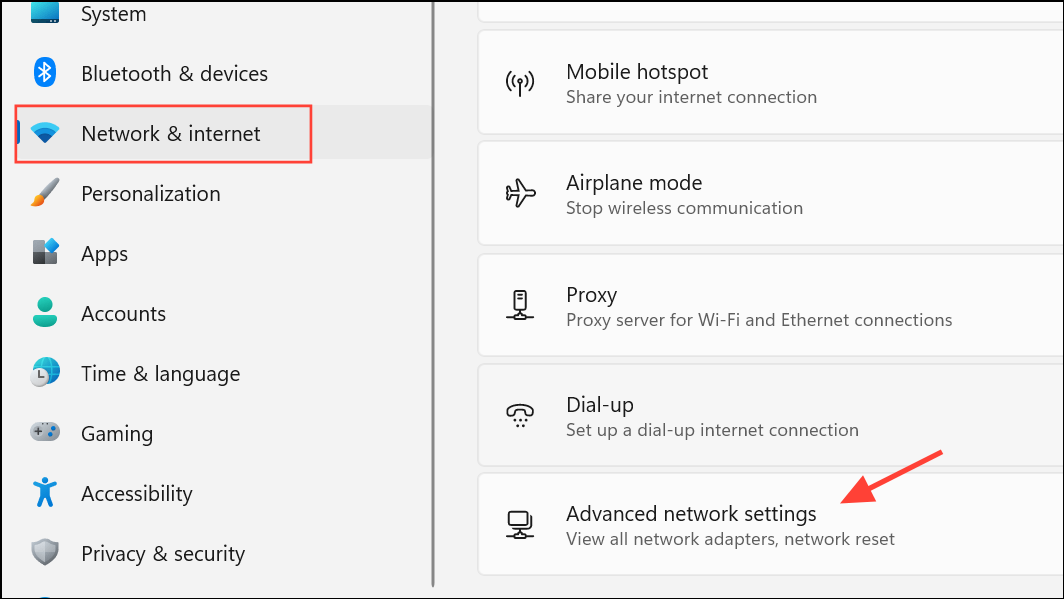
Network reset and then Reset now. This action clears saved Wi-Fi networks, VPN profiles, and resets all network adapters to their default state, resolving misconfigurations that can cause false “No Internet” reports.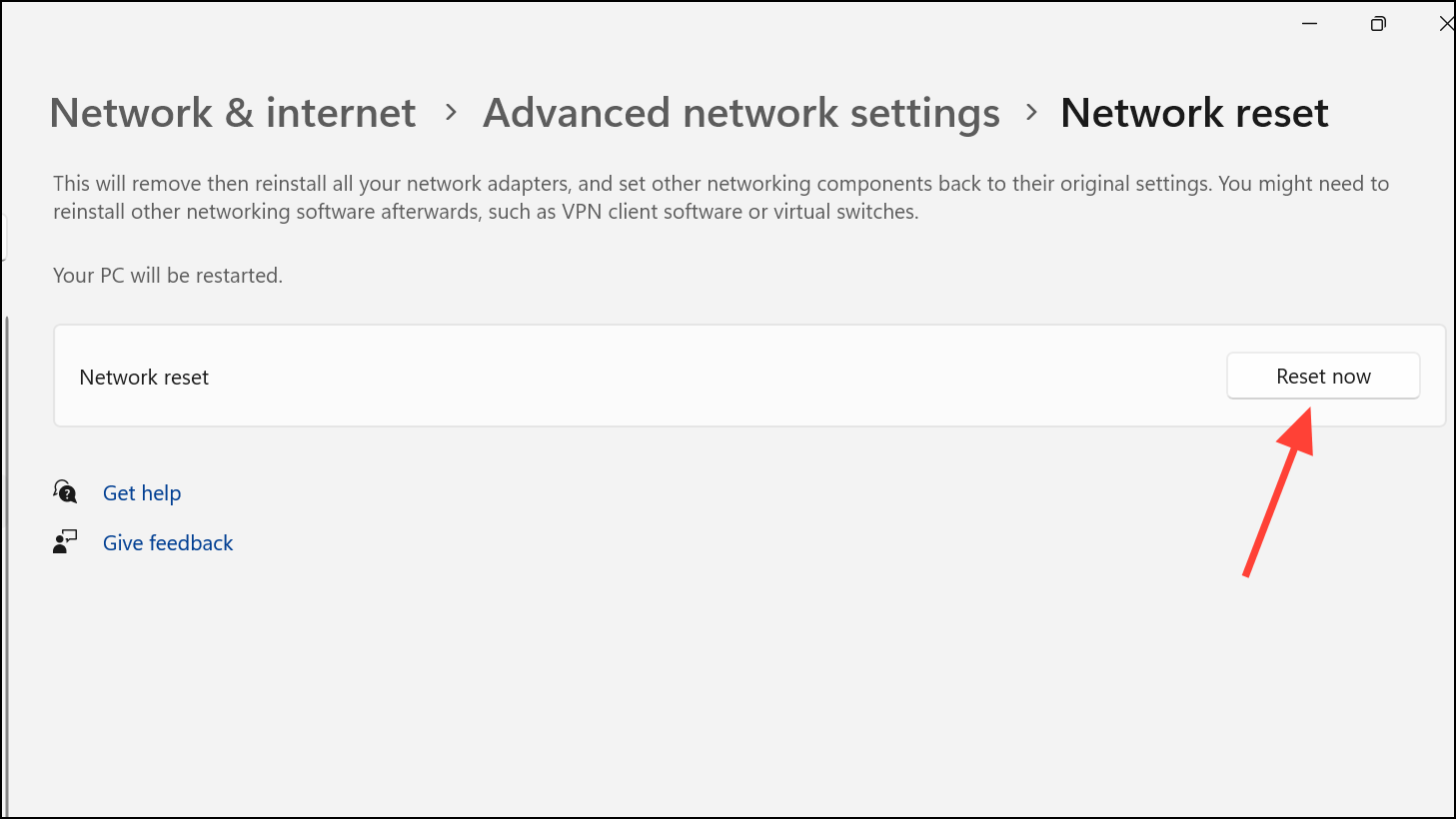
Command Prompt as Administrator and enter these commands one at a time, pressing Enter after each:netsh int ip reset
netsh winsock reset
ipconfig /release
ipconfig /renew
ipconfig /flushdns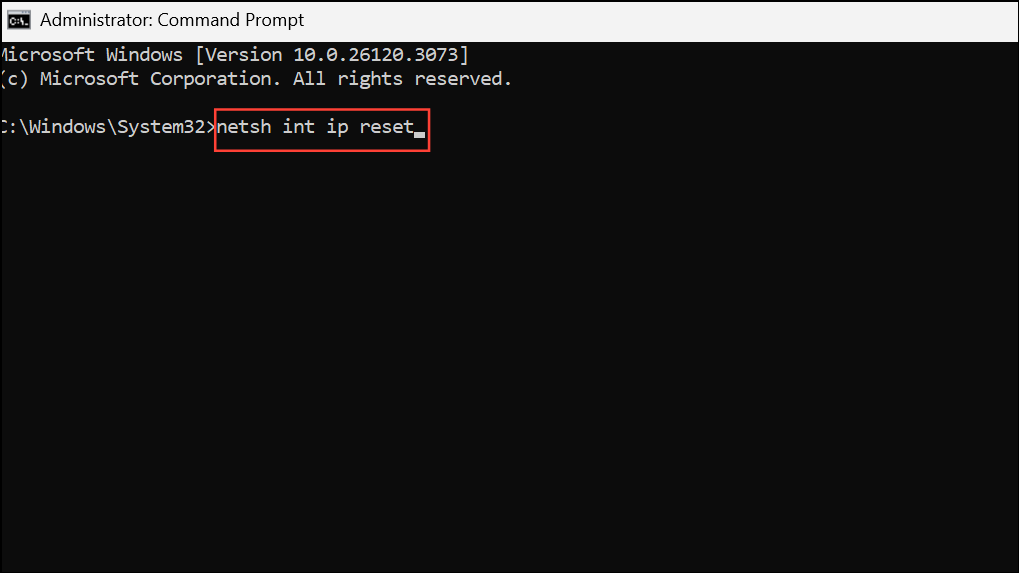
These commands reset the TCP/IP stack, clear DNS cache, and renew your network configuration, which can resolve persistent status errors.
Set a Manual DNS Server
Windows checks connectivity by reaching out to specific Microsoft servers. If your DNS settings are broken or slow, Windows might not receive the expected response and will show “No Internet” even if browsing works.
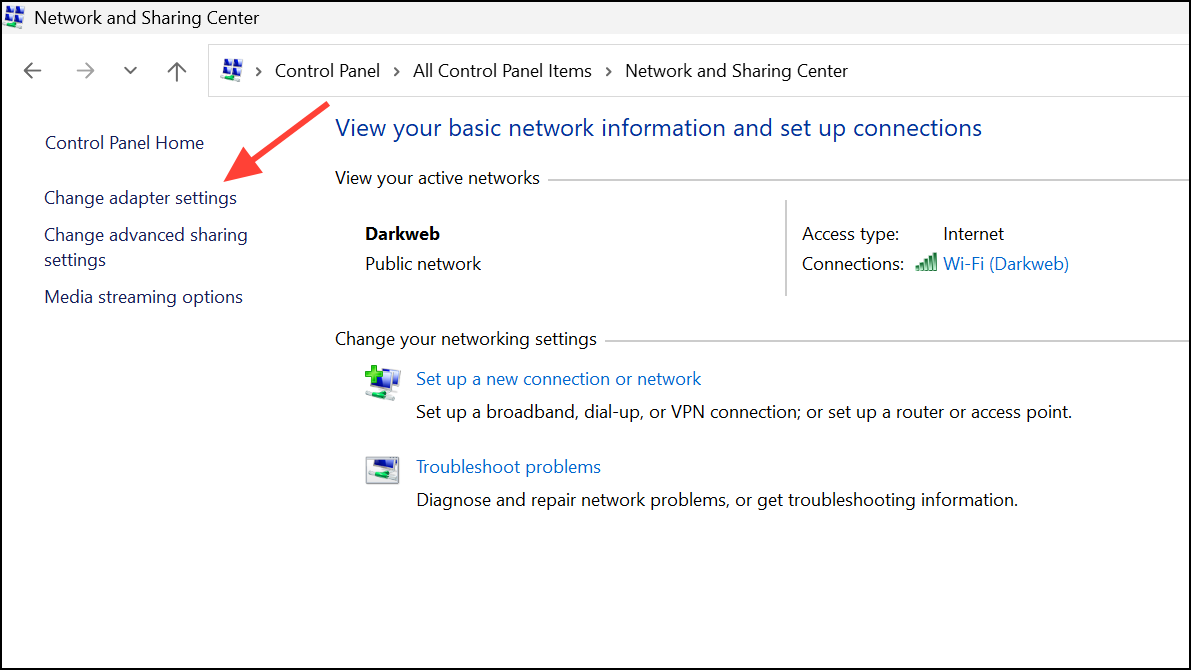
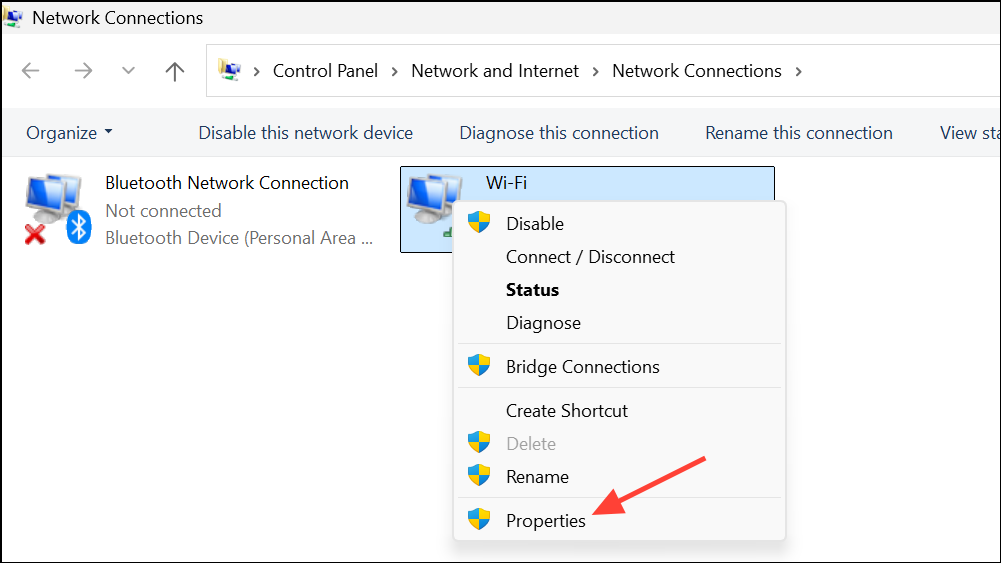
Internet Protocol Version 4 (TCP/IPv4). Choose Use the following DNS server addresses and enter:- Preferred DNS: 8.8.8.8
- Alternate DNS: 8.8.4.4
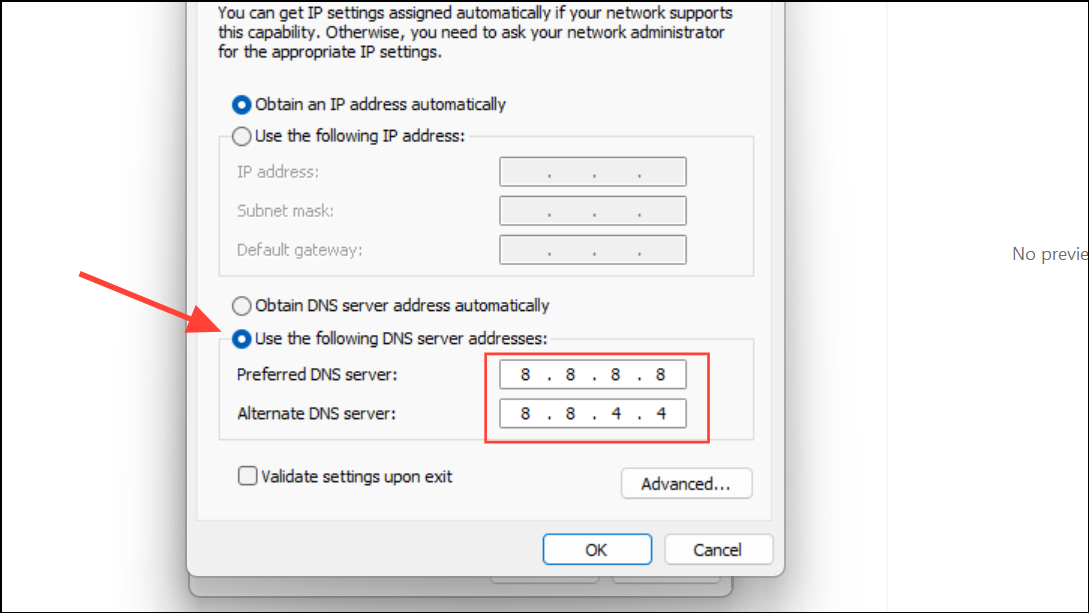
Click OK to save. Switching to a reliable DNS like Google’s can speed up network checks and restore accurate status reporting.
Restart Network Services
Windows relies on background services like Network Location Awareness (NLA) and DHCP Client to detect online status. If these services fail or hang, the system may misreport connectivity.
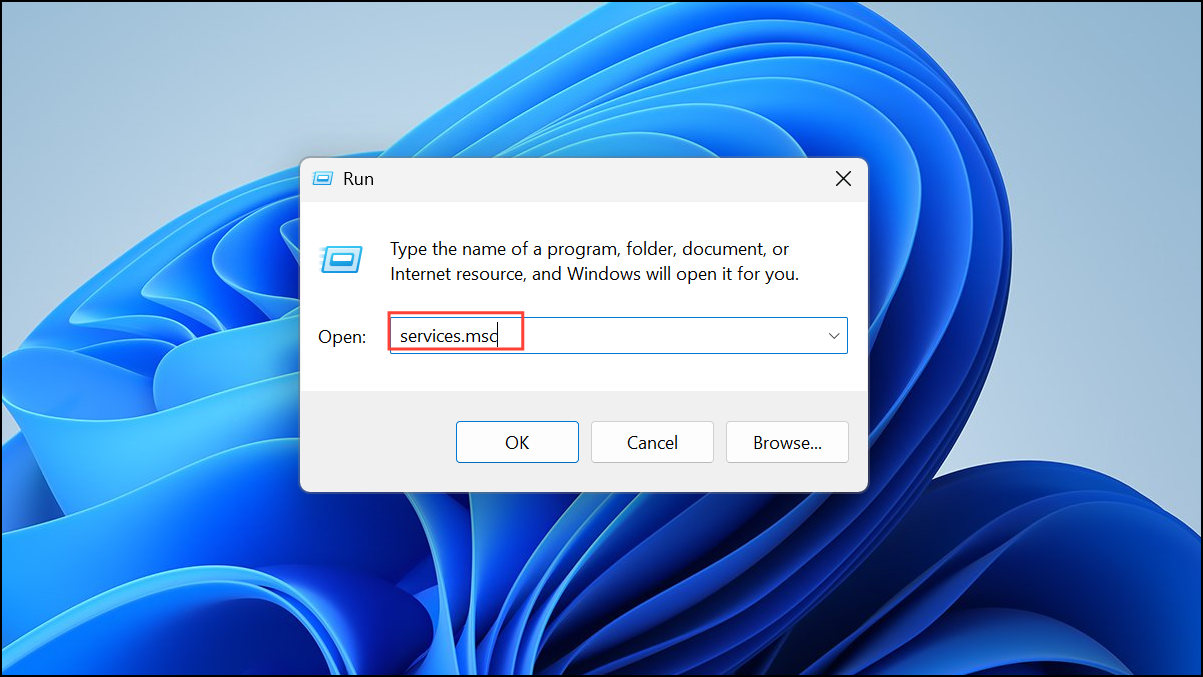
Network Location Awareness and DHCP Client. Right-click each and select Restart.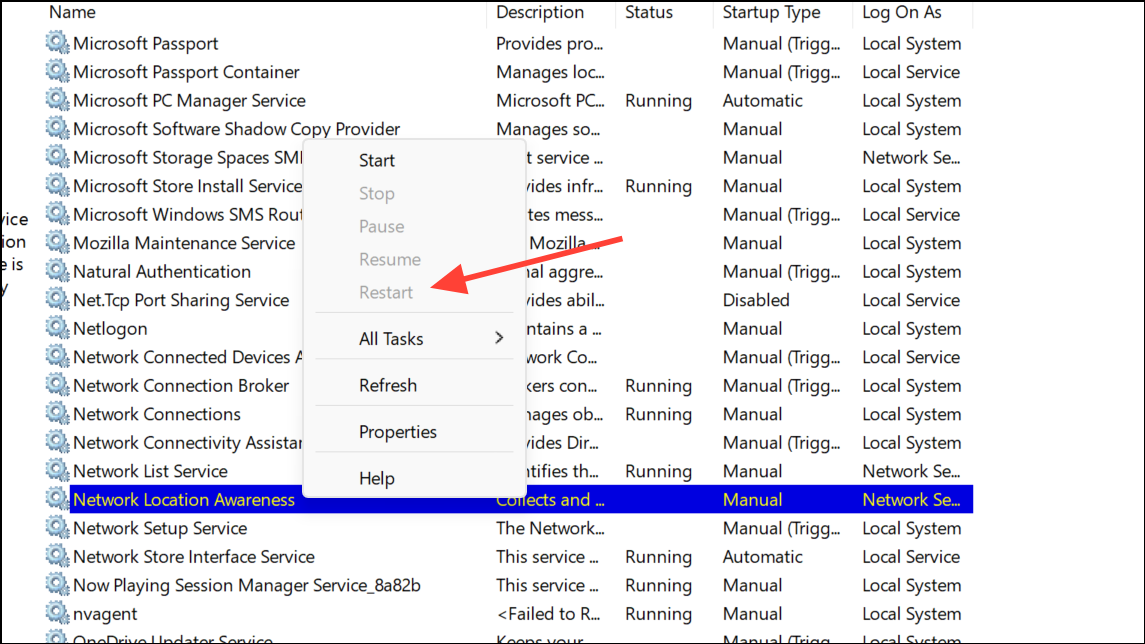
Disable VPNs, Proxies, and Security Tools
Active VPNs, proxy servers, or certain security applications can interfere with Windows’ ability to check connectivity, leading to false “No Internet” messages. VPNs may reroute traffic in a way that blocks Windows’ test requests, while some security tools block or filter network status checks.
Settings > Network & Internet > VPN or Proxy and turning off all active connections.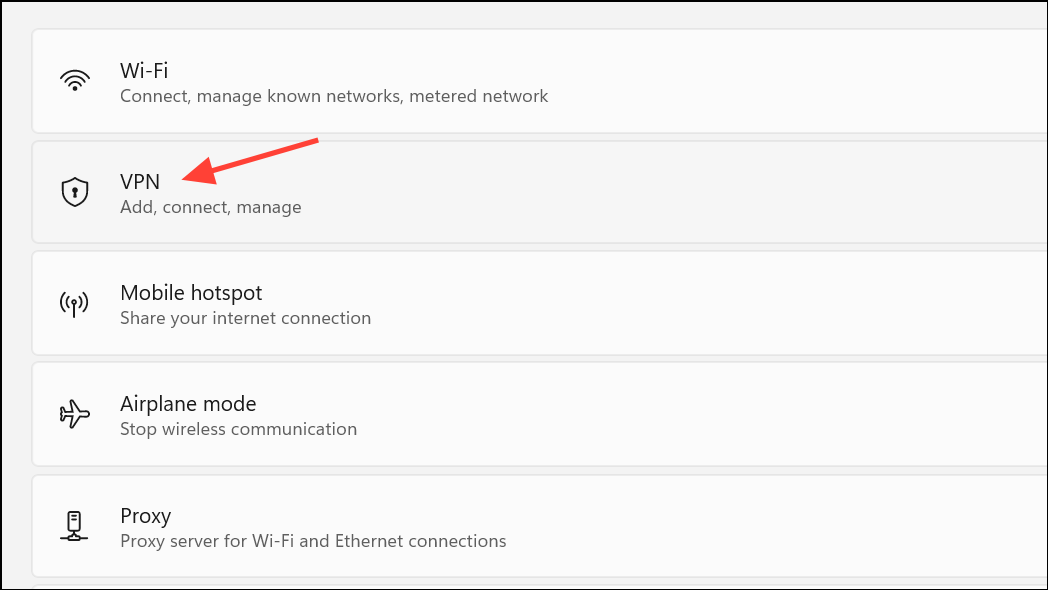
Check Data Limits and Network Profiles
Windows allows users to set data usage limits, which can block internet access once the limit is reached, even if the device remains connected to Wi-Fi or Ethernet.
Settings > Network & Internet > Advanced Network Settings > Data Usage. Remove any active data limit by clicking Remove Limit and confirming the action. This restores normal access if Windows had restricted connectivity due to a data cap.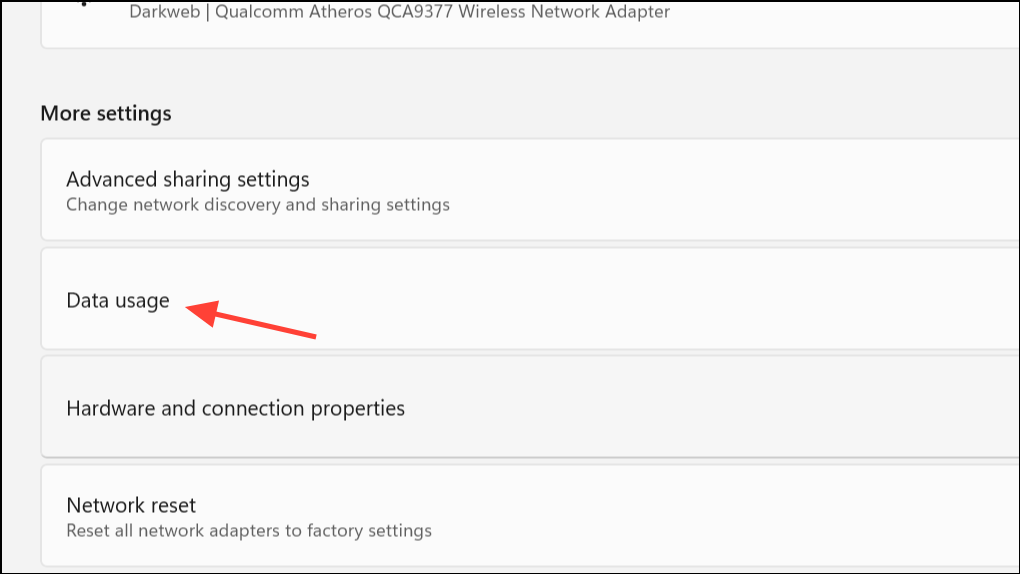
Reinstall or Roll Back Network Drivers
Persistent false “No Internet” status can result from recent driver updates or underlying driver corruption. Reinstalling or rolling back the network driver can resolve these issues.
Device Manager, expand Network Adapters, right-click your network device, and select Uninstall device. Confirm and restart your computer. Windows will reinstall the default driver upon reboot.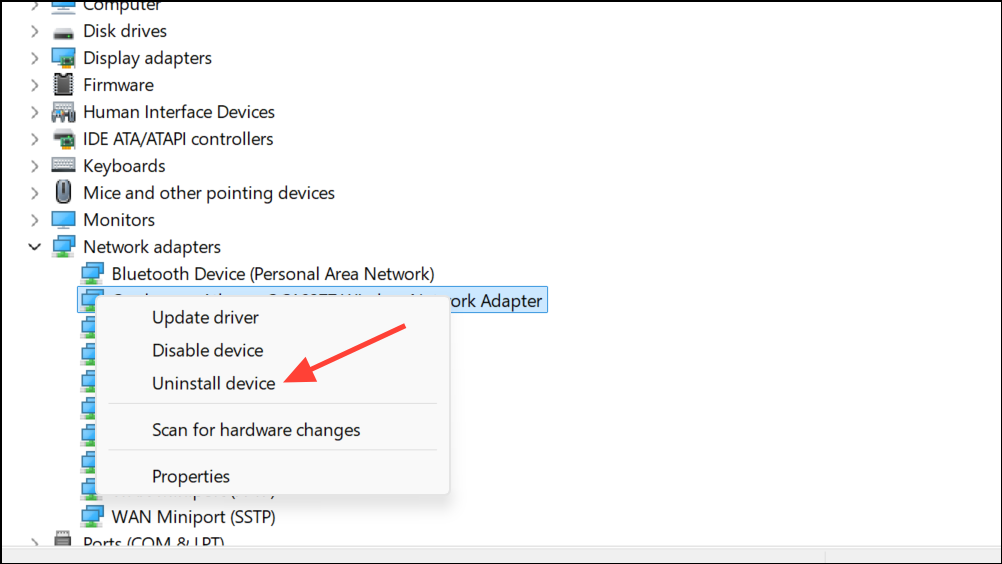
Properties, go to the Driver tab, and use Roll Back Driver if available.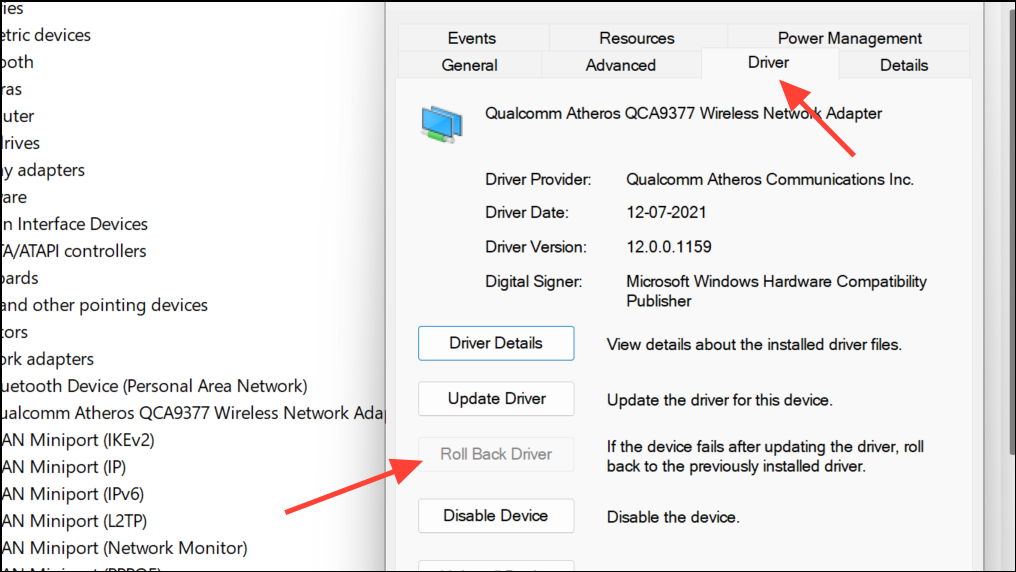
Additional Steps and Workarounds
Command Prompt as Administrator and enter:sfc /scannow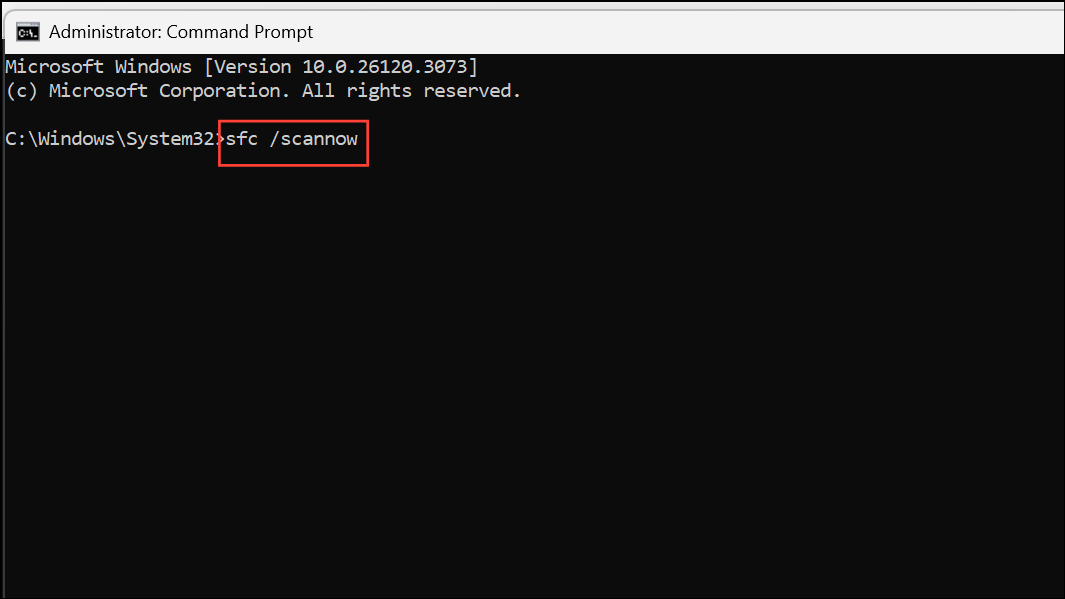
This scans and repairs corrupted Windows system files that may affect networking components.
Resolving the “No Internet” warning in Windows 11 restores access to updates, the Microsoft Store, and connected apps, keeping your system running smoothly. If these methods do not resolve the issue, a full Windows reinstall or professional support may be necessary, but most users find success with the steps above.



