

“Windows is checking for a solution to the problem” appears when an application crashes and Windows 11 attempts to diagnose the issue using its Error Reporting Service. This process often stalls, provides no real solution, or repeatedly interrupts your workflow. Disabling the Error Reporting Service and addressing the root causes of application crashes can stop these pop-ups and improve system stability.
Disable Windows Error Reporting Service
Disabling the Error Reporting Service prevents Windows 11 from getting stuck searching for solutions after a crash. This step directly stops the persistent pop-ups without affecting your ability to use the Event Viewer or troubleshoot issues manually.
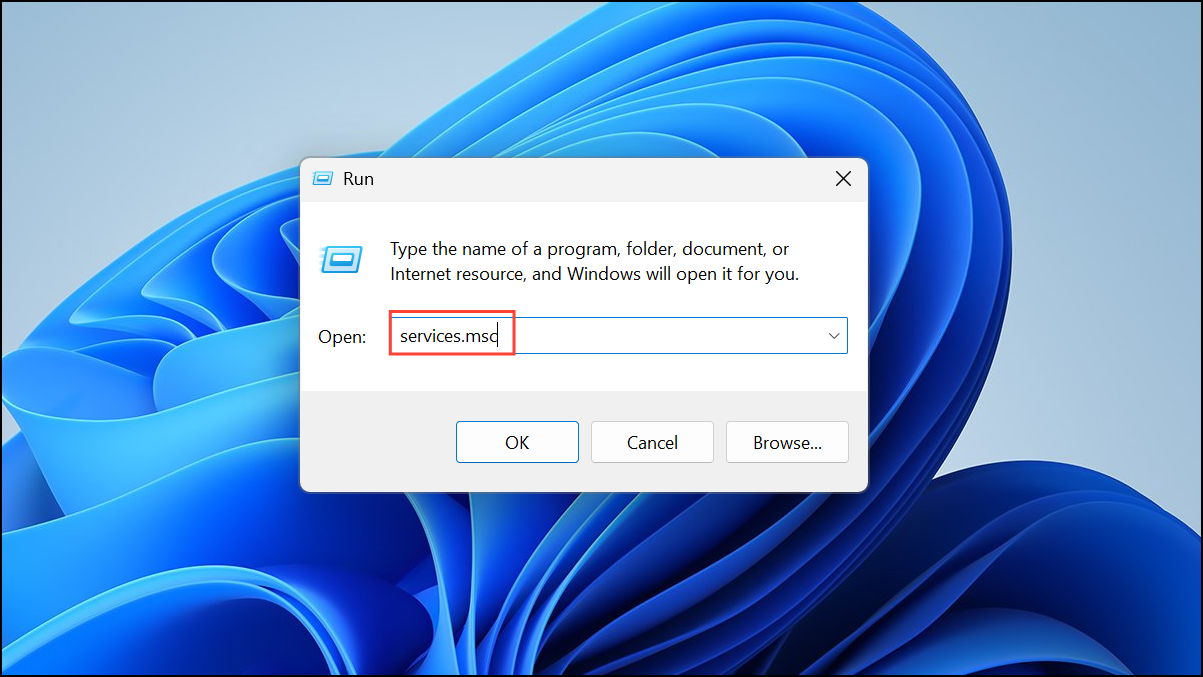
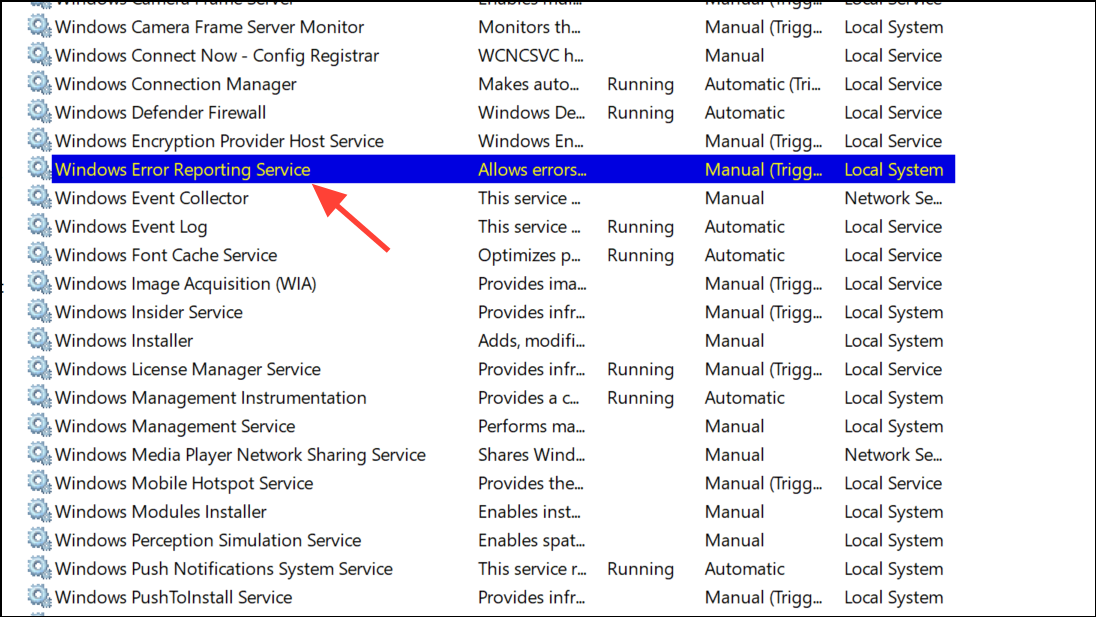
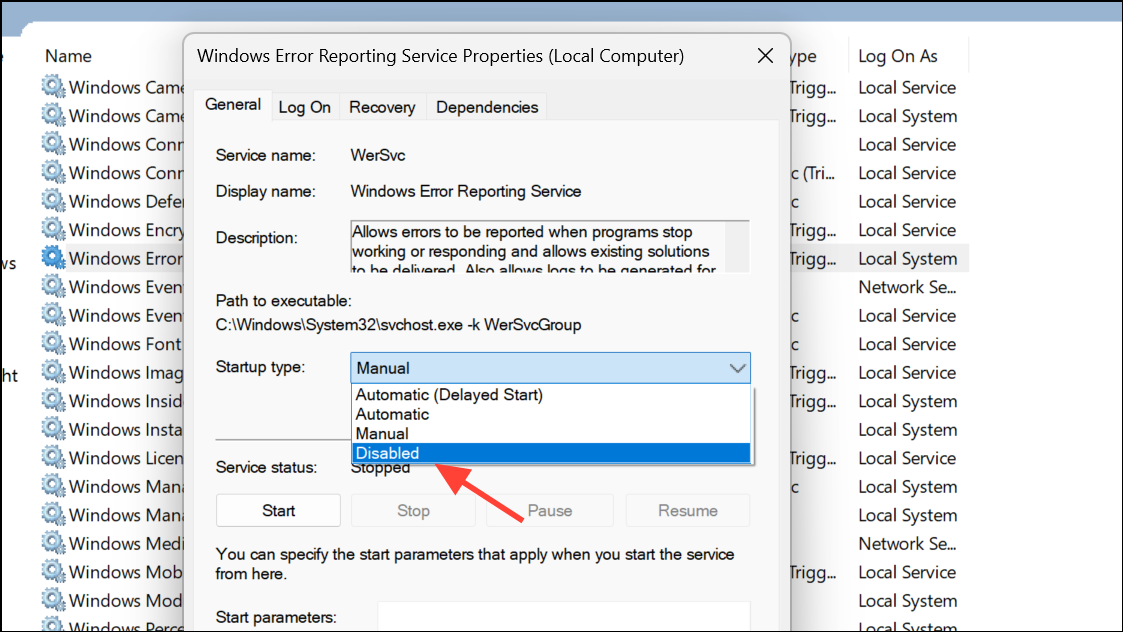
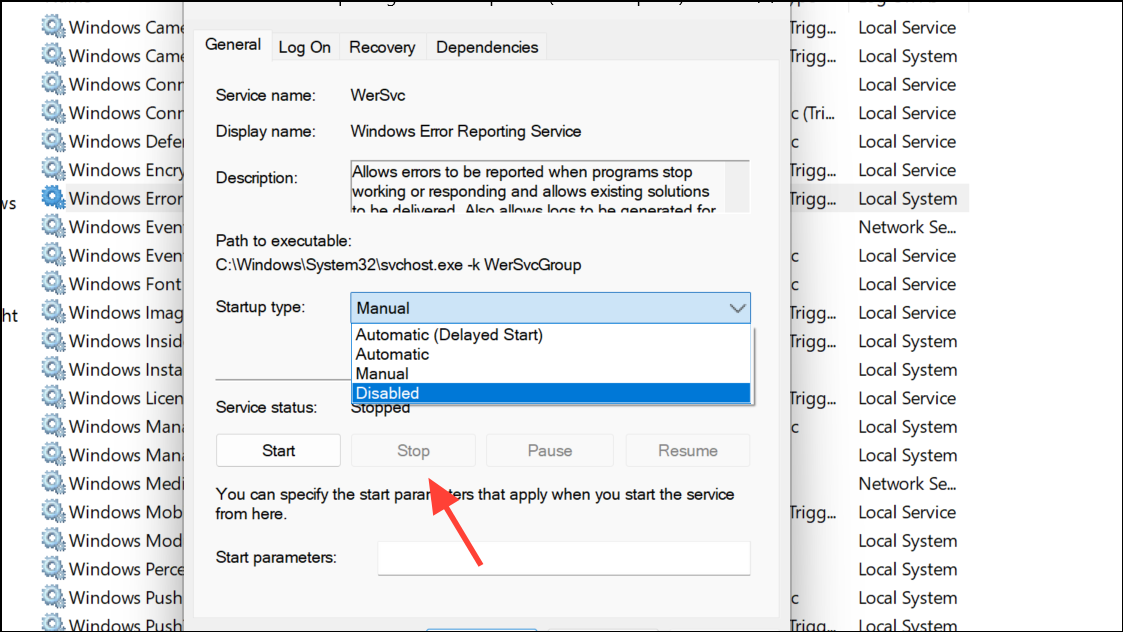
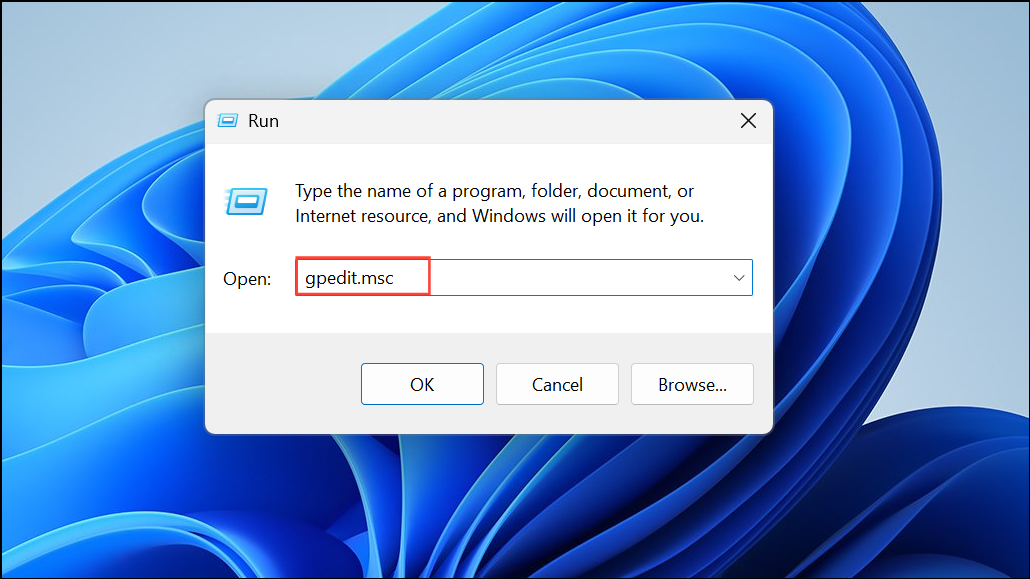
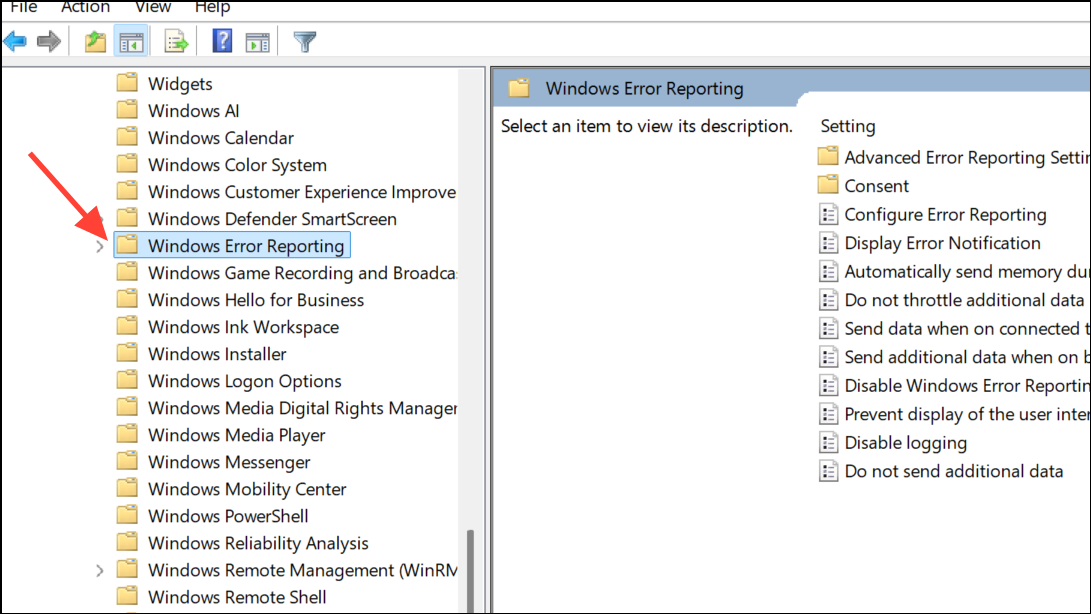
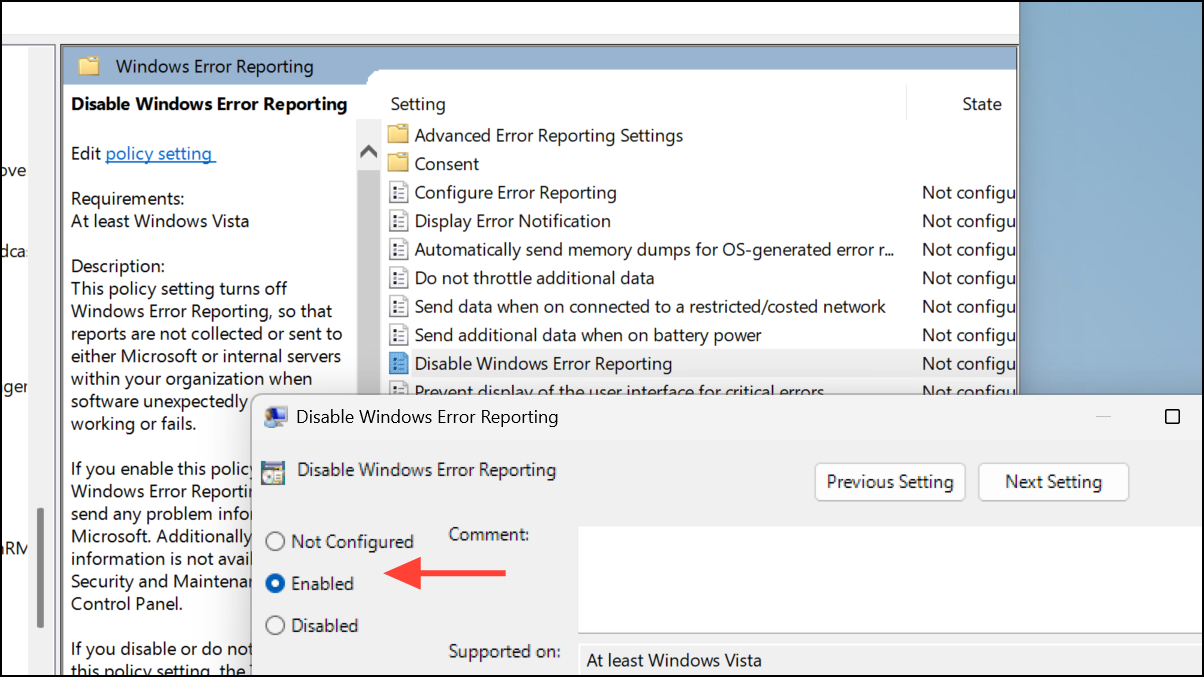
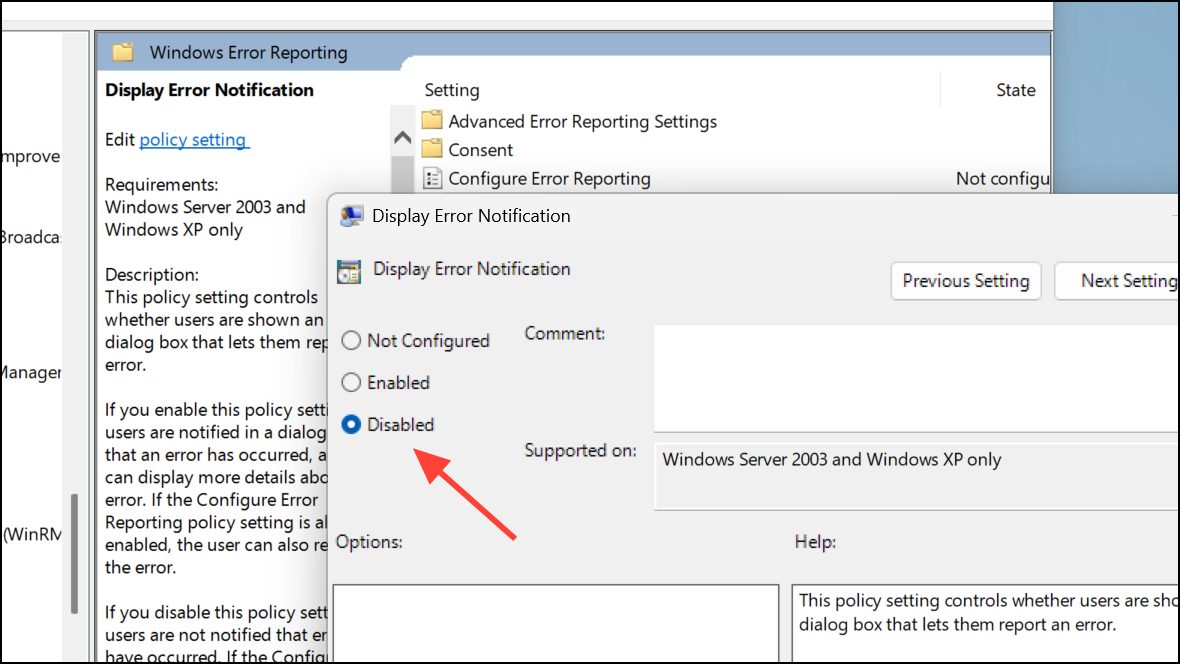
Alternative: Disable Error Reporting via Group Policy Editor
For users running Windows 11 Pro, Enterprise, or Education, the Group Policy Editor offers a centralized way to disable Error Reporting. Windows 11 Home users can enable Group Policy Editor with additional steps, but using the Services method above is simpler for most.
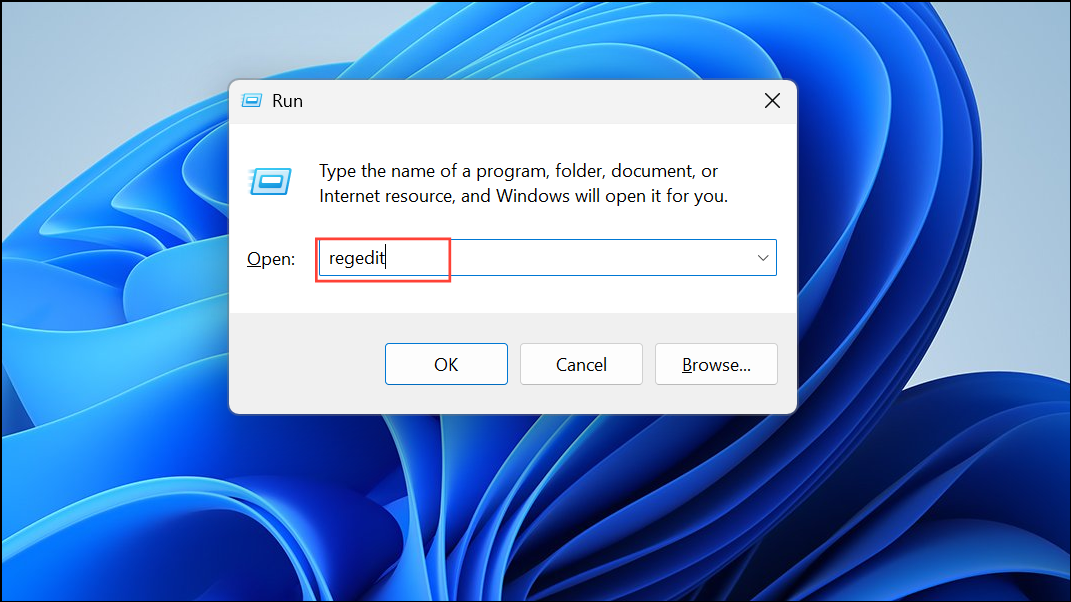
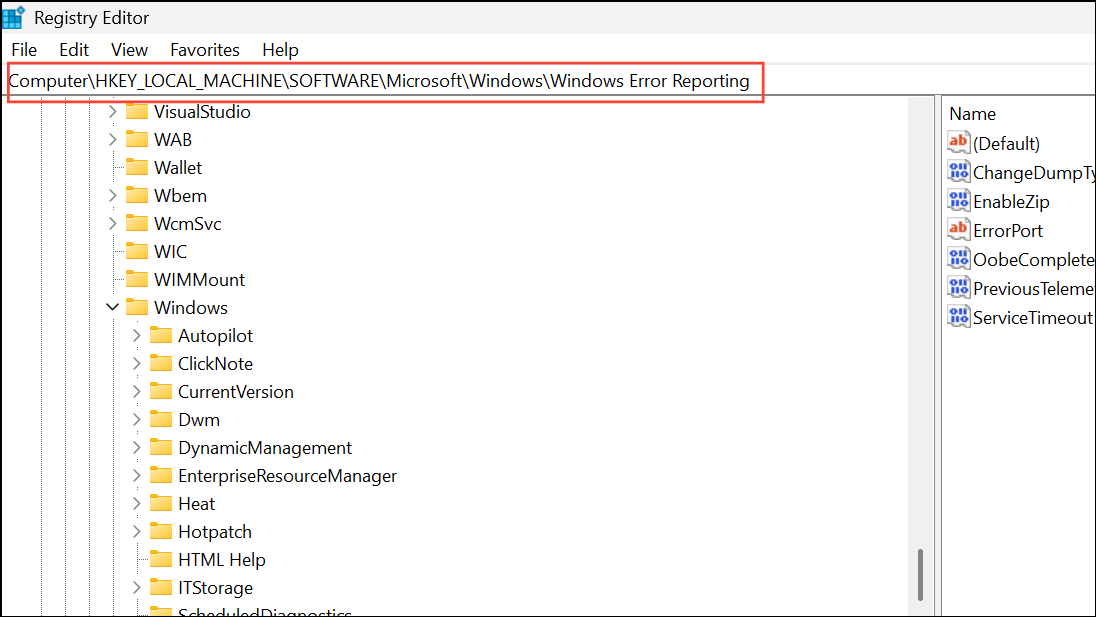
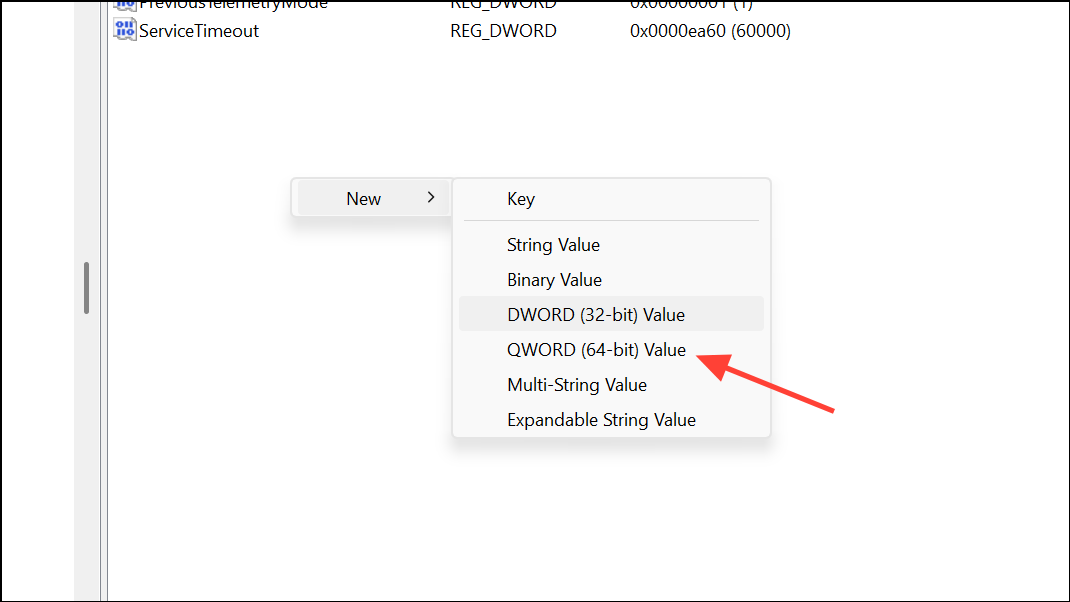
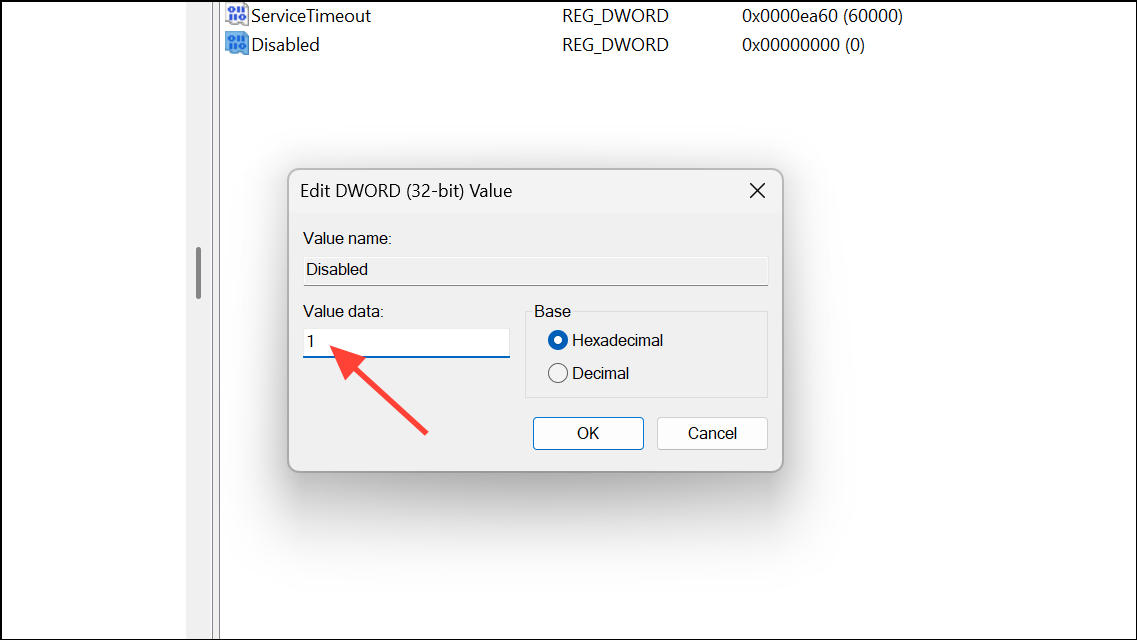
Advanced: Disable Error Reporting via Registry Editor
If the above methods are unavailable or you prefer a direct approach, editing the Windows Registry can also disable Error Reporting. Always back up your registry before making changes.
Address Underlying Application Crashes and System Errors
Disabling Error Reporting stops the pop-ups, but resolving the core issues behind application crashes is crucial for a stable system. Windows 11 offers several built-in tools and troubleshooting steps to identify and fix common errors.
Run Built-in Troubleshooters
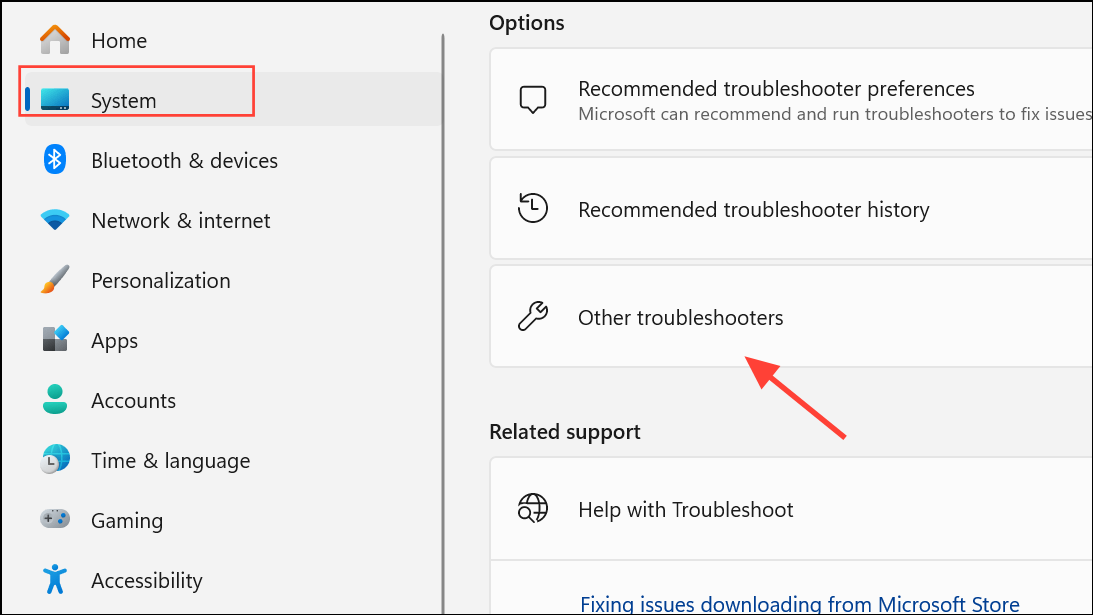
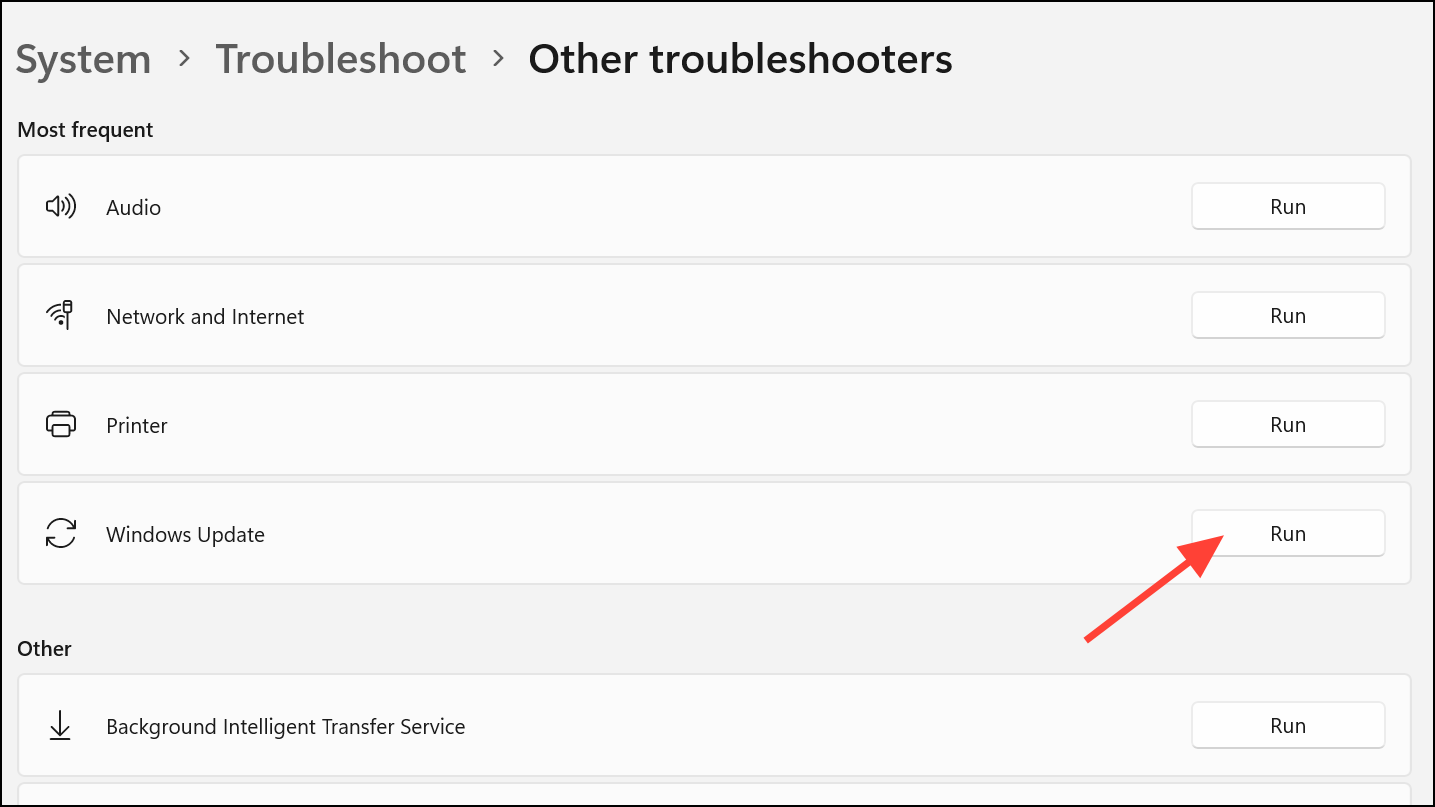
Windows 11 includes automated troubleshooters for frequent issues such as Windows Update failures, network problems, and audio glitches.
Repair Corrupted System Files
Corrupted or missing system files often cause persistent errors and crashes. The System File Checker (SFC) and Deployment Image Servicing and Management (DISM) tools can scan for and repair these issues.
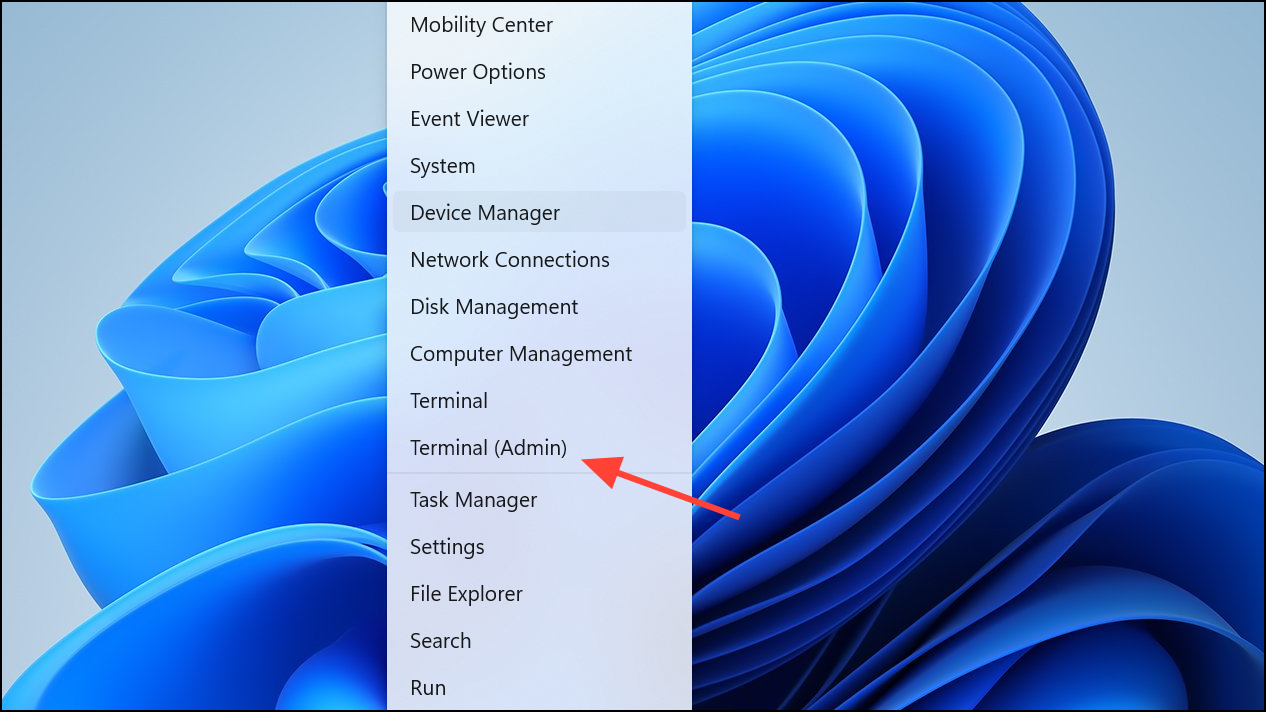
sfc /scannow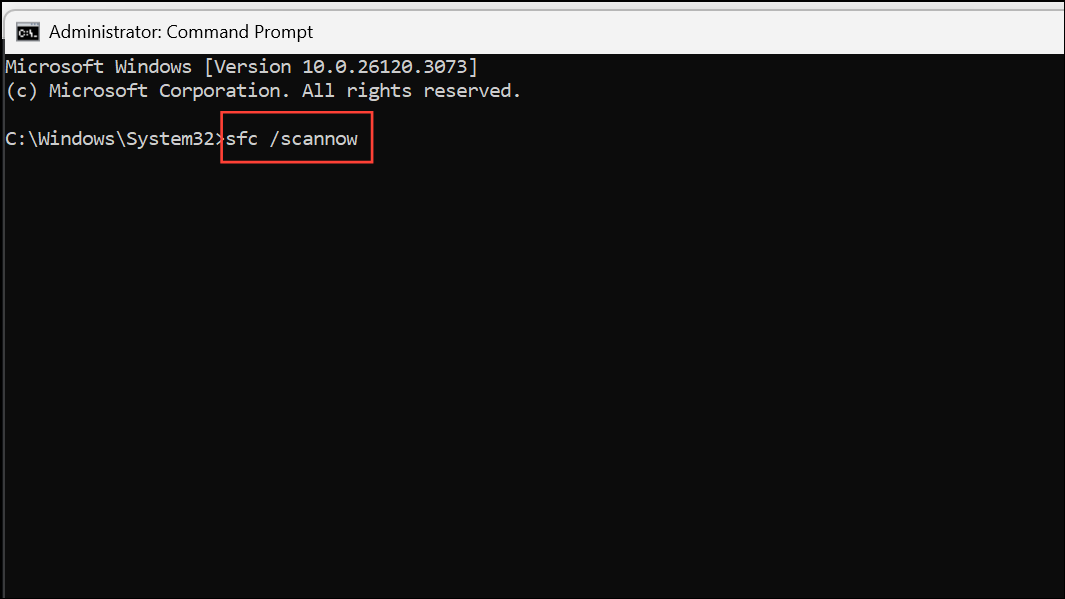
DISM /Online /Cleanup-Image /RestoreHealth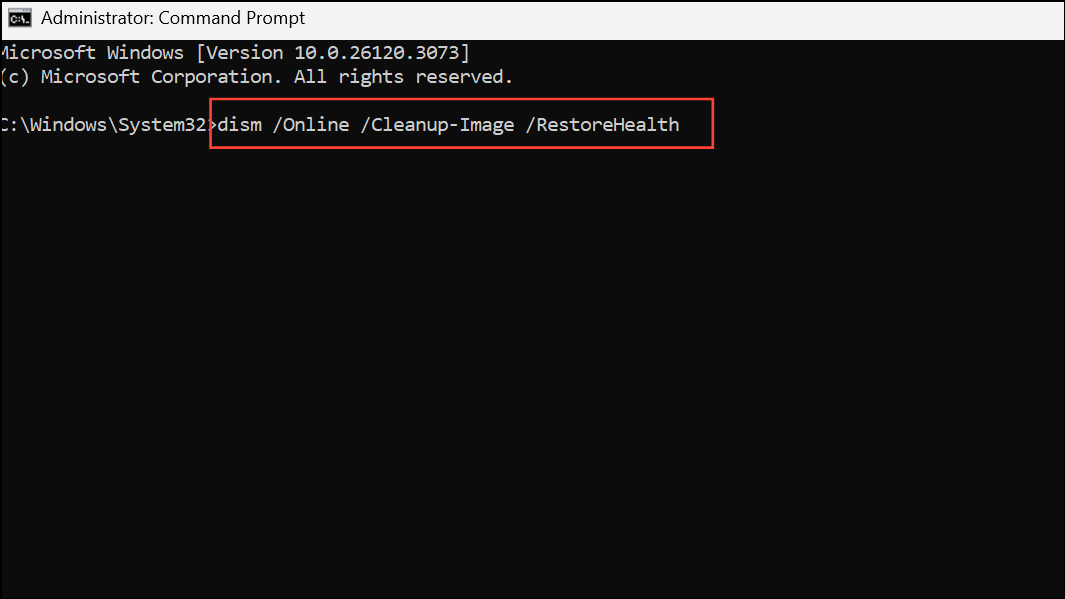
Update Drivers and Windows
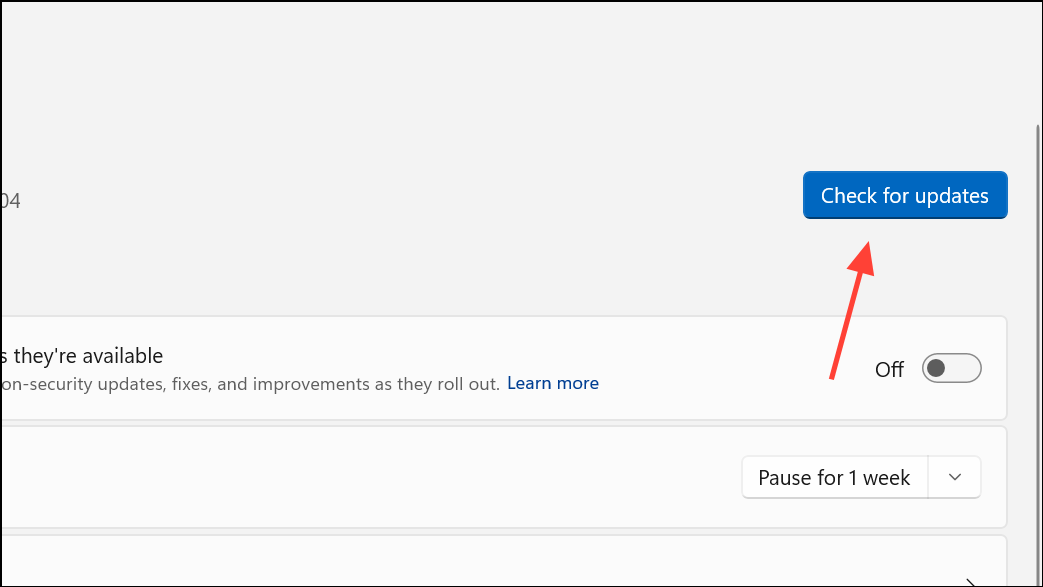
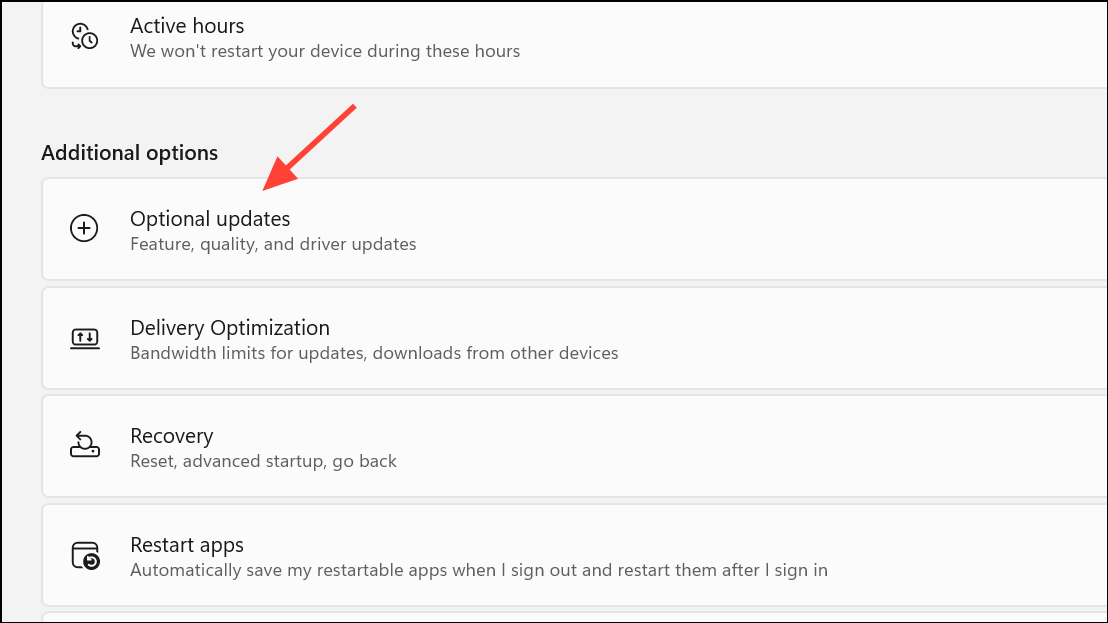
Outdated drivers and missing system updates frequently cause application instability. Ensuring your system is up to date can resolve many error messages and prevent repeated crashes.
Remove Conflicting or Unnecessary Software
Third-party antivirus, outdated utilities, or incompatible programs can interfere with system processes and trigger errors. Removing these can improve system reliability.
- Uninstall any non-Microsoft antivirus or security tools using their official removal tools.
- Remove unnecessary or outdated applications via Settings > Apps > Installed apps.
- Disconnect external hardware not required for daily use to rule out driver conflicts.
Additional Maintenance Tips
- Regularly create system restore points via Settings > System > About > System protection.
- Monitor system health using Reliability Monitor (search for “Reliability Monitor” in the Start menu) to review crash logs and error patterns.
- Schedule routine scans with SFC and DISM, especially after major updates or software installations.
- Keep regular backups of important data using the 3-2-1 backup rule (three copies, two different media, one offsite).
Disabling the Error Reporting Service stops repetitive solution pop-ups, while targeted troubleshooting and regular maintenance address the root causes of application crashes in Windows 11. Consistent updates, careful removal of conflicting software, and periodic system scans keep your PC running smoothly.



