
Windows update error 0x8007065e typically occurs when the update process is interrupted by corrupt files, misconfigured services, or interference from third-party software. This error prevents the system from downloading or installing updates, leaving security patches and new features out of reach. Addressing this issue requires a series of targeted troubleshooting steps that repair system integrity, reset update components, and remove potential obstacles.
Run the Windows Update Troubleshooter
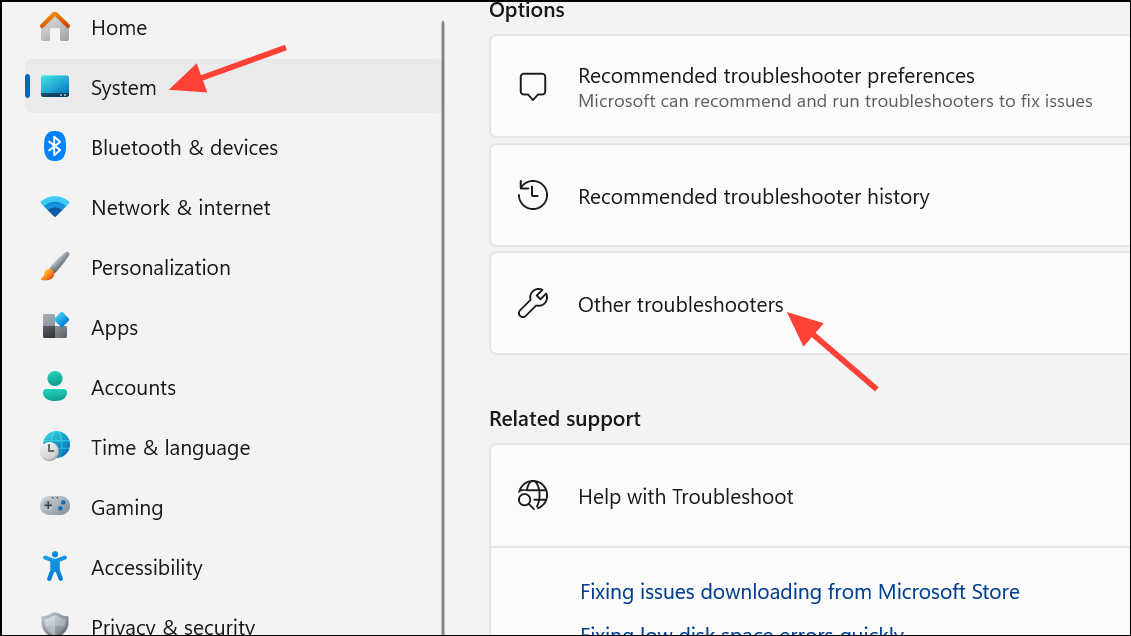
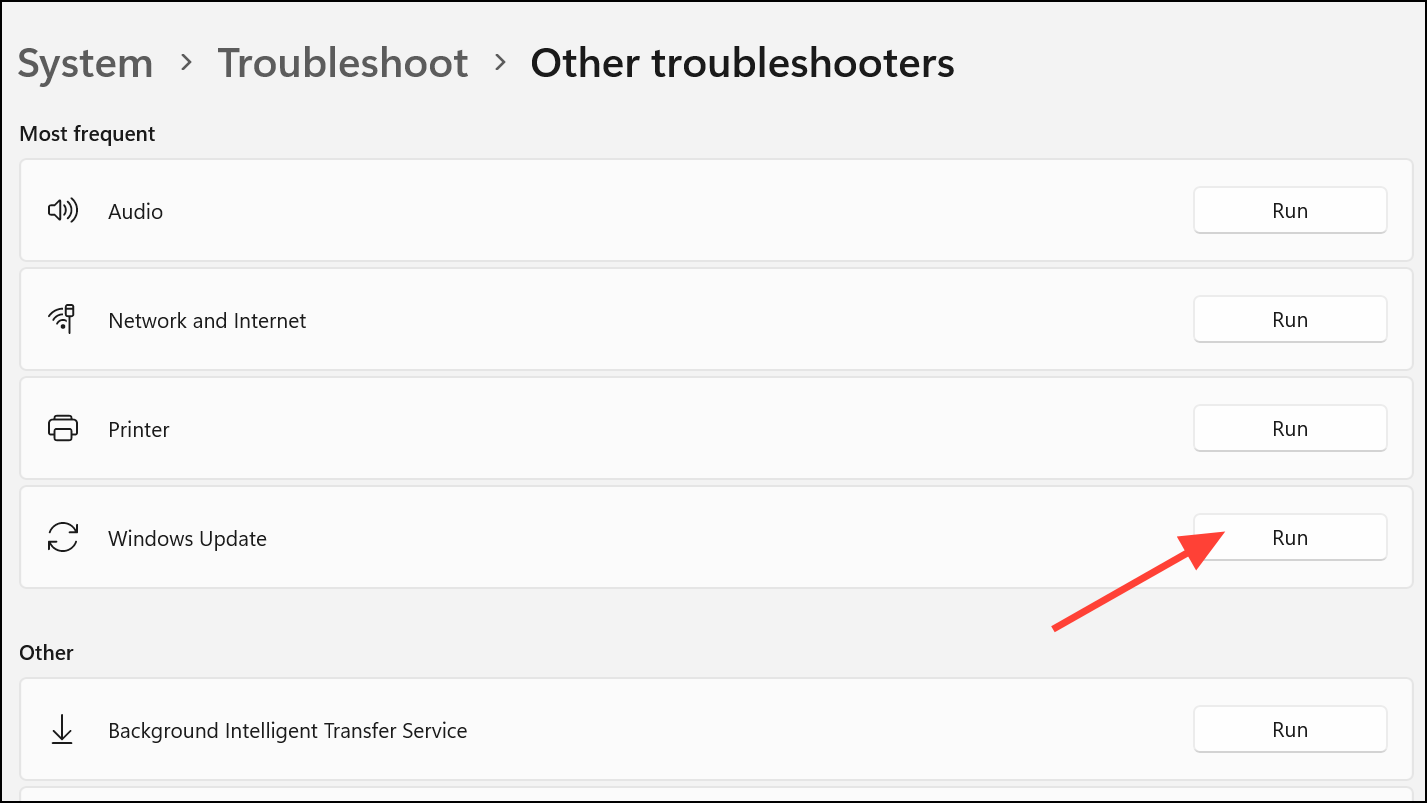
Repair System Files Using SFC and DISM
Corrupted or missing system files can block updates. The System File Checker (SFC) and Deployment Imaging Service and Management Tool (DISM) can restore these files.
cmd, then right-click Command Prompt and select Run as administrator. This opens a command window with elevated privileges.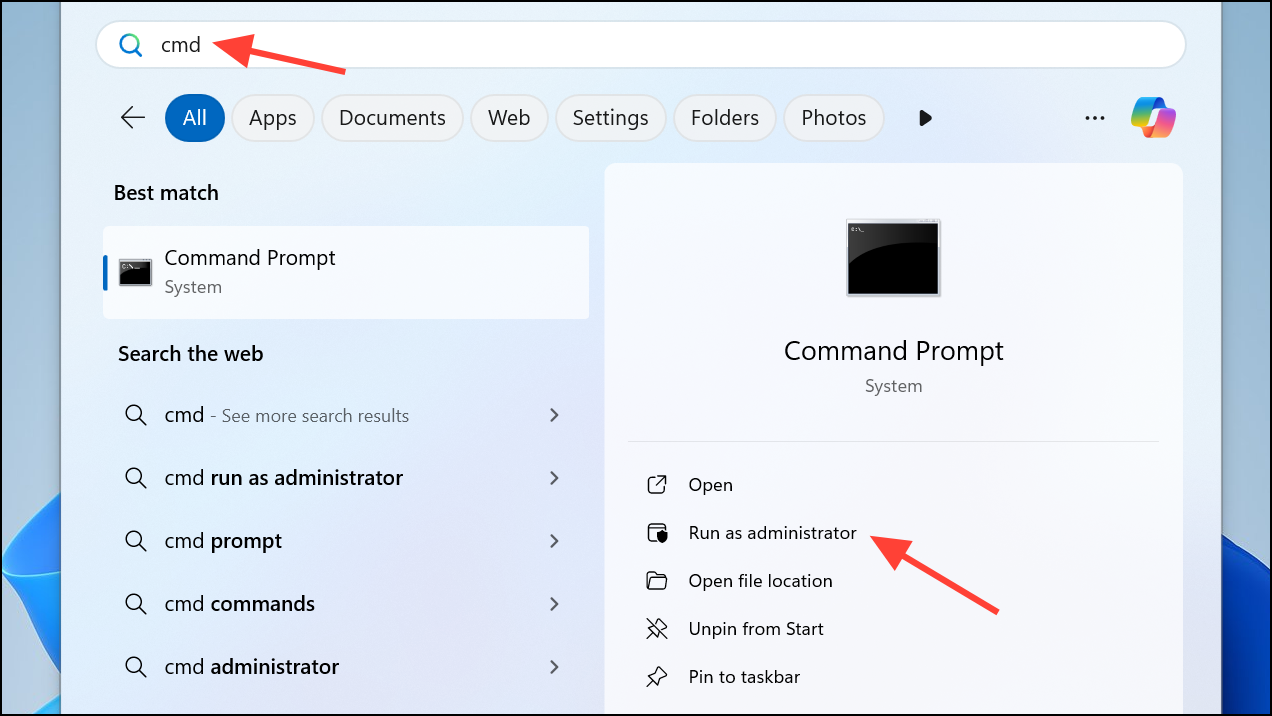
sfc /scannow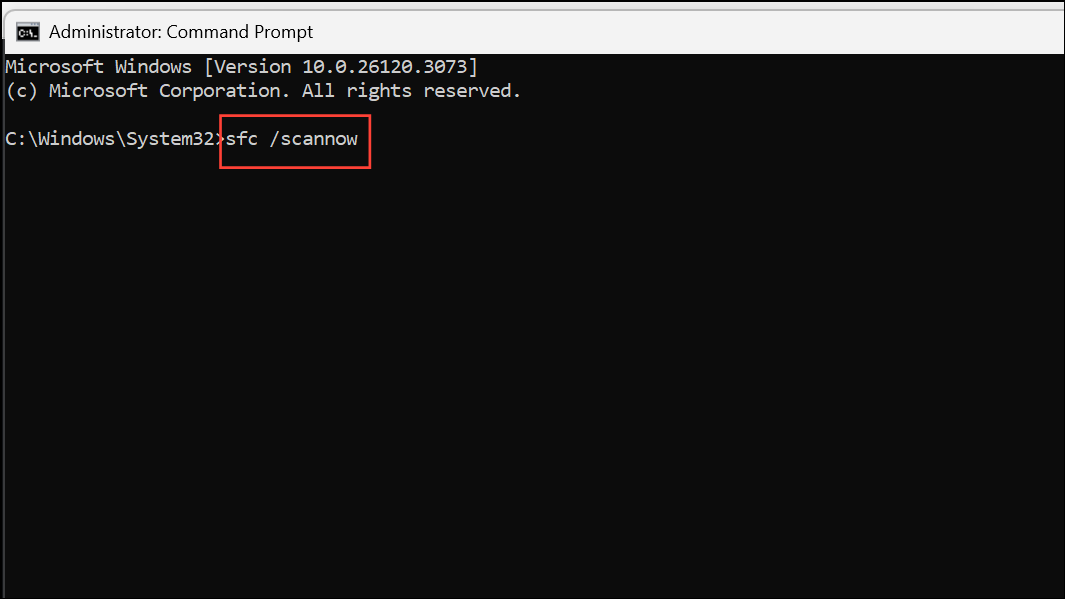
This process checks for corrupted files and attempts repairs automatically. Wait for the scan to finish.
DISM.exe /Online /Cleanup-image /Restorehealth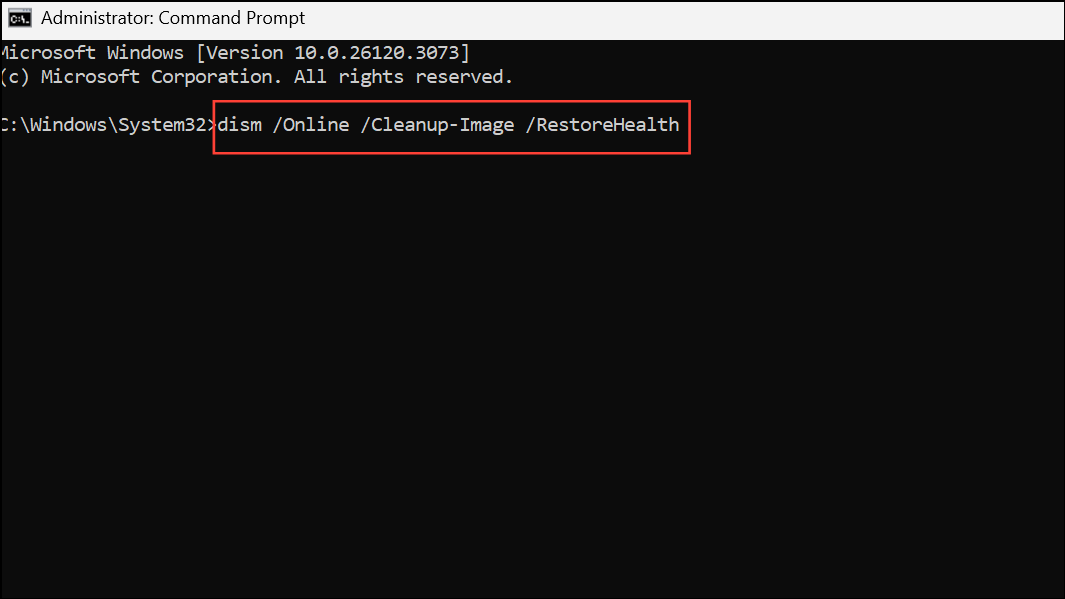
DISM connects to Windows Update to replace damaged files. Allow the process to finish, then reboot and try updating again.
Reset Windows Update Components
Corruption in the update cache or SoftwareDistribution folder can prevent updates from installing correctly. Resetting these components forces Windows to rebuild update-related files.
net stop wuauserv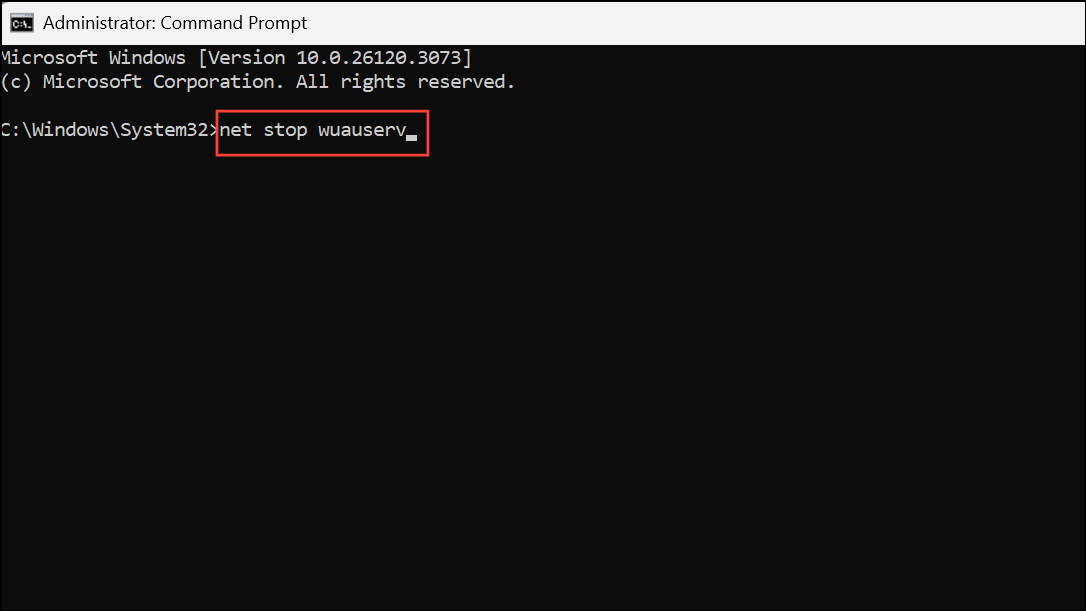
ren C:\Windows\SoftwareDistribution SoftwareDistribution.old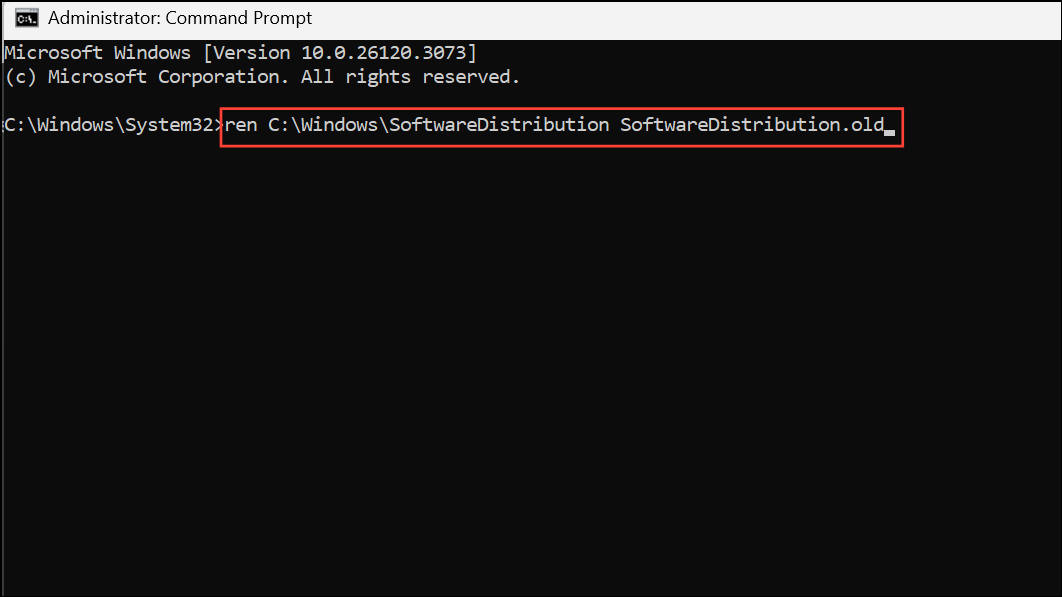
This step isolates the old cache, which may contain corrupt files.
net start wuauserv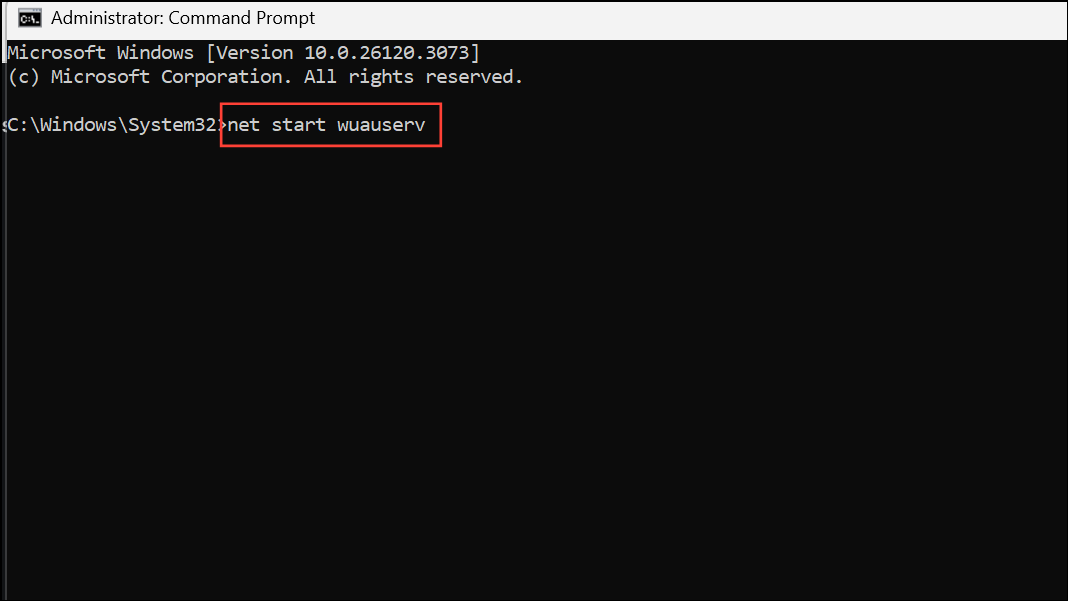
Check Windows Update and Background Services
Windows relies on background services to manage updates. If these services are not running, updates may fail with error 0x8007065e.
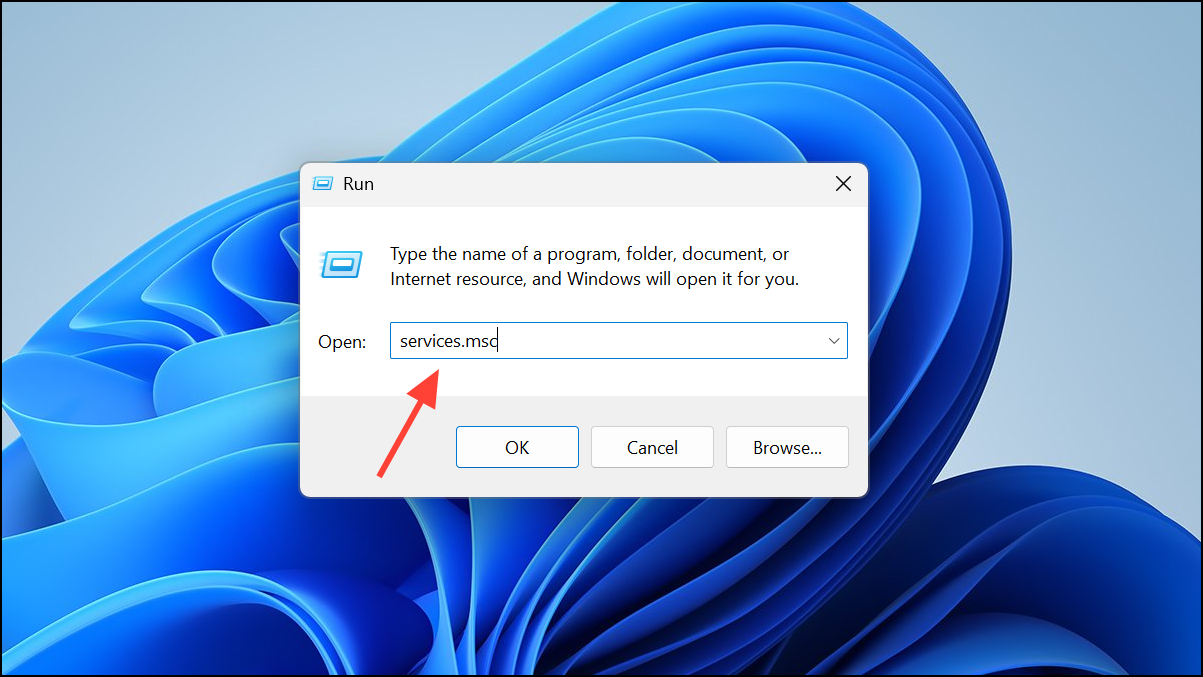
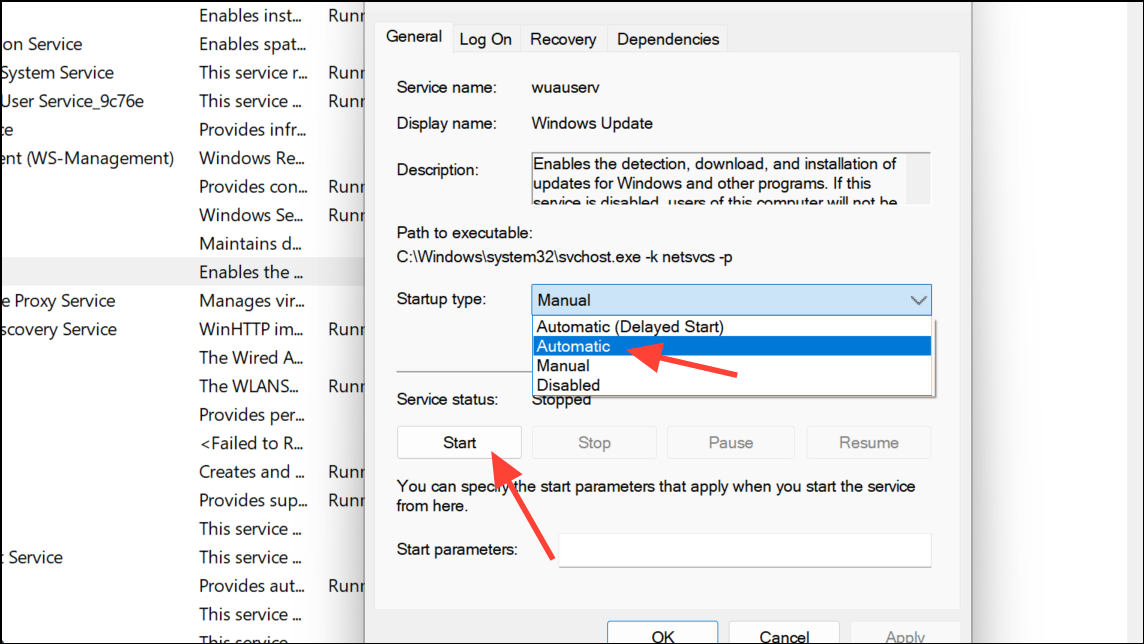
Temporarily Disable Third-Party Antivirus Software
Some security programs interfere with the update process by blocking necessary files or connections. Temporarily disabling or uninstalling third-party antivirus software can eliminate this obstacle.
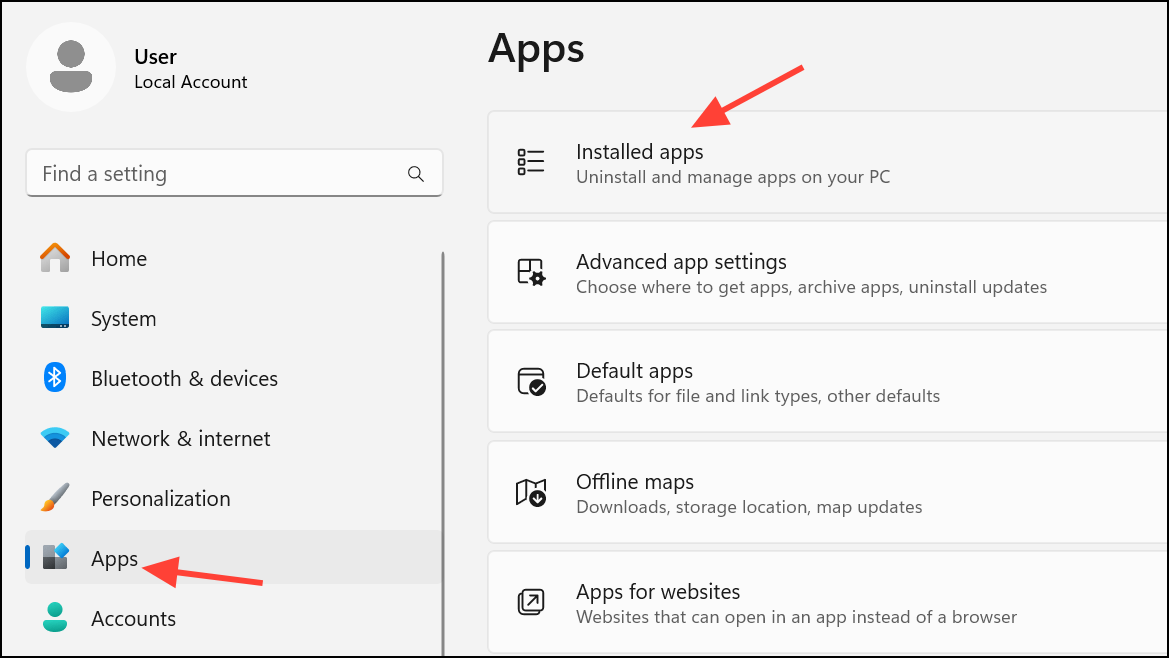
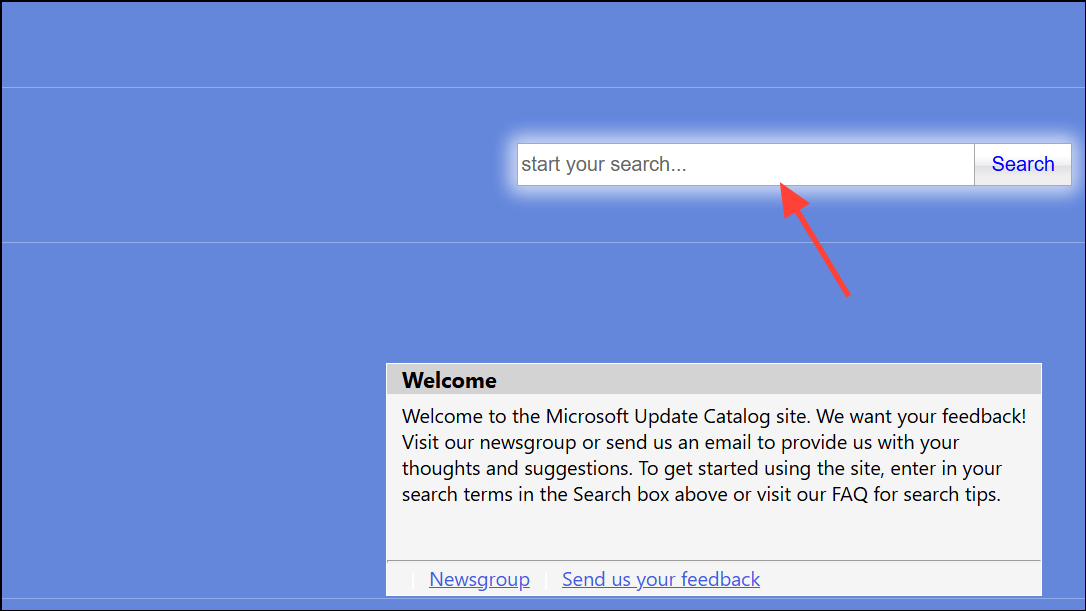
Manually Install the Failed Update
When automated methods fail, manually downloading and installing the specific update can bypass problematic files in the update cache.
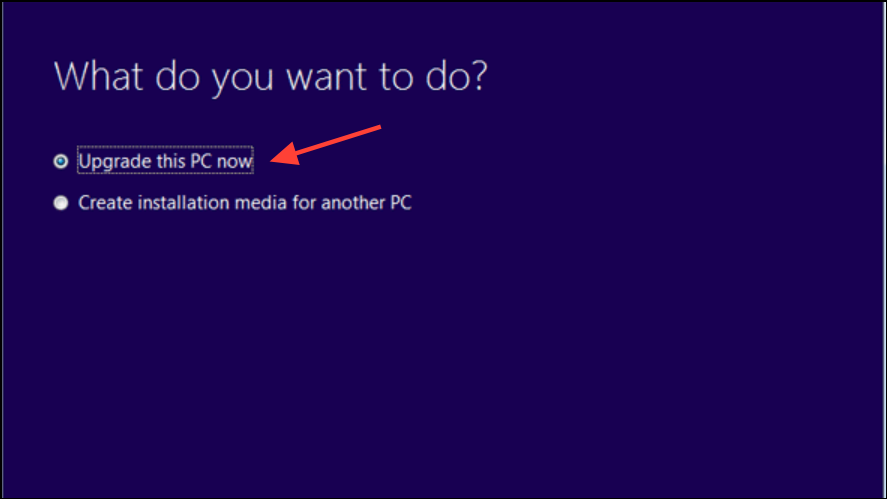
Update Using the Media Creation Tool or In-Place Upgrade
For persistent update failures, performing an in-place upgrade reinstalls Windows system files while preserving your personal data and applications. This process often resolves deep-seated corruption or configuration problems.
Following these steps typically resolves Windows 11 update error 0x8007065e, restoring the update process and keeping your system current. If the problem continues, consider seeking further assistance from official Microsoft support or community forums.





