“Your Connection Is Not Secure” errors in Firefox prevent access to websites that rely on HTTPS, often halting logins, email access, or general browsing. This message usually appears when Firefox cannot verify a website’s security certificate, which can result from security software interference, system configuration issues, or problems with the website itself. Addressing this error involves identifying the cause and applying targeted solutions to restore secure browsing.
Enable Enterprise Root Certificates in Firefox
Firefox maintains its own certificate store, separate from Windows or macOS. If your system or security software has added certificates to the operating system’s store, Firefox may not recognize them by default. Enabling enterprise root certificates allows Firefox to trust certificates installed at the system level, which is especially useful when security software acts as a “man in the middle” for HTTPS traffic.
about:config in the address bar. Press Enter to access advanced settings.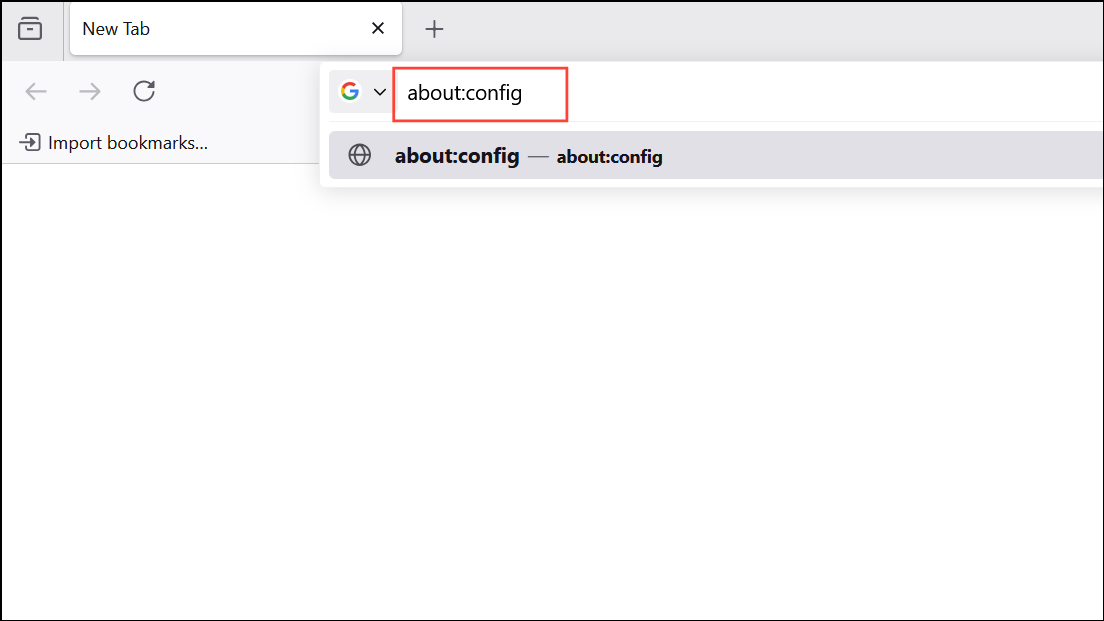
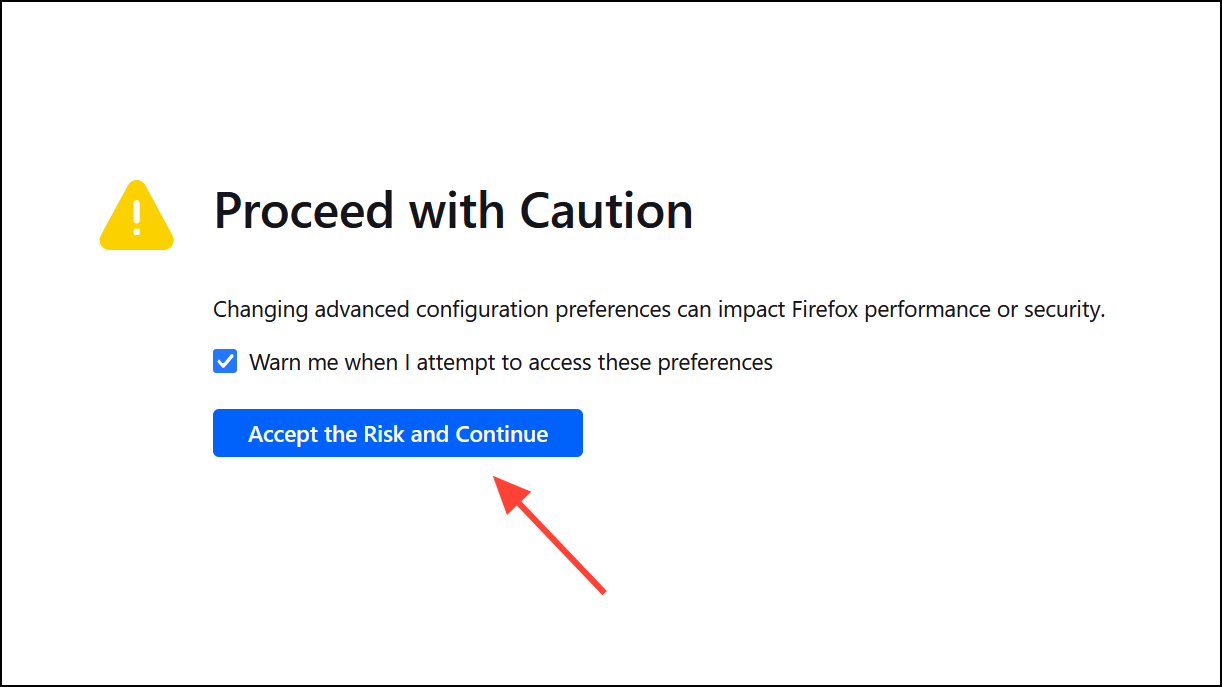
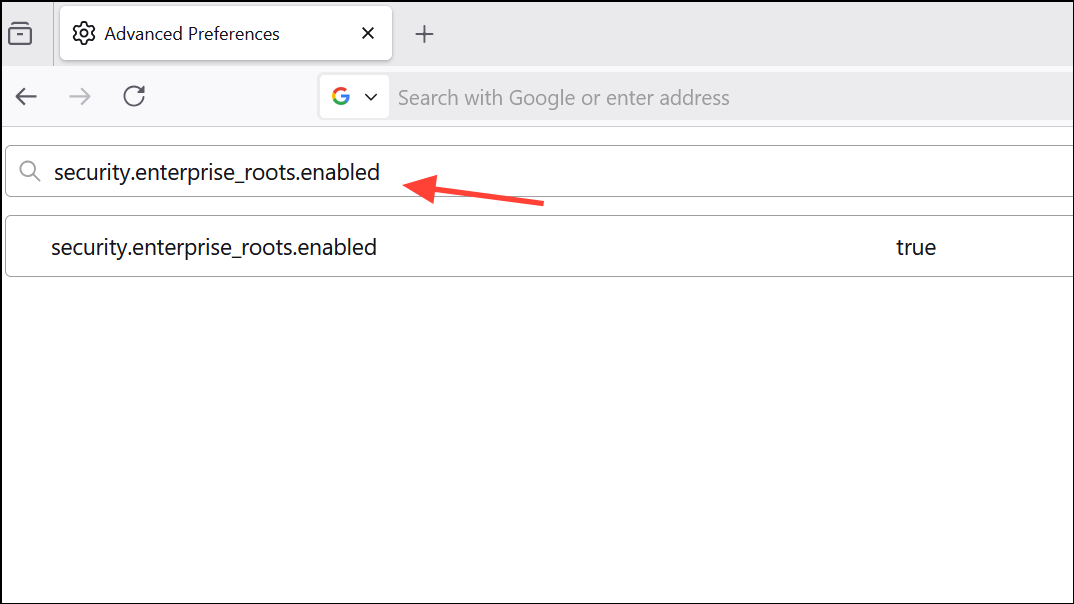
false, double-click it to change the value to true. This change tells Firefox to use trusted certificates from your operating system’s certificate store.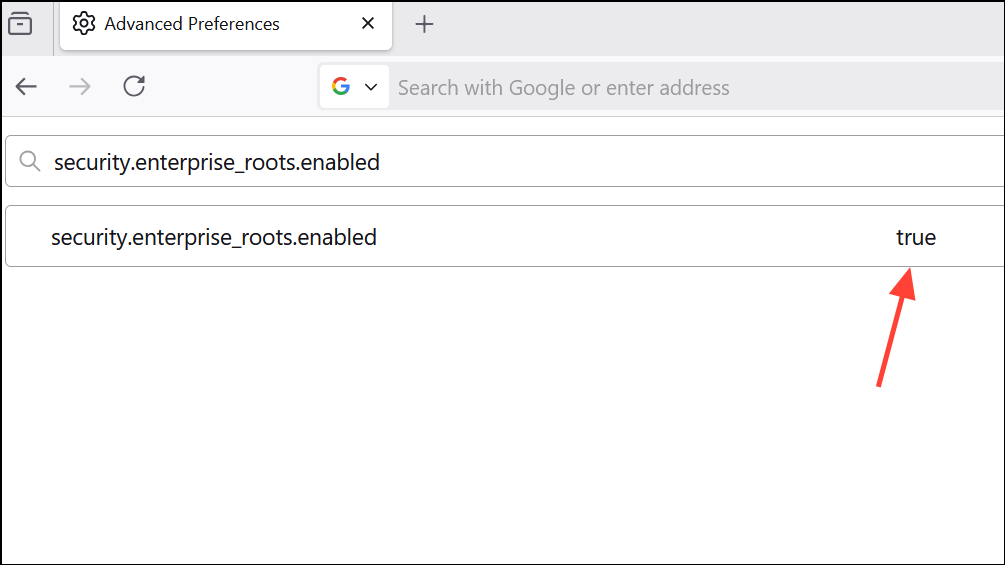
about:config tab and attempt to access the problematic website again. This adjustment often resolves certificate errors, especially with email services like Yahoo Mail or when security software is installed.Disable HTTPS Scanning in Antivirus Software
Many antivirus programs, including Avast and AVG, intercept secure connections to scan for threats, which can cause Firefox to reject certificates as untrusted. Disabling HTTPS or SSL scanning in your antivirus settings can resolve this conflict.
Components, Web Protection, or a similar heading.Check for Software Conflicts and Remove Problematic Applications
Some third-party applications, such as subtitle downloaders or proxy tools, install root certificates or intercept network traffic, causing Firefox to distrust connections. Identifying and disabling or uninstalling these applications can restore normal browsing.
Clear HSTS Settings and DNS Cache
Websites that use HTTP Strict Transport Security (HSTS) prevent browsers from bypassing certificate errors. If a site’s HSTS settings are corrupted or cached incorrectly, Firefox may block access even after resolving certificate issues.
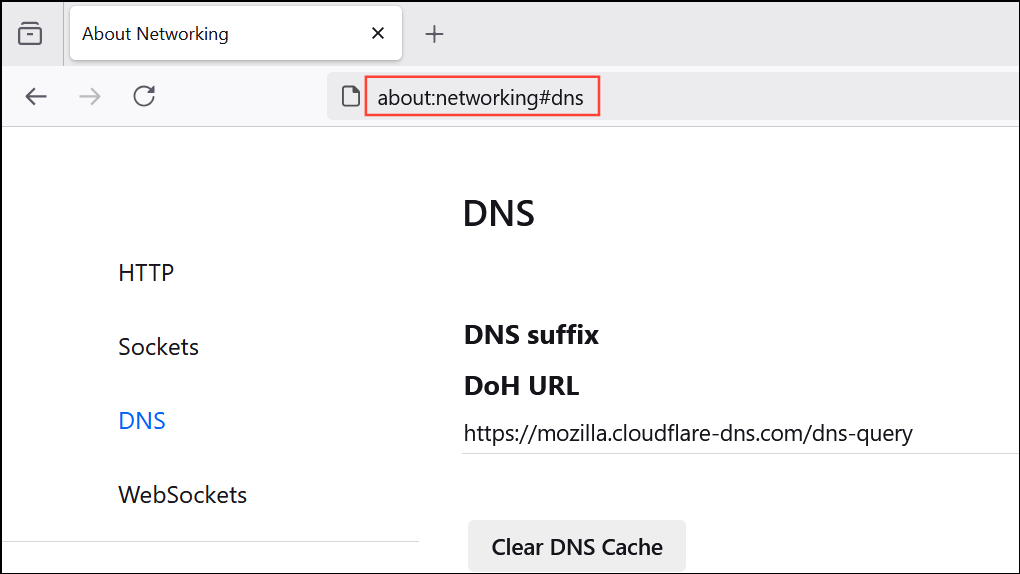
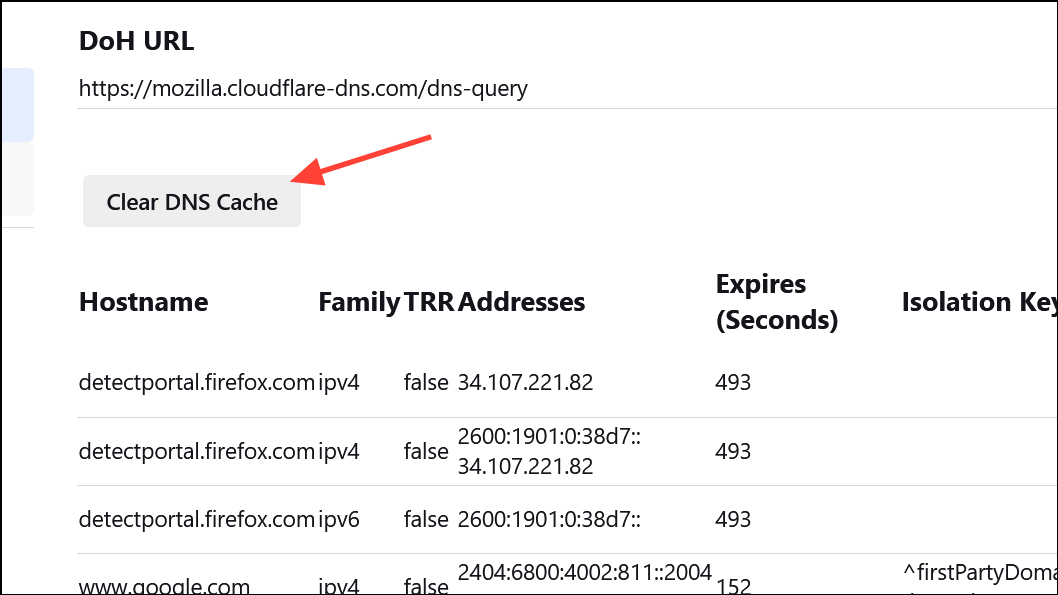
Ctrl+Shift+Delete (or Cmd+Shift+Delete on Mac) to open the “Clear Recent History” dialog, and clear “Site Preferences.”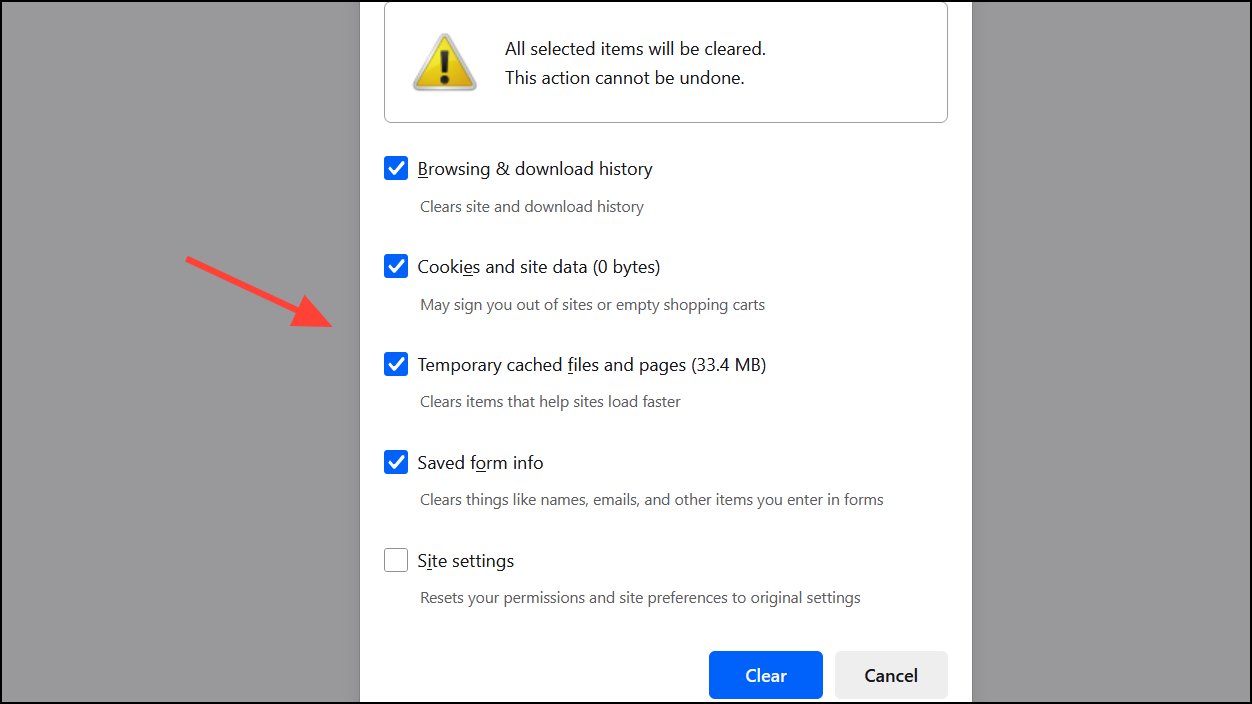
Verify System Date, Time, and Firefox Updates
Incorrect system date and time can cause Firefox to reject valid certificates. Outdated Firefox versions may also have compatibility issues with certain websites or certificates.
Help, then About Firefox to check for updates. Install any available updates and restart the browser.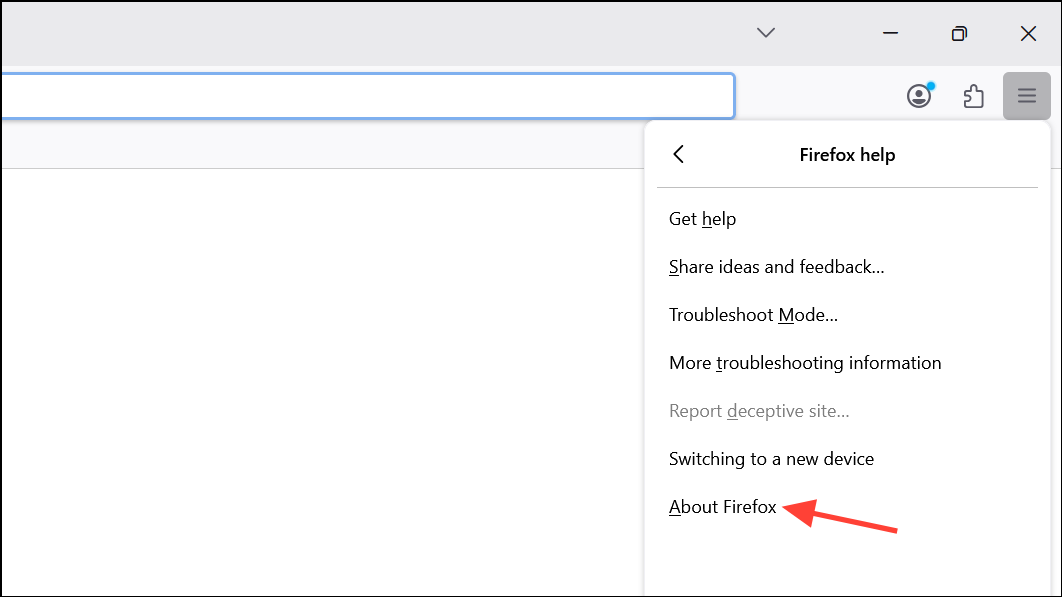
Keeping your system and browser updated reduces the risk of certificate-related errors and ensures compatibility with modern security standards.
Resolving “Your Connection Is Not Secure” errors in Firefox often comes down to fixing certificate trust issues, adjusting antivirus settings, or removing conflicting software. Regular updates and careful monitoring of system changes help maintain secure, uninterrupted browsing.