
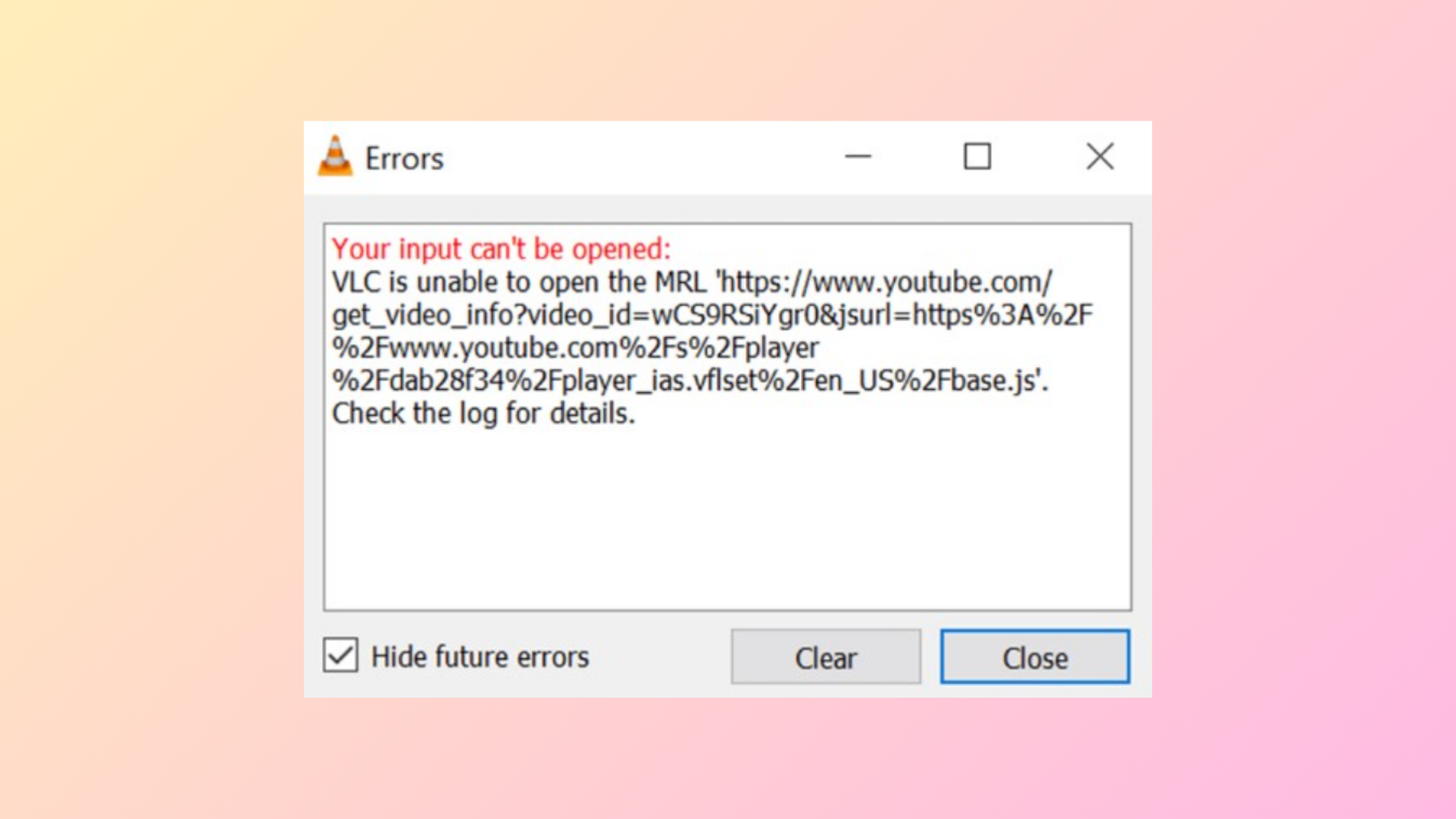
VLC Media Player displays the message “Your input can’t be opened: VLC is unable to open the MRL” when it cannot access a media resource, whether that’s a local file, network stream, or external device. This error interrupts video or audio playback, often due to issues with file permissions, network restrictions, outdated scripts, or incorrect file paths. Addressing the root cause—rather than just restarting VLC—restores normal playback and prevents recurring interruptions.
Fix File Path and Name Issues for Local Files
File path length and unsupported characters frequently trigger the MRL error when opening local files. Windows has a maximum path length limit, and deeply nested folders or long file names can prevent VLC from accessing the file correctly. Similarly, special characters or emojis in the file or folder name may block playback.
C:\ or your desktop. This shortens the file path and eliminates nesting issues.C:\Users\YourName\Videos\VeryLongFolderName\AnotherLongFolderName\MySuperLongMovieTitle😀.mp4 to C:\Movie.mp4.Update YouTube Script for Streaming Videos
VLC’s ability to stream YouTube videos depends on a script file (youtube.luac) that interprets YouTube’s video URLs. When YouTube changes its backend, this script can break, resulting in the MRL error. Updating or refreshing the script restores YouTube playback.
youtube.lua script from VLC’s official GitHub repository.C:\Program Files\VideoLAN\VLC\lua\playlist on Windows or the equivalent path on Mac/Linux.youtube.luac file with the new one. If you experience persistent issues, try renaming the script to a temporary name (e.g., $RR6ZAKA.luac), then back to youtube.luac. This can sometimes force VLC to reload the script.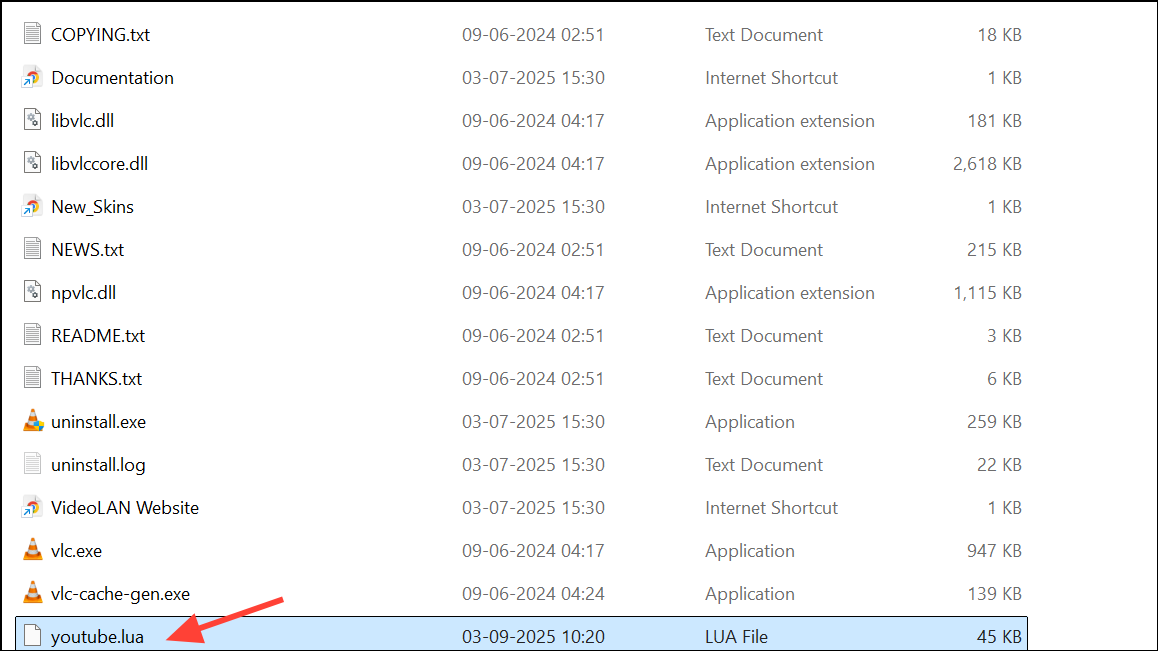
Allow VLC Through Firewall and Antivirus
Network streams, including YouTube or files from network shares, may be blocked by Windows Defender Firewall or third-party antivirus software, causing the MRL error. Allowing VLC through your firewall or temporarily disabling antivirus can restore access.
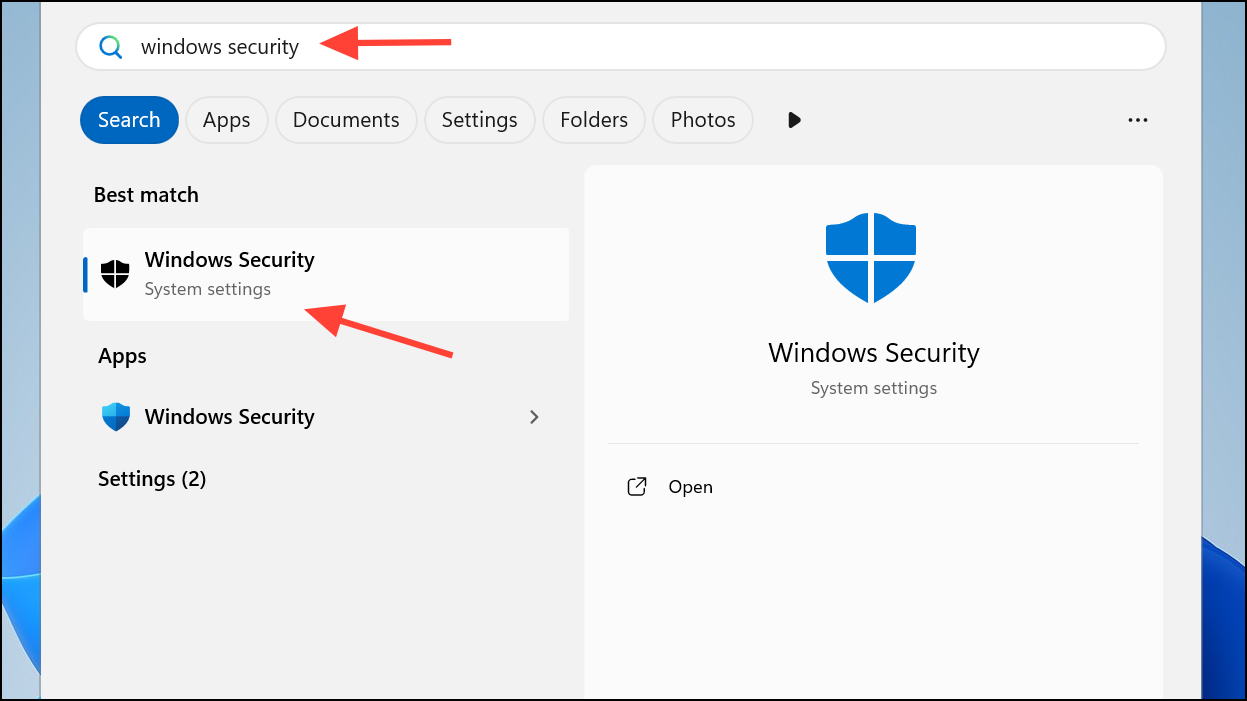
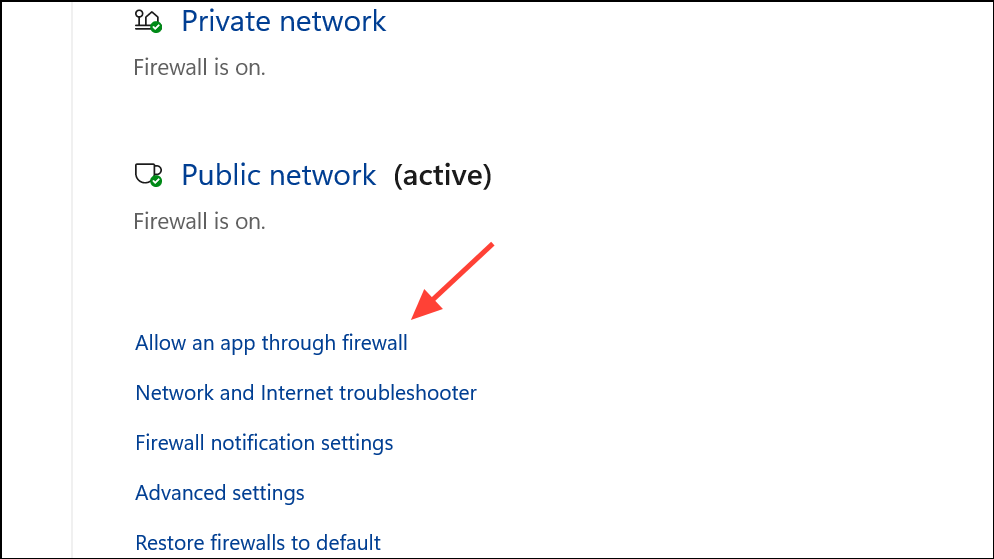
C:\Program Files\VideoLAN\VLC\vlc.exe.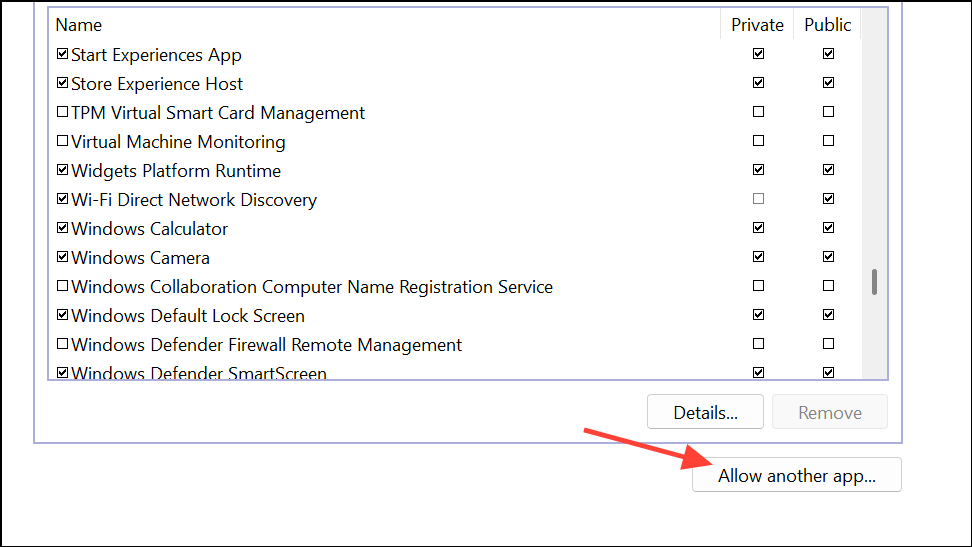
Claim File Ownership and Adjust Permissions
Insufficient permissions can prevent VLC from accessing files, especially those on external drives or network locations. Taking ownership and adjusting permissions ensures VLC can read the file.
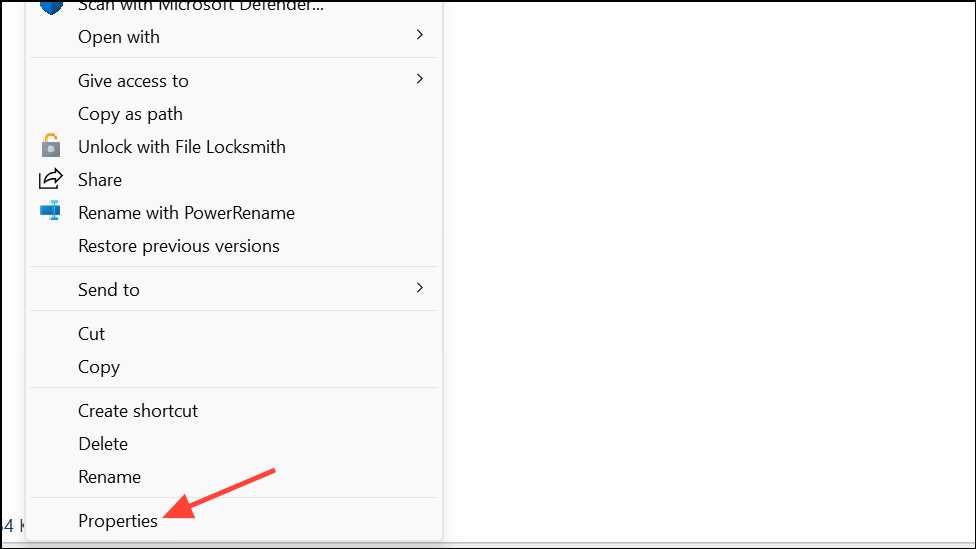
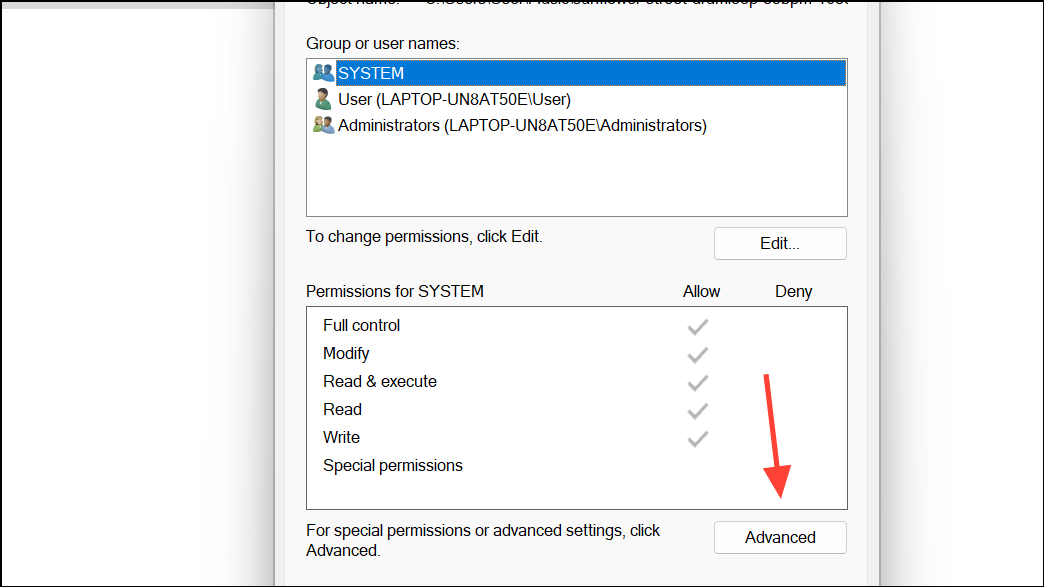
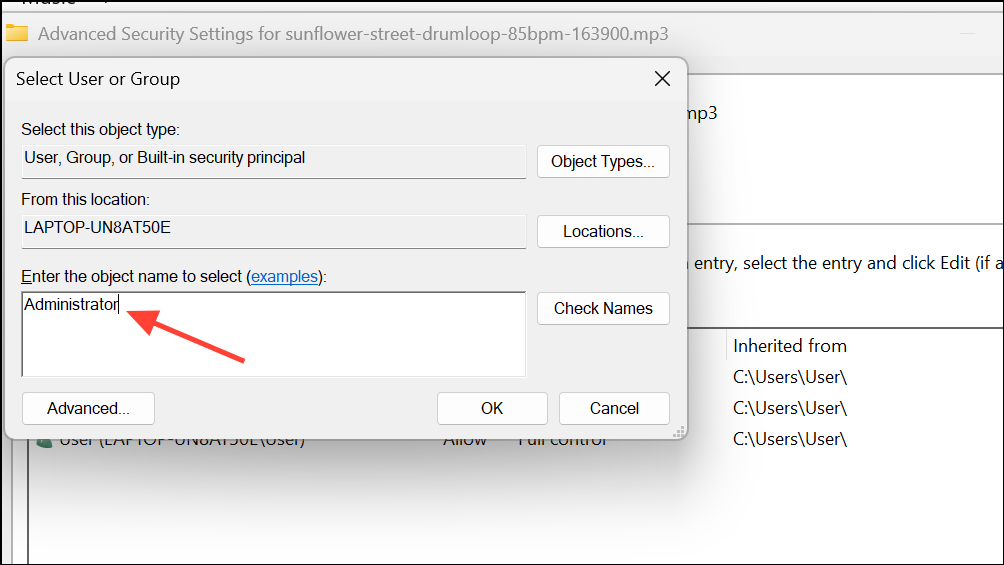
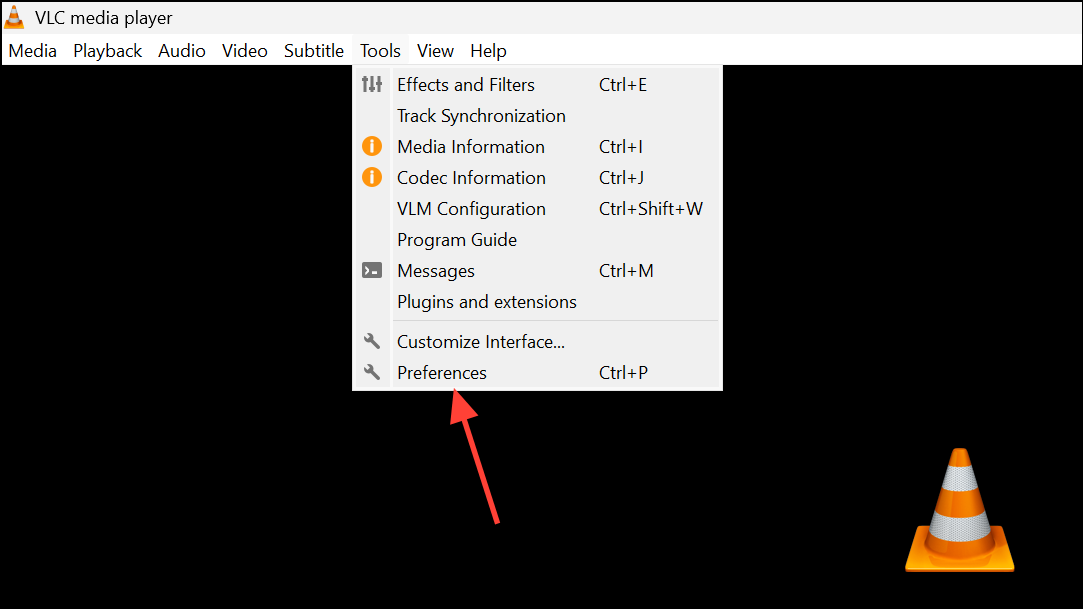
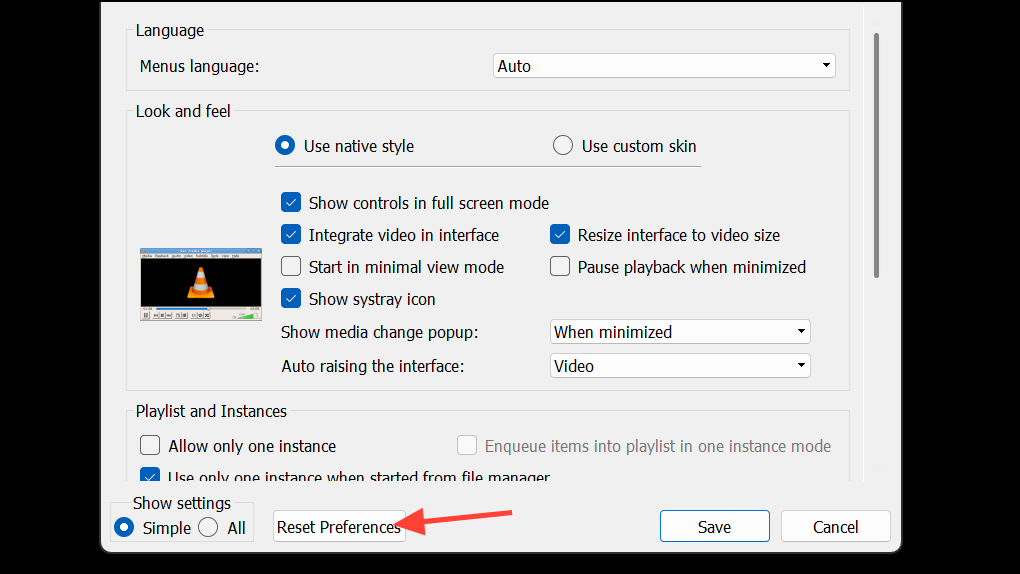
Reset VLC Preferences
Corrupted or conflicting VLC settings can cause playback errors. Resetting preferences restores default configurations and can resolve persistent MRL issues.
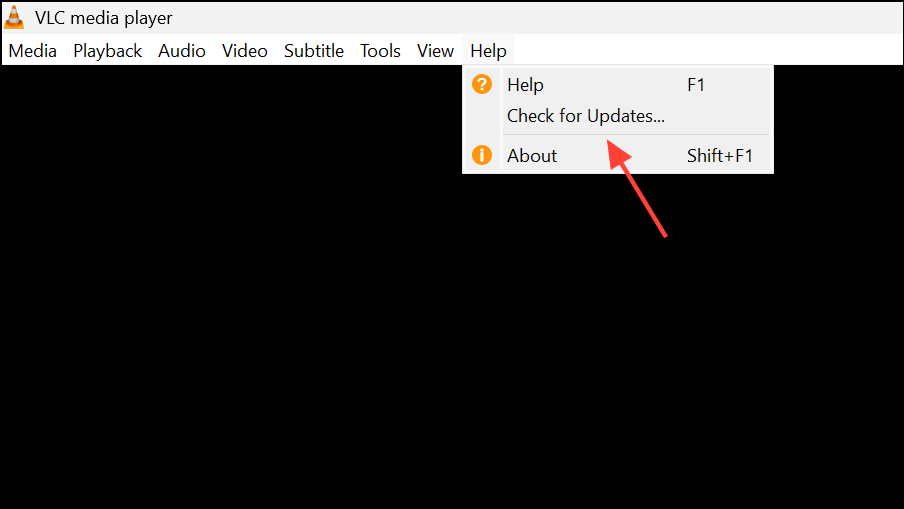
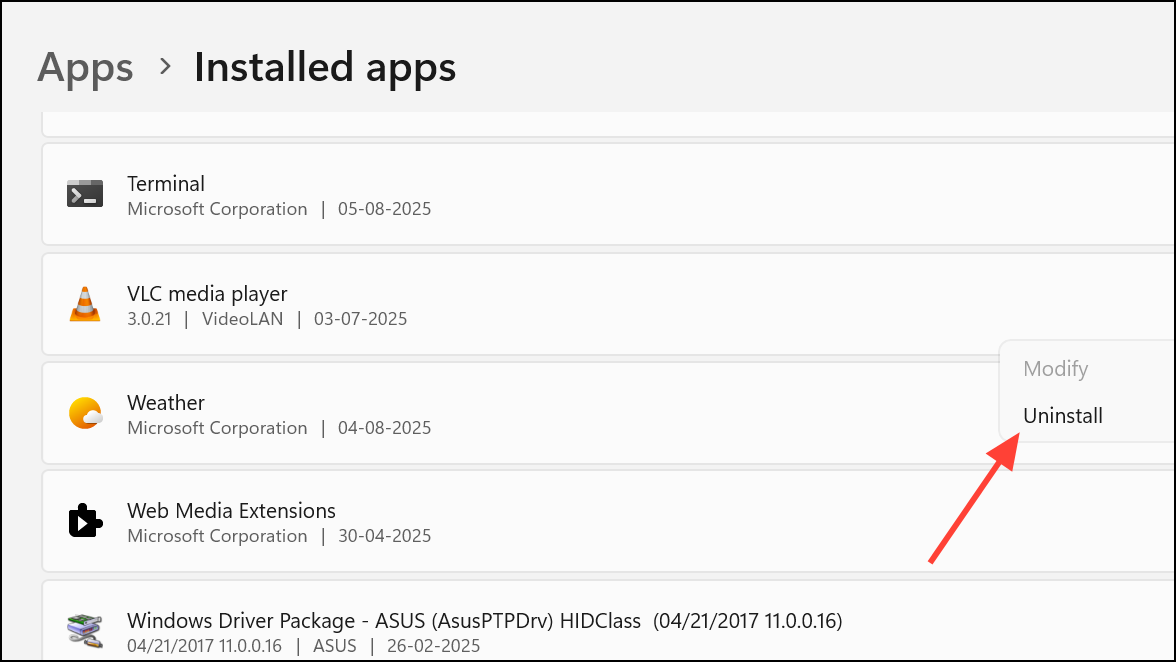
Update or Reinstall VLC Media Player
Outdated versions of VLC may lack support for new streaming protocols or file formats, and internal corruption can lead to recurring errors. Updating or reinstalling ensures you have the latest features and bug fixes.
Repair Corrupted Video Files
If the file won’t play in any media player or shows zero bytes, it may be corrupted. Specialized video repair tools can restore playback for many damaged files.
Additional Tips for Network and DVD Playback
- For DVD or Blu-ray discs, ensure the disc is clean and undamaged, and that necessary decoding libraries (such as
libdvdcssandlibdvdnav) are installed on your system. - When streaming from network shares (SMB, NFS), enter your network credentials in VLC’s Input/Codecs settings under Access Modules.
- If you encounter persistent issues with YouTube or other streaming services, consider using dedicated tools like yt-dlp to download content for local playback.
Resolving the “VLC is unable to open the MRL” error depends on the source and context—address file paths, permissions, firewall settings, and script updates for reliable playback. Regularly updating VLC and keeping scripts current helps prevent future playback errors.





