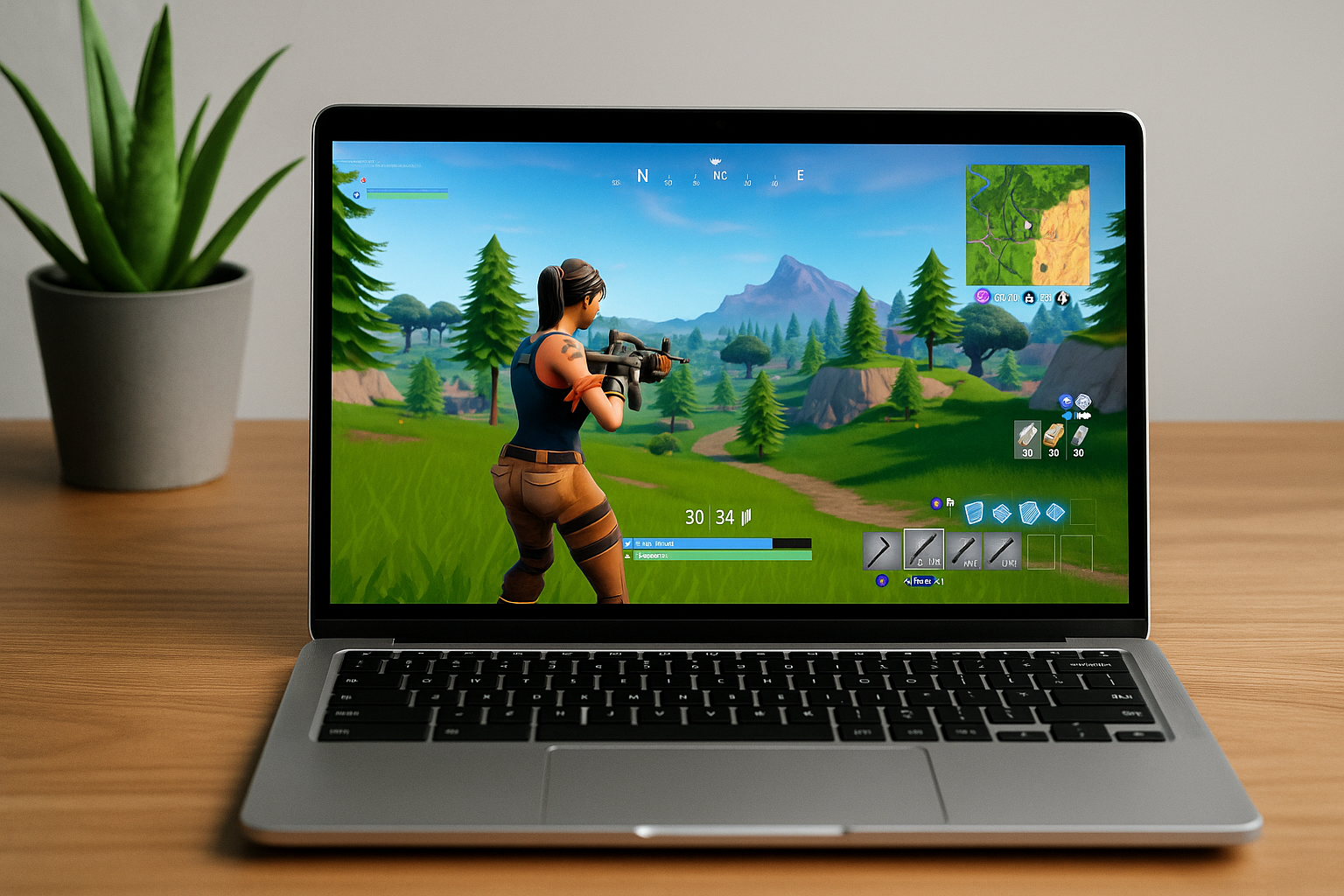
Chromebooks don’t run a native Fortnite client on ChromeOS. The supported path is cloud streaming via major providers, with optional Android sideloading on specific models and PC remote play as an alternative. Epic confirms Chromebook play through cloud platforms including NVIDIA GeForce NOW, Xbox Cloud Gaming, and Amazon Luna (official support).
Before you start
- Use a stable internet connection; cloud services work best with low latency and sustained bandwidth (15 Mbps+ for 720p60, ~25 Mbps for 1080p60 is a practical target).
- Have your Epic Games account ready for linking so your progress and cosmetics carry over.
- If your Chromebook is managed by a school or workplace, follow local policies; admin restrictions may block certain methods.
Method 1: NVIDIA GeForce NOW (cloud streaming)
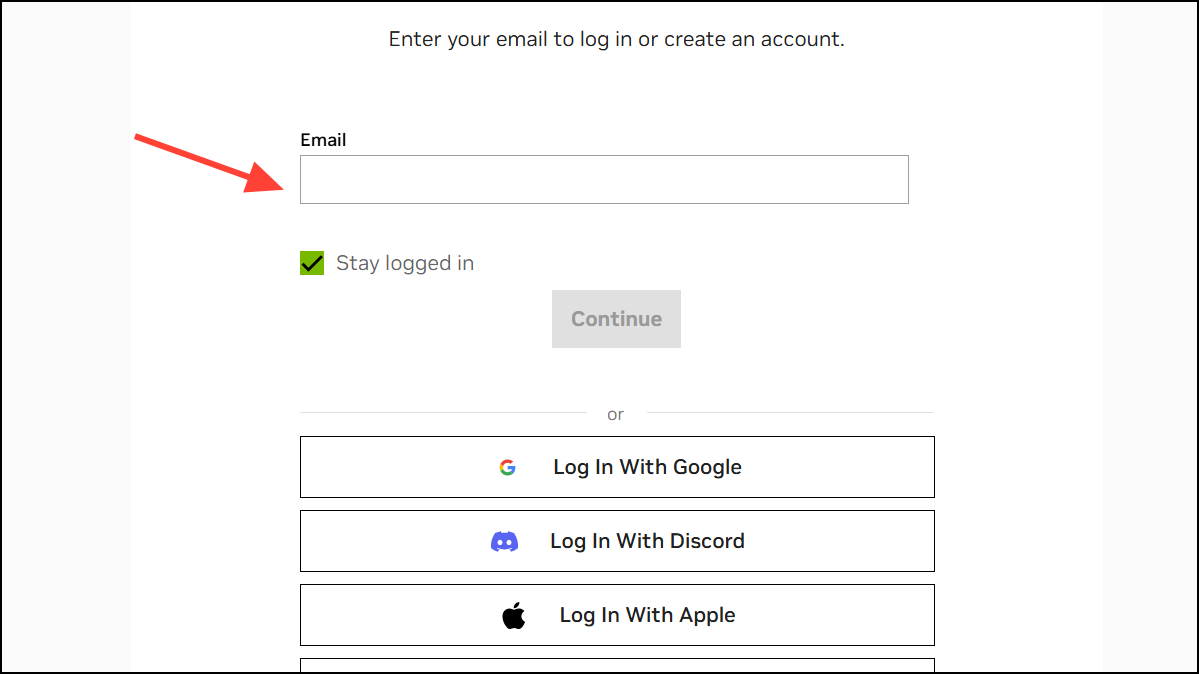
GeForce NOW streams Fortnite from NVIDIA servers to your Chromebook’s browser, so performance depends on network quality rather than device CPU/GPU. You can use the web client on most Chromebooks.

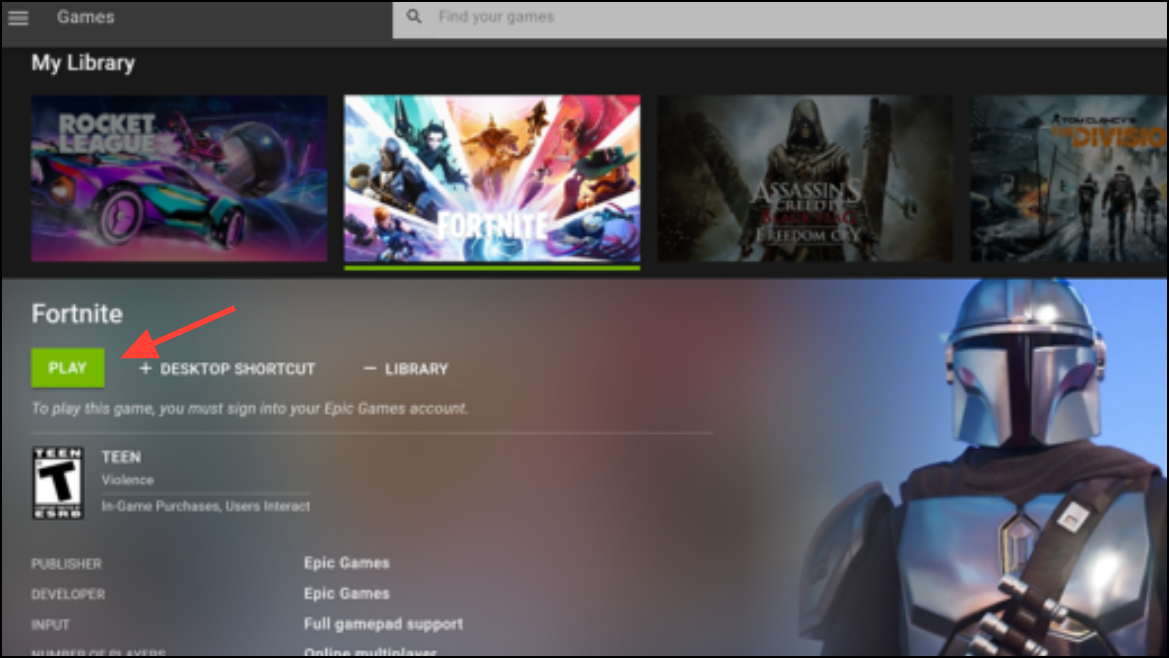
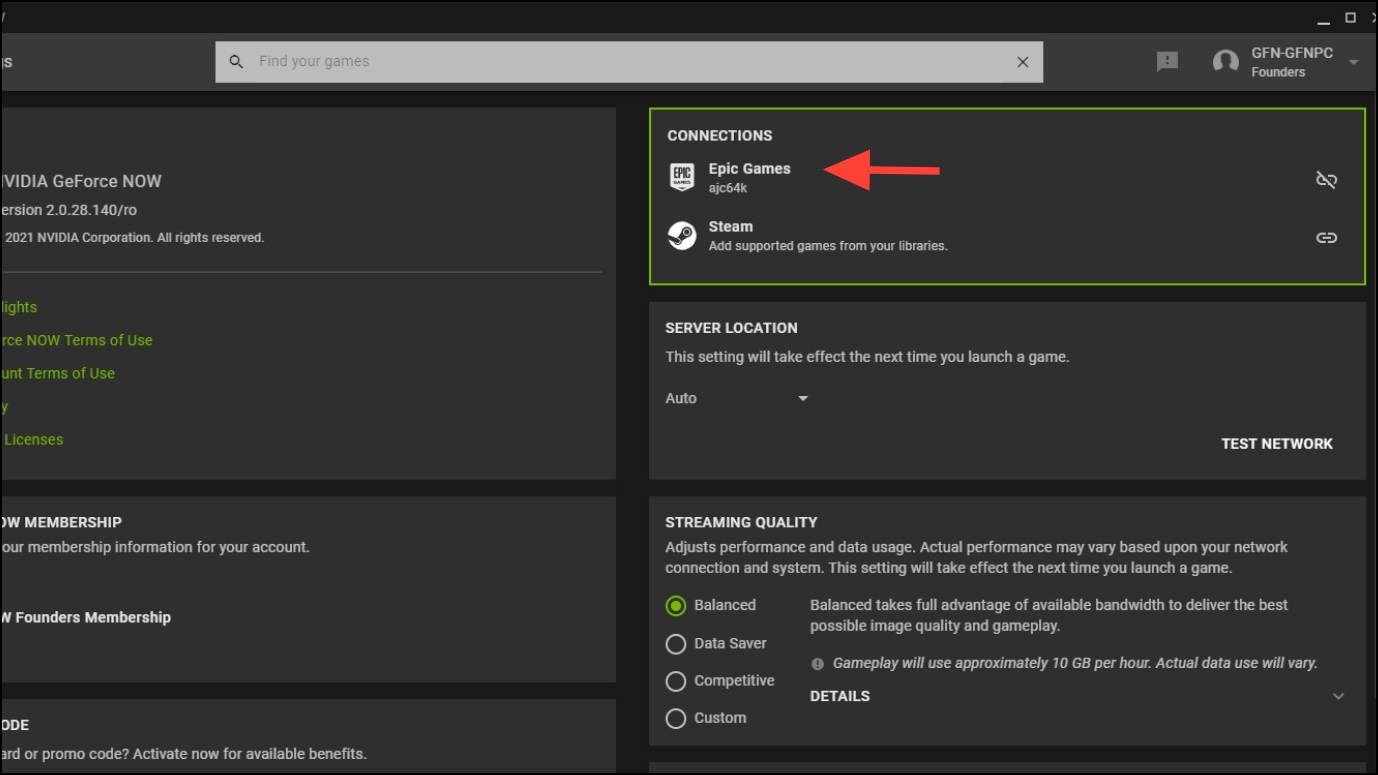
- Tip: Keep ping under ~80 ms for consistent inputs; under ~40 ms feels most responsive.
- Tip: Close unused tabs and extensions to reduce background CPU and memory load.
Method 2: Xbox Cloud Gaming (browser play)
Xbox Cloud Gaming runs Fortnite on Xbox hardware in the cloud and streams it to your browser. Availability and performance can vary by region and account.
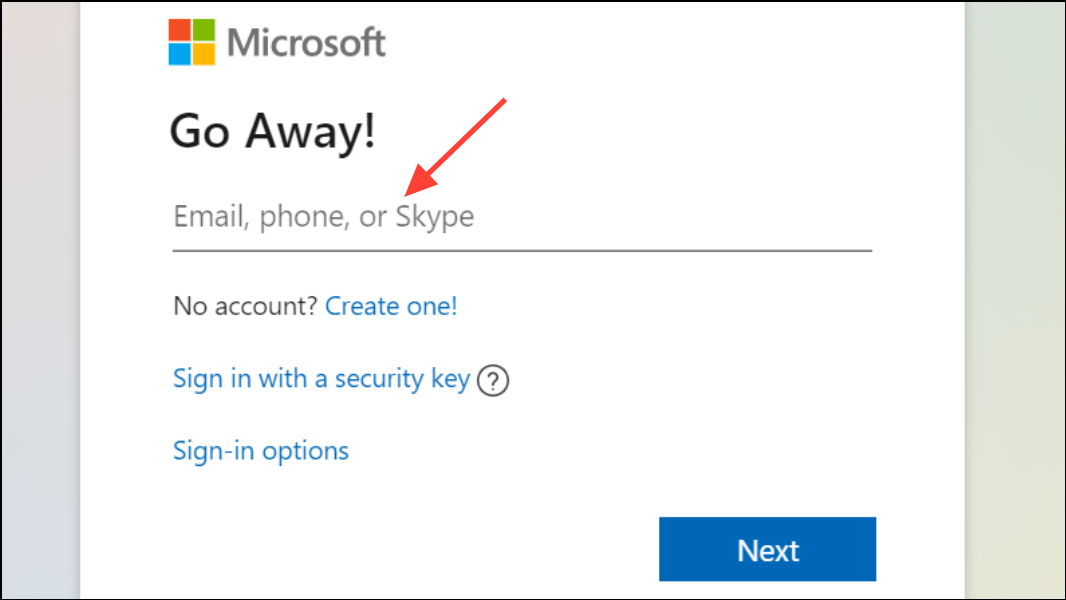
- If you see a “This title is not supported with Xbox Cloud Gaming” message, try again later or use another method; service status can change.
Method 3: Amazon Luna (browser play)
Luna offers cloud streaming for supported regions, letting you play Fortnite through a Chrome tab without local installs.
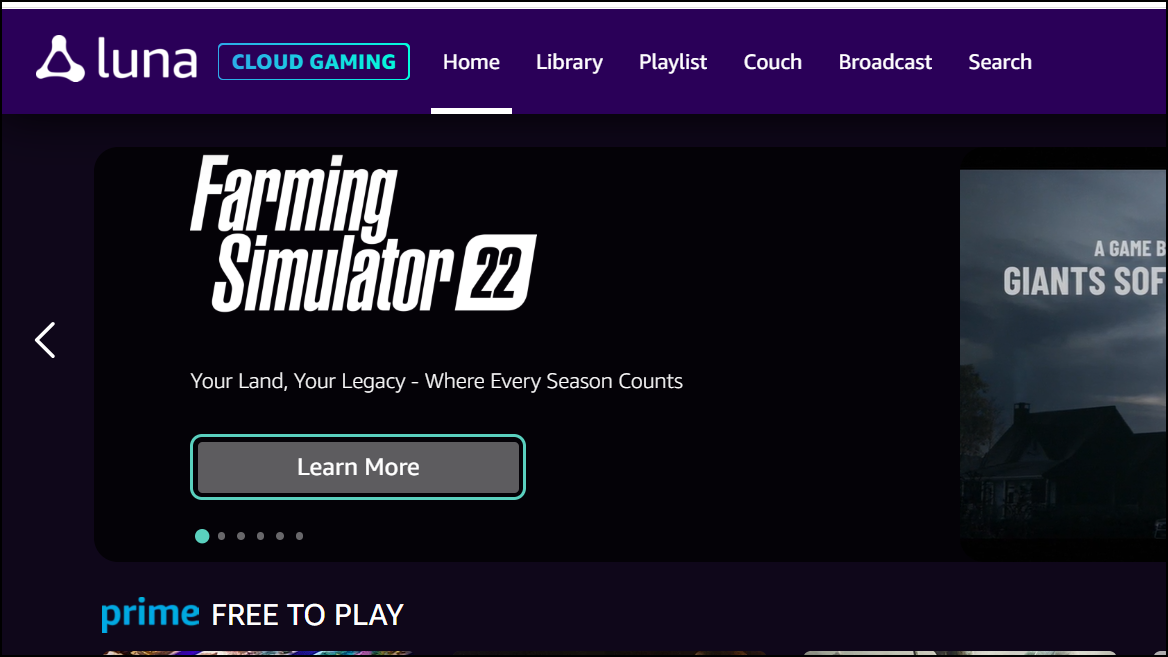
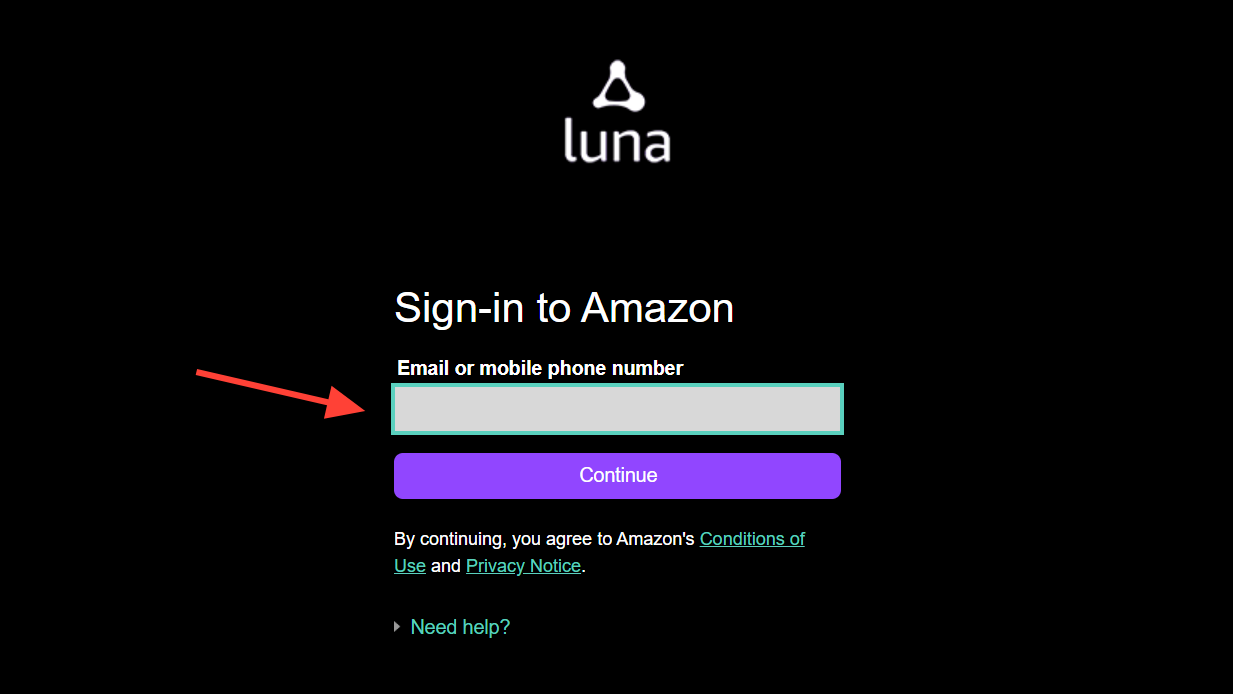
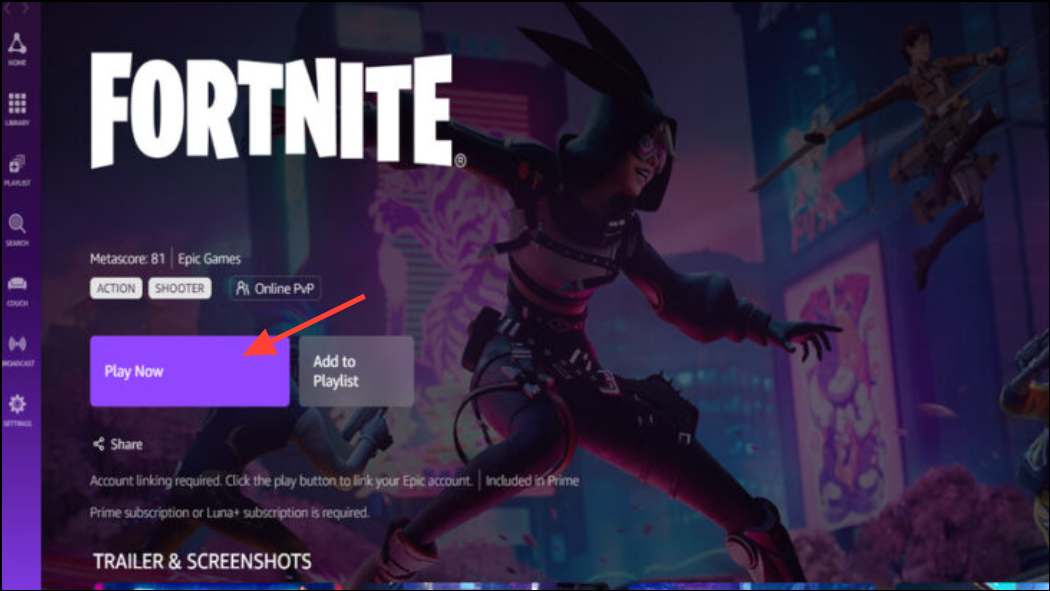
- Note: Service availability and included catalogs vary by country and subscription.
Method 4: Sideload Fortnite for Android (advanced, limited compatibility)
This installs the Android version on ChromeOS. It generally requires an ARM-based Chromebook and Developer Mode. Managed or school devices typically block this, and enabling Developer Mode wipes local data and reduces device protections. Expect a “mobile-style” experience rather than desktop performance.
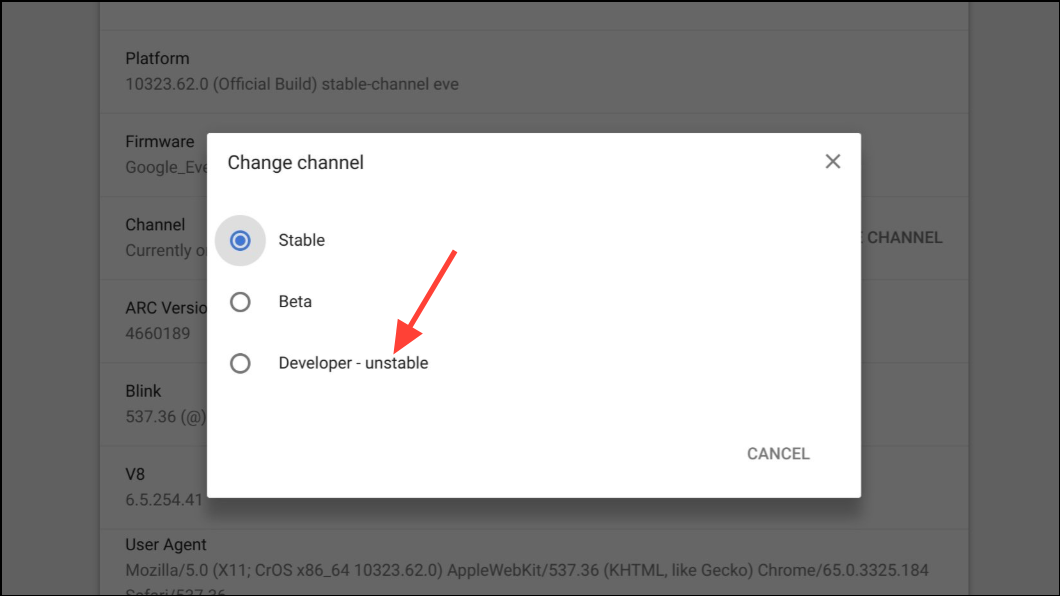
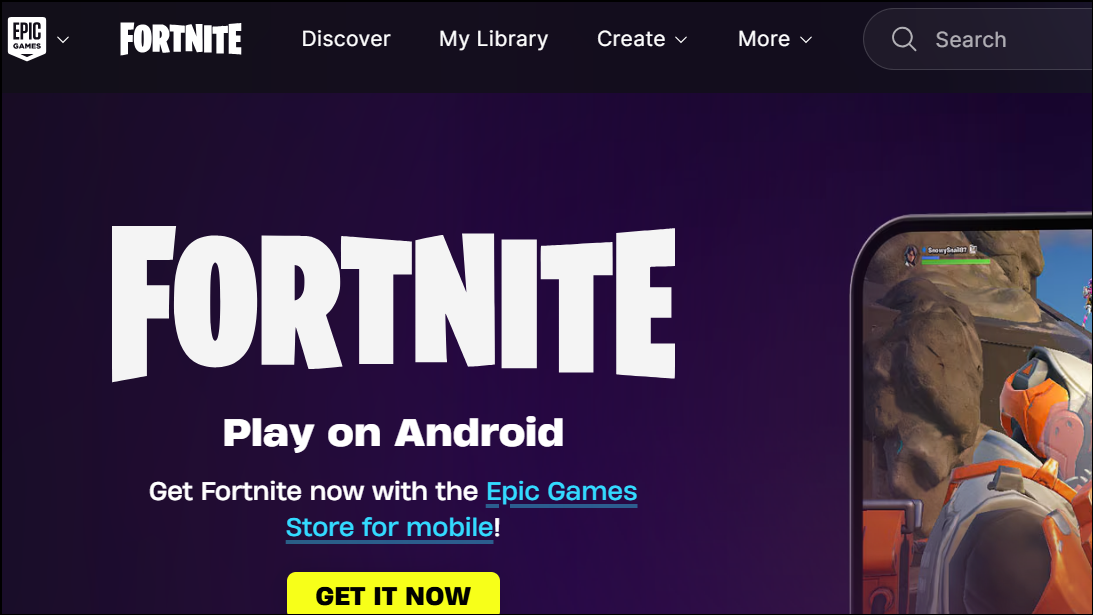
Ctrl + Shift + M to toggle device emulation. Emulation can reveal mobile-only download options.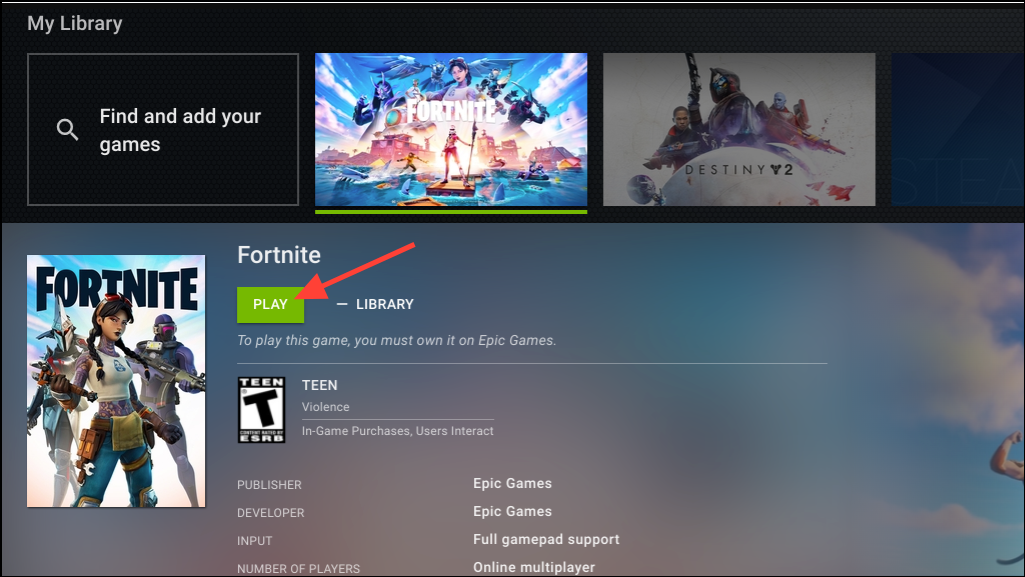
- Compatibility note: Intel/AMD (x86) Chromebooks generally cannot run the Android build; ARM-based models are required for this route.
- Usability note: The UI and performance target phone/tablet use; expect different controls and frame pacing than cloud methods.
Method 5: Remote play from a Windows PC (Chrome Remote Desktop)
If you have a Fortnite-capable Windows PC, stream your PC session to the Chromebook with Google’s remote access tool. This keeps full PC features while using the Chromebook as the client.
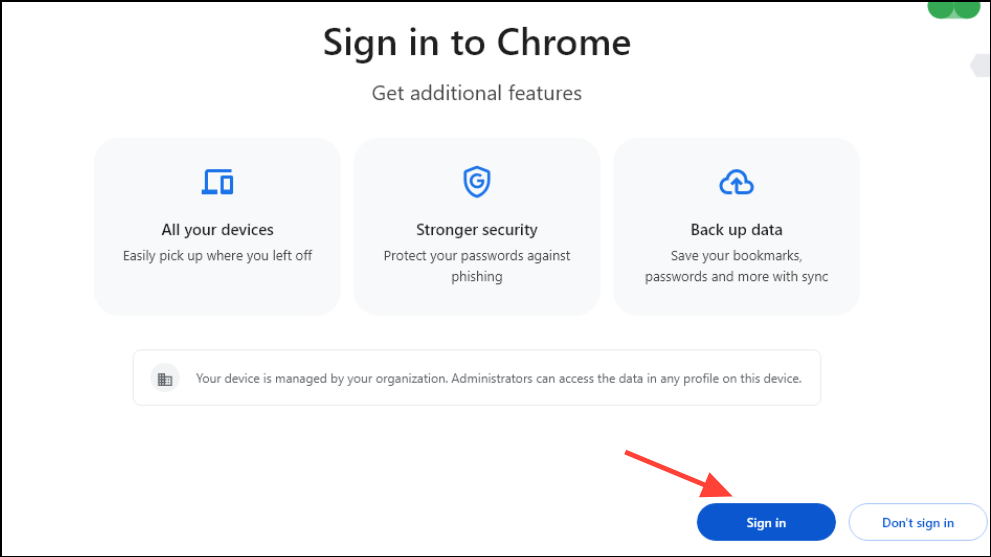
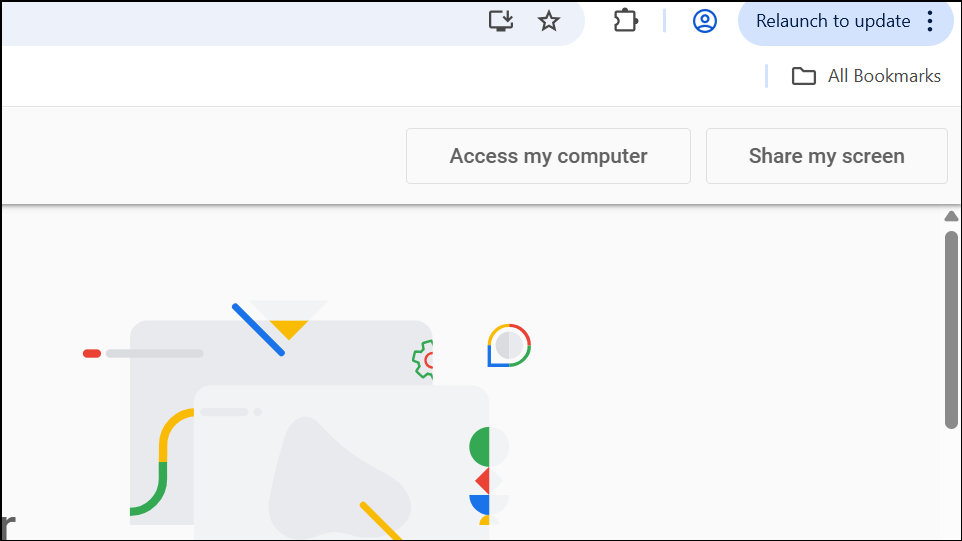
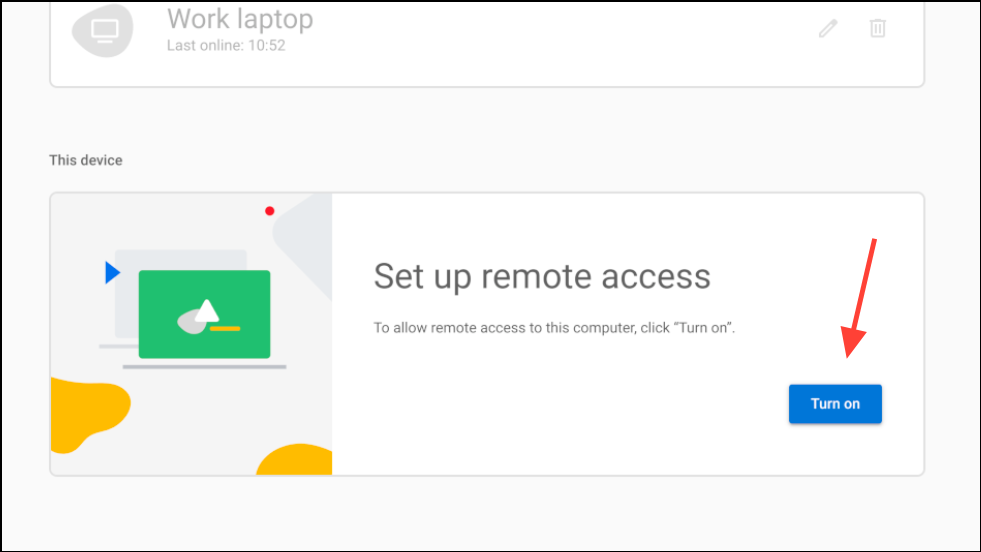
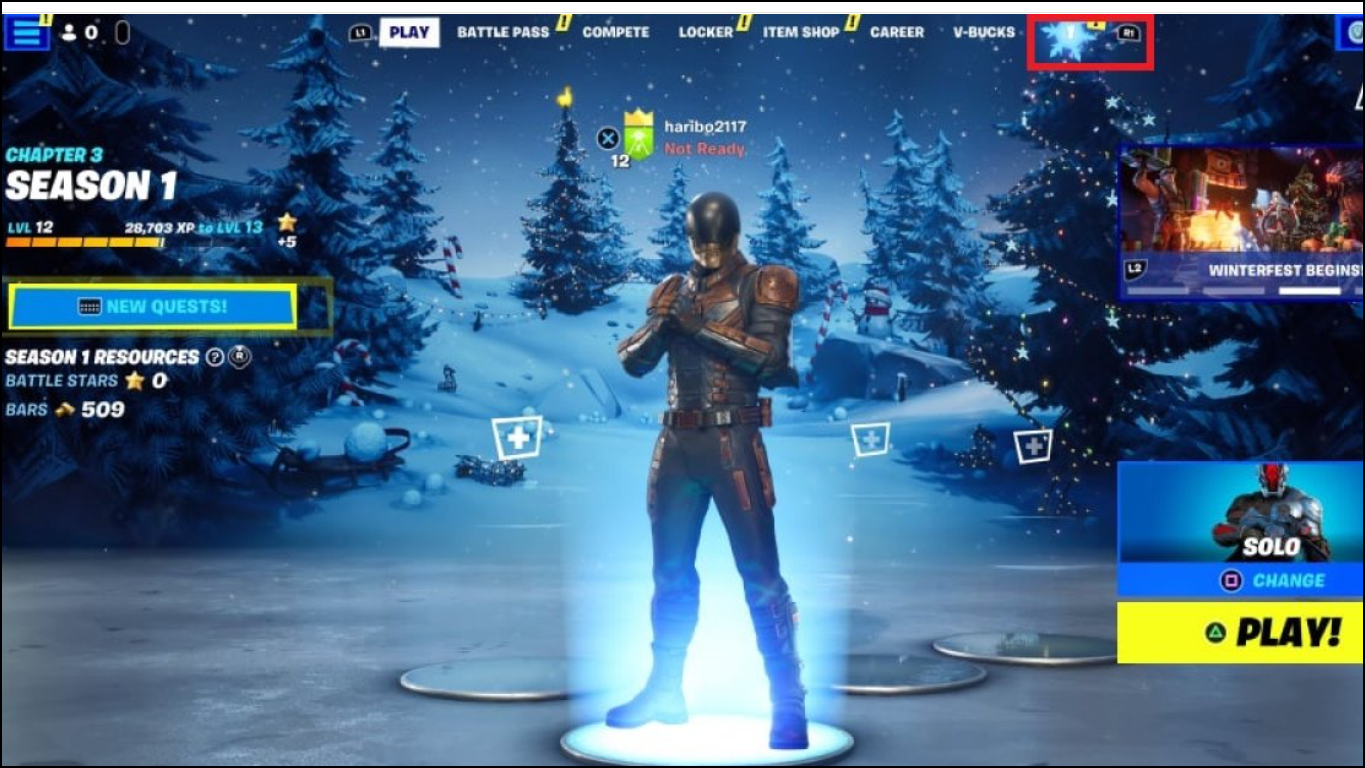
- Tip: Use wired Ethernet on the PC side if possible and play near your router on the Chromebook to reduce latency and compression artifacts.
Cloud streaming is the quickest, most consistent way to play Fortnite on a Chromebook, with GeForce NOW as a strong first stop; Android sideloading and remote play are viable in specific scenarios if you accept their trade-offs.