
Embedding online videos in Word documents allows readers to watch content without leaving the document, streamlining presentations and reports. Word’s built-in features make it possible to display playable videos from platforms like YouTube or other supported sources, provided you have the right version and internet access.
Method 1: Insert an Online Video Using the Built-In Word Feature
Insert tab on the ribbon menu at the top of the screen. In the Media group, click on Online Videos. This opens a dialog box or pane for video insertion.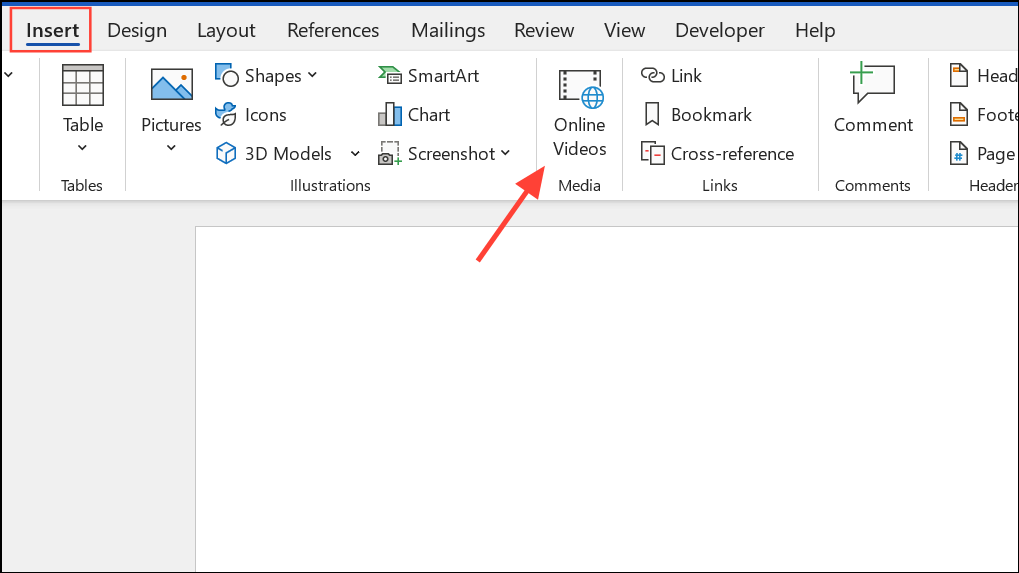
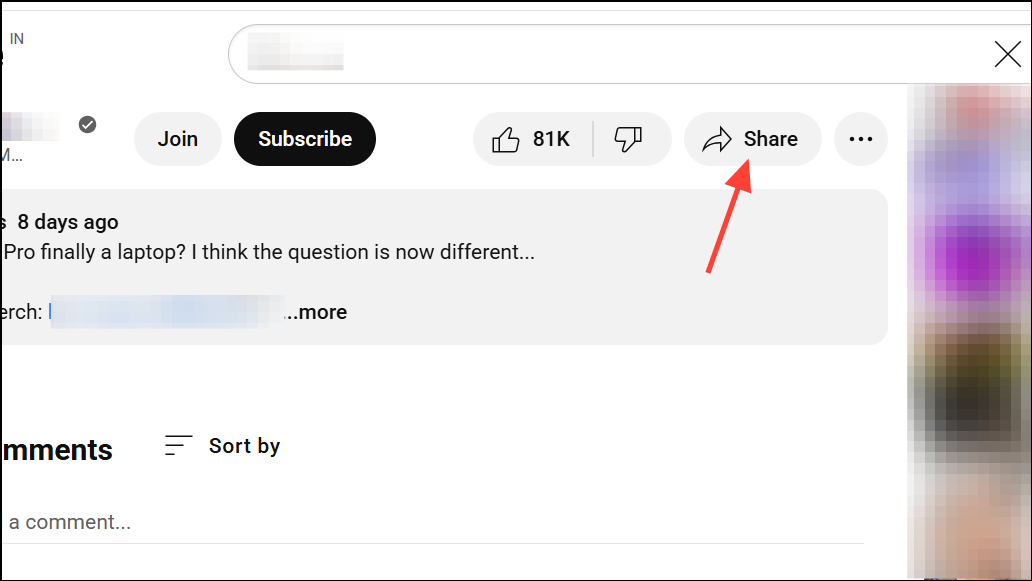
- Paste the embed code for the video (for example, from YouTube) into the provided field. The embed code is typically available by clicking the “Share” button underneath a YouTube video and selecting “Embed”.
- Search for a video using the integrated Bing Video Search, or choose another provider if available (such as YouTube, if your version of Word supports it and you are signed in to your Microsoft account).
Insert button to place the video in your document. The video will appear as an interactive element, often with resizing handles and options for text wrapping.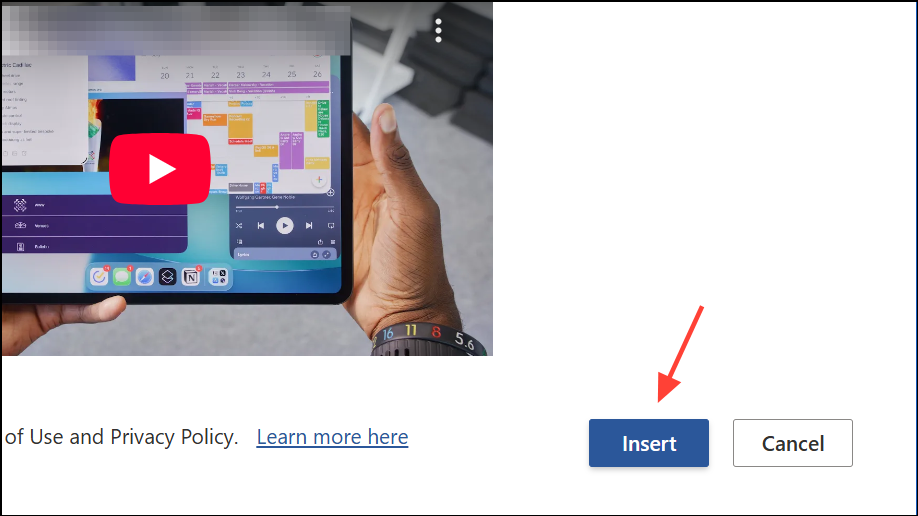
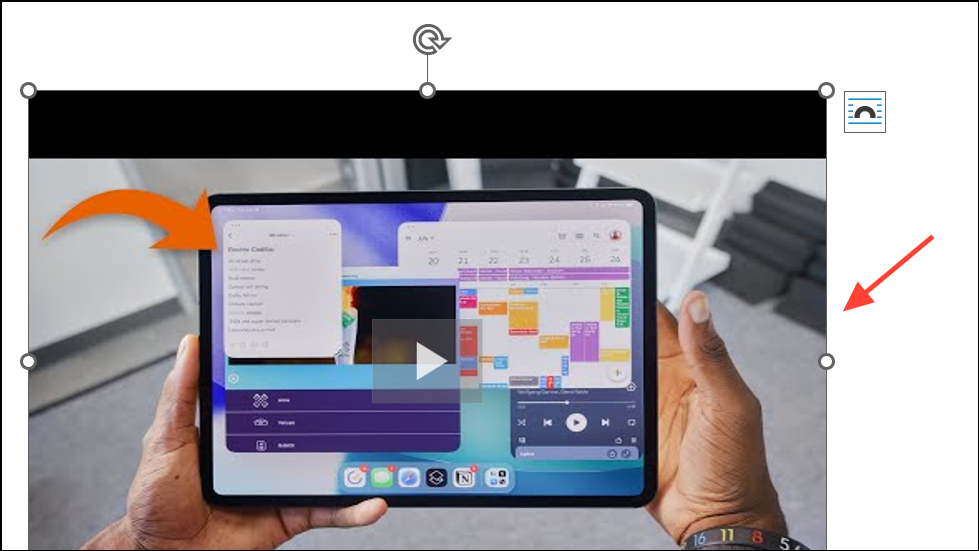
This method keeps your document size small and allows viewers to watch the video right inside Word, but it does require an internet connection to stream the video. If the Online Video option is missing, check if you are using a supported version of Word (this feature is available in Word for Windows and Word Online, but not in Word for Mac as of 2023).
Method 2: Insert a Hyperlink to an Online Video
Link (or click Insert > Link in the ribbon). Paste the video URL into the address field and confirm.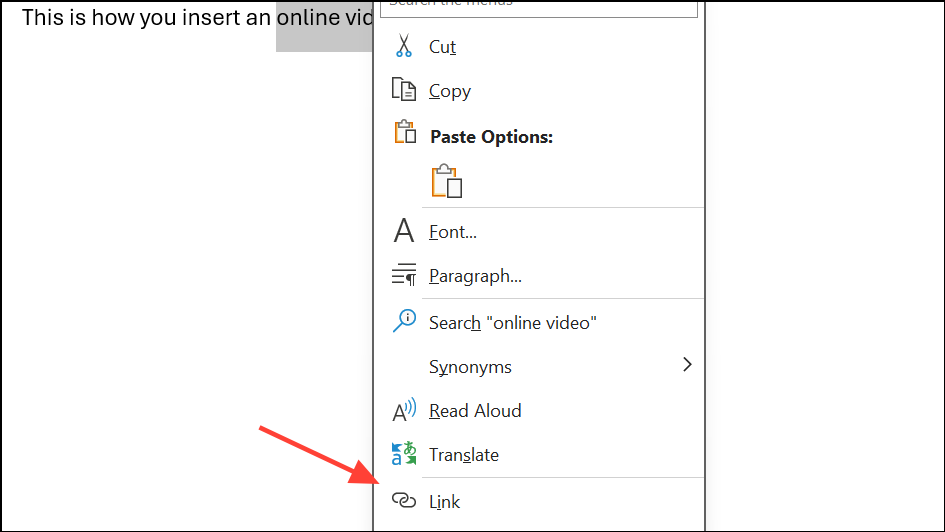
Method 3: Embed a Video File as an Object (For Local Videos)
Insert tab and click Object in the Text section.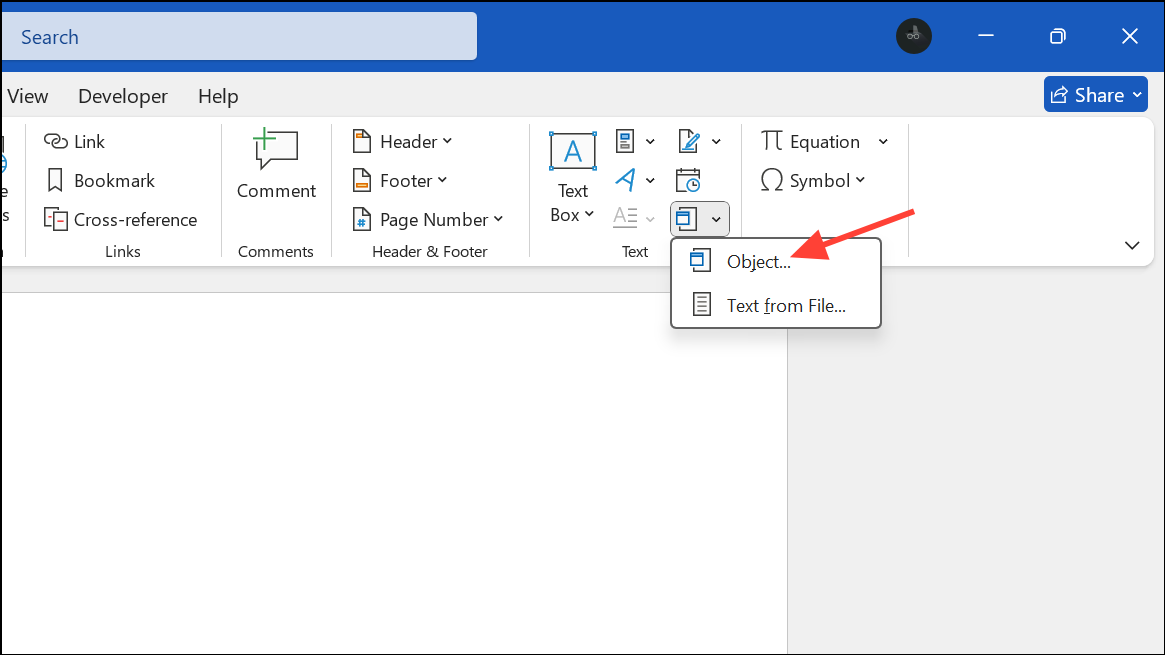
Create from File tab. Click Browse and select your video file. To embed the video file directly into the document, simply click OK. To link instead of embedding (which keeps the Word file smaller), check the Link to File box before clicking OK.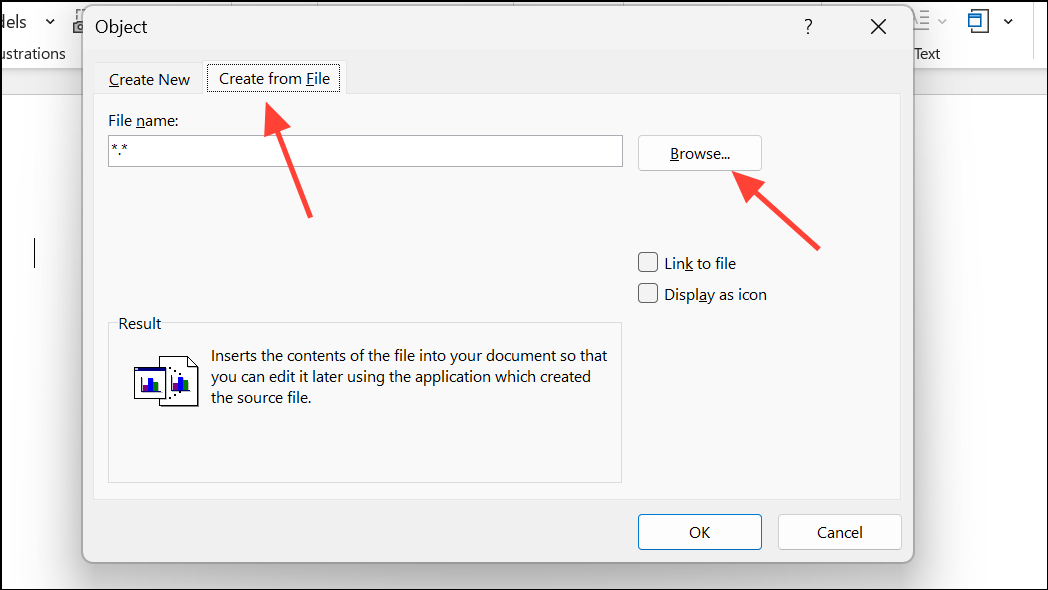
Method 4: Convert Video to Animated GIF (For Short Clips)
Insert > Pictures and selecting the GIF file. The animation will play in a loop within the document, and the file size will be much smaller than embedding a full video.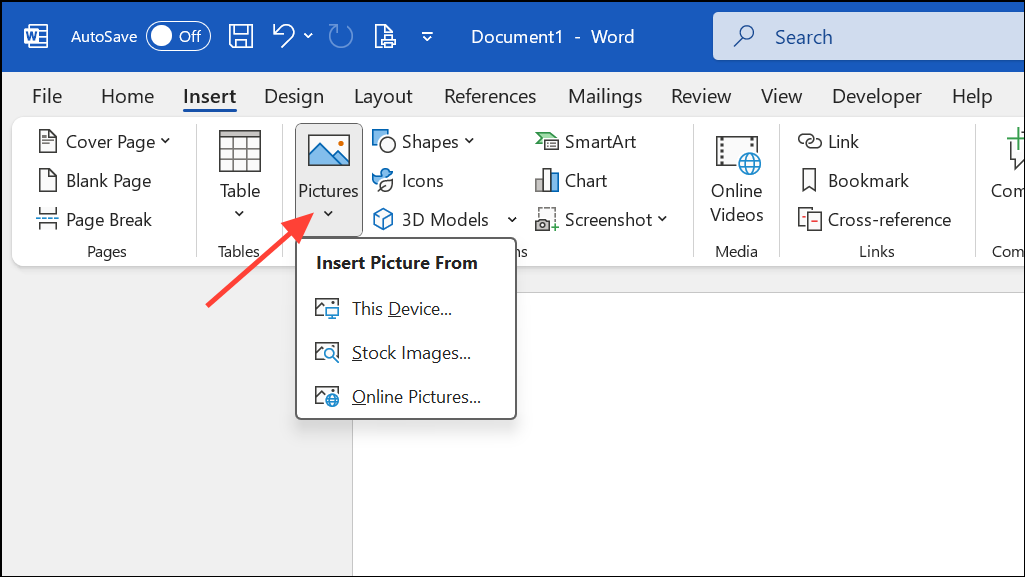
This method is ideal for short, silent clips or demonstrations, but it does not support audio and is not suitable for long videos.
Choosing the right method for inserting an online video in Word depends on your needs for interactivity, file size, and compatibility. Embedding online videos directly is the most seamless for viewers, while hyperlinks and GIFs offer lightweight alternatives for different scenarios.





