
Solid State Drives (SSDs) offer significant speed and efficiency benefits over traditional HDDs, but their lifespan relies heavily on how you use and maintain them. Windows 11 users have several built-in and manual methods available to optimize SSD longevity and maintain performance. Implementing these measures reduces unnecessary wear and prevents premature drive failure.
Enable TRIM Command on Windows 11
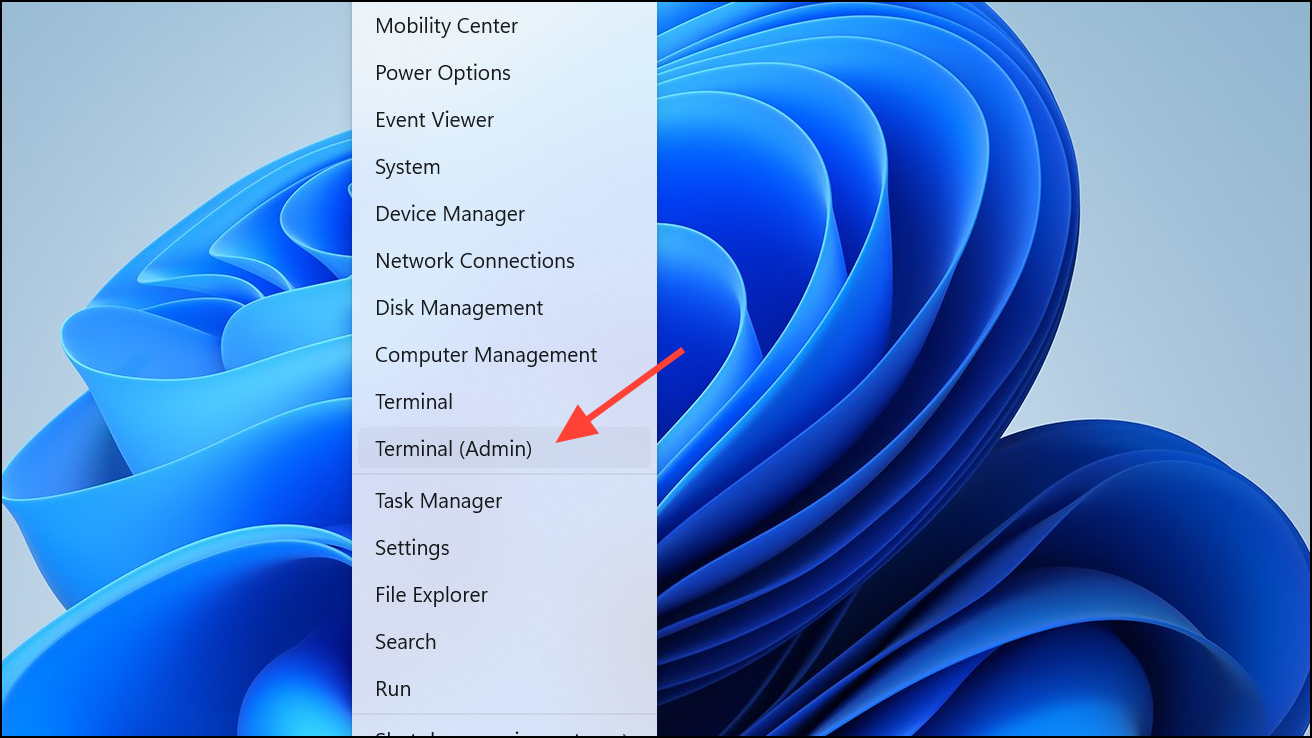
fsutil behavior query DisableDeleteNotify and press Enter. If the result shows DisableDeleteNotify = 0, TRIM is enabled. If not, activate TRIM by entering fsutil behavior set DisableDeleteNotify 0.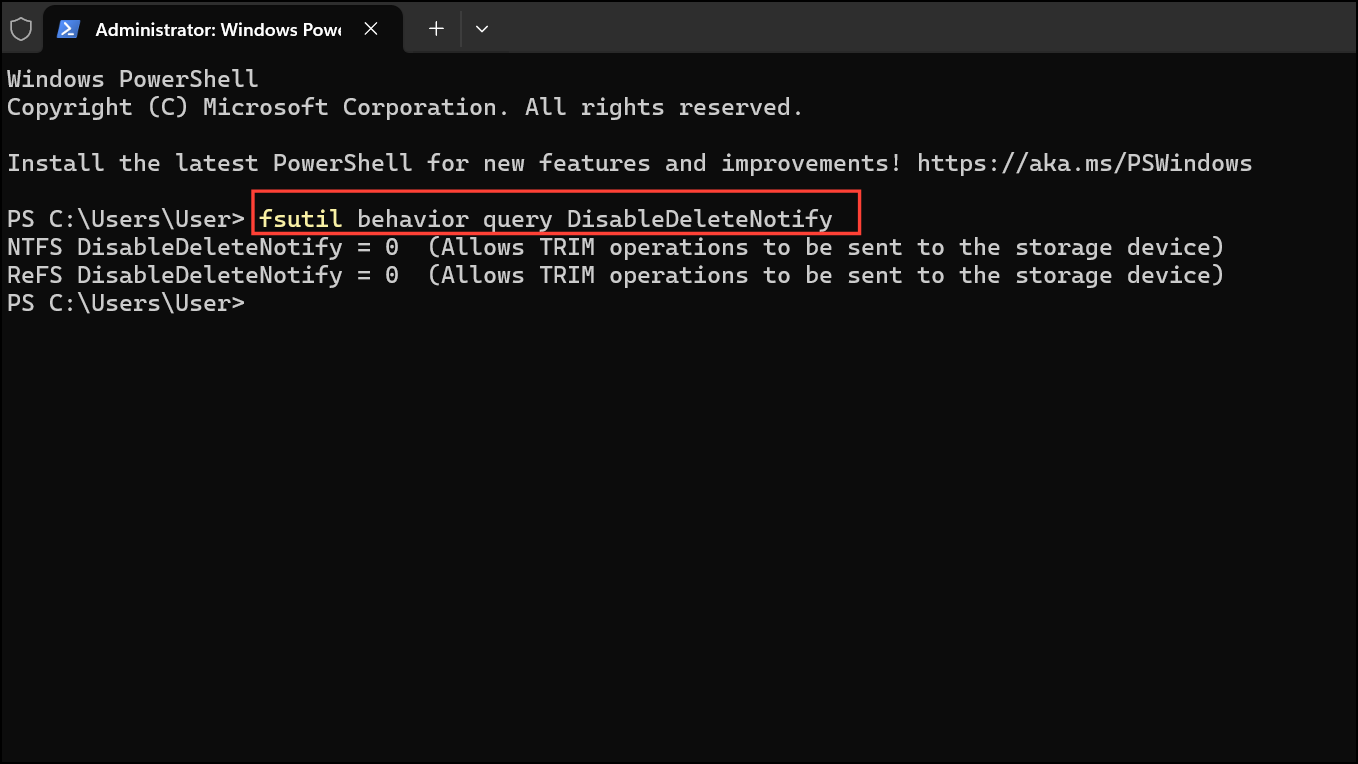
Avoid Filling Your SSD to Maximum Capacity
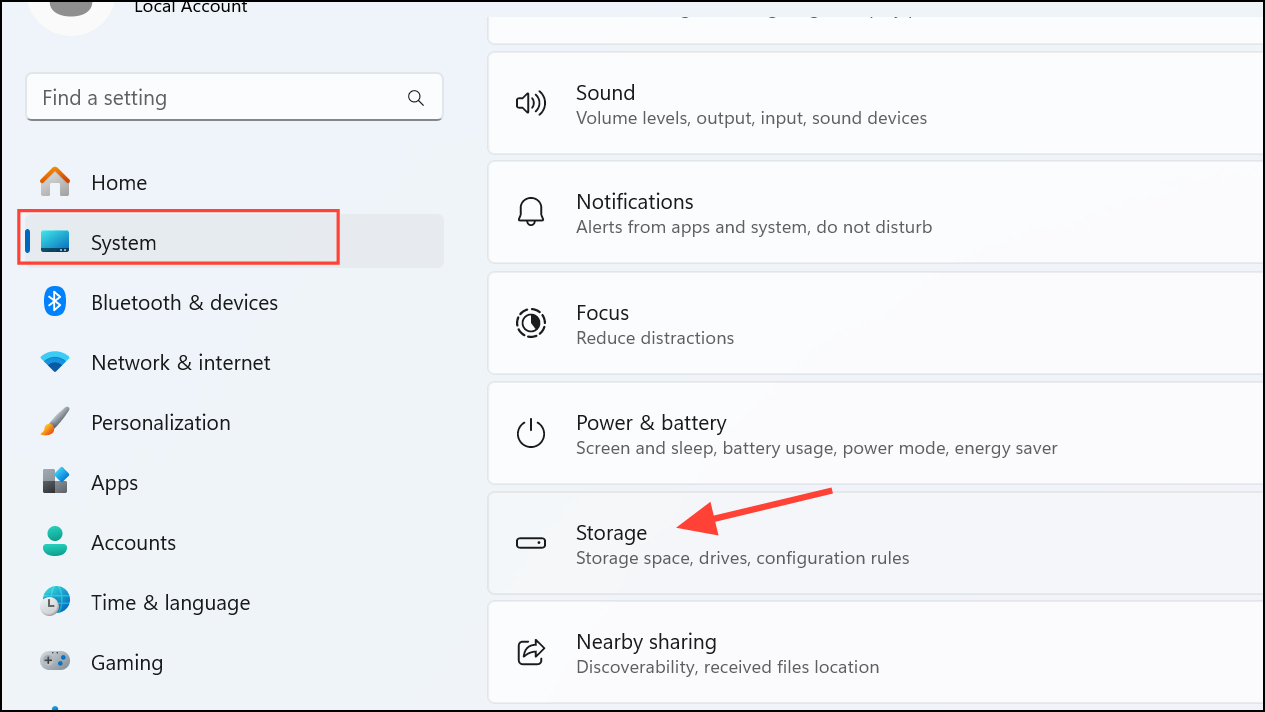
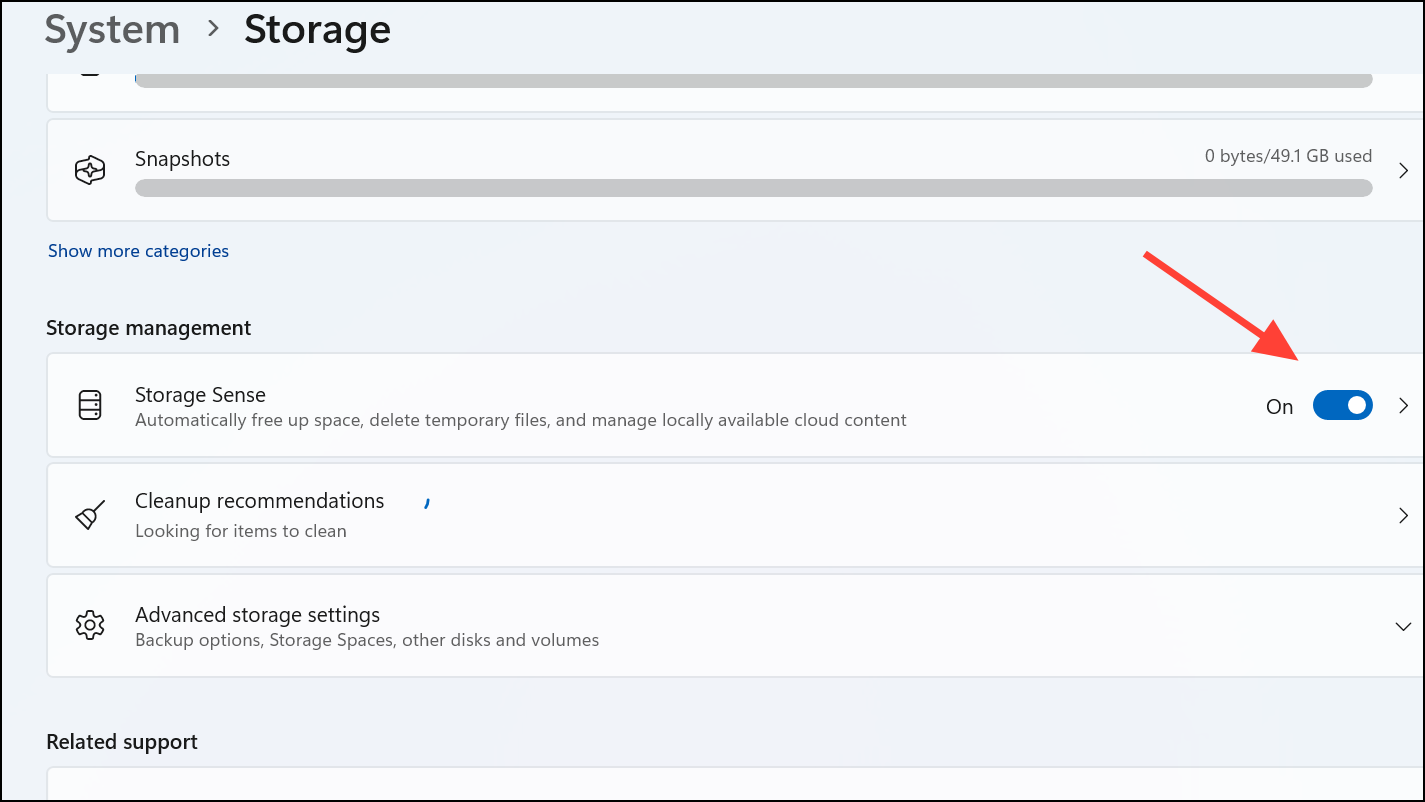
SSDs need free space for optimal performance, especially to execute wear-leveling effectively. Aim to keep at least 10-20% of your SSD’s total capacity free. Regularly remove unnecessary files, uninstall unused programs, or transfer large files to an external drive or cloud storage. Windows 11’s built-in Storage Sense feature can automate this process.
Disable Hibernation Mode
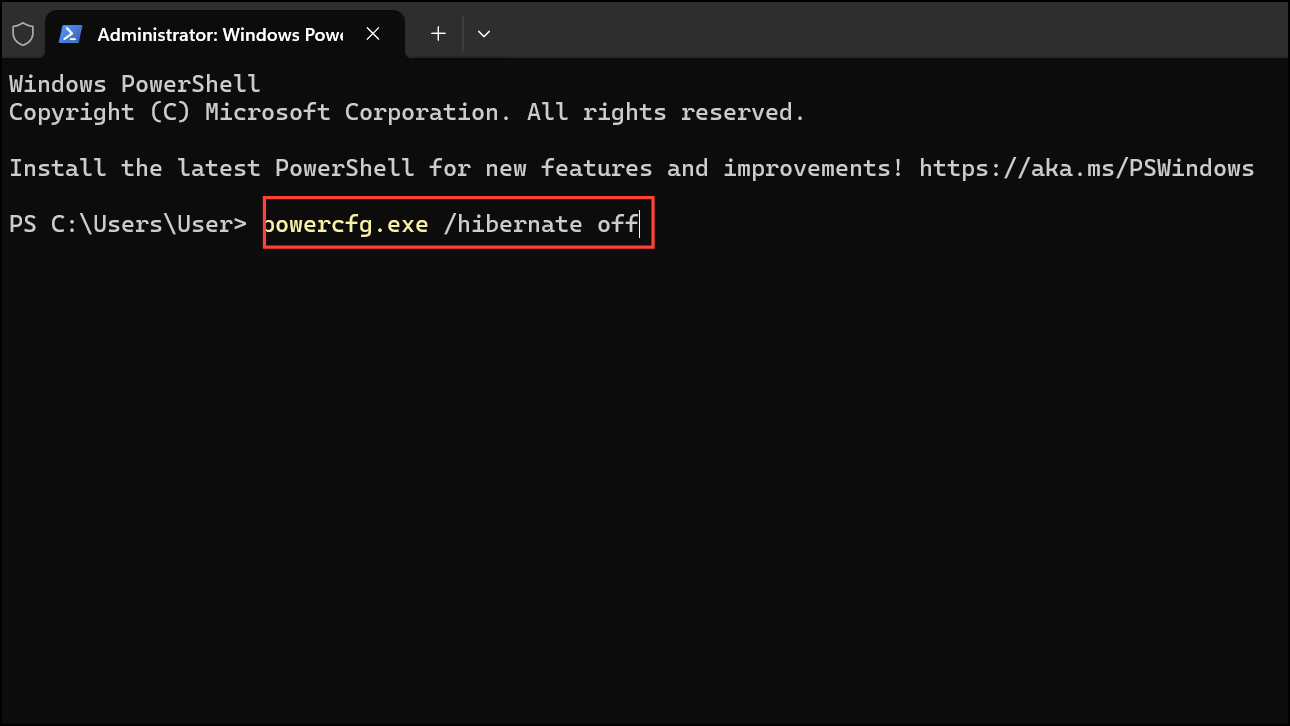
Although Windows 11’s hibernation feature saves your current session to disk allowing quick resume, it frequently writes large files to your SSD. This repeated action shortens your SSD’s lifespan. To disable hibernation, open Terminal (Admin) again and type the command powercfg.exe /hibernate off, then press Enter. Disabling hibernation also frees up disk space by removing the large hibernation file (hiberfil.sys).
Disable or Limit Paging File Usage
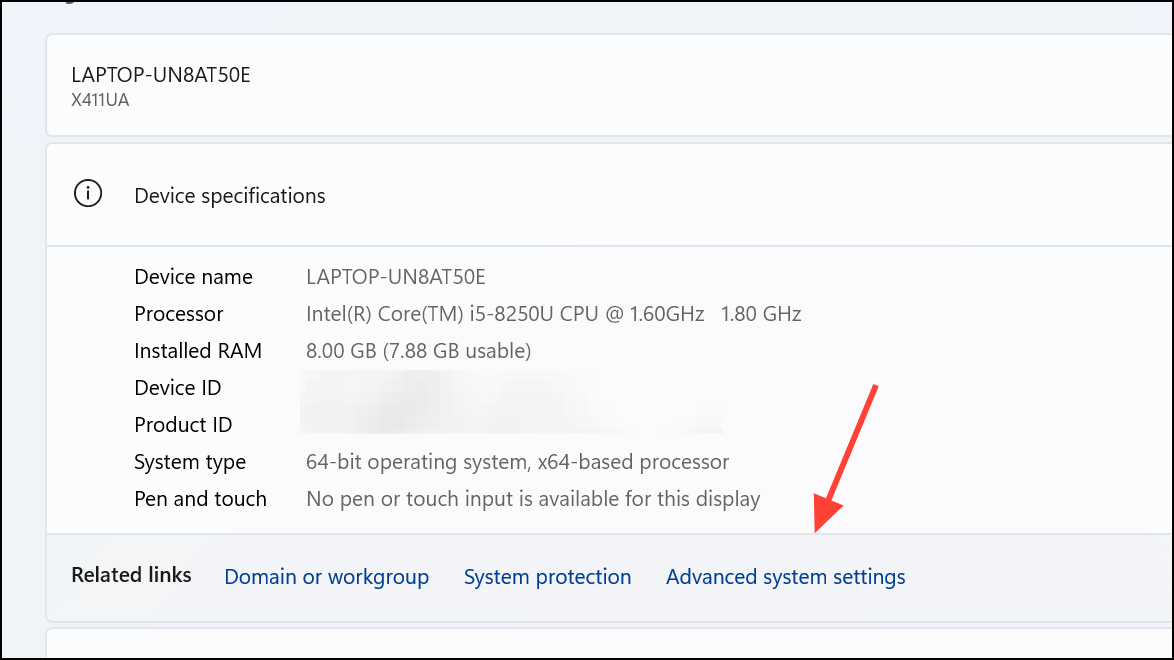
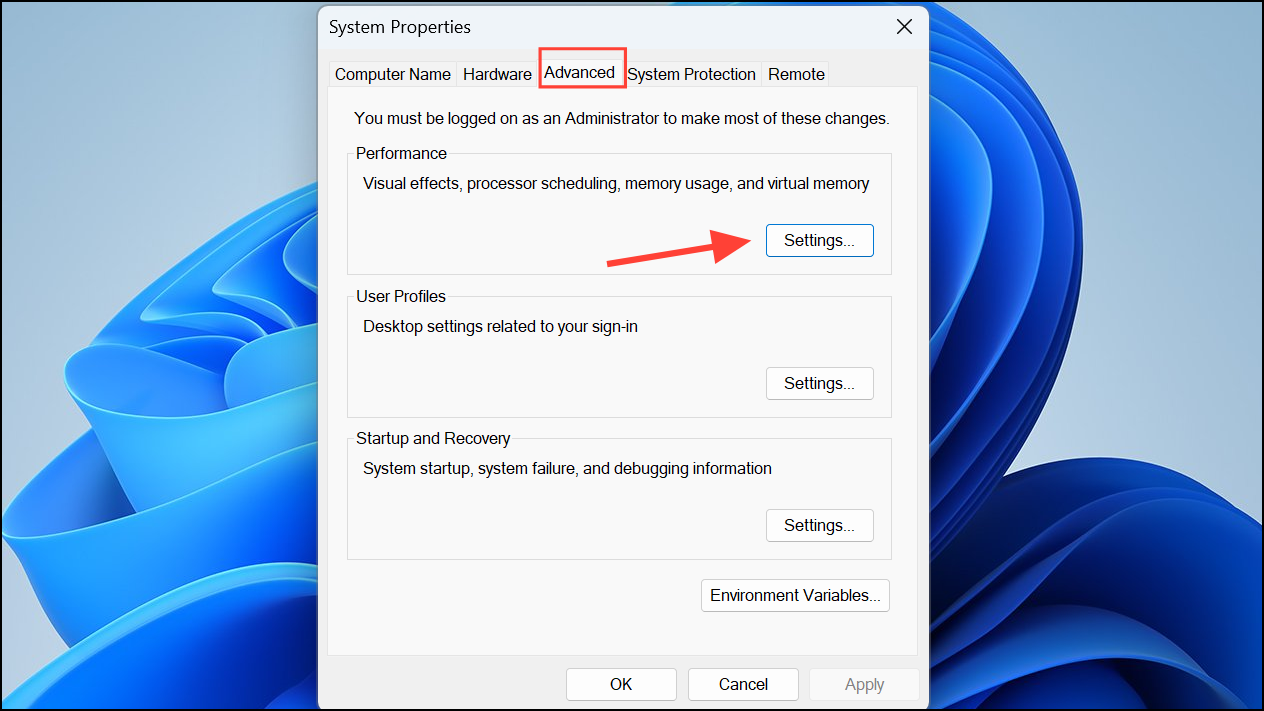
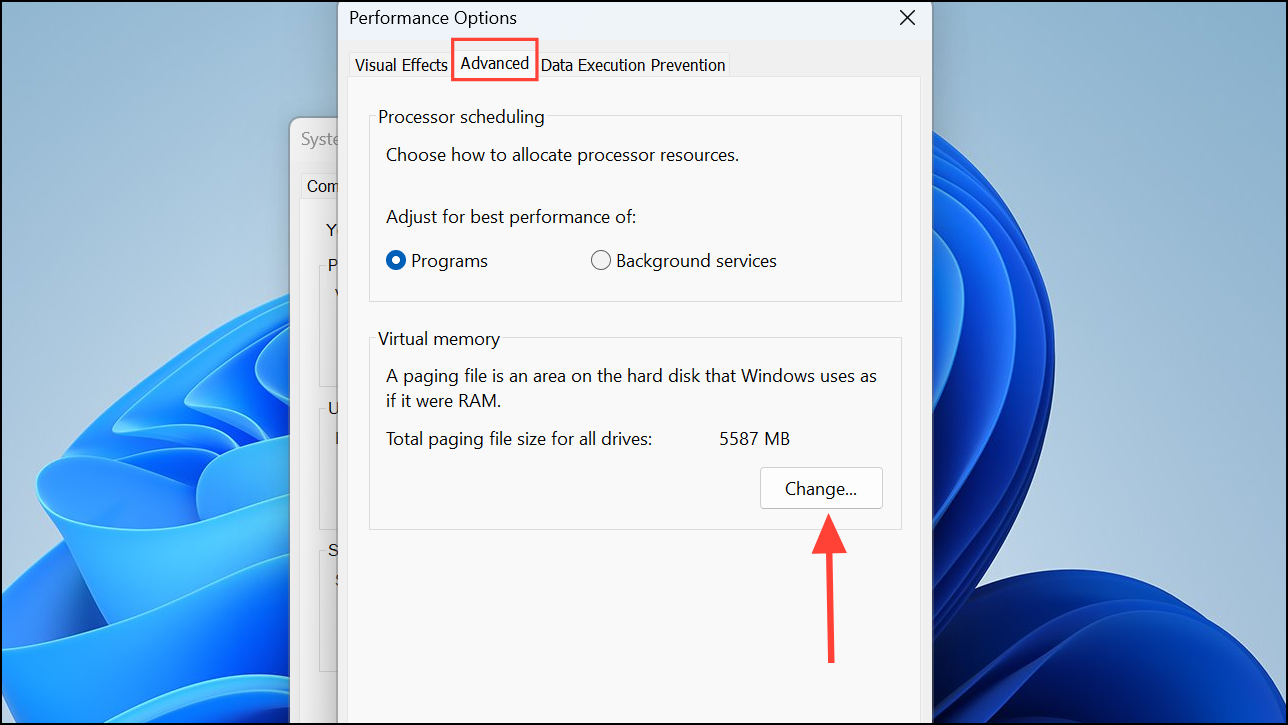
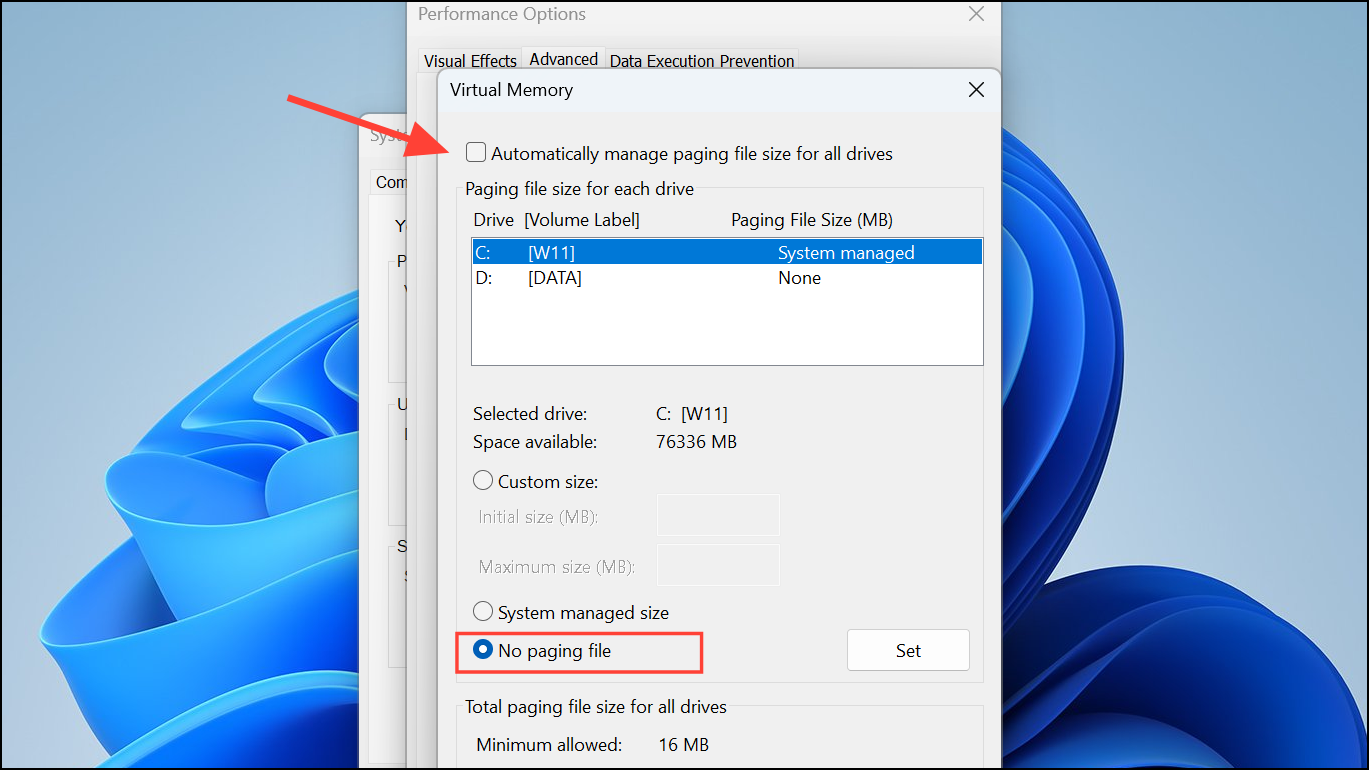
Windows uses a paging file as virtual memory when physical RAM is insufficient. Constant paging file usage can significantly increase SSD write cycles.
Enable AHCI Mode
Advanced Host Controller Interface (AHCI) mode optimizes SSD performance by enabling advanced features like Native Command Queuing (NCQ).
Keep SSD Firmware Updated
Manufacturers periodically release firmware updates to fix bugs, improve performance, and optimize SSD lifespan. Regularly check your SSD manufacturer’s website or use their dedicated SSD management software (such as Samsung Magician, Crucial Storage Executive, or Western Digital Dashboard) to verify and install firmware updates. Always back up your data before updating the firmware to prevent potential data loss.
Disable Superfetch (SysMain) Service
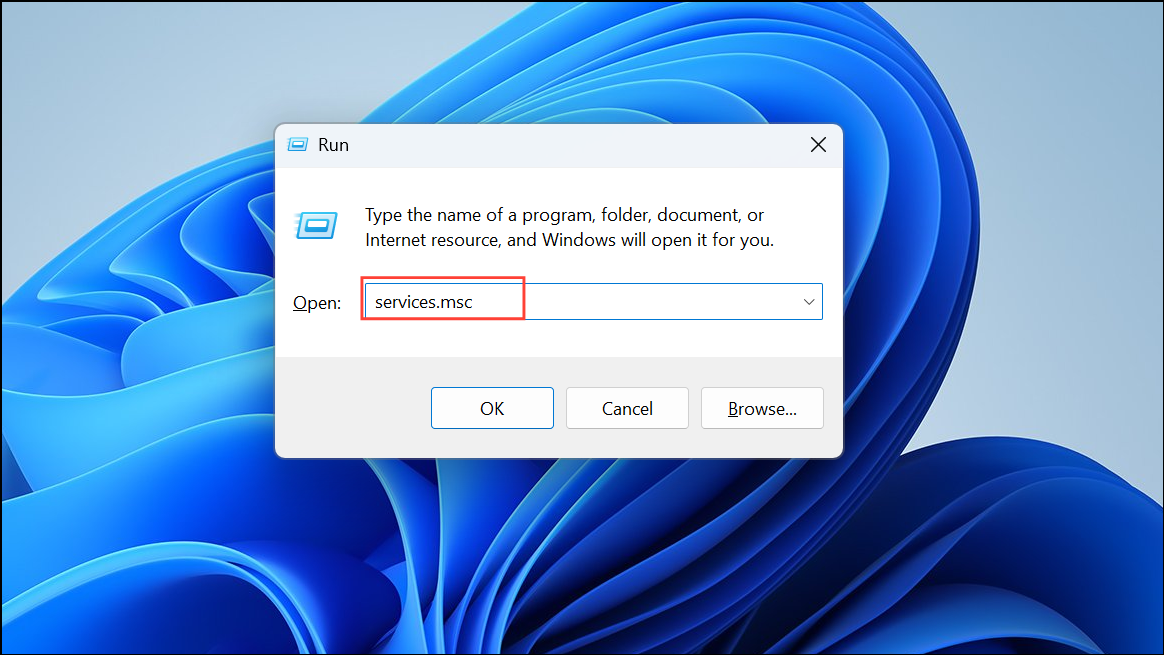
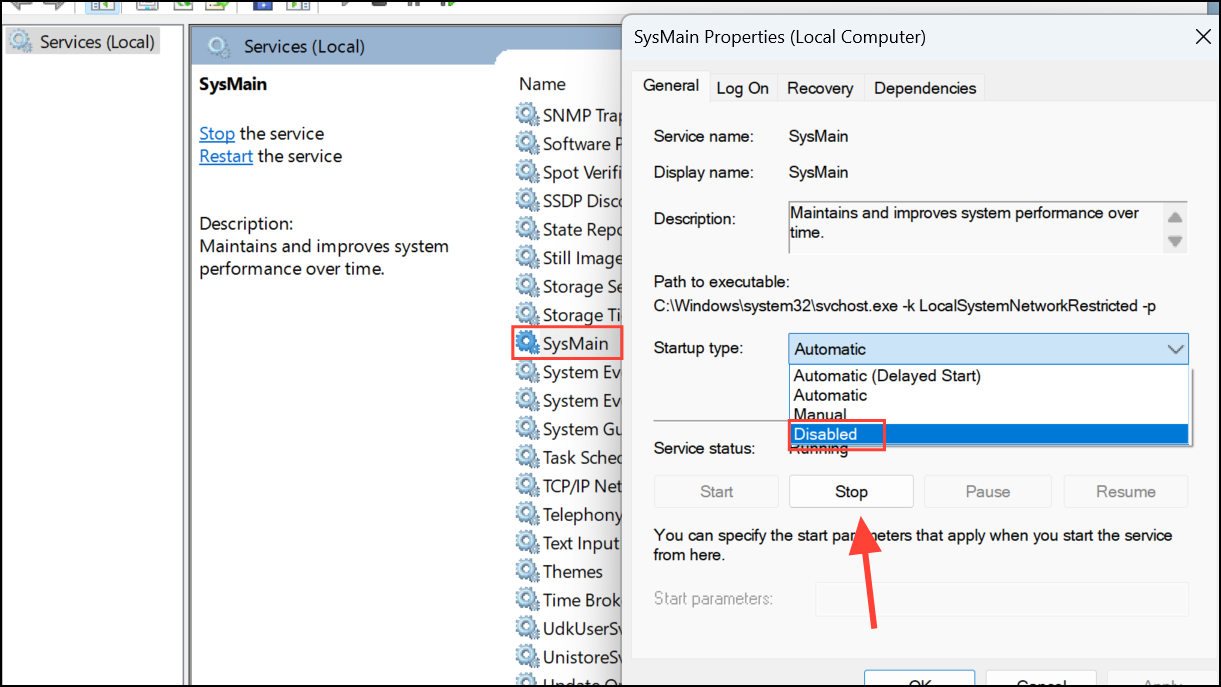
Superfetch (also called SysMain) preloads frequently used applications into RAM for faster access, but this constant activity can cause unnecessary SSD writes.
By following these practical maintenance tips, you can significantly extend your SSD’s lifespan and maintain optimal performance on Windows 11. Regularly performing these checks and adjustments ensures your SSD remains reliable, fast, and efficient for years to come.



