
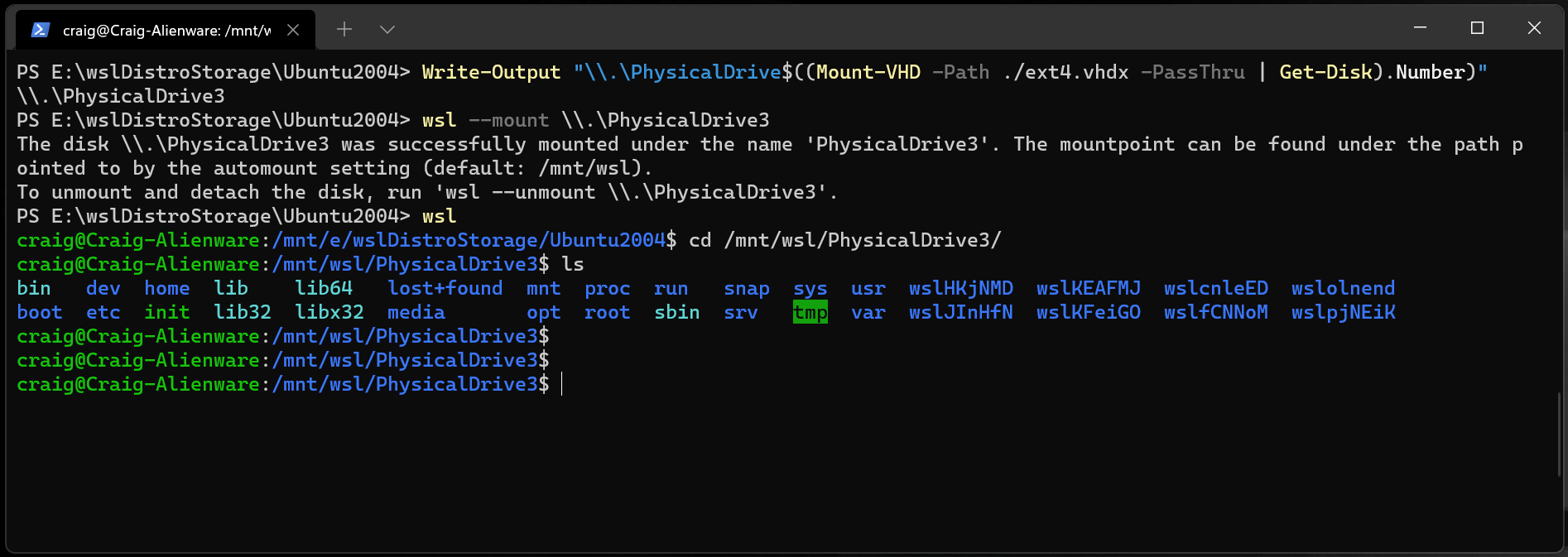
Mounting a raw .VHDX file into Windows Subsystem for Linux 2 (WSL2) allows you to directly access and manage virtual disk files from within Linux. This capability simplifies working with virtual machines, backups, or disk images without needing to boot into a virtual machine or use third-party tools. Follow these precise steps to mount your .VHDX file directly into your WSL2 instance.
Prerequisites
Before you begin, ensure that:
- You have WSL2 installed and running on Windows 10 or Windows 11.
- You have administrative privileges on your Windows machine.
- The .VHDX file you want to mount is accessible and not in use by another application.
Method 1: Mount the .VHDX File Using Windows PowerShell and WSL2
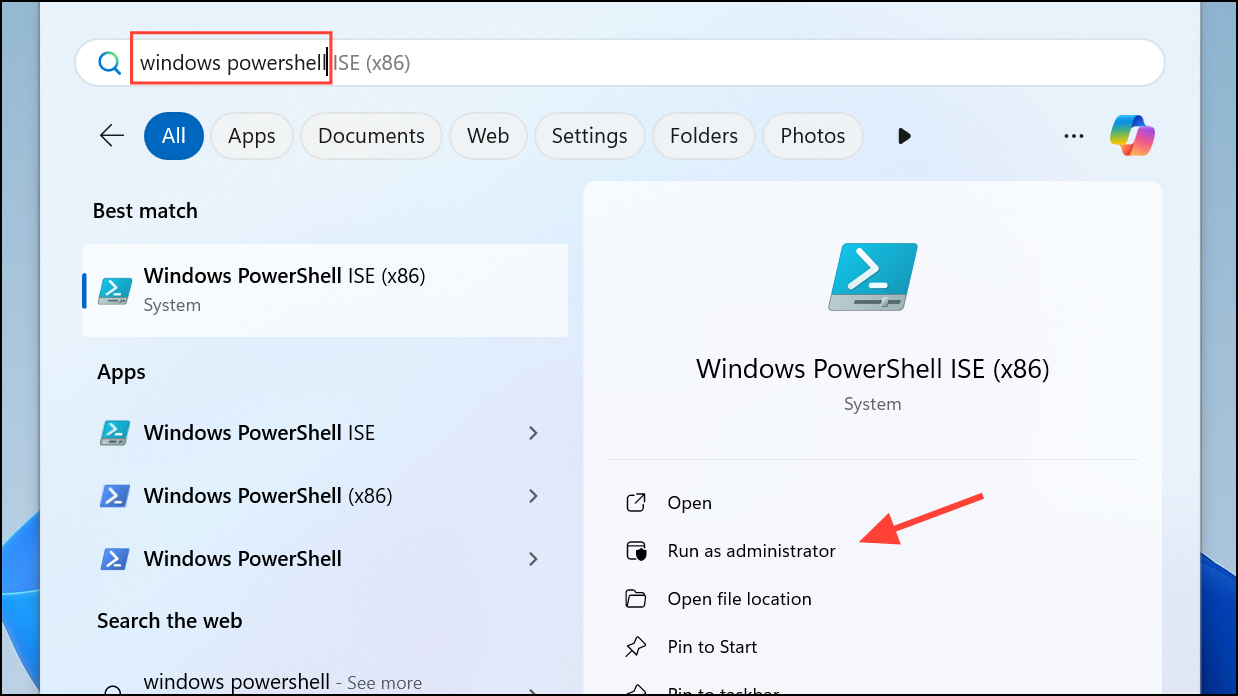
C:\path\to\your\file.vhdx with the actual path to your .VHDX file:Mount-VHD -Path "C:\path\to\your\file.vhdx" -ReadOnly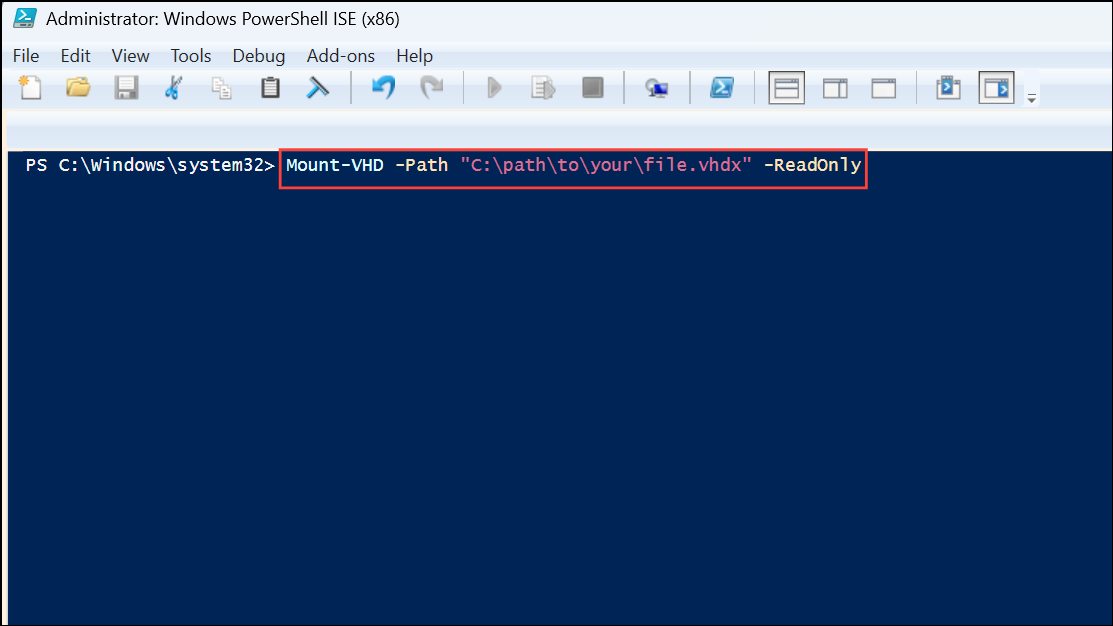
The -ReadOnly parameter ensures that the disk is mounted safely without risk of data alteration. If you need write access, omit the -ReadOnly flag.
Get-Disk | Where-Object IsOffline -Eq $False | Get-Partition | Get-Volume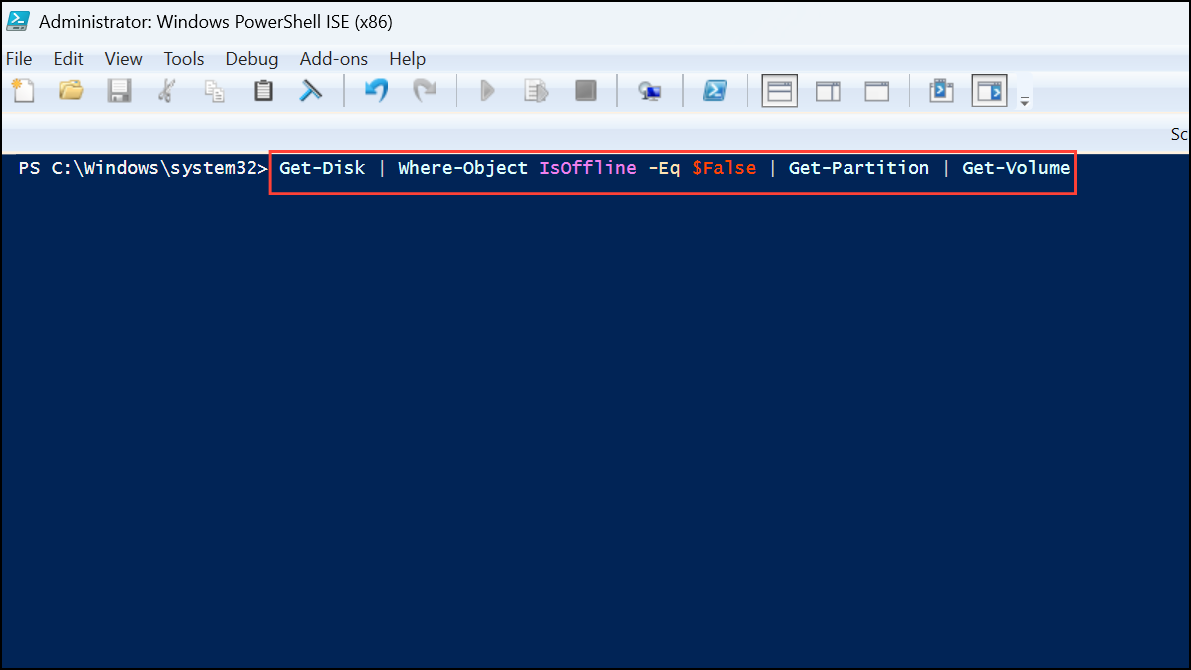
Note down the drive letter assigned to your newly mounted VHDX.
wsl in your PowerShell window or opening your preferred Linux distribution from the Start menu./mnt/ directory. For example, if your mounted drive letter is E:, you can access it with the following command:cd /mnt/e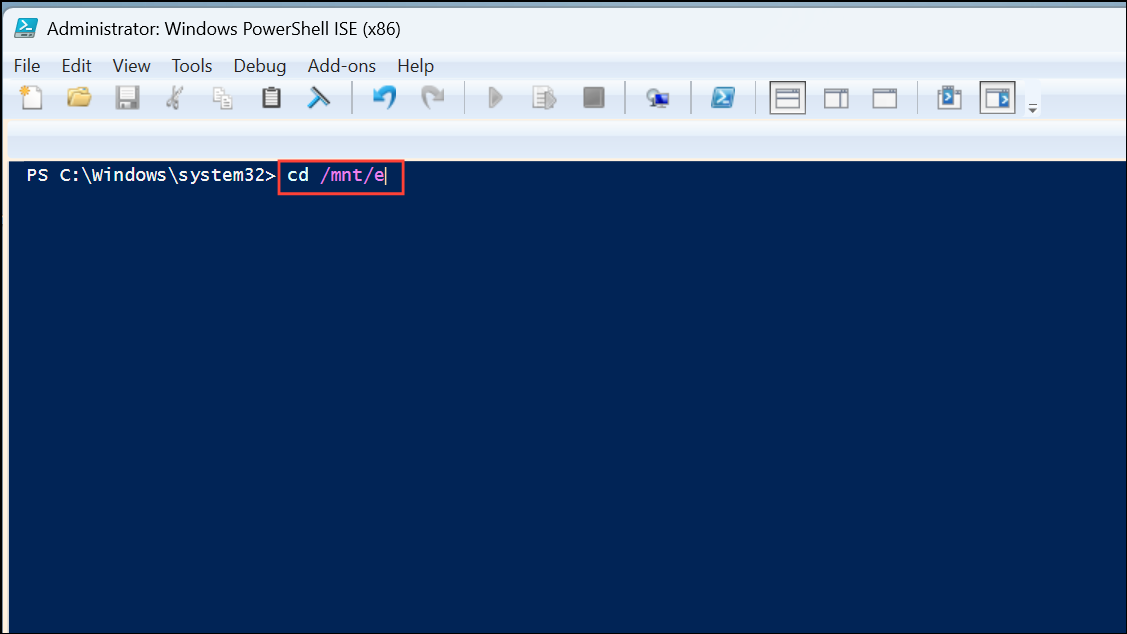
You can now navigate, read, or copy files from the mounted.VHDX directly from your WSL2 Linux environment.
Dismount-VHD -Path "C:\path\to\your\file.vhdx"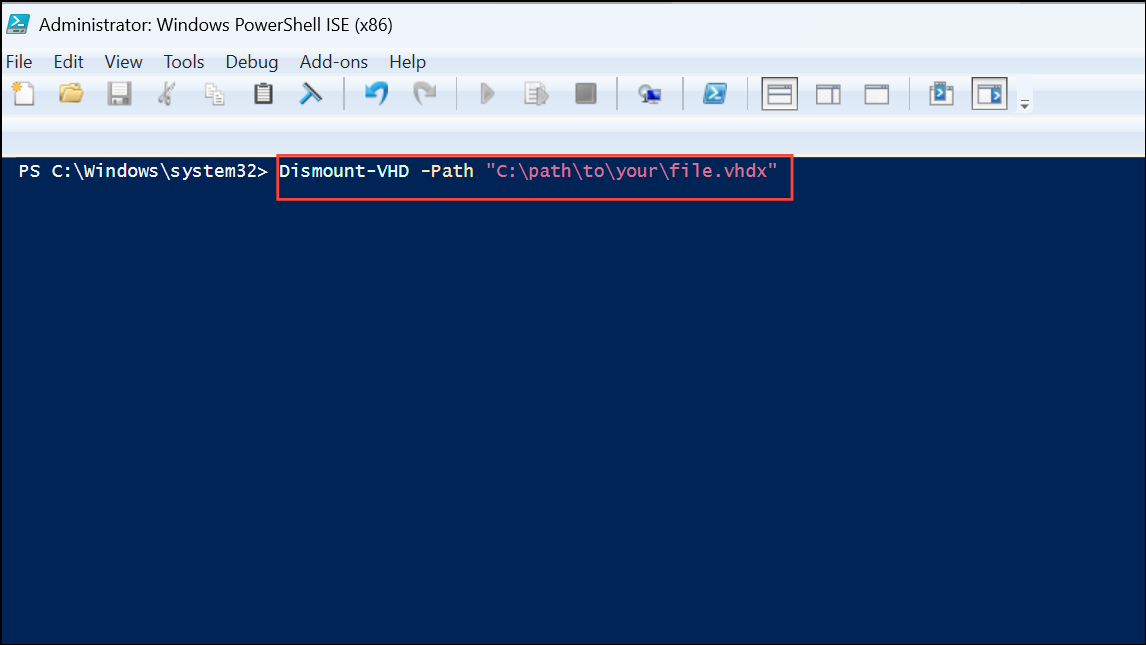
This ensures safe detachment of the disk image without data corruption.
Method 2: Mounting the .VHDX File Using Disk Management (GUI)
If you prefer a graphical interface, you can mount your .VHDX using Windows Disk Management:
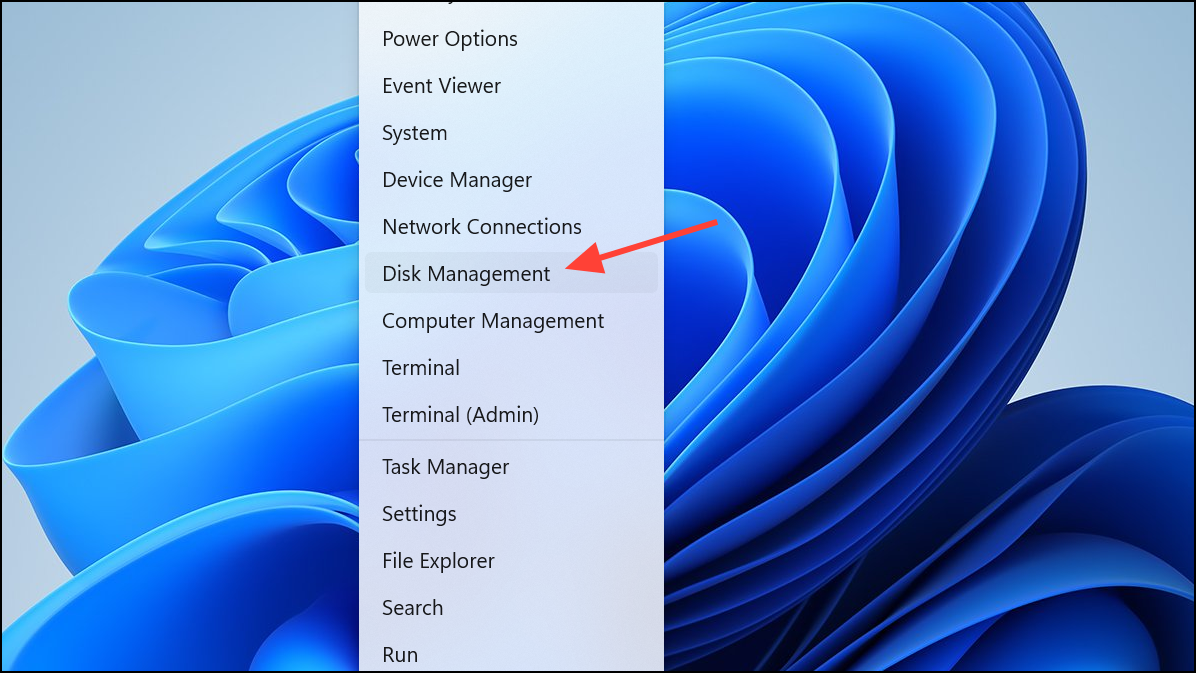
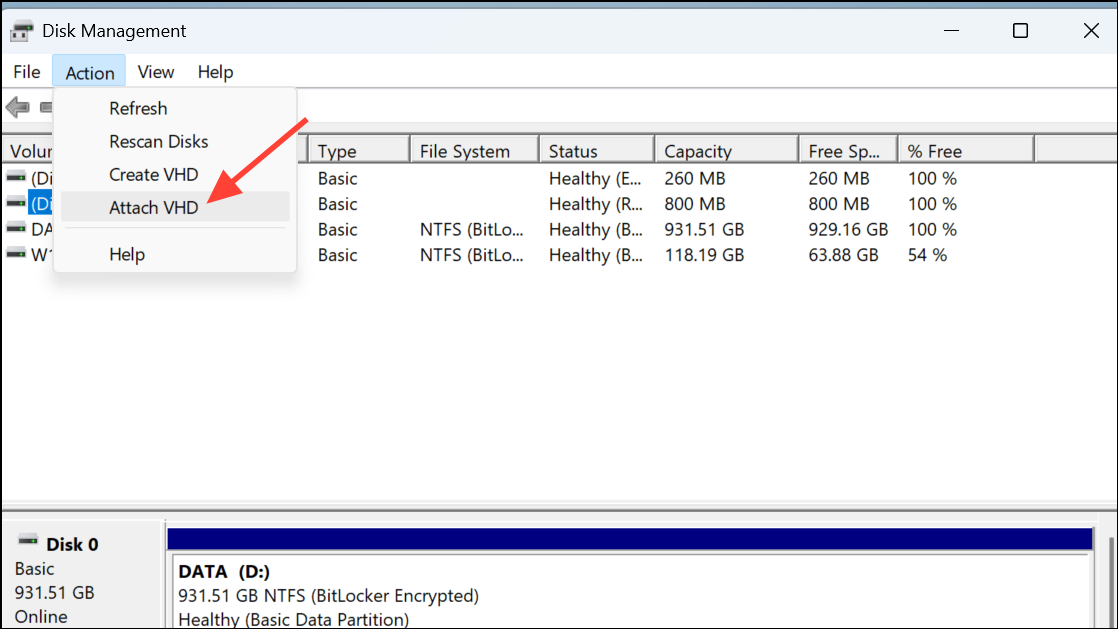
/mnt/ directory, using the drive letter assigned in Disk Management, for example:cd /mnt/fImportant Cautions and Tips
- Always unmount or detach the .VHDX file properly after use to avoid data loss or corruption.
- Mounting a .VHDX file as read-only is recommended if you do not intend to modify it.
- Ensure no other applications or processes are actively using the .VHDX file when you attempt to mount or detach it.
Now you’re ready to easily access virtual disk files directly from WSL2, simplifying your workflow and saving valuable time.





