
Windows 11 offers various built-in features and settings you can tweak to achieve smoother, faster, and more stable gaming performance. While the operating system does a decent job out of the box, certain default settings can slow down your gaming experience. Adjusting these settings can free up resources, provide smoother frame rates, and reduce lag, giving you an optimized gaming environment. Here are several effective ways to optimize Windows 11 for gaming.
Turn On Game Mode
The Game Mode feature in Windows 11 prioritizes your system’s resources for gaming tasks, reducing background processes that might interfere with your game. Game Mode is usually enabled by default, but it’s worth confirming it’s active.
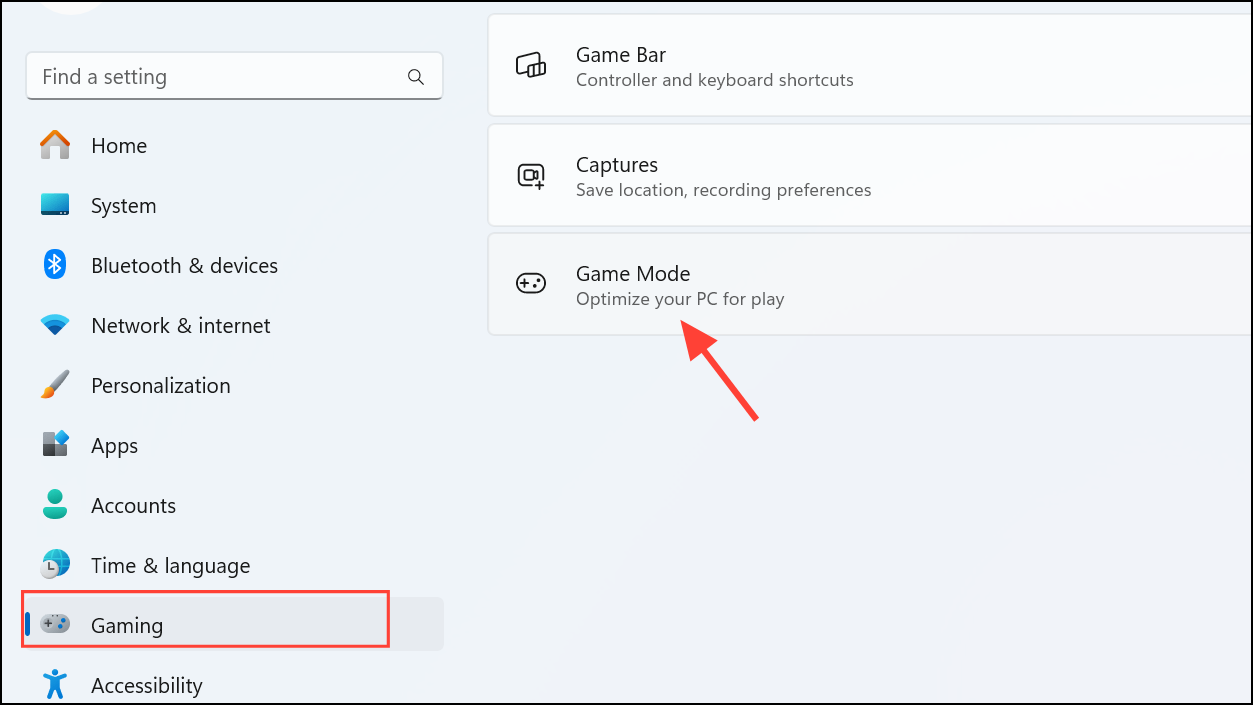
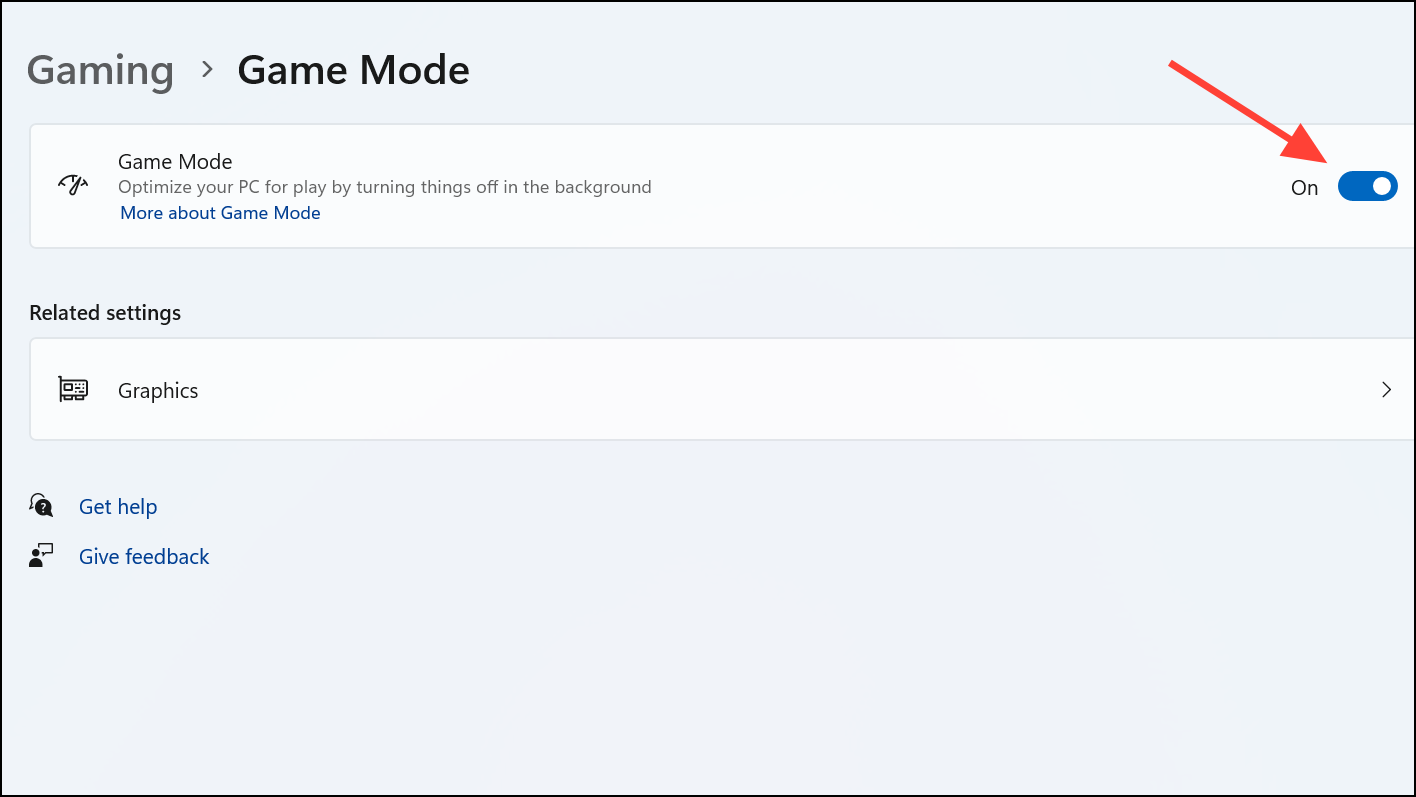
This setting reduces interruptions from background apps and system notifications, providing a more stable gaming experience.
Set Power Mode to Best Performance
Windows 11 typically uses a balanced power mode by default, which limits performance to conserve energy. Switching to the “Best Performance” mode ensures maximum CPU and GPU performance, crucial for gaming.
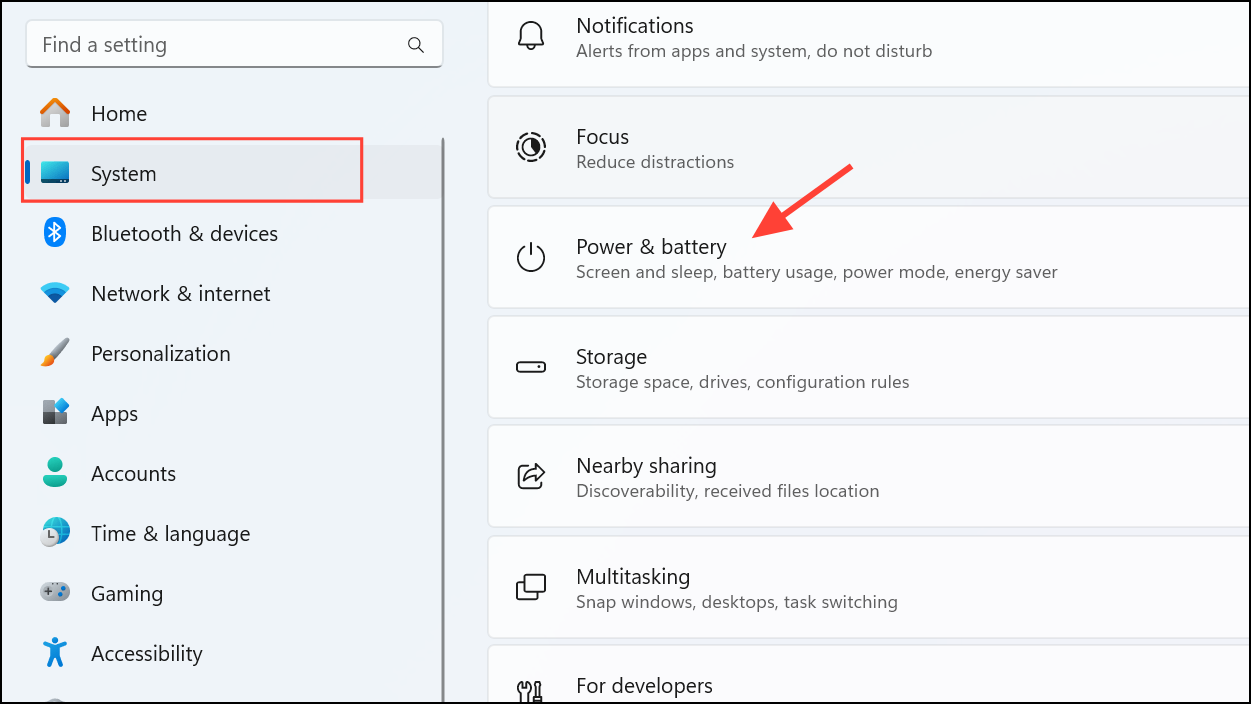
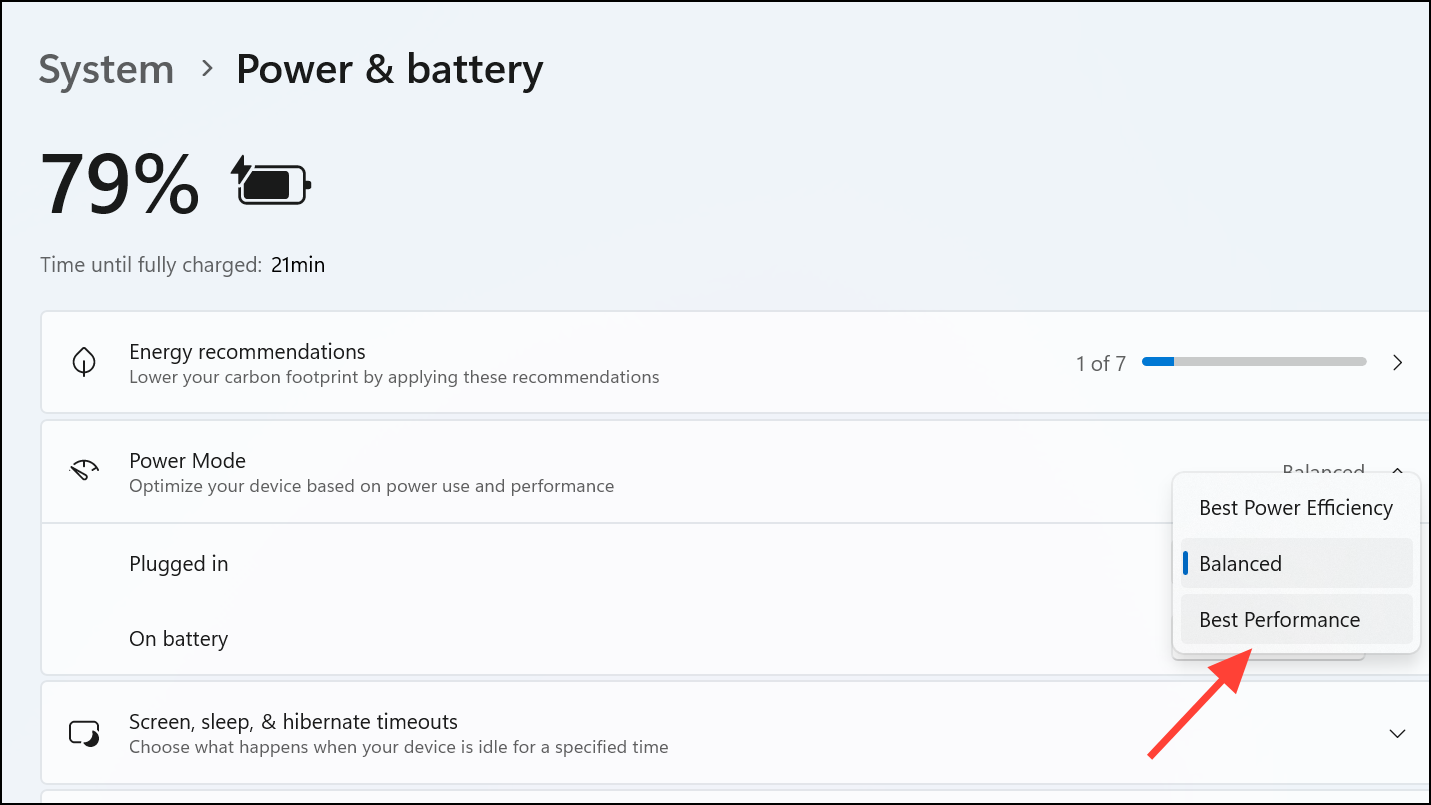
If you’re gaming on a laptop, consider disabling battery saver mode to prevent performance throttling.
Update Your GPU Drivers
Outdated graphics drivers can lead to suboptimal gaming performance, including lower frame rates and graphical glitches. Regularly updating your GPU drivers ensures compatibility with the latest games and optimal performance.
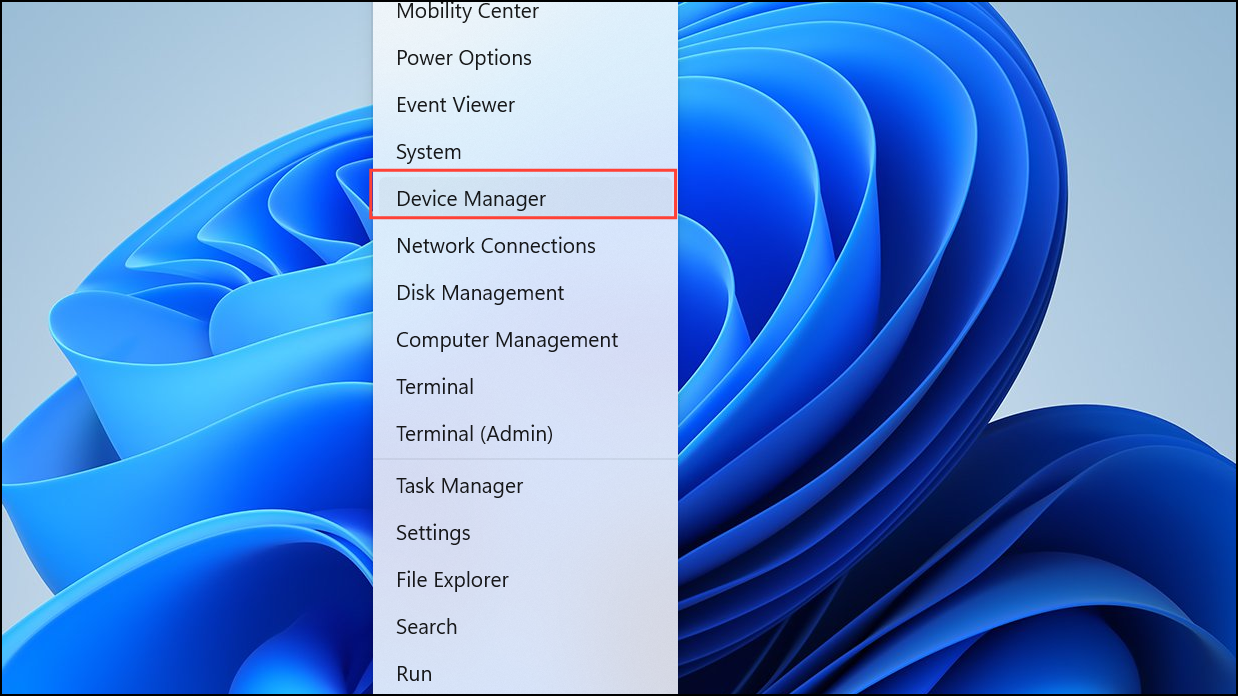
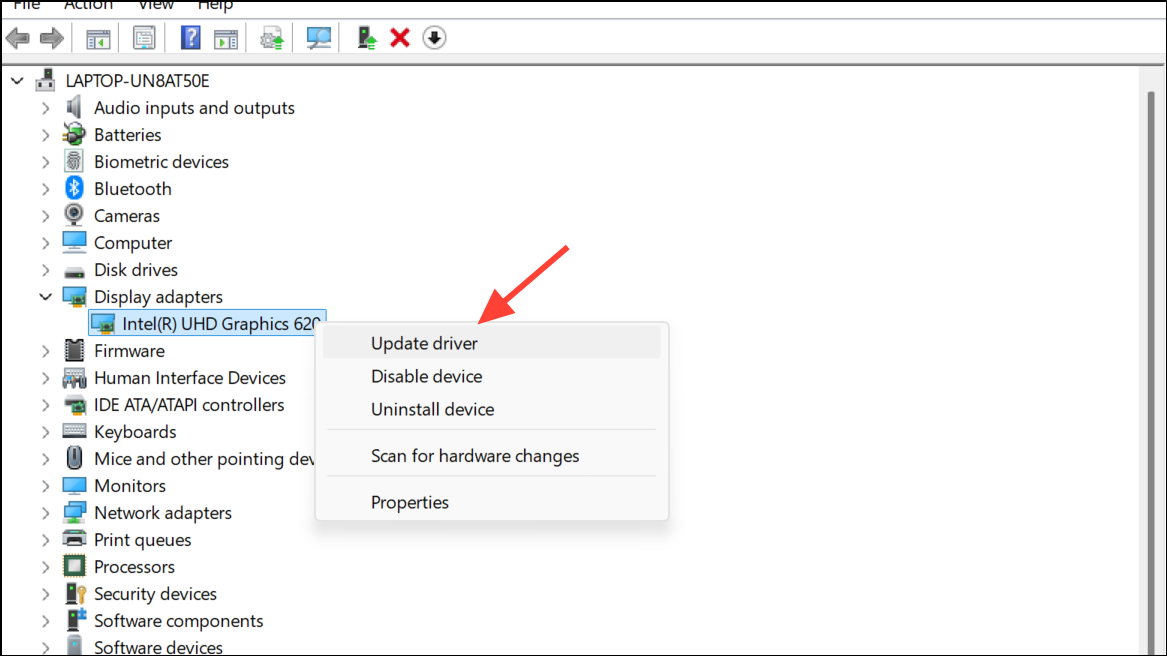
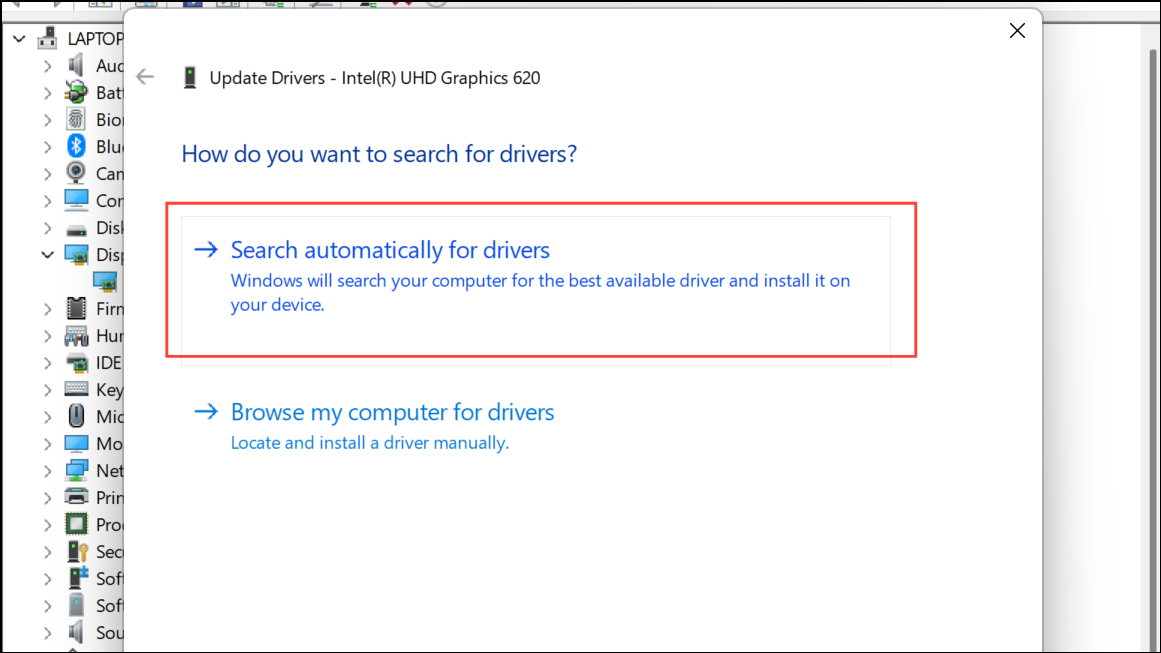
Alternatively, you can manually download the latest drivers directly from your GPU manufacturer’s website (Nvidia, AMD, or Intel).
Disable Memory Integrity (Core Isolation)
Memory Integrity is a security feature in Windows 11 designed to protect the system from malware attacks. However, it can consume significant CPU resources, potentially reducing gaming performance. If you’re looking to maximize gaming performance, temporarily disabling this feature can help.
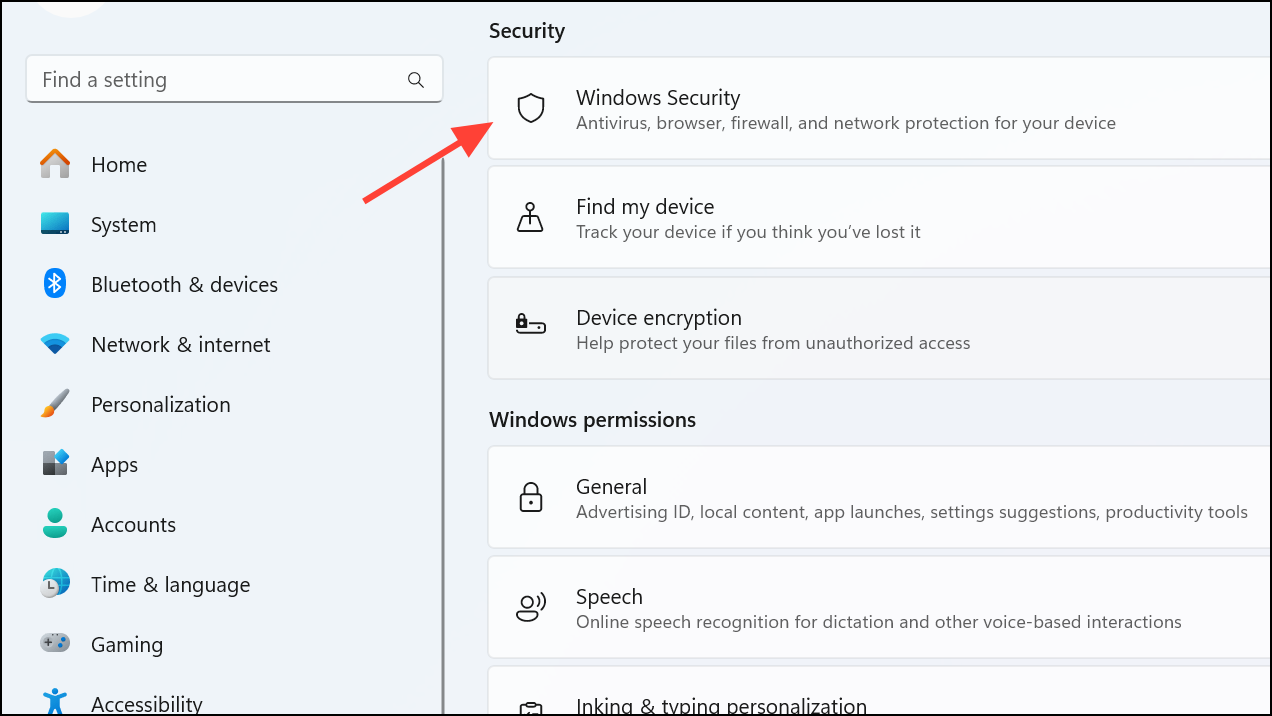
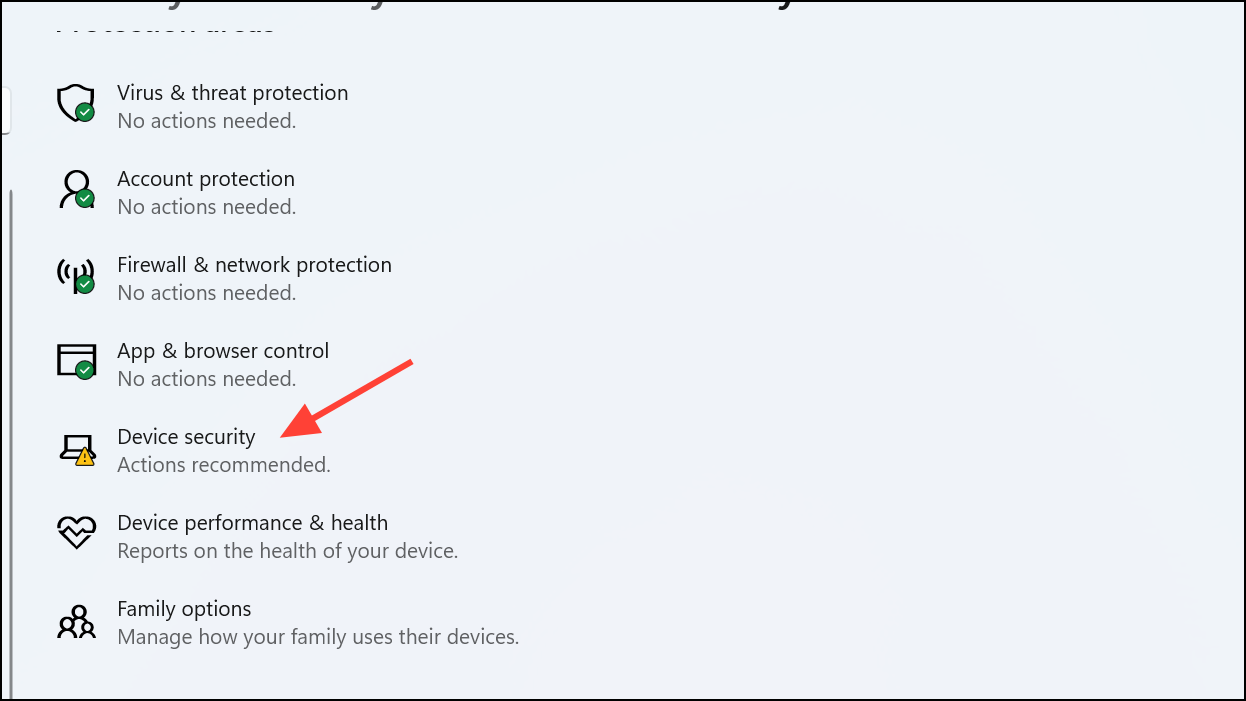
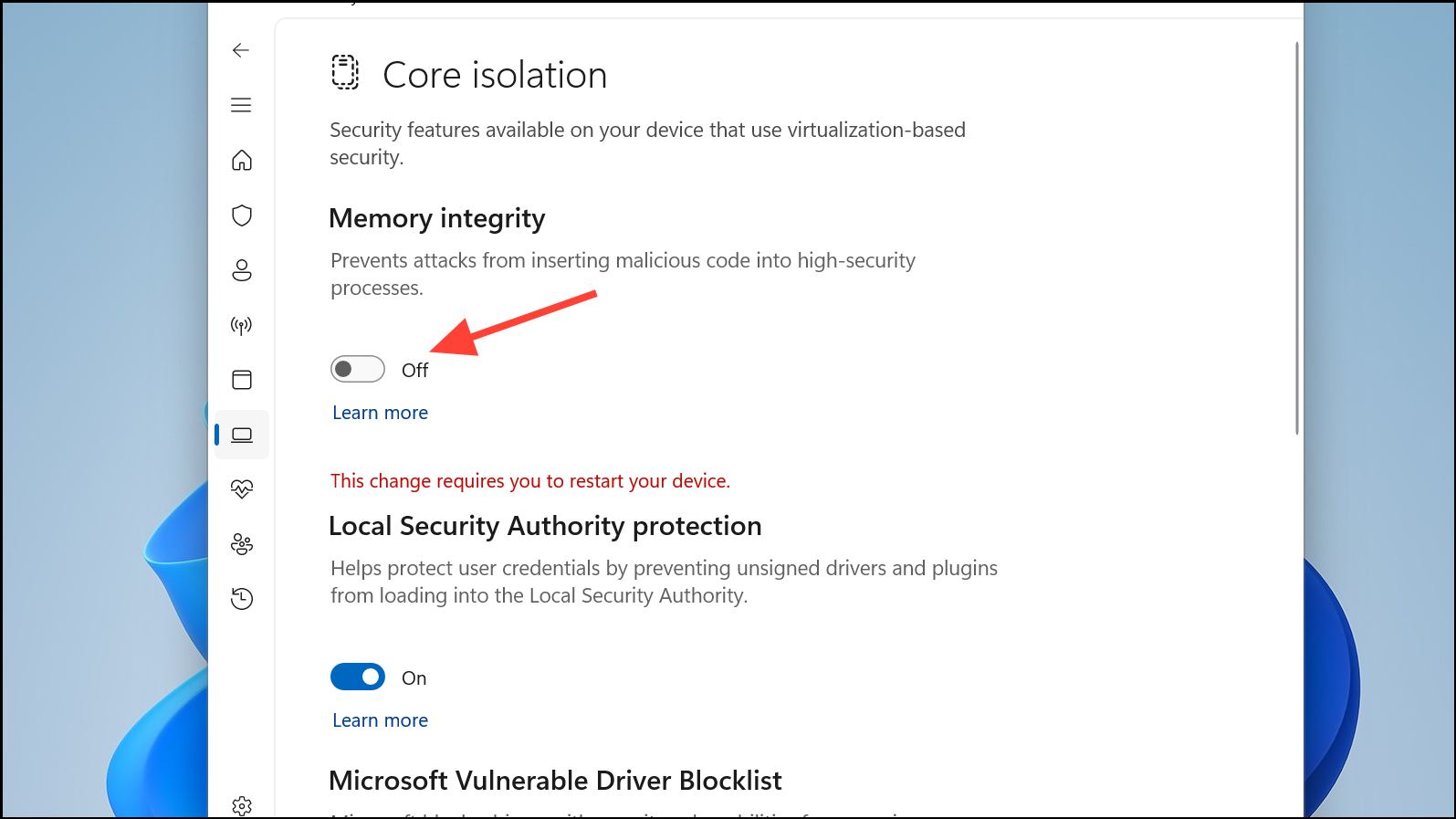
Keep in mind that disabling Memory Integrity reduces your system’s protection against certain types of malware. Consider re-enabling it after your gaming session.
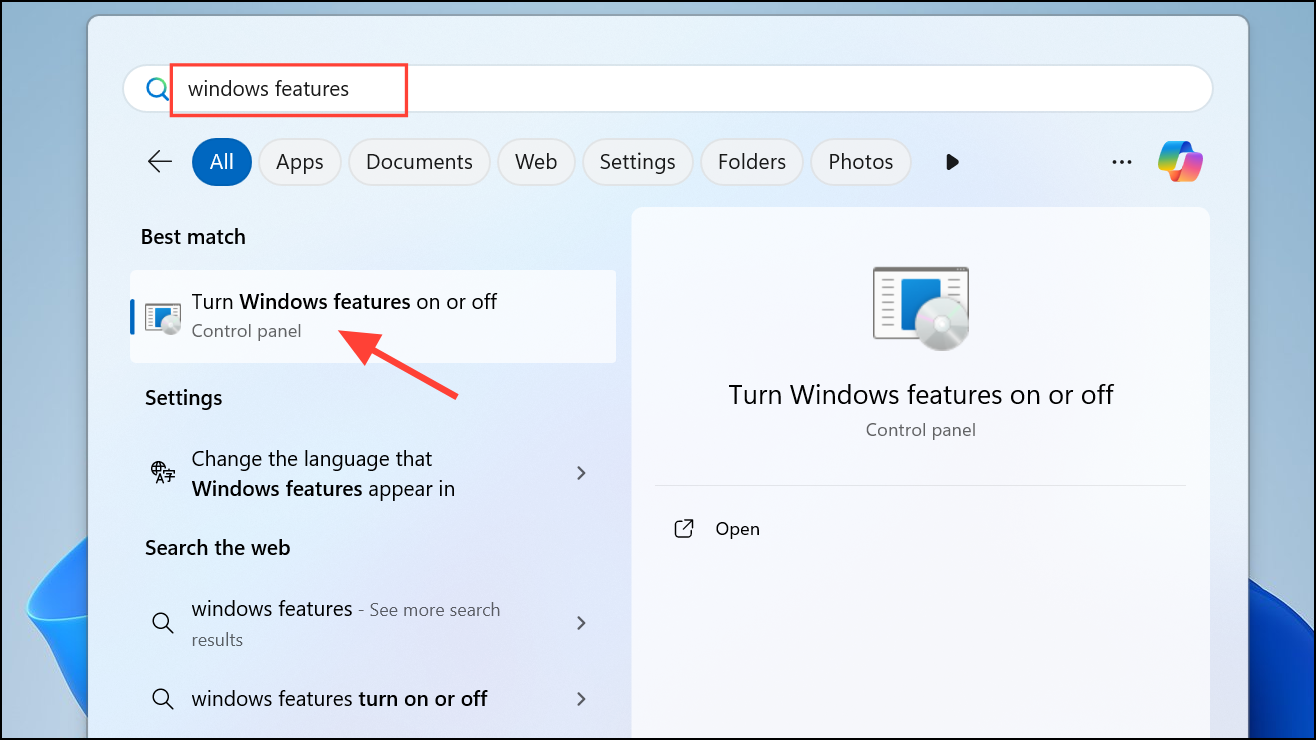
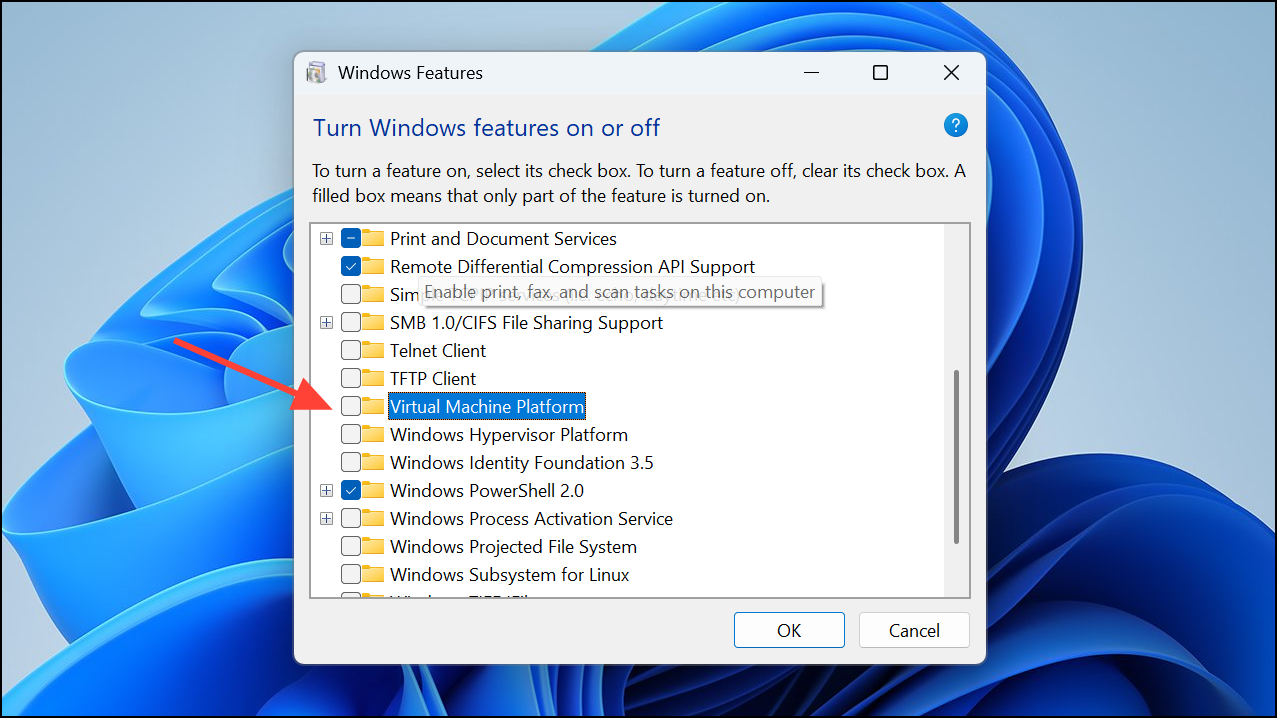
Turn Off Virtual Machine Platform (VMP)
The Virtual Machine Platform allows Windows to run virtualized environments, useful for developers but unnecessary for gamers. Disabling this feature frees up system resources that can be better utilized by games.
Disable Startup Tasks
Unnecessary apps running in the background can consume valuable system resources. Disabling non-essential startup tasks ensures your system dedicates more resources to gaming.
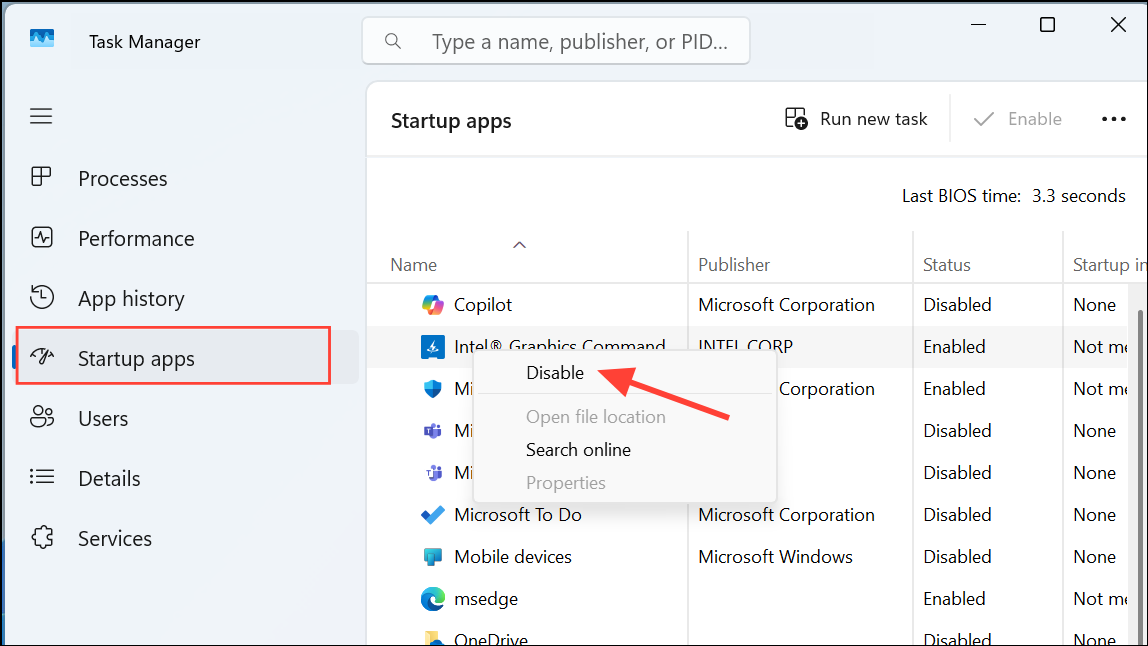
This process doesn’t uninstall the apps; it simply prevents them from automatically running at startup.
Optimize Your Display and Graphics Settings
Properly configuring your display resolution, refresh rate, and graphics settings ensures your games run smoothly and look their best.
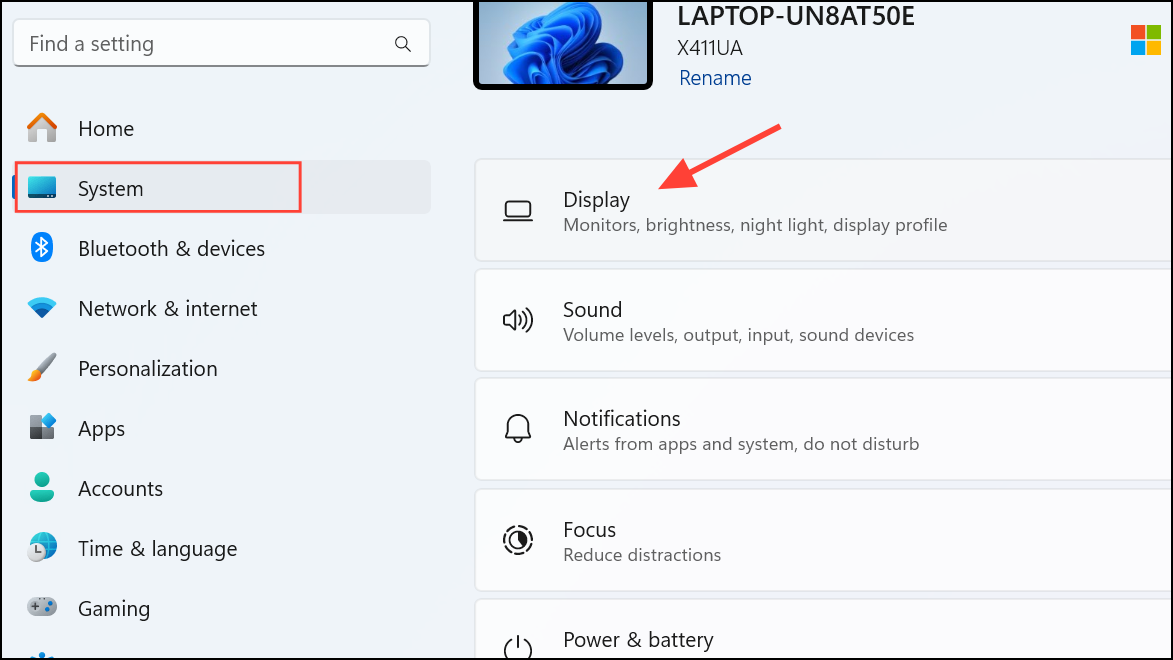
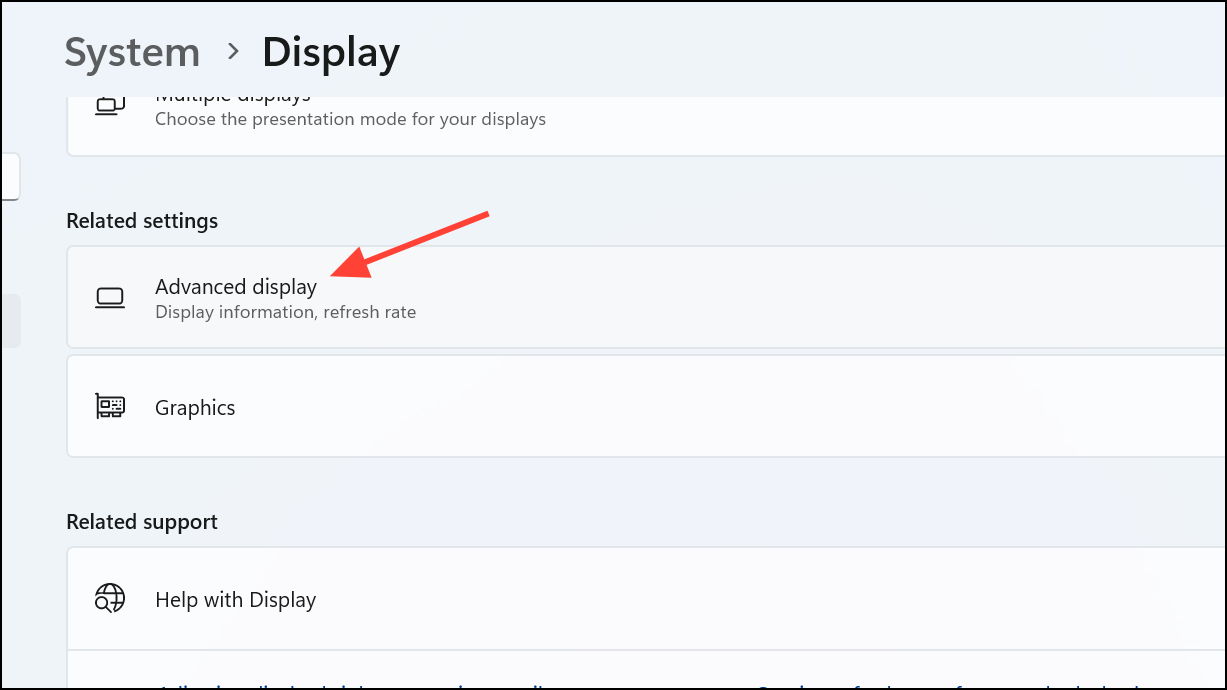
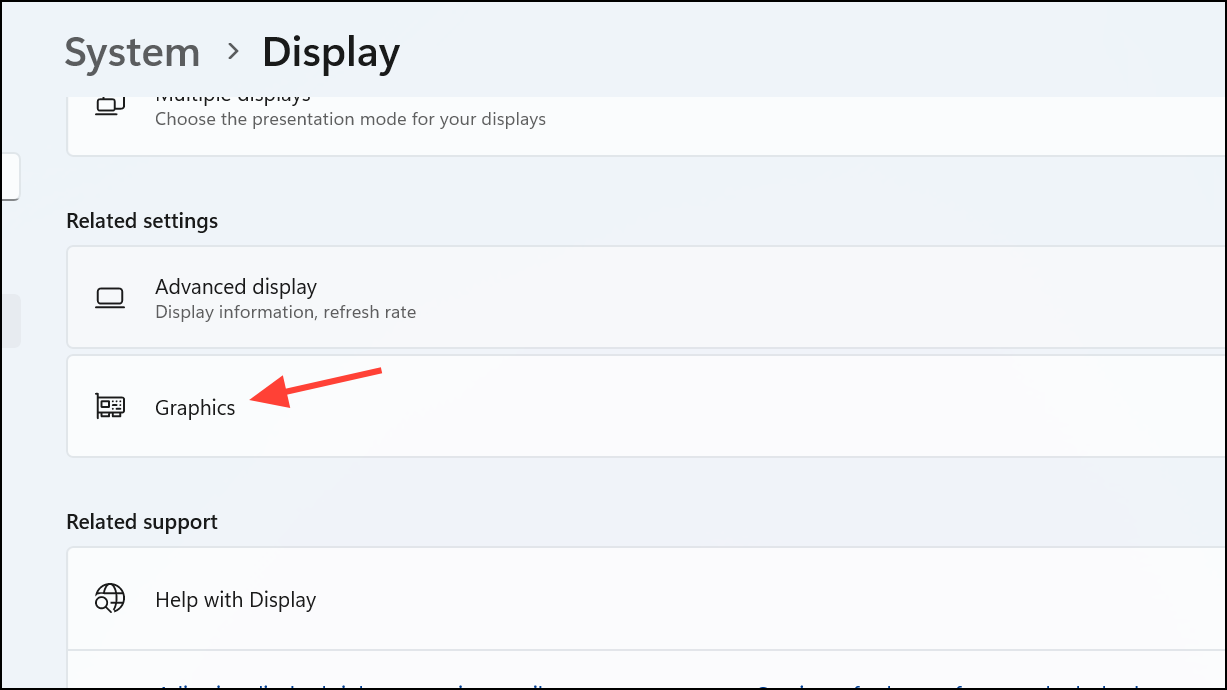
Additionally, ensure “Hardware-accelerated GPU scheduling” is enabled under “Change default graphics settings.”
Turn Off Enhanced Pointer Precision
Windows’ Enhanced Pointer Precision can interfere with precise mouse movements, negatively impacting accuracy in FPS games. Turning this off ensures consistent mouse behavior.
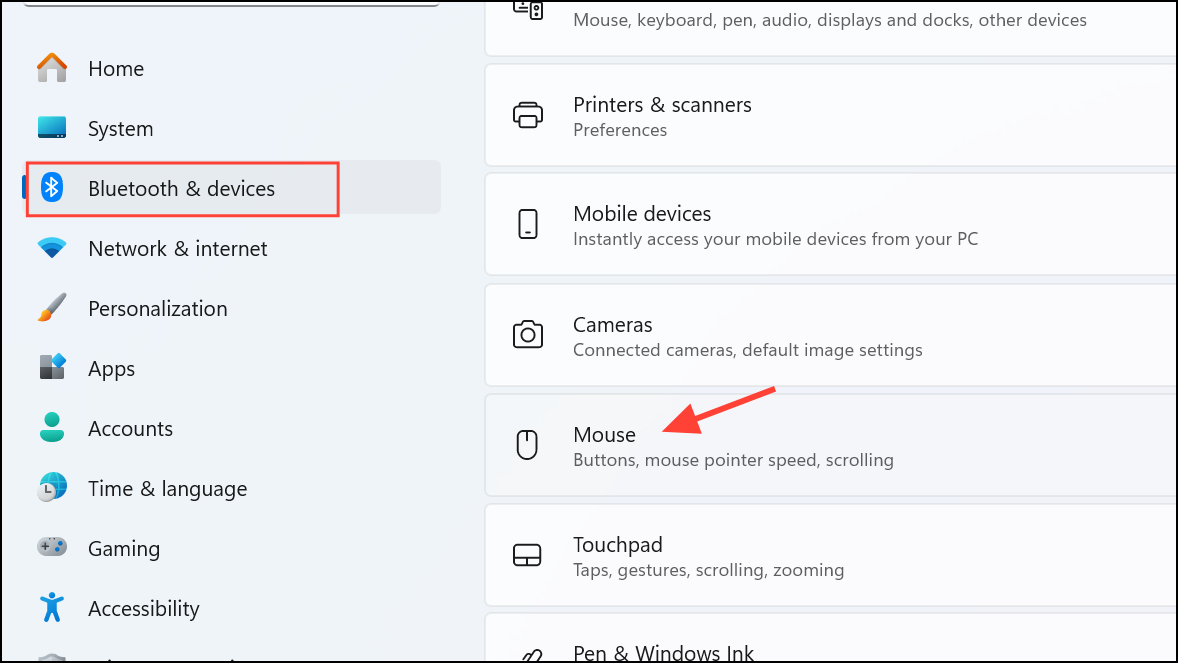
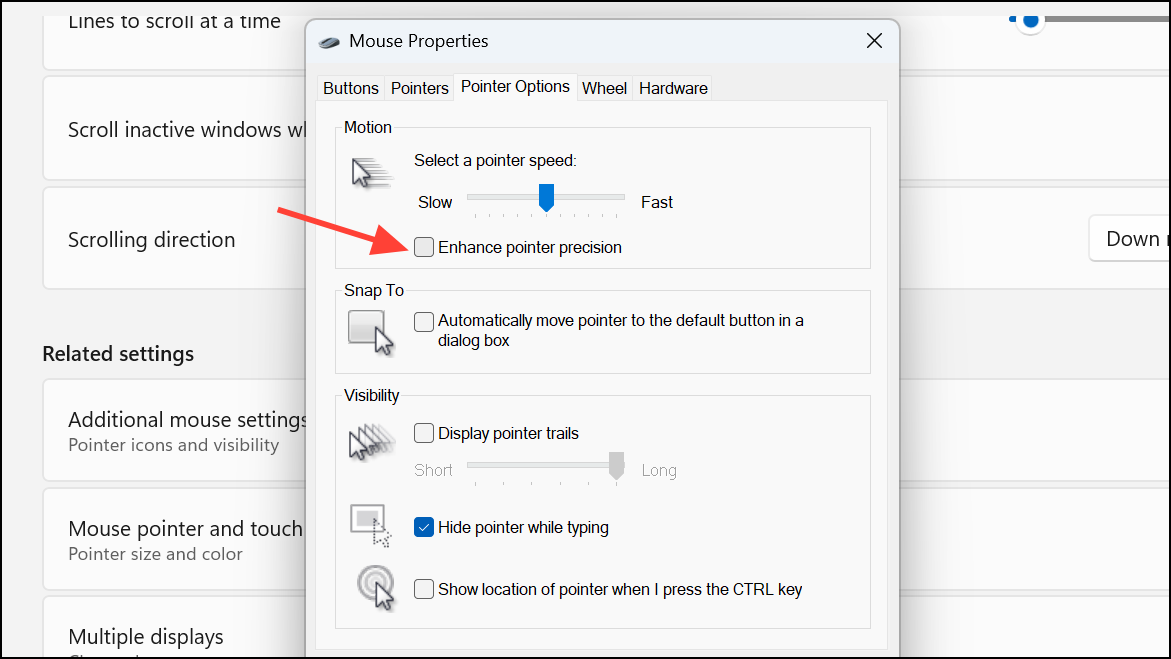
Use Wired or High-Speed Wi-Fi Connections
For online gaming, network stability is critical. Wired Ethernet connections offer the best stability, but if Wi-Fi is your only option, ensure you’re using a 5GHz or 6GHz network for lower latency and higher speeds.
Verify your router settings and ensure your PC connects to these faster bands to reduce lag and improve multiplayer gaming experiences.
After applying these settings, your Windows 11 PC should provide a noticeably smoother gaming experience. Remember, while these tweaks can significantly optimize your system, hardware upgrades such as adding RAM or upgrading your GPU will provide even greater performance boosts.



