The “Your browser is being managed by your organization” message in Firefox settings signals that your browser is subject to enterprise policies—often enforced via Windows registry keys, configuration files, or third-party security software. This notification can appear even on personal devices, causing confusion for users who aren’t part of any organization. Removing this message involves tracing and deleting the underlying policy sources that are controlling browser settings.
Remove Policies via Windows Registry
about:policies in the address bar. Review the listed active policies and note their names. This helps identify which policies are currently applied and may be causing the message.Win + R to open the Run dialog, type regedit, and press Enter. This launches the Registry Editor, where Firefox policies may be set.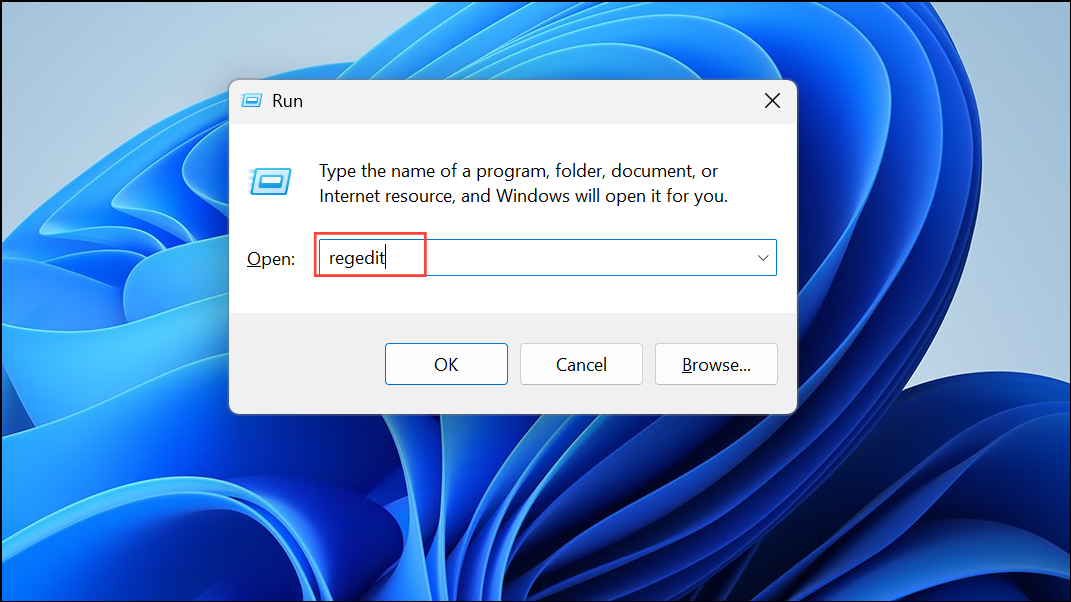
HKEY_LOCAL_MACHINE\SOFTWARE\Policies\Mozilla\Firefox. If you don’t find it there, also check HKEY_CURRENT_USER\SOFTWARE\Policies\Mozilla\Firefox. Look for any values or subkeys that match the policies you saw in Firefox.Delete the policies.json File
Firefox also supports a policies.json configuration file, which can apply enterprise policies outside of the Windows registry. This file is usually created by system administrators or security software.
C:\Program Files\Mozilla Firefox\Distribution or, on 64-bit systems, C:\Program Files (x86)\Mozilla Firefox\Distribution. On Linux, check /etc/firefox/policies/.policies.json. If present, delete this file. This removes all custom policies set via this method.Check for Security Software or Extensions
Some antivirus programs, such as ESET, AVG, or Avast, inject their root certificates into Firefox to scan encrypted traffic. This process uses policies (notably ImportEnterpriseRoots) that trigger the “managed by your organization” message. Disabling or uninstalling the web shield or HTTPS scanning feature in your security software can remove the policy.
Shift while starting the browser. If the message vanishes, one of your extensions is responsible. Disable extensions one by one to identify the culprit.Check Firefox Installation Source (Linux Only)
On Linux distributions, installing Firefox from a distribution’s package manager (like Ubuntu’s or Mint’s software center) may include default policies set by the package maintainer. These can trigger the “managed by your organization” message.
Reset Firefox Settings as a Last Resort
If the message persists after removing registry entries, configuration files, and disabling security software, reset Firefox to its default state. This removes all customizations and returns the browser to its original configuration.
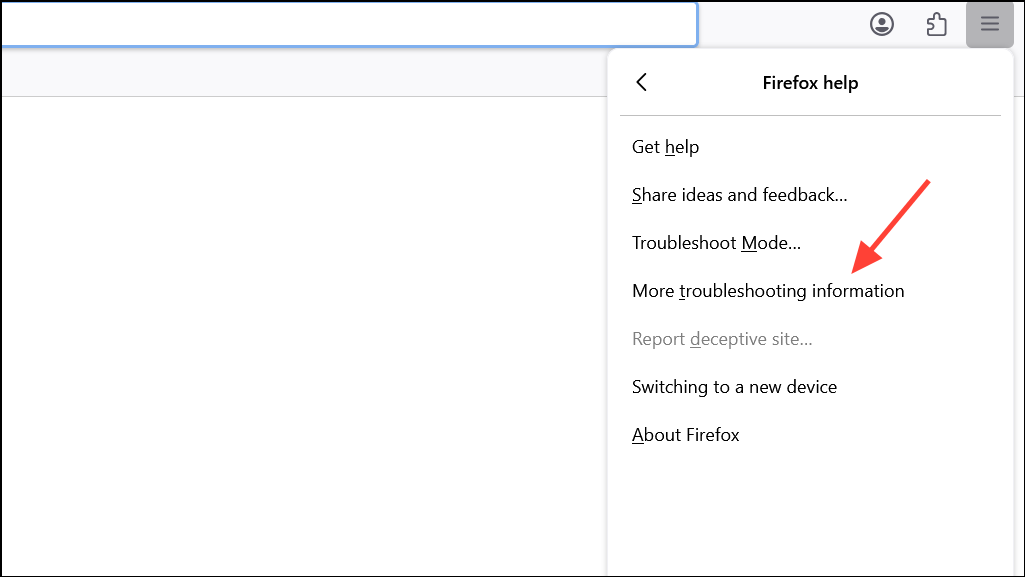
Removing the “Your browser is being managed by your organization” message in Firefox requires tracking down and deleting policies set by registry entries, configuration files, or security software. After following these steps, your Firefox browser should return to its standard, unrestricted state.